change time VOLVO S90 2017 Owner´s Manual
[x] Cancel search | Manufacturer: VOLVO, Model Year: 2017, Model line: S90, Model: VOLVO S90 2017Pages: 548, PDF Size: 11.42 MB
Page 225 of 548
LOCKS AND ALARM
}}
* Option/accessory.223
Locking/unlocking from outside the vehicle The buttons on the remote key can be used to lock or unlock all doors and the trunk at thesame time. This can also be done without press-ing the remote key buttons on models equippedwith the optional keyless Passive Entry system. The power trunk* can also be opened/closed by
moving your foot under a sensor beneath the rear bumper.
Locking and unlockingThe lock/unlock settings can be changed in the center display's Top view. Go to:
SettingsMy CarRemote Unlockand select Unlock All Doors or Driver Door
Only.
In order to lock the vehicle, the driver's door must be closed. If the trunk or any of the other doorsare open, they will be locked and the alarm will bearmed when they are closed.
NOTE
Be sure the remote key is outside of the vehi- cle before the other doors/trunk are closed tohelp avoid locking the remote inside the vehi-cle.
The settings made for the Remote Unlock func-
tion also affect the central locking system when a door is opened from inside the vehicle using a door handle. See also the article "Locking/unlocking from inside the vehicle" for additionalinformation. If the locks repeatedly do not react when the unlock button is pressed, begin by moving closerto the vehicle. However, it may be necessary toreplace the battery in the remote. In this case, thedriver's door can be unlocked with the detacha-ble key blade. See also the article "Detachablekey blade" for additional information.
Keyless Passive Entry
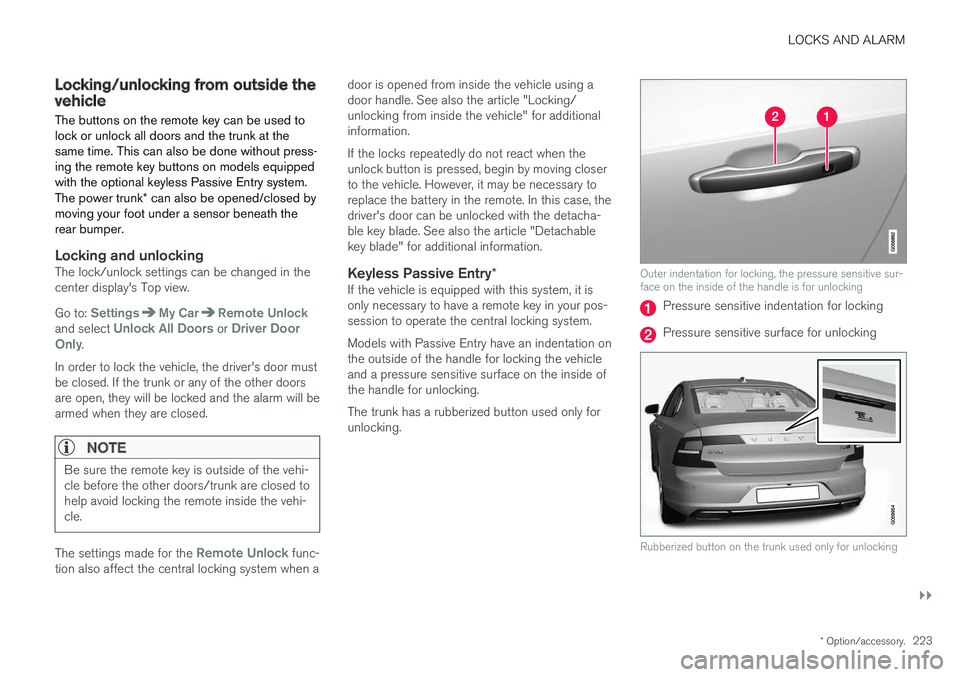
*If the vehicle is equipped with this system, it isonly necessary to have a remote key in your pos-session to operate the central locking system. Models with Passive Entry have an indentation on the outside of the handle for locking the vehicleand a pressure sensitive surface on the inside ofthe handle for unlocking. The trunk has a rubberized button used only for unlocking.
Outer indentation for locking, the pressure sensitive sur- face on the inside of the handle is for unlocking
Pressure sensitive indentation for locking
Pressure sensitive surface for unlocking
Rubberized button on the trunk used only for unlocking
Page 226 of 548
||
LOCKS AND ALARM
* Option/accessory.
224
Locking
All of the doors have to be closed before the vehicle can be locked but the trunk can be open. Lock the doors and trunk by pressing the pres- sure sensitive indentation on the outside of anyof the door handles. The lock indicator light onthe dashboard will begin to flash to show that thevehicle is locked and the alarm has been armed.
NOTE
Only one of a door handle's lock/unlock sur- faces should be pressed at a time. If bothareas are pressed simultaneously, the desiredlocking/unlocking action may not occur ormay be delayed.
To close windows or the moonroof * when locking
the vehicle, hold the pressure sensitive surface on the outside of a door handle until the win-dow(s)/moonroof have closed completely. Thewindows/moonroof will stop if the button isreleased before they are fully closed.
Unlocking
Pull a door handle to unlock and open the door or press the rubberized button under the trunkopening control. The lock indicator light on thedashboard will go out to show that the vehicle isunlocked and the alarm has been disarmed. The lock/unlock settings can be changed in the center display's Top view: Go to:
SettingsMy CarKeyless Unlockand select All Doors or Single Door.
Automatic relockingIf no door or the trunk is opened within two minutes after being unlocked, the vehicle willautomatically relock.
Remote door unlockThe vehicle can be unlocked using the Volvo OnCall app.
Related information
•
Remote key (p. 217)
• Remote key's range (p. 219)
• Detachable key blade (p. 221)
• Alarm (p. 236)
• Locking/unlocking from inside the vehicle(p. 224)
• Foot movement trunk operation
* (p. 232)
• Locking/unlocking the trunk (p. 228)
Locking/unlocking from inside the vehicle The lock buttons on either of the front doors can be used to lock or unlock all doors and the trunkat the same time. The rear doors can be locked using their respective lock buttons
*.
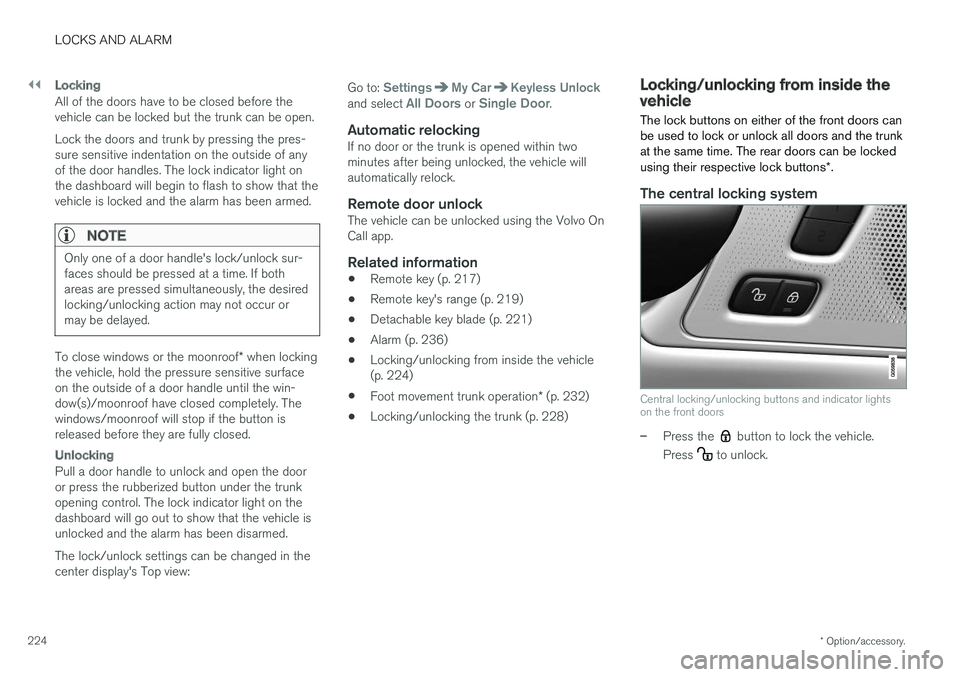
The central locking system
Central locking/unlocking buttons and indicator lights on the front doors
–Press the button to lock the vehicle.
Press
to unlock.
Page 251 of 548
DRIVER SUPPORT
}}
* Option/accessory.249
Changing a Speed Limiter (SL) *
maximum speed
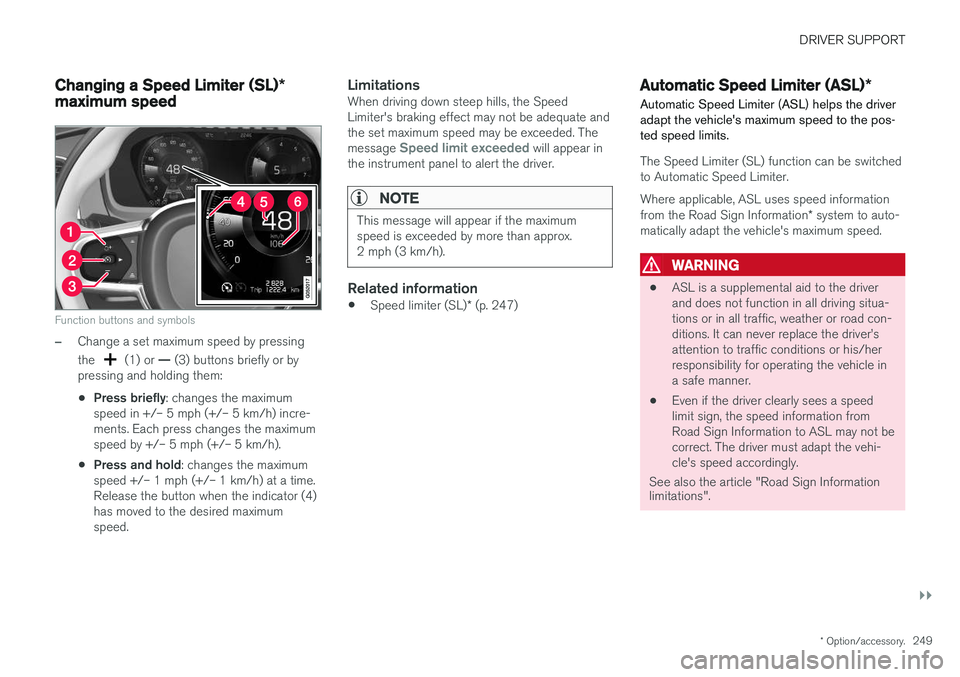
Function buttons and symbols
–Change a set maximum speed by pressing the
(1) or — (3) buttons briefly or by
pressing and holding them: • Press briefly
: changes the maximum
speed in +/– 5 mph (+/– 5 km/h) incre- ments. Each press changes the maximumspeed by +/– 5 mph (+/– 5 km/h).
• Press and hold
: changes the maximum
speed +/– 1 mph (+/– 1 km/h) at a time.Release the button when the indicator (4)has moved to the desired maximumspeed.
LimitationsWhen driving down steep hills, the SpeedLimiter's braking effect may not be adequate andthe set maximum speed may be exceeded. The message
Speed limit exceeded will appear in
the instrument panel to alert the driver.
NOTE
This message will appear if the maximum speed is exceeded by more than approx.2 mph (3 km/h).
Related information
• Speed limiter (SL)
* (p. 247)
Automatic Speed Limiter (ASL) *
Automatic Speed Limiter (ASL) helps the driver adapt the vehicle's maximum speed to the pos-ted speed limits.
The Speed Limiter (SL) function can be switched to Automatic Speed Limiter.
Where applicable, ASL uses speed information from the Road Sign Information * system to auto-
matically adapt the vehicle's maximum speed.
WARNING
• ASL is a supplemental aid to the driver and does not function in all driving situa-tions or in all traffic, weather or road con-ditions. It can never replace the driver
Page 257 of 548
DRIVER SUPPORT
* Option/accessory.255
NOTE
Before CC can be activated, the vehicle's speed must be at least 20 mph (30 km/h).This is also the lowest speed that can be set.
Activating CC (putting it in active mode and setting a speed)
–With the symbol displayed (CC is in
standby mode), press the
button (2) on
the left-side steering wheel keypad.
> This puts CC in active mode and will maintain the vehicle's current speed.
Related information
• Cruise Control (CC) (p. 254)
• Switching between Cruise Control and Adaptive Cruise Control
* (p. 258)
• Deactivating/resuming Cruise Control (CC) (p. 256)
• Turning Cruise Control off (p. 257)
Changing Cruise Control speed
Changing a set speed
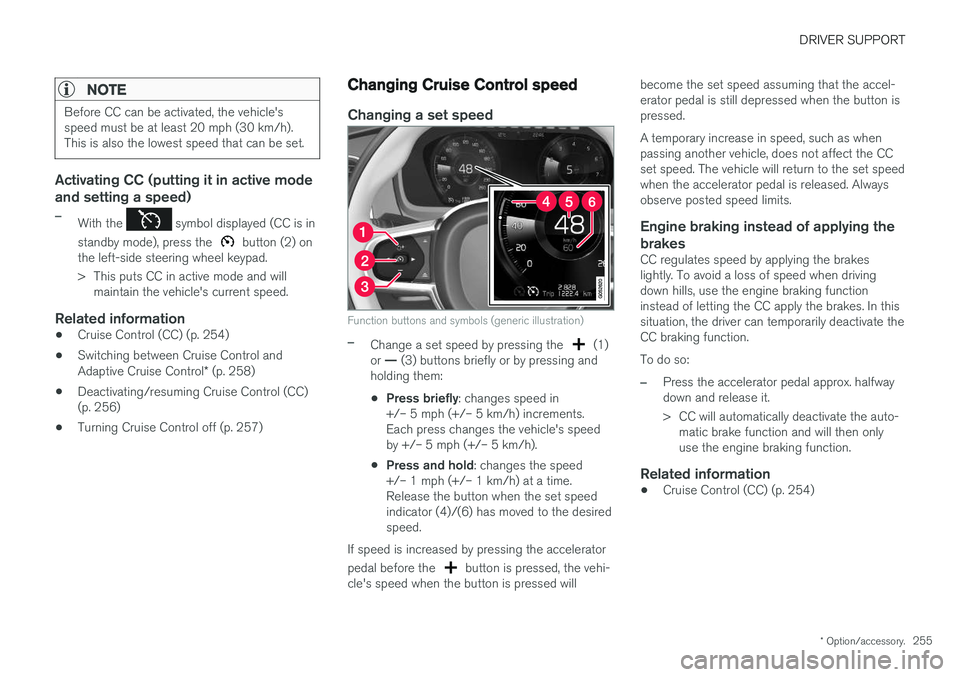
Function buttons and symbols (generic illustration)
–Change a set speed by pressing the (1)
or — (3) buttons briefly or by pressing and
holding them:
• Press briefly
: changes speed in
+/– 5 mph (+/– 5 km/h) increments. Each press changes the vehicle's speedby +/– 5 mph (+/– 5 km/h).
• Press and hold
: changes the speed
+/– 1 mph (+/– 1 km/h) at a time.Release the button when the set speedindicator (4)/(6) has moved to the desiredspeed.
If speed is increased by pressing the accelerator pedal before the
button is pressed, the vehi-
cle's speed when the button is pressed will become the set speed assuming that the accel- erator pedal is still depressed when the button ispressed. A temporary increase in speed, such as when passing another vehicle, does not affect the CCset speed. The vehicle will return to the set speedwhen the accelerator pedal is released. Alwaysobserve posted speed limits.
Engine braking instead of applying the
brakes
CC regulates speed by applying the brakeslightly. To avoid a loss of speed when drivingdown hills, use the engine braking functioninstead of letting the CC apply the brakes. In thissituation, the driver can temporarily deactivate theCC braking function. To do so:
–Press the accelerator pedal approx. halfway down and release it.
> CC will automatically deactivate the auto- matic brake function and will then only use the engine braking function.
Related information
• Cruise Control (CC) (p. 254)
Page 260 of 548
DRIVER SUPPORT
* Option/accessory.
258
Switching between Cruise Control and Adaptive Cruise Control *
In models equipped with the optional ACC, the driver can toggle between CC and ACC.
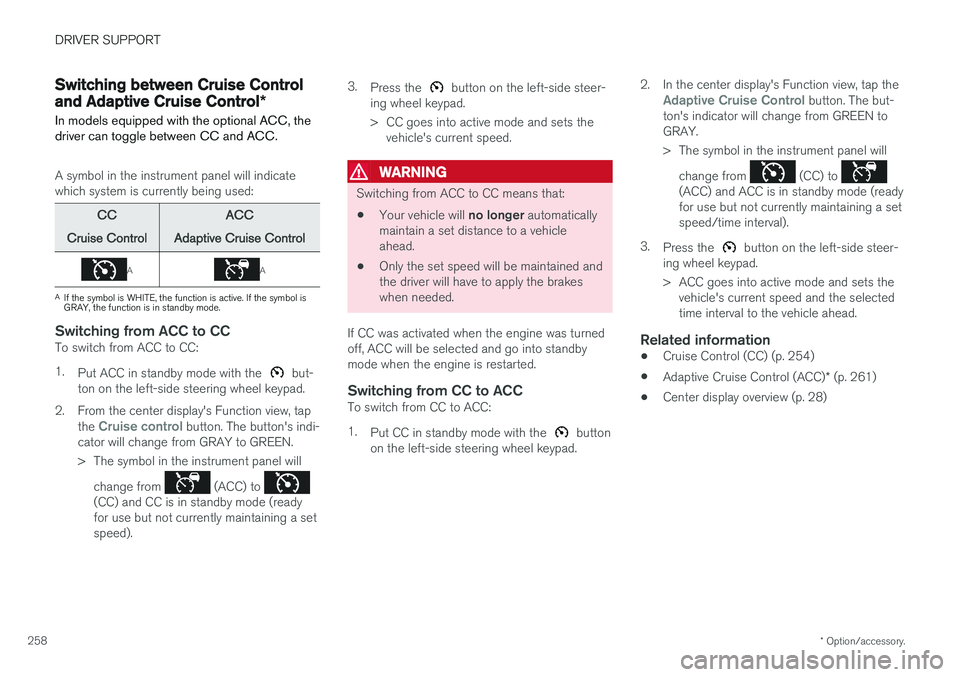
A symbol in the instrument panel will indicate which system is currently being used:
CC
Cruise Control ACC
Adaptive Cruise Control
AA
A If the symbol is WHITE, the function is active. If the symbol is GRAY, the function is in standby mode.
Switching from ACC to CCTo switch from ACC to CC: 1. Put ACC in standby mode with the
but-
ton on the left-side steering wheel keypad.
2. From the center display's Function view, tap the
Cruise control button. The button's indi-
cator will change from GRAY to GREEN.
> The symbol in the instrument panel will
change from
(ACC) to (CC) and CC is in standby mode (ready for use but not currently maintaining a setspeed). 3.
Press the
button on the left-side steer-
ing wheel keypad.
> CC goes into active mode and sets the vehicle's current speed.
WARNING
Switching from ACC to CC means that:
• Your vehicle will
no longer automatically
maintain a set distance to a vehicle ahead.
• Only the set speed will be maintained andthe driver will have to apply the brakeswhen needed.
If CC was activated when the engine was turnedoff, ACC will be selected and go into standbymode when the engine is restarted.
Switching from CC to ACCTo switch from CC to ACC: 1. Put CC in standby mode with the
button
on the left-side steering wheel keypad. 2. In the center display's Function view, tap the
Adaptive Cruise Control button. The but-
ton's indicator will change from GREEN to GRAY.
> The symbol in the instrument panel will
change from
(CC) to (ACC) and ACC is in standby mode (ready for use but not currently maintaining a setspeed/time interval).
3. Press the
button on the left-side steer-
ing wheel keypad.
> ACC goes into active mode and sets the vehicle's current speed and the selected time interval to the vehicle ahead.
Related information
• Cruise Control (CC) (p. 254)
• Adaptive Cruise Control (ACC)
* (p. 261)
• Center display overview (p. 28)
Page 267 of 548
DRIVER SUPPORT
}}
* Option/accessory.265
The
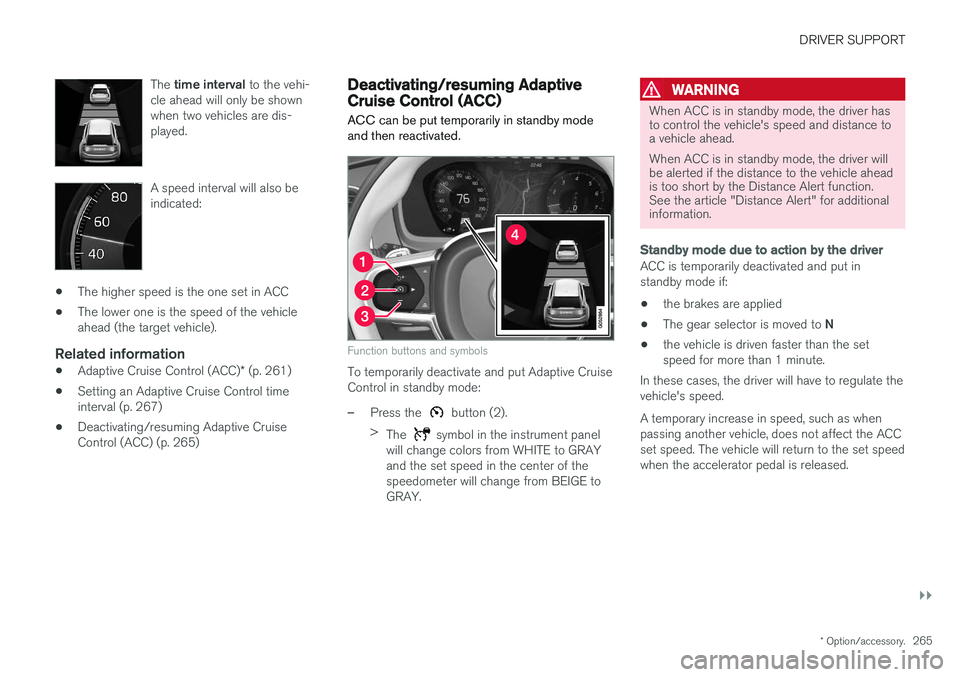
time interval to the vehi-
cle ahead will only be shown when two vehicles are dis-played.
A speed interval will also be indicated:
• The higher speed is the one set in ACC
• The lower one is the speed of the vehicle ahead (the target vehicle).
Related information
•
Adaptive Cruise Control (ACC)
* (p. 261)
• Setting an Adaptive Cruise Control timeinterval (p. 267)
• Deactivating/resuming Adaptive CruiseControl (ACC) (p. 265)
Deactivating/resuming Adaptive Cruise Control (ACC)
ACC can be put temporarily in standby mode and then reactivated.
Function buttons and symbols
To temporarily deactivate and put Adaptive Cruise Control in standby mode:
–Press the button (2).
> The
symbol in the instrument panel
will change colors from WHITE to GRAY and the set speed in the center of thespeedometer will change from BEIGE toGRAY.
WARNING
When ACC is in standby mode, the driver has to control the vehicle's speed and distance toa vehicle ahead. When ACC is in standby mode, the driver will be alerted if the distance to the vehicle aheadis too short by the Distance Alert function.See the article "Distance Alert" for additionalinformation.
Standby mode due to action by the driver
ACC is temporarily deactivated and put in standby mode if:
• the brakes are applied
• The gear selector is moved to
N
• the vehicle is driven faster than the setspeed for more than 1 minute.
In these cases, the driver will have to regulate thevehicle's speed. A temporary increase in speed, such as when passing another vehicle, does not affect the ACCset speed. The vehicle will return to the set speedwhen the accelerator pedal is released.
Page 268 of 548

||
DRIVER SUPPORT
* Option/accessory.
266
Automatic standby mode
ACC interacts with other systems, such as Electronic Stability Control. If any of these othersystems are not functioning properly, ACC willturn off automatically.
WARNING
If this happens, the driver will be alerted by an audible signal and a message in the instru-ment panel. The driver will have to adapt thevehicle's speed, apply the brakes when nec-essary and keep a safe distance to the vehicleahead.
ACC switches automatically to standby mode if: • the vehicle's speed goes below approx. 3 mph (5 km/h) and ACC cannot determineif the vehicle ahead is stationary or is anobject such as a speed bump, etc
• the vehicle's speed goes below approx.3 mph (5 km/h) and the vehicle aheadchanges lanes or turns so that ACC nolonger has a target vehicle to follow
• the driver opens the door
• the driver unbuckles the seat belt
• the engine speed (rpm) is too high/low
• the wheels lose traction
• the brake temperature is too high
• the parking brake is applied •
the stability system's
ESC Sport Mode is
activated
• the
Off Road drive mode is selected
• The radar sensor is covered by e.g., wet snow or if heavy rain interferes with radar waves
Reactivating ACC from standby mode
Generic illustration
To reactivate ACC after it has temporarily been put in standby mode:
–Press the button (1).
> The vehicle will then return to the most
recently set speed .
WARNING
There may be a significant increase in speed after the
button has been pressed.
Related information
•Adaptive Cruise Control (ACC)
* (p. 261)
• Starting and activating Adaptive Cruise Control (ACC)
* (p. 264)
• Setting an Adaptive Cruise Control time interval (p. 267)
• Passing Assistance with Adaptive CruiseControl or Pilot Assist (p. 268)
• Adaptive Cruise Control (ACC) symbols andmessages (p. 273)
• Distance Alert
* (p. 259)
Page 269 of 548
DRIVER SUPPORT
}}
* Option/accessory.267
Changing Adaptive Cruise Control (ACC) speed
ACC makes it possible to set various speeds.
Changing a set speed
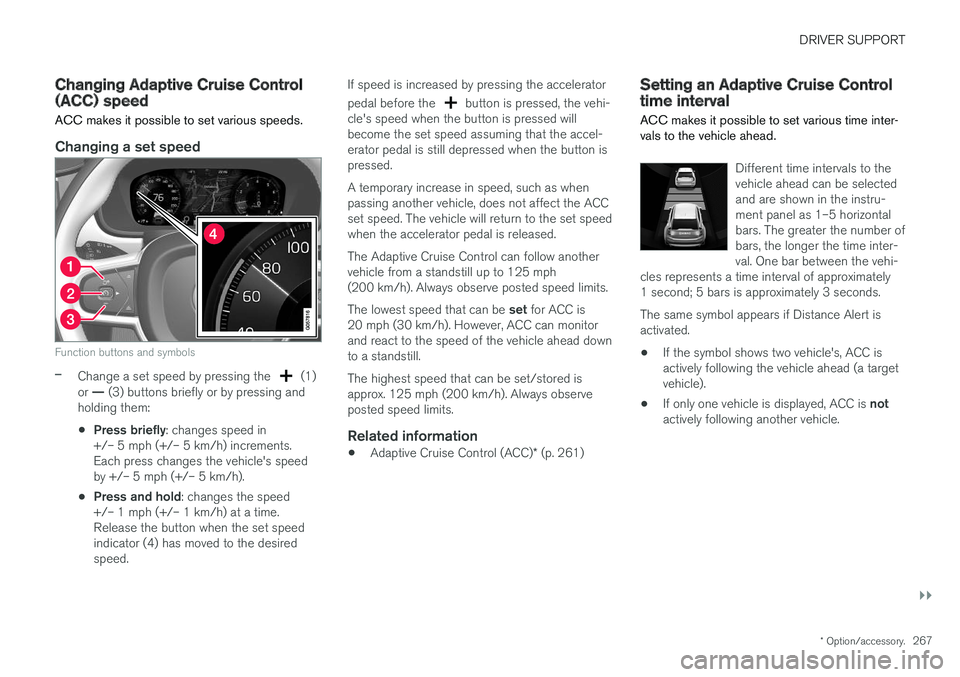
Function buttons and symbols
–Change a set speed by pressing the (1)
or — (3) buttons briefly or by pressing and
holding them:
• Press briefly
: changes speed in
+/– 5 mph (+/– 5 km/h) increments. Each press changes the vehicle's speedby +/– 5 mph (+/– 5 km/h).
• Press and hold
: changes the speed
+/– 1 mph (+/– 1 km/h) at a time.Release the button when the set speedindicator (4) has moved to the desiredspeed. If speed is increased by pressing the accelerator pedal before the
button is pressed, the vehi-
cle's speed when the button is pressed will become the set speed assuming that the accel-erator pedal is still depressed when the button ispressed. A temporary increase in speed, such as when passing another vehicle, does not affect the ACCset speed. The vehicle will return to the set speedwhen the accelerator pedal is released. The Adaptive Cruise Control can follow another vehicle from a standstill up to 125 mph(200 km/h). Always observe posted speed limits. The lowest speed that can be set for ACC is
20 mph (30 km/h). However, ACC can monitor and react to the speed of the vehicle ahead downto a standstill. The highest speed that can be set/stored is approx. 125 mph (200 km/h). Always observeposted speed limits.
Related information
• Adaptive Cruise Control (ACC)
* (p. 261)
Setting an Adaptive Cruise Control time interval
ACC makes it possible to set various time inter- vals to the vehicle ahead.
Different time intervals to the vehicle ahead can be selectedand are shown in the instru-ment panel as 1–5 horizontalbars. The greater the number ofbars, the longer the time inter-val. One bar between the vehi-
cles represents a time interval of approximately1 second; 5 bars is approximately 3 seconds. The same symbol appears if Distance Alert is activated.
• If the symbol shows two vehicle's, ACC is actively following the vehicle ahead (a targetvehicle).
• If only one vehicle is displayed, ACC is
not
actively following another vehicle.
Page 270 of 548
||
DRIVER SUPPORT
* Option/accessory.
268
Changing a time interval
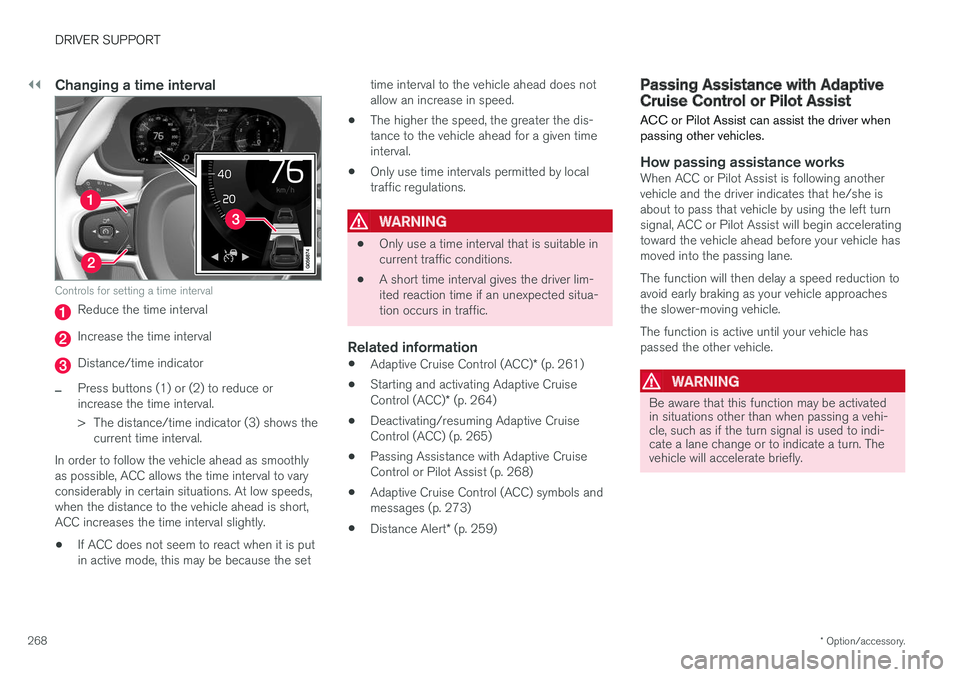
Controls for setting a time interval
Reduce the time interval
Increase the time interval
Distance/time indicator
–Press buttons (1) or (2) to reduce or increase the time interval.
> The distance/time indicator (3) shows the
current time interval.
In order to follow the vehicle ahead as smoothly as possible, ACC allows the time interval to varyconsiderably in certain situations. At low speeds,when the distance to the vehicle ahead is short,ACC increases the time interval slightly. • If ACC does not seem to react when it is put in active mode, this may be because the set time interval to the vehicle ahead does notallow an increase in speed.
• The higher the speed, the greater the dis-tance to the vehicle ahead for a given timeinterval.
• Only use time intervals permitted by localtraffic regulations.
WARNING
•
Only use a time interval that is suitable in current traffic conditions.
• A short time interval gives the driver lim-ited reaction time if an unexpected situa-tion occurs in traffic.
Related information
•
Adaptive Cruise Control (ACC)
* (p. 261)
• Starting and activating Adaptive Cruise Control (ACC)
* (p. 264)
• Deactivating/resuming Adaptive Cruise Control (ACC) (p. 265)
• Passing Assistance with Adaptive CruiseControl or Pilot Assist (p. 268)
• Adaptive Cruise Control (ACC) symbols andmessages (p. 273)
• Distance Alert
* (p. 259)
Passing Assistance with Adaptive Cruise Control or Pilot Assist
ACC or Pilot Assist can assist the driver when passing other vehicles.
How passing assistance worksWhen ACC or Pilot Assist is following another vehicle and the driver indicates that he/she isabout to pass that vehicle by using the left turnsignal, ACC or Pilot Assist will begin acceleratingtoward the vehicle ahead before your vehicle hasmoved into the passing lane. The function will then delay a speed reduction to avoid early braking as your vehicle approachesthe slower-moving vehicle. The function is active until your vehicle has passed the other vehicle.
WARNING
Be aware that this function may be activated in situations other than when passing a vehi-cle, such as if the turn signal is used to indi-cate a lane change or to indicate a turn. Thevehicle will accelerate briefly.
Page 277 of 548
DRIVER SUPPORT
}}
* Option/accessory.275
Pilot Assist*
The Pilot Assist feature helps keep the vehicle in its current traffic lane by providing steeringassistance and maintaining an even speed and aset time interval to the vehicle ahead.
FunctionPilot Assist helps provide more relaxed driving on long trips on highways or other major roads in aneven flow of traffic.
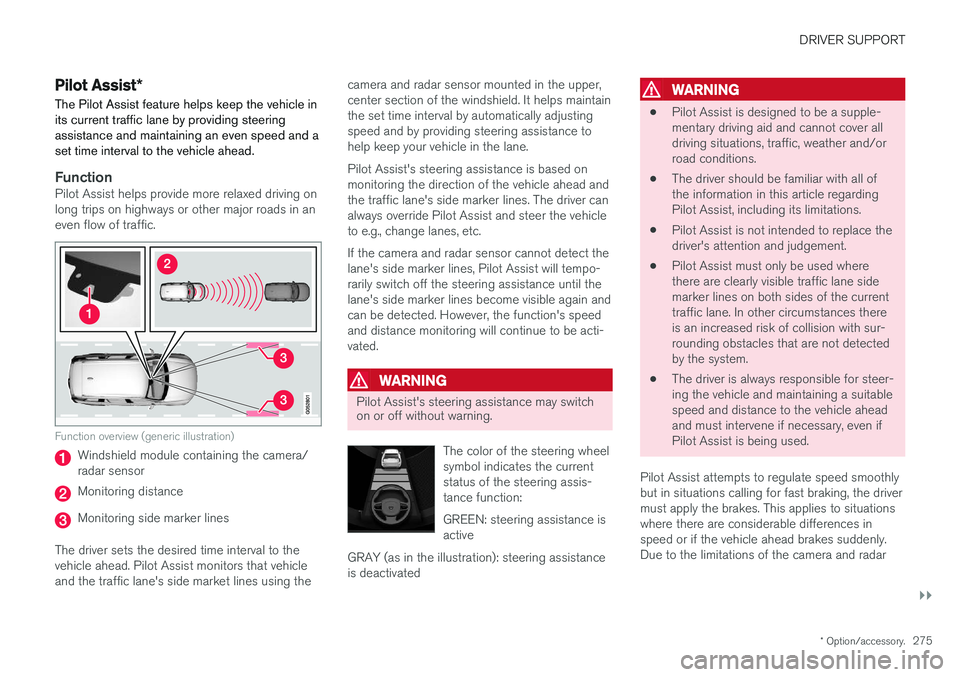
Function overview (generic illustration)
Windshield module containing the camera/ radar sensor
Monitoring distance
Monitoring side marker lines
The driver sets the desired time interval to the vehicle ahead. Pilot Assist monitors that vehicleand the traffic lane's side market lines using the camera and radar sensor mounted in the upper,center section of the windshield. It helps maintainthe set time interval by automatically adjustingspeed and by providing steering assistance tohelp keep your vehicle in the lane. Pilot Assist's steering assistance is based on monitoring the direction of the vehicle ahead andthe traffic lane's side marker lines. The driver canalways override Pilot Assist and steer the vehicleto e.g., change lanes, etc. If the camera and radar sensor cannot detect the lane's side marker lines, Pilot Assist will tempo-rarily switch off the steering assistance until thelane's side marker lines become visible again andcan be detected. However, the function's speedand distance monitoring will continue to be acti-vated.
WARNING
Pilot Assist's steering assistance may switch on or off without warning.
The color of the steering wheel symbol indicates the currentstatus of the steering assis-tance function: GREEN: steering assistance is active
GRAY (as in the illustration): steering assistanceis deactivated
WARNING
• Pilot Assist is designed to be a supple- mentary driving aid and cannot cover alldriving situations, traffic, weather and/orroad conditions.
• The driver should be familiar with all ofthe information in this article regardingPilot Assist, including its limitations.
• Pilot Assist is not intended to replace thedriver's attention and judgement.
• Pilot Assist must only be used wherethere are clearly visible traffic lane sidemarker lines on both sides of the currenttraffic lane. In other circumstances thereis an increased risk of collision with sur-rounding obstacles that are not detectedby the system.
• The driver is always responsible for steer-ing the vehicle and maintaining a suitablespeed and distance to the vehicle aheadand must intervene if necessary, even ifPilot Assist is being used.
Pilot Assist attempts to regulate speed smoothlybut in situations calling for fast braking, the drivermust apply the brakes. This applies to situationswhere there are considerable differences inspeed or if the vehicle ahead brakes suddenly.Due to the limitations of the camera and radar