change time VOLVO S90 2017 Owner´s Manual
[x] Cancel search | Manufacturer: VOLVO, Model Year: 2017, Model line: S90, Model: VOLVO S90 2017Pages: 548, PDF Size: 11.42 MB
Page 103 of 548
INSTRUMENTS AND CONTROLS
* Option/accessory.101
indicator light will glow steadily or flash when the button has been pressed. Activation will nowoccur for the trained device (i.e., garage dooropener, gate operator, security system, entry doorlock, home/office lighting, etc.).
NOTE
If the ignition is switched off, HomeLink will function for 30 minutes after the driver's doorhas been opened.
For convenience, the hand-held transmitter of the device may also be used at any time. In the event that there are still programming diffi- culties or questions, contact HomeLink at:www.HomeLink.com, www.youtube.com/HomeLinkGentex or by phoning the hotline at 1–800–355–3515.
Resetting HomeLink
®
buttonsUse the following procedure to reset (erase pro- gramming) from the three HomeLink ®
buttons
(individual buttons cannot be reset but can be “reprogrammed” as outlined in the following sec-tion): 1. Press and hold HomeLink ®
buttons 1 and 3
for approx. 10 seconds until the indicator light begins to flash green. 2. Release both buttons.
>HomeLink ®
is now in the training (or
learning) mode and can be programmedat any time beginning with “To program HomeLink ®
" above.
Reprogramming a single HomeLink ®
button
To reprogram an individual HomeLink ®
button:
1. Press and hold the desired HomeLink ®
but-
ton. DO NOT release the button.
2. The yellow indicator light will begin to flash after 20 seconds. Without releasing the HomeLink button, proceed with “To program HomeLink ®
" step 1 above.
For questions or comments, contact HomeLink at: www.HomeLink.com, www.youtube.com/HomeLinkGentex or by phoning the hotline at 1–800–355–3515.
FCC (USA) and IC (Canada)This device complies with FCC rules part 15 andIndustry Canada RSS-210. Operation is subjectto the following two conditions: (1) This devicemay not cause harmful interference, and (2) Thisdevice must accept any interference that may bereceived including interference that may causeundesired operation. WARNING: The transmitterhas been tested and complies with FCC and IC rules. Changes or modifications not expresslyapproved by the party are prohibited.
NOTE
The transmitter has been tested and complies with FCC and IC rules. Changes or modifica-tions not expressly approved by the partyresponsible for compliance could void the user
Page 105 of 548
INSTRUMENTS AND CONTROLS
}}
* Option/accessory.103
1.
Tap
Settings in Top view.
2. Tap
My CarMirrors.
3. Select
Fold Mirrors When Locking to acti-
vate/deactivate.
Resetting the mirrors' positionA mirror that has been moved manually (e.g., bumped into in a parking lot, etc.) has to bereturned to its normal position electrically beforeautomatic folding will function correctly. 1. Fold in the mirrors with the L and R buttons.
2. Fold out the mirrors with the L and R buttons.
The mirrors have now been reset to their original positions.
Auto-dim *Settings can be made for the auto-dim functionin the rearview and door mirrors. The auto-dim function is always active while the vehicle is being driven except when the reversegear has been selected. The level of sensitivityfor this function can be set to three levels, whichaffect the rearview mirror and door mirrors.
NOTE
When the level of sensitivity is changed, this change will not be noticeable immediately butwill take effect after a short period of time.
The level of sensitivity is set from the center dis- play: 1.
Tap
Settings in Top view.
2. Tap
My CarMirrors.
3. Under
Auto Dim Mirrors, select Normal,Dark or Light.
Related information
• Using the power seat memory function
*
(p. 164)
• Rearview mirror (p. 107)
Moonroof
*
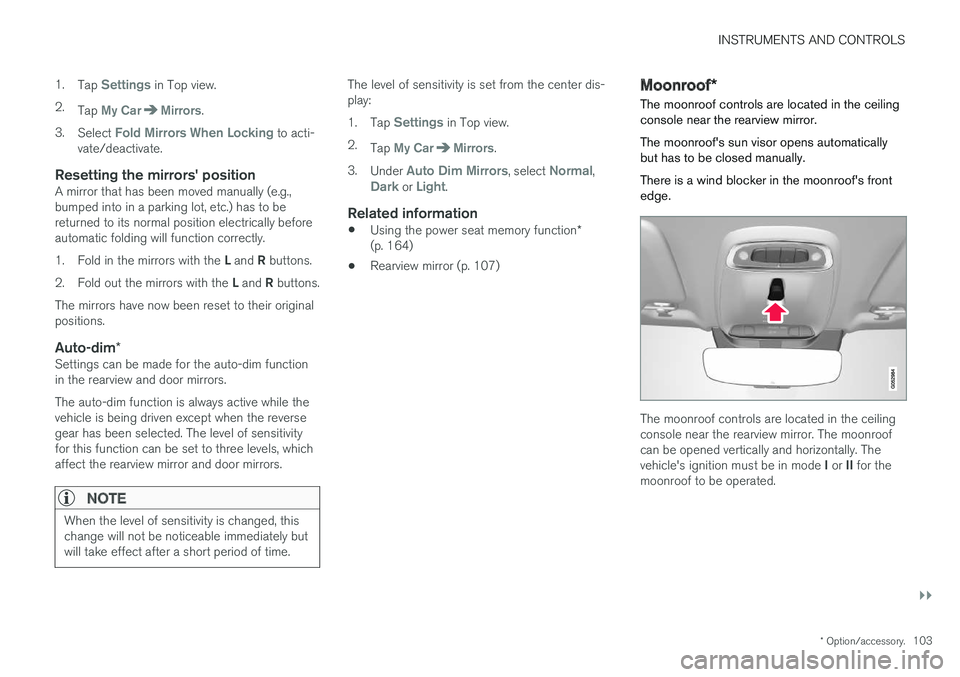
The moonroof controls are located in the ceiling console near the rearview mirror. The moonroof's sun visor opens automatically but has to be closed manually. There is a wind blocker in the moonroof's front edge.
The moonroof controls are located in the ceiling console near the rearview mirror. The moonroofcan be opened vertically and horizontally. The vehicle's ignition must be in mode I or II for the
moonroof to be operated.
Page 110 of 548
||
INSTRUMENTS AND CONTROLS
* Option/accessory.
108
NOTE
When the level of sensitivity is changed, this change will not be noticeable immediately butwill take effect after a short period of time.
The level of sensitivity is set from the center dis- play: 1.
Tap
Settings in Top view.
2. Tap
My CarMirrors.
3. Under
Auto Dim Mirrors, select Normal,Dark or Light.
Related information
• Adjusting the power door mirrors (p. 102)
Using sun curtains
*
Both rear doors have integrated sun curtains. There is also a sun curtain integrated into the rear parcel shelf.
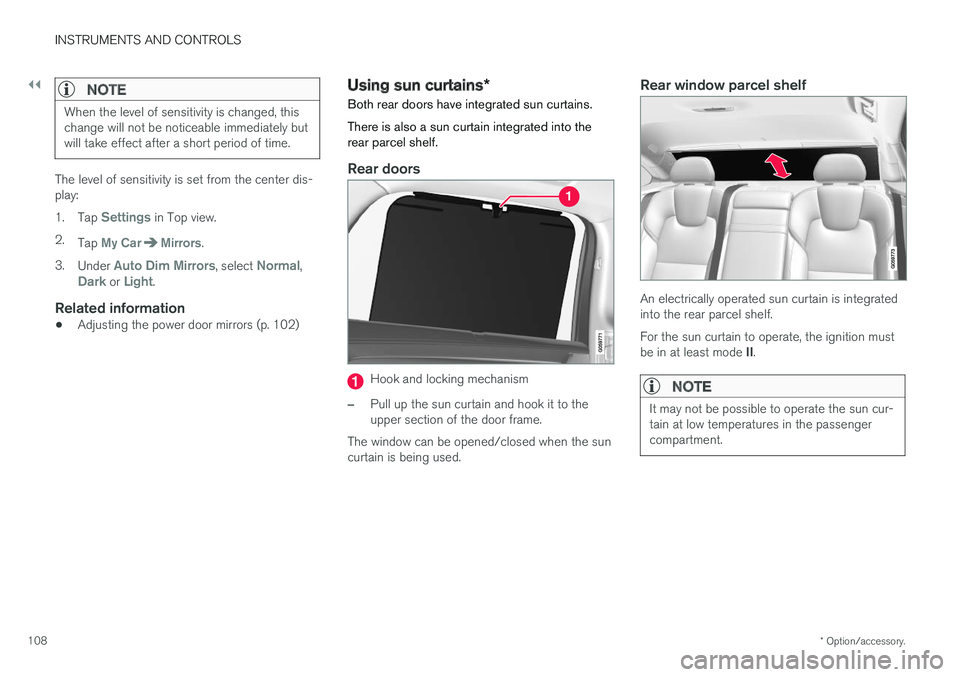
Rear doors
Hook and locking mechanism
–Pull up the sun curtain and hook it to the upper section of the door frame.
The window can be opened/closed when the suncurtain is being used.
Rear window parcel shelf
An electrically operated sun curtain is integrated into the rear parcel shelf. For the sun curtain to operate, the ignition must be in at least mode II.
NOTE
It may not be possible to operate the sun cur- tain at low temperatures in the passengercompartment.
Page 114 of 548
INSTRUMENTS AND CONTROLS
* Option/accessory.
112
Changing system settings in Settings view
Settings view's main category
System contains
general settings and information, such as lan- guage, units of measure, etc.
The system settings under Driver Profile, Date
& Time, Keyboard Layouts, Voice Control,Software Updates, Factory reset andServices are described in their respective arti-
cles in the owner's manual.
Changing system languages1. Pull down the center display's Top view and
tap Settings.
2. Tap
SystemLanguage.
3. Select a new system language. Languages that can be used for voice commands are indicated by a voice control symbol.
> This change affects the language used inthe instrument panel, center display and the head-up display *.
Changing units of measure
Changing length and volume units
1. Pull down the center display's Top view and
tap Settings.
2. Tap
SystemUnitsUnits. 3. Select one of the following measurement
standards:
•
Metric: kilometers, liters and degrees Cel-
sius.
•
Imperial: miles, gallons and degrees Cel-
sius.
•
US: miles, gallons and degrees Fahren-
heit.
> This change affects the units of measure used in the instrument panel, center dis- play and the head-up display *
Changing tire inflation pressure units
1. Pull down the center display's Top view and
tap Settings.
2. Tap
SystemUnitsTire Pressure.
3. Select a unit of measure for tire pressure. > This changes the tire inflation pressureunits used in the
Car status app in the
center display.
Viewing storage information1. Pull down the center display's Top view and
tap Settings.
2. Tap
SystemStorage.
> Storage information for the vehicle's hard drive will be displayed, including total capacity, available capacity and theamount of storage space used by theapps that have been installed.
Viewing the VIN (Vehicle Identification Number)
1. Pull down the center display's Top view and
tap Settings.
2. Tap
SystemVehicle Identification
Number.
> The vehicle's VIN will be displayed.
Page 115 of 548
INSTRUMENTS AND CONTROLS
}}
113
Changing settings in apps
App view, which is one of the center display's basic views, contains all of the apps installed inthe vehicle. From Home view, navigate to Appview by swiping the screen from right to left.
Apps for integrated (basic) functionsCertain apps in your vehicle are factory-installed, such as FM, USB and CD and are part of Sen-
sus. Settings in these apps can be changed in the center display's Top view.
Changing settings for a basic app
1. Tap one of the basic apps, for example FM
radio.
2. Pull down Top view. 3. Tap
FM Radio Settings.
4. Change the desired settings and confirm.
5. Press the Home button below the center dis- play or tap the screen outside of Top view or pull up Top view to return to your originalview. See also the article "Categories in Set-tings view."
Third party appsThird party apps have to be downloaded e.g.,Volvo ID. Settings for these apps are made in
the apps themselves, not in Top view.
Related information
• Settings view (p. 109)
• Navigating in the center display's views (p. 38)
• Categories in Settings view (p. 110)
Resetting the settings view
All of the changes made under Settings view can be reset to their default values at the sametime.
Types of resetThere are three ways to reset the settings in Set- tings view under Global Reset:
•
Factory Reset: erases all data and media
and resets to the settings used when the vehicle left the factory.
•
Reset Vehicle Settings: resets all global
settings to standard ones.
•
Reset Personal Settings: erases all per-
sonal data and resets to standard settings.
Resetting
NOTE
Global Reset is only possible when the vehi-
cle is stationary.
1. Tap Settings in the center display's Top
view.
2. Tap
SystemGlobal Reset.
> A pop-up menu will appear.
Page 117 of 548

INSTRUMENTS AND CONTROLS
115
SettingsChanging measurement standard in the center display:
1. Pull down the center display's Top view andtap
Settings.
2. Tap
SystemUnits.
3. Select measurement standard,
Metric,Imperial or US.
Related information
• Instrument panel (p. 124)
• Climate system sensors (p. 179)
Clock The clock is displayed in the instrument panel and in the center display.
Location of the clock in the instrument panel in 12" (upper) and 8" (lower) instrument panels
Certain messages and other information in the instrument panel may temporarily obscure theclock. In the center display, the clock is located at the upper right of the status bar.
Settings for date and time
Select SettingsSystemDate & Time in
the center display's Top view to change the for- mat for displaying date or time. Set the date and time by tapping the up or down arrows on the center display.
Automatic time
The function Automatic Time is also available,
which adjusts the time zone automatically, depending on the vehicle's location. If
Automatic
Time has not been selected, set the date and
time manually by tapping the up or down arrows on the center display.
Daylight savings time
In certain countries, an automatic change to day- light savings time can be selected by activating
Auto. If the automatic change is not available,
change to daylight savings time by selecting Onor Off.
Related information
• Instrument panel (p. 124)
• Center display overview (p. 28)
• Using the center display (p. 44)
Page 151 of 548
INSTRUMENTS AND CONTROLS
* Option/accessory.149
Brightness
1. In the center display's Top view, select
SettingsMy CarLightsInterior
Mood Lighting.
2. Press
Interior Mood Light Intensity and
choose Off, Low or High.
Change the color of the light
1. In the center display's Top view, select
SettingsMy CarLightsInterior
Mood Lighting.
2. Choose
By Temperature, By Theme orTheme Colors.
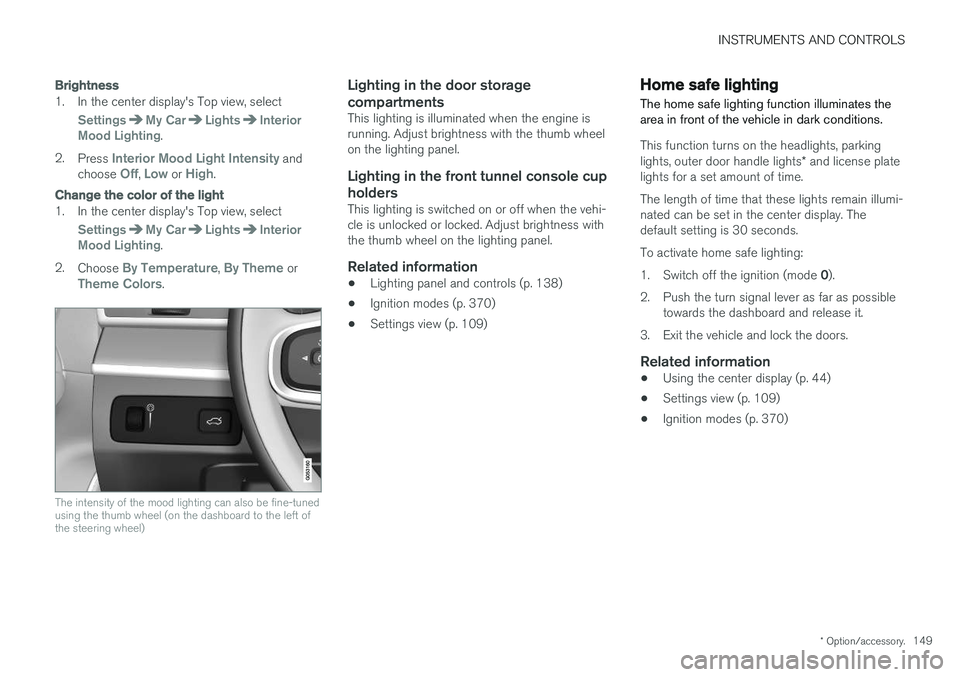
The intensity of the mood lighting can also be fine-tuned using the thumb wheel (on the dashboard to the left ofthe steering wheel)
Lighting in the door storage compartments
This lighting is illuminated when the engine is running. Adjust brightness with the thumb wheelon the lighting panel.
Lighting in the front tunnel console cup
holders
This lighting is switched on or off when the vehi-cle is unlocked or locked. Adjust brightness withthe thumb wheel on the lighting panel.
Related information
• Lighting panel and controls (p. 138)
• Ignition modes (p. 370)
• Settings view (p. 109)
Home safe lighting
The home safe lighting function illuminates the area in front of the vehicle in dark conditions.
This function turns on the headlights, parking lights, outer door handle lights * and license plate
lights for a set amount of time. The length of time that these lights remain illumi- nated can be set in the center display. Thedefault setting is 30 seconds. To activate home safe lighting:1. Switch off the ignition (mode 0).
2. Push the turn signal lever as far as possible towards the dashboard and release it.
3. Exit the vehicle and lock the doors.
Related information
• Using the center display (p. 44)
• Settings view (p. 109)
• Ignition modes (p. 370)
Page 165 of 548
INSTRUMENTS AND CONTROLS
}}
* Option/accessory.163
Adjusting power front seats *
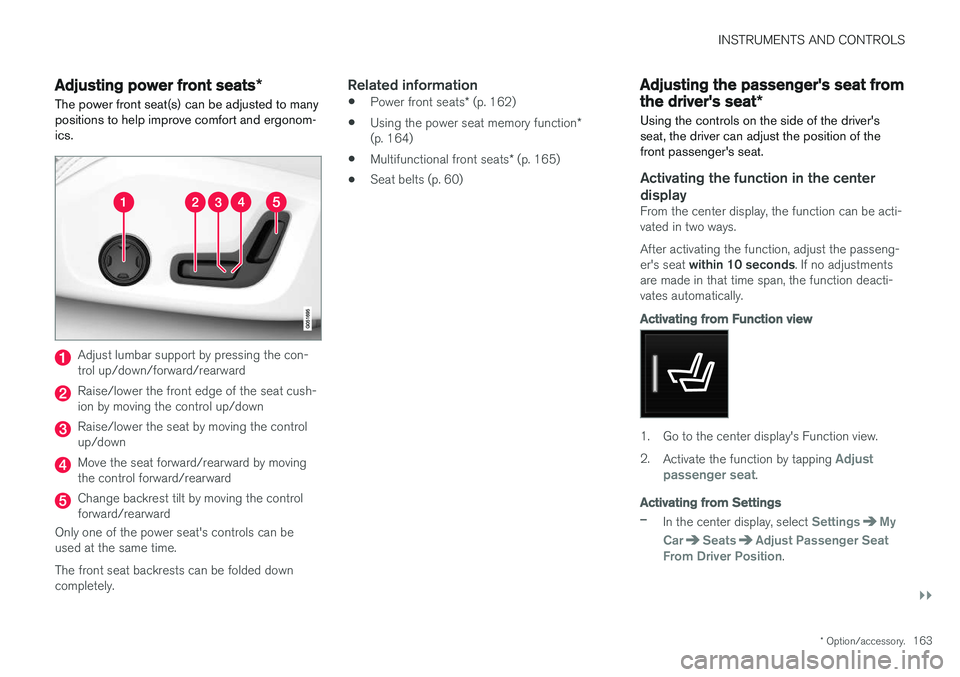
The power front seat(s) can be adjusted to many positions to help improve comfort and ergonom-ics.
Adjust lumbar support by pressing the con- trol up/down/forward/rearward
Raise/lower the front edge of the seat cush- ion by moving the control up/down
Raise/lower the seat by moving the control up/down
Move the seat forward/rearward by moving the control forward/rearward
Change backrest tilt by moving the control forward/rearward
Only one of the power seat's controls can beused at the same time. The front seat backrests can be folded down completely.
Related information
• Power front seats
* (p. 162)
• Using the power seat memory function
*
(p. 164)
• Multifunctional front seats
* (p. 165)
• Seat belts (p. 60)
Adjusting the passenger's seat from the driver's seat
*
Using the controls on the side of the driver's seat, the driver can adjust the position of thefront passenger's seat.
Activating the function in the center
display
From the center display, the function can be acti- vated in two ways. After activating the function, adjust the passeng- er's seat within 10 seconds . If no adjustments
are made in that time span, the function deacti- vates automatically.
Activating from Function view
1. Go to the center display's Function view. 2. Activate the function by tapping
Adjust
passenger seat.
Activating from Settings
–In the center display, select SettingsMy
Car
SeatsAdjust Passenger Seat
From Driver Position.
Page 174 of 548
INSTRUMENTS AND CONTROLS
172
Driver profiles
Many of the vehicle's settings can be adapted to the driver's personal preferences and saved inone or more driver profiles.
The personal settings made are automatically saved in the active driver profile. Each remote keyis linked to a driver profile and when this key isused, the vehicle's settings are adapted accord-ing to the specific ones saved in that profile.
Which settings are saved in driver
profiles?
The settings that can be changed in the vehicle are either personal or global .
Changes made to personal settings are saved automatically in the active (current) driver profile,assuming that this profile is not locked. See thearticle "Editing a driver profile" for additionalinformation. Changes to global settings are not saved in a specific driver profile but instead affect all driverprofiles.
Global settings
Global settings and parameters remain the same regardless of which driver profile is currentlyactive. Keyboard layout is an example of a global setting. If driver profile X is used to add additional key-board languages, these languages will also beavailable even if driver profile Y is used. This type of global change is not specific to a single driverprofile.
Personal settings
If driver profile X has been used to e.g., set the brightness for the center display, driver profile Ywill not be affected by this setting since it is spe-cific (personal) to driver profile X. See also the article "Categories in Settings view" for an overview of global and personal settings.
Related information
•
Editing a driver profile (p. 173)
• Categories in Settings view (p. 110)
Selecting a driver profile The most recently selected driver profile will be used automatically the next time the vehicle isstarted. However, a different driver profile can beselected after the vehicle has started.
When the vehicle is started, the most recently selected driver profile will be shown at the top ofthe center display. There are two alternatives forchanging to another driver profile. Alternative1:
1. Tap the name of the drive profile shown at
the top of the center display when the vehi- cle has been started.
> A list of driver profiles that can beselected will be displayed.
2. Select the desired profile. 3. Tap
Confirm.
> The new driver profile has now been selected and the system will load the set- tings stored in that profile.
Alternative 2:
1. Pull down the center display's Top view.2. Tap
Profile.
> A list of driver profiles that can be selected will be displayed.
3. Select the desired profile.
Page 182 of 548
||
CLIMATE
* Option/accessory.
180
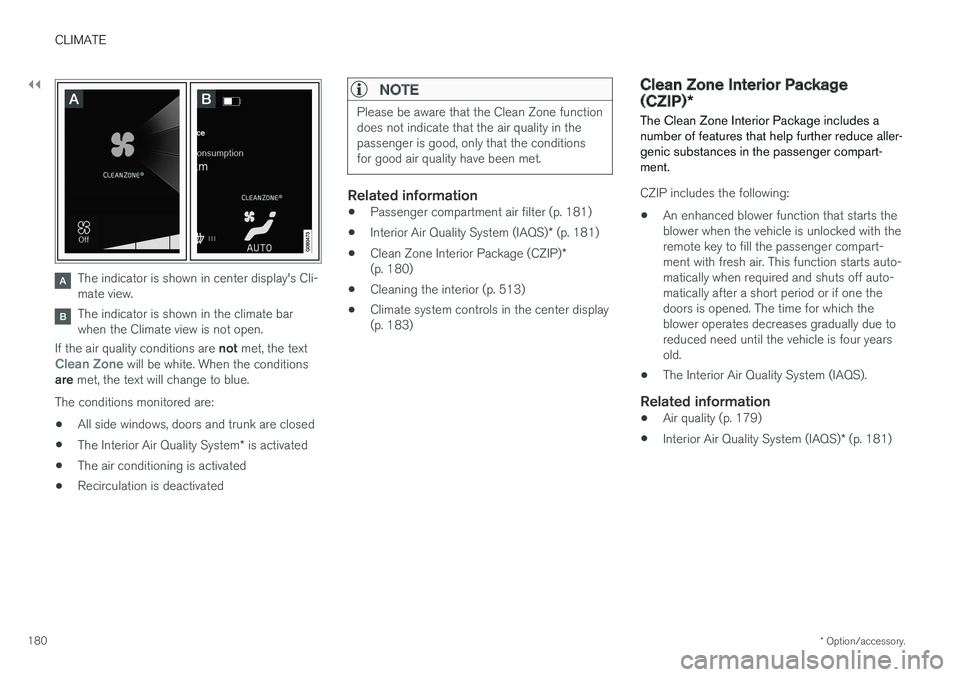
The indicator is shown in center display's Cli- mate view.
The indicator is shown in the climate bar when the Climate view is not open.
If the air quality conditions are not met, the text
Clean Zone will be white. When the conditions
are met, the text will change to blue.
The conditions monitored are:
• All side windows, doors and trunk are closed
• The Interior Air Quality System
* is activated
• The air conditioning is activated
• Recirculation is deactivated
NOTE
Please be aware that the Clean Zone function does not indicate that the air quality in thepassenger is good, only that the conditionsfor good air quality have been met.
Related information
•
Passenger compartment air filter (p. 181)
• Interior Air Quality System (IAQS)
* (p. 181)
• Clean Zone Interior Package (CZIP)
*
(p. 180)
• Cleaning the interior (p. 513)
• Climate system controls in the center display (p. 183)
Clean Zone Interior Package (CZIP)
*
The Clean Zone Interior Package includes a number of features that help further reduce aller-genic substances in the passenger compart-ment.
CZIP includes the following:
• An enhanced blower function that starts the blower when the vehicle is unlocked with theremote key to fill the passenger compart-ment with fresh air. This function starts auto-matically when required and shuts off auto-matically after a short period or if one thedoors is opened. The time for which theblower operates decreases gradually due toreduced need until the vehicle is four yearsold.
• The Interior Air Quality System (IAQS).
Related information
•
Air quality (p. 179)
• Interior Air Quality System (IAQS)
* (p. 181)