change wheel VOLVO S90 2017 Owner´s Manual
[x] Cancel search | Manufacturer: VOLVO, Model Year: 2017, Model line: S90, Model: VOLVO S90 2017Pages: 548, PDF Size: 11.42 MB
Page 277 of 548
DRIVER SUPPORT
}}
* Option/accessory.275
Pilot Assist*
The Pilot Assist feature helps keep the vehicle in its current traffic lane by providing steeringassistance and maintaining an even speed and aset time interval to the vehicle ahead.
FunctionPilot Assist helps provide more relaxed driving on long trips on highways or other major roads in aneven flow of traffic.
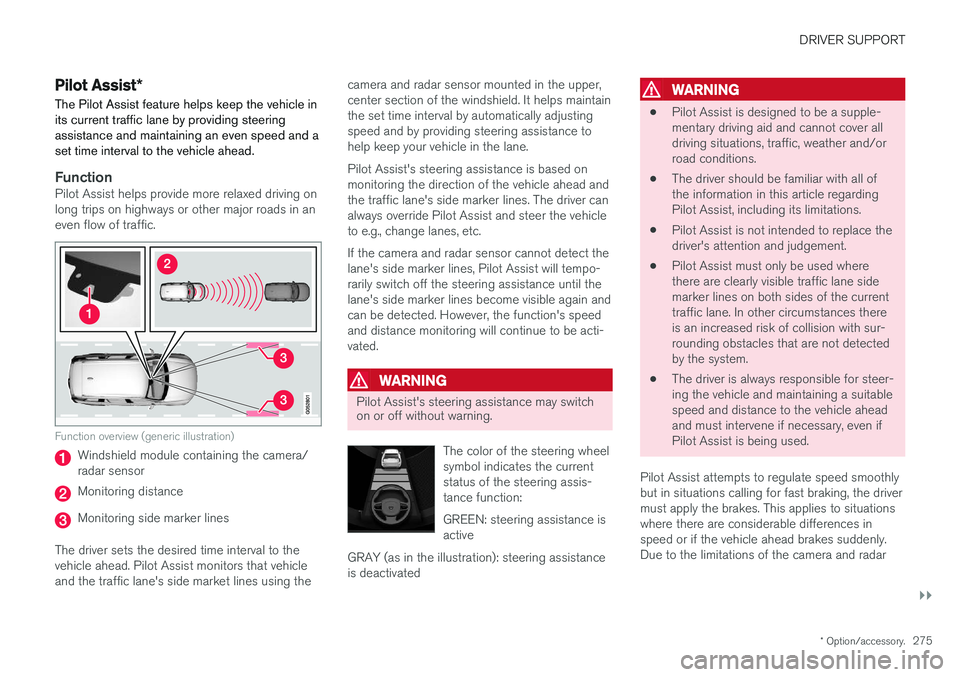
Function overview (generic illustration)
Windshield module containing the camera/ radar sensor
Monitoring distance
Monitoring side marker lines
The driver sets the desired time interval to the vehicle ahead. Pilot Assist monitors that vehicleand the traffic lane's side market lines using the camera and radar sensor mounted in the upper,center section of the windshield. It helps maintainthe set time interval by automatically adjustingspeed and by providing steering assistance tohelp keep your vehicle in the lane. Pilot Assist's steering assistance is based on monitoring the direction of the vehicle ahead andthe traffic lane's side marker lines. The driver canalways override Pilot Assist and steer the vehicleto e.g., change lanes, etc. If the camera and radar sensor cannot detect the lane's side marker lines, Pilot Assist will tempo-rarily switch off the steering assistance until thelane's side marker lines become visible again andcan be detected. However, the function's speedand distance monitoring will continue to be acti-vated.
WARNING
Pilot Assist's steering assistance may switch on or off without warning.
The color of the steering wheel symbol indicates the currentstatus of the steering assis-tance function: GREEN: steering assistance is active
GRAY (as in the illustration): steering assistanceis deactivated
WARNING
• Pilot Assist is designed to be a supple- mentary driving aid and cannot cover alldriving situations, traffic, weather and/orroad conditions.
• The driver should be familiar with all ofthe information in this article regardingPilot Assist, including its limitations.
• Pilot Assist is not intended to replace thedriver's attention and judgement.
• Pilot Assist must only be used wherethere are clearly visible traffic lane sidemarker lines on both sides of the currenttraffic lane. In other circumstances thereis an increased risk of collision with sur-rounding obstacles that are not detectedby the system.
• The driver is always responsible for steer-ing the vehicle and maintaining a suitablespeed and distance to the vehicle aheadand must intervene if necessary, even ifPilot Assist is being used.
Pilot Assist attempts to regulate speed smoothlybut in situations calling for fast braking, the drivermust apply the brakes. This applies to situationswhere there are considerable differences inspeed or if the vehicle ahead brakes suddenly.Due to the limitations of the camera and radar
Page 281 of 548
DRIVER SUPPORT
}}}}
279
Prerequisites
The prerequisites for activating Pilot Assist are:• The driver's seat belt must be buckled and the driver's door must be closed.
• There must be a vehicle ahead (a target vehi-cle) within a reasonable distance or yourvehicle's current speed must be at least9 mph (15 km/h).
With ACC in standby mode: 1. Tap
▶ (6).
> The symbol
will change to Pilot
Assist in standby mode (8).
2. Press the
button (2) on the left-side
steering wheel keypad.
> Pilot Assist will go into active mode and the current speed will be stored and dis- played in the center of the speedometer. or
If Adaptive Cruise Control has been started:
–Tap ▶ (6).
> Pilot Assist will start.
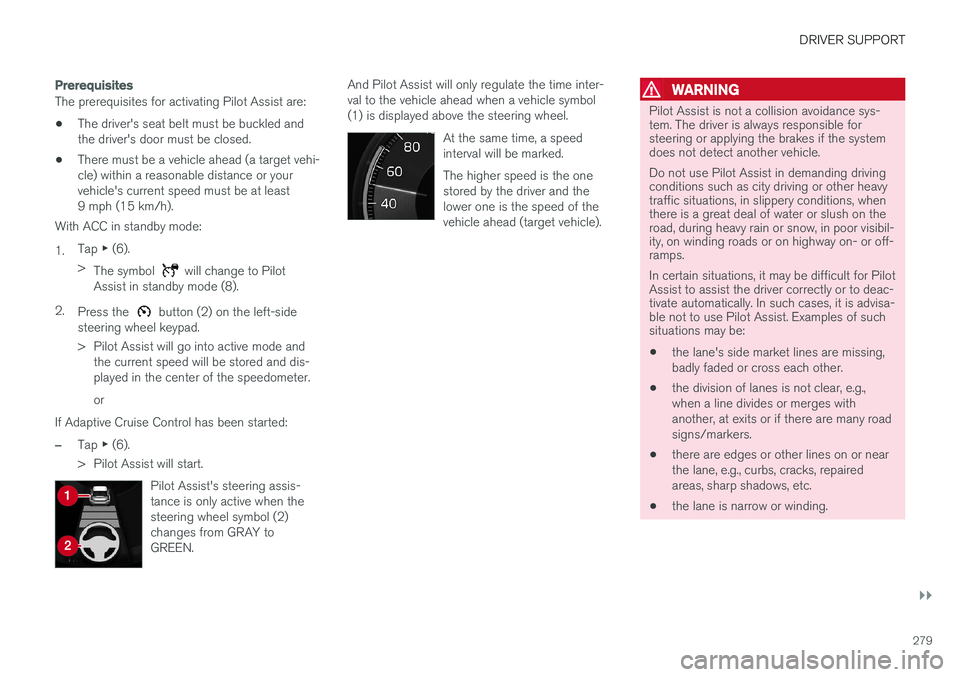
Pilot Assist's steering assis- tance is only active when thesteering wheel symbol (2)changes from GRAY toGREEN.
And Pilot Assist will only regulate the time inter- val to the vehicle ahead when a vehicle symbol(1) is displayed above the steering wheel. At the same time, a speedinterval will be marked. The higher speed is the one stored by the driver and thelower one is the speed of thevehicle ahead (target vehicle).WARNING
Pilot Assist is not a collision avoidance sys- tem. The driver is always responsible forsteering or applying the brakes if the systemdoes not detect another vehicle. Do not use Pilot Assist in demanding driving conditions such as city driving or other heavytraffic situations, in slippery conditions, whenthere is a great deal of water or slush on theroad, during heavy rain or snow, in poor visibil-ity, on winding roads or on highway on- or off-ramps. In certain situations, it may be difficult for Pilot Assist to assist the driver correctly or to deac-tivate automatically. In such cases, it is advisa-ble not to use Pilot Assist. Examples of suchsituations may be:
• the lane's side market lines are missing, badly faded or cross each other.
• the division of lanes is not clear, e.g.,when a line divides or merges withanother, at exits or if there are many roadsigns/markers.
• there are edges or other lines on or nearthe lane, e.g., curbs, cracks, repairedareas, sharp shadows, etc.
• the lane is narrow or winding.
Page 282 of 548
||
DRIVER SUPPORT
* Option/accessory.
280
• the lane is at the top of a hill, on an uneven road surface or over a bump.
• bad weather conditions (rain, snow, fog,slush, poor visibility, backlighting, etc).
The driver should also be aware that Pilot Assist has the following limitations: • High curbs, barriers and temporary obsta- cles (cones, barriers etc) may not bedetected or could be detected incorrectlyas side marker lines, which may create arisk of collision. The driver must ensure asafe distance to these obstacles.
• The camera or radar sensor may not beable to detect objects if there are pot-holes or if there are stationary objectspartially or completely blocking the road.
• Pilot Assist does not "see" pedestrians,animals, etc.
• Pilot Assist's steering capacity is limitedand may not always be able to help thedriver keep the vehicle in the lane.
Hands on the steering wheel
Pilot Assist only functions when the driver's hands are on the steering wheel
, which is con-
tinuously monitored by the system. If this is notthe case, the driver will be alerted by a text mes-sage in the instrument panel. If the driver's handsare not returned to the steering wheel, an audiblesignal will sound. If the driver does not return his/her hands to thesteering wheel after the audible signal, PilotAssist will go into standby mode and must be reactivated by pressing
.
Related information
•
Pilot Assist
* (p. 275)
• Changing Pilot Assist speed (p. 280)
• Setting a Pilot Assist time interval (p. 281)
• Changing target vehicles and automatic braking with Pilot Assist (p. 284)
• Deactivating/resuming Pilot Assist (p. 282)
• Passing Assistance with Adaptive CruiseControl or Pilot Assist (p. 268)
• Pilot Assist limitations (p. 285)
• Pilot Assist symbols and messages (p. 287)
Changing Pilot Assist speed
Different speeds can be set for Pilot Assist.
Function buttons and symbols
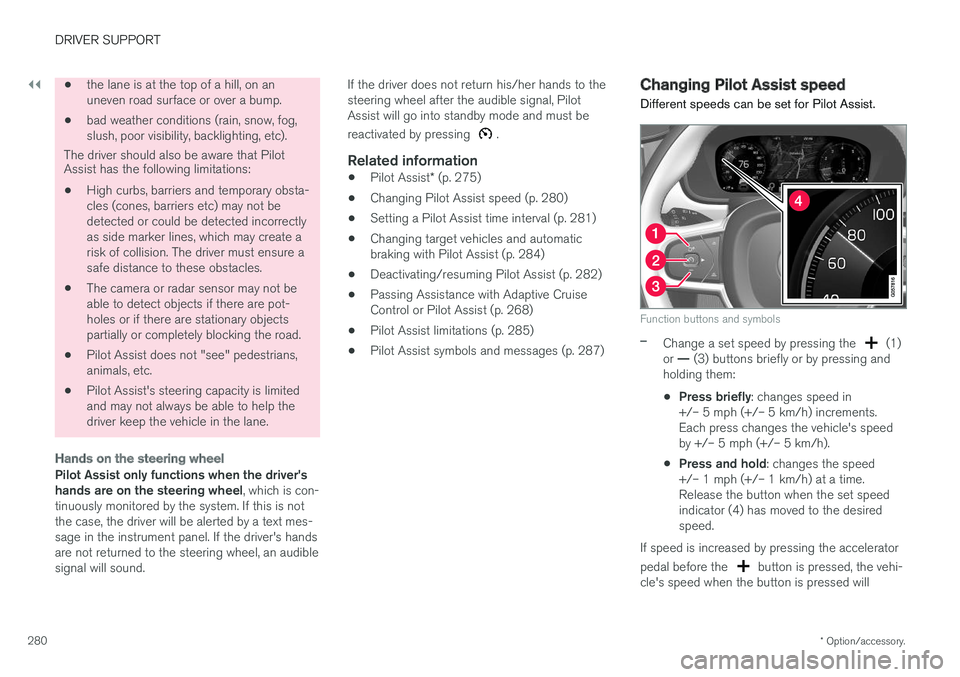
–Change a set speed by pressing the (1)
or — (3) buttons briefly or by pressing and
holding them:
• Press briefly
: changes speed in
+/– 5 mph (+/– 5 km/h) increments. Each press changes the vehicle's speedby +/– 5 mph (+/– 5 km/h).
• Press and hold
: changes the speed
+/– 1 mph (+/– 1 km/h) at a time.Release the button when the set speedindicator (4) has moved to the desiredspeed.
If speed is increased by pressing the accelerator pedal before the
button is pressed, the vehi-
cle's speed when the button is pressed will
Page 378 of 548
||
STARTING AND DRIVING
* Option/accessory.
376
INDIVIDUAL
This setting allows you to adapt a drive mode to your personal preferences. Select one of the other drive modes as a basis and change the settings to provide the drivingcharacteristics that you prefer. These settings willbe stored in a driver profile. INDIVIDUAL is only available if it has been acti- vated in the center display.
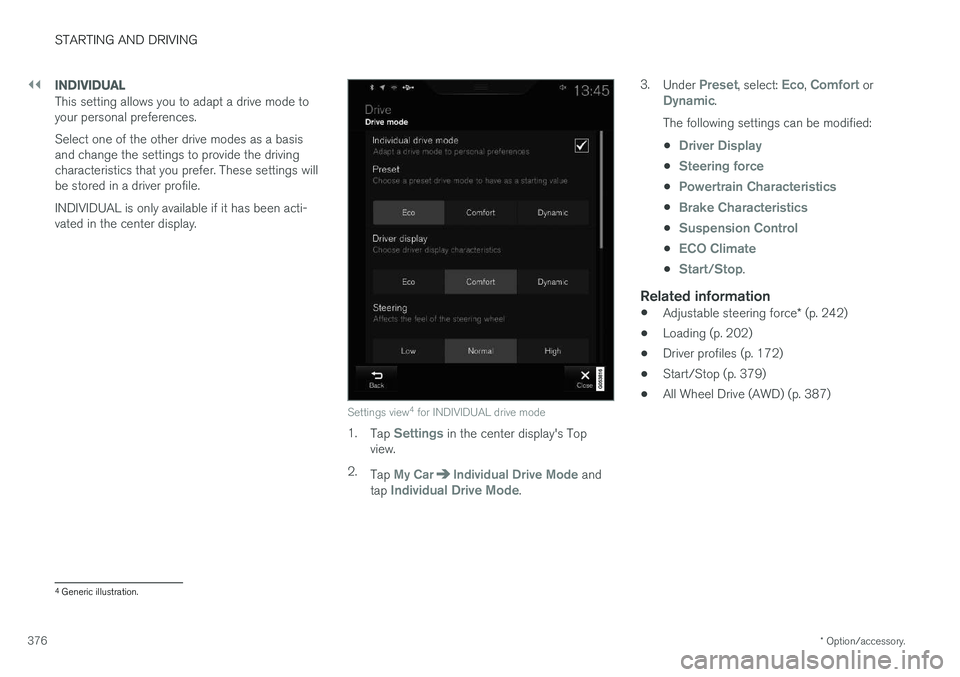
Settings view 4
for INDIVIDUAL drive mode
1. Tap Settings in the center display's Top
view.
2. Tap
My CarIndividual Drive Mode and
tap Individual Drive Mode. 3.
Under
Preset, select: Eco, Comfort orDynamic.
The following settings can be modified: •
Driver Display
•Steering force
•Powertrain Characteristics
•Brake Characteristics
•Suspension Control
•ECO Climate
•Start/Stop.
Related information
• Adjustable steering force
* (p. 242)
• Loading (p. 202)
• Driver profiles (p. 172)
• Start/Stop (p. 379)
• All Wheel Drive (AWD) (p. 387)
4
Generic illustration.
Page 380 of 548
||
STARTING AND DRIVING
* Option/accessory.
378 a short distance
(in heavy traffic, etc.) or
when driving down hills .
To help keep fuel consumption as low as possi- ble, Eco Coast should not be used in traffic situa-tions where the brakes have to be used fre-quently.
Activating Eco Coast
Eco Coast is activated when the accelerator pedal is released completely if:
• Eco is activated
• The gear selector is in
D
• The vehicle's speed is between approxi-mately 40 and 87 mph(65 and 140 km/h)Always observe posted speed limits
• The gradient of a down-slope is less thanapproximately 6%
COASTING will appear in the instrument panel
when Eco Coast is being used.
Limitations
Eco Coast is not available if:
• The engine and/or transmission have not reached their normal operating temperature
• Cruise control is activated
• The gear selector is moved from
D to " +/-"
for manual shifting
• The vehicle's speed is not within the40 and 87 mph(65 and 140 km/h) range •
The gradient of a down-slope is more thanapproximately 6%
• The steering wheel paddles
* are used for
manual shifting
Deactivating and turning off Eco Coast
In certain situations, it may be advisable to switch off the Eco Coast function, such as:
• When driving down steep hills, in order to uti-lize engine braking
• Prior to passing another vehicle, in order todo so as safely as possible
Deactivating Eco Coast (and reactivating enginebraking) can be done in the following ways: • Move the gear selector to the manual "
+/–"
position
• Change gears using the steering wheel pad- dles
*
• Press the brake or accelerator pedal
Turn the function off by changing drive modes * or
by turning ECO off in the center display's Func- tion view. The vehicle will roll for short distances even if Eco Coast is turned off to help conserve fuel.However, for the best fuel economy, the functionshould be used as much as possible.
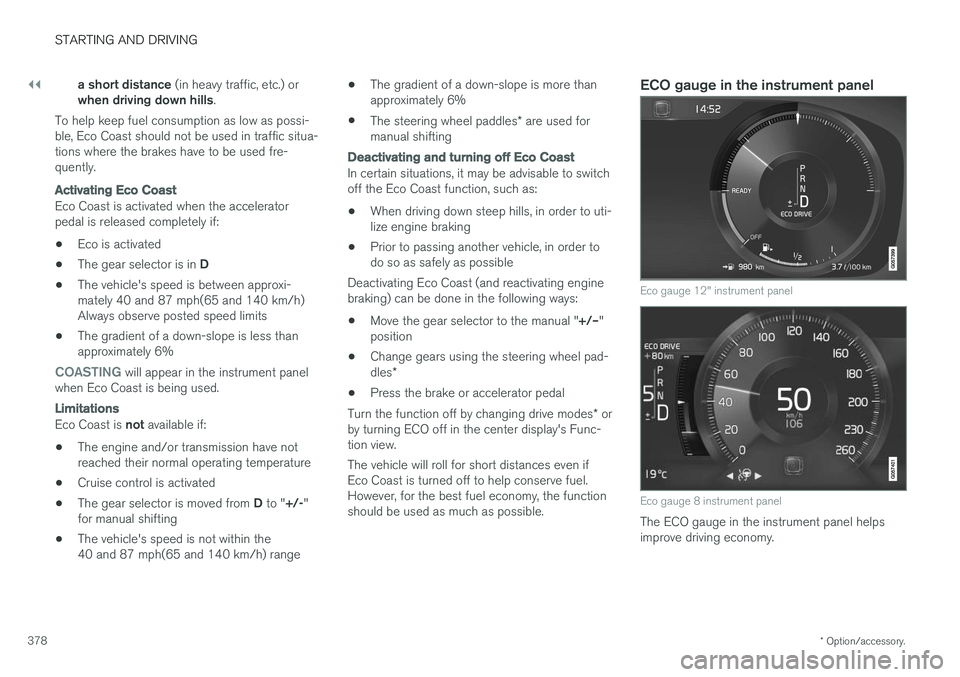
ECO gauge in the instrument panel
Eco gauge 12" instrument panel
Eco gauge 8 instrument panel
The ECO gauge in the instrument panel helps improve driving economy.
Page 382 of 548
||
STARTING AND DRIVING
380approx. 3 seconds. See also the article "Condi- tions for Start/Stop."
Auto-startThe following conditions must be met for theengine to auto-start:
• Release the brake pedal; the engine willautomatically restart. When starting on anuphill incline, the Hill Start Assist (HSA)function will be activated to help prevent thevehicle from rolling backward.
• When the brake system's Auto Hold functionis activated, the engine will not auto-startuntil the accelerator pedal is pressed.
• When
Adaptive cruise or Pilot Assist are
activated, the engine will auto-start when the accelerator pedal is pressed or if the
button is pressed on the left-side steering wheel keypad.
• Keep the brake pedal depressed but pressthe accelerator pedal. The engine will auto-start.
• On a downhill incline, release the brake pedalso that the vehicle begins to roll. The enginewill auto-start after a slight increase in speed.
Symbols in the instrument panel
12" instrument panel
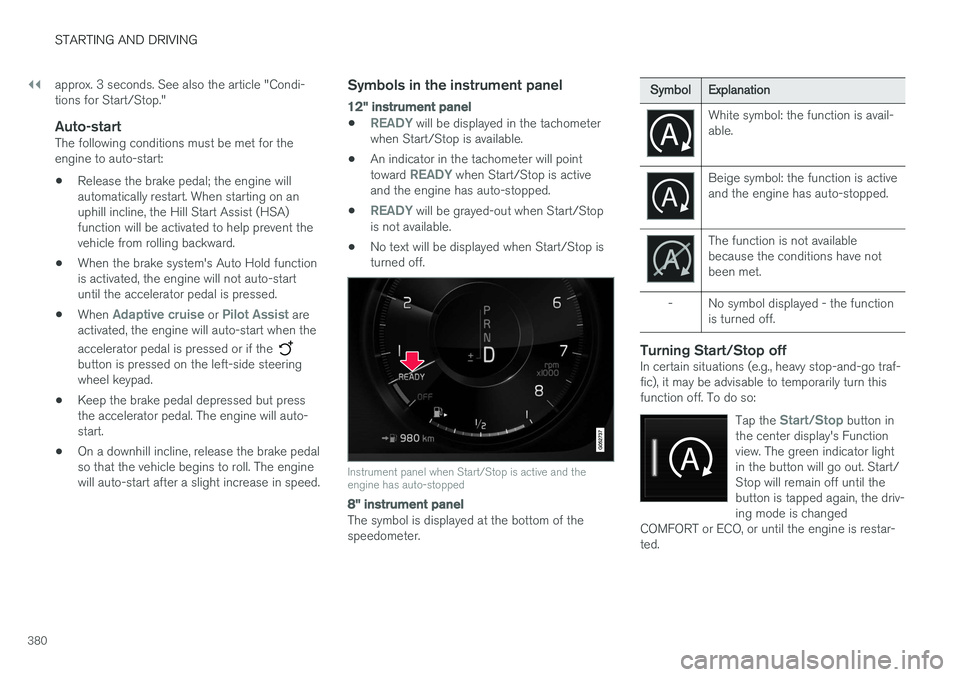
•READY will be displayed in the tachometer
when Start/Stop is available.
• An indicator in the tachometer will point toward
READY when Start/Stop is active
and the engine has auto-stopped.
•
READY will be grayed-out when Start/Stop
is not available.
• No text will be displayed when Start/Stop is turned off.
Instrument panel when Start/Stop is active and the engine has auto-stopped
8" instrument panel
The symbol is displayed at the bottom of the speedometer.
Symbol
Explanation
White symbol: the function is avail- able.
Beige symbol: the function is active and the engine has auto-stopped.
The function is not available because the conditions have notbeen met.
- No symbol displayed - the function is turned off.
Turning Start/Stop offIn certain situations (e.g., heavy stop-and-go traf- fic), it may be advisable to temporarily turn thisfunction off. To do so:
Tap the
Start/Stop button in
the center display's Function view. The green indicator lightin the button will go out. Start/Stop will remain off until thebutton is tapped again, the driv-ing mode is changed
COMFORT or ECO, or until the engine is restar-ted.
Page 389 of 548
STARTING AND DRIVING
* Option/accessory.387
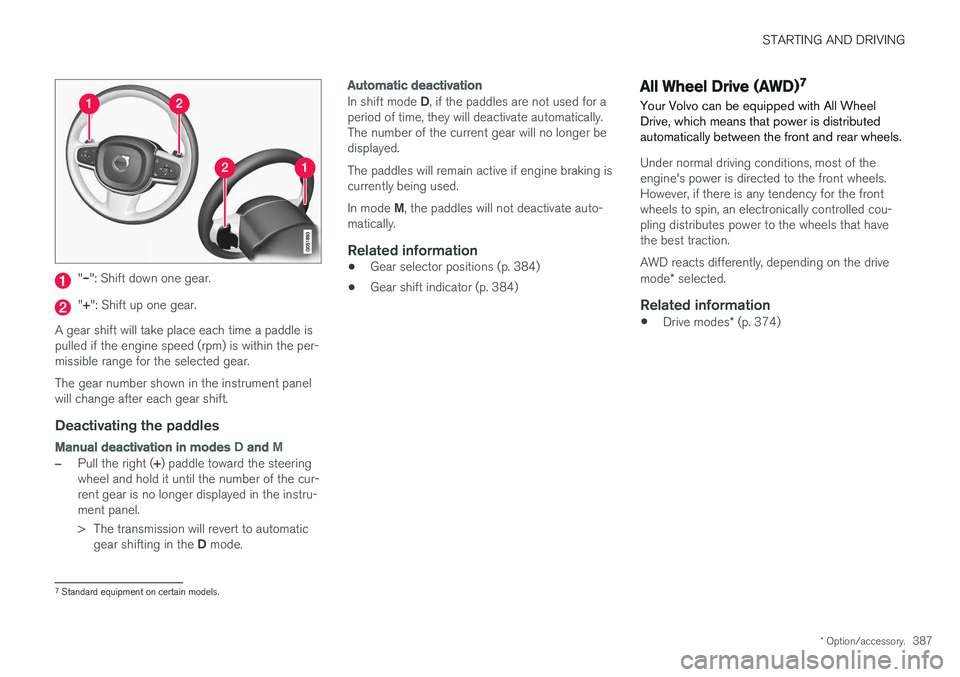
"– ": Shift down one gear.
"+ ": Shift up one gear.
A gear shift will take place each time a paddle is pulled if the engine speed (rpm) is within the per-missible range for the selected gear. The gear number shown in the instrument panel will change after each gear shift.
Deactivating the paddles
Manual deactivation in modes D and M
–Pull the right ( +) paddle toward the steering
wheel and hold it until the number of the cur- rent gear is no longer displayed in the instru-ment panel.
> The transmission will revert to automatic
gear shifting in the D mode.
Automatic deactivation
In shift mode D, if the paddles are not used for a
period of time, they will deactivate automatically. The number of the current gear will no longer bedisplayed. The paddles will remain active if engine braking is currently being used. In mode M, the paddles will not deactivate auto-
matically.
Related information
• Gear selector positions (p. 384)
• Gear shift indicator (p. 384)
All Wheel Drive (AWD) 7
Your Volvo can be equipped with All Wheel Drive, which means that power is distributedautomatically between the front and rear wheels.
Under normal driving conditions, most of the engine's power is directed to the front wheels.However, if there is any tendency for the frontwheels to spin, an electronically controlled cou-pling distributes power to the wheels that havethe best traction. AWD reacts differently, depending on the drive mode * selected.
Related information
• Drive modes
* (p. 374)
7
Standard equipment on certain models.
Page 393 of 548
INFOTAINMENT
391
Some apps are only available if the vehicle is connected to the Internet.
–In the center display's App view, tap an app to start it.
Related information
•
Internet connected vehicle (p. 427)
• Downloading, updating and uninstalling apps(p. 429)
• Changing settings in different types of apps(p. 43)
Sound settings
The infotainment system is precalibrated for opti- mal sound reproduction but these settings canbe changed to suit your personal preferences.
The system's volume is normally adjusted using the right-side steering wheel keypad or the vol-ume control below the center display.
Optimal sound reproduction settingsThe audio system is precalibrated for optimalsound reproduction using digital signal process-ing. This calibration takes into account the speak-ers, amplifier, cabin acoustics, listener position,etc., for each combination of vehicle and infotain-ment system. Dynamic calibration is also available, which moni- tors the setting of the volume control, radioreception and the vehicle's speed. Specific sound settings are described in the respective articles/sections of this owner's infor-mation. To change a setting, pull down the center dis- play's Top view and tap
SettingsSound.
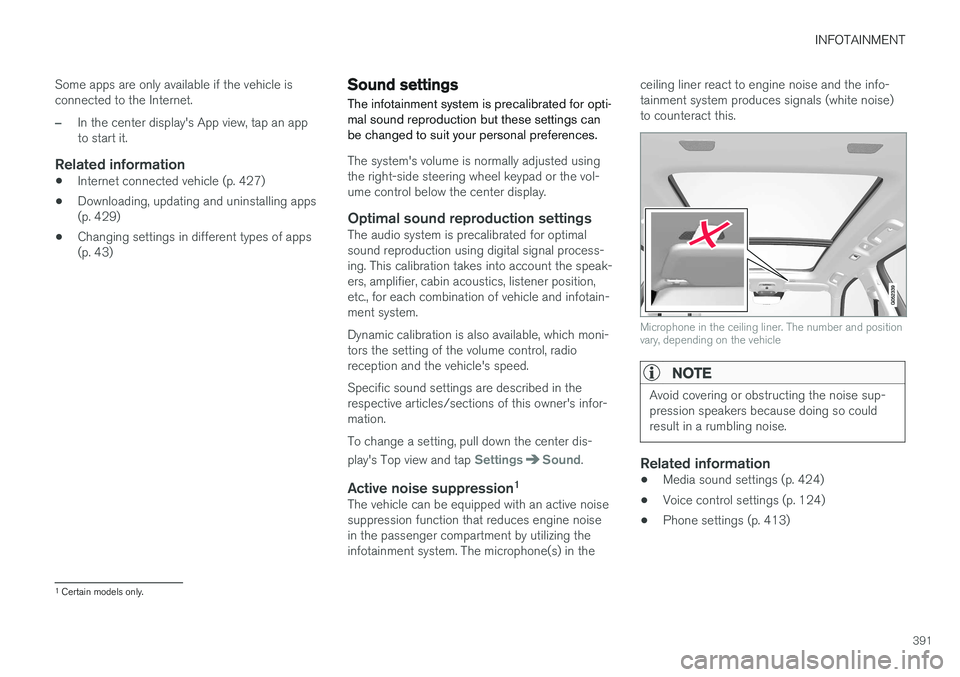
Active noise suppression 1The vehicle can be equipped with an active noise suppression function that reduces engine noisein the passenger compartment by utilizing theinfotainment system. The microphone(s) in the ceiling liner react to engine noise and the info-tainment system produces signals (white noise)to counteract this.
Microphone in the ceiling liner. The number and position vary, depending on the vehicle
NOTE
Avoid covering or obstructing the noise sup- pression speakers because doing so couldresult in a rumbling noise.
Related information
•
Media sound settings (p. 424)
• Voice control settings (p. 124)
• Phone settings (p. 413)
1
Certain models only.
Page 395 of 548
INFOTAINMENT
}}
393
RBDS radio
RBDS radio
RBDS (Radio Data Broadcast System) enables certain functionality 2
, such as:
• Searches for program types or new broad- casts
• Text information about currently broadcastprograms
For example, if news is broadcast, the currentlyplaying sound source will be interrupted so thatthe news can be heard. The infotainment systemwill return to the previous sound source when thenews broadcast has been completed. To cancel the announcement, press the
but-
ton on the right-side steering wheel keypad or tap
Cancel on the center display. This function
can be activated/deactivated in the center dis- play's
Settings menu.
Related information
• Radio (p. 392)
• Radio settings (p. 392)
Changing and searching for radio stations The radio automatically compiles a list of the strongest stations that it is currently receiving.
Turning the radio on1. Open an app (e.g., FM) from the center dis-
play's App view.
2. Select a station.
Changing a list in a waveband1. Tap Library.
2. Sect from
Stations, Favorites or Genres.
3. Tap the desired station in the list.
Favorites: only plays stations from the list of
favorites (see "Favorites" below).
Genres: only plays stations broadcasting the
selected genre or program type, e.g., pop, classi- cal, etc.
Changing stations in a selected list
–Tap < > under the center display or on the
right-side steering wheel keypad.
> Move step-by-step through the selected list.
The center display can also be used to change stations.
FavoritesIf a favorite station from a list is currently availa-ble, the radio will automatically tune to that sta-tion. See "Changing a list in a waveband" above for information about selecting favorites on a wave-band. See "Radio favorites" below for informationabout selecting a station among all of your favor-ites.
–Tap to add or remove a station for the
waveband's list of favorites or Radio favorites.
Radio favorites
Radio favorites shows all of the favorite stations that have beensaved for e.g., AM, FM.
1. Open the Radio favorites app in App view.
2. Tap the desired station to listen. When a station is removed, it will also be removed from the respective waveband's list offavorites.
2 Certain stations only.
Page 396 of 548
||
INFOTAINMENT
* Option/accessory.
394
Changing wavebands 3
–Tap an app, e.g., FM in App view or open the
app menu from the right-side steering wheel keypad to select.
Searching for a radio stationSearching is done differently, depending on thewaveband selected.
• AM: stations and frequencies.
• FM: stations, genres and frequencies.
• SiriusXM
®: program types, genres, stations. 1.
Tap
Library.
2. Tap
.
> The search view with a keyboard will open.
3. Enter a search word(s). > The search will start and change as char-acters are entered and the search results will be categorized.
Searching for a station manuallySearching manually makes it possible to find andtune to stations that are not on the automaticallycompiled list of the strongest stations in the area.
–Tap Manual tuning, drag the control or tap
< > to go to the desired frequency.
Related information
•
SiriusXM ®
Satellite radio * (p. 398)
• HD Radio
™reception (p. 394)
HD Radio ™reception
HD Radio is a brand name registered by the iBiquity digital corporation 4
. They are the devel-
oper of a broadcasting technology called IBOC or In Band On Channel, which refers to themethod of transmitting a digital radio broadcastsignal centered on the same frequency as theAM or FM station's present frequency.
Introduction
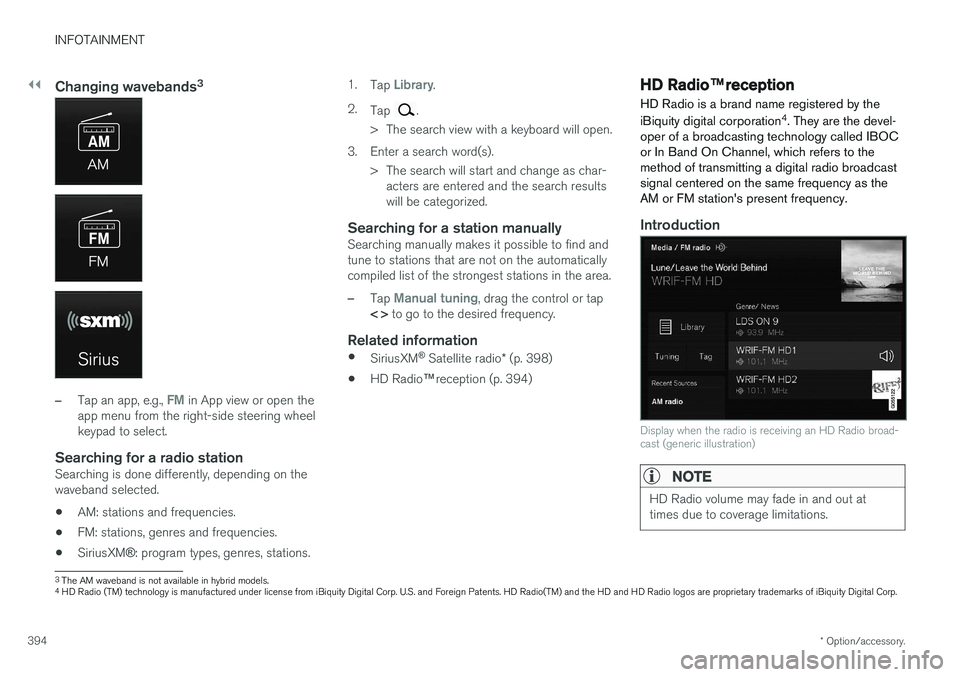
Display when the radio is receiving an HD Radio broad- cast (generic illustration)
NOTE
HD Radio volume may fade in and out at times due to coverage limitations.
3 The AM waveband is not available in hybrid models.4
HD Radio (TM) technology is manufactured under license from iBiquity Digital Corp. U.S. and Foreign Patents. HD Radio(TM) and the HD and HD Radio logos are proprietary trademarks of iBiquity Digital Corp.