instrument panel VOLVO S90 2017 Owner´s Manual
[x] Cancel search | Manufacturer: VOLVO, Model Year: 2017, Model line: S90, Model: VOLVO S90 2017Pages: 548, PDF Size: 11.42 MB
Page 256 of 548
DRIVER SUPPORT
* Option/accessory.
254
Cruise Control (CC)
Cruise Control (CC) is designed to assist the driver by maintaining a set speed. It is primarilyintended for use on long straight roads in steadytraffic, such as on highways and other mainroads in smoothly flowing traffic.
Overview
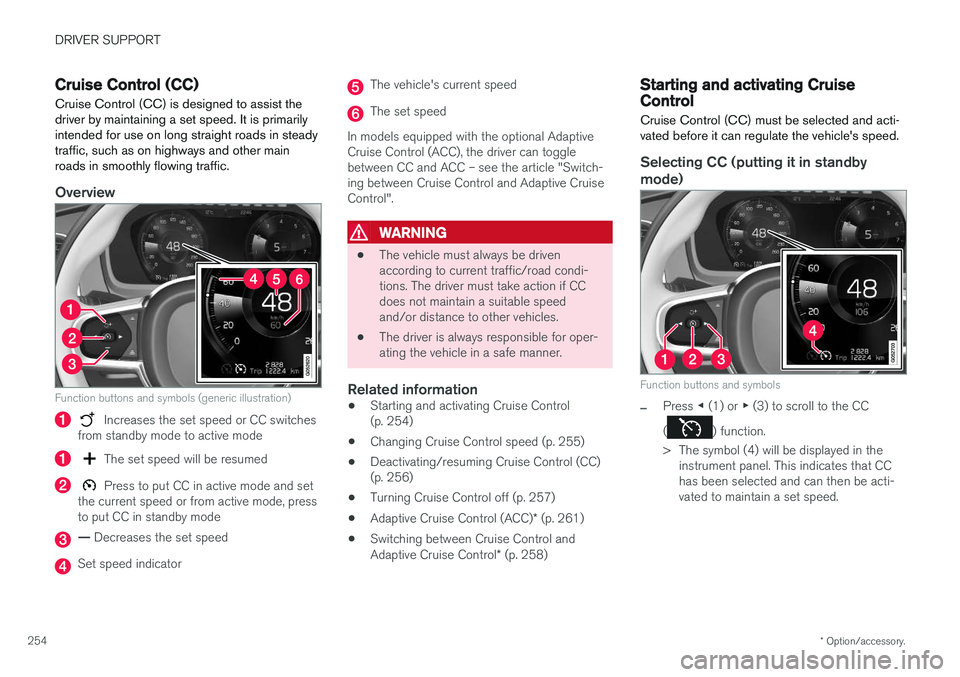
Function buttons and symbols (generic illustration)
Increases the set speed or CC switches
from standby mode to active mode
The set speed will be resumed
Press to put CC in active mode and set
the current speed or from active mode, press to put CC in standby mode
— Decreases the set speed
Set speed indicator
The vehicle's current speed
The set speed
In models equipped with the optional Adaptive Cruise Control (ACC), the driver can togglebetween CC and ACC – see the article "Switch-ing between Cruise Control and Adaptive CruiseControl".
WARNING
• The vehicle must always be driven according to current traffic/road condi-tions. The driver must take action if CCdoes not maintain a suitable speedand/or distance to other vehicles.
• The driver is always responsible for oper-ating the vehicle in a safe manner.
Related information
•Starting and activating Cruise Control(p. 254)
• Changing Cruise Control speed (p. 255)
• Deactivating/resuming Cruise Control (CC)(p. 256)
• Turning Cruise Control off (p. 257)
• Adaptive Cruise Control (ACC)
* (p. 261)
• Switching between Cruise Control and Adaptive Cruise Control
* (p. 258)
Starting and activating Cruise Control
Cruise Control (CC) must be selected and acti- vated before it can regulate the vehicle's speed.
Selecting CC (putting it in standby
mode)
Function buttons and symbols
–Press ◀ (1) or ▶ (3) to scroll to the CC
(
) function.
> The symbol (4) will be displayed in the instrument panel. This indicates that CC has been selected and can then be acti-vated to maintain a set speed.
Page 260 of 548
DRIVER SUPPORT
* Option/accessory.
258
Switching between Cruise Control and Adaptive Cruise Control *
In models equipped with the optional ACC, the driver can toggle between CC and ACC.
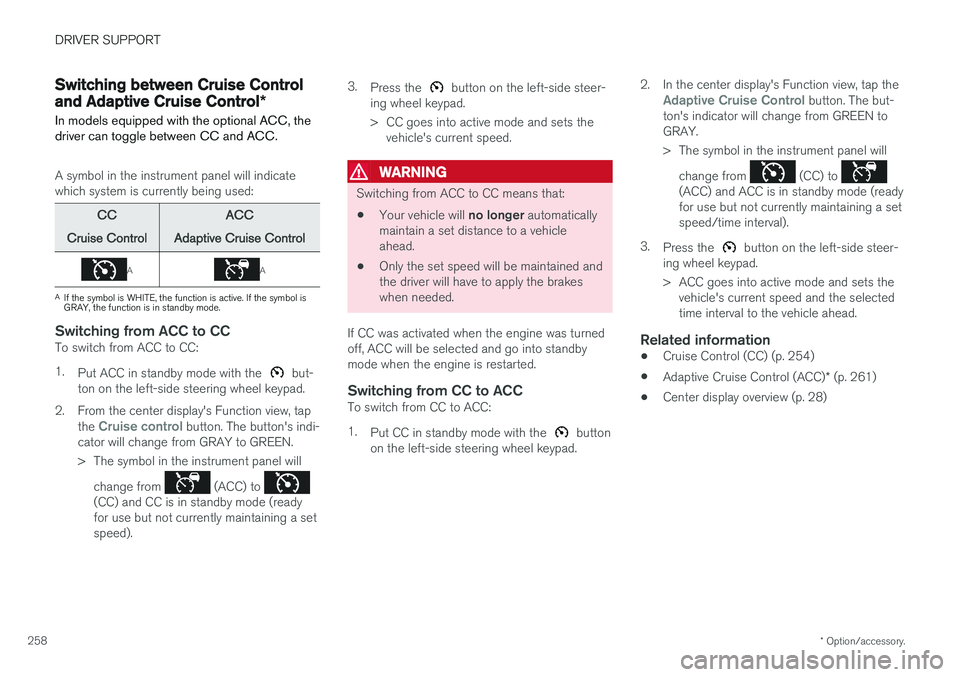
A symbol in the instrument panel will indicate which system is currently being used:
CC
Cruise Control ACC
Adaptive Cruise Control
AA
A If the symbol is WHITE, the function is active. If the symbol is GRAY, the function is in standby mode.
Switching from ACC to CCTo switch from ACC to CC: 1. Put ACC in standby mode with the
but-
ton on the left-side steering wheel keypad.
2. From the center display's Function view, tap the
Cruise control button. The button's indi-
cator will change from GRAY to GREEN.
> The symbol in the instrument panel will
change from
(ACC) to (CC) and CC is in standby mode (ready for use but not currently maintaining a setspeed). 3.
Press the
button on the left-side steer-
ing wheel keypad.
> CC goes into active mode and sets the vehicle's current speed.
WARNING
Switching from ACC to CC means that:
• Your vehicle will
no longer automatically
maintain a set distance to a vehicle ahead.
• Only the set speed will be maintained andthe driver will have to apply the brakeswhen needed.
If CC was activated when the engine was turnedoff, ACC will be selected and go into standbymode when the engine is restarted.
Switching from CC to ACCTo switch from CC to ACC: 1. Put CC in standby mode with the
button
on the left-side steering wheel keypad. 2. In the center display's Function view, tap the
Adaptive Cruise Control button. The but-
ton's indicator will change from GREEN to GRAY.
> The symbol in the instrument panel will
change from
(CC) to (ACC) and ACC is in standby mode (ready for use but not currently maintaining a setspeed/time interval).
3. Press the
button on the left-side steer-
ing wheel keypad.
> ACC goes into active mode and sets the vehicle's current speed and the selected time interval to the vehicle ahead.
Related information
• Cruise Control (CC) (p. 254)
• Adaptive Cruise Control (ACC)
* (p. 261)
• Center display overview (p. 28)
Page 265 of 548

DRIVER SUPPORT
}}
* Option/accessory.263
Instrument panel
Speed indicators
Set speed
Speed of the vehicle ahead
The current speed of your vehicle
See the article "Adaptive cruise control symbols and messages" for examples of different combi-nations of symbols, depending on the traffic sit-uation.
Collision warning
Audible/visual warning signals
Audible warning signal
Visual warning symbol
Monitoring distance with the camera and radar sensor
Adaptive Cruise Control can exert brake forcethat is equivalent to approximately 40% of thevehicle's total braking capacity. In situations requiring more brake force than ACC can provide and if the driver does not applythe brakes, an audible signal from the City Safetysystem will sound and warning light will illuminatein the windshield to alert the driver to react.
WARNING
Adaptive Cruise Control only warns of vehicles detected by the radar sensor. In some casesthere may be no warning or the warning maybe delayed. The driver should always apply thebrakes when necessary.
Head-up-display *
A flashing light alerts the driver
A flashing icon will appear in the head-up display to alert the driver of a collision risk.
NOTE
Strong sunlight, reflections, extreme light con- trasts, the use of sunglasses, or if the driver isnot looking straight ahead may make the vis-ual warning signal in the windshield difficult tosee.
Page 266 of 548
||
DRIVER SUPPORT
* Option/accessory.
264
Related information
• Starting and activating Adaptive Cruise Control (ACC)
* (p. 264)
• Changing Adaptive Cruise Control (ACC) speed (p. 267)
• Setting an Adaptive Cruise Control timeinterval (p. 267)
• Changing target vehicles and automaticbraking with Adaptive Cruise Control (ACC)(p. 269)
• Switching between Cruise Control and Adaptive Cruise Control
* (p. 258)
• Passing Assistance with Adaptive Cruise Control or Pilot Assist (p. 268)
• Deactivating/resuming Adaptive CruiseControl (ACC) (p. 265)
• Adaptive Cruise Control (ACC) - trouble-shooting (p. 271)
• Adaptive Cruise Control (ACC) symbols andmessages (p. 273)
• Pilot Assist
* (p. 275)
• Distance Alert
* (p. 259)
• Head-up display (HUD)
* (p. 116)
• Radar sensor limitations (p. 289)
Starting and activating Adaptive Cruise Control (ACC)
*
ACC must first be put in active mode before it can be started in order to regulate speed or aset time interval to the vehicle ahead.
Starting ACC (putting it in standby
mode)
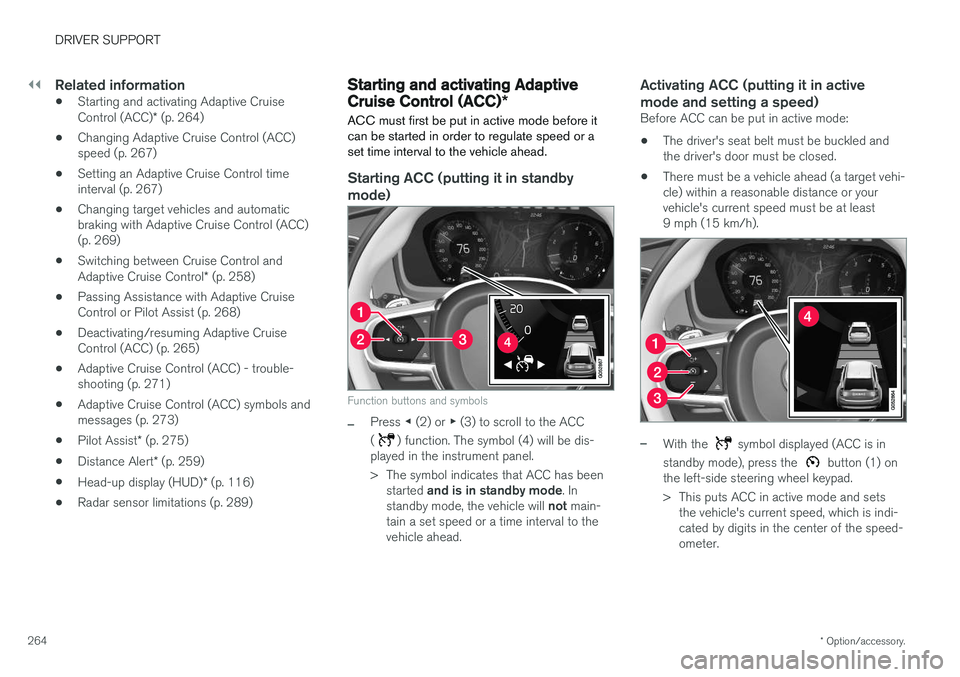
Function buttons and symbols
–Press ◀ (2) or ▶ (3) to scroll to the ACC
(
) function. The symbol (4) will be dis-
played in the instrument panel.
> The symbol indicates that ACC has been
started and is in standby mode . In
standby mode, the vehicle will not main-
tain a set speed or a time interval to the vehicle ahead.
Activating ACC (putting it in active mode and setting a speed)
Before ACC can be put in active mode:
• The driver's seat belt must be buckled and the driver's door must be closed.
• There must be a vehicle ahead (a target vehi-cle) within a reasonable distance or yourvehicle's current speed must be at least9 mph (15 km/h).
–With the symbol displayed (ACC is in
standby mode), press the
button (1) on
the left-side steering wheel keypad.
> This puts ACC in active mode and sets the vehicle's current speed, which is indi- cated by digits in the center of the speed-ometer.
Page 267 of 548
DRIVER SUPPORT
}}
* Option/accessory.265
The
time interval to the vehi-
cle ahead will only be shown when two vehicles are dis-played.
A speed interval will also be indicated:
• The higher speed is the one set in ACC
• The lower one is the speed of the vehicle ahead (the target vehicle).
Related information
•
Adaptive Cruise Control (ACC)
* (p. 261)
• Setting an Adaptive Cruise Control timeinterval (p. 267)
• Deactivating/resuming Adaptive CruiseControl (ACC) (p. 265)
Deactivating/resuming Adaptive Cruise Control (ACC)
ACC can be put temporarily in standby mode and then reactivated.
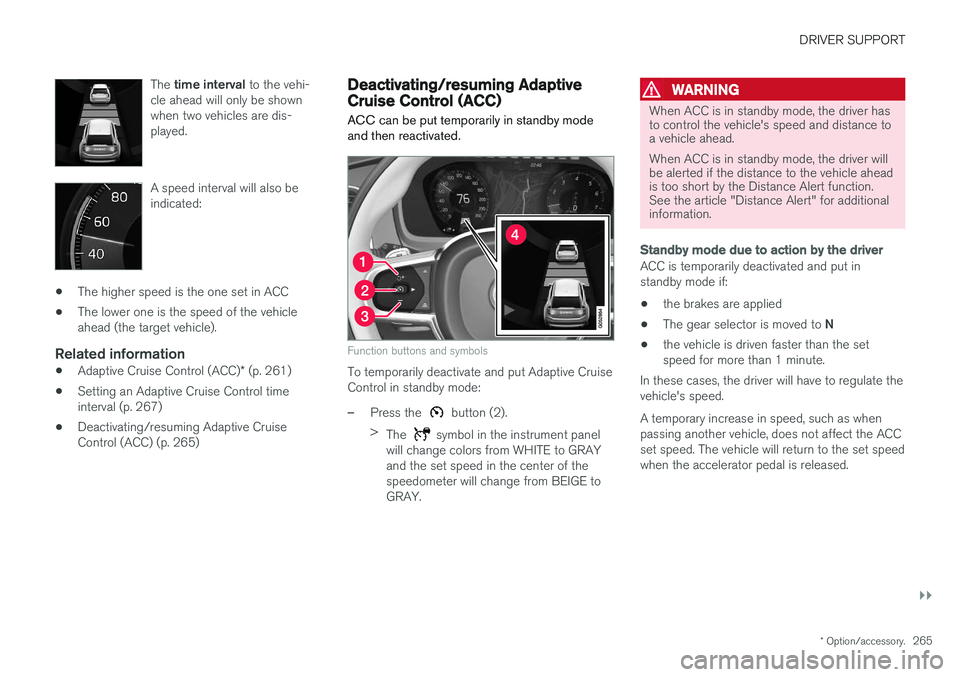
Function buttons and symbols
To temporarily deactivate and put Adaptive Cruise Control in standby mode:
–Press the button (2).
> The
symbol in the instrument panel
will change colors from WHITE to GRAY and the set speed in the center of thespeedometer will change from BEIGE toGRAY.
WARNING
When ACC is in standby mode, the driver has to control the vehicle's speed and distance toa vehicle ahead. When ACC is in standby mode, the driver will be alerted if the distance to the vehicle aheadis too short by the Distance Alert function.See the article "Distance Alert" for additionalinformation.
Standby mode due to action by the driver
ACC is temporarily deactivated and put in standby mode if:
• the brakes are applied
• The gear selector is moved to
N
• the vehicle is driven faster than the setspeed for more than 1 minute.
In these cases, the driver will have to regulate thevehicle's speed. A temporary increase in speed, such as when passing another vehicle, does not affect the ACCset speed. The vehicle will return to the set speedwhen the accelerator pedal is released.
Page 275 of 548
DRIVER SUPPORT
}}
* Option/accessory.273
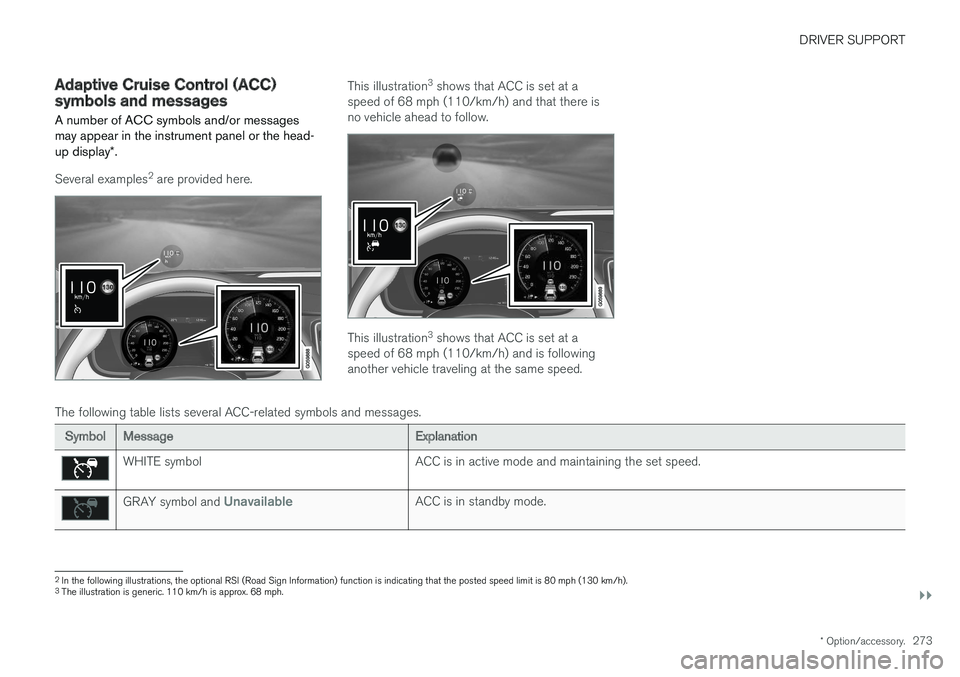
Adaptive Cruise Control (ACC) symbols and messages A number of ACC symbols and/or messages may appear in the instrument panel or the head- up display*.
Several examples 2
are provided here.
This illustration 3
shows that ACC is set at a
speed of 68 mph (110/km/h) and that there is no vehicle ahead to follow.
This illustration 3
shows that ACC is set at a
speed of 68 mph (110/km/h) and is following another vehicle traveling at the same speed.
The following table lists several ACC-related symbols and messages.
Symbol Message Explanation
WHITE symbolACC is in active mode and maintaining the set speed.
GRAY symbol and UnavailableACC is in standby mode.
2
In the following illustrations, the optional RSI (Road Sign Information) function is indicating that the posted speed limit is 80 mph (130 km/h).
3 The illustration is generic. 110 km/h is approx. 68 mph.
Page 279 of 548
DRIVER SUPPORT
}}
277
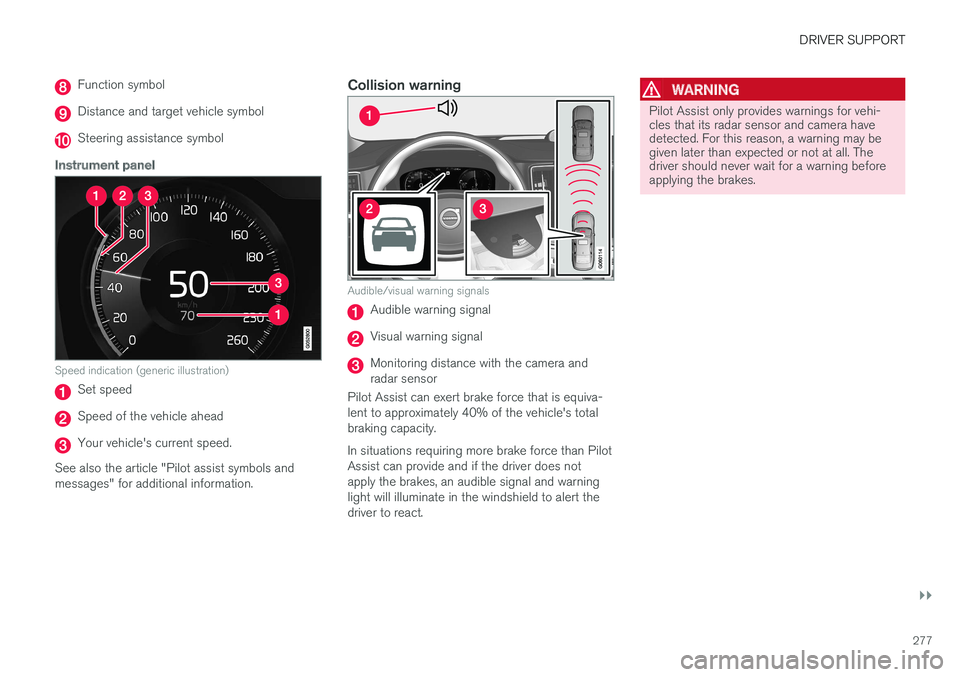
Function symbol
Distance and target vehicle symbol
Steering assistance symbol
Instrument panel
Speed indication (generic illustration)
Set speed
Speed of the vehicle ahead
Your vehicle's current speed.
See also the article "Pilot assist symbols and messages" for additional information.
Collision warning
Audible/visual warning signals
Audible warning signal
Visual warning signal
Monitoring distance with the camera and radar sensor
Pilot Assist can exert brake force that is equiva-lent to approximately 40% of the vehicle's totalbraking capacity. In situations requiring more brake force than Pilot Assist can provide and if the driver does notapply the brakes, an audible signal and warninglight will illuminate in the windshield to alert thedriver to react.
WARNING
Pilot Assist only provides warnings for vehi- cles that its radar sensor and camera havedetected. For this reason, a warning may begiven later than expected or not at all. Thedriver should never wait for a warning beforeapplying the brakes.
Page 282 of 548
||
DRIVER SUPPORT
* Option/accessory.
280
• the lane is at the top of a hill, on an uneven road surface or over a bump.
• bad weather conditions (rain, snow, fog,slush, poor visibility, backlighting, etc).
The driver should also be aware that Pilot Assist has the following limitations: • High curbs, barriers and temporary obsta- cles (cones, barriers etc) may not bedetected or could be detected incorrectlyas side marker lines, which may create arisk of collision. The driver must ensure asafe distance to these obstacles.
• The camera or radar sensor may not beable to detect objects if there are pot-holes or if there are stationary objectspartially or completely blocking the road.
• Pilot Assist does not "see" pedestrians,animals, etc.
• Pilot Assist's steering capacity is limitedand may not always be able to help thedriver keep the vehicle in the lane.
Hands on the steering wheel
Pilot Assist only functions when the driver's hands are on the steering wheel
, which is con-
tinuously monitored by the system. If this is notthe case, the driver will be alerted by a text mes-sage in the instrument panel. If the driver's handsare not returned to the steering wheel, an audiblesignal will sound. If the driver does not return his/her hands to thesteering wheel after the audible signal, PilotAssist will go into standby mode and must be reactivated by pressing
.
Related information
•
Pilot Assist
* (p. 275)
• Changing Pilot Assist speed (p. 280)
• Setting a Pilot Assist time interval (p. 281)
• Changing target vehicles and automatic braking with Pilot Assist (p. 284)
• Deactivating/resuming Pilot Assist (p. 282)
• Passing Assistance with Adaptive CruiseControl or Pilot Assist (p. 268)
• Pilot Assist limitations (p. 285)
• Pilot Assist symbols and messages (p. 287)
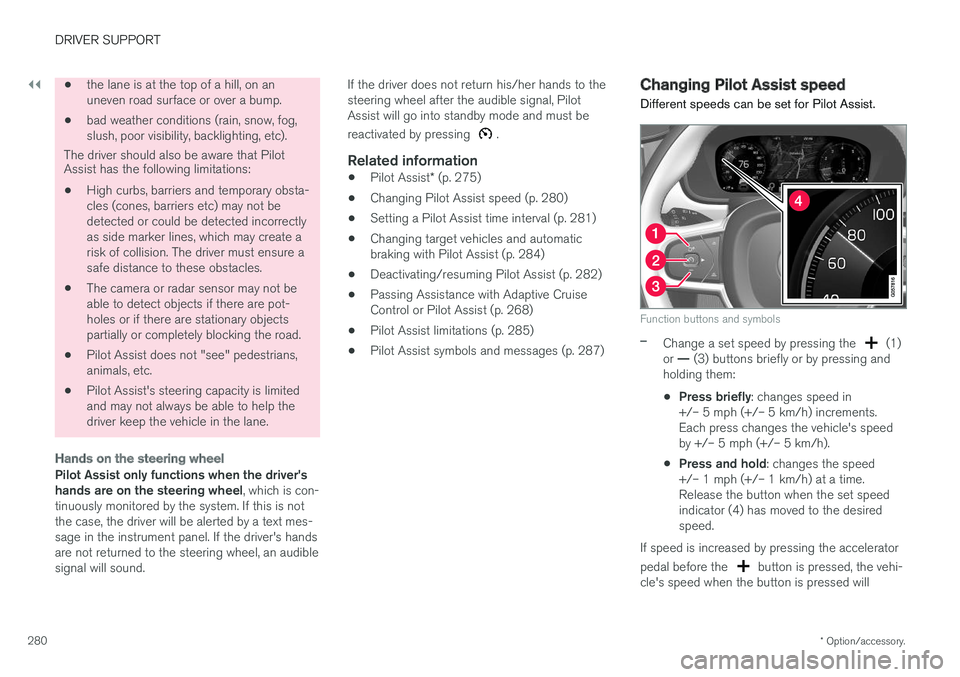
Changing Pilot Assist speed
Different speeds can be set for Pilot Assist.
Function buttons and symbols
–Change a set speed by pressing the (1)
or — (3) buttons briefly or by pressing and
holding them:
• Press briefly
: changes speed in
+/– 5 mph (+/– 5 km/h) increments. Each press changes the vehicle's speedby +/– 5 mph (+/– 5 km/h).
• Press and hold
: changes the speed
+/– 1 mph (+/– 1 km/h) at a time.Release the button when the set speedindicator (4) has moved to the desiredspeed.
If speed is increased by pressing the accelerator pedal before the
button is pressed, the vehi-
cle's speed when the button is pressed will
Page 283 of 548
DRIVER SUPPORT
}}
* Option/accessory.281
become the set speed assuming that the accel- erator pedal is still depressed when the button ispressed. A temporary increase in speed, such as when passing another vehicle, does not affect thespeed set for Pilot Assist. The vehicle will returnto the set speed when the accelerator pedal isreleased. Pilot Assist can follow another vehicle from a standstill up to a speed of approx. 125 mph(200 km/h). Always observe posted speed limits. The lowest speed that can be set/stored for Pilot Assist is 20 mph (30 km/h). However, PilotAssist can monitor and react to the speed of thevehicle ahead down to a standstill. The highest speed that can be set/stored is approx. 125 mph (200 km/h). Always observeposted speed limits.
Related information
•
Pilot Assist
* (p. 275)
• Starting and activating Pilot Assist (p. 278)
• Setting a Pilot Assist time interval (p. 281)
• Changing target vehicles and automaticbraking with Pilot Assist (p. 284)
• Deactivating/resuming Pilot Assist (p. 282)
• Passing Assistance with Adaptive CruiseControl or Pilot Assist (p. 268)
• Pilot Assist limitations (p. 285) •
Pilot Assist symbols and messages (p. 287)
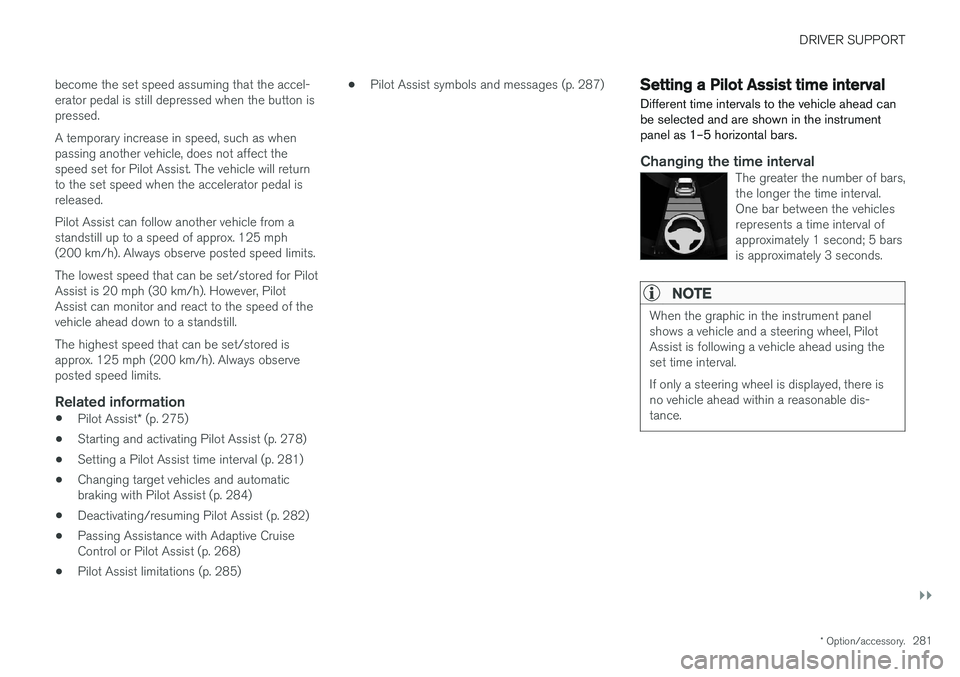
Setting a Pilot Assist time interval
Different time intervals to the vehicle ahead can be selected and are shown in the instrumentpanel as 1–5 horizontal bars.
Changing the time intervalThe greater the number of bars, the longer the time interval.One bar between the vehiclesrepresents a time interval ofapproximately 1 second; 5 barsis approximately 3 seconds.
NOTE
When the graphic in the instrument panel shows a vehicle and a steering wheel, PilotAssist is following a vehicle ahead using theset time interval. If only a steering wheel is displayed, there is no vehicle ahead within a reasonable dis-tance.
Page 284 of 548
||
DRIVER SUPPORT
* Option/accessory.
282
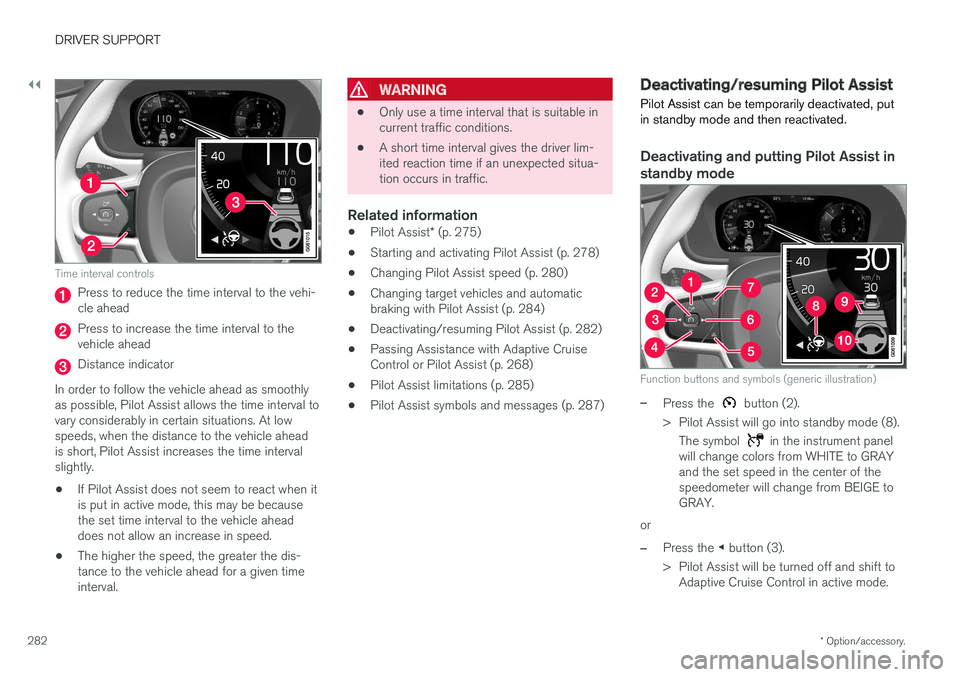
Time interval controls
Press to reduce the time interval to the vehi- cle ahead
Press to increase the time interval to the vehicle ahead
Distance indicator
In order to follow the vehicle ahead as smoothly as possible, Pilot Assist allows the time interval tovary considerably in certain situations. At lowspeeds, when the distance to the vehicle aheadis short, Pilot Assist increases the time intervalslightly.
• If Pilot Assist does not seem to react when itis put in active mode, this may be becausethe set time interval to the vehicle aheaddoes not allow an increase in speed.
• The higher the speed, the greater the dis-tance to the vehicle ahead for a given timeinterval.
WARNING
• Only use a time interval that is suitable in current traffic conditions.
• A short time interval gives the driver lim-ited reaction time if an unexpected situa-tion occurs in traffic.
Related information
•
Pilot Assist
* (p. 275)
• Starting and activating Pilot Assist (p. 278)
• Changing Pilot Assist speed (p. 280)
• Changing target vehicles and automaticbraking with Pilot Assist (p. 284)
• Deactivating/resuming Pilot Assist (p. 282)
• Passing Assistance with Adaptive CruiseControl or Pilot Assist (p. 268)
• Pilot Assist limitations (p. 285)
• Pilot Assist symbols and messages (p. 287)
Deactivating/resuming Pilot Assist Pilot Assist can be temporarily deactivated, put in standby mode and then reactivated.
Deactivating and putting Pilot Assist in standby mode
Function buttons and symbols (generic illustration)
–Press the button (2).
> Pilot Assist will go into standby mode (8). The symbol
in the instrument panel
will change colors from WHITE to GRAY and the set speed in the center of thespeedometer will change from BEIGE toGRAY.
or
–Press the ◀ button (3).
> Pilot Assist will be turned off and shift to Adaptive Cruise Control in active mode.