service VOLVO S90 2017 Owner´s Manual
[x] Cancel search | Manufacturer: VOLVO, Model Year: 2017, Model line: S90, Model: VOLVO S90 2017Pages: 548, PDF Size: 11.42 MB
Page 350 of 548
||
STARTING AND DRIVING
348
WARNING
If both symbols illuminate at the same time and the brake level is below the MIN mark in
the reservoir or if a brake system-related mes-sage is shown in the instrument panel: DO
NOT DRIVE . Have the vehicle towed to a
trained and qualified Volvo service technician and have the brake system inspected. If both symbols illuminate at the same time and the brake level is normal (not below the
MIN mark in the reservoir) or if a brake sys-
tem-related message is shown in the instru- ment panel: drive the vehicle carefully to anauthorized Volvo workshop and have thebrake system inspected by a trained andqualified Volvo service technician.
Related information
• Brake functions (p. 348)
• Brake assist system (p. 349)
• Emergency brake lights (p. 350)
Brake functions
The vehicle's standard braking features are aug- mented by a number of auxiliary help functions.
In addition to the wheel brakes and the parking brake, the vehicle is equipped with several auto-matic brake assist functions. These systems helpthe driver by e.g., keeping the vehicle stationarywhen the brake pedal is not depressed (at a traf-fic light or intersection), when starting up a hill orwhen driving down a hill. These systems include: • Auto-hold brakes
• Hill Start Assist
• Braking assist after a collision
Related information
•Brakes (p. 346)
• Parking brake (p. 350)
• Auto-hold brake function (p. 348)
Auto-hold brake function
With the Auto-hold brake function, the driver can release the brake pedal and the brakes willremain applied, for example, when the vehiclehas stopped at a traffic light or intersection.
When the vehicle is no longer moving forward, Auto-hold applies the brakes automatically, eitherusing the normal brakes or the parking brake.The brakes will be released when the acceleratorpedal is depressed. If the driver's door is opened or the engine is turned off, the parking brake will be applied auto-matically. Auto-hold is deactivated when the transmission is in neutral or if the driver's door is open and theseat belt is unbuckled.
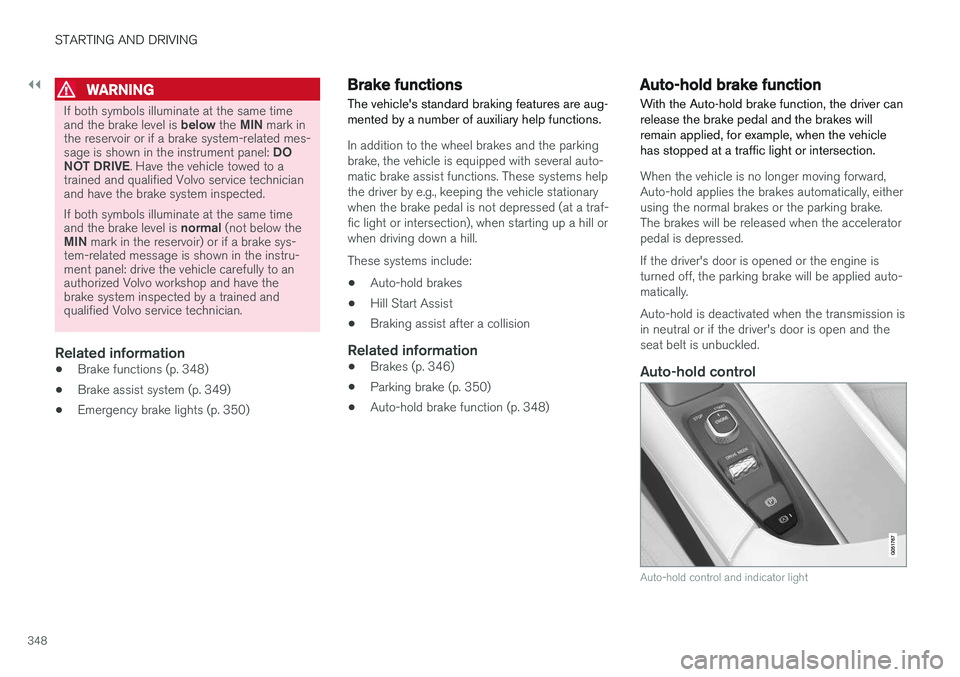
Auto-hold control
Auto-hold control and indicator light
Page 355 of 548

STARTING AND DRIVING
}}
353
Parking brake malfunctions
If it has not been possible to apply or release the parking brake after several attempts, consult atrained and authorized Volvo service technicianor retailer.
An audible signal will sound if the parking brake is applied when the vehicle is being driven. If thevehicle must be parked while the parking brake isnot functioning properly: • Put the gear selector in
P.
• If the vehicle is pointing
uphill, turn the front
wheels so that they point away from the curb.
• If the vehicle is pointing
downhill, turn the
front wheels so that they point toward the curb.
• Put the gear selector in
P.
Low battery charge levelIf the battery is discharged, the parking brakecannot be operated. Connect an auxiliary batteryto the vehicle.
Replacing brake padsThe rear brake pads have to be replaced by atrained and authorized Volvo service techniciandue to the design of the electric parking brake.
Symbols in the instrument panel
Symbol Explanation
A
BIf the symbol flashes, a parking brake fault has been detected.See the message in the instru-ment panel.
A
B
Fault in the brake system.
A
US models
B Canadian models
Related information
• Using the parking brake (p. 351)
• Using the parking brake (p. 351)
• Brake functions (p. 348)
• Jump starting (p. 364)
Before a long distance trip
It is always worthwhile to have your vehicle checked by a trained and qualified Volvo servicetechnician before driving long distances. Yourretailer will also be able to supply you with bulbs,fuses, spark plugs and wiper blades for your usein the event that problems occur.
As a minimum, the following items should be checked before any long trip:
• Check that engine runs smoothly and thatfuel consumption and the oil level are normal.
• Check for fuel, oil, and fluid leakage.
• Check condition of drive belts.
• Check state of the battery's charge.
• Examine tires carefully (including the sparetire where applicable), and replace those thatare worn. Also, check tire inflation pressure.
• The brakes, front wheel alignment, and steer-ing gear should be checked by a trained andqualified Volvo service technician only.
• Check all lights, including high beams.
• Reflective warning triangles are legallyrequired in some states/provinces.
• Have a word with a trained and qualifiedVolvo service technician if you intend to drive
Page 363 of 548
STARTING AND DRIVING
361
Fuel Volvo recommends the use of detergent gaso- line to control engine deposits.
Deposit control gasoline (detergentadditives)
Detergent gasoline is effective in keeping injec- tors and intake valves clean. Consistent use ofdeposit control gasolines will help ensure gooddrivability and fuel economy. If you are not surewhether the gasoline contains deposit controladditives, check with the service station operator.
NOTE
Volvo does not recommend the use of exter- nal fuel injector cleaning systems.
Unleaded fuelEach Volvo has a three-way catalytic converter and must use only unleaded gasoline. U.S. andCanadian regulations require that pumps deliver-ing unleaded gasoline be labeled "UNLEADED".Only these pumps have nozzles which fit yourvehicle's filler inlet. It is unlawful to dispense lea-ded fuel into a vehicle labeled "unleaded gaso-line only". Leaded gasoline damages the three-way catalytic converter and the heated oxygensensor system. Repeated use of leaded gasolinewill lessen the effectiveness of the emission con-trol system and could result in loss of emissionwarranty coverage. State and local vehicle inspection programs will make detection of mis-fueling easier, possibly resulting in emission testfailure for misfueled vehicles.
NOTE
Some U.S. and Canadian gasolines contain an octane enhancing additive called methyl-cyclopentadienyl manganese tricarbonyl(MMT). If such fuels are used, your EmissionControl System performance may be affected,and the Check Engine Light (malfunctionindicator light) located on your instrumentpanel may light. If this occurs, please returnyour vehicle to a trained and qualified Volvoservice technician for service.
Gasoline containing alcohol and ethers, "Oxygenated fuels"
Some fuel suppliers sell gasoline containing "oxygenates" which are usually alcohols orethers. In some areas, state or local laws requirethat the service pump be marked indicating useof alcohols or ethers. However, there are areas inwhich the pumps are unmarked. If you are notsure whether there is alcohol or ethers in thegasoline you buy, check with the service stationoperator. To meet seasonal air quality standards,some areas require the use of "oxygenated" fuel. Volvo allows the use of the following "oxygen- ated" fuels; however, the octane ratings listedmust still be met.
Alcohol – Ethanol
Fuels containing up to 10% ethanol by volume may be used. Ethanol may also be referred to asEthyl alcohol, or "Gasohol". Ethers – MTBE: Fuels containing up to 15% MTBE may be used.
MethanolDo not use gasolines containing methanol(methyl alcohol, wood alcohol). This practice canresult in vehicle performance deterioration andcan damage critical parts in the fuel system. Suchdamage may not be covered under the NewVehicle Limited Warranty.
Related information
•
Octane rating (p. 362)
• Opening/closing the fuel filler door (p. 363)
Page 365 of 548
STARTING AND DRIVING
363
Opening/closing the fuel filler door The fuel tank has a filling system that does not have a cover.
Opening/closing the fuel filler doorThe vehicle must be unlocked before the fuel filler door can be opened.An arrow next to the fuel pumpsymbol in the instrument panelindicates the side of the vehiclewhere the fuel filler door islocated.
1. Open the fuel filler door by pressing lightlyon its rear edge.
2. After refueling, close the fuel filler door by pressing lightly.
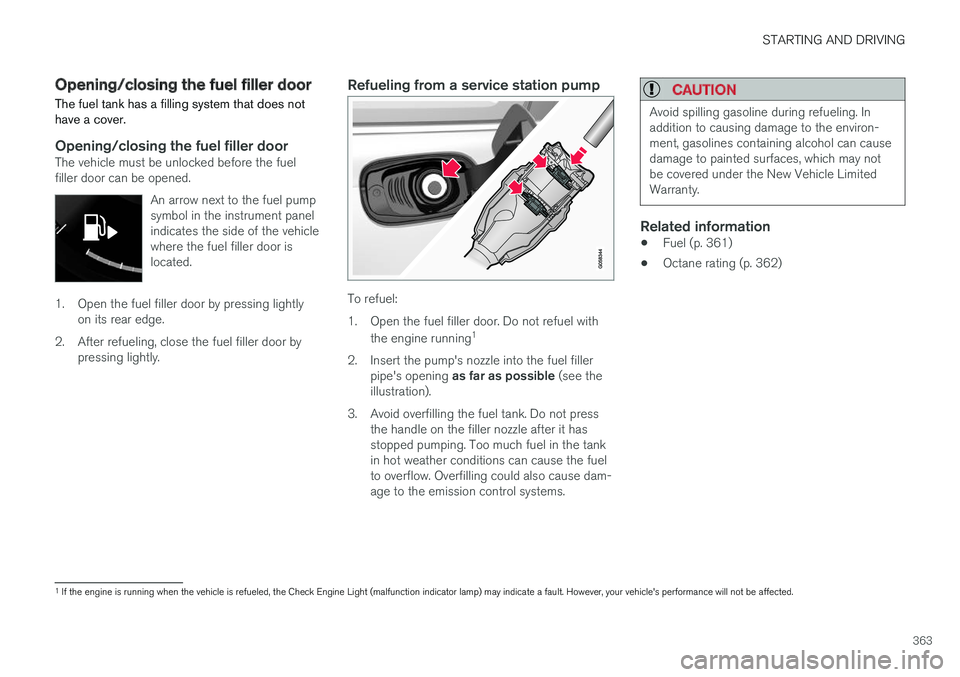
Refueling from a service station pump
To refuel:
1. Open the fuel filler door. Do not refuel with
the engine running 1
2. Insert the pump's nozzle into the fuel filler pipe's opening as far as possible (see the
illustration).
3. Avoid overfilling the fuel tank. Do not press the handle on the filler nozzle after it has stopped pumping. Too much fuel in the tankin hot weather conditions can cause the fuelto overflow. Overfilling could also cause dam-age to the emission control systems.
CAUTION
Avoid spilling gasoline during refueling. In addition to causing damage to the environ-ment, gasolines containing alcohol can causedamage to painted surfaces, which may notbe covered under the New Vehicle LimitedWarranty.
Related information
• Fuel (p. 361)
• Octane rating (p. 362)
1
If the engine is running when the vehicle is refueled, the Check Engine Light (malfunction indicator lamp) may indicate a fault. However, your vehicle's performance will not be affected.
Page 392 of 548
INFOTAINMENT
390
The infotainment system
The infotainment system consists of a radio, media player and has the capacity to communi-cate with a Bluetooth-connected cell phone. It isalso possible to connect to the Internet to e.g.,stream audio content via apps. The system's functions can be controlled from the right-side steering wheel keypad, the centerdisplay or by using voice commands.
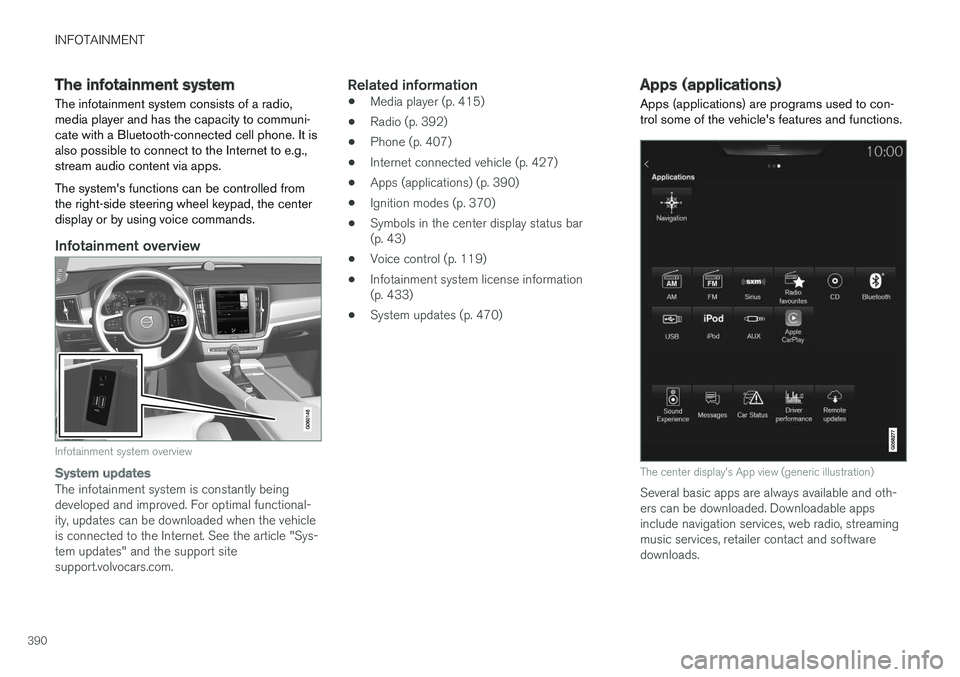
Infotainment overview
Infotainment system overview
System updates
The infotainment system is constantly being developed and improved. For optimal functional-ity, updates can be downloaded when the vehicleis connected to the Internet. See the article "Sys-tem updates" and the support sitesupport.volvocars.com.
Related information
• Media player (p. 415)
• Radio (p. 392)
• Phone (p. 407)
• Internet connected vehicle (p. 427)
• Apps (applications) (p. 390)
• Ignition modes (p. 370)
• Symbols in the center display status bar(p. 43)
• Voice control (p. 119)
• Infotainment system license information(p. 433)
• System updates (p. 470)
Apps (applications)
Apps (applications) are programs used to con- trol some of the vehicle's features and functions.
The center display's App view (generic illustration)
Several basic apps are always available and oth- ers can be downloaded. Downloadable appsinclude navigation services, web radio, streamingmusic services, retailer contact and softwaredownloads.
Page 394 of 548
INFOTAINMENT
* Option/accessory.
392
Radio Your vehicle's radio offers AM and FM with HD Radio ™ Technology and SiriusXM ®
Satellite
radio *.
The radio can be controlled using the right-side steeringwheel keypad, the center dis-play or by using voice com-mands.
Related information
• Changing and searching for radio stations (p. 393)
• Radio settings (p. 392)
• SiriusXM ®
Satellite radio * (p. 398)
• HD Radio
™reception (p. 394)
• Changing and searching for radio stations(p. 393)
Radio settings
The following information lists the settings that can be made for the various wavebands.
Pull down the center display's Top view and select
SettingsMedia for the desired wave-
band. Tap to activate/deactivate.
AM/FM
•Show Radio Text: displays information
about program content, artists, etc.
•
Freeze Program Service Name: select to
stop excessive scrolling to freeze after 20 seconds.
• AM HD Radio: Enables HD Radio
™
Technology for AM audio quality comparableto analogue FM.
• FM HD Radio: - Enables HD Radio
™
Technology for audio comparable to CDquality. See the article "HD Radio" fordetailed information.
SiriusXM ® Satellite radioWith SiriusXM ® Satellite radio activated, pull
down the center display's Top view and tap
SiriusXM Settings to display a list of available
alternatives. See the article "SiriusXM Satellite radio settings" for detailed information.
Related information
• SiriusXM ®
Satellite radio * settings (p. 400)
• SiriusXM ®
Satellite radio * (p. 398) •
Radio (p. 392)
• HD Radio
™reception (p. 394)
Page 400 of 548

INFOTAINMENT
* Option/accessory.
398
SiriusXM ®
Satellite radio *
The SiriusXM ®
Satellite system broadcasts from
of a number of high elevation satellites in geo- synchronous orbit.
Listening to satellite radioThe digital signals from the satellites are line-of- sight, which means that physical obstructionssuch as bridges, tunnels, etc, may temporarilyinterfere with signal reception. Avoid any obstructions, such as metallic objects transported on roof racks or in a ski box, or otherantennas that may impede signals from the SiriusXM ®
satellites.
Selecting SiriusXM ®
Satellite radio
mode
1. From the center display's Home view, swipe from right to left to come to App view.
2.Tap the SiriusXM ®
Satellite radio icon.
Home view with SiriusXM ®
Satellite radio activated
If there is no subscription activated, tap channel 1, where you will be prompted on the screen to phone SiriusXM ®
.
If a cell phone is paired and connected to the vehicle, you can also subscribe by:
1. From Home view, pull down the Settings menu.
2. Open the settings menu for SiriusXM ®
Satel-
lite radio.
3. Tap
Unsubscribed Services
4.
Tap the phone number to call SiriusXM ®
,
who will activate the subscription of your choice. This may take several minutes.
When the subscription has been activated, tap the SiriusXM ®
Satellite radio icon to start the function and display the channel list included in your subscription.
Related information
•
Using SiriusXM ®
Satellite radio * (p. 399)
• SiriusXM Travel Link
* (p. 401)
Page 403 of 548
INFOTAINMENT
}}
* Option/accessory.401
Game Alerts
Tap to display a list of sports. Tap a sport to display a list of teams and tap a box on the right side of the screen to select ateam as a favorite. An alert will then be providedwhen information about the team is being broad-cast. Tap
Confirm below the list to return to the list of
sports. Tap
Back to return to the list of settings orClose to return to the main screen.
Unsubscribed services
If you have a SiriusXM ®
Satellite radio subscrip-
tion, any channels not included in the subscrip- tion will be listed here. Call SiriusXM ™ to sub-
scribe. The phone number will be shown on the screen. If a cell phone is paired and connected tothe vehicle, tap the phone number to make thecall.
Skipped stations
Tap to display a list of channels that you would like to skip (hide). Hide channels from the chan-nel list by tapping the boxes to the right of thescreen. Skipped (hidden) channels will not beshown in the channel list. However, a channelpreviously selected as a favorite will still be dis-played in the list of favorites, even it has beenadded to the skip list.
Skipped categories
Tap to display a list of categories. Tap a category to skip (hide) it. It will not be displayed in the listof categories.
Related information
• Using SiriusXM ®
Satellite radio * (p. 399)
• SiriusXM ®
Satellite radio * (p. 398)
SiriusXM Travel Link *
SiriusXM Travel Link is a feature offered by SiriusXM ®
Satellite radio * that can provide infor-
mation about e.g., weather forecasts, weather alerts, service stations, sports, etc. in the vicinityof the vehicle.
Starting SiriusXM Travel Link
NOTE
SiriusXM Travel Link services are only availa- ble in vehicles equipped with the SensusNavigation system.
From the center display
Page 404 of 548
||
INFOTAINMENT
* Option/accessory.
402 3.
Tap
Subscription Status.
> To subscribe, call the phone number listed on the screen.
Any services not subscribed will be grayed out and contain the text
Service not subscribed.
When the services have been activated (subscri- bed), tap the one of your choice to start it. The following applies for all of the SiriusXM Travel Link services:
• Pressing the
Back button will take you back
to the previous screen
• Pressing the
Close button will take you to
the SiriusXM Travel Link home screen.
NOTE
If the Close button is used to return to
SiriusXM Travel Link home screen, the follow- ing applies (the
Weather service is used here
as an example):
• If you have already used the
Weatherfunction, tapping Weather again in the
SiriusXM Travel Link home screen before using any other SiriusXM Travel Link service will return you to the
point where you left the
Weather service
• If another SiriusXM Travel Link service is used (e.g., Fuel, Sports, etc.) before you return to the
Weather service, you will be
returned to the default Weather view (in
this case, Local)
The same principle applies to all of the SiriusXM Travel Link services.
FavoritesMany SiriusXM Travel Link selections can be saved for easy access as favorites by tapping the"star" icon next to the selection where applicable. To display a list of your favorites, tap the
Favoriteapplication in the SiriusXM Travel Link home screen.
Related information
• SiriusXM ®
Satellite radio * (p. 398)
• Center display overview (p. 28) •
Navigating in the center display's views(p. 38)
• SiriusXM Travel Link - Weather (p. 403)
• SiriusXM Travel Link - Sports (p. 406)
• SiriusXM Travel Link - Alerts (p. 404)
• SiriusXM Travel Link - Fuel (p. 405)
Page 405 of 548
INFOTAINMENT
}}
403
SiriusXM Travel Link - Weather
This SiriusXM Travel Link service provides weather-related information near the vehicle, at alocal ski resort, etc.
From the SiriusXM Travel Link home screen, to display weather-related information:
–Tap the Weather button to display this
screen.
At the top of the screen, the following categories will be displayed:
• Search (the magnifying glass icon)
•
Local
•Ski condition
•Areas
•Favorites
Tap the category of your choice.
SearchTap the magnifying glass icon. If the function is supported in the current context, a keyboard willappear on the screen. Enter the text of your choice and tap
Search for detailed information
from the SiriusXM Travel Link database.
Local 5Information from the closest weather station will be displayed and the following alternatives areavailable:
• Map view
• Today
• 5 days
Map view
Tap the map to display it full-screen. Tap Back to
return to the original map view. Tap
Map options to display the following alter-
natives. •
Weather radar
•Storm attributes
•Surface features
•Tropical storm tracks
•Winds
Tap the respective boxes to the right of the alter- natives to select/deselect. Tap Done to confirm
and return to the previous screen or Cancel.
Today
Tap to see the current temperature, or the tem- perature in 3/6 hours. Tap
Back to return to the Local screen or Closeto return to the SiriusXM Travel Link home screen.
5 days
Tap to see weather information for the coming 5 days. Tap
Back to return to the Local screen or Closeto return to the SiriusXM Travel Link home screen.
Ski locationTap to display a list of ski areas in the vicinity ofthe vehicle. Tap a name in the list for informationsuch as if the ski area is open/closed, tempera-ture, wind conditions, snow conditions, the num-ber of lifts that are in operation, etc.
• Weather locations
• Ski locations
Tap Map view to display a map and a weatherlegend. Tap
Map options to display the following alter-
natives. •
Weather radar
•Storm attributes
•Surface features
•Tropical storm tracks
•Winds
Tap the respective boxes to the right of the alter- natives to select/deselect. Tap Done to confirm
and return to the previous screen or Cancel.
5 This is the weather default unless another alternative has been selected.