change time VOLVO S90 2018 Owner´s Manual
[x] Cancel search | Manufacturer: VOLVO, Model Year: 2018, Model line: S90, Model: VOLVO S90 2018Pages: 640, PDF Size: 11.37 MB
Page 137 of 640
DISPLAYS AND VOICE CONTROL
}}
* Option/accessory.135
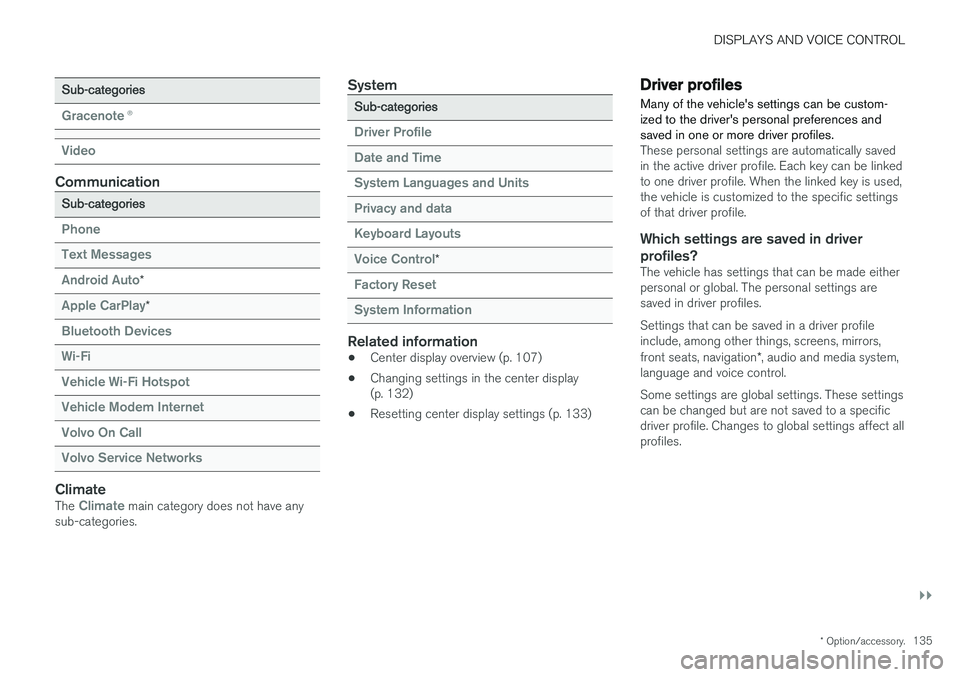
Sub-categories
Gracenote®
Video
Communication
Sub-categories
Phone Text Messages Android Auto
*
Apple CarPlay*
Bluetooth Devices Wi-FiVehicle Wi-Fi HotspotVehicle Modem Internet Volvo On Call Volvo Service Networks
ClimateThe Climate main category does not have any
sub-categories.
System
Sub-categories
Driver Profile Date and TimeSystem Languages and UnitsPrivacy and dataKeyboard Layouts Voice Control
*
Factory Reset System Information
Related information
• Center display overview (p. 107)
• Changing settings in the center display (p. 132)
• Resetting center display settings (p. 133)
Driver profiles
Many of the vehicle's settings can be custom- ized to the driver's personal preferences andsaved in one or more driver profiles.
These personal settings are automatically saved in the active driver profile. Each key can be linkedto one driver profile. When the linked key is used,the vehicle is customized to the specific settingsof that driver profile.
Which settings are saved in driver profiles?
The vehicle has settings that can be made eitherpersonal or global. The personal settings aresaved in driver profiles. Settings that can be saved in a driver profile include, among other things, screens, mirrors, front seats, navigation *, audio and media system,
language and voice control. Some settings are global settings. These settings can be changed but are not saved to a specificdriver profile. Changes to global settings affect allprofiles.
Page 138 of 640
||
DISPLAYS AND VOICE CONTROL
136
Global settings
Global settings and parameters do not change when driver profiles are changed. They remainthe same regardless of which driver profile is cur-rently active. Keyboard layout is an example of a global setting. If driver profile X is used to add additional key-board languages, these languages will also beavailable for driver profile Y. The settings for key-board layout are not saved to a specific driverprofile - the settings are global.
Personal settings
If driver profile X has been used to e.g., set the brightness for the center display, driver profile Ywill not be affected by this setting. It will only besaved to driver profile X because brightness set-ting is a personal setting.
Related information
•Selecting a driver profile (p. 136)
• Changing a driver profile's name (p. 137)
• Resetting driver profile settings (p. 137)
• Linking a remote key to a driver profile(p. 137)
• Table of settings in the center display(p. 134)
Selecting a driver profile When the center display starts up, the selected driver profile will be shown at the top of thescreen. The most recently used driver profile willbe active the next time the vehicle is unlocked. Adifferent driver profile can be selected once thevehicle has been unlocked. However, if theremote key has been linked to a driver profile,this profile will be used instead.
There are two options for switching between driver profiles. Option 1:
1. Tap the name of the driver profile shown at
the top of the center display when the dis- play starts up.
> A list will appear, showing driver profilesthat can be selected.
2. Select desired driver profile. 3. Tap
Confirm.
> The driver profile has now been selected and the system will load the settings stored in that profile.
Option 2:
1. Pull down Top view in the center display.2. Tap
Profile.
> The same list as in option 1 will be dis- played.
3. Select desired driver profile. 4.
Tap
Confirm.
> The driver profile has now been selected and the system will load the settings stored in that profile.
Related information
• Driver profiles (p. 135)
• Navigating in the center display's views(p. 113)
• Changing a driver profile's name (p. 137)
• Linking a remote key to a driver profile(p. 137)
Page 139 of 640
DISPLAYS AND VOICE CONTROL
}}
137
Changing a driver profile's name
It is possible to change the names of the differ- ent driver profiles used in the vehicle.
1. Tap Settings in the Top view in the center
display.
2. Tap
SystemDriver Profiles.
3. Select
Edit Profile.
> A menu will open in which the driver pro- file can be changed.
4. Tap the
Profile Name box.
> A keyboard will be displayed and can be used to change the name. Tap
to
close the keyboard.
5. Save the name change by pressing
Back orClose.
> The name has now been changed.
NOTE
Profile names may not begin with a space. If a space is entered first, the profile name will notbe saved.
Related information
• Selecting a driver profile (p. 136)
• Using the center display keyboard (p. 124)
Resetting driver profile settings
Settings that have been saved for one or more driver profiles can be reset when the vehicle isstationary.
NOTE
Factory Reset is only possible when the
vehicle is stationary.
1. Tap Settings in the Top view.
2. Tap
SystemFactory ResetReset
Personal Settings.
3. Select option
Reset for the active profile,Reset for all profiles or Cancel.
Related information
• Driver profiles (p. 135)
• Resetting center display settings (p. 133)
Linking a remote key to a driverprofile A remote key can be linked to a driver profile. This driver profile and all of its settings will thenautomatically be selected every time the vehicleis used with that particular remote key.
The first time the remote key is used, it is not linked to any specific driver profile. The Guestprofile is automatically activated when the ignition is switched on. A driver profile can also be selected manually without linking it to any key. When the vehicle isunlocked, the last active driver profile will be acti-vated. If the key has ever been linked to a driverprofile, it is not necessary to manually select adriver profile when using that particular key.
Linking a remote key to a specific driver
profile
First select the profile you would like to link tothe key (if that profile is not already active). Theactive profile can then be linked to the key. 1. Tap
Settings in the Top view in the center
display.
2. Tap
SystemDriver Profiles.
3. Mark the desired profile. The display will return to Home view. The
Guest profile can-
not be linked to a remote key.
Page 174 of 640
WINDOWS, GLASS AND MIRRORS
* Option/accessory.
172 •
Storing memory settings in power front seats
* (p. 186)
• Activating and deactivating the heated rear window and door mirrors (p. 219)
Adjusting the rearview mirrordimming function
Bright light entering the vehicle from behind, e.g. from the headlights of following vehicles, couldreflect in the rearview mirror and door mirrorsand cause a glare. Use the dimming functionwhen light from behind is distracting.
Auto-dimIf bright light enters the vehicle from behind, the door mirrors will automatically dim. Auto-dim isalways active when the engine is running, exceptwhen reverse gear is engaged.
NOTE
When the level of sensitivity is changed, this change will not be noticeable immediately butwill instead take effect after a short period oftime.
The sensitivity level for dimming will affect both the rearview mirror and door mirrors. 1. Tap
Settings in the Top view in the center
display.
2. Tap
My CarMirrors and Convenience.
3. Under
Rearview Mirror Auto Dimming,
select Normal, Dark or Light.
The rearview mirror instead has two sensors - one pointing forward and one pointing rearward -which work together to identify and eliminate glare. The forward-pointing sensor monitorsambient light, while the rearward-pointing sensormonitors light from the headlights of followingvehicles. For the door mirrors to be equipped with auto- dim, the rearview mirror must also be equippedwith auto-dim.
NOTE
If the sensors are obstructed by e.g. a parking permit, transponder, sunshade or objects onthe seats or parcel shelf in a way that pre-vents light from reaching the sensors, theauto-dim function in the rearview and doormirrors will be reduced.
Related information
•
Rearview/door mirrors (p. 171)
• Adjusting the door mirrors (p. 173)
Page 187 of 640
SEATS AND STEERING WHEEL
}}
* Option/accessory.185
Power front seats *
The power front seats can be adjusted in a num- ber of different ways for optimal comfort andergonomics. The power seats can be moved for-ward/backward and up/down. The height and length * of the seat cushion and the tilt of the
backrest can be adjusted. Lumbar support can be adjusted up, down, forward and backward.
The power seats have an overload protector that is triggered if a seat is blocked by any object. Ifthis occurs, remove the object and attempt toadjust the seat again. The power seats can be adjusted for a certain period of time after the door is unlocked withoutthe engine running. The seats can always beadjusted while the engine is running. They canalso be adjusted for a short period after theengine is turned off.
Related information
• Manual front seats (p. 184)
• Adjusting the power front seats
* (p. 185)
• Storing memory settings in power front seats
* (p. 186)
• Using stored memory in a powered front seat (p. 187)
• Adjusting front seat massage settings
*
(p. 188)
• Adjusting front seat cushion length (p. 189)
• Front seat massage settings
* (p. 188) •
Adjusting front seat side bolster settings
*
(p. 190)
• Adjusting front seat lumbar support
* (p. 190)
• Adjusting the passenger seat from the driv- er's seat
* (p. 191)
Adjusting the power front seats *
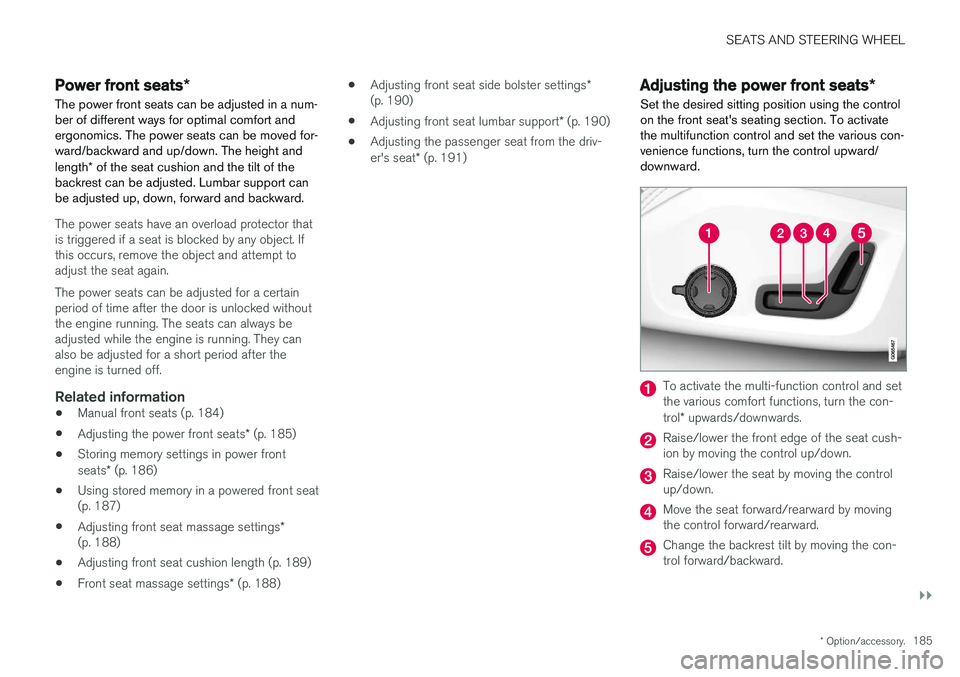
Set the desired sitting position using the control on the front seat's seating section. To activatethe multifunction control and set the various con-venience functions, turn the control upward/downward.
To activate the multi-function control and set the various comfort functions, turn the con- trol * upwards/downwards.
Raise/lower the front edge of the seat cush- ion by moving the control up/down.
Raise/lower the seat by moving the control up/down.
Move the seat forward/rearward by moving the control forward/rearward.
Change the backrest tilt by moving the con- trol forward/backward.
Page 193 of 640
SEATS AND STEERING WHEEL
}}
* Option/accessory.191
2.
Select
Lumbar in the seat settings view.
• Press the four-way button (the round but- ton) up/down to move the lumbar supportupward/downward.
• Press the front part of the four-way buttonto increase lumbar support.
• Press the rear part of the four-way buttonto decrease lumbar support.
Related information
•
Manual front seats (p. 184)
• Power front seats
* (p. 185)
• Adjusting the power front seats
* (p. 185)
• Storing memory settings in power front seats
* (p. 186)
• Using stored memory in a powered front seat (p. 187)
• Adjusting front seat massage settings
*
(p. 188)
• Adjusting front seat cushion length (p. 189)
• Front seat massage settings
* (p. 188)
• Adjusting front seat side bolster settings
*
(p. 190)
• Adjusting the passenger seat from the driv- er's seat
* (p. 191)
Adjusting the passenger seat from
the driver's seat *
The front passenger seat can be adjusted from the driver's seat.
Activating the functionThe function is activated via the function view in the center display:
Tap the
Adjust Passenger
Seat button to activate.
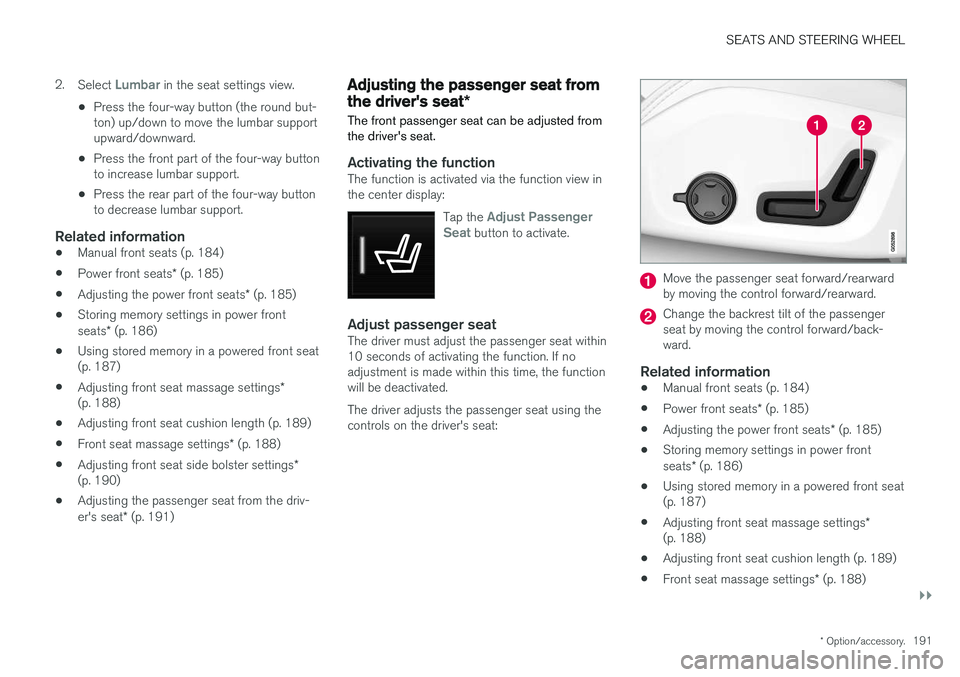
Adjust passenger seatThe driver must adjust the passenger seat within 10 seconds of activating the function. If noadjustment is made within this time, the functionwill be deactivated. The driver adjusts the passenger seat using the controls on the driver's seat:
Move the passenger seat forward/rearward by moving the control forward/rearward.
Change the backrest tilt of the passenger seat by moving the control forward/back-ward.
Related information
• Manual front seats (p. 184)
• Power front seats
* (p. 185)
• Adjusting the power front seats
* (p. 185)
• Storing memory settings in power front seats
* (p. 186)
• Using stored memory in a powered front seat (p. 187)
• Adjusting front seat massage settings
*
(p. 188)
• Adjusting front seat cushion length (p. 189)
• Front seat massage settings
* (p. 188)
Page 241 of 640
KEY, LOCKS AND ALARM
* Option/accessory.239
secure when handing over the vehicle to e.g. a young driver, parking attendant or workshop. Thesettings for a Red Key cannot be changed by itsuser; a regular remote key is needed to changesettings.
Related information
•
Red Key
* settings (p. 239)
• Remote key (p. 229)
Red Key
* settings
The holder of a regular remote key can adjust settings for a Red Key. Certain driver supportfunctions are always active.
1. Tap Settings in the center display's Top
view.
2. Tap
SystemDriver ProfilesRed Key.
> The following settings can be made:
•
Set Time Gap For Adaptive Cruise Control
•Reduced Maximum Volume
•Max Speed Limit
•Speed Limit Warning
Adaptive Cruise Control *:
•Default setting: Longest interval
Reduced maximum volume (On/Off):
•Default setting: On
Speed Limiter (On/Off):
•Setting interval: 50-250 km/h (30-160 mph)
• The default setting is 120 km/h (75 mph)
• Increments: 1 km/h (1 mph)
The following symbol and message will be shown in the instrument panel
Red key Speed limitation cannot
be exceeded.
Speed reminder (On/Off):
• Setting interval: 0-250 km/h (0-160 mph)
• Default setting: 50, 70 and 90 km/h (30, 45 and 55 mph)
• Increments: 1 km/h (1 mph)
• Maximum number of simultaneous remind-ers: 6
Driver support functionsThe following driver support functions will alwaysbe active for a Red Key user:
• Blind Spot Information (BLIS)
*
• Lane Keeping Aid (LKA)
*
• Distance Alert
*
• City Safety
• Driver Alert Control (DAC)
*
• Road Sign Information
*
Related information
•Red Key - restricted remote key
* (p. 238)
Page 250 of 640
||
KEY, LOCKS AND ALARM
* Option/accessory.
248
Alternative unlocking method
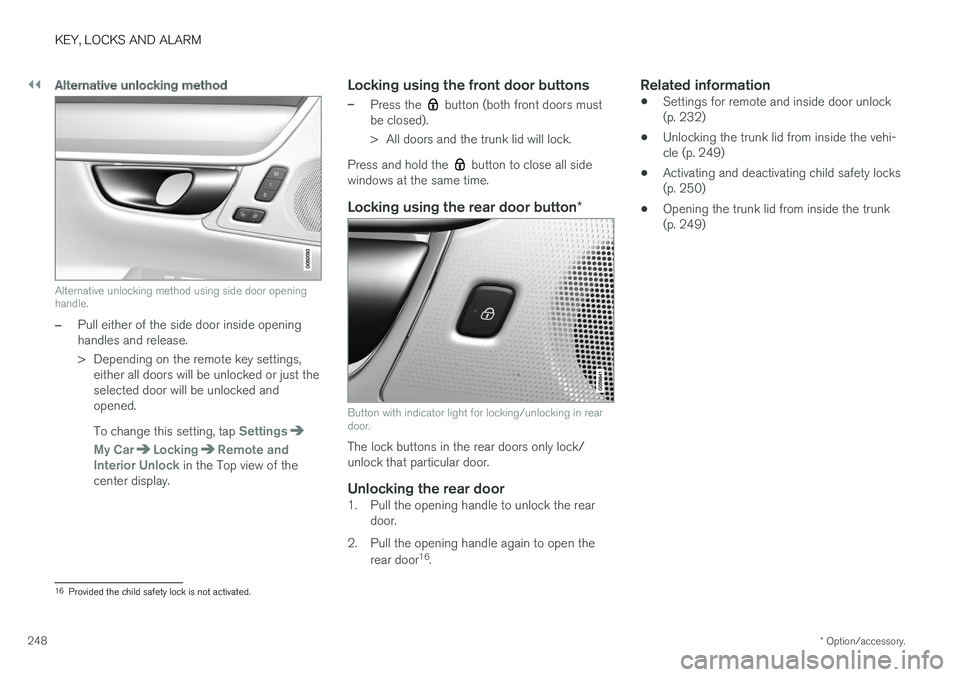
Alternative unlocking method using side door opening handle.
–Pull either of the side door inside opening handles and release.
> Depending on the remote key settings,
either all doors will be unlocked or just the selected door will be unlocked andopened. To change this setting, tap
Settings
My CarLockingRemote and
Interior Unlock in the Top view of the
center display.
Locking using the front door buttons
–Press the button (both front doors must
be closed).
> All doors and the trunk lid will lock.
Press and hold the
button to close all side
windows at the same time.
Locking using the rear door button *
Button with indicator light for locking/unlocking in rear door.
The lock buttons in the rear doors only lock/ unlock that particular door.
Unlocking the rear door1. Pull the opening handle to unlock the rear
door.
2. Pull the opening handle again to open the rear door 16
.
Related information
• Settings for remote and inside door unlock(p. 232)
• Unlocking the trunk lid from inside the vehi-cle (p. 249)
• Activating and deactivating child safety locks(p. 250)
• Opening the trunk lid from inside the trunk(p. 249)
16
Provided the child safety lock is not activated.
Page 279 of 640
DRIVER SUPPORT
}}
277
Managing Cruise Control speedCruise Control (CC 26
) can be set to various
speeds.
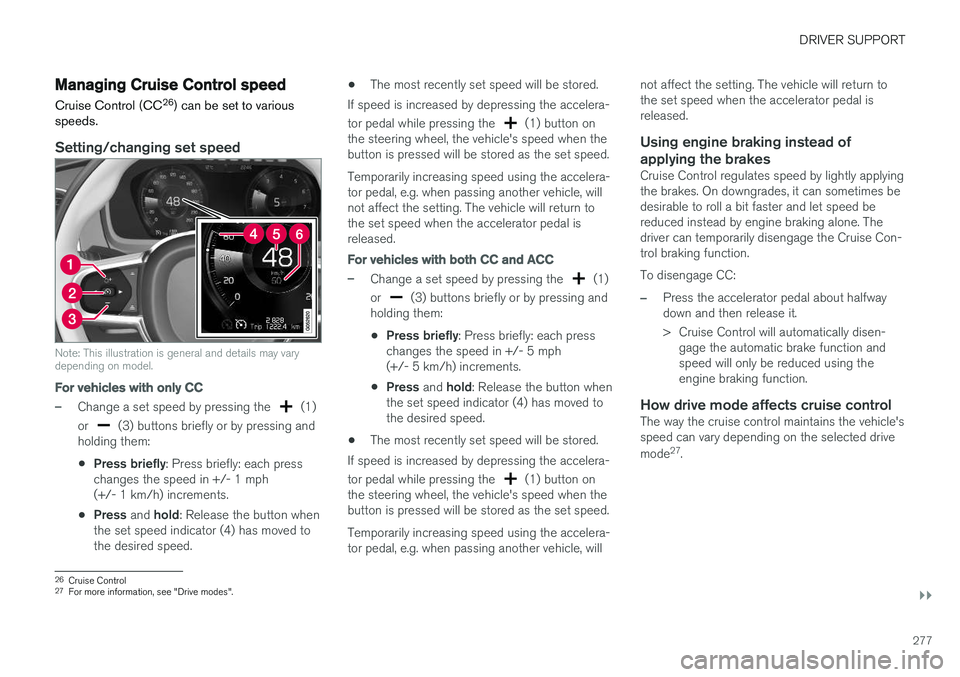
Setting/changing set speed
Note: This illustration is general and details may vary depending on model.
For vehicles with only CC
–Change a set speed by pressing the (1)
or
(3) buttons briefly or by pressing and
holding them:
• Press briefly
: Press briefly: each press
changes the speed in +/- 1 mph (+/- 1 km/h) increments.
• Press
and hold: Release the button when
the set speed indicator (4) has moved tothe desired speed. •
The most recently set speed will be stored.
If speed is increased by depressing the accelera- tor pedal while pressing the
(1) button on
the steering wheel, the vehicle's speed when the button is pressed will be stored as the set speed. Temporarily increasing speed using the accelera- tor pedal, e.g. when passing another vehicle, willnot affect the setting. The vehicle will return tothe set speed when the accelerator pedal isreleased.
For vehicles with both CC and ACC
–Change a set speed by pressing the (1)
or
(3) buttons briefly or by pressing and
holding them:
• Press briefly
: Press briefly: each press
changes the speed in +/- 5 mph (+/- 5 km/h) increments.
• Press
and hold: Release the button when
the set speed indicator (4) has moved tothe desired speed.
• The most recently set speed will be stored.
If speed is increased by depressing the accelera- tor pedal while pressing the
(1) button on
the steering wheel, the vehicle's speed when the button is pressed will be stored as the set speed. Temporarily increasing speed using the accelera- tor pedal, e.g. when passing another vehicle, will not affect the setting. The vehicle will return tothe set speed when the accelerator pedal isreleased.
Using engine braking instead of
applying the brakes
Cruise Control regulates speed by lightly applyingthe brakes. On downgrades, it can sometimes bedesirable to roll a bit faster and let speed bereduced instead by engine braking alone. Thedriver can temporarily disengage the Cruise Con-trol braking function. To disengage CC:
–Press the accelerator pedal about halfway down and then release it.
> Cruise Control will automatically disen- gage the automatic brake function and speed will only be reduced using theengine braking function.
How drive mode affects cruise controlThe way the cruise control maintains the vehicle'sspeed can vary depending on the selected drive mode 27
.
26 Cruise Control
27 For more information, see "Drive modes".
Page 293 of 640
DRIVER SUPPORT
}}
* Option/accessory.291
Select one of the following:
•
Eco - ACC will focus on providing optimal
fuel economy, which will increase the time interval to the vehicle ahead.
•
Comfort - ACC will focus on following the
set time interval to the vehicle ahead as smoothly as possible.
•
Dynamic - ACC will focus on following the
set time interval to the vehicle ahead more exactly, which could mean faster accelerationand heavier braking.
For more information, see "Drive modes". Additional information is provided in the sections "Managing Cruise Control speed" and "ECOdrive mode".
Related information
• Adaptive Cruise Control
* (p. 284)
Deactivating/reactivating AdaptiveCruise Control Adaptive Cruise Control (ACC 45
) can be tempo-
rarily put into standby mode and then reactiva- ted.
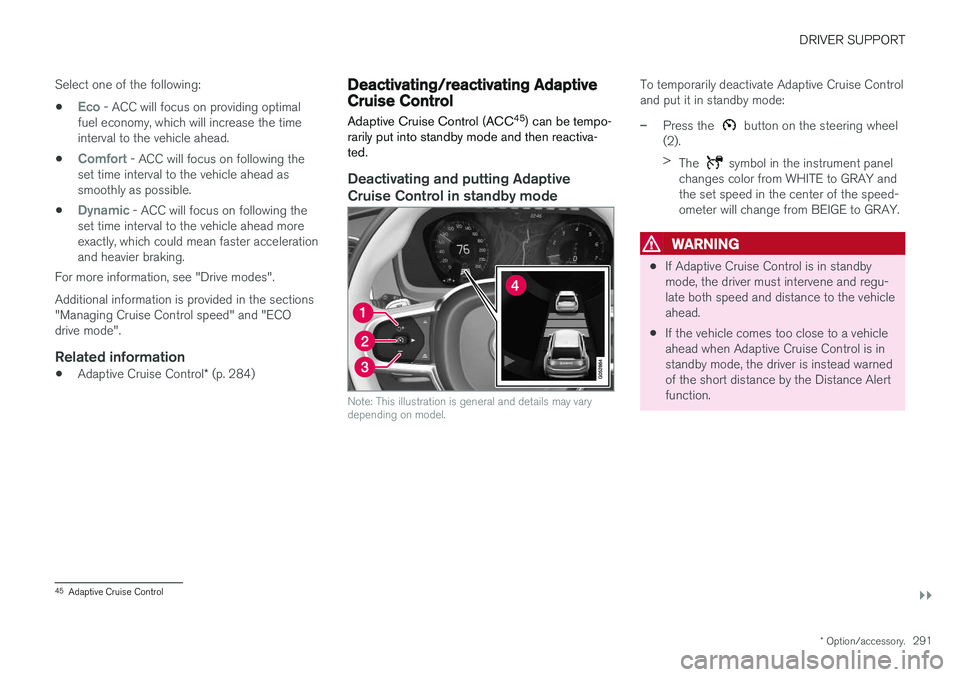
Deactivating and putting Adaptive Cruise Control in standby mode
Note: This illustration is general and details may vary depending on model.
To temporarily deactivate Adaptive Cruise Control and put it in standby mode:
–Press the button on the steering wheel
(2). > The
symbol in the instrument panel
changes color from WHITE to GRAY and the set speed in the center of the speed-ometer will change from BEIGE to GRAY.
WARNING
• If Adaptive Cruise Control is in standby mode, the driver must intervene and regu-late both speed and distance to the vehicleahead.
• If the vehicle comes too close to a vehicleahead when Adaptive Cruise Control is instandby mode, the driver is instead warnedof the short distance by the Distance Alertfunction.
45
Adaptive Cruise Control