change time VOLVO S90 2018 Owner´s Manual
[x] Cancel search | Manufacturer: VOLVO, Model Year: 2018, Model line: S90, Model: VOLVO S90 2018Pages: 640, PDF Size: 11.37 MB
Page 5 of 640
3
Top tether anchors72
Lower child seat attachment points 73
ISOFIX/LATCH lower anchors 74
DISPLAYS AND VOICE CONTROL
Instruments and controls in left-hand drive vehicles78
Instrument panel 80
Instrument panel settings 84
Fuel gauge 85
Trip computer 85
Displaying trip data in the instrumentpanel 87
Resetting the trip odometer 88
Displaying trip statistics in the centerdisplay 88
Trip statistics settings 89
Date and time 90
Ambient temperature sensor 90
Indicator symbols in the instrument panel 91
Warning symbols in the instrument panel 93
Instrument panel licenses 94
App menu in instrument panel 100
Handling the App menu in the instru-ment panel 101
Messages in the instrument panel 102
Handling messages in the instru-ment panel 103
Handling messages saved from theinstrument panel 105
Center display overview 107
Handling the center display110
Activating and deactivating the cen- ter display 113
Navigating in the center display's views 113
Handling tiles in the center display 117
Function view in the center display 120
Moving apps and buttons in the cen-ter display 122
Symbols in the center display status bar 122
Using the center display keyboard 124
Changing keyboard language in thecenter display 127
Entering characters, letters andwords by hand in the center display 127
Changing the appearance of thecenter display 129
Turning off and adjusting the volumeof the center display system sounds 129
Changing system units of measurement 130
Changing system language 130
Opening settings in the center display 130
Opening contextual setting in thecenter display 131
Changing settings in the center display 132
Resetting user data when the vehiclechanges owners 132
Resetting center display settings 133
Page 23 of 640
OWNER'S INFORMATION
}}
* Option/accessory.21
ContactContact information for customer support and your nearest Volvo retailer are available on thesupport site.
Related information
•Contacting Volvo (p. 26)
• Volvo ID (p. 26)
Using the Owner's Manual
Reading your Owner's Manual is a good way to get to know your new Volvo, preferably beforedriving it for the first time.
Reading your Owner's Manual is a good way to familiarize yourself with new features and func-tions, get advice on the best way to handle yourvehicle in different situations, and to learn how toget the most out of everything your Volvo has tooffer. Pay particular attention to the safety warn-ings provided in the Owner's Manual. The intention of this owner's information is to explain all of the possible features, functions andoptions included in a Volvo vehicle. It is notintended as an indication or guarantee that all ofthese features, functions and options areincluded in every vehicle. Some terminology usedmay not exactly match terminology used in sales,marketing and advertising materials. Volvo continuously works to develop and improve our products. Modifications can mean that infor-mation, descriptions and illustrations in theOwner's Manual differ from the equipment in thevehicle. We reserve the right to make changeswithout prior notice. Do not remove this manual from the vehicle. If a problem should occur, you will not have the nec-essary information on where and how to get pro-fessional assistance. © Volvo Car Corporation
Option/accessoryIn addition to standard equipment, the Owner's Manual also describes options (factory-installedequipment) and certain accessories (extra retro-fitted equipment). All options and accessories are marked with an asterisk: *.
The equipment described in the Owner's Manual is not available in all vehicles. Vehicles may beequipped differently depending on marketrequirements and national or local laws and regu-lations. For more information on which equipment is standard and which is an option or accessory,please contact your Volvo retailer.
FootnotesCertain parts of the Owner's Manual containinformation in the form of footnotes at the bot-tom of the page or at the end of a table. Thisinformation supplements the text that the foot-note number refers to. If the footnote refers totext in a table, a letter is used instead of a num-ber.
MessagesThere are several displays in the vehicle thatshow messages and menu texts. The appearanceof these texts differs from the normal texts provi-ded. Example of messages and menu texts:
Phone, New message.
Page 28 of 640
YOUR VOLVO
26
Contacting Volvo
Use the following contact information if you would like to get in touch with Volvo in the Uni-ted States or Canada.
In the USA: Volvo Car USA, LLC Customer Care Center1 Volvo Drive,P.O. Box 914Rockleigh, New Jersey 076471-800-458-1552www.volvocars.com/us In Canada: Volvo Car Canada Ltd. Customer Care Centre9130 Leslie Street, Suite 101Richmond Hill, Ontario L4B 0B91-800-663-8255www.volvocars.com/ca
Volvo ID
A Volvo ID gives you access to a wide range of personalized Volvo services 1
online.
A Volvo ID can be created from the vehicle or the Volvo On Call app 2
. To access certain functions
and services, the vehicle must be registered to a personal Volvo ID. Registering a Volvo ID to thevehicle gives you access to a wide range of Volvo services directly from the vehicle. Examples of services:
• Volvo On Call - Volvo ID is used to log in to the Volvo On Call app.
• Send to Car - Send an address from anonline map service directly to the vehicle.
• Book service and repairs - Register your pre-ferred workshop/retailer on volvocars.com toschedule service directly from the vehicle.
Advantages of having a Volvo ID
•Only one username and password are nee-ded to access online services (i.e. you onlyneed to remember one username and onepassword).
• If you change your username or password forone service (e.g. Volvo On Call), it will also be automatically changed for the other services.
Related information
•Creating and registering a Volvo ID (p. 27)
• Scheduling service and repairs (p. 552)
1
The services available may vary over time and depending on equipment level and market.
2 For Volvo On Call users.
Page 88 of 640
||
DISPLAYS AND VOICE CONTROL
* Option/accessory.
86
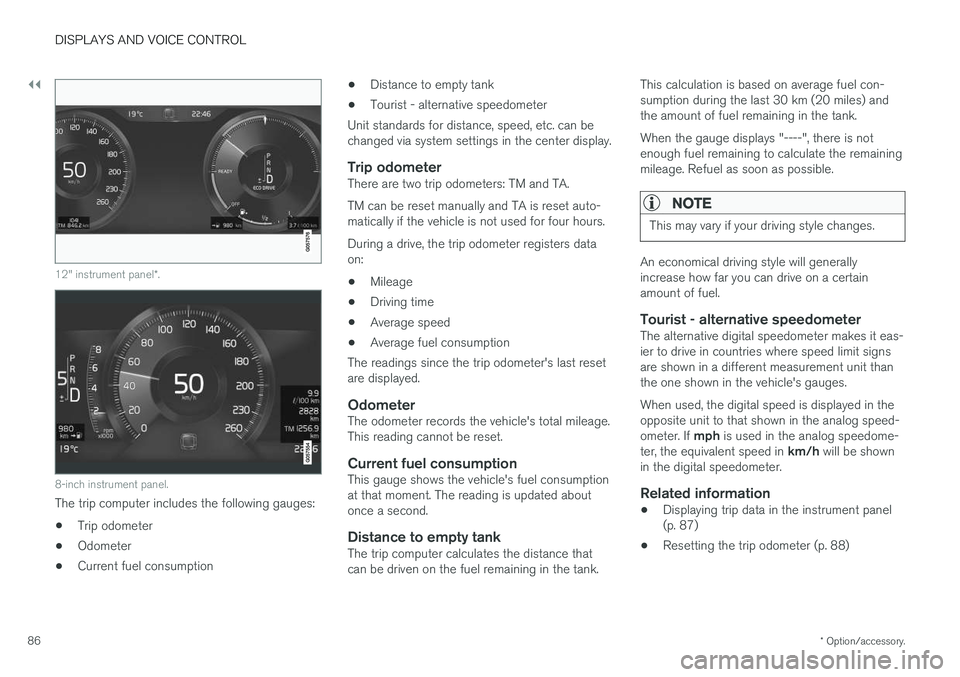
12" instrument panel *.
8-inch instrument panel.
The trip computer includes the following gauges:
• Trip odometer
• Odometer
• Current fuel consumption •
Distance to empty tank
• Tourist - alternative speedometer
Unit standards for distance, speed, etc. can be changed via system settings in the center display.
Trip odometerThere are two trip odometers: TM and TA. TM can be reset manually and TA is reset auto- matically if the vehicle is not used for four hours. During a drive, the trip odometer registers data on:
• Mileage
• Driving time
• Average speed
• Average fuel consumption
The readings since the trip odometer's last resetare displayed.
OdometerThe odometer records the vehicle's total mileage.This reading cannot be reset.
Current fuel consumptionThis gauge shows the vehicle's fuel consumptionat that moment. The reading is updated aboutonce a second.
Distance to empty tankThe trip computer calculates the distance thatcan be driven on the fuel remaining in the tank. This calculation is based on average fuel con-sumption during the last 30 km (20 miles) andthe amount of fuel remaining in the tank. When the gauge displays "----", there is not enough fuel remaining to calculate the remainingmileage. Refuel as soon as possible.
NOTE
This may vary if your driving style changes.
An economical driving style will generally increase how far you can drive on a certainamount of fuel.
Tourist - alternative speedometerThe alternative digital speedometer makes it eas-ier to drive in countries where speed limit signsare shown in a different measurement unit thanthe one shown in the vehicle's gauges. When used, the digital speed is displayed in the opposite unit to that shown in the analog speed- ometer. If
mph is used in the analog speedome-
ter, the equivalent speed in km/h will be shown
in the digital speedometer.
Related information
• Displaying trip data in the instrument panel (p. 87)
• Resetting the trip odometer (p. 88)
Page 91 of 640
DISPLAYS AND VOICE CONTROL
89
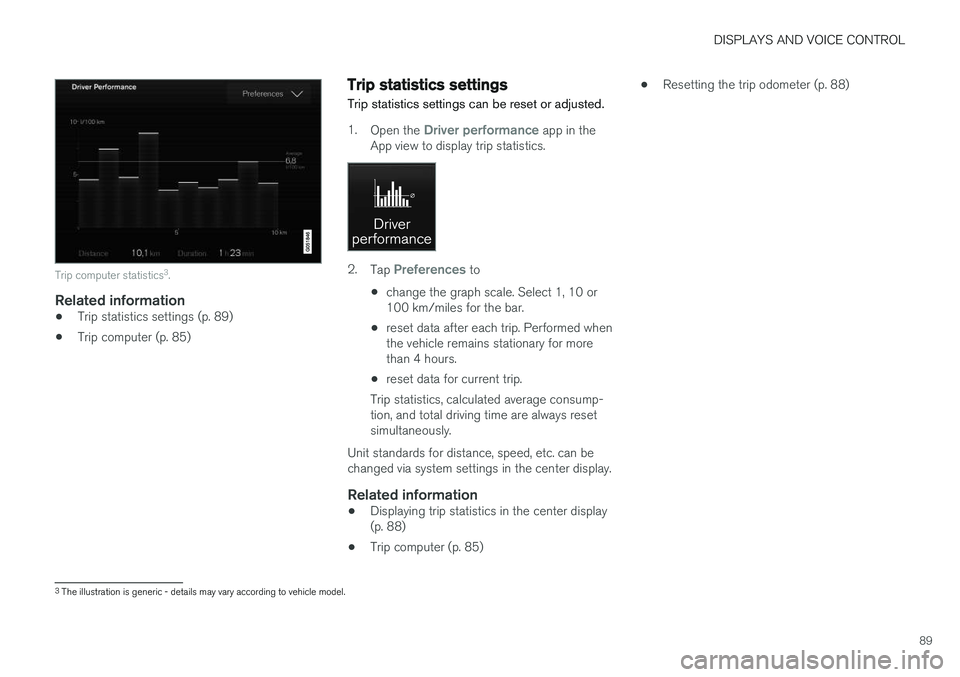
Trip computer statistics3
.
Related information
• Trip statistics settings (p. 89)
• Trip computer (p. 85)
Trip statistics settings
Trip statistics settings can be reset or adjusted.
1. Open the Driver performance app in the
App view to display trip statistics.
2. Tap Preferences to
• change the graph scale. Select 1, 10 or 100 km/miles for the bar.
• reset data after each trip. Performed whenthe vehicle remains stationary for morethan 4 hours.
• reset data for current trip.
Trip statistics, calculated average consump-tion, and total driving time are always resetsimultaneously.
Unit standards for distance, speed, etc. can bechanged via system settings in the center display.
Related information
• Displaying trip statistics in the center display(p. 88)
• Trip computer (p. 85) •
Resetting the trip odometer (p. 88)
3
The illustration is generic - details may vary according to vehicle model.
Page 92 of 640
DISPLAYS AND VOICE CONTROL
90
Date and timeThe clock is displayed in both the instrument panel and the center display.
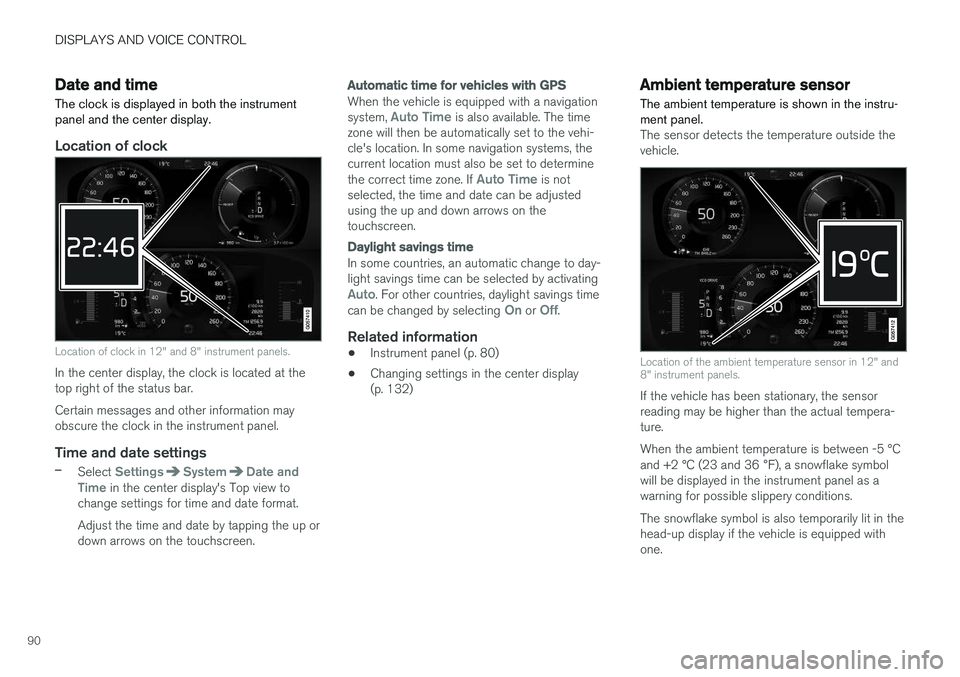
Location of clock
Location of clock in 12" and 8" instrument panels.
In the center display, the clock is located at the top right of the status bar. Certain messages and other information may obscure the clock in the instrument panel.
Time and date settings
–Select SettingsSystemDate and
Time in the center display's Top view to
change settings for time and date format. Adjust the time and date by tapping the up or down arrows on the touchscreen.
Automatic time for vehicles with GPS
When the vehicle is equipped with a navigation system, Auto Time is also available. The time
zone will then be automatically set to the vehi- cle's location. In some navigation systems, thecurrent location must also be set to determine the correct time zone. If
Auto Time is not
selected, the time and date can be adjusted using the up and down arrows on thetouchscreen.
Daylight savings time
In some countries, an automatic change to day- light savings time can be selected by activating
Auto. For other countries, daylight savings time
can be changed by selecting On or Off.
Related information
• Instrument panel (p. 80)
• Changing settings in the center display (p. 132)
Ambient temperature sensor
The ambient temperature is shown in the instru- ment panel.
The sensor detects the temperature outside the vehicle.
Location of the ambient temperature sensor in 12" and 8" instrument panels.
If the vehicle has been stationary, the sensor reading may be higher than the actual tempera-ture. When the ambient temperature is between -5 °C and +2 °C (23 and 36 °F), a snowflake symbol
will be displayed in the instrument panel as a warning for possible slippery conditions. The snowflake symbol is also temporarily lit in the head-up display if the vehicle is equipped withone.
Page 103 of 640
DISPLAYS AND VOICE CONTROL
}}
101
AppFunctions
Trip com- puter Select a trip odometer, changeinstrument panel display set-tings, etc.
Media player Select active source for media player.
Phone Call a contact from the call list.
Navigation Guide to destination, etc.
Related information
• Instrument panel (p. 80)
• Center display overview (p. 107)
• Handling the App menu in the instrument panel (p. 101)
Handling the App menu in theinstrument panel
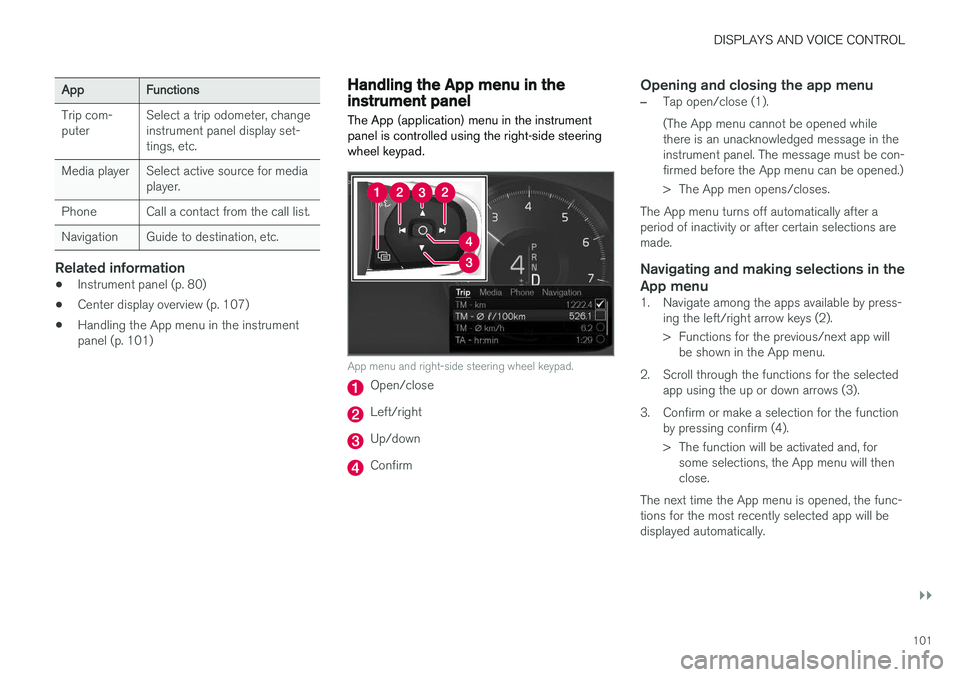
The App (application) menu in the instrument panel is controlled using the right-side steeringwheel keypad.
App menu and right-side steering wheel keypad.
Open/close
Left/right
Up/down
Confirm
Opening and closing the app menu
–Tap open/close (1). (The App menu cannot be opened while there is an unacknowledged message in theinstrument panel. The message must be con-firmed before the App menu can be opened.)
> The App men opens/closes.
The App menu turns off automatically after a period of inactivity or after certain selections aremade.
Navigating and making selections in the
App menu
1. Navigate among the apps available by press- ing the left/right arrow keys (2).
> Functions for the previous/next app willbe shown in the App menu.
2. Scroll through the functions for the selected app using the up or down arrows (3).
3. Confirm or make a selection for the function by pressing confirm (4).
> The function will be activated and, forsome selections, the App menu will then close.
The next time the App menu is opened, the func-tions for the most recently selected app will bedisplayed automatically.
Page 124 of 640
DISPLAYS AND VOICE CONTROL
122
Moving apps and buttons in thecenter display
The apps and buttons for vehicle functions can be moved and organized in the App and Func-tion views.
1. Swipe from right to left 13
to access App view
or swipe from left to right 13
to access Func-
tion view.
2. Press and hold an app or button. > The app or button will change size andbecome slightly transparent. It can then be moved.
3. Drag the app or button to an available posi- tion in the view.
A maximum of 48 rows can be used to positionapps or buttons. To move an app or button out-side the visible view, drag it to the bottom of theview. New rows will be added and the app or but-ton can be placed in one of these. Apps or buttons placed below the view's normal display will not be visible on the screen. Swipe the screen to scroll up or down in the view to display information outside the view.
NOTE
Hide the apps that are rarely or never used by moving them far down, outside of the visibleview. This makes it easier to find the appsused more frequently.
NOTE
Apps and vehicle function buttons cannot be situated at spots already in use.
Related information
• Function view in the center display (p. 120)
• Apps (p. 445)
• Handling the center display (p. 110)
Symbols in the center display statusbar
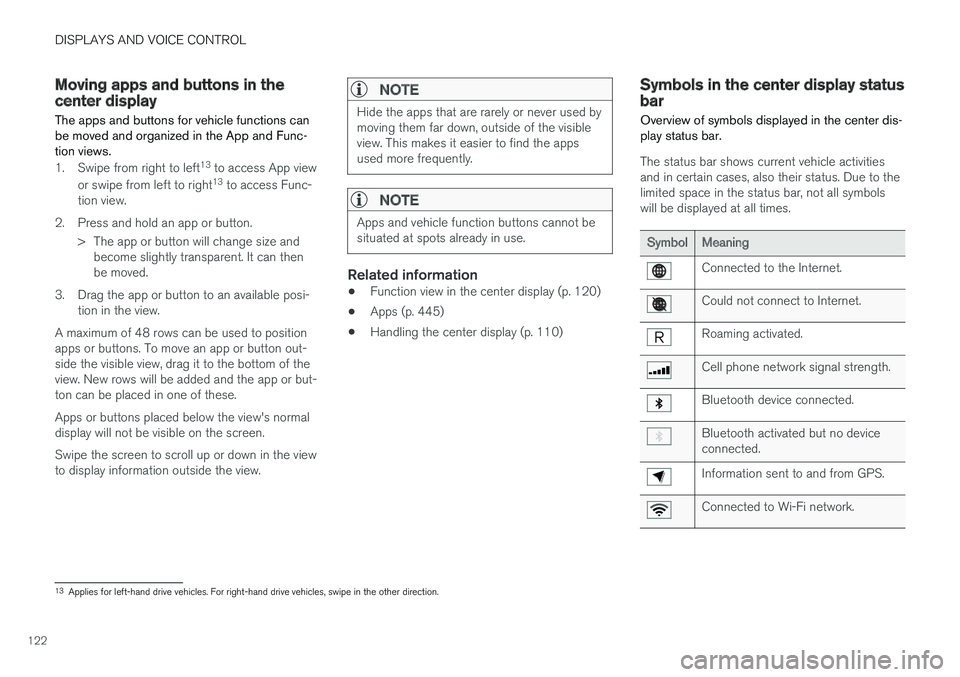
Overview of symbols displayed in the center dis- play status bar.
The status bar shows current vehicle activities and in certain cases, also their status. Due to thelimited space in the status bar, not all symbolswill be displayed at all times.
SymbolMeaning
Connected to the Internet.
Could not connect to Internet.
Roaming activated.
Cell phone network signal strength.
Bluetooth device connected.
Bluetooth activated but no device connected.
Information sent to and from GPS.
Connected to Wi-Fi network.
13 Applies for left-hand drive vehicles. For right-hand drive vehicles, swipe in the other direction.
Page 128 of 640
||
DISPLAYS AND VOICE CONTROL
126
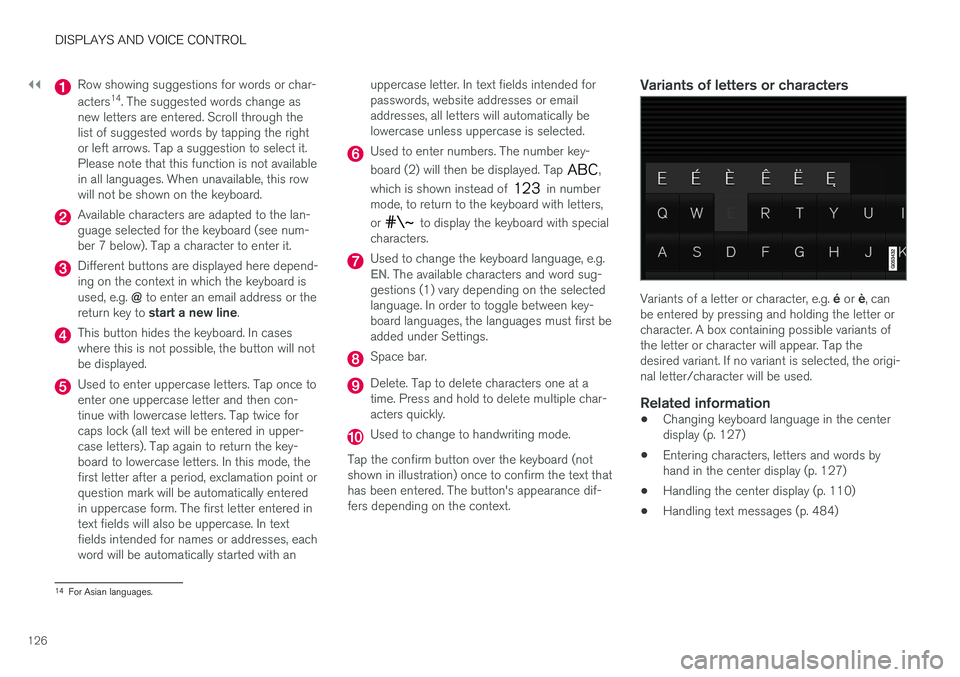
Row showing suggestions for words or char- acters14
. The suggested words change as
new letters are entered. Scroll through the list of suggested words by tapping the rightor left arrows. Tap a suggestion to select it.Please note that this function is not availablein all languages. When unavailable, this rowwill not be shown on the keyboard.
Available characters are adapted to the lan- guage selected for the keyboard (see num-ber 7 below). Tap a character to enter it.
Different buttons are displayed here depend- ing on the context in which the keyboard is used, e.g. @ to enter an email address or the
return key to start a new line .
This button hides the keyboard. In cases where this is not possible, the button will notbe displayed.
Used to enter uppercase letters. Tap once to enter one uppercase letter and then con-tinue with lowercase letters. Tap twice forcaps lock (all text will be entered in upper-case letters). Tap again to return the key-board to lowercase letters. In this mode, thefirst letter after a period, exclamation point orquestion mark will be automatically enteredin uppercase form. The first letter entered intext fields will also be uppercase. In textfields intended for names or addresses, eachword will be automatically started with an uppercase letter. In text fields intended forpasswords, website addresses or emailaddresses, all letters will automatically belowercase unless uppercase is selected.
Used to enter numbers. The number key- board (2) will then be displayed. Tap
,
which is shown instead of
in number
mode, to return to the keyboard with letters, or
to display the keyboard with special
characters.
Used to change the keyboard language, e.g.EN. The available characters and word sug-
gestions (1) vary depending on the selected language. In order to toggle between key-board languages, the languages must first beadded under Settings.
Space bar.
Delete. Tap to delete characters one at a time. Press and hold to delete multiple char-acters quickly.
Used to change to handwriting mode.
Tap the confirm button over the keyboard (not shown in illustration) once to confirm the text thathas been entered. The button's appearance dif-fers depending on the context.
Variants of letters or characters
Variants of a letter or character, e.g. é or è, can
be entered by pressing and holding the letter or character. A box containing possible variants ofthe letter or character will appear. Tap thedesired variant. If no variant is selected, the origi-nal letter/character will be used.
Related information
• Changing keyboard language in the centerdisplay (p. 127)
• Entering characters, letters and words byhand in the center display (p. 127)
• Handling the center display (p. 110)
• Handling text messages (p. 484)
14
For Asian languages.
Page 130 of 640
||
DISPLAYS AND VOICE CONTROL
128
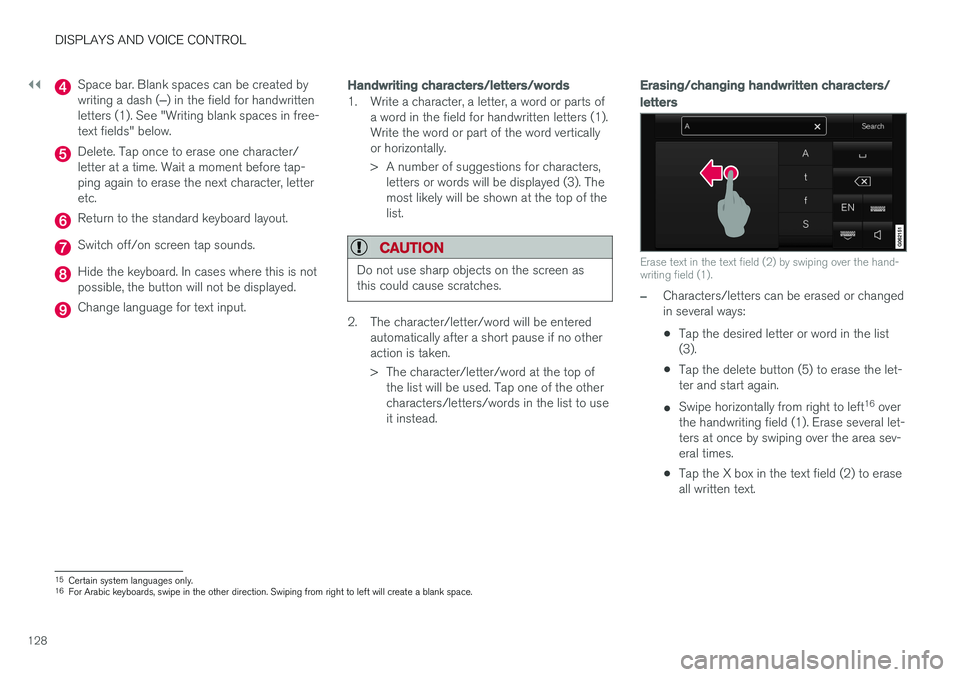
Space bar. Blank spaces can be created by writing a dash (‒) in the field for handwritten
letters (1). See "Writing blank spaces in free- text fields" below.
Delete. Tap once to erase one character/ letter at a time. Wait a moment before tap-ping again to erase the next character, letteretc.
Return to the standard keyboard layout.
Switch off/on screen tap sounds.
Hide the keyboard. In cases where this is not possible, the button will not be displayed.
Change language for text input.
Handwriting characters/letters/words
1. Write a character, a letter, a word or parts of a word in the field for handwritten letters (1). Write the word or part of the word verticallyor horizontally.
> A number of suggestions for characters,letters or words will be displayed (3). The most likely will be shown at the top of thelist.
CAUTION
Do not use sharp objects on the screen as this could cause scratches.
2. The character/letter/word will be entered automatically after a short pause if no other action is taken.
> The character/letter/word at the top ofthe list will be used. Tap one of the other characters/letters/words in the list to useit instead.
Erasing/changing handwritten characters/
letters
Erase text in the text field (2) by swiping over the hand- writing field (1).
–Characters/letters can be erased or changed in several ways: •Tap the desired letter or word in the list (3).
• Tap the delete button (5) to erase the let-ter and start again.
• Swipe horizontally from right to left 16
over
the handwriting field (1). Erase several let-ters at once by swiping over the area sev-eral times.
• Tap the X box in the text field (2) to eraseall written text.
15
Certain system languages only.
16 For Arabic keyboards, swipe in the other direction. Swiping from right to left will create a blank space.