key VOLVO S90 2018 Owner´s Manual
[x] Cancel search | Manufacturer: VOLVO, Model Year: 2018, Model line: S90, Model: VOLVO S90 2018Pages: 640, PDF Size: 11.37 MB
Page 127 of 640
DISPLAYS AND VOICE CONTROL
}}
125
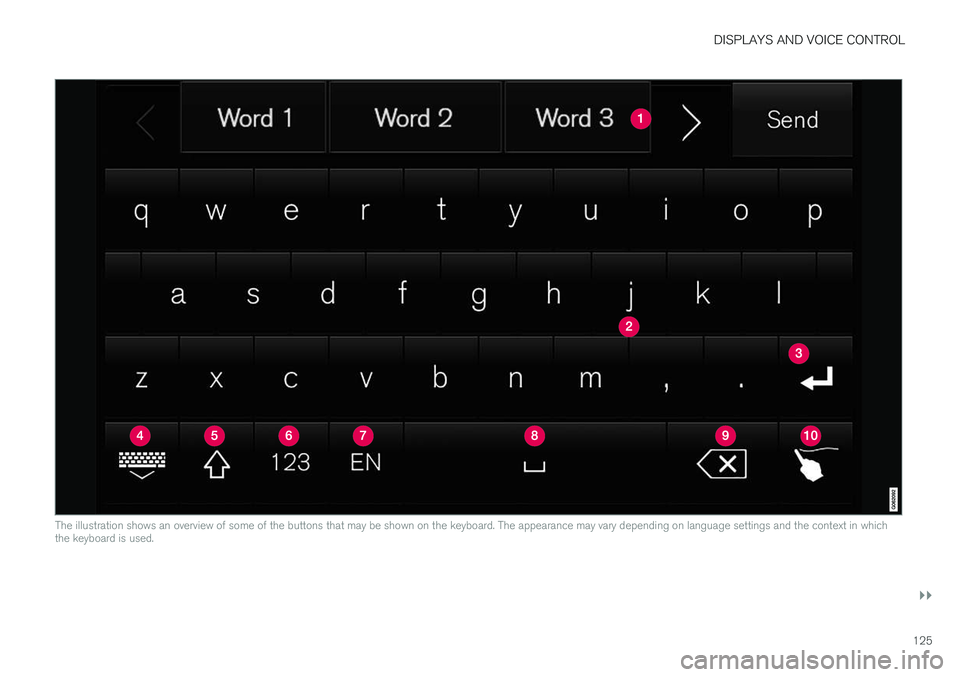
The illustration shows an overview of some of the buttons that may be shown on the keyboard. The appearance may vary depending on language settings and the context in which the keyboard is used.
Page 128 of 640
||
DISPLAYS AND VOICE CONTROL
126
Row showing suggestions for words or char- acters14
. The suggested words change as
new letters are entered. Scroll through the list of suggested words by tapping the rightor left arrows. Tap a suggestion to select it.Please note that this function is not availablein all languages. When unavailable, this rowwill not be shown on the keyboard.
Available characters are adapted to the lan- guage selected for the keyboard (see num-ber 7 below). Tap a character to enter it.
Different buttons are displayed here depend- ing on the context in which the keyboard is used, e.g. @ to enter an email address or the
return key to start a new line .
This button hides the keyboard. In cases where this is not possible, the button will notbe displayed.
Used to enter uppercase letters. Tap once to enter one uppercase letter and then con-tinue with lowercase letters. Tap twice forcaps lock (all text will be entered in upper-case letters). Tap again to return the key-board to lowercase letters. In this mode, thefirst letter after a period, exclamation point orquestion mark will be automatically enteredin uppercase form. The first letter entered intext fields will also be uppercase. In textfields intended for names or addresses, eachword will be automatically started with an uppercase letter. In text fields intended forpasswords, website addresses or emailaddresses, all letters will automatically belowercase unless uppercase is selected.
Used to enter numbers. The number key- board (2) will then be displayed. Tap
,
which is shown instead of
in number
mode, to return to the keyboard with letters, or
to display the keyboard with special
characters.
Used to change the keyboard language, e.g.EN. The available characters and word sug-
gestions (1) vary depending on the selected language. In order to toggle between key-board languages, the languages must first beadded under Settings.
Space bar.
Delete. Tap to delete characters one at a time. Press and hold to delete multiple char-acters quickly.
Used to change to handwriting mode.
Tap the confirm button over the keyboard (not shown in illustration) once to confirm the text thathas been entered. The button's appearance dif-fers depending on the context.
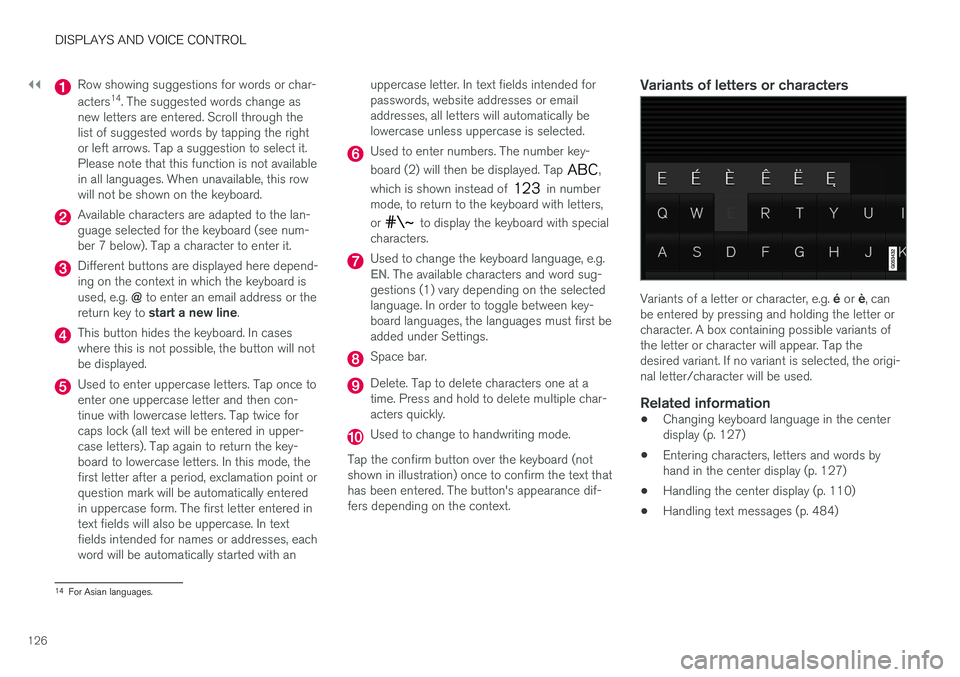
Variants of letters or characters
Variants of a letter or character, e.g. é or è, can
be entered by pressing and holding the letter or character. A box containing possible variants ofthe letter or character will appear. Tap thedesired variant. If no variant is selected, the origi-nal letter/character will be used.
Related information
• Changing keyboard language in the centerdisplay (p. 127)
• Entering characters, letters and words byhand in the center display (p. 127)
• Handling the center display (p. 110)
• Handling text messages (p. 484)
14
For Asian languages.
Page 129 of 640
DISPLAYS AND VOICE CONTROL
}}
127
Changing keyboard language in thecenter display
In order to toggle between keyboard languages, the languages must first be added under
Settings.
Adding or deleting languages in Settings
The keyboard is automatically set to the same language as the system language. The keyboardlanguage can be manually changed withoutaffecting the system language. 1. Tap
Settings in Top view.
2. Tap
SystemSystem Languages and
Units
Keyboard Layouts.
3. Select one or more languages in the list. > It is now possible to toggle between theselected languages using the keyboard.
If no language has been selected under
Settings, the keyboard will remain in the same
language as the vehicle's system language.
Toggling between keyboard languagesIf more than one language has been selected in Settings, the
button in the keyboard can be used to switch between the dif-ferent languages.
To toggle between keyboard languages from the list:
1. Press and hold the button.
> A list will appear.
2. Select the desired language. If more than four languages have been selected under
Settings, you can scroll through the list
shown on the keyboard.
> The keyboard and word suggestions will be adapted to the selected language.
To change keyboard language without displaying the list:
–Tap the button.
> The keyboard layout will change to the next language in the list without display- ing the list.
Related information
• Changing system language (p. 130)
• Using the center display keyboard (p. 124)
Entering characters, letters andwords by hand in the center display
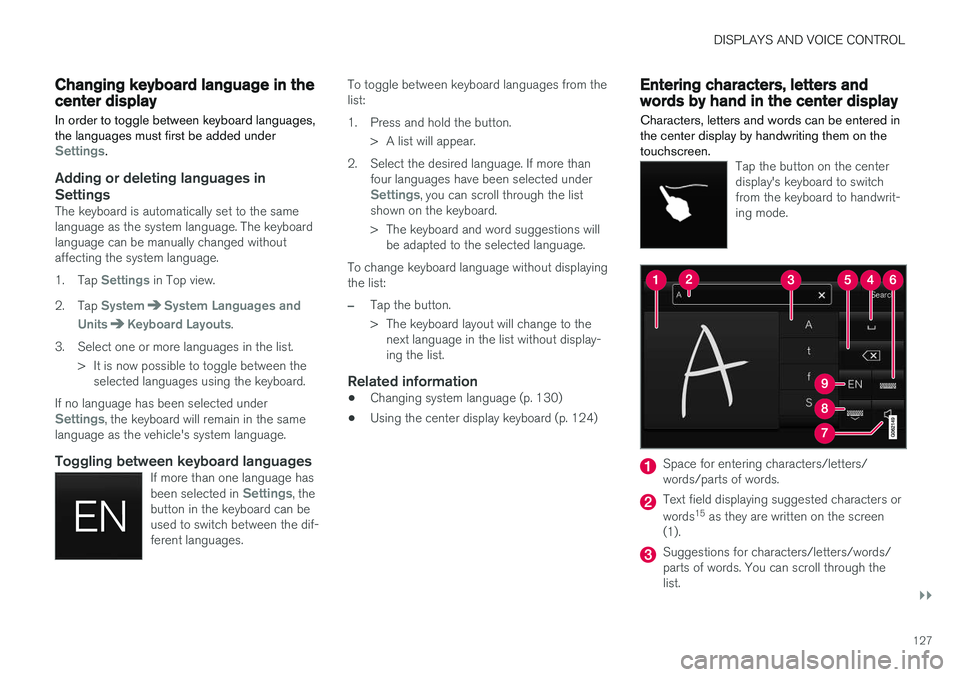
Characters, letters and words can be entered in the center display by handwriting them on thetouchscreen.
Tap the button on the center display's keyboard to switchfrom the keyboard to handwrit-ing mode.
Space for entering characters/letters/ words/parts of words.
Text field displaying suggested characters or words 15
as they are written on the screen
(1).
Suggestions for characters/letters/words/ parts of words. You can scroll through thelist.
Page 130 of 640
||
DISPLAYS AND VOICE CONTROL
128
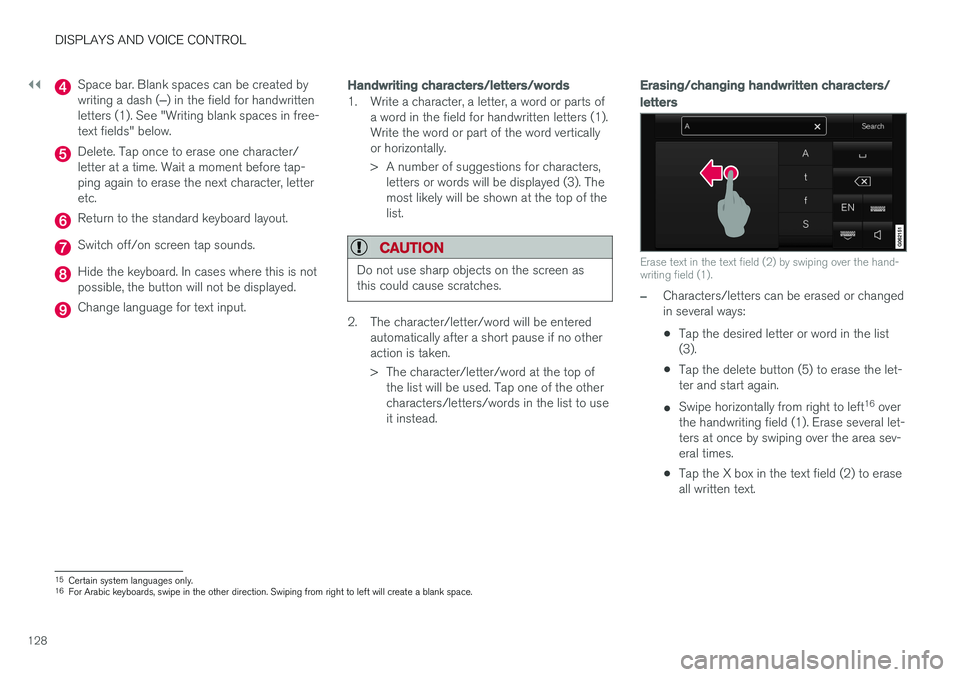
Space bar. Blank spaces can be created by writing a dash (‒) in the field for handwritten
letters (1). See "Writing blank spaces in free- text fields" below.
Delete. Tap once to erase one character/ letter at a time. Wait a moment before tap-ping again to erase the next character, letteretc.
Return to the standard keyboard layout.
Switch off/on screen tap sounds.
Hide the keyboard. In cases where this is not possible, the button will not be displayed.
Change language for text input.
Handwriting characters/letters/words
1. Write a character, a letter, a word or parts of a word in the field for handwritten letters (1). Write the word or part of the word verticallyor horizontally.
> A number of suggestions for characters,letters or words will be displayed (3). The most likely will be shown at the top of thelist.
CAUTION
Do not use sharp objects on the screen as this could cause scratches.
2. The character/letter/word will be entered automatically after a short pause if no other action is taken.
> The character/letter/word at the top ofthe list will be used. Tap one of the other characters/letters/words in the list to useit instead.
Erasing/changing handwritten characters/
letters
Erase text in the text field (2) by swiping over the hand- writing field (1).
–Characters/letters can be erased or changed in several ways: •Tap the desired letter or word in the list (3).
• Tap the delete button (5) to erase the let-ter and start again.
• Swipe horizontally from right to left 16
over
the handwriting field (1). Erase several let-ters at once by swiping over the area sev-eral times.
• Tap the X box in the text field (2) to eraseall written text.
15
Certain system languages only.
16 For Arabic keyboards, swipe in the other direction. Swiping from right to left will create a blank space.
Page 131 of 640
DISPLAYS AND VOICE CONTROL
129
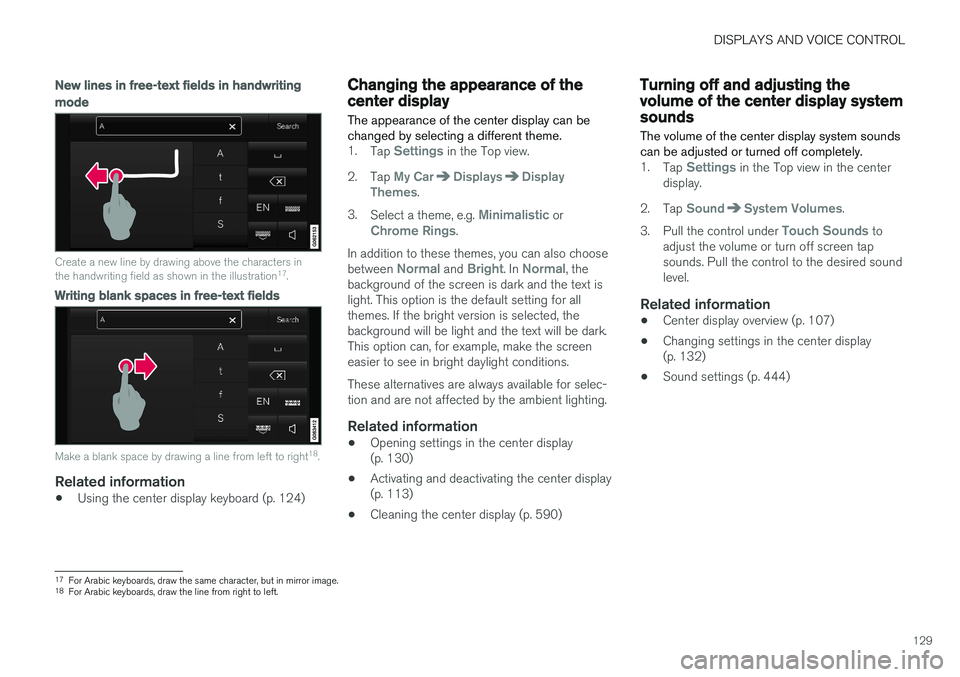
New lines in free-text fields in handwriting
mode
Create a new line by drawing above the characters in the handwriting field as shown in the illustration17
.
Writing blank spaces in free-text fields
Make a blank space by drawing a line from left to right 18
.
Related information
• Using the center display keyboard (p. 124)
Changing the appearance of thecenter display
The appearance of the center display can be changed by selecting a different theme.
1. Tap Settings in the Top view.
2. Tap
My CarDisplaysDisplay
Themes.
3. Select a theme, e.g.
Minimalistic orChrome Rings.
In addition to these themes, you can also choose between
Normal and Bright. In Normal, the
background of the screen is dark and the text is light. This option is the default setting for allthemes. If the bright version is selected, thebackground will be light and the text will be dark.This option can, for example, make the screeneasier to see in bright daylight conditions. These alternatives are always available for selec- tion and are not affected by the ambient lighting.
Related information
• Opening settings in the center display(p. 130)
• Activating and deactivating the center display(p. 113)
• Cleaning the center display (p. 590)
Turning off and adjusting thevolume of the center display systemsounds
The volume of the center display system sounds can be adjusted or turned off completely.
1. Tap Settings in the Top view in the center
display.
2. Tap
SoundSystem Volumes.
3. Pull the control under
Touch Sounds to
adjust the volume or turn off screen tap sounds. Pull the control to the desired soundlevel.
Related information
• Center display overview (p. 107)
• Changing settings in the center display(p. 132)
• Sound settings (p. 444)
17
For Arabic keyboards, draw the same character, but in mirror image.
18 For Arabic keyboards, draw the line from right to left.
Page 137 of 640
DISPLAYS AND VOICE CONTROL
}}
* Option/accessory.135
Sub-categories
Gracenote®
Video
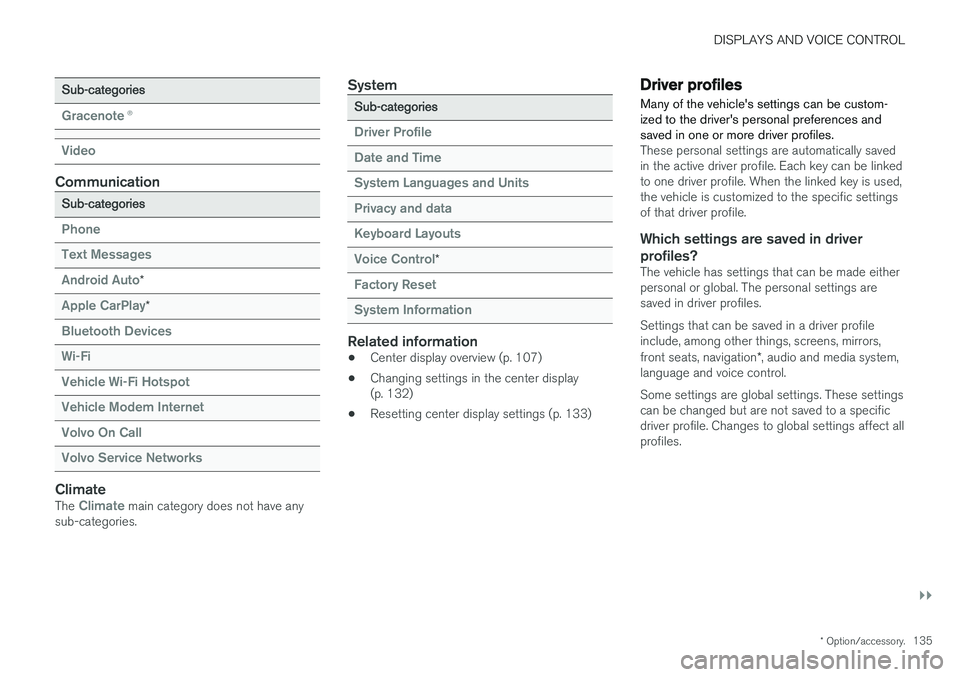
Communication
Sub-categories
Phone Text Messages Android Auto
*
Apple CarPlay*
Bluetooth Devices Wi-FiVehicle Wi-Fi HotspotVehicle Modem Internet Volvo On Call Volvo Service Networks
ClimateThe Climate main category does not have any
sub-categories.
System
Sub-categories
Driver Profile Date and TimeSystem Languages and UnitsPrivacy and dataKeyboard Layouts Voice Control
*
Factory Reset System Information
Related information
• Center display overview (p. 107)
• Changing settings in the center display (p. 132)
• Resetting center display settings (p. 133)
Driver profiles
Many of the vehicle's settings can be custom- ized to the driver's personal preferences andsaved in one or more driver profiles.
These personal settings are automatically saved in the active driver profile. Each key can be linkedto one driver profile. When the linked key is used,the vehicle is customized to the specific settingsof that driver profile.
Which settings are saved in driver profiles?
The vehicle has settings that can be made eitherpersonal or global. The personal settings aresaved in driver profiles. Settings that can be saved in a driver profile include, among other things, screens, mirrors, front seats, navigation *, audio and media system,
language and voice control. Some settings are global settings. These settings can be changed but are not saved to a specificdriver profile. Changes to global settings affect allprofiles.
Page 138 of 640
||
DISPLAYS AND VOICE CONTROL
136
Global settings
Global settings and parameters do not change when driver profiles are changed. They remainthe same regardless of which driver profile is cur-rently active. Keyboard layout is an example of a global setting. If driver profile X is used to add additional key-board languages, these languages will also beavailable for driver profile Y. The settings for key-board layout are not saved to a specific driverprofile - the settings are global.
Personal settings
If driver profile X has been used to e.g., set the brightness for the center display, driver profile Ywill not be affected by this setting. It will only besaved to driver profile X because brightness set-ting is a personal setting.
Related information
•Selecting a driver profile (p. 136)
• Changing a driver profile's name (p. 137)
• Resetting driver profile settings (p. 137)
• Linking a remote key to a driver profile(p. 137)
• Table of settings in the center display(p. 134)
Selecting a driver profile When the center display starts up, the selected driver profile will be shown at the top of thescreen. The most recently used driver profile willbe active the next time the vehicle is unlocked. Adifferent driver profile can be selected once thevehicle has been unlocked. However, if theremote key has been linked to a driver profile,this profile will be used instead.
There are two options for switching between driver profiles. Option 1:
1. Tap the name of the driver profile shown at
the top of the center display when the dis- play starts up.
> A list will appear, showing driver profilesthat can be selected.
2. Select desired driver profile. 3. Tap
Confirm.
> The driver profile has now been selected and the system will load the settings stored in that profile.
Option 2:
1. Pull down Top view in the center display.2. Tap
Profile.
> The same list as in option 1 will be dis- played.
3. Select desired driver profile. 4.
Tap
Confirm.
> The driver profile has now been selected and the system will load the settings stored in that profile.
Related information
• Driver profiles (p. 135)
• Navigating in the center display's views(p. 113)
• Changing a driver profile's name (p. 137)
• Linking a remote key to a driver profile(p. 137)
Page 139 of 640
DISPLAYS AND VOICE CONTROL
}}
137
Changing a driver profile's name
It is possible to change the names of the differ- ent driver profiles used in the vehicle.
1. Tap Settings in the Top view in the center
display.
2. Tap
SystemDriver Profiles.
3. Select
Edit Profile.
> A menu will open in which the driver pro- file can be changed.
4. Tap the
Profile Name box.
> A keyboard will be displayed and can be used to change the name. Tap
to
close the keyboard.
5. Save the name change by pressing
Back orClose.
> The name has now been changed.
NOTE
Profile names may not begin with a space. If a space is entered first, the profile name will notbe saved.
Related information
• Selecting a driver profile (p. 136)
• Using the center display keyboard (p. 124)
Resetting driver profile settings
Settings that have been saved for one or more driver profiles can be reset when the vehicle isstationary.
NOTE
Factory Reset is only possible when the
vehicle is stationary.
1. Tap Settings in the Top view.
2. Tap
SystemFactory ResetReset
Personal Settings.
3. Select option
Reset for the active profile,Reset for all profiles or Cancel.
Related information
• Driver profiles (p. 135)
• Resetting center display settings (p. 133)
Linking a remote key to a driverprofile A remote key can be linked to a driver profile. This driver profile and all of its settings will thenautomatically be selected every time the vehicleis used with that particular remote key.
The first time the remote key is used, it is not linked to any specific driver profile. The Guestprofile is automatically activated when the ignition is switched on. A driver profile can also be selected manually without linking it to any key. When the vehicle isunlocked, the last active driver profile will be acti-vated. If the key has ever been linked to a driverprofile, it is not necessary to manually select adriver profile when using that particular key.
Linking a remote key to a specific driver
profile
First select the profile you would like to link tothe key (if that profile is not already active). Theactive profile can then be linked to the key. 1. Tap
Settings in the Top view in the center
display.
2. Tap
SystemDriver Profiles.
3. Mark the desired profile. The display will return to Home view. The
Guest profile can-
not be linked to a remote key.
Page 140 of 640
||
DISPLAYS AND VOICE CONTROL
1384.
Pull down Top view again and tap
Settings
SystemDriver ProfilesEdit
Profile.
5. Select
Connect key to link the profile with
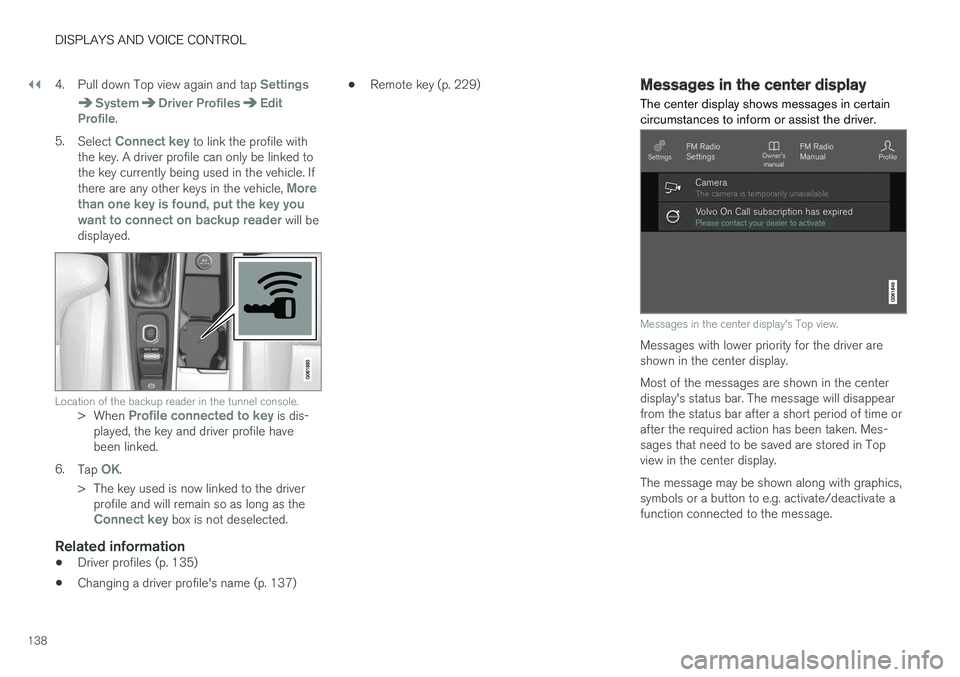
the key. A driver profile can only be linked to the key currently being used in the vehicle. If there are any other keys in the vehicle,
More
than one key is found, put the key you want to connect on backup reader
will be
displayed.
Location of the backup reader in the tunnel console.> When Profile connected to key is dis-
played, the key and driver profile have been linked.
6. Tap
OK.
> The key used is now linked to the driver profile and will remain so as long as the
Connect key box is not deselected.
Related information
• Driver profiles (p. 135)
• Changing a driver profile's name (p. 137) •
Remote key (p. 229)
Messages in the center display
The center display shows messages in certain circumstances to inform or assist the driver.
Messages in the center display's Top view.
Messages with lower priority for the driver are shown in the center display. Most of the messages are shown in the center display's status bar. The message will disappearfrom the status bar after a short period of time orafter the required action has been taken. Mes-sages that need to be saved are stored in Topview in the center display. The message may be shown along with graphics, symbols or a button to e.g. activate/deactivate afunction connected to the message.
Page 145 of 640
DISPLAYS AND VOICE CONTROL
}}
* Option/accessory.143
Lowering position
Confirm
The brightness of the graphic is automatically adapted to the light conditions in its background.Brightness is also affected by adjustments to thebrightness of the other displays in the vehicle. The height position can be stored in the front power seat's * memory function.
Calibrating the horizontal positionIf the windshield or display unit has been replaced, the head-up display's horizontal posi-tion may need to be calibrated. Calibration meansthat the projected image is rotated clockwise orcounterclockwise. 1.
Tap
Settings in the center display's Top
view.
2. Select
My CarDisplaysHead-Up
Display Options
Head-Up Display
Calibration.
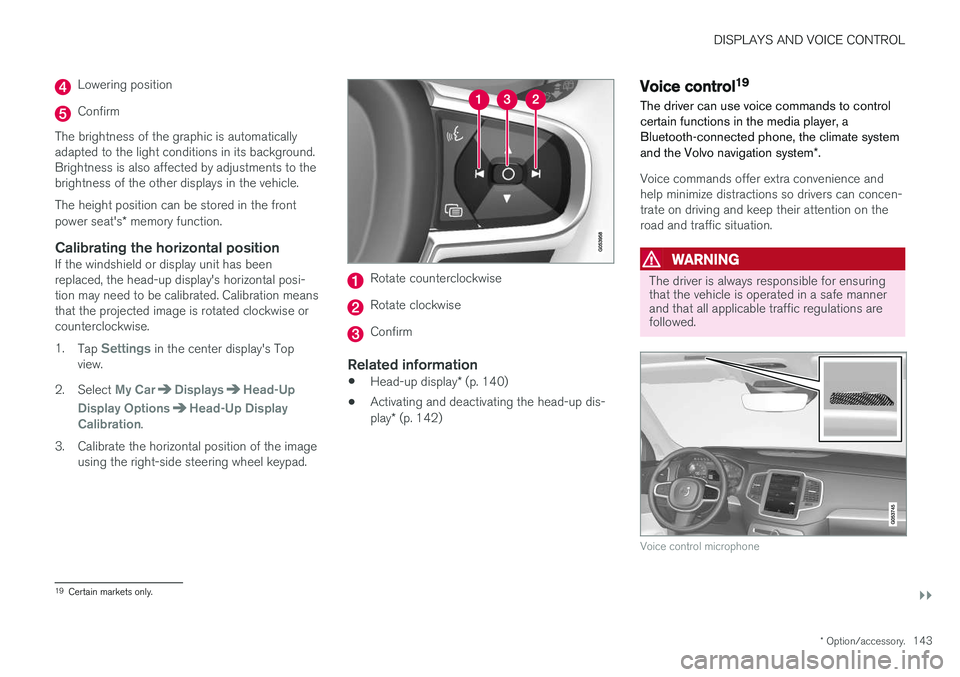
3. Calibrate the horizontal position of the image using the right-side steering wheel keypad.
Rotate counterclockwise
Rotate clockwise
Confirm
Related information
• Head-up display
* (p. 140)
• Activating and deactivating the head-up dis- play
* (p. 142)
Voice control19
The driver can use voice commands to control certain functions in the media player, aBluetooth-connected phone, the climate system and the Volvo navigation system *.
Voice commands offer extra convenience and help minimize distractions so drivers can concen-trate on driving and keep their attention on theroad and traffic situation.
WARNING
The driver is always responsible for ensuring that the vehicle is operated in a safe mannerand that all applicable traffic regulations arefollowed.
Voice control microphone
19
Certain markets only.