phone VOLVO S90 TWIN ENGINE 2019 Owner's Manual
[x] Cancel search | Manufacturer: VOLVO, Model Year: 2019, Model line: S90 TWIN ENGINE, Model: VOLVO S90 TWIN ENGINE 2019Pages: 669, PDF Size: 14.33 MB
Page 113 of 669

DISPLAYS AND VOICE CONTROL
}}
* Option/accessory.111
Activating and deactivating thecenter display
The center display can be dimmed and reactiva-ted using the home button under the screen.
Center display's home button.
When the home button is used, the screen will godark and the touchscreen no longer reacts totouch. The climate bar will remain visible. All func-tions connected to the screen continue to oper-ate, such as climate, audio, guiding* and apps.The center display screen can be cleaned whenthe display is dimmed. The dimming function canalso be used to darken the screen so it is not adistraction while driving.
1. Press and hold the button beneath thescreen.
>The screen will go dark (the climate barwill remain visible). All functions con-nected to the screen continue to operate.
2. To reactivate the screen, briefly press theHome button.
> The view that was displayed before thescreen was turned off will be displayedagain.
NOTE
The screen cannot be turned off when aprompt to perform an action is being dis-played on the screen.
NOTE
The center display is turned off automaticallywhen the engine is off and the driver's door isopened.
Related information
Cleaning the center display (p. 619)
Changing the appearance of the center dis-play (p. 127)
Center display overview (p. 105)
Navigating in the center display'sviews
There are five different basic views in the centerdisplay: Home view, Top view, Climate view, Appview and Function view. The screen is automati-cally activated when the driver's door is opened.
Home view
Home view is the view displayed when the screenis activated. It consists of four tiles: Navigation,Media, Phone and a fourth tile.
An app or vehicle function selected from the Appor Function views will start in the respective tile inHome view. For example, FM radio will start inthe Media tile.
The fourth tile contains the most recently usedapp or vehicle function that is not related to theother three tiles.
The tiles display brief information about therespective apps.
NOTE
When the vehicle is started, information onthe current status of apps will be displayed inthe respective tile in Home view.
Page 117 of 669

DISPLAYS AND VOICE CONTROL
}}
115
Handling tiles in the center display
Home view consists of four tiles: Navigation,Media, Phone and a fourth tile. These viewscan be expanded.
Page 119 of 669

DISPLAYS AND VOICE CONTROL
117
Expanding a tile:
–For tiles Navigation, Media and Phone:Tap the screen anywhere in the tile. When atile is expanded, the extra tile in Home viewwill be temporarily hidden. The other two tileswill be minimized and only show certain infor-mation. When the extra tile is tapped, theother three tiles are minimized and only cer-tain information is displayed.
Expanded view provides access to the basicfunctions of the respective apps.
Closing an expanded tile:
–The tile can be closed in three differentways:
Tap the top section of the expanded tile.
Tap another tile (it will then be opened inexpanded mode instead).
Press briefly on the Home button underthe center display.
Opening or closing a tile in full-screen
mode
The fourth tile7 and tile for Navigation can beopened in full-screen mode to show additionalinformation and possible settings.
When a tile is opened in full-screen mode, noinformation from the other tiles is displayed.
In expanded mode, open theapp in full-screen mode. Tapthe symbol.
To return to expanded mode,tap the symbol or press theHome button under the screen.
Center display's home button.
You can always press the Home button to returnto Home view. To return to Home view's standardview from full-screen mode, press the Home but-ton twice.
Related information
Handling the center display (p. 108)
Activating and deactivating the center display(p. 111)
Navigating in the center display's views(p. 111)
7Does not apply to all apps or vehicle functions opened via the fourth tile.
Page 122 of 669

DISPLAYS AND VOICE CONTROL
120
Moving apps and buttons in thecenter display
The apps and buttons for vehicle functions canbe moved and organized in the App and Func-tion views.
1. Swipe from right to left9 to access App view
or swipe from left to right9 to access Func-tion view.
2. Press and hold an app or button.
>The app or button will change size andbecome slightly transparent. It can thenbe moved.
3. Drag the app or button to an available posi-tion in the view.
A maximum of 48 rows can be used to positionapps or buttons. To move an app or button out-side the visible view, drag it to the bottom of theview. New rows will be added and the app or but-ton can be placed in one of these.
Apps or buttons placed below the view's normaldisplay will not be visible on the screen.
Swipe the screen to scroll up or down in the viewto display information outside the view.
NOTE
Hide the apps that are rarely or never used bymoving them far down, outside of the visibleview. This makes it easier to find the appsused more frequently.
NOTE
Apps and vehicle function buttons cannot besituated at spots already in use.
Related information
Function view in the center display (p. 118)
Apps (p. 480)
Handling the center display (p. 108)
Symbols in the center display statusbar
Overview of symbols displayed in the center dis-play status bar.
The status bar shows current vehicle activitiesand in certain cases, also their status. Due to thelimited space in the status bar, not all symbolswill be displayed at all times.
Symbol Meaning
Connected to the Internet.
Could not connect to Internet.
Roaming activated.
Cell phone network signal strength.
Bluetooth device connected.
Bluetooth activated but no deviceconnected.
Information sent to and from GPS.
Connected to Wi-Fi network.
9Applies for left-hand drive vehicles. For right-hand drive vehicles, swipe in the other direction.
Page 123 of 669

DISPLAYS AND VOICE CONTROL
* Option/accessory.121
Symbol Meaning
Tethering activated (Wi-Fi hotspot).This means that the vehicle sharesan available Internet connection.
Vehicle modem activated.
USB sharing active.
Action in progress.
Timer for preconditioning active.A
Audio source being played.
Audio source paused.
Phone call in progress.
Audio source muted.
News broadcasts from current radio
station.B
Traffic information being received.B
Clock.
AOnly hybrid models.BNot available in all markets.
Related information
Navigating in the center display's views(p. 111)
Messages in the center display (p. 136)
Internet-connected vehicle* (p. 523)
Connecting a device via the USB port(p. 507)
Phone (p. 514)
Date and time (p. 89)
Page 133 of 669
DISPLAYS AND VOICE CONTROL
}}
* Option/accessory.131
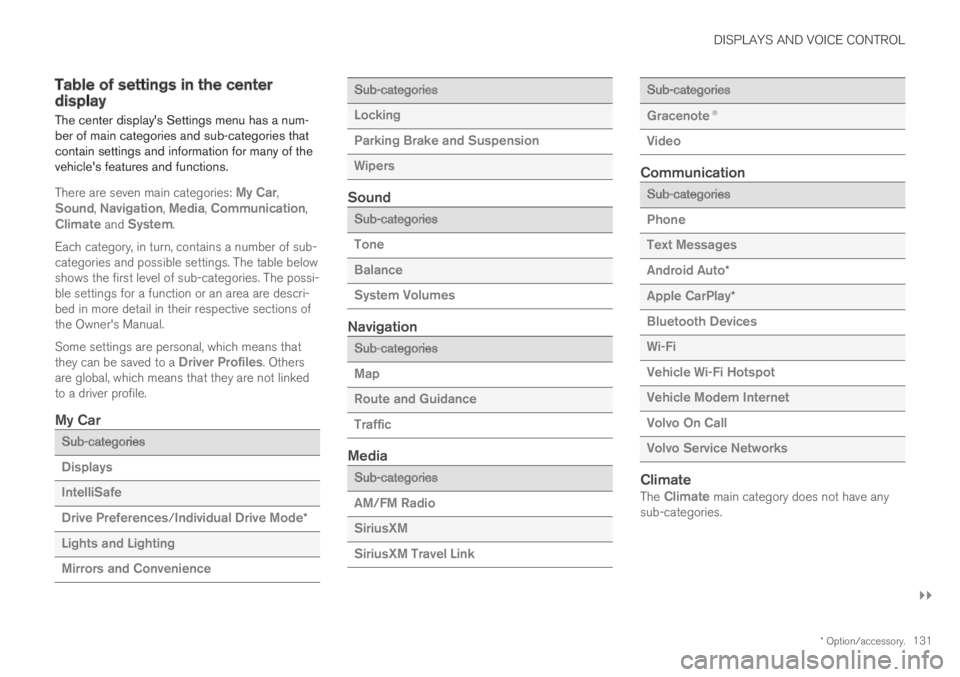
Table of settings in the centerdisplay
The center display's Settings menu has a num-ber of main categories and sub-categories thatcontain settings and information for many of thevehicle's features and functions.
There are seven main categories: My Car,Sound, Navigation, Media, Communication,Climate and System.
Each category, in turn, contains a number of sub-categories and possible settings. The table belowshows the first level of sub-categories. The possi-ble settings for a function or an area are descri-bed in more detail in their respective sections ofthe Owner's Manual.
Some settings are personal, which means thatthey can be saved to a Driver Profiles. Othersare global, which means that they are not linkedto a driver profile.
My Car
Sub-categories
Displays
IntelliSafe
Drive Preferences/Individual Drive Mode*
Lights and Lighting
Mirrors and Convenience
Sub-categories
Locking
Parking Brake and Suspension
Wipers
Sound
Sub-categories
Tone
Balance
System Volumes
Navigation
Sub-categories
Map
Route and Guidance
Traffic
Media
Sub-categories
AM/FM Radio
SiriusXM
SiriusXM Travel Link
Sub-categories
Gracenote®
Video
Communication
Sub-categories
Phone
Text Messages
Android Auto*
Apple CarPlay*
Bluetooth Devices
Wi-Fi
Vehicle Wi-Fi Hotspot
Vehicle Modem Internet
Volvo On Call
Volvo Service Networks
Climate
The Climate main category does not have anysub-categories.
Page 140 of 669

DISPLAYS AND VOICE CONTROL
* Option/accessory.138
Head-up display*
The head-up display is a complement to theinstrument panel and projects information fromthe instrument panel onto the windshield. Theprojected images can only be seen from the driv-er's seat.
Incoming phone calls.
The head-up display projects warnings and infor-mation related to speed, cruise control functions,navigation, etc. onto the windshield in the driver'sfield of vision. Traffic information and incomingphone calls can also be shown on the head-updisplay.
NOTE
The driver's ability to see information in thehead-up display may be impeded by:
the use of polarizing sunglasses
a driving posture in which the driver is notcentered in the seat
objects on the display unit's glass cover
unfavorable lighting conditions.
CAUTION
The information is projected from a displayunit located in the dashboard. To help preventdamage to the display unit's glass cover, donot place any objects on the glass and pre-vent objects from falling onto it.
Examples of what might be shown on the display.
Speed
Cruise control
Navigation
Road signs
A number of symbols may be projected temporar-ily onto the head-up display, including:
If the warning symbol appears, read thewarning message in the instrumentpanel.
If the information symbol appears, readthe warning message in the instrumentpanel.
Page 142 of 669

DISPLAYS AND VOICE CONTROL
* Option/accessory.140
Head-up display settings*
Adjusting settings for the head-up display.
Settings can be adjusted when the vehicle isstarted and a projected image is displayed on thewindshield.
Selecting display options
Select the functions to be shown in the head-updisplay.
1.Tap Settings in the center display's Topview.
2. Tap My CarDisplaysHead-UpDisplay Options.
3. Select one or more functions:
Show Navigation
Show Road Sign Information
Show Driver Support
Show Phone.
This setting is stored as a personal setting in thedriver profile.
Adjusting brightness and height
position
1.Press the Head-up Display Adjustmentsbutton in the center display's Function view.
2. Adjust the brightness of the projected imageand the height position in the driver's field ofvision using the right-side steering wheellever.
Decreasing brightness
Increasing brightness
Raising position
Lowering position
Confirm
The brightness of the graphic is automaticallyadapted to the light conditions in its background.Brightness is also affected by adjustments to thebrightness of the other displays in the vehicle.
The height position can be stored in the frontpower seat's* memory function using the keypadin the driver's door.
Page 143 of 669

DISPLAYS AND VOICE CONTROL
}}
* Option/accessory.141
Calibrating the horizontal position
If the windshield or display unit has beenreplaced, the head-up display's horizontal posi-tion may need to be calibrated. Calibration meansthat the projected image is rotated clockwise orcounterclockwise.
1.Tap Settings in the center display's Topview.
2. Select My CarDisplaysHead-Up
Display OptionsHead-Up DisplayCalibration.
3. Calibrate the horizontal position of the imageusing the right-side steering wheel keypad.
Rotate counterclockwise
Rotate clockwise
Confirm
Related information
Head-up display* (p. 138)
Activating and deactivating the head-up dis-play* (p. 139)
Driver profiles (p. 132)
Storing positions for seats, mirrors and head-up display* (p. 182)
Voice control15
The driver can use voice commands to controlcertain functions in the media player, aBluetooth-connected phone, the climate systemand the Volvo navigation system*.
Voice commands offer extra convenience andhelp minimize distractions so drivers can concen-trate on driving and keep their attention on theroad and traffic situation.
WARNING
The driver is always responsible for ensuringthat the vehicle is operated in a safe mannerand that all applicable traffic regulations arefollowed.
Voice control microphone
Voice control is carried out as a dialog, with spo-ken commands from the user and verbal respon-
Page 144 of 669

||
DISPLAYS AND VOICE CONTROL
* Option/accessory.142
ses from the system. The voice control systemuses the same microphone as devices connectedwith Bluetooth, and the voice control systemresponds through the vehicle's loudspeakers. Incertain cases, text messages will also be dis-played in the instrument panel. The functions arecontrolled using the right-side steering wheelkeypad and settings are made in the center dis-play.
System updates
The voice control system is continuouslyimproved. For optimal functionality, always down-load the latest update at support.volvocars.com.
Related information
Using voice commands (p. 142)
Voice control for cellular phones (p. 143)
Voice control for radio and media (p. 144)
Climate control system voice commands(p. 197)
Voice control settings (p. 144)
Using voice commands16
Press the button for voice con-
trol on the right-sidesteering wheel keypad to acti-vate the system and initiate avoice command dialog.
These may include:
Wait until after the tone, and then speak inyour normal voice at a normal speed.
Do not speak while the system is responding(the system is unable to process commandsduring this time).
Avoid background noises in the passengercompartment by keeping doors, windows andthe panoramic roof* closed.
Voice control can be canceled by:
saying "Cancel".
pressing and holding the steering wheel key-
pad's voice command button .
To speed up the voice command dialog and skipsystem responses, press the voice command but-
ton while the system is responding and giveyour next command.
Voice command examples
Press , say "Call [First name] [Last name][number category]" - calls the selected contactfrom the phone book. If the contact has severalphone numbers (e.g. home, cell, work), the rightcategory must also be given.
Press and say "Call Robyn Smithcellular".
Commands/phrases
The following commands can always be used:
"Repeat" - repeats the most recent voicecommand in the current dialog.
"Cancel" - cancels the dialog.
"Help" - initiates a help dialog. The systemresponds with commands that can be usedin the current situation, an instruction or anexample.
Commands for specific functions, such as phoneand audio, are described in the sections relatedto that function.
15Certain markets only.16Certain markets only.