wheel VOLVO S90 TWIN ENGINE 2019 Owner's Manual
[x] Cancel search | Manufacturer: VOLVO, Model Year: 2019, Model line: S90 TWIN ENGINE, Model: VOLVO S90 TWIN ENGINE 2019Pages: 669, PDF Size: 14.33 MB
Page 102 of 669

||
DISPLAYS AND VOICE CONTROL
100
App Functions
Trip com-puterSelect a trip odometer, changeinstrument panel display set-tings, etc.
Media player Select active source for mediaplayer.
PhoneCall a contact from the call list.
Navigation Guide to destination, etc.
Related information
Instrument panel (p. 80)
Center display overview (p. 105)
Handling the App menu in the instrumentpanel (p. 100)
Handling the App menu in theinstrument panel
The App (application) menu in the instrumentpanel is controlled using the right-side steeringwheel keypad.
App menu and right-side steering wheel keypad.
Open/close
Left/right
Up/down
Confirm
Opening and closing the app menu
–Tap open/close (1).
(The App menu cannot be opened whilethere is an unacknowledged message in theinstrument panel. The message must be con-firmed before the App menu can be opened.)
> The App men opens/closes.
The App menu turns off automatically after aperiod of inactivity or after certain selections aremade.
Navigating and making selections in the
App menu
1. Navigate among the apps available by press-ing the left/right arrow keys (2).
> Functions for the previous/next app willbe shown in the App menu.
2. Scroll through the functions for the selectedapp using the up or down arrows (3).
3. Confirm or make a selection for the functionby pressing confirm (4).
> The function will be activated and, forsome selections, the App menu will thenclose.
The next time the App menu is opened, the func-tions for the most recently selected app will bedisplayed automatically.
Page 104 of 669

||
DISPLAYS AND VOICE CONTROL
102
Message Meaning
Regular main-tenance
Maintenanceoverdue
Time for service - contact
a workshopB. Shown whenthe date for service haspassed.
Temporarily
offAA function has been tem-porarily deactivated andwill be reactivated auto-matically while driving orafter the engine is restar-ted.
APart of message, shown along with information on the locationof the problem.BAn authorized Volvo workshop is recommended.
Related information
Handling messages in the instrument panel(p. 102)
Handling messages saved from the instru-ment panel (p. 103)
Messages in the center display (p. 136)
Handling messages in theinstrument panel
Messages in the instrument panel are controlledusing the right-side steering wheel keypad.
Messages in the instrument panel and the right-sidesteering wheel keypad.
Left/right
Confirm
Some messages in the instrument panel containone or more buttons for e.g. confirming the mes-sage or accepting a request.
Handling new messages
For messages with buttons:
1. Navigate among the buttons available bypressing the left/right arrow keys (1).
2. Confirm your selection by pressing confirm(2).
> The message will disappear from theinstrument panel.
For messages without buttons:
–Close the message by pressing confirm (2)or let the message automatically time-outafter a short period.
> The message will disappear from theinstrument panel.
Messages that need to be saved are stored inthe Car Status app, which can be opened fromthe App view in the center display. The messageVehicle message stored in Car Status appwill simultaneously appear in the center display.
Related information
Messages in the instrument panel (p. 101)
Handling messages saved from the instru-ment panel (p. 103)
Messages in the center display (p. 136)
Page 109 of 669

DISPLAYS AND VOICE CONTROL
* Option/accessory.107
adjusted using the right-side steering wheelkeypad.
Home view ‒ the initial view displayed whenthe screen is turned on.
App view ‒ shows downloaded apps (third-party apps) as well as apps for integratedfunctions, such as FM radio. Tap an app iconto open that app.
Status bar ‒ current vehicle activities areshown at the top of the screen. Network andconnection information is shown to the left ofthe status bar. Media-related information, theclock and information about backgroundactivities are shown to the right.
Top view ‒ pull the tab down to open Topview. From here, you can access Settings,Owner's manual, Profile and messagesstored in the vehicle. In certain cases, con-textual setting (e.g. Navigation Settings)and the contextual Owner's Manual (e.g.Navigation Manual) can also be accessedin Top view.
Navigation ‒ takes you to map navigationwith e.g. Sensus Navigation*. Tap the tile toexpand it.
Media ‒ most recently used media-relatedapps. Tap the tile to expand it.
Phone ‒ used to access phone-related func-tions. Tap the tile to expand it.
Fourth tile ‒ most recently used apps orvehicle functions not associated with theother tiles. Tap the tile to expand it.
Climate row - information and direct interac-tion to set temperature and seat heating forexample*. Tap the symbol in the center of theclimate bar to open Climate view and addi-tional setting options.
Related information
Handling the center display (p. 108)
Navigating in the center display's views(p. 111)
Function view in the center display (p. 118)
Apps (p. 480)
Symbols in the center display status bar(p. 120)
Changing settings in the center display's Topview (p. 128)
Opening contextual setting in the center dis-play (p. 129)
Owner's Manual in the center display (p. 17)
Media player (p. 500)
Phone (p. 514)
Climate system controls (p. 207)
Turning off and adjusting the volume of thecenter display system sounds (p. 127)
Changing the appearance of the center dis-play (p. 127)
Changing system language (p. 128)
Changing system units of measurement(p. 128)
Cleaning the center display (p. 619)
Messages in the center display (p. 136)
Page 142 of 669

DISPLAYS AND VOICE CONTROL
* Option/accessory.140
Head-up display settings*
Adjusting settings for the head-up display.
Settings can be adjusted when the vehicle isstarted and a projected image is displayed on thewindshield.
Selecting display options
Select the functions to be shown in the head-updisplay.
1.Tap Settings in the center display's Topview.
2. Tap My CarDisplaysHead-UpDisplay Options.
3. Select one or more functions:
Show Navigation
Show Road Sign Information
Show Driver Support
Show Phone.
This setting is stored as a personal setting in thedriver profile.
Adjusting brightness and height
position
1.Press the Head-up Display Adjustmentsbutton in the center display's Function view.
2. Adjust the brightness of the projected imageand the height position in the driver's field ofvision using the right-side steering wheellever.
Decreasing brightness
Increasing brightness
Raising position
Lowering position
Confirm
The brightness of the graphic is automaticallyadapted to the light conditions in its background.Brightness is also affected by adjustments to thebrightness of the other displays in the vehicle.
The height position can be stored in the frontpower seat's* memory function using the keypadin the driver's door.
Page 143 of 669

DISPLAYS AND VOICE CONTROL
}}
* Option/accessory.141
Calibrating the horizontal position
If the windshield or display unit has beenreplaced, the head-up display's horizontal posi-tion may need to be calibrated. Calibration meansthat the projected image is rotated clockwise orcounterclockwise.
1.Tap Settings in the center display's Topview.
2. Select My CarDisplaysHead-Up
Display OptionsHead-Up DisplayCalibration.
3. Calibrate the horizontal position of the imageusing the right-side steering wheel keypad.
Rotate counterclockwise
Rotate clockwise
Confirm
Related information
Head-up display* (p. 138)
Activating and deactivating the head-up dis-play* (p. 139)
Driver profiles (p. 132)
Storing positions for seats, mirrors and head-up display* (p. 182)
Voice control15
The driver can use voice commands to controlcertain functions in the media player, aBluetooth-connected phone, the climate systemand the Volvo navigation system*.
Voice commands offer extra convenience andhelp minimize distractions so drivers can concen-trate on driving and keep their attention on theroad and traffic situation.
WARNING
The driver is always responsible for ensuringthat the vehicle is operated in a safe mannerand that all applicable traffic regulations arefollowed.
Voice control microphone
Voice control is carried out as a dialog, with spo-ken commands from the user and verbal respon-
Page 144 of 669

||
DISPLAYS AND VOICE CONTROL
* Option/accessory.142
ses from the system. The voice control systemuses the same microphone as devices connectedwith Bluetooth, and the voice control systemresponds through the vehicle's loudspeakers. Incertain cases, text messages will also be dis-played in the instrument panel. The functions arecontrolled using the right-side steering wheelkeypad and settings are made in the center dis-play.
System updates
The voice control system is continuouslyimproved. For optimal functionality, always down-load the latest update at support.volvocars.com.
Related information
Using voice commands (p. 142)
Voice control for cellular phones (p. 143)
Voice control for radio and media (p. 144)
Climate control system voice commands(p. 197)
Voice control settings (p. 144)
Using voice commands16
Press the button for voice con-
trol on the right-sidesteering wheel keypad to acti-vate the system and initiate avoice command dialog.
These may include:
Wait until after the tone, and then speak inyour normal voice at a normal speed.
Do not speak while the system is responding(the system is unable to process commandsduring this time).
Avoid background noises in the passengercompartment by keeping doors, windows andthe panoramic roof* closed.
Voice control can be canceled by:
saying "Cancel".
pressing and holding the steering wheel key-
pad's voice command button .
To speed up the voice command dialog and skipsystem responses, press the voice command but-
ton while the system is responding and giveyour next command.
Voice command examples
Press , say "Call [First name] [Last name][number category]" - calls the selected contactfrom the phone book. If the contact has severalphone numbers (e.g. home, cell, work), the rightcategory must also be given.
Press and say "Call Robyn Smithcellular".
Commands/phrases
The following commands can always be used:
"Repeat" - repeats the most recent voicecommand in the current dialog.
"Cancel" - cancels the dialog.
"Help" - initiates a help dialog. The systemresponds with commands that can be usedin the current situation, an instruction or anexample.
Commands for specific functions, such as phoneand audio, are described in the sections relatedto that function.
15Certain markets only.16Certain markets only.
Page 150 of 669

LIGHTING
* Option/accessory.148
Lighting panel and controls
The lighting panel and controls can be used toadjust both exterior and interior lighting. Thelighting ring on the left-side steering wheel levercan be used to activate and adjust the exteriorlighting. The brightness of the interior lightingcan be adjusted using the thumb wheel on thedashboard.
Exterior lighting
Lighting ring position.
When the vehicle's ignition is in mode II, thelighting ring positions have the following func-tions:
Position Meaning
US: Daytime running lights andparking lights are off.
Canada: Daytime running lights andparking lights are on.
High beam flash can be used.
Parking lights when the vehicle isparked.
US: Daytime running lights are off.
Canada: Daytime running lights areon.
High beam flash can be used.
Low beams and parking lights.
High beams can be activated.
High beam flash can be used.
Position Meaning
Daytime running lights and parking
lights in daylight conditions.A
Low beams and parking lights inweak daylight or dark conditions orwhen the front fog lights* and/orrear fog light are activated.
Active high beam can be activated.
High beams can be activated whenlow beams are on.
High beam flash can be used.
Active high beams on/off.
AUS models only: Daytime running lights and parking lights canbe deactivated in the center display.
NOTE
Volvo recommends use of Daytime RunningLights in the US. Its use is mandatory in Can-ada.
Volvo recommends using position whenthe vehicle is in motion.
Page 151 of 669
LIGHTING
* Option/accessory.149
WARNING
The vehicle lighting system cannot in all situa-tions determine when the daylight is too weakor not strong enough, e.g. when there is fogor rain.
The driver is always responsible for driving thevehicle with lighting that is safe for the trafficconditions and as specified by applicable traf-fic regulations.
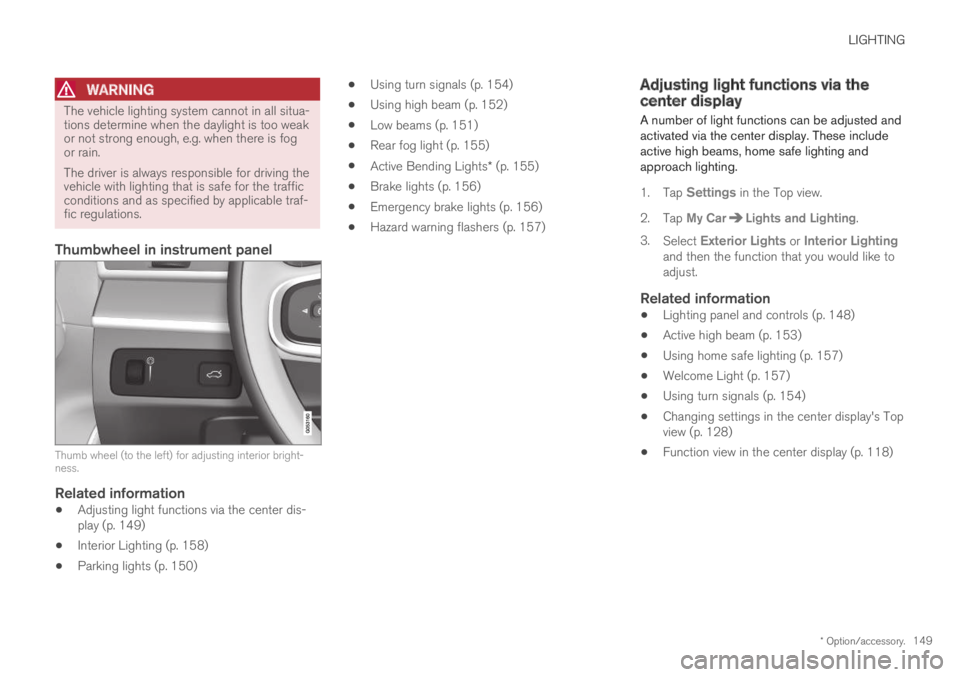
Thumbwheel in instrument panel
Thumb wheel (to the left) for adjusting interior bright-ness.
Related information
Adjusting light functions via the center dis-play (p. 149)
Interior Lighting (p. 158)
Parking lights (p. 150)
Using turn signals (p. 154)
Using high beam (p. 152)
Low beams (p. 151)
Rear fog light (p. 155)
Active Bending Lights* (p. 155)
Brake lights (p. 156)
Emergency brake lights (p. 156)
Hazard warning flashers (p. 157)
Adjusting light functions via thecenter display
A number of light functions can be adjusted andactivated via the center display. These includeactive high beams, home safe lighting andapproach lighting.
1.Tap Settings in the Top view.
2.Tap My CarLights and Lighting.
3.Select Exterior Lights or Interior Lightingand then the function that you would like toadjust.
Related information
Lighting panel and controls (p. 148)
Active high beam (p. 153)
Using home safe lighting (p. 157)
Welcome Light (p. 157)
Using turn signals (p. 154)
Changing settings in the center display's Topview (p. 128)
Function view in the center display (p. 118)
Page 152 of 669

LIGHTING
150
Parking lights
The parking lights can be used to help otherroad users see the vehicle if it is stopped orparked. Use the lighting ring on the steeringwheel lever to turn on the parking lights.
Lighting ring in the parking light position.
Turn the lighting ring to the position toturn on the parking lights (the license plate light-ing will also illuminate).
Canadian models: If the ignition is in the II posi-tion, the daytime running lights will illuminateinstead of the front parking lights. With the light-ing ring in this position, the parking lights willremain on regardless of what position the ignitionis in.
US models: When mode is selected, thedaytime running lights can be deactivated in thecenter display. The parking lights will also be
deactivated. In weak daylight or dark conditions,the parking lights and low beams will be illumi-nated.
In dark conditions, the rear parking lights alsoilluminate when the trunk lid is opened to alertfollowing traffic. This happens regardless of whatposition the lighting ring or ignition is in.
Related information
Lighting panel and controls (p. 148)
Ignition modes (p. 429)
Daytime running lights
The vehicle has sensors that detect ambientlighting conditions. With the lighting ring in the
position, the daytime running lights willalways be activated when the ignition is in modeII. In weak daylight or dark conditions, the head-lights automatically switch to low beams.
Lighting ring in AUTO position.
Page 153 of 669

LIGHTING
}}
* Option/accessory.151
With the steering wheel lever's lighting ring in the
position, the daytime running lights (DRL1)will illuminate when the vehicle is driven in day-light conditions. The headlights will switch auto-matically from daytime running lights to lowbeams in weak daylight or dark conditions. Theheadlights will also switch to low beams if thefront fog lights* and/or rear fog light are acti-vated.
US models: When mode is selected, thedaytime running lights can be deactivated in thecenter display. The parking lights will also bedeactivated. In weak daylight or dark conditions,the parking lights and low beams will be illumi-nated.
US models: With the lighting ring in the
or position, the daytime running lights willbe off.
Canadian models: With the lighting ring in the
or position, the daytime runninglights will be on.
NOTE
Volvo recommends use of Daytime RunningLights in the US. Its use is mandatory in Can-ada.
WARNING
The system is an energy saving aid – it cannotin all situations determine when the daylight istoo weak or not strong enough, e.g. whenthere is fog or rain.
The driver is always responsible for driving thevehicle with lighting that is safe for the trafficconditions and as specified by applicable traf-fic regulations.
Related information
Lighting panel and controls (p. 148)
Ignition modes (p. 429)
Low beams (p. 151)
Low beams
When driving with the lighting ring in the position, low beam will be automatically acti-vated in weak daylight or dark conditions, whenthe ignition is in the II position.
Lighting ring in AUTO position.
With the lighting ring in the position, thelow beams will also be automatically activated ifthe rear fog light is activated.
With the lighting ring in the position, lowbeams will always be on when the ignition is inthe II position.
1Daytime Running Lights