change time VOLVO V60 2012 Owner's Manual
[x] Cancel search | Manufacturer: VOLVO, Model Year: 2012, Model line: V60, Model: VOLVO V60 2012Pages: 400, PDF Size: 9.28 MB
Page 194 of 400
04 Comfort and driving pleasure
Collision Warning with Auto Brake & Pedestrian Protection*
04
192* Option/accessory, for more information, see Introduction.
General
Collision Warning with Auto Brake and Pedes-
trian Detection is designed to assist the driver
when there is a risk of colliding with a pedes-
trian or vehicles in front that are stationary or
moving in the same direction.
The collision warning system has the following
three functions.
•Collision Warning – Warns the driver of a
potentially imminent collision.
•Brake Support – Assists the driver to
brake effectively in a critical situation.
•Auto Brake - Brakes the car automatically
in the event of an imminent risk of collision
with a pedestrian or vehicle in front, if the
driver does not himself/herself react in time
by braking and/or steering away. The Auto
Brake function can prevent a collision or
reduce collision speed.
The collision warning system is activated in sit-
uations where the driver should have started
braking a lot earlier, which is why the function
cannot help the driver in every situation.
Collision Warning with Auto Brake is designed
to be activated as late as possible in order to
avoid unnecessary intervention.
The collision warning system must not be used
as an excuse for the driver to change his/her
driving style. If the driver solely relies on Colli-sion Warning with Auto Brake to do the brak-
ing, there will be a collision sooner or later.
The collision warning system and City
Safety™ complement each other. For more
information on City Safety™, see page 188.
IMPORTANT
Maintenance of collision warning system
components must only be performed at a
workshop - an authorised Volvo workshop
is recommended.
WARNING
No automatic system can guarantee
100 % correct function in all situations.
Therefore, never try out the Auto brake sys-
tem by driving towards people - this may
cause serious injuries or risk death.
WARNING
The collision warning system does not
engage in all driving situations or traffic,
weather or road conditions. The collision
warning system does not react to vehicles
driving in another direction to the car or to
animals.
Warning only activated in the event of a high
risk for collision. The Function section and
the section after advise about limitations of
which the driver should be aware before
using Collision Warning with Auto Brake.
Warnings and brake interventions for
pedestrians are switched off at vehicle
speeds exceeding 80 km/h.
Warnings and brake interventions for
pedestrians do not work in darkness and
tunnels - not even when streetlights are lit.
The auto-brake function can prevent a col-
lision or reduce collision speed. To ensure
full brake performance, the driver should
always depress the brake pedal - even when
the car auto-brakes.
Never wait for a collision warning. The driver
is always responsible that the correct dis-
tance and speed are maintained - even
when the collision warning system with
auto-brake is used.
ProCarManuals.com
Page 196 of 400
04 Comfort and driving pleasure
Collision Warning with Auto Brake & Pedestrian Protection*
04
194* Option/accessory, for more information, see Introduction.
Activating/deactivating warning signalsThe warning lamp is activated automatically
when the engine is started if the system is
switched on.
The warning sound can be activated/deacti-
vated separately using the options for
On orOff in the menu system MY CAR under
Settings
Car settingsDriving support
systems
Warning sound if risk of
collision.
Set warning distanceThe warning distance regulates the distance at
which the visual and acoustic warnings are
deployed. Select one of the options from
Long, Normal or Short in the menu system
MY CAR under Settings
Car settings
Driving support systemsCollision
Warning
Warning distance.
The warning distance determines the system's
sensitivity. Warning distance
Long provides an
earlier warning. First test with Long and if this
setting produces too many warnings, which
could be perceived as irritating in certain sit-
uations, then change to warning distance
Normal.
Only use warning distance
Short in excep-
tional cases, e.g. for dynamic driving.
NOTE
When the adaptive cruise control is in use
the warning lamp and warning sound will be
used by the cruise control even if the colli-
sion warning system is switched off.
The collision warning system warns the
driver in the event of a risk of a collision, but
the function cannot shorten driver reaction
time.
In order for the collision warning system to
be effective, always drive with the Distance
Alert set at time interval 4 – 5. see
page 185.
NOTE
Even if the warning distance has been set toLong warnings could be perceived as being
late in certain situations, e.g. when there are
large differences in speed or if vehicles in
front brake heavily.
Checking settingsThe settings required can be controlled on the
centre console display screen. Search with the
menu system MY CAR under Settings
Car
settings
Driving support systems
Collision Warning, see page 144.
Limitations
The collision warning system is active from and
including approx. 4 km/h.
The visual warning signal may be difficult to
notice in the event of strong sunlight, reflec-
tions, when sunglasses are being worn or if the
driver is not looking straight ahead. The warn-
ing sound should therefore always be acti-
vated.
On slippery road surfaces the braking distance
is extended, which may reduce the capacity to
avoid a collision. In such situations the ABS
and DSTC systems will provide best possible
braking force with maintained stability.
NOTE
The visual warning signal can be temporarily
disengaged in the event of high passenger
compartment temperature caused by
strong sunlight for example. If this occurs
then the warning sound is activated even if
it is deactivated in the menu system.
•Warnings may not appear if the dis-
tance to the vehicle in front is small or if
steering wheel and pedal movements
are large, e.g. a very active driving style.
ProCarManuals.com
Page 232 of 400
05 Infotainment system
Radio
05
230
NOTE
•The list only shows the frequencies of
stations that are currently being
received, not a complete list of all radio
frequencies on the selected wave-
length.
•If the signal from the currently received
station is weak, this may prevent the
radio from updating the station list. If
this occurs, press the
button
(while the station list is shown in the dis-
play screen) in order to change to man-
ual tuning and set a frequency. If the
station list is no longer shown, turn
TUNE one step in either direction to
show the list again, and press
to
switch.
The list disappears from the TV screen after a
few seconds.
If the station list is no longer shown, turn
TUNE one step in either direction and press the
button in the centre console to change
to manual tuning (or to return from manual tun-
ing to the function for "Station list").
Manual tuningThe preset from the factory is that the radio
shows the station list of the strongest stationsin the area when you turn TUNE (see the sec-
tion "Station list", page 229). When the station
list is shown, press the
button in the cen-
tre console to change to manual tuning. This
allows you to select a frequency from the list of
all available radio frequencies in the selected
wavelength. In other words, if turn TUNE one
step in a manual search the frequency is
changed from e.g. 93.3 to 93.4 MHz, etc.
To manually select a station:
1.
Repeatedly press on the RADIO button
until the desired wavelength (
AM, FM1etc.) is shown, release and wait a second
or press OK/MENU.
2.
Turn TUNE to select a frequency.
NOTE
The preset from the factory is that the radio
automatically searches for the stations in
the area where you are driving (see previous
section "Station list" above).
But if you have changed over to manual tun-
ing (by pressing the
button in the cen-
tre console when the station list was
shown), then the radio remains set in the
function for manual tuning the next time you
switch on the radio. To change back to the
function for "Station list", turn TUNE one
step (to show the complete list of stations)
and press the button
.
Note that if you press
when the sta-
tion list is not shown then INFO is activated.
For more information on this function, see
page 226.
Preset10 presets can be stored per wavelength
(AM, FM1 etc.).
The stored presets are selected using the pre-
set buttons.
1. Tune into a station (see "Tuning", page
229).
2. Hold in one of the preset buttons for a few
seconds, the sound disappears during this
ProCarManuals.com
Page 236 of 400
05 Infotainment system
Radio
05
234
Navigation in channel group list
(Ensemble)
To navigate in and access the channel group
list turn TUNE. The name of the Ensemble is
shown in the upper part of the TV screen. When
scrolling to the new Ensemble the name
changes to the new one. A thick grey line sep-
arates the two channel groups from each other.
•Service - Shows channels irrespective of
the channel group to which they are allo-
cated. The list can also be filtered using the
selection of programme type (
PTY
filtering), see below.
ScanningThe function automatically searches the cur-
rent wavelength for strong stations. When a
station is found, it is played for approx. 8 sec-
onds before scanning is resumed. When a sta-
tion is playing back it is saved as a preset in the
usual way. For more information on presets,
see "Preset" below.
–
Go in DAB mode to DAB menu
Scan to
start scanning.
NOTE
Scanning stops if a station is saved.
Scanning can also be selected in DAB-PTY
mode. In which case only channels of the pre-
selected programme type are played.
Programme type (PTY)Various types of radio programmes can be
selected using the programme type function.
There are a number of different programme
types which also include different programme
categories. After selecting a programme type,
navigation only takes place within the channels
that are broadcasting that type.
Programme type is selected in DAB mode
under DAB menu
PTY filtering. Exit this
mode as follows:
–
Press EXIT.
> An indicator is shown in the TV screen
when PTY is activated.
In certain cases DAB radio will exit PTY mode
when DAB to DAB linking (see below) is imple-
mented.
Preset10 station presets can be stored per wave-
length. DAB has 2 memories for presets:
DAB1 and DAB2. Storing of presets is per-
formed in the usual way, for more information
see page 230. The stored presets are selected
using the preset buttons.A preset contains one channel but no sub-
channels. If a subchannel is being played and
a preset is saved then only the main channel is
registered. This is because subchannels are
temporary. At the next attempt to retrieve the
preset, the channel which contained the sub-
channel will be played. The preset is not
dependent on the channel list.
A list of pre-selected channels can be shown
4
in the TV screen. The function is activated/
deactivated in DAB mode under DAB menu
Show presets.
NOTE
The audio system's DAB system does not
support all functions available in the DAB
standard.
Radio textSome radio stations transmit information on
programme content, artists, etc. This informa-
tion is shown on the TV screen.
The function is deactivated/activated in DAB
mode under DAB menu
Show radio text.
4Only applies to High Performance Multimedia and Premium Sound Multimedia
ProCarManuals.com
Page 238 of 400
05 Infotainment system
Media player
05
236* Option/accessory, for more information, see Introduction.
CD/DVD1 functions
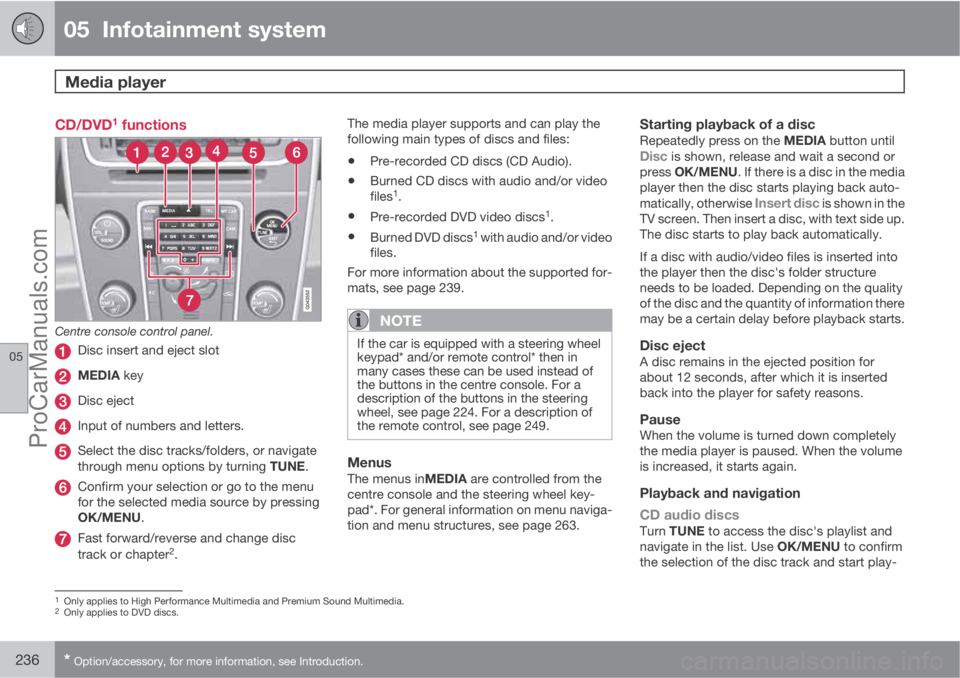
Centre console control panel.
Disc insert and eject slot
MEDIA key
Disc eject
Input of numbers and letters.
Select the disc tracks/folders, or navigate
through menu options by turning TUNE.
Confirm your selection or go to the menu
for the selected media source by pressing
OK/MENU.
Fast forward/reverse and change disc
track or chapter2.The media player supports and can play the
following main types of discs and files:
•Pre-recorded CD discs (CD Audio).
•Burned CD discs with audio and/or video
files1.
•Pre-recorded DVD video discs1.
•Burned DVD discs1 with audio and/or video
files.
For more information about the supported for-
mats, see page 239.
NOTE
If the car is equipped with a steering wheel
keypad* and/or remote control* then in
many cases these can be used instead of
the buttons in the centre console. For a
description of the buttons in the steering
wheel, see page 224. For a description of
the remote control, see page 249.
MenusThe menus inMEDIA are controlled from the
centre console and the steering wheel key-
pad*. For general information on menu naviga-
tion and menu structures, see page 263.
Starting playback of a discRepeatedly press on the MEDIA button untilDisc is shown, release and wait a second or
press OK/MENU. If there is a disc in the media
player then the disc starts playing back auto-
matically, otherwise
Insert disc is shown in the
TV screen. Then insert a disc, with text side up.
The disc starts to play back automatically.
If a disc with audio/video files is inserted into
the player then the disc's folder structure
needs to be loaded. Depending on the quality
of the disc and the quantity of information there
may be a certain delay before playback starts.
Disc ejectA disc remains in the ejected position for
about 12 seconds, after which it is inserted
back into the player for safety reasons.
PauseWhen the volume is turned down completely
the media player is paused. When the volume
is increased, it starts again.
Playback and navigation
CD audio discs
Turn TUNE to access the disc's playlist and
navigate in the list. Use OK/MENU to confirm
the selection of the disc track and start play-
1Only applies to High Performance Multimedia and Premium Sound Multimedia.2Only applies to DVD discs.
ProCarManuals.com
Page 239 of 400
05 Infotainment system
Media player
05
* Option/accessory, for more information, see Introduction.237
back. Press EXIT to cancel and exit the playlist.
A long press on EXIT leads to the playlist's root
level.
Disc tracks can also be changed by pressing
on
/ on the centre console or the
steering wheel keypad*.
Burned discs audio/video files1
Turn TUNE to access the disc's playlist/folder
structure and navigate in the list/structure. Use
OK/MENU to confirm either selection of sub-
folder or start of playback of the selected
audio/video file. Press EXIT to either stop and
exit the playlist or go up (back) in the folder
structure. A long press on EXIT leads to the
playlist's root level.
Audio/video files can also be changed by
pressing
/ on the centre console or the
steering wheel keypad*.
Audio files have the symbol
, video files1
have the symbol and folders have the
symbol
.
When playback of a file is complete the play-
back of the other files (of the same type) in that
particular folder continues. Change
3 of folder
takes place automatically when all the files inthe current folder have been played back. The
system automatically detects and changes
setting when a disc containing only audio files
or only video files is loaded into the media
player and then plays back these files. How-
ever, the system does not change setting if a
disc containing a mixture of audio and video
files is loaded into the media player, but instead
the player continues to play back the previous
file type.
NOTE
A video film is only shown when the car is
stationary. When the car is moving at a
speed of over about 8 km/h no picture is
shown and
No visual media available
during driving appears on the display
screen, although the audio is heard during
this time. The picture is shown again as
soon as the car's speed falls below about 6
km/h.
NOTE
Some audio files that are copy-protected by
record companies or privately copied audio
files cannot be loaded by the player.
DVD video discs1
For playback of DVD video discs, see
page 238.
Fast forward/reverse
Hold in the buttons / to fast forward/
rewind. Audio files are fast forwarded/rewound
at one speed, while video files are fast forwar-
ded/rewound at several speeds. Repeatedly
press the buttons
/ to increase the fast
forward/rewind speed for video files. Release
the button to return to viewing at normal speed.
Music recognition, GracenoteŸ
If the car is equipped with navigation* then
there is a hard drive in the car that contains a
database for music recognition of CD audio
discs. The database contains the most popular
songs at the moment. If the media player gets
a hit in the database then the album title and
artist name for the media are displayed, and
each track shows track title, artist and album.
If the current CD audio disc is not found in the
database then the CD text from the disc is
used. If there is no CD text on the disc then only
Track 1, Track 2 etc. is displayed.
1Only applies to High Performance Multimedia and Premium Sound Multimedia.3If Repeat folder is activated then this does not take place.
ProCarManuals.com
Page 240 of 400
05 Infotainment system
Media player
05
238* Option/accessory, for more information, see Introduction.
Scan4
This function plays the first ten seconds of
each disc track/audio file. To scan:
1.
Press OK/MENU
2.
Turn TUNE to
Scan
> The first 10 seconds of each disc track
or audio file are played.
3.
Cancel the scan with EXIT, the disc track
or audio file being played back will con-
tinue playing.
Random4
This function plays the tracks in random order.
To listen to the tracks in random order:
1.
Press OK/MENU
2.
Turn TUNE to
Random
3.
Press OK/MENU to activate/deactivate
the function.
Disc tracks/audio files can be changed by
pressing
/ on the centre console or the
steering wheel keypad*.
Repeat folder5
This function makes it possible to play files in
a folder over and over again. When the last filehas been played out, playback of the first file
starts again.
1.
Press OK/MENU
2.
Turn TUNE to
Repeat folder
3.
Press OK/MENU to activate/deactivate
the function.
Playback of DVD video discs1
PlaybackWhen playing back a DVD video disc a disc
menu may appear on the display screen. The
disc menu gives access to additional functions
and settings, such as selecting subtitles, lan-
guage and scene selection.
NOTE
A video film is only shown when the car is
stationary. When the car is moving at a
speed of over about 8 km/h no picture is
shown and
No visual media available
during driving appears on the display
screen, although the audio is heard during
this time. The picture is shown again as
soon as the car's speed falls below about 6
km/h.
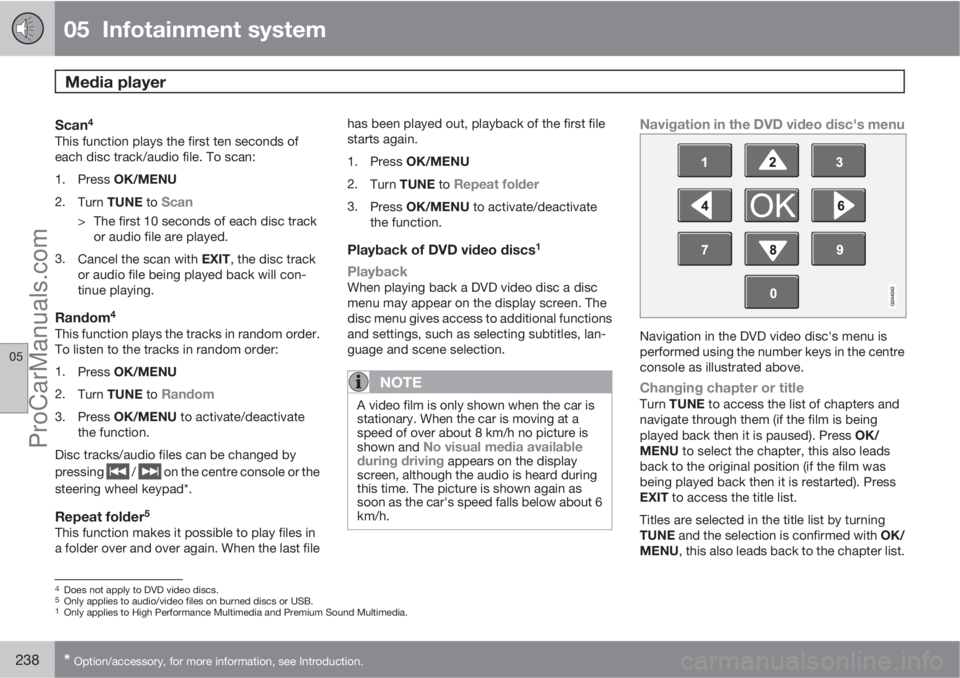
Navigation in the DVD video disc's menu
Navigation in the DVD video disc's menu is
performed using the number keys in the centre
console as illustrated above.
Changing chapter or titleTurn TUNE to access the list of chapters and
navigate through them (if the film is being
played back then it is paused). Press OK/
MENU to select the chapter, this also leads
back to the original position (if the film was
being played back then it is restarted). Press
EXIT to access the title list.
Titles are selected in the title list by turning
TUNE and the selection is confirmed with OK/
MENU, this also leads back to the chapter list.
4Does not apply to DVD video discs.5Only applies to audio/video files on burned discs or USB.1Only applies to High Performance Multimedia and Premium Sound Multimedia.
ProCarManuals.com
Page 241 of 400
05 Infotainment system
Media player
05
* Option/accessory, for more information, see Introduction.239
Press OK/MENU to activate the selection and
return to the start position. Use EXIT to cancel
the selection and this leads back to the original
position (without any selection being made).
The chapter can also be changed by pressing
on
/ on the centre console or the
steering wheel keypad*.
Advanced settings6
AngleIf the DVD video disc supports it, the function
can be used to choose from which camera
position a particular scene should be shown.
Go in disc mode to Disc menu
Advanced
settings
Angle.
DivXŸ Video On DemandThe media player can be registered in order to
play DivX VOD type files from burned discs or
USB. The code for registration can be found in
the menu system MY CAR Settings
InformationDivX® VOD code. For general
information on menus, see under MY CAR, see
page 144.
For more information visit www.divx.com/vod.
Picture settings6
You can adjust the settings (when the car is
stationary) for brightness and contrast.
1.
Press OK/MENU and select
Image
settings, confirm with OK/MENU.
2.
Turn TUNE to the adjustment option and
confirm with OK/MENU.
3.
Adjust the setting by turning TUNE and
confirm with OK/MENU.
To return to the settings list, press the OK/
MENU or EXIT.
The picture settings can be reset to factory
settings with the
Reset option.
Compatible file formatsThe media player can play back a variety of file
types and is compatible with the formats in the
following table.
NOTE
Dual format, double-sided discs (DVD Plus,
CD-DVD format) are thicker than regular CD
discs and therefore playback cannot be
guaranteed and malfunction may arise.
If a CD contains a mixture of MP3 and CDDA
tracks, all MP3s will be ignored.
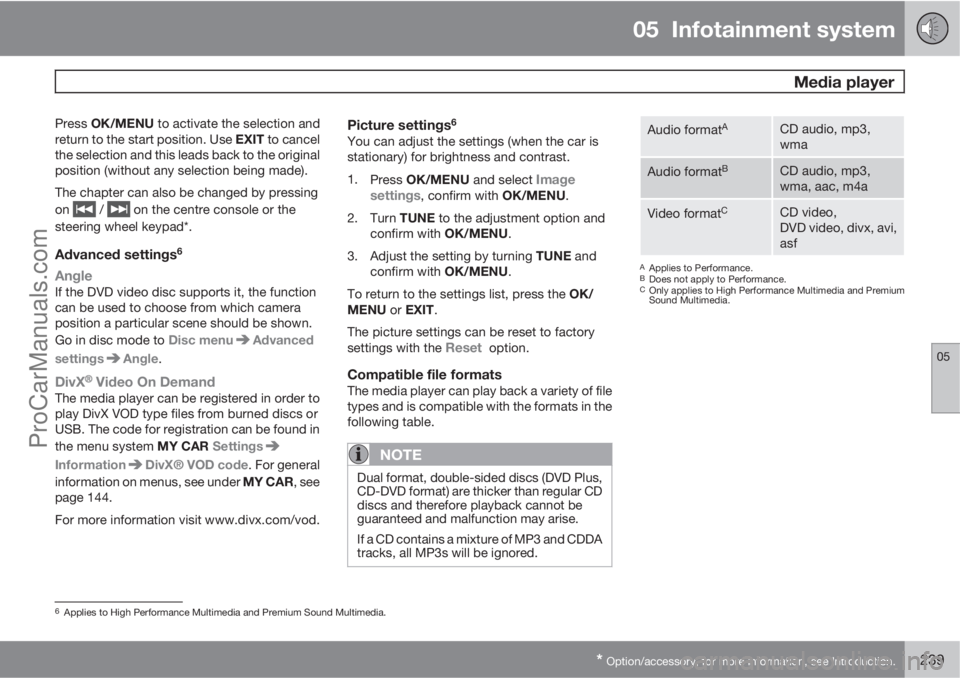
Audio formatACD audio, mp3,
wma
Audio formatBCD audio, mp3,
wma, aac, m4a
Video formatCCD video,
DVD video, divx, avi,
asf
AApplies to Performance.BDoes not apply to Performance.COnly applies to High Performance Multimedia and Premium
Sound Multimedia.
6Applies to High Performance Multimedia and Premium Sound Multimedia.
ProCarManuals.com
Page 243 of 400
05 Infotainment system
External audio source via AUX/USB* input
05
* Option/accessory, for more information, see Introduction.241
Playback and navigation3
Turn TUNE to access the playlist/folder struc-
ture and navigate in the list/structure. Use OK/
MENU to either confirm selection of subfolder
or start of playback of the selected audio/video
file. Press EXIT to either stop and exit the play-
list or go up (back) in the folder structure. A long
press on EXIT leads to the playlist's root level.
Audio/video files can also be changed by
pressing
/ on the centre console or the
steering wheel keypad*.
Audio files have the symbol
, video files4
have the symbol and folders have the
symbol
.
When playback of a file is complete the play-
back of the other files (of the same type) in that
particular folder continues. Change
5 of folder
takes place automatically when all the files in
the current folder have been played back. The
system automatically detects and changes
setting when a device containing only audio
files or only video files is connected to the USB
port and then it plays back these files. How-
ever, the system does not change setting if a
device containing a mixture of audio and video
files is connected to the USB port, but insteadthe player continues to play back the previous
file type.
Fast forward/reverse3
See page 237.
Scan3
See page 238.
Random3
See page 238.
Search function3
The keypad on the control panel in the centre
console can be used to find a filename in the
current folder.
The search function is accessed either by turn-
ing TUNE (to access the folder structure) or by
pressing one of the letter keys. As a letter or
character in a search string is entered you get
closer to your search target.
Start playback of a file by pressing OK/
MENU.
Repeat folder6
See page 238.
Audio sources
USB memory
To facilitate the use of a USB memory stick,
only store music files on it. It takes a lot longer
for the system to load storage media that con-
tains anything other than compatible music
files.
NOTE
The system supports mobile media compli-
ant with USB 2.0 and the FAT32 file system
and can handle 1000 folders with a maxi-
mum of 254 subfolders/files in every folder.
The top level, which can handle up to 1000
subfolders/files, is an exception to this.
NOTE
When using a longer model USB memory
stick the use of a USB adapter cable is rec-
ommended. This is to avoid mechanical
wear to the USB input and the connected
USB memory stick.
USB hubIt is possible to connect a USB hub to the USB
connection and thereby connect multiple USB
devices simultaneously. Selection of USB
3Only applies to USB and iPodŸ.4Applies to High Performance Multimedia and Premium Sound Multimedia.5If Repeat folder is activated then this does not take place.6Only applies to USB.
ProCarManuals.com
Page 245 of 400
05 Infotainment system
Media BluetoothŸŸ*
05
* Option/accessory, for more information, see Introduction.243 Streaming audio
GeneralThe car's media player is equipped with
BluetoothŸ1 and can wirelessly play streaming
audio files from external devices with
Bluetooth
Ÿ, such as mobile phones and PDAs.
Navigation and control of the sound can be
carried out via the centre console buttons or via
the steering wheel keypad*. In some external
devices it is also possible to change tracks
from the device.
To play back the audio the car's media player
must first be set in
Bluetooth mode.
NOTE
The BluetoothŸ media player must support
the Audio/Video Remote Control Profile
(AVRCP) and Advanced Audio Distribution
Profile (A2DP). The player should use
AVRCP version 1.3, A2DP 1.2. Otherwise
some functions may not work.
Not all mobile phones and external media
players available in the market are fully com-
patible with the Bluetooth
Ÿ function in the
car's media player. Volvo recommends that
you contact an authorised Volvo dealer or
visit www.volvocars.com for information on
compatible phones and external media
players.
NOTE
The car's media player can only play the
audio files via the BluetoothŸ function.
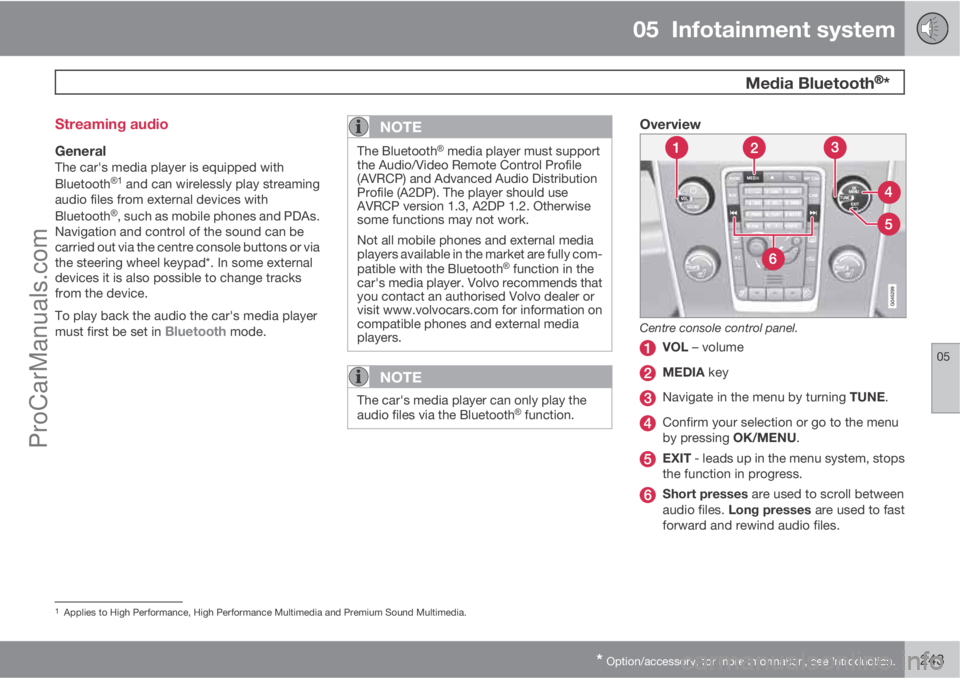
Overview
Centre console control panel.
VOL – volume
MEDIA key
Navigate in the menu by turning TUNE.
Confirm your selection or go to the menu
by pressing OK/MENU.
EXIT - leads up in the menu system, stops
the function in progress.
Short presses are used to scroll between
audio files. Long presses are used to fast
forward and rewind audio files.
1Applies to High Performance, High Performance Multimedia and Premium Sound Multimedia.
ProCarManuals.com