ECO mode VOLVO V60 2012 Owner's Guide
[x] Cancel search | Manufacturer: VOLVO, Model Year: 2012, Model line: V60, Model: VOLVO V60 2012Pages: 400, PDF Size: 9.28 MB
Page 206 of 400
04 Comfort and driving pleasure
Driver Alert System - LDW*
04
204* Option/accessory, for more information, see Introduction.
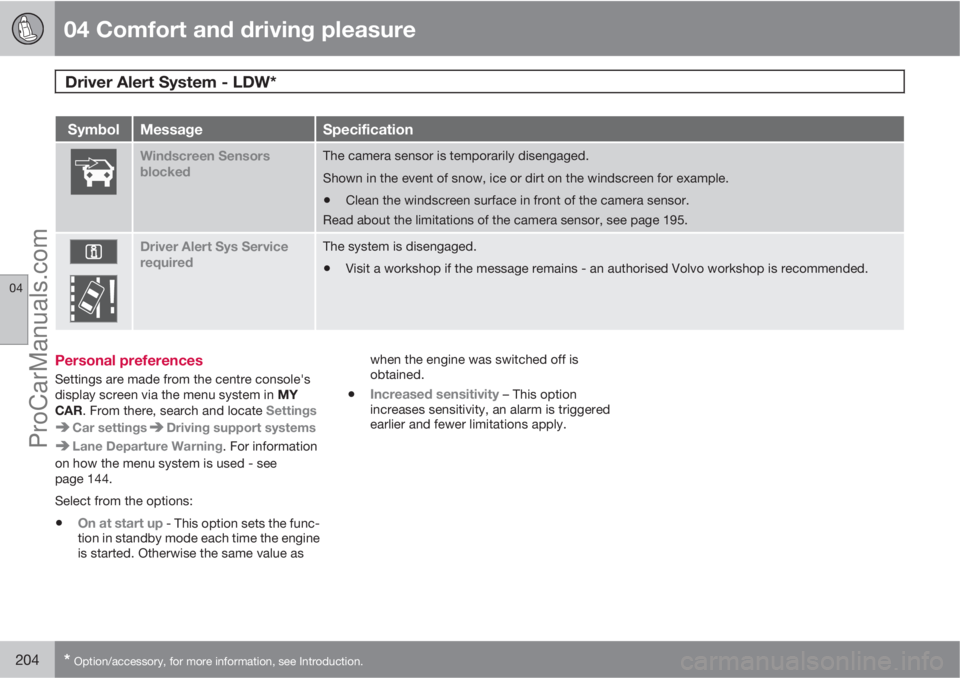
SymbolMessageSpecification
Windscreen Sensors
blockedThe camera sensor is temporarily disengaged.
Shown in the event of snow, ice or dirt on the windscreen for example.
•Clean the windscreen surface in front of the camera sensor.
Read about the limitations of the camera sensor, see page 195.
Driver Alert Sys Service
requiredThe system is disengaged.
•Visit a workshop if the message remains - an authorised Volvo workshop is recommended.
Personal preferences
Settings are made from the centre console's
display screen via the menu system in MY
CAR. From there, search and locate Settings
Car settingsDriving support systems
Lane Departure Warning. For information
on how the menu system is used - see
page 144.
Select from the options:
•On at start up - This option sets the func-
tion in standby mode each time the engine
is started. Otherwise the same value aswhen the engine was switched off is
obtained.
•Increased sensitivity – This option
increases sensitivity, an alarm is triggered
earlier and fewer limitations apply.
ProCarManuals.com
Page 237 of 400
05 Infotainment system
Radio
05
235
NOTE
Only one of the functions "Show radio
text" and "Show presets" can be acti-
vated at a time. If one of them is activated
when the other is already activated, then the
previously activated function is deactivated
automatically. Both functions can be deac-
tivated.
Advanced settings
DAB to DAB link
It is possible to exit a channel with poor or no
reception to the same channel in another chan-
nel group with better reception. There may be
a certain delay when changing channel group.
There may be a period of silence between the
current channel no longer being available to the
new channel becoming available.
The function can be activated/deactivated in
DAB mode under DAB menu
Advanced
settings
DAB linking.
Wavelength
DAB can be transmitted on two5 wavelengths:
•Band III - covers areas outside big cities
•LBand - mainly in large cities
By selecting for example
Band III on its own,
channel programming takes place morequickly than if both
Band III and LBand have
been selected. It is not certain that all channel
groups will be found. Wavelength selection
does not affect the stored memories.
Wavelengths can be deactivated/activated in
DAB mode under DAB menu
Advanced
settings
DAB band.
SubchannelSecondary components are usually named
subchannels. These are temporary and can
contain e.g. translations of the main pro-
gramme into other languages.
If one or more subchannels are broadcast then
the
> symbol is shown to the left of the channel
name in the TV screen. A subchannel is indi-
cated by the
- symbol appearing to the left of
the channel name in the TV screen.
Subchannels can only be accessed on the
selected main channel and not on any other
channel without selecting it.
Display of subchannels can be deactivated/
activated in DAB mode under DAB menu
Advanced settingsSub channels
Programme type textSome radio stations broadcast information
about programme type and programme cate-gory. This information is shown on the TV
screen.
The function is activated/deactivated in DAB
mode under DAB menu
Advanced
settings
Show PTY text.
Resetting the DAB settingsAll DAB settings can be reset to the original
factory settings.
–The reset is carried out in DAB mode under
DAB menu
Advanced settings
Reset all DAB settings.
5Not all areas/countries use both wavelengths.
ProCarManuals.com
Page 242 of 400
05 Infotainment system
External audio source via AUX/USB* input
05
240* Option/accessory, for more information, see Introduction.
AUX, USB1 and external audio source
General
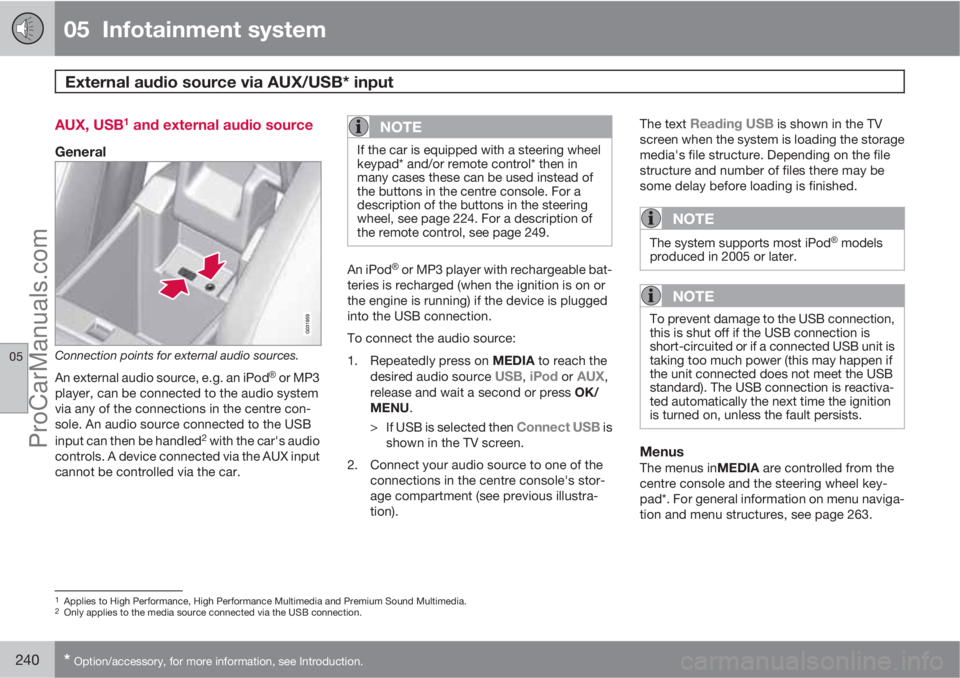
Connection points for external audio sources.
An external audio source, e.g. an iPodŸ or MP3
player, can be connected to the audio system
via any of the connections in the centre con-
sole. An audio source connected to the USB
input can then be handled
2 with the car's audio
controls. A device connected via the AUX input
cannot be controlled via the car.
NOTE
If the car is equipped with a steering wheel
keypad* and/or remote control* then in
many cases these can be used instead of
the buttons in the centre console. For a
description of the buttons in the steering
wheel, see page 224. For a description of
the remote control, see page 249.
An iPodŸ or MP3 player with rechargeable bat-
teries is recharged (when the ignition is on or
the engine is running) if the device is plugged
into the USB connection.
To connect the audio source:
1.
Repeatedly press on MEDIA to reach the
desired audio source
USB, iPod or AUX,
release and wait a second or press OK/
MENU.
>
If USB is selected then
Connect USB is
shown in the TV screen.
2. Connect your audio source to one of the
connections in the centre console's stor-
age compartment (see previous illustra-
tion).The text
Reading USB is shown in the TV
screen when the system is loading the storage
media's file structure. Depending on the file
structure and number of files there may be
some delay before loading is finished.
NOTE
The system supports most iPodŸ models
produced in 2005 or later.
NOTE
To prevent damage to the USB connection,
this is shut off if the USB connection is
short-circuited or if a connected USB unit is
taking too much power (this may happen if
the unit connected does not meet the USB
standard). The USB connection is reactiva-
ted automatically the next time the ignition
is turned on, unless the fault persists.
MenusThe menus inMEDIA are controlled from the
centre console and the steering wheel key-
pad*. For general information on menu naviga-
tion and menu structures, see page 263.
1Applies to High Performance, High Performance Multimedia and Premium Sound Multimedia.2Only applies to the media source connected via the USB connection.
ProCarManuals.com
Page 245 of 400
05 Infotainment system
Media BluetoothŸŸ*
05
* Option/accessory, for more information, see Introduction.243 Streaming audio
GeneralThe car's media player is equipped with
BluetoothŸ1 and can wirelessly play streaming
audio files from external devices with
Bluetooth
Ÿ, such as mobile phones and PDAs.
Navigation and control of the sound can be
carried out via the centre console buttons or via
the steering wheel keypad*. In some external
devices it is also possible to change tracks
from the device.
To play back the audio the car's media player
must first be set in
Bluetooth mode.
NOTE
The BluetoothŸ media player must support
the Audio/Video Remote Control Profile
(AVRCP) and Advanced Audio Distribution
Profile (A2DP). The player should use
AVRCP version 1.3, A2DP 1.2. Otherwise
some functions may not work.
Not all mobile phones and external media
players available in the market are fully com-
patible with the Bluetooth
Ÿ function in the
car's media player. Volvo recommends that
you contact an authorised Volvo dealer or
visit www.volvocars.com for information on
compatible phones and external media
players.
NOTE
The car's media player can only play the
audio files via the BluetoothŸ function.
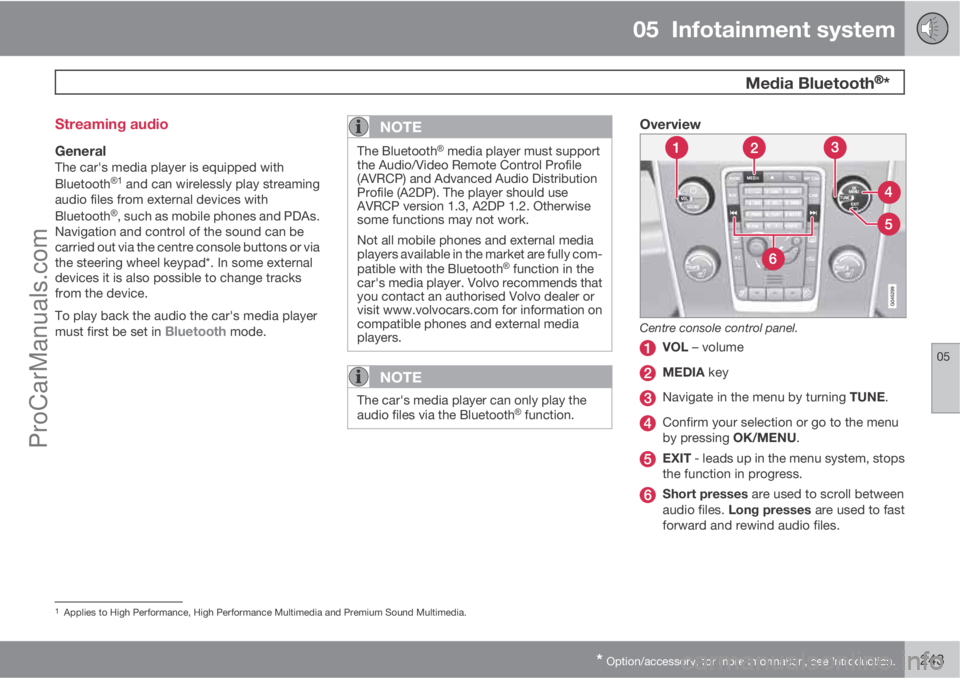
Overview
Centre console control panel.
VOL – volume
MEDIA key
Navigate in the menu by turning TUNE.
Confirm your selection or go to the menu
by pressing OK/MENU.
EXIT - leads up in the menu system, stops
the function in progress.
Short presses are used to scroll between
audio files. Long presses are used to fast
forward and rewind audio files.
1Applies to High Performance, High Performance Multimedia and Premium Sound Multimedia.
ProCarManuals.com
Page 247 of 400
05 Infotainment system
Media BluetoothŸŸ*
05
* Option/accessory, for more information, see Introduction.245
Remove the connected device1.
Press Bluetooth mode on OK/MENU.
2.
Turn TUNE to
Remove Bluetooth
device and confirm with OK/MENU.
3. Select the device to be removed by turning
TUNE, and confirm with OK/MENU.
> A prompt asking whether or not you
want to remove the connection is shown
in the TV screen.
4.
Press OK/MENU to confirm.
EXIT cancels.
Disconnecting the deviceAutomatic disconnection takes place if the
external device moves out of the infotainment
system's range. For more information on con-
nection, see page 244.
RandomThis function plays back the audio files on the
external device in random order. Activate/
deactivate the random function in Bluetooth
mode under Bluetooth menu
Random.
Change audio file by pressing
/ on the
centre console or the steering wheel keypad*.
Scanning of audio files in external deviceThis function play backs the first ten seconds
of each audio file. Activate/deactivate the func-tion in Bluetooth mode under Bluetooth menu
Scan.
Cancel scanning with EXIT.
Version information BluetoothŸ
The car's current BluetoothŸ version can be
seen in Bluetooth mode under Bluetooth
menu
Bluetooth software version in car.
ProCarManuals.com
Page 250 of 400
05 Infotainment system
TV*
05
248* Option/accessory, for more information, see Introduction.
Save the available TV channels as
presets
If the car has been moved within the country,
for example, from one city to another, it is not
certain that the presets are available at the new
location as the frequency range may have
changed. In which case, carry out another scan
and save a new preset list.
1.
Press TV mode on OK/MENU.
2.
Turn TUNE to
TV menu and press OK/
MENU.
3.
Turn TUNE to
Autostore and press OK/
MENU.
> An automatic scan for available TV
channels starts, this scan takes a little
while. During this time the figure for
each channel found and added as a pre-
set is shown. When the scan is com-
plete a message is shown and the pic-
ture is shown. A preset list (max. 30 pre-
sets) has now been created and is avail-
able. To change channel, see
page 246.
Scanning the TV channelsThis function automatically scans through the
frequency range for all channels available in the
area where you are. When a channel is found,
it is shown for approx. 10 seconds before
scanning is resumed. Scanning is stopped withEXIT, then the channel that you just watched
continues to be shown. Scanning does not
affect the preset list.
Activate scanning in TV mode under TV menu
Scan.
TeletextIt is possible to read Teletext. Follow these
steps:
1.
Press the
button on the remote con-
trol.
2. Enter the page number (3 digits) with the
number keys (0-9) to select page.
> The page is shown automatically.
Enter new page number, or press the remote
control buttons
/ to go to the next page.
Return to TV screen with EXIT or by pressing
the
button on the remote control.
It is also possible to control the teletext with the
coloured buttons on the remote control.
Information about the current
programme
Press the INFO button in order to display the
information about the current programme, the
next programme and its start time. If the
INFO button is pressed once more then addi-
tional information on the current programmecan sometimes be displayed, such as start and
end times and a brief description of the current
programme. For more information on the
INFO button, see page 226.
To return to the TV picture, wait several sec-
onds or press EXIT.
Picture settingsThe settings for brightness and contrast can be
adjusted. For more information, see page 239.
The reception is lostIf the reception for the TV channel that is being
shown disappears then the picture will freeze.
Shortly after this a message appears informing
that the reception has been lost for the current
TV channel, and a new search for the channel
continues. When the reception returns the dis-
play of the TV channel starts immediately. It is
possible to change channel at any time when
the message is shown.
If the message
Reception lost, searching is
shown then this is because the system has
detected that there is no reception for all TV
channels. One possible reason may be that a
border has been crossed and that the system
is set to the wrong country. In which case,
change to the right country in accordance
with "Searching TV channels/Preset list", see
page 247.
ProCarManuals.com
Page 255 of 400
05 Infotainment system
BluetoothŸŸ handsfree*
05
* Option/accessory, for more information, see Introduction.253
screen. Now the mobile phone can be con-
trolled from the audio system.
To call1.
Make sure that the symbol appears
at the top of the TV screen and that the
handsfree function is in phone mode.
2. Dial either the desired number or speed
dial number, see page 258. Or in normal
view turn TUNE to the right to access the
phone book, and to the left for the call reg-
ister for all calls. For information on the
phone book, see page 255.
3.
Press OK/MENU.
The call is interrupted with EXIT.
Disconnecting the mobile phoneAutomatic disconnection takes place if the
mobile phone moves out of the audio system's
range. The connection to the mobile phone can
be interrupted manually via a long press on
TEL or in phone mode under Phone menu
Disconnect phone. For more information
on connection, see page 254.
The handsfree function is deactivated when
the engine is switched off or when a door is
opened
2.When the mobile phone has been discon-
nected an ongoing call can be continued by
using the mobile phone's built-in microphone
and speaker.
NOTE
Even when your mobile phone has been
manually disconnected, some mobile
phones may automatically couple up to the
last handsfree unit connected, e.g. when a
new call begins.
Making and receiving calls
Incoming call–
Press OK/MENU to answer the call, even
if the audio system is in e.g. RADIO orMEDIA mode.
Refuse or end with EXIT.
Automatic answerThe automatic answer function means that
calls are accepted automatically.
–Activate/deactivate in phone mode under
Phone menu
Call optionsAuto
answer.
In call menuPress OK/MENU during an ongoing call to
access the following functions:
•Mute - audio system microphone is
muted.
•Mobile phone - the call is transferred from
handsfree to the mobile phone. For some
mobile phones the connection is interrup-
ted. This is normal. The handsfree function
asks if you want to reconnect.
•Dial number - option to call a third party
using the number keys (current call set in
standby).
Call listsThe call lists are copied to the handsfree func-
tion at each new connection and are then
updated during the connection. In normal view,
turn to the left with TUNE to see the call register
for
All calls .
In phone mode it is possible to see all the call
lists under Phone menu
All calls:
•All calls
•Missed calls
•Answered calls
•Dialled calls
•Call duration
2Only Keyless Drive.
ProCarManuals.com
Page 257 of 400
05 Infotainment system
BluetoothŸŸ handsfree*
05
* Option/accessory, for more information, see Introduction.255
Version information BluetoothŸ
The car's current BluetoothŸ version can be
seen in phone mode under Phone menu
Phone settingsBluetooth software
version in car.
Phone book
There are two phone books. These are merged
into one in the car and are displayed as a single
phone book in the car.
•The car downloads the mobile phone's
phone book and only displays this phone
book when the mobile phone from which
this phone book was downloaded is con-
nected.
•The car also has a built-in phone book. This
contains all the contacts stored in the car
irrespective of which phone was con-
nected when saving them. These contacts
are visible for all users, regardless of the
mobile phone that is connected to the car.
If a contact is saved in the car then the
symbol
is shown in front of the con-
tact in the phone book.
NOTE
Changes made from the car to a record in
the mobile phone's telephone book will
result in a new record in the car's telephone
book, i.e. changes will not be saved to the
phone. From the car, this will now look like
you have double records, with different
icons. Note also that when a shortcut num-
ber is saved or a change to a contact is
made, this will result in a new record in the
car's phone book.
All use of the phone book requires that the
symbol appears at the top of the TV
screen and that the handsfree function is in
phone mode.
The audio system stores a copy of the phone
book from each paired mobile phone. The
phone book can be copied automatically to the
audio system during each connection.
–Activate/deactivate the function in phone
mode under Phone menu
Phone
settings
Phonebook download.
If the phone book contains a ringing caller's
contact information then this is shown in the TV
screen.
Quick search for contactsIn normal view turn TUNE to the right to obtain
a list of contacts. Turn TUNE to select and
press OK/MENU to call.
Under the name of the contact is the phone
number that is selected by default. If the sym-
bol
appears to the right of the contact then
there are several phone numbers stored for the
contact. Change and dial a different number
than the one that is selected by default by
pressing the button
on the control panel
in the centre console. Then turn TUNE to select
and press OK/MENU to call.
Search in the list of contacts by using the cen-
tre console's keypad to key in the start of the
contact's name (see "Character table keypad
in centre console" for button functions).
The list of contacts can also be accessed from
normal view by pressing and holding the button
on the centre console's keypad with the letter
that the contact searched for starts with. For
example, a long press on the button for 6 gives
instant access to that part of the list where the
contacts with the letter
M are located.
ProCarManuals.com
Page 273 of 400
06 During your journey
Recommendations during driving
06
271
•If the text message High engine temp
Stop engine or Coolant level low, Stop
engine is shown then the engine must be
switched off after stopping the car.
•In the event of overheating in the gearbox
a built-in protection function is activated
which, amongst other things, illuminates
the instrument panel's warning symbol and
there is a text message displayed there
Transmission hot Reduce speed orTransmission hot Stop safely - follow
the recommendation given and lower the
speed and stop the car in a safe way and
allow the engine to run at idling speed for
a few minutes to allow the gearbox to cool
down.
•If the car overheats, the air conditioning
may be switched off temporarily.
•Do not turn the engine off immediately you
stop after a hard drive.
NOTE
It is normal for the engine's cooling fan to
operate for a while after the engine has been
switched off.
Open tailgate
WARNING
Do not drive with the tailgate open. Toxic
exhaust fumes could be drawn into the car
through the cargo area.
Do not overload the batteryThe electrical functions in the car load the bat-
tery to varying degrees. Avoid using the key
position II when the engine is switched off.
Instead use the I mode - which uses less
power.
Also, be aware of different accessories that
load the electrical system. Do not use functions
which use a lot of power when the engine is
switched off. Examples of such functions are:
•ventilation fan
•headlamps
•windscreen wiper
•audio system (high volume).
If the battery voltage is low the information dis-
play shows the text
Low battery Power save
mode. The energy-saving function then shuts
down certain functions or reduces certain
functions such as the ventilation fan and/or
audio system.
–In which case, charge the battery by star-
ting the engine and then running it for atleast 15 minutes - battery charging is more
effective during driving than running the
engine at idling speed while stationary.
Before a long journey
•Check that the engine is working normally
and that fuel consumption is normal.
•Make sure that there are no leaks (fuel, oil
or other fluid).
•Check all bulbs and tyre tread depths.
•Carrying a warning triangle is a legal
requirement in certain countries.
Winter drivingCheck the following in particular before the
cold season:
•The engine coolant must contain at least
50% glycol. This mixture protects the
engine against frost erosion down to
approximately –35 °C. To achieve optimum
antifreeze protection, different types of gly-
col must not be mixed.
•The fuel tank must be kept filled to prevent
condensation.
•Engine oil viscosity is important. Oils with
lower viscosity (thinner oils) facilitate star-
ting in cold weather and also reduce fuel
consumption while the engine is cold. For
more information on suitable oils, see
page 360.
ProCarManuals.com
Page 291 of 400
06 During your journey
Towing and recovery
06
289 Towing
Find out the statutory maximum speed limit for
towing before towing begins.
1. Unlock the steering lock by inserting the
remote control key in the ignition switch
and giving a long press on the START/
STOP ENGINE button - key position II is
activated, see page 80 for more informa-
tion on key positions.
2. The remote control key must remain in the
ignition switch while the car is being towed.
3. Keep the towline taut when the towing
vehicle reduces speed by holding your foot
gently pressed on the brake pedal -
thereby avoiding unnecessary jerking.
4. Be prepared to brake to stop.
WARNING
•Check that the steering lock is unlocked
before towing.
•The remote control key must be in key
position II - in position I all airbags are
deactivated.
•Never remove the remote control key
from the ignition switch when the car is
being towed.
WARNING
The brake servo and power steering do not
work when the engine is switched off - the
brake pedal needs to be depressed
about 5 times more heavily and the steering
is considerably heavier than normal.
Manual gearboxPrior to towing:
–Move gear lever into neutral and release
the parking brake.
Automatic gearbox Geartronic
IMPORTANT
Note that the car must always be towed with
the wheels rolling forward.
•Cars with automatic gearbox must not
be towed at speeds above 80 km/h or
further than 80 km.
Prior to towing:
–
Move the gear selector to position N and
release the parking brake.
Automatic gearbox PowershiftThe model with Powershift transmission
should not be towed as it is dependent on the
engine running in order to receive sufficientlubrication. If towing still has to take place, the
route must be as short as possible and then
with very low speed.
In the event of uncertainty as to whether or not
the car is equipped with Powershift transmis-
sion, this can be verified by checking the des-
ignation on the decal number (5) under the
bonnet - see page 352. The designa-
tion ”MPS6” means that it is Powershift trans-
mission - otherwise it is Geartronic automatic
transmission.
IMPORTANT
Avoid towing.
•However, the car can be towed for a
short distance at low speed to move it
from a dangerous position - not further
than 10 km and not faster than
10 km/h. Note that the car must always
be towed with the wheels rolling for-
ward.
•In the event of moving a longer distance
than 10 km, the car must be transported
with the drive wheels raised from the
road - professional recovery is recom-
mended.
Prior to towing:
–
Move the gear selector to position N and
release the parking brake.
ProCarManuals.com