reset VOLVO V60 2013 Owner's Guide
[x] Cancel search | Manufacturer: VOLVO, Model Year: 2013, Model line: V60, Model: VOLVO V60 2013Pages: 422, PDF Size: 9.59 MB
Page 247 of 422
06 Infotainment system
Radio
06
* Option/accessory, for more information, see Introduction.245 General
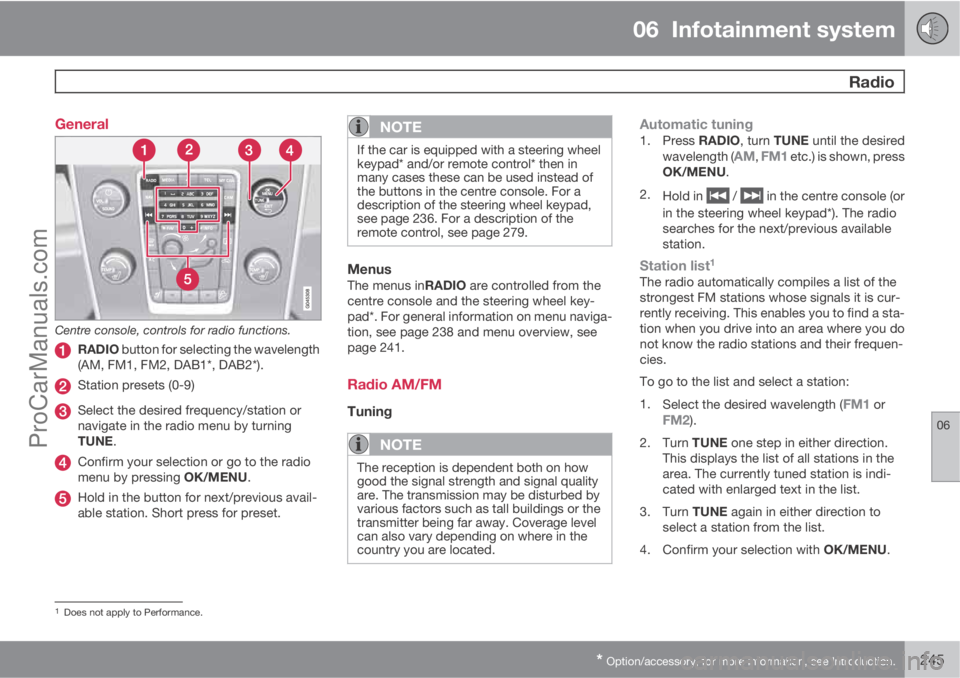
Centre console, controls for radio functions.
RADIO button for selecting the wavelength
(AM, FM1, FM2, DAB1*, DAB2*).
Station presets (0-9)
Select the desired frequency/station or
navigate in the radio menu by turning
TUNE.
Confirm your selection or go to the radio
menu by pressing OK/MENU.
Hold in the button for next/previous avail-
able station. Short press for preset.
NOTE
If the car is equipped with a steering wheel
keypad* and/or remote control* then in
many cases these can be used instead of
the buttons in the centre console. For a
description of the steering wheel keypad,
see page 236. For a description of the
remote control, see page 279.
MenusThe menus inRADIO are controlled from the
centre console and the steering wheel key-
pad*. For general information on menu naviga-
tion, see page 238 and menu overview, see
page 241.
Radio AM/FM
Tuning
NOTE
The reception is dependent both on how
good the signal strength and signal quality
are. The transmission may be disturbed by
various factors such as tall buildings or the
transmitter being far away. Coverage level
can also vary depending on where in the
country you are located.
Automatic tuning1.
Press RADIO, turn TUNE until the desired
wavelength (AM, FM1 etc.) is shown, press
OK/MENU.
2.
Hold in
/ in the centre console (or
in the steering wheel keypad*). The radio
searches for the next/previous available
station.
Station list1
The radio automatically compiles a list of the
strongest FM stations whose signals it is cur-
rently receiving. This enables you to find a sta-
tion when you drive into an area where you do
not know the radio stations and their frequen-
cies.
To go to the list and select a station:
1.
Select the desired wavelength (
FM1 orFM2).
2.
Turn TUNE one step in either direction.
This displays the list of all stations in the
area. The currently tuned station is indi-
cated with enlarged text in the list.
3.
Turn TUNE again in either direction to
select a station from the list.
4.
Confirm your selection with OK/MENU.
1Does not apply to Performance.
ProCarManuals.com
Page 248 of 422
06 Infotainment system
Radio
06
246
NOTE
•The list only shows the frequencies of
stations that are currently being
received, not a complete list of all radio
frequencies on the selected wave-
length.
•If the signal from the currently received
station is weak, this may prevent the
radio from updating the station list. If
this occurs, press the
button
(while the station list is shown in the dis-
play screen) in order to change to man-
ual tuning and set a frequency. If the
station list is no longer shown, turn
TUNE one step in either direction to
show the list again, and press
to
switch.
The list disappears from the TV screen after a
few seconds.
If the station list is no longer shown, turn
TUNE one step in either direction and press the
button in the centre console to change
to manual tuning (or to return from manual tun-
ing to the function for "Station list").
Manual tuningThe preset from the factory is that the radio
shows the station list of the strongest stationsin the area when you turn TUNE (see the sec-
tion "Station list", page 245). When the station
list is shown, press the
button in the cen-
tre console to change to manual tuning. This
allows you to select a frequency from the list of
all available radio frequencies in the selected
wavelength. In other words, if turn TUNE one
step in a manual search the frequency is
changed from e.g. 93.3 to 93.4 MHz, etc.
To manually select a station:
1.
Press the RADIO button, turn TUNE until
the desired wavelength (
AM, FM1 etc.) is
shown, press OK/MENU.
2.
Turn TUNE to select a frequency.
NOTE
The preset from the factory is that the radio
automatically searches for the stations in
the area where you are driving (see previous
section "Station list" above).
But if you have changed over to manual tun-
ing (by pressing the
button in the cen-
tre console when the station list was
shown), then the radio remains set in the
function for manual tuning the next time you
switch on the radio. To change back to the
function for "Station list", turn TUNE one
step (to show the complete list of stations)
and press the button
.
Note that if you press
when the sta-
tion list is not shown then INFO is activated.
For more information on this function, see
page 235.
Preset
10 presets can be stored per wavelength (AM,FM1 etc.).
The stored presets are selected using the pre-
set buttons.
1. Tune into a station (see "Tuning", page
245).
2. Hold in one of the preset buttons for a few
seconds, the sound disappears during this
ProCarManuals.com
Page 249 of 422
06 Infotainment system
Radio
06
247
time and returns when the station is stored.
The preset button can now be used.
A list of pre-selected channels can be shown
2
in the TV screen. The function is activated/
deactivated in FM/AM mode under FM menu
Show presets or AM menuShow
presets.
RDS functionsRDS (Radio Data System) links FM transmitters
into a network. An FM transmitter in such a
network sends information that gives an RDS
radio the following functions:
•Automatically switches to a stronger trans-
mitter if reception in the area is poor.
•Searches for programme type, such as
traffic information or news.
•Receives text information on current radio
programme.
NOTE
Some radio stations do not use RDS or only
some if its functionality.
If a required programme type is located the
radio can switch stations interrupting the audio
source currently in use. For example, if the CDplayer is in use, it is paused. The interrupting
transmission is played at a preset volume, see
page 249. The radio returns to the previous
audio source and volume when the set pro-
gramme type is no longer broadcast.
The programme functions alarm (
ALARM!),
traffic information (TP), news (NEWS), and pro-
gramme types (PTY) interrupt one another in
order of priority, where alarm has the highest
priority and programme types has the lowest.
For additional settings of programming inter-
ruptions (
EON Distant and EON Local), see
the section "Enhanced Other Networks –
EON" below. Press EXIT to return to the inter-
rupted audio source, press the OK/MENU to
clear the message.
AlarmThis function is used to warn of serious acci-
dents and catastrophes. The alarm cannot be
temporarily interrupted or deactivated. The
message
ALARM! appears on the TV screen
when an alarm message is transmitted.
Traffic information – TPThis function allows traffic information sent
within a set station's RDS network to break
through. The
TP symbol indicates that the
function is activated. If the preset station cansend traffic information then this is shown by
TP glowing brightly in the TV screen, otherwiseTP will be grey.
–
Activate/deactivate in FM mode under FM
menu
TP.
Enhanced Other Networks – EONThis function is useful in urban areas with many
regional radio stations. It allows the distance
between the car and the radio station trans-
mitter to determine when programme functions
should interrupt the current audio source.
–Activate/deactivate in FM mode by select-
ing one of the options under FM menu
Advanced settingsEON:
•Local – interrupts only if the radio station
transmitter is close.
•Distant3 – interrupts if the station trans-
mitter is far away, even if there is a lot of
static.
TP from selected station/all stationsThe radio can only interrupt for traffic informa-
tion from the selected station or all stations
within the RDS network.
–
Go in FM mode to FM menu
Advanced
settings
Set TP favourite to change.
2Only applies to High Performance Multimedia and Premium Sound Multimedia.3Factory settings.
ProCarManuals.com
Page 250 of 422
06 Infotainment system
Radio
06
248
NewsThis function allows news broadcasts sent
within a set station's RDS network to break
through. The
NEWS symbol indicates that the
function is active.
–
Activate/deactivate in FM mode under FM
menu
News settingsNews.
News from selected station/all stationsThe radio can only interrupt for news from the
selected station or all stations in the RDS net-
work.
–
Go in FM mode to FM menu
News
settings
Set news favourite to change.
Programme types – PTYThe PTY function can be used to select one or
more programme types, such as pop music
and serious classic. The PTY symbol indicates
that the function is active. This function allows
programme types broadcast within a set sta-
tion's RDS network to break through.
1. Activate in FM mode by first selecting the
programme types under FM menu
Advanced settingsPTY settings
Select PTY.2. Then the PTY function must be activated
under FM menu
Advanced settings
PTY settingsReceive traffic
bulletins from other networks.
An indicator is shown in the TV screen when
PTY is activated.
Deactivation of the PTY function is performed
in FM mode under FM menu
Advanced
settings
PTY settingsReceive traffic
bulletins from other networks. Selected pro-
gramme types (PTY) are not reset.
Resetting and removing PTY are performed
under FM menu
Advanced settings
PTY settingsSelect PTYClear all.
PTY searchThis function searches the entire wavelength
for the selected programme type.
1. In FM mode select one or more PTY under
FM menu
Advanced settingsPTY
settings
Select PTY.
2.
Go to FM menu
Advanced settings
PTY settingsSeek PTY.
To finish searching, press EXIT.–To continue searching for another broad-
cast of the selected programme types,
press on
or .
Display of programme typeThe programme type of the current station can
be shown on the TV screen.
–
Activate/deactivate in FM mode under FM
menu
Advanced settingsPTY
settings
Show PTY text.
Radio text4
Some RDS stations transmit information on
programme content, artists, etc. This informa-
tion can be shown on the TV screen.
–
Activate/deactivate in FM mode under FM
menu
Show radio text.
Automatic frequency update – AFThe function selects the strongest transmitter
for the set station. In order to find a strong
transmitter the function may, in exceptional
cases, need to search the entire FM wave-
length.
–
Activate/deactivate in FM mode under FM
menu
Advanced settings
Alternative frequency.
4Only cars with 7-inch screen
ProCarManuals.com
Page 251 of 422
06 Infotainment system
Radio
06
* Option/accessory, for more information, see Introduction.249
Regional radio programmes – REGThis function causes the radio to continue with
a regional transmitter even if its signal strength
is low. The symbol
REG shows that the func-
tion is active.
–
Activate/deactivate in FM mode under FM
menu
Advanced settingsREG.
Resetting RDS functionsAll radio settings can be reset to the original
factory settings.
–The reset is carried out in FM mode under
FM menu
Advanced settings
Reset all FM settings.
Volume control, programme typesThe interrupting programme types, e.g.NEWS or TP, are heard at the volume selected
for each respective programme type. If the vol-
ume level is adjusted during the programme
interruption, the new level is saved until the
next programme interruption.
Scan wavelengthThe function automatically searches for avail-
able channels and takes into account any pro-
gramme type filtering. When a station is found,
it is played for approx. 10 seconds before
scanning is resumed. When a station is playing
back it can be saved as a preset in the usual
way, see the section Preset, page 246.–To start scanning go in FM/AM mode to
FM menu
Scan or AM menuScan.
NOTE
Scanning stops if a station is saved.
Radio system - DAB*
GeneralDAB (Digital Audio Broadcasting) is a digital
broadcasting system for radio. This system
supports DAB, DAB+ and DMB.
NOTE
Coverage for DAB is not available in all loca-
tions. If there is no coverage then the mes-
sage
No reception is shown in the display
screen.
Service and Ensemble
•Service - Channel, radio channel (only
audio services are supported by the sys-
tem).
•Ensemble - A collection of radio channels
on the same frequency.
Storing channel groups (Ensemble learn)When the vehicle is moved to a new broad-
casting area, programming of existing channel
groups in the area may be necessary.Programming of channel groups creates an
updated list of all available channel groups.
The list is not updated automatically.
Programming is carried out in the menu system
in DAB mode under DAB menu
Ensemble
learn. Programming can also take place as fol-
lows:
1.
Turn TUNE one step in either direction.
>
Ensemble learn is shown in the list of
available channel groups.
2.
Press OK/MENU.
> New programming is started.
Programming can be cancelled with EXIT.
Navigation in channel group list
(Ensemble)
To navigate in and access the channel group
list turn TUNE. The name of the Ensemble is
shown in the upper part of the TV screen. When
switching to the new Ensemble the name
changes to the new one.
•Service - Shows channels irrespective of
the channel group to which they are allo-
cated. The list can also be filtered using the
selection of programme type (
PTY
filtering), see below.
ProCarManuals.com
Page 252 of 422
06 Infotainment system
Radio
06
250
ScanningThe function automatically searches the cur-
rent wavelength for strong stations. When a
station is found, it is played for approx. 10 sec-
onds before scanning is resumed. When a sta-
tion is playing back it is saved as a preset in the
usual way. For more information on presets,
see "Preset" below.
–
Go in DAB mode to DAB menu
Scan to
start scanning.
NOTE
Scanning stops if a station is saved.
Scanning can also be selected in DAB-PTY
mode. In which case only channels of the pre-
selected programme type are played.
Programme type (PTY)Various types of radio programmes can be
selected using the programme type function.
There are a number of different programme
types which also include different programme
categories. After selecting a programme type,
navigation only takes place within the channels
that are broadcasting that type.Programme type is selected in DAB mode
under DAB menu
PTY filtering. Exit this
mode as follows:
–
Press EXIT.
> An indicator is shown in the TV screen
when PTY is activated.
In certain cases DAB radio will exit PTY mode
when DAB to DAB linking (see below) is imple-
mented.
Preset10 station presets can be stored per wave-
length. DAB has 2 memories for presets:
DAB1 and DAB2. Storage of presets is made
by means of a long press on the desired preset
button, for more information see page 246. The
stored presets are selected using the preset
buttons.
A preset contains one channel but no sub-
channels. If a subchannel is being played and
a preset is saved then only the main channel is
registered. This is because subchannels are
temporary. At the next attempt to retrieve the
preset, the channel which contained the sub-
channel will be played. The preset is not
dependent on the channel list.A list of pre-selected channels can be shown
5
in the TV screen. The function is activated/
deactivated in DAB mode under DAB menu
Show presets.
NOTE
The audio system's DAB system does not
support all functions available in the DAB
standard.
Radio textSome radio stations transmit information on
programme content, artists, etc. This informa-
tion is shown on the TV screen.
The function is deactivated/activated in DAB
mode under DAB menu
Show radio text.
NOTE
Only one of the functions "Show radio
text" and "Show presets" can be acti-
vated at a time. If one of them is activated
when the other is already activated, then the
previously activated function is deactivated
automatically. Both functions can be deac-
tivated.
5Only applies to High Performance Multimedia and Premium Sound Multimedia.
ProCarManuals.com
Page 253 of 422
06 Infotainment system
Radio
06
251
Advanced settings
DAB to DAB link
DAB to DAB linking means that the DAB radio
can go from one channel with poor or no recep-
tion to the same channel in another channel
group with better reception. There may be a
certain delay when changing channel group.
There may be a period of silence between the
current channel no longer being available to the
new channel becoming available.
The function can be activated/deactivated in
DAB mode under DAB menu
Advanced
settings
DAB linking.
Wavelength
DAB can be transmitted on two6 wavelengths:
•Band III - covers most areas.
•LBand - available only in a few areas.
By selecting for example
Band III on its own,
channel programming takes place more
quickly than if both
Band III and LBand have
been selected. It is not certain that all channel
groups will be found. Wavelength selection
does not affect the stored memories.
Wavelengths can be deactivated/activated in
DAB mode under DAB menu
Advanced
settings
DAB band.
SubchannelSecondary components are usually named
subchannels. These are temporary and can
contain e.g. translations of the main pro-
gramme into other languages.
If one or more subchannels are broadcast then
the
symbol is shown to the left of the chan-
nel name in the TV screen. A subchannel is
indicated by the
- symbol appearing to the left
of the channel name in the TV screen.
Press
to access the subchannels.
Subchannels can only be accessed on the
selected main channel and not on any other
channel without selecting it.
Display of subchannels can be deactivated/
activated in DAB mode under DAB menu
Advanced settingsSub channels
Programme type textSome radio stations broadcast information
about programme type and programme cate-
gory, for information on Programme types –
PTY, see page 248. This information is shown
on the TV screen.
The function is activated/deactivated in DAB
mode under DAB menu
Advanced
settings
Show PTY text.
Resetting the DAB settingsAll DAB settings can be reset to the original
factory settings.
–The reset is carried out in DAB mode under
DAB menu
Advanced settings
Reset all DAB settings.
6Not all areas/countries use both wavelengths.
ProCarManuals.com
Page 257 of 422
06 Infotainment system
Media player
06
* Option/accessory, for more information, see Introduction.255
Changing chapter or titleTurn TUNE to access the list of chapters and
navigate through them (if the film is being
played back then it is paused). Press OK/
MENU to select the chapter, this also leads
back to the original position (if the film was
being played back then it is restarted). Press
EXIT to access the title list.
Titles are selected in the title list by turning
TUNE and the selection is confirmed with OK/
MENU, this also leads back to the chapter list.
Press OK/MENU to activate the selection and
return to the start position. Use EXIT to cancel
the selection and this leads back to the original
position (without any selection being made).
The chapter can also be changed by pressing
on
/ on the centre console or the
steering wheel keypad*.
Advanced settings7
AngleIf the DVD video disc supports it, the function
can be used to choose from which camera
position a particular scene should be shown.
Go in disc mode to Disc menu
Advanced
settings
Angle.
DivXŸ Video On DemandThe media player can be registered in order to
play DivX VOD type files from burned discs or
USB. The code for registration can be found in
the menu system MY CAR Settings
InformationDivX® VOD code. For general
information on menus, see under MY CAR, see
page 202.
For more information visit www.divx.com/vod.
Picture settings7
You can adjust the settings (when the car is
stationary) for brightness and contrast.
1.
Press OK/MENU and select
Image
settings, confirm with OK/MENU.
2.
Turn TUNE to the adjustment option and
confirm with OK/MENU.
3.
Adjust the setting by turning TUNE and
confirm with OK/MENU.
To return to the settings list, press the OK/
MENU or EXIT.
The picture settings can be reset to factory
settings with the
Reset option.
Compatible file formats
The media player can play back a variety of file
types and is compatible with the formats in the
following table.
NOTE
Dual format, double-sided discs (DVD Plus,
CD-DVD format) are thicker than regular CD
discs and therefore playback cannot be
guaranteed and malfunction may arise.
If a CD contains a mixture of MP3 and CDDA
tracks, all MP3s will be ignored.
Audio formatACD audio, mp3,
wma
Audio formatBCD audio, mp3,
wma, aac, m4a
Video formatCCD video,
DVD video, divx, avi,
asf
AApplies to Performance.BDoes not apply to Performance.COnly applies to High Performance Multimedia and Premium
Sound Multimedia.
7Applies to High Performance Multimedia and Premium Sound Multimedia.
ProCarManuals.com
Page 277 of 422
06 Infotainment system
TV*
06
* Option/accessory, for more information, see Introduction.275 General
NOTE
This system only supports TV transmissions
in countries which transmit signals in
mpeg-2 format and follow the DVB-T stand-
ard. The system does not support TV trans-
missions in mpeg-4 format or analogue
transmissions.
NOTE
The TV picture is only shown when the car
is stationary. When the car is moving at a
speed over about 6 km/h the picture disap-
pears,
No visual media available while
driving appears on the display screen,
although the audio is heard during this time.
The picture reappears when the car has
stopped.
Cars with RSE do not shut off the rear
screens.
NOTE
The reception is dependent both on how
good the signal strength and signal quality
are. The transmission may be disturbed by
various factors such as tall buildings or the
TV transmitter being far away. Coverage
level can also vary depending on where in
the country you are located.
IMPORTANT
A TV licence is required for this product in
some countries.
MenusThe menus in MEDIA are controlled from the
centre console and the steering wheel key-
pad*. For general information on menu naviga-
tion, see page 238 and menu overview, see
page 241.
Overview
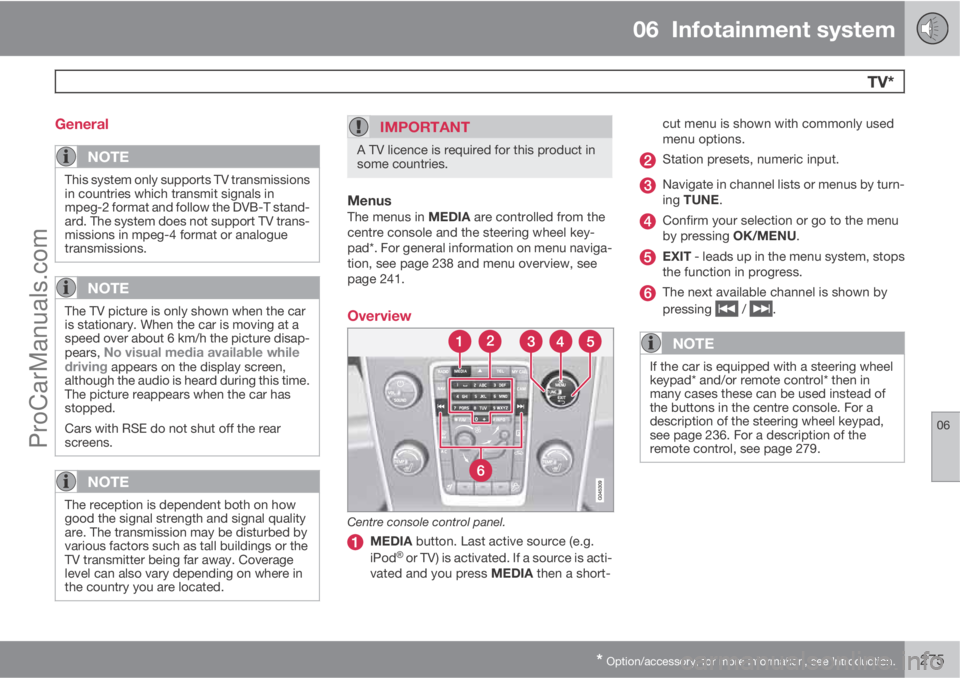
Centre console control panel.
MEDIA button. Last active source (e.g.
iPodŸ or TV) is activated. If a source is acti-
vated and you press MEDIA then a short-cut menu is shown with commonly used
menu options.
Station presets, numeric input.
Navigate in channel lists or menus by turn-
ing TUNE.
Confirm your selection or go to the menu
by pressing OK/MENU.
EXIT - leads up in the menu system, stops
the function in progress.
The next available channel is shown by
pressing
/ .
NOTE
If the car is equipped with a steering wheel
keypad* and/or remote control* then in
many cases these can be used instead of
the buttons in the centre console. For a
description of the steering wheel keypad,
see page 236. For a description of the
remote control, see page 279.
ProCarManuals.com
Page 278 of 422
06 Infotainment system
TV*
06
276* Option/accessory, for more information, see Introduction.
Watch TV
–
Press MEDIA, turn TUNE until TV is shown
in the TV screen, press OK/MENU.
> A search starts and after a short while
the most recently used channel is
shown.
Changing channelIt is possible to change channel as follows:
•Turn TUNE, a list of all available channels
in the area is shown. If any of these chan-
nels is already saved as a preset then its
preset number is shown to the right of the
channel name. Continue turning TUNE to
reach the desired channel and press OK/
MENU.
•By pressing the preset buttons (0-9).
•Via a short press on the / buttons
the next available channel in the area is
shown.
NOTE
If the car has been moved within the coun-
try, for example, from one city to another, it
is not certain that the presets are available
at the new location as the frequency range
may have changed. In which case, carry out
a new search and save a new preset list, see
the function "Save the available TV channels
as presets", page 277.
NOTE
If no reception is available on the preset
buttons, it may be because the car is at a
location other than where the scan of TV
channels was run, for example, if the car
was driven from Germany to France. A new
selection of country and a new search may
then need to be carried out.
Searching TV channels/Preset list
1.
Press TV mode on OK/MENU.
2.
Turn TUNE to
TV menu and press OK/
MENU.
3.
Turn TUNE to
Select country and press
OK/MENU.
> If one or more countries have previously
been selected then they are shown in a
list.
4.
Turn TUNE to either
Other countries or
one of the previously selected countries.
Press OK/MENU.
> A list of all available countries is shown.
5.
Turn TUNE to the desired country (e.g.
Sweden) and press OK/MENU.
> An automatic scan for available TV
channels starts, this scan takes a little
while. During this time the figure for
each channel found and added as a pre-set is shown. When the scan is com-
plete a message is shown and the pic-
ture is shown. A preset list (max. 30 pre-
sets) has now been created and is avail-
able. To change channel, see
page 276.
The scan and preset storage can be cancelled
with EXIT.
Channel management
The preset list can be edited. You can change
the order of the channels that are shown in the
preset list. A TV channel can have more than
one place in the preset list. The TV channel
positions can also vary in the preset list.
To change the order in the preset list, go in TV
mode to TV menu
Reorganise presets.
1.
Turn TUNE to the channel you want to
move in the list and confirm with OK/
MENU.
> The selected channel is highlighted.
2.
Turn TUNE to the new location in the list
and confirm with OK/MENU.
> The channels change places with each
other.
After the preset channels (max. 30) come all the
other channels available in the area. It is pos-
ProCarManuals.com