carplay VOLVO V60 2021 User Guide
[x] Cancel search | Manufacturer: VOLVO, Model Year: 2021, Model line: V60, Model: VOLVO V60 2021Pages: 661, PDF Size: 12.68 MB
Page 502 of 661
AUDIO, MEDIA AND INTERNET
* Option/accessory.
500
Internet-connected vehicle *
When the vehicle is connected to the Inter- net, it is possible to use web radio and musicservices via apps, download software andcontact retailers from the vehicle.
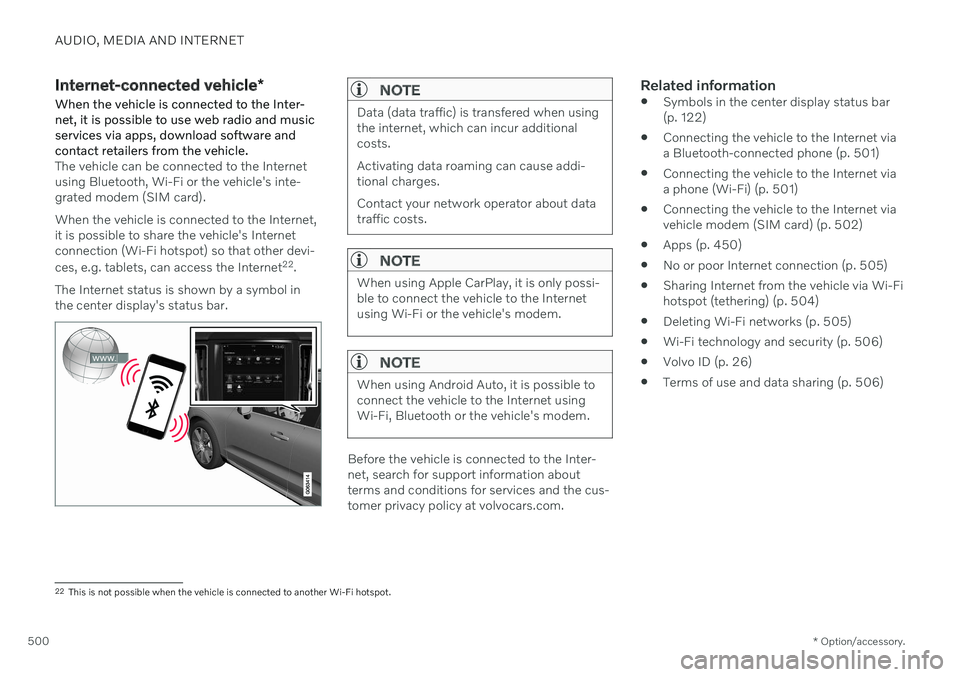
The vehicle can be connected to the Internet using Bluetooth, Wi-Fi or the vehicle's inte-grated modem (SIM card). When the vehicle is connected to the Internet, it is possible to share the vehicle's Internetconnection (Wi-Fi hotspot) so that other devi- ces, e.g. tablets, can access the Internet 22
.
The Internet status is shown by a symbol in the center display's status bar.
NOTE
Data (data traffic) is transfered when using the internet, which can incur additionalcosts. Activating data roaming can cause addi- tional charges. Contact your network operator about data traffic costs.
NOTE
When using Apple CarPlay, it is only possi- ble to connect the vehicle to the Internetusing Wi-Fi or the vehicle's modem.
NOTE
When using Android Auto, it is possible to connect the vehicle to the Internet usingWi-Fi, Bluetooth or the vehicle's modem.
Before the vehicle is connected to the Inter- net, search for support information aboutterms and conditions for services and the cus-tomer privacy policy at volvocars.com.
Related information
Symbols in the center display status bar(p. 122)
Connecting the vehicle to the Internet viaa Bluetooth-connected phone (p. 501)
Connecting the vehicle to the Internet viaa phone (Wi-Fi) (p. 501)
Connecting the vehicle to the Internet viavehicle modem (SIM card) (p. 502)
Apps (p. 450)
No or poor Internet connection (p. 505)
Sharing Internet from the vehicle via Wi-Fihotspot (tethering) (p. 504)
Deleting Wi-Fi networks (p. 505)
Wi-Fi technology and security (p. 506)
Volvo ID (p. 26)
Terms of use and data sharing (p. 506)
22
This is not possible when the vehicle is connected to another Wi-Fi hotspot.
Page 503 of 661
AUDIO, MEDIA AND INTERNET
}}
* Option/accessory.501
Connecting the vehicle to the Internet via a Bluetooth-connectedphone
Establish an Internet connection using
Bluetooth and tethering from a phone andget access to multiple connected services inyour vehicle.
1. To connect the vehicle to the Internet via a Bluetooth-connected phone, the phone must first be paired with the vehicle viaBluetooth.
2. Make sure that the phone supports Inter- net sharing (tethering) and that the func-tion is activated. In an iPhone, the functionis called "personal hotspot". In Androidphones, the function can have differentnames, but is often called "hotspot". ForiPhone phones, the "personal hotspot"menu page must also be open until theInternet connection has been made.
3. If the phone has been connected via Blue- tooth previously, tap
Settings in the cen-
ter display's Top view.
4. Tap
CommunicationBluetooth
Devices.
5. Mark the window for
Bluetooth Internet
connection under the heading Internet
connection. 6. If a different connection is being used,
confirm the connection change.
> Your vehicle is now connected to theInternet via your Bluetooth-connected phone.
NOTE
The cellular phone and network operator must support tethering (sharing of Internetconnection) and the subscription mustinclude data traffic.
NOTE
When using Apple CarPlay, it is only possi- ble to connect the vehicle to the Internetusing Wi-Fi or the vehicle's modem.
Related information
Internet-connected vehicle
* (p. 500)
Connecting the vehicle to the Internet via vehicle modem (SIM card) (p. 502)
Connecting a phone to the car via Blue-tooth for the first time (p. 486)
Connecting the vehicle to the Internet viaa phone (Wi-Fi) (p. 501)
Apple ®
CarPlay ®
* (p. 478)
No or poor Internet connection (p. 505)
Settings for Bluetooth devices (p. 493)
Connecting the vehicle to the Internet via a phone (Wi-Fi) Establish an Internet connection using Wi-Fi through Internet sharing (tethering) from aphone and get access to the connected servi-ces in your vehicle.
1. Make sure that the phone supports Inter-
net sharing (tethering) and that the func- tion is activated. In an iPhone, the functionis called "personal hotspot". In Androidphones, the function can have differentnames, but is often called "hotspot". ForiPhone phones, the "personal hotspot"menu page must also be open until theInternet connection has been made.
2. Tap
Settings in the Top view.
3. Proceed to
CommunicationWi-Fi.
4. Activate/deactivate by tapping to check/ uncheck the Wi-Fi box.
5. If a different connection is being used, confirm the connection change.
6. Tap the name of the network you would like to connect.
7. Enter the network password. > The vehicle will connect to the network.
Please note that certain cellular phones will disable Internet sharing (tethering) when theconnection to the vehicle has been broken,e.g. when the phone has been removed from
Page 643 of 661
INDEX
641
1, 2, 3 ...
4WD 413
A
ABSanti-lock brakes 397
AC (Air conditioning) 225
Accessories and extra equipment 36 installation 37
Accessory installation warning 37
Active Bending Lights 156
Adapting driving characteristics 413
Adaptive Cruise Control 286 activating 289
auto-brake 315
change cruise control functionality 293
controls 288
deactivate 290
display 288
limitations 292
passing 310
set time interval 314
standby mode 291
stored speed 313
switching target vehicles 312
Symbols and messages 294
troubleshooting 292
WARNING 311
Adjusting the steering wheel 195
Advanced Air Cleaner 204
Airbag 55 activation/deactivation 59
driver's side 56
passenger side 56, 59
Air bag, see Airbag 55
Air conditioning 225 Air conditioning, fluid volume and grade 637
Air distribution 204 air vents 204, 206
changing 205
defrosting 218
recirculation 217
table showing options 207
Air quality 201, 203 Advanced Air Cleaner 204
allergy and asthma 202
passenger compartment filter 204
Air recirculation 217
Alarm 266 deactivating 267
Alarm about slippery road conditions 276
Alarm on hazard warning flashers 276Allergy and asthma-inducing sub-
stances 202
All Wheel Drive, AWD 413
All Wheel Drive (AWD) 413
All Wheel Drive (four-wheel drive) 413
Android Auto 482, 483, 484Antenna location 257
Apple CarPlay 478, 479, 481
Approach lighting 160
Apps 450
Assistance at risk of collision 337 activating/deactivating 338
at risk of run-off 338
during collision risks from behind 340 during collision risks from oncoming
traffic 339
limitations 341
Symbols and messages 342
Audio and media 448 Audio system HD digital radio 459 SiriusXM ®
Satellite radio 460, 461,
463
Auto-climate 216
Auto hold 403
INDEX