radio VOLVO V60 2021 User Guide
[x] Cancel search | Manufacturer: VOLVO, Model Year: 2021, Model line: V60, Model: VOLVO V60 2021Pages: 661, PDF Size: 12.68 MB
Page 146 of 661
||
DISPLAYS AND VOICE CONTROL
144
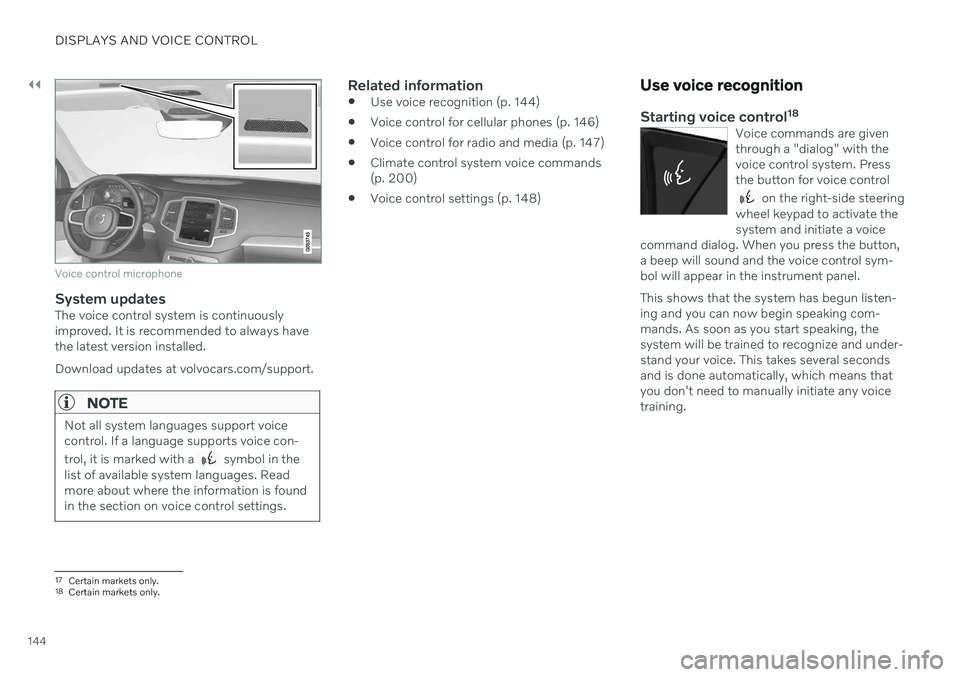
Voice control microphone
System updatesThe voice control system is continuously improved. It is recommended to always havethe latest version installed. Download updates at volvocars.com/support.
NOTE
Not all system languages support voice control. If a language supports voice con- trol, it is marked with a
symbol in the
list of available system languages. Read more about where the information is foundin the section on voice control settings.
Related information
Use voice recognition (p. 144)
Voice control for cellular phones (p. 146)
Voice control for radio and media (p. 147)
Climate control system voice commands (p. 200)
Voice control settings (p. 148)
Use voice recognition
Starting voice control 18Voice commands are given through a "dialog" with thevoice control system. Pressthe button for voice control
on the right-side steering
wheel keypad to activate the system and initiate a voice
command dialog. When you press the button,a beep will sound and the voice control sym-bol will appear in the instrument panel. This shows that the system has begun listen- ing and you can now begin speaking com-mands. As soon as you start speaking, thesystem will be trained to recognize and under-stand your voice. This takes several secondsand is done automatically, which means thatyou don't need to manually initiate any voicetraining.
17 Certain markets only.18Certain markets only.
Page 148 of 661
||
DISPLAYS AND VOICE CONTROL
146
Numbers
Number commands can be given in different ways depending on the function to be con-trolled:
Phone numbers and zip codes
should be
given by stating each number individually,e.g. "zero, three, one, two, two, four, four,three" (03122443).
Addresses
can be given by stating each
number individually or in a group, e.g."two, two" or "twenty-two" (22). For Eng-lish and Dutch language settings, groupsof numbers can also be said in sequence,e.g. "twenty-two, twenty-two" (22 22).For English, double or triple digits can alsobe used, e.g. "double zero" (00). Numbersin the range 0-2300 can be used.
Frequencies
can be given as "ninety-eight
point eight" (98.8), "one hundred fourpoint two" or "hundred and four pointtwo" (104.2).
Speech rate and repeat mode
The speed at which the system speaks can be adjusted. With repeat mode on, the system will repeat what you have said. To change the speech rate or activate/deacti- vate repeat mode: 1. Tap
Settings in the Top view. 2. Tap
SystemVoice Control and select
settings.
Repeat Voice Command
Speech Rate
Related information
Voice Control (p. 143)
Voice control for cellular phones (p. 146)
Voice control for radio and media (p. 147)
Climate control system voice commands (p. 200)
Voice control settings (p. 148)
Voice control for cellular phones 20
Call a contact in the phone book, have a text message read aloud or dictate short mes-sages using voice commands to a Bluetooth-connected phone.
To access a contact in the phone book, the voice command must contain the contactinformation entered in the phone book. If a contact, e.g.
Robyn Smith, has several phone
numbers listed in the phone book, a number category such as
home or cellular can also be
specified, i.e. "Call Robyn Smith cellular".
Tap
and say one of the following com-
mands: "
Call [contact]" - call the selected con-
tact from the phone book.
"
Call [phone number]" - call a phone
number.
"
Recent calls" - display the list of recent
calls.
"
Read message" - read a text message
aloud. If there are several messages, select the message to read aloud.
"
Message to [contact]" – the user is
prompted to dictate a short message. The message will then be read aloud and theuser can choose to send or re-dictate themessage. The vehicle must be connectedto the Internet to access this function.
Page 149 of 661
DISPLAYS AND VOICE CONTROL
* Option/accessory.147
NOTE
Not all system languages support voice control. If a language supports voice con- trol, it is marked with a
symbol in the
list of available system languages. Read more about where the information is foundin the section on voice control settings.
Related information
Voice Control (p. 143)
Use voice recognition (p. 144)
Voice control for radio and media (p. 147)
Climate control system voice commands (p. 200)
Voice control settings (p. 148)
Internet-connected vehicle
* (p. 500)
Voice control for radio and media 21
Voice commands for the radio and media players are shown below.
Tap and say one of the following com-
mands: "
Media" - initiates a dialog for media and
radio and displays examples of com- mands.
"
Play [artist]" - plays music by the
selected artist.
"
Play [song title]" - plays the selected
song.
"
Play [song title] from [album]" - plays
the selected song from the selected album.
"
Play [radio station]" - starts the
selected radio station.
"
Tune to [frequency]" - tunes to the
selected radio frequency in the currently active waveband. If no radio source isactive, the FM band will be started asdefault.
"
Tune to [frequency] [waveband]" -
tunes to the selected radio frequency on the selected waveband.
"
Radio" - starts FM radio.
"
Radio FM" - starts FM radio.
"
Radio AM" - starts AM radio.
"
SiriusXM" - starts SiriusXM radio
*
"
USB" - starts playback from USB.
"
iPod" - starts playback from iPod.
"
Bluetooth" - starts playback from a
Bluetooth-connected media source.
"
Similar music" - plays music from a
USB-connected device with music similar to that currently playing.
NOTE
Not all system languages support voice control. If a language supports voice con- trol, it is marked with a
symbol in the
list of available system languages. Read more about where the information is foundin the section on voice control settings.
Related information
Voice Control (p. 143)
Use voice recognition (p. 144)
Voice control for cellular phones (p. 146)
Climate control system voice commands (p. 200)
Voice control settings (p. 148)
20
Certain markets only.
21 Certain markets only.
Page 150 of 661
DISPLAYS AND VOICE CONTROL
148
Voice control settings22
Settings for the voice control system are made here.
SettingsSystemVoice Control
Settings can be personalized in the following areas:
Repeat Voice Command
Gender
Speech Rate
Sound settingsSelect sound settings under:
SettingsSoundSystem VolumesVoice Control
Language settingsThe voice control system is not available for all languages. The languages available for voice commands are indicated by the
icon in
the list of languages. Changing the language here will also change the language in the menus, messages andhelp texts.
SettingsSystemSystem Languages
and Units
System Language
Related information
Voice Control (p. 143)
Use voice recognition (p. 144)
Voice control for cellular phones (p. 146)
Climate control system voice commands (p. 200)
Voice control for radio and media (p. 147)
Sound settings (p. 448)
Changing system language (p. 130)
22
Certain markets only.
Page 246 of 661
||
KEY, LOCKS AND ALARM
* Option/accessory.
244 approx. 1.5 meter (5 feet) along the sides of the vehicle or approx. 1 meter (3 feet) from thetailgate.
NOTE
The functions of the remote control key can be disrupted by ambient radio waves,buildings, topographical conditions, etc.The vehicle can always be locked/unlockedusing the key blade.
If the remote key is removed from the vehicle
If the remote key is removed from the vehicle while the engine is run- ning, the warning message
Vehicle
key not found Removed from
vehicle will be displayed in the instrument
panel and an audible signal will sound when the last door is closed.
The message will disappear when the key is returned to the vehicle and the O button on
the right-side steering wheel keypad ispressed or when the last door is closed again.
Related information
Remote key (p. 238)
Antenna locations for the start and locksystem (p. 257)
Keyless and touch-sensitive surfaces
*
(p. 254)
Replacing the remote key's battery
The battery in the remote key must be replaced when it is discharged.
NOTE
All batteries have a limited service life and must eventually be replaced (does notapply for Key Tag). The battery's service lifevaries depending on how often thevehicle/key is used.
The remote key battery should be replaced if
the information symbol illuminates and the message
Vehicle key bat. low is dis-
played in the instrument panel
the locks do not react after several attempts to lock or unlock the vehicleusing the remote key within approx.20 meter (65 feet) from the vehicle.
NOTE
Move closer to the vehicle and try to unlock it again.
The battery in the smaller key without but- tons 7
(the Key Tag) cannot be replaced. A new key can be ordered from an authorized Volvo workshop.
CAUTION
An end-of-life Key Tag must be turned in to an authorized Volvo workshop. The keymust be deleted from the vehicle becauseit can still be used to start the vehicle viabackup start.
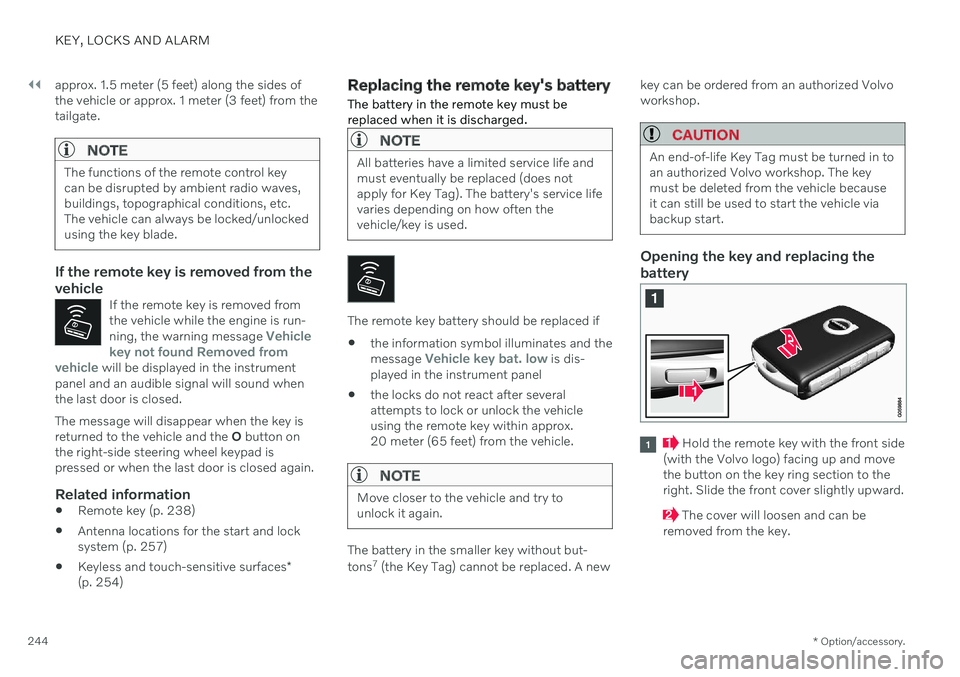
Opening the key and replacing the battery
Hold the remote key with the front side
(with the Volvo logo) facing up and move the button on the key ring section to theright. Slide the front cover slightly upward.
The cover will loosen and can be
removed from the key.
Page 383 of 661
DRIVER SUPPORT
}}
* Option/accessory.381
Radar sensor type approval
The type approval for the vehicle's radar units for adaptive cruise control * (ACC 124
), Pilot
Assist * and BLIS *125
are found here.
Market ACC & PA BLIS Type approval Canada ✓
FCC ID: L2C0054TR IC: 3432A-0054TR FCC ID: L2C0055TR IC: 3432A-0055TR
✓ Canada Standard RSS-310
USA ✓
FCC ID: L2C0054TR IC: 3432A-0054TRFCC ID: L2C0055TR IC: 3432A-0055TR
✓ FCC ID: NBG01RS4
This device complies with Part 15 of the FCC Rules and with Industry Canada license-exempt RSS standard(s). Operation is subjectto the following two conditions: (1) This device may not cause harmful interference, and (2) This device must accept any interference received, including interference that maycause undesired operation. Ce dispositif de radiocommunication de catégorie II respecte la norme CNR-310d
Page 420 of 661

STARTING AND DRIVING
* Option/accessory.
418
Activating and deactivating Eco drive mode using the functionbutton There is a function button for
Eco drive mode
in the center display's Function view if the vehicle is not equipped with a drive modecontrol in the tunnel console.
When the engine is switched off, Eco mode is
deactivated and must therefore be reactivated each time the engine is started. ECO will be
displayed in the instrument panel when thefunction is activated.
Selecting Eco drive mode in the center
display's Function view
–Tap the Driving Mode ECO button to
activate or deactivate the function.
> An indicator light in the button will illu- minate when the function is activated.
Related information
Eco drive mode (p. 416)
Changing drive mode
* (p. 415)
Drive modes
* (p. 413)
Start/Stop function Start/Stop is a function that temporarily switches off the engine when the vehicle hasstopped, e.g. at a traffic light or in heavy traf-fic, and then starts it again automaticallywhen needed.
The Start/Stop function reduces fuel con- sumption, which helps to reduce exhaustemissions. The system makes it possible to drive more economically and climate-smart by letting theengine auto-stop when appropriate.
Related information
Driving with the Start/Stop function(p. 418)
Conditions for the Start/Stop function(p. 420)
Drive modes
* (p. 413)
Driving with the Start/Stop function
Start/stop is a function that temporarily turns off the engine when the vehicle is stationaryand then automatically starts it when needed.
The Start/Stop function is available when the ignition is started and can be activated if cer-tain conditions are met. The instrument panel indicates when the func- tion is
Available
active
not available.
All of the vehicle's ordinary systems, such aslighting, radio, etc. function normally when theengine has been auto-stopped. Certain func-tions may be temporarily reduced howeversuch as the climate system's blower speed orextremely high audio system volume.
Auto-stopTo auto-stop the engine:
Page 444 of 661
STARTING AND DRIVING
* Option/accessory.
442
Programming HomeLink ®
*22
Follow these instructions to program HomeLink ®
, reset all programming, or pro-
gram individual buttons.
NOTE
In some vehicles, the ignition must be on or in the "accessory position" before HomeLink ®
can be programmed or used. It
can be a good idea to put new batteries in the remote control being replaced by HomeLink ®
for faster programming and
better radio signal transmission. TheHomeLink ®
buttons should be reset before
programming.
WARNING
While HomeLink ®
is being programmed,
the garage door or gate being programmed may be activated. Make sure that no one isnear the door or gate during programming.When programming a garage door opener,it is advised to park outside of the garage. 1. Point the remote control at the
HomeLink ®
button to be programmed and
hold it about 2-8 cm (1-3 inches) from the button. Do not obstruct the HomeLink ®
indicator light. Note: Some remote controls are more
effective at programming HomeLink ®
from
a distance of about 15-20 cm (6-12 inches). Keep this in mind if you experi-ence any programming difficulties.
2. Press and hold both the remote control button and the HomeLink ®
button to be
programmed. 3. Do not release the buttons until the indica-
tor light has stopped flashing slowly(about once a second) and either flashesquickly (about 10 times a second) orglows steadily. >If the indicator light glows steadily: Indication that programming is com-plete. Press the programmed buttontwice to activate. If the indicator light flashes quickly: The device being programmed with HomeLink ®
may have a security func-
tion that requires an extra step. Try pressing the programmed button twiceto see whether the programmingworks. Otherwise, continue with thefollowing steps.
22 Certain markets only.
Page 446 of 661

||
STARTING AND DRIVING
* Option/accessory.
444
WARNING
If you use HomeLink ®
to open a garage
door or gate, be sure no one is near the gate or door while it is in motion.
Do not use HomeLink ®
with any
garage door opener that lacks safetystop and reverse features as requiredby U.S. federal safety standards (thisincludes any garage door opener modelmanufactured before April 1, 1982). Agarage door that cannot detect anobject - signaling the door to stop andreverse - does not meet current U.S.federal safety standards. For moreinformation, contact HomeLink at:homelink.com.
Related information
HomeLink ®
* (p. 441)
Programming HomeLink ®
* (p. 442)
Type approval for HomeLink ®
* (p. 444)
Type approval for HomeLink ®
*25
FCC (USA) and IC (Canada)This device complies with FCC rules part 15 and Industry Canada RSS-210. Operation issubject to the following two conditions: (1)This device may not cause harmful interfer-ence, and (2) This device must accept anyinterference that may be received includinginterference that may cause undesired opera-tion.
WARNING
The transmitter has been tested and com- plies with FCC and IC rules. Changes ormodifications not expressly approved bythe party responsible for compliance couldvoid the user's authority to operate the device.
26
Type approval for EUGentex Corporation hereby declares that HomeLink
®
Model UAHL5 complies with the
Radio equipment directive 2014/53/EU. Wavelengths within which the radio equip- ment operates:
433.05MHz-434.79MHz <10mW E.R.P.
868.00MHz-868.60MHz <25mW E.R.P.
868.70MHz-868.20MHz <25mW E.R.P.
869.40MHz-869.65MHz <25mW E.R.P.
869.70MHz-870.00MHz <25mW E.R.P.
Certificate holder address: Gentex Corpora-tion, 600 North Centennial Street, Zeeland MI49464, USA For further details, search for support informa- tion on type approval at volvocars.com
Related information
HomeLink ®
* (p. 441)
24
Certain markets only.
25 Certain markets only.
26 The term "IC:" before the certification/registration number only signifies that Industry Canada technical specifications were met.
Page 450 of 661
AUDIO, MEDIA AND INTERNET
* Option/accessory.
448
Audio, media and Internet
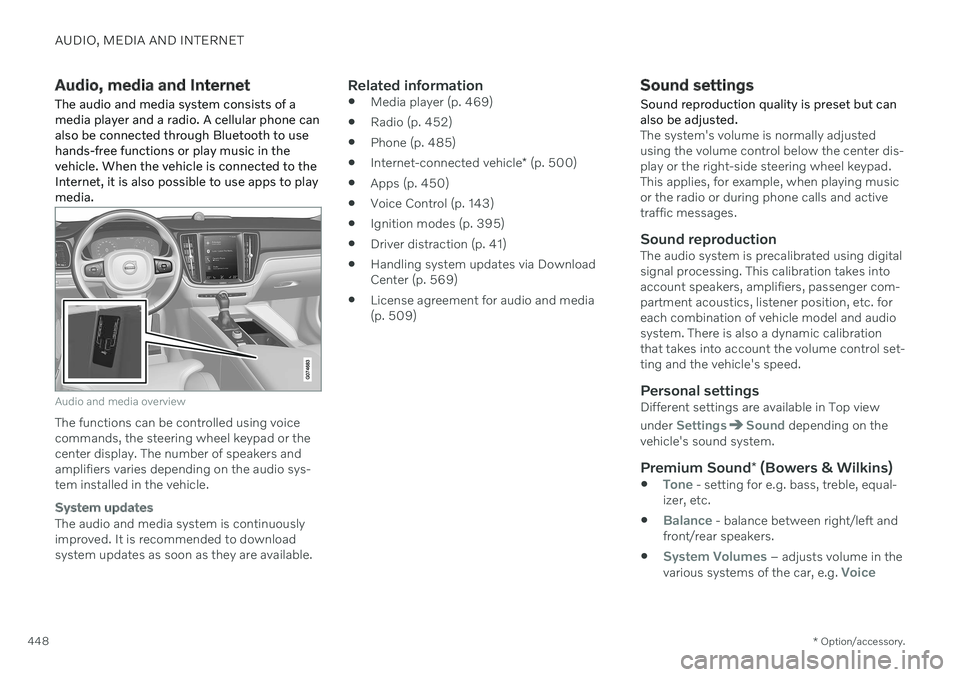
The audio and media system consists of a media player and a radio. A cellular phone canalso be connected through Bluetooth to usehands-free functions or play music in thevehicle. When the vehicle is connected to theInternet, it is also possible to use apps to playmedia.
Audio and media overview
The functions can be controlled using voice commands, the steering wheel keypad or thecenter display. The number of speakers andamplifiers varies depending on the audio sys-tem installed in the vehicle.
System updates
The audio and media system is continuously improved. It is recommended to download system updates as soon as they are available.
Related information
Media player (p. 469)
Radio (p. 452)
Phone (p. 485)
Internet-connected vehicle
* (p. 500)
Apps (p. 450)
Voice Control (p. 143)
Ignition modes (p. 395)
Driver distraction (p. 41)
Handling system updates via DownloadCenter (p. 569)
License agreement for audio and media(p. 509)
Sound settings
Sound reproduction quality is preset but can also be adjusted.
The system's volume is normally adjusted using the volume control below the center dis-play or the right-side steering wheel keypad.This applies, for example, when playing musicor the radio or during phone calls and activetraffic messages.
Sound reproductionThe audio system is precalibrated using digitalsignal processing. This calibration takes intoaccount speakers, amplifiers, passenger com-partment acoustics, listener position, etc. foreach combination of vehicle model and audiosystem. There is also a dynamic calibrationthat takes into account the volume control set-ting and the vehicle's speed.
Personal settingsDifferent settings are available in Top view under
SettingsSound depending on the
vehicle's sound system.
Premium Sound * (Bowers & Wilkins)
Tone - setting for e.g. bass, treble, equal-
izer, etc.
Balance - balance between right/left and
front/rear speakers.
System Volumes – adjusts volume in the
various systems of the car, e.g. Voice