ad blue VOLVO V60 2021 Owner's Guide
[x] Cancel search | Manufacturer: VOLVO, Model Year: 2021, Model line: V60, Model: VOLVO V60 2021Pages: 661, PDF Size: 12.68 MB
Page 503 of 661
AUDIO, MEDIA AND INTERNET
}}
* Option/accessory.501
Connecting the vehicle to the Internet via a Bluetooth-connectedphone
Establish an Internet connection using
Bluetooth and tethering from a phone andget access to multiple connected services inyour vehicle.
1. To connect the vehicle to the Internet via a Bluetooth-connected phone, the phone must first be paired with the vehicle viaBluetooth.
2. Make sure that the phone supports Inter- net sharing (tethering) and that the func-tion is activated. In an iPhone, the functionis called "personal hotspot". In Androidphones, the function can have differentnames, but is often called "hotspot". ForiPhone phones, the "personal hotspot"menu page must also be open until theInternet connection has been made.
3. If the phone has been connected via Blue- tooth previously, tap
Settings in the cen-
ter display's Top view.
4. Tap
CommunicationBluetooth
Devices.
5. Mark the window for
Bluetooth Internet
connection under the heading Internet
connection. 6. If a different connection is being used,
confirm the connection change.
> Your vehicle is now connected to theInternet via your Bluetooth-connected phone.
NOTE
The cellular phone and network operator must support tethering (sharing of Internetconnection) and the subscription mustinclude data traffic.
NOTE
When using Apple CarPlay, it is only possi- ble to connect the vehicle to the Internetusing Wi-Fi or the vehicle's modem.
Related information
Internet-connected vehicle
* (p. 500)
Connecting the vehicle to the Internet via vehicle modem (SIM card) (p. 502)
Connecting a phone to the car via Blue-tooth for the first time (p. 486)
Connecting the vehicle to the Internet viaa phone (Wi-Fi) (p. 501)
Apple ®
CarPlay ®
* (p. 478)
No or poor Internet connection (p. 505)
Settings for Bluetooth devices (p. 493)
Connecting the vehicle to the Internet via a phone (Wi-Fi) Establish an Internet connection using Wi-Fi through Internet sharing (tethering) from aphone and get access to the connected servi-ces in your vehicle.
1. Make sure that the phone supports Inter-
net sharing (tethering) and that the func- tion is activated. In an iPhone, the functionis called "personal hotspot". In Androidphones, the function can have differentnames, but is often called "hotspot". ForiPhone phones, the "personal hotspot"menu page must also be open until theInternet connection has been made.
2. Tap
Settings in the Top view.
3. Proceed to
CommunicationWi-Fi.
4. Activate/deactivate by tapping to check/ uncheck the Wi-Fi box.
5. If a different connection is being used, confirm the connection change.
6. Tap the name of the network you would like to connect.
7. Enter the network password. > The vehicle will connect to the network.
Please note that certain cellular phones will disable Internet sharing (tethering) when theconnection to the vehicle has been broken,e.g. when the phone has been removed from
Page 572 of 661
||
MAINTENANCE AND SERVICE
* Option/accessory.
570
NOTE
Data downloading can affect other services such as transfer data, e.g. web radio. If theaffect on other services is experienced asproblematic, the download can be interrup-ted. Alternatively, it may be appropriate toswitch off or cancel other services.
NOTE
An update can be interrupted when the ignition is switched off and the vehicle isleft. However, the update does not have to be completed before the vehicle is left as theupdate is resumed the next time the vehi-cle is used.
Updating all system software–Select Install all at the bottom of the list.
To avoid displaying a list, select
Install all viaSystem updates.
Updating individual system software–Select Install to choose the software you
would like to download.
Canceling software download–Tap the checkbox in the activity indicator that replaced Install when the download
began. Note that only a download can be cancelled. An installation cannot be cancelled once it hasbegun.
Deactivating the background search for software update
Automatic searching for software updates is activated as the default factory setting, but thefunction can be deactivated. 1.
Tap
Settings in the center display's Top
view.
2. Tap
SystemDownload Center.
3. Tap to deselect
Auto Software Update.
Related information
Download Center (p. 569)
Internet-connected vehicle
* (p. 500)
Navigating in the center display's views (p. 113)
Vehicle status The general status of the vehicle can be viewed in the center display.
The Car Status app is started
from the center display's App view and has four tabs:
Messages - status messages
Status – checking engine oil level and
AdBlue level 3
TPMS - tire inflation pressure check
Appointments - appointment information
and vehicle information 4
Related information
Handling messages saved from the instru- ment panel (p. 106)
Checking and filling engine oil (p. 580)
Tire pressure monitoring system
* (p. 529)
Scheduling service and repairs (p. 571)
Sending vehicle information to the work-shop (p. 572)
Navigating in the center display's views(p. 113)
Page 573 of 661
MAINTENANCE AND SERVICE
}}
* Option/accessory.571
Scheduling service and repairs 5
This service offers a way to send a booking request for service and workshop appoint-ments directly from the vehicle.
When it is time for service, and in certain cases if the vehicle requires repairs, a mes-sage will be displayed in the instrument paneland at the top of the center display. The timefor service is determined by how much timehas elapsed, the number of hours the enginehas run, or the distance driven since the lastservice.
To use the service
Create a Volvo ID and register it to thevehicle.
To send and receive appointment informa-tion, the vehicle must be connected to the Internet 6
.
Book serviceBook a service request when desired or when a message is displayed indicating that serviceor repairs are needed. 1. Open the
Car Status app from App view
in the center display. 2.
Tap
Appointments.
3. Tap
Request appointment.
4. Check that your
Volvo ID is correct.
5. Make sure your preferred
Workshop
information is correct.
6. In the
Tap to write information to the
workshop field, you can provide details
on what you would like performed during the visit or other important information toyour workshop.
7. Tap
Send appointment request.
> You will receive an appointment sug- gestion by email within a couple of days 7
.
On some markets, the message in the instrument panel indicating that thevehicle requires service will go out oncethe appointment request has been sent.
8. Tap
Cancel request if you would like to
cancel your request.
The appointment request contains information about your vehicle that helps the workshopplan for your visit. The retailer will send you a digital appointmentsuggestion. You also have information aboutyour retailer available in the vehicle so that youcan contact your workshop.
Accepting an appointment suggestionWhen the vehicle has received an appoint-ment suggestion, a message will be displayedat the top of the center display.
1. Tap the message.
2. To accept the suggested appointment, tap
Accept. Otherwise, tap Send new
proposal or Decline.
For some markets, the system reminds you when an appointment time is approaching and the navigation system 8
can also guide you to
the workshop at the appointed time.
NOTE
If you experience any problems with this service, contact your Volvo retailer.
3 AdBlue Diesel models only.
4 Certain markets only.
5 Certain markets only.
6 There may be a charge for transmitting data over the Internet, depending on your service plan.
7 Timespan may vary depending on market.
8 For vehicles with Sensus Navigation *.
Page 628 of 661
MAINTENANCE AND SERVICE
* Option/accessory.
626
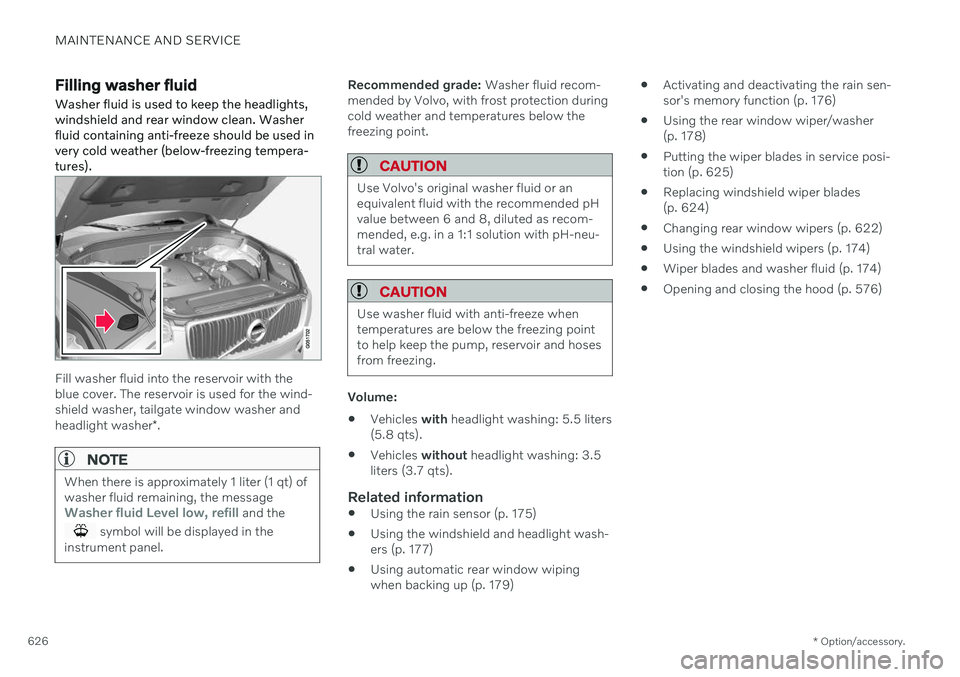
Filling washer fluid Washer fluid is used to keep the headlights, windshield and rear window clean. Washerfluid containing anti-freeze should be used invery cold weather (below-freezing tempera-tures).
Fill washer fluid into the reservoir with the blue cover. The reservoir is used for the wind-shield washer, tailgate window washer and headlight washer *.
NOTE
When there is approximately 1 liter (1 qt) of washer fluid remaining, the message
Washer fluid Level low, refill and the
symbol will be displayed in the
instrument panel.
Recommended grade: Washer fluid recom-
mended by Volvo, with frost protection during cold weather and temperatures below thefreezing point.
CAUTION
Use Volvo's original washer fluid or an equivalent fluid with the recommended pHvalue between 6 and 8, diluted as recom-mended, e.g. in a 1:1 solution with pH-neu-tral water.
CAUTION
Use washer fluid with anti-freeze when temperatures are below the freezing pointto help keep the pump, reservoir and hosesfrom freezing.
Volume:
Vehicles
with headlight washing: 5.5 liters
(5.8 qts).
Vehicles
without headlight washing: 3.5
liters (3.7 qts).
Related information
Using the rain sensor (p. 175)
Using the windshield and headlight wash- ers (p. 177)
Using automatic rear window wipingwhen backing up (p. 179)
Activating and deactivating the rain sen-sor's memory function (p. 176)
Using the rear window wiper/washer(p. 178)
Putting the wiper blades in service posi-tion (p. 625)
Replacing windshield wiper blades(p. 624)
Changing rear window wipers (p. 622)
Using the windshield wipers (p. 174)
Wiper blades and washer fluid (p. 174)
Opening and closing the hood (p. 576)
Page 644 of 661
INDEX
642Auto-hold brakes 403
activating/deactivating 404
after collision 405
driver support 270
Automatic car wash 616 Automatic engine stop auto-stop 418
Automatic high beam 155
Automatic locking 260
Automatic relocking 241, 255
Automatic transmission 406, 407 kickdown 412
oil 636
Trailer 434
B
Backrestfront seat, adjusting 182, 183, 186, 187 , 188, 189
rear seat, folding 192
Battery jump-start 431
Maintenance 584
recycling 588
starter battery 584
support 586
symbols on the battery 588
Blind Spot Information 344
BLIS 344 activating/deactivating 345
limitations 346
Symbols and messages 347
Blower adjusting 220, 221
air distribution 205
air vents 206
Bluetooth connect 475
connecting vehicle to Internet 501
phone 485
settings 493
Book service and repair 571
Booster cushions 74 Brake assist after collision 405
Brake fluid grade 637
Brake functions 397
Brakes 397 anti-lock brakes, ABS 397
auto-brake with Pilot Assist 315auto-braking with Adaptive Cruise
Control 315automatic when stationary 403
Brake Assist System, BAS 398
brake lights 159
brake system 397
emergency brake lights 159
Maintenance 399
on salted roads 399
on wet roads 399
parking brake 400
brake system fluid 637
C
Camera sensorsee Camera 383
Camera unit 383 limitations 383
maintenance and cleaning 386
Symbols and messages 388
Capacity weight 547, 633 Care Key restricted remote key 248
settings 249
Cargo compartment 555 attachment points 558
cargo net 563
Page 646 of 661
INDEX
644Collision warning
from the rear 343
with Adaptive Cruise Control 311
with Pilot Assist 311
Color code, paintwork 622
Color codes 622
Compass 445 calibration 445
Condensation in headlights 615, 616, 617, 618
Connected Safety 276 activating/deactivating 277
limitations 277
Connecting vehicle to Internet No connection or poor connection 505
via a mobile device (WiFi) 501
via cellular phone (Bluetooth) 501
via vehicle's modem 502
Connect phone 486
Contact information 26
Convertible seats 72
coolant 581 filling 582
Cooling system overheating 430
Cornering assistance 308activating/deactivating 309
limitations 309
Cornering illumination 157
Corner Traction Control 271
Corrosion protection 620Covering cargo compartment 560
Crash, see Collision 44
Crash event data 33
Cross Traffic Alert 352 activating/deactivating 353
limitations 353
messages 355
Cruise control 283 activating 284
standby mode 286
stored speed 313
turn off 285
Curb weight 633
Customer Privacy Policy 35
CZIP (Clean Zone Interior Package) 202D
Data recording 33 transferring between vehicle and
workshop 568
Data sharing 506, 507
Daytime running lights 152Decals location 628
Defrosting 218Detecting obstacles City Safety 327
Diagnosis via the workshop's Wi-Fi 568
Dimensions 631
Dipstick, electronic 580
Direction of rotation 522
Disengaging the shiftlock 411 Display driver information 82
Display lighting 162
Distance Alert 350 activating/deactivating 351
limitations 351
Set time interval 314
DivX ®
474