ad blue VOLVO V60 2021 User Guide
[x] Cancel search | Manufacturer: VOLVO, Model Year: 2021, Model line: V60, Model: VOLVO V60 2021Pages: 661, PDF Size: 12.68 MB
Page 204 of 661
CLIMATE CONTROL
* Option/accessory.
202
CleanZone *
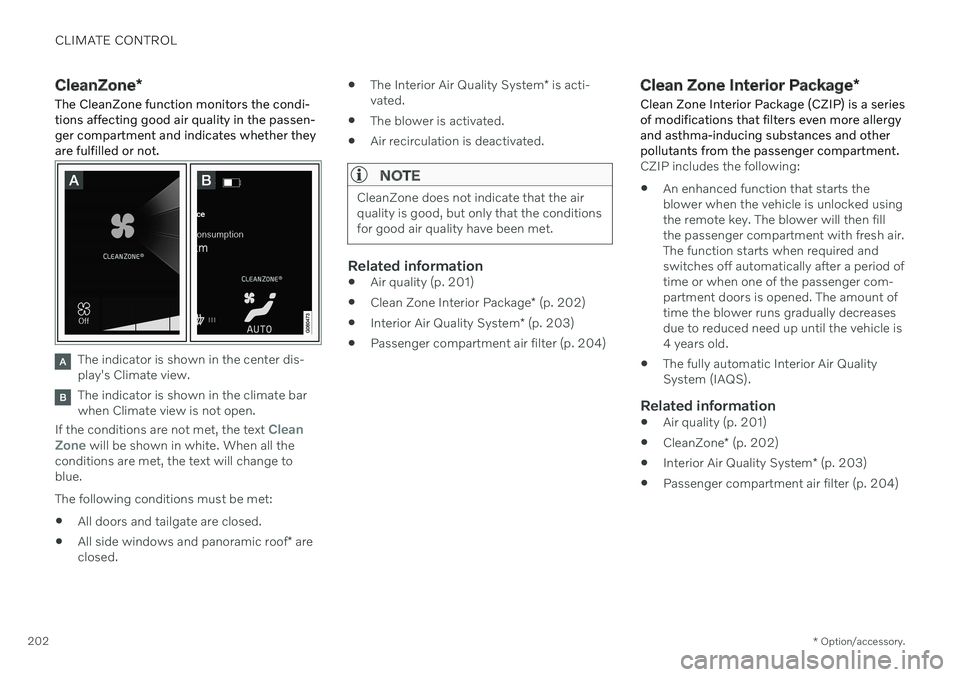
The CleanZone function monitors the condi- tions affecting good air quality in the passen-ger compartment and indicates whether theyare fulfilled or not.
The indicator is shown in the center dis- play's Climate view.
The indicator is shown in the climate bar when Climate view is not open.
If the conditions are not met, the text
Clean
Zone will be shown in white. When all the
conditions are met, the text will change to blue. The following conditions must be met:
All doors and tailgate are closed.
All side windows and panoramic roof
* are
closed.
The Interior Air Quality System
* is acti-
vated.
The blower is activated.
Air recirculation is deactivated.
NOTE
CleanZone does not indicate that the air quality is good, but only that the conditionsfor good air quality have been met.
Related information
Air quality (p. 201)
Clean Zone Interior Package
* (p. 202)
Interior Air Quality System
* (p. 203)
Passenger compartment air filter (p. 204)
Clean Zone Interior Package
*
Clean Zone Interior Package (CZIP) is a series of modifications that filters even more allergyand asthma-inducing substances and otherpollutants from the passenger compartment.
CZIP includes the following:
An enhanced function that starts the blower when the vehicle is unlocked usingthe remote key. The blower will then fillthe passenger compartment with fresh air.The function starts when required andswitches off automatically after a period oftime or when one of the passenger com-partment doors is opened. The amount oftime the blower runs gradually decreasesdue to reduced need up until the vehicle is4 years old.
The fully automatic Interior Air QualitySystem (IAQS).
Related information
Air quality (p. 201)
CleanZone
* (p. 202)
Interior Air Quality System
* (p. 203)
Passenger compartment air filter (p. 204)
Page 397 of 661
STARTING AND DRIVING
}}
* Option/accessory.395
Ignition modes The vehicle's ignition can be put in various modes (levels) to make different functionsavailable.
To enable the use of a limited number of func- tions when the engine is not running, the igni-tion can be put in one of three different levels:0, I and II. These levels are referred to as "igni-
tion modes" in the Owner's Manual. The following table shows which functions are available in each ignition mode:
Mode Functions
0 The odometer, clock and tem- perature gauge are illumi- nated A
.
The power
* seats can be
adjusted.
The power windows can be used.
The center display is activated and can be used A
.
The infotainment system canbe used A
.
In this mode, the functions are available for a limited time andthen switch off automatically.Mode Functions
I The panoramic roof, power windows, 12-volt electricalsocket in the passenger com-partment, Bluetooth, naviga-tion, phone, blower and wind-shield wipers can be used.
The power seats can beadjusted.
The 12-volt electrical socket
* in
the cargo compartment can beused.
Electrical current will be taken
from the battery in this ignitionmode.
II The headlights illuminate.
Warning/indicator lights illumi-nate for 5 seconds.
A number of other systems areactivated. However, seat andrear window heating can onlybe activated when the engineis running.
This ignition mode uses a lot of
current from the battery andshould be avoided wheneverpossible!
A Also activated when the door is opened.
Page 450 of 661
AUDIO, MEDIA AND INTERNET
* Option/accessory.
448
Audio, media and Internet
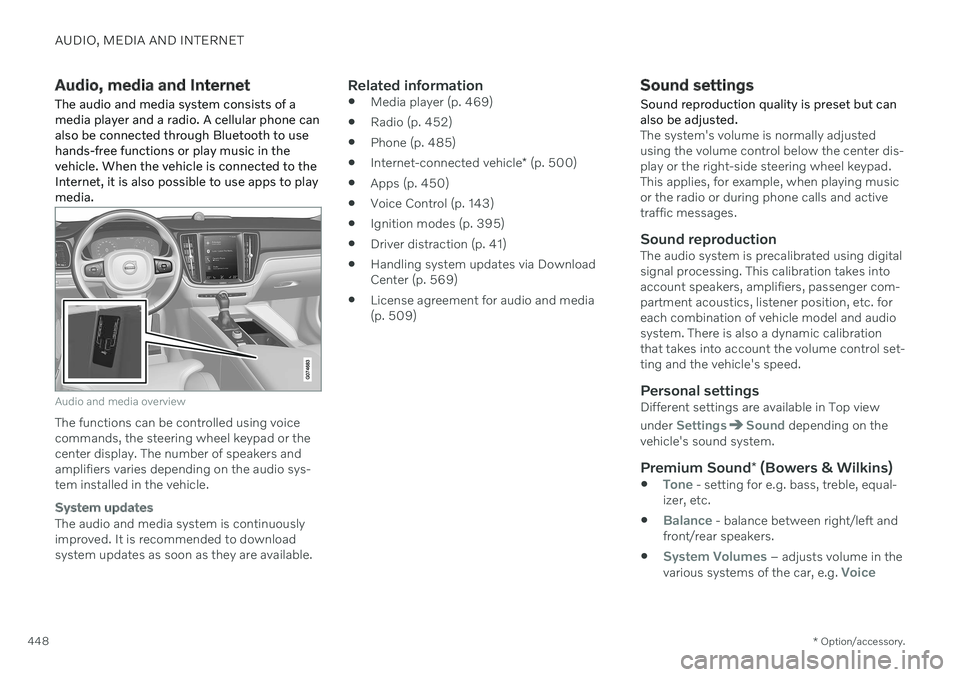
The audio and media system consists of a media player and a radio. A cellular phone canalso be connected through Bluetooth to usehands-free functions or play music in thevehicle. When the vehicle is connected to theInternet, it is also possible to use apps to playmedia.
Audio and media overview
The functions can be controlled using voice commands, the steering wheel keypad or thecenter display. The number of speakers andamplifiers varies depending on the audio sys-tem installed in the vehicle.
System updates
The audio and media system is continuously improved. It is recommended to download system updates as soon as they are available.
Related information
Media player (p. 469)
Radio (p. 452)
Phone (p. 485)
Internet-connected vehicle
* (p. 500)
Apps (p. 450)
Voice Control (p. 143)
Ignition modes (p. 395)
Driver distraction (p. 41)
Handling system updates via DownloadCenter (p. 569)
License agreement for audio and media(p. 509)
Sound settings
Sound reproduction quality is preset but can also be adjusted.
The system's volume is normally adjusted using the volume control below the center dis-play or the right-side steering wheel keypad.This applies, for example, when playing musicor the radio or during phone calls and activetraffic messages.
Sound reproductionThe audio system is precalibrated using digitalsignal processing. This calibration takes intoaccount speakers, amplifiers, passenger com-partment acoustics, listener position, etc. foreach combination of vehicle model and audiosystem. There is also a dynamic calibrationthat takes into account the volume control set-ting and the vehicle's speed.
Personal settingsDifferent settings are available in Top view under
SettingsSound depending on the
vehicle's sound system.
Premium Sound * (Bowers & Wilkins)
Tone - setting for e.g. bass, treble, equal-
izer, etc.
Balance - balance between right/left and
front/rear speakers.
System Volumes – adjusts volume in the
various systems of the car, e.g. Voice
Page 471 of 661
AUDIO, MEDIA AND INTERNET
}}
* Option/accessory.469
SiriusXM Travel Link ®
* - Sports
This SiriusXM Travel Link service provides information about sporting events, tourna-ments, teams, leagues, etc.
From the SiriusXM Travel Link home screen, to display sports information:
–Tap the Sports button to display the main
sports screen.
A number of sports categories will be listed (Football, Baseball, Basketball, etc.) Tap a sport to select a league in that sport (NFL, MLB, etc.) or a sport organization (PGA,LPGA, etc.). The following is an example of the result of tapping Baseball :
1. MLB (Major League Baseball) will be dis- played.
2. Tap MLB to display the two leagues in Major League Baseball (American Leagueor National League).
3. Tap one of the league names to display the divisions in the league. 4. Tap one of the divisions to display:
In progress: play-by-play information
about a match/game/tournament cur- rently in progress. Continue tapping todisplay. In the detailed view, you canalso select a radio station that is cur-rently broadcasting an ongoing sport-ing event
Headlines for MLB: tap to display
brief headline information
Scheduled: schedules for coming
matches, games, etc.
Scores: match/game results
The same principle applies to all sports.
Related information
SiriusXM Travel Link ®
* (p. 464)
SiriusXM Travel Link ®
* - Notifications
(p. 467)
SiriusXM Travel Link ®
* - Fuel (p. 467)
SiriusXM Travel Link ®
* - Weather (p. 465)
Media player
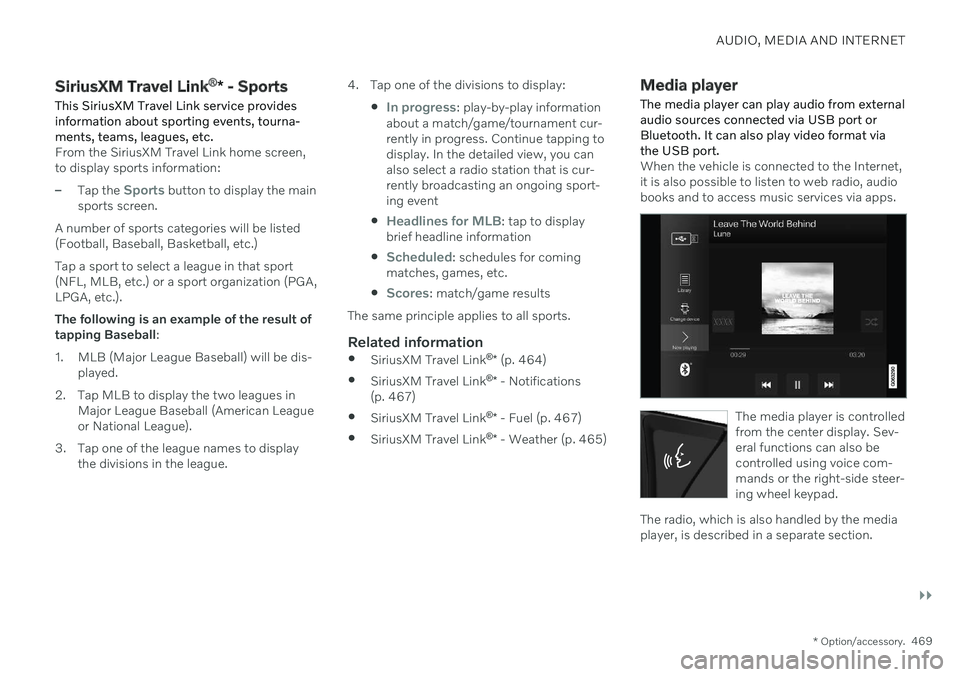
The media player can play audio from external audio sources connected via USB port orBluetooth. It can also play video format viathe USB port.
When the vehicle is connected to the Internet, it is also possible to listen to web radio, audiobooks and to access music services via apps.
The media player is controlled from the center display. Sev-eral functions can also becontrolled using voice com-mands or the right-side steer-ing wheel keypad.
The radio, which is also handled by the media player, is described in a separate section.
Page 472 of 661
||
AUDIO, MEDIA AND INTERNET
* Option/accessory.
470
Related information
Playing media (p. 470)
Controlling and changing media (p. 471)
Media searches (p. 472)
Apps (p. 450)
Radio (p. 452)
Video (p. 474)
Streaming media via Bluetooth ®
(p. 475)
Playing media via the USB port (p. 476)
Internet-connected vehicle
* (p. 500)
Playing media
The media player is controlled from the cen- ter display. Several other functions can alsobe controlled using the right-side steeringwheel keypad or by using voice commands. The radio can also be controlled in the media player. See the section describing the radio.
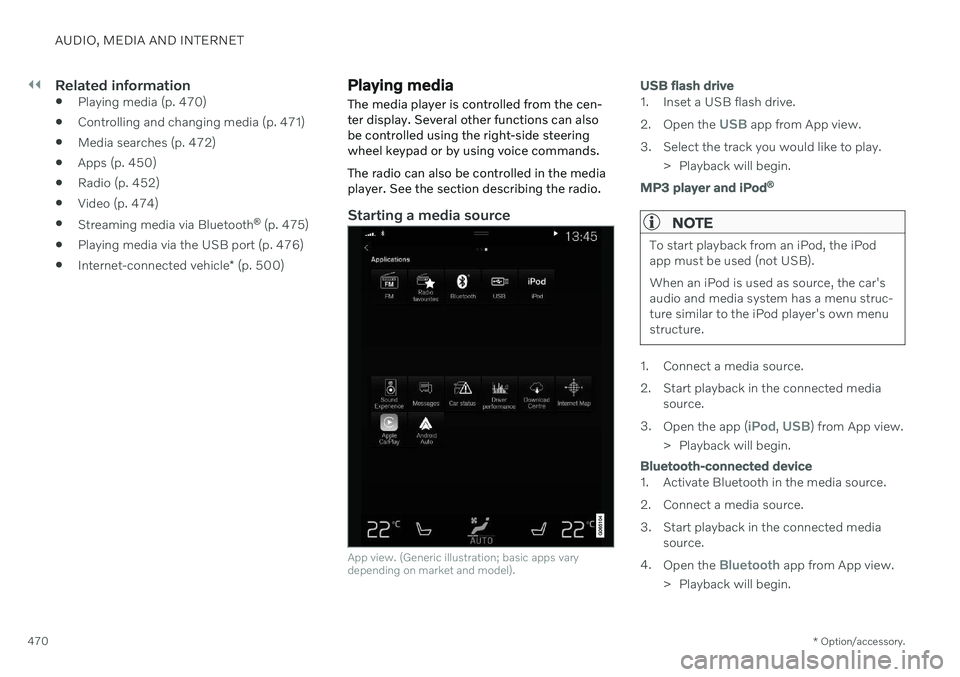
Starting a media source
App view. (Generic illustration; basic apps vary depending on market and model).
USB flash drive
1. Inset a USB flash drive. 2. Open the
USB app from App view.
3. Select the track you would like to play. > Playback will begin.
MP3 player and iPod®
NOTE
To start playback from an iPod, the iPod app must be used (not USB). When an iPod is used as source, the car's audio and media system has a menu struc-ture similar to the iPod player's own menustructure.
1. Connect a media source.
2. Start playback in the connected media
source.
3. Open the app (
iPod, USB) from App view.
> Playback will begin.
Bluetooth-connected device
1. Activate Bluetooth in the media source.
2. Connect a media source.
3. Start playback in the connected media source.
4. Open the
Bluetooth app from App view.
> Playback will begin.
Page 473 of 661
AUDIO, MEDIA AND INTERNET
}}
* Option/accessory.471
Media with Internet connection
Medial playback from apps with Internet con- nection:
1. Connect the vehicle to the Internet.
2. Open the app from the App view.
> Playback will begin.
Read the separate section on how to down- load apps.
Video
1. Connect a media source. 2. Open the
USB app from App view.
3. Tap the title you would like to play. > Playback will begin.
Apple CarPlay
CarPlay is described in a separate section.
Android Auto
Android Auto is described in a separate sec- tion.
Related information
Handling the App menu in the instrumentpanel (p. 103)
Radio (p. 452)
Controlling and changing media (p. 471)
Connecting a device via the USB port(p. 476)
Connecting a device via Bluetooth ®
(p. 475)
Download apps (p. 451)
Internet-connected vehicle
* (p. 500)
Video (p. 474)
Apple ®
CarPlay ®
* (p. 478)
Android Auto
* (p. 482)
Voice control for radio and media (p. 147)
Compatible file formats for media (p. 477)
Controlling and changing media
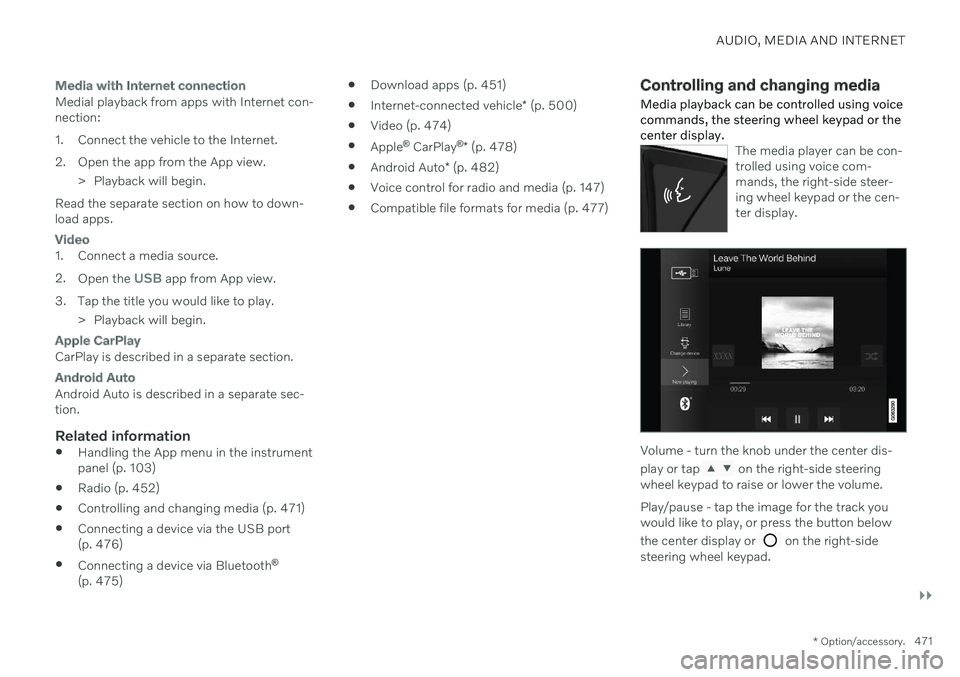
Media playback can be controlled using voice commands, the steering wheel keypad or thecenter display.
The media player can be con- trolled using voice com-mands, the right-side steer-ing wheel keypad or the cen-ter display.
Volume - turn the knob under the center dis- play or tap
on the right-side steering
wheel keypad to raise or lower the volume. Play/pause - tap the image for the track you would like to play, or press the button below the center display or
on the right-side
steering wheel keypad.
Page 477 of 661
AUDIO, MEDIA AND INTERNET
475
Video settings
You can change some language settings for video playback.
Audio Language and Subtitle Language can
be adjusted with the video player in full-screen mode or by opening Top view and tapping
SettingsMediaVideo.
Related information
Video (p. 474)
Streaming media via Bluetooth ®
The vehicle's media player is equipped with Bluetooth and can play audio files fromBluetooth-enabled external devices such ascellular phones and tablets.
In order for the media player to be able to wirelessly play audio files from an externaldevice, the device must be connected to thevehicle via Bluetooth.
Related information
Connecting a device via Bluetooth ®
(p. 475)
Connecting a phone to the car via Blue-tooth for the first time (p. 486)
Playing media (p. 470)
Compatible file formats for media (p. 477)
Connecting a device via Bluetooth ®
Connect a Bluetooth ®
device to the vehicle to
wirelessly play media and give the vehicle an Internet connection if it is available.
Many cellular phones on the market currently offer wireless Bluetooth ®
technology, but not
all phones are fully compatible with the vehi- cle. The procedure for connecting a media device is the same as for connecting a cellular phone to the vehicle via Bluetooth ®
.
Related information
Streaming media via Bluetooth ®
(p. 475)
Connecting a phone to the car via Blue- tooth for the first time (p. 486)
Playing media (p. 470)
Page 484 of 661
||
AUDIO, MEDIA AND INTERNET
* Option/accessory.
482 you write/dictate messages, no text will be shown in the vehicle's center display,but the text will be shown in your iOSdevice. When using Siri, note that it is thephone's microphones that are used andthe quality therefore depends on thephone's location.
If the device is connected to the vehiclethrough Bluetooth, the connection will bebroken when CarPlay is used. ResumeInternet connection in the vehicle by teth-ering using the device's Wi-Fi hotspot.
Some of CarPlay's functions (such asvoice calls and messages) interrupt theuse of the vehicle's own functions andCarPlay will instead be automatically dis-played. If you do not wish this to happen,deselect display of the correspondingfunction in CarPlay under the phone'snotification settings.
CarPlay only works with iPhone 15
.
NOTE
Availability and functionality can vary depending on market.
Related information
Apple ®
CarPlay ®
* (p. 478)
Connecting the vehicle to the Internet via a phone (Wi-Fi) (p. 501)
Android Auto
*
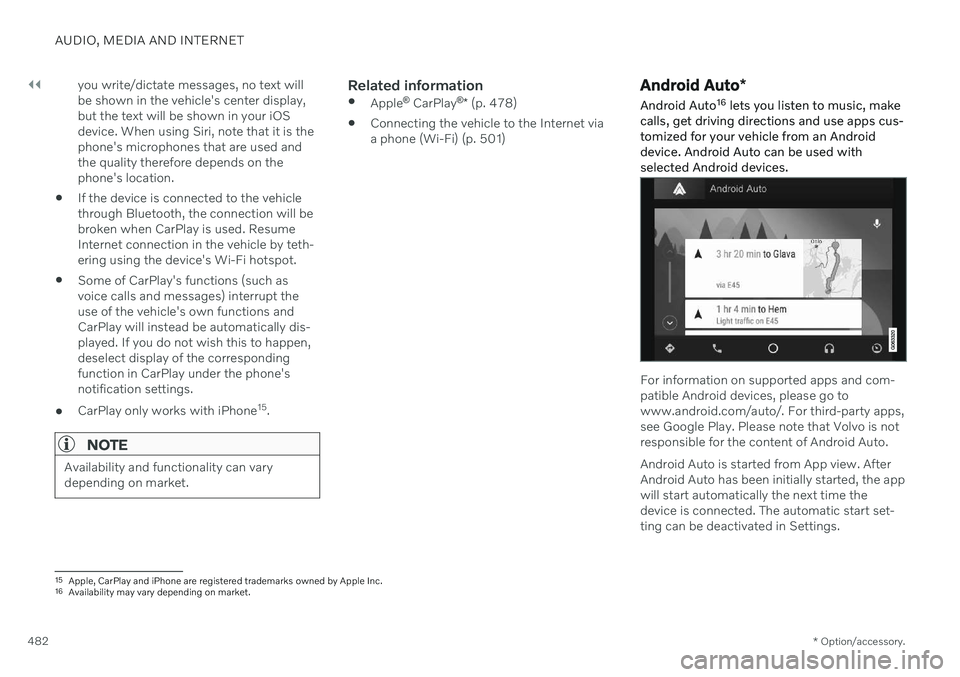
Android Auto 16
lets you listen to music, make
calls, get driving directions and use apps cus- tomized for your vehicle from an Androiddevice. Android Auto can be used withselected Android devices.
For information on supported apps and com- patible Android devices, please go towww.android.com/auto/. For third-party apps,see Google Play. Please note that Volvo is notresponsible for the content of Android Auto. Android Auto is started from App view. After Android Auto has been initially started, the appwill start automatically the next time thedevice is connected. The automatic start set-ting can be deactivated in Settings.
15 Apple, CarPlay and iPhone are registered trademarks owned by Apple Inc.
16 Availability may vary depending on market.
Page 485 of 661
AUDIO, MEDIA AND INTERNET
* Option/accessory.483
NOTE
When a device is connected to Android Auto, it is possible to stream to anothermedia player via Bluetooth. Bluetooth isactive while Android Auto is in use.
When using navigation guidance provided by Android Auto, navigation will only be shownon the center display and not in the instrumentpanel or head-up display. Android Auto can be controlled from the cen- ter display, with the right-side steering wheelkeypad or by using voice commands. Press and hold the steering wheel button
to
start the Google Assistant and press briefly to deactivate it.
By using Android Auto, you acknowledge the following: Android Auto is a serviceprovided by Google Inc. under its termsand conditions. Volvo Cars is notresponsible for Android Auto or itsfeatures or applications. When you useAndroid Auto, your car transfers certaininformation (including its location) to yourconnected Android phone. You are fullyresponsible for your and any otherperson
Page 486 of 661
AUDIO, MEDIA AND INTERNET
* Option/accessory.
484
Settings for Android Auto *
Settings for Android devices initially con- nected with Android Auto 18
.
Automatic start1. Tap Settings in the Top view.
2. Tap
CommunicationAndroid Autoand select setting: Check the box - Android Auto will start automatically when the USB cable isconnected.
Uncheck the box - Android Auto will notstart automatically when the USB cableis connected.
A maximum of 20 Android devices can bestored in the list. When the list is full and anew device is connected, the oldest one willbe deleted. A factory reset must be performed to delete the list.
System Volumes1. Tap Settings in the Top view. 2. Tap
SoundSystem Volumes to
change the settings for the following:
Voice Control
Navi Voice Guidance
Phone Ringtone
Related information
Android Auto
* (p. 482)
Using Android Auto
* (p. 483)
Resetting center display settings (p. 132)
Tips for using Android Auto
*
Here are some useful tips for when you use Android Auto 19
.
Ensure that your apps are updated.
When starting the vehicle, wait until the center display has started, connect thedevice and then open Android Auto fromthe app view.
In the event of problems with AndroidAuto, unplug your Android device from theUSB port and then plug it in again. Other-wise, try closing the app on the device andthen restarting the app.
When a device is connected to AndroidAuto it is still possible to play media viaBluetooth to another media player. TheBluetooth function is on when AndroidAuto is used.
If the Android Auto icon is grayed out, it means that a device is no longer con- nected. When you connect your device,the icon will light up. If there is no icon atall, the vehicle does not support connect-ing a device for this purpose.
If the device is connected to the vehiclethrough Bluetooth, the connection will bebroken when Android Auto is used.Resume Internet connection in the vehicle
17
Availability may vary depending on market.
18 Availability may vary depending on market.
19 Availability may vary depending on market.