ad blue VOLVO V90 2017 User Guide
[x] Cancel search | Manufacturer: VOLVO, Model Year: 2017, Model line: V90, Model: VOLVO V90 2017Pages: 594, PDF Size: 15.07 MB
Page 186 of 594
CLIMATE CONTROL
* Option/accessory.
184
Air quality
The materials selected for the passenger com- partment and the air cleaning system ensure thatthe air quality in the passenger compartment ishigh.
Materials in the passenger compartment
The interior of the passenger compartment is designed to be pleasant and comfortable, evenfor people with contact allergies and for asthmasufferers. Tested materials have been developed in order to minimise the quantity of dust in the passengercompartment and to contribute to making thepassenger compartment easier to keep clean. The carpets in both the passenger compartment and the cargo area are removable and easy toremove and clean. Use cleaning agents and car care products rec- ommended by Volvo to clean the interior.
Air cleaning systemIn addition to the passenger compartment filter,the modifications for Clean Zone Interior Package * and the air quality system Interior Air
Quality System * also help to maintain high air
quality in the passenger compartment.
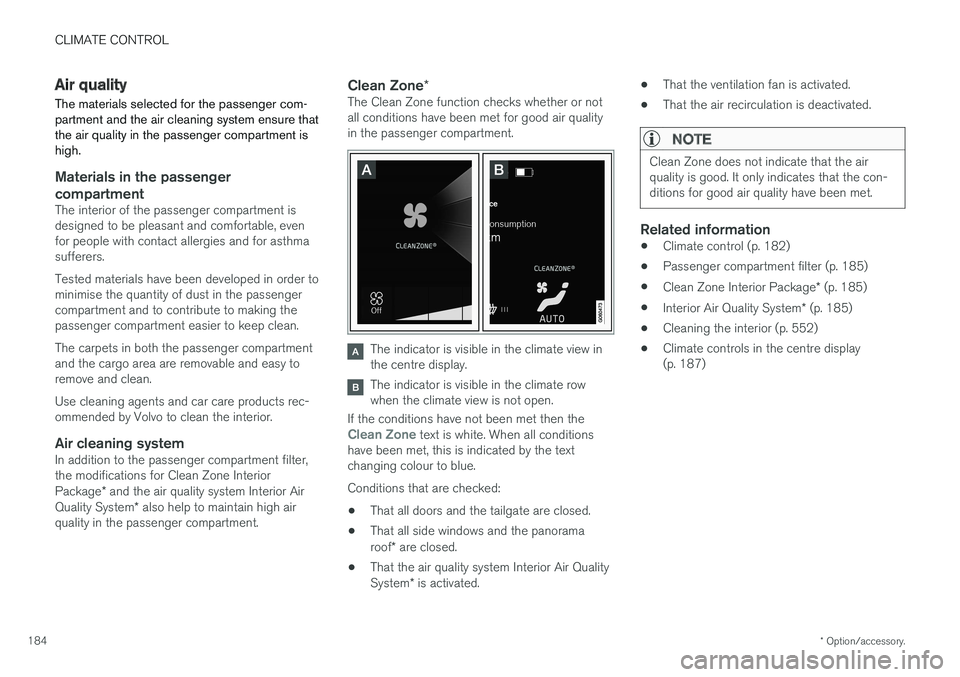
Clean Zone *The Clean Zone function checks whether or not all conditions have been met for good air qualityin the passenger compartment.
The indicator is visible in the climate view in the centre display.
The indicator is visible in the climate row when the climate view is not open.
If the conditions have not been met then the
Clean Zone text is white. When all conditions
have been met, this is indicated by the text changing colour to blue. Conditions that are checked:
• That all doors and the tailgate are closed.
• That all side windows and the panorama roof
* are closed.
• That the air quality system Interior Air QualitySystem
* is activated. •
That the ventilation fan is activated.
• That the air recirculation is deactivated.
NOTE
Clean Zone does not indicate that the air quality is good. It only indicates that the con-ditions for good air quality have been met.
Related information
•Climate control (p. 182)
• Passenger compartment filter (p. 185)
• Clean Zone Interior Package
* (p. 185)
• Interior Air Quality System
* (p. 185)
• Cleaning the interior (p. 552)
• Climate controls in the centre display (p. 187)
Page 436 of 594
AUDIO AND MEDIA
* Option/accessory.
434
Audio and media
The audio and media system consists of media
player, radio and Bluetooth phone connection. With an online car it is also possible to listen toservices via apps. Functions can be controlled by voice command or via the steering wheel keypad and the centredisplay. The number of speakers and amplifiersdepends on which audio system the car isequipped with.
Overview of audio and media.
System updating
The audio and media system is continuously improved. When the car is online there is theoption to download updates for optimal function-ality, see the section "System updates" andsupport.volvocars.com.
Related information
• Media player (p. 442)
• Radio (p. 436)
• Phone (p. 456)
• Online car
* (p. 463)
• Apps (p. 434)
• Ignition positions (p. 385)
• Symbols in the centre display's status bar(p. 45)
• Voice recognition (p. 115)
• System updates (p. 510)
• License agreement for audio and media(p. 470)
Apps
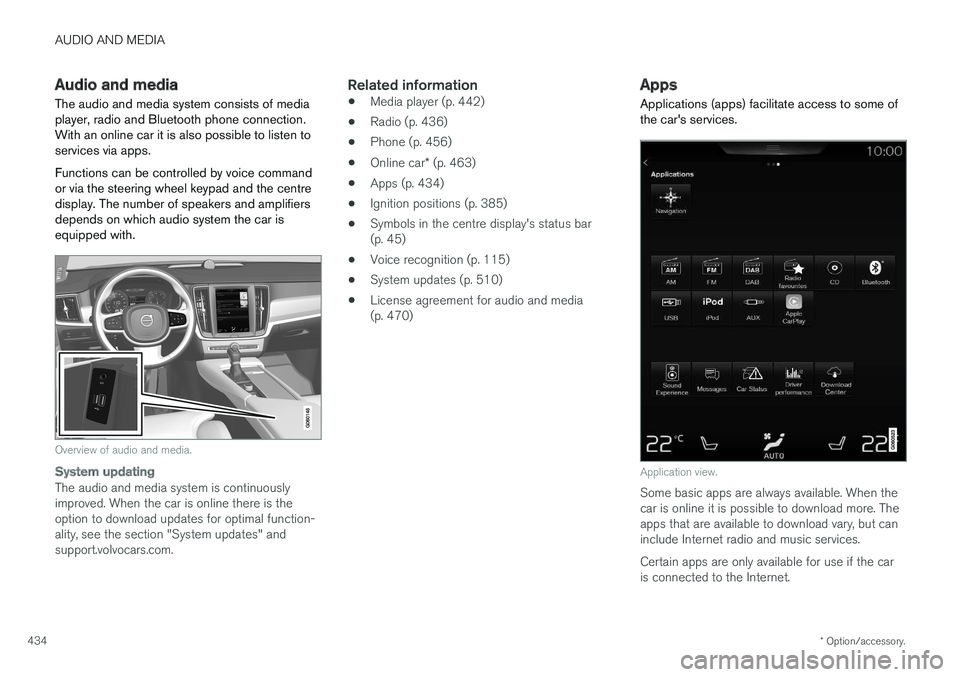
Applications (apps) facilitate access to some of the car's services.
Application view.
Some basic apps are always available. When the car is online it is possible to download more. Theapps that are available to download vary, but caninclude Internet radio and music services. Certain apps are only available for use if the car is connected to the Internet.
Page 444 of 594
AUDIO AND MEDIA
* Option/accessory.
442
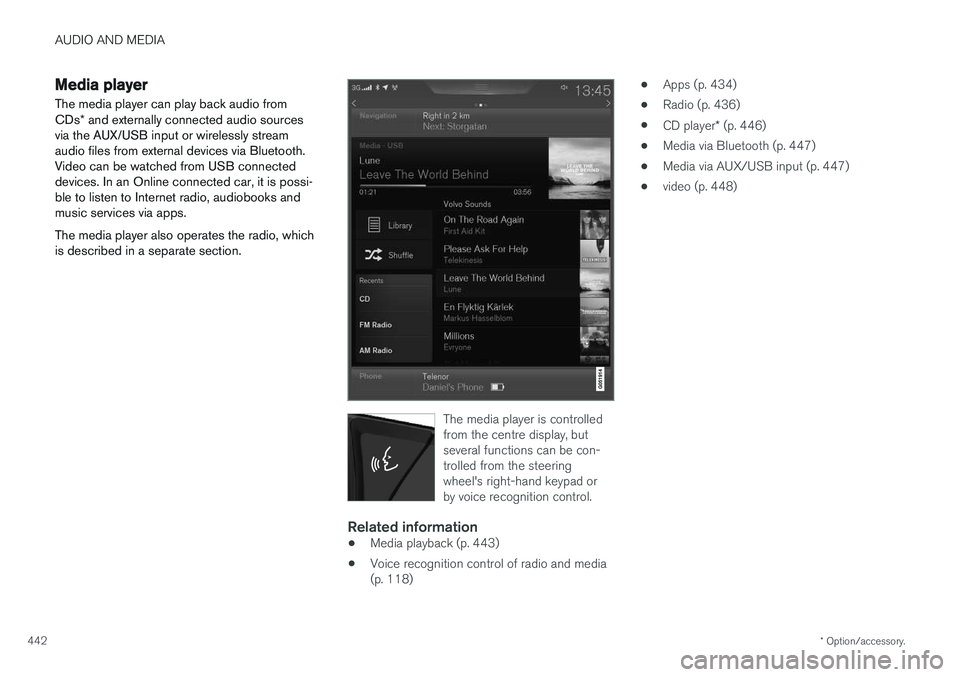
Media player
The media player can play back audio from CDs * and externally connected audio sources
via the AUX/USB input or wirelessly stream audio files from external devices via Bluetooth.Video can be watched from USB connecteddevices. In an Online connected car, it is possi-ble to listen to Internet radio, audiobooks andmusic services via apps. The media player also operates the radio, which is described in a separate section.
The media player is controlled from the centre display, butseveral functions can be con-trolled from the steeringwheel's right-hand keypad orby voice recognition control.
Related information
• Media playback (p. 443)
• Voice recognition control of radio and media (p. 118) •
Apps (p. 434)
• Radio (p. 436)
• CD player
* (p. 446)
• Media via Bluetooth (p. 447)
• Media via AUX/USB input (p. 447)
• video (p. 448)
Page 445 of 594
AUDIO AND MEDIA
}}
* Option/accessory.443
Media playback The media player is controlled from the centre display. Several functions can also be controlledfrom the right keypad on the steering wheel orwith voice recognition. The media player also operates the radio, which is described in a separate section.
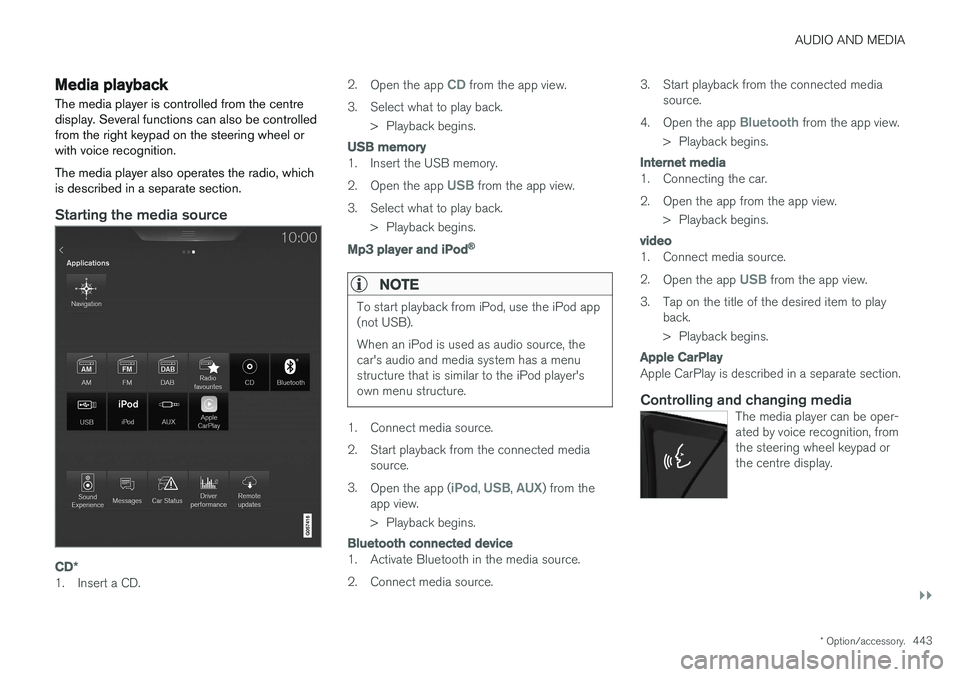
Starting the media source
CD*
1. Insert a CD. 2.
Open the app
CD from the app view.
3. Select what to play back. > Playback begins.
USB memory
1. Insert the USB memory. 2.Open the app
USB from the app view.
3. Select what to play back. > Playback begins.
Mp3 player and iPod®
NOTE
To start playback from iPod, use the iPod app (not USB). When an iPod is used as audio source, the car's audio and media system has a menustructure that is similar to the iPod player'sown menu structure.
1. Connect media source.
2. Start playback from the connected media
source.
3. Open the app (
iPod, USB, AUX) from the
app view.
> Playback begins.
Bluetooth connected device
1. Activate Bluetooth in the media source.
2. Connect media source. 3. Start playback from the connected media
source.
4. Open the app
Bluetooth from the app view.
> Playback begins.
Internet media
1. Connecting the car.
2. Open the app from the app view. > Playback begins.
video
1. Connect media source. 2.Open the app
USB from the app view.
3. Tap on the title of the desired item to play back.
> Playback begins.
Apple CarPlay
Apple CarPlay is described in a separate section.
Controlling and changing mediaThe media player can be oper- ated by voice recognition, fromthe steering wheel keypad orthe centre display.
Page 446 of 594
||
AUDIO AND MEDIA
* Option/accessory.
444
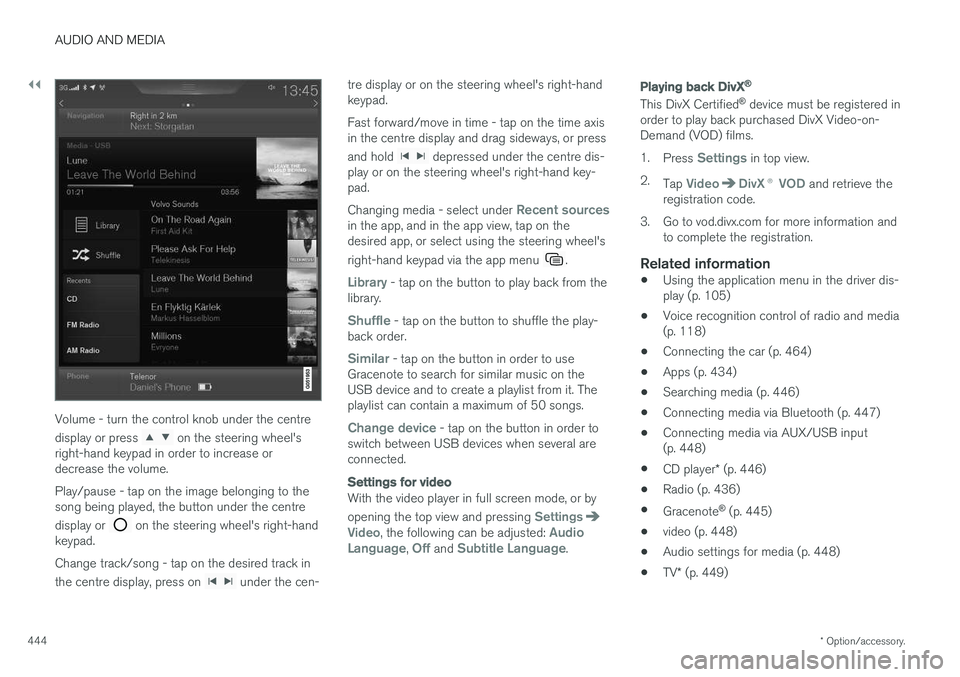
Volume - turn the control knob under the centre display or press
on the steering wheel's
right-hand keypad in order to increase or decrease the volume. Play/pause - tap on the image belonging to the song being played, the button under the centre display or
on the steering wheel's right-hand
keypad. Change track/song - tap on the desired track in the centre display, press on
under the cen- tre display or on the steering wheel's right-hand keypad. Fast forward/move in time - tap on the time axis in the centre display and drag sideways, or press and hold
depressed under the centre dis-
play or on the steering wheel's right-hand key- pad. Changing media - select under
Recent sourcesin the app, and in the app view, tap on the desired app, or select using the steering wheel's right-hand keypad via the app menu
.
Library - tap on the button to play back from the
library.
Shuffle - tap on the button to shuffle the play-
back order.
Similar - tap on the button in order to use
Gracenote to search for similar music on the USB device and to create a playlist from it. Theplaylist can contain a maximum of 50 songs.
Change device - tap on the button in order to
switch between USB devices when several are connected.
Settings for video
With the video player in full screen mode, or by opening the top view and pressing
SettingsVideo, the following can be adjusted: Audio
Language, Off and Subtitle Language.
Playing back DivX®
This DivX Certified ®
device must be registered in
order to play back purchased DivX Video-on- Demand (VOD) films. 1. Press
Settings in top view.
2. Tap
VideoDivX ® VOD and retrieve the
registration code.
3. Go to vod.divx.com for more information and to complete the registration.
Related information
• Using the application menu in the driver dis- play (p. 105)
• Voice recognition control of radio and media(p. 118)
• Connecting the car (p. 464)
• Apps (p. 434)
• Searching media (p. 446)
• Connecting media via Bluetooth (p. 447)
• Connecting media via AUX/USB input(p. 448)
• CD player
* (p. 446)
• Radio (p. 436)
• Gracenote ®
(p. 445)
• video (p. 448)
• Audio settings for media (p. 448)
• TV
* (p. 449)
Page 449 of 594
AUDIO AND MEDIA
* Option/accessory.447
Media via Bluetooth The car's media player is equipped with Bluetooth and can wirelessly play streamingaudio files from external devices with Bluetooth,such as mobile phones and PDAs.
Related information
•Connecting media via Bluetooth (p. 447)
• Media playback (p. 443)
• Voice recognition control of radio and media (p. 118)
• Media player (p. 442)
• Ignition positions (p. 385)
• Technical specifications for media (p. 455)
Connecting media via Bluetooth
Connect a Bluetooth device with the car in order to stream media and use as Internet connectionif it is available.
Many phones on the market now have wireless Bluetooth technology, but not all of them are fullycompatible with the car. For compatibility, seesupport.volvocars.com. The procedure for connecting a media device is the same as for connecting a phone.
Related information
• Connect phone (p. 457)
• Media via Bluetooth (p. 447)
• Media playback (p. 443)
• Media player (p. 442)
Media via AUX/USB input An external media source, e.g. an iPod or MP3 player, can be connected to the audio system.
A media source with rechargeable batteries is recharged when connected via USB and when the ignition is in position
I, II or the engine is run-
ning. To facilitate the use of a USB memory stick, only store compatible formats on it. It takes a lotlonger for the system to load storage media thatcontains anything other than compatible formats.In addition to audio, the media player also sup-ports video playback when the device is con-nected via USB. Some MP3 players have their own file systems that are not supported by the audio system.
Related information
• Connecting media via AUX/USB input(p. 448)
• Media playback (p. 443)
• Voice recognition control of radio and media(p. 118)
• Media player (p. 442)
• Ignition positions (p. 385)
• video (p. 448)
• Apple CarPlay
* (p. 450)
• Technical specifications for media (p. 455)
Page 455 of 594
AUDIO AND MEDIA
}}
* Option/accessory.453
Android Auto *
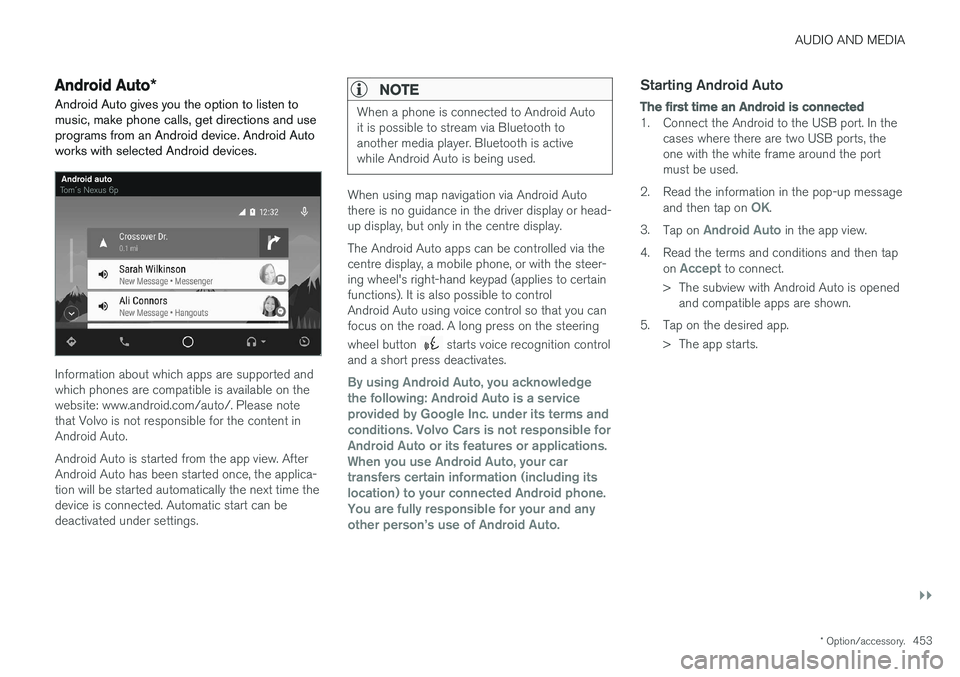
Android Auto gives you the option to listen to music, make phone calls, get directions and useprograms from an Android device. Android Autoworks with selected Android devices.
Information about which apps are supported and which phones are compatible is available on thewebsite: www.android.com/auto/. Please notethat Volvo is not responsible for the content inAndroid Auto. Android Auto is started from the app view. After Android Auto has been started once, the applica-tion will be started automatically the next time thedevice is connected. Automatic start can bedeactivated under settings.
NOTE
When a phone is connected to Android Auto it is possible to stream via Bluetooth toanother media player. Bluetooth is activewhile Android Auto is being used.
When using map navigation via Android Auto there is no guidance in the driver display or head-up display, but only in the centre display. The Android Auto apps can be controlled via the centre display, a mobile phone, or with the steer-ing wheel's right-hand keypad (applies to certainfunctions). It is also possible to controlAndroid Auto using voice control so that you canfocus on the road. A long press on the steering wheel button
starts voice recognition control
and a short press deactivates.
By using Android Auto, you acknowledge the following: Android Auto is a serviceprovided by Google Inc. under its terms andconditions. Volvo Cars is not responsible forAndroid Auto or its features or applications.When you use Android Auto, your cartransfers certain information (including itslocation) to your connected Android phone.You are fully responsible for your and anyother person
Page 458 of 594
||
AUDIO AND MEDIA
456
Technical specification for USB connector
•Type A socket
• Version 2.0
• Voltage supply 5 V
• Current supply max. 2.1 A
Related information
• Media player (p. 442)
• Media playback (p. 443)
Phone
A mobile phone equipped with Bluetooth can be connected wirelessly to the car's built-in hands-free system.
The audio and media system acts as a handsfree,
with the facility to remotely control a selection of the mobile phone's functions. The mobile phonecan still be operated with its own keys if it is con-nected to the car. When a mobile phone has been connected with the car and connected, it can be used make calls,send/receive messages, stream media and pro-vide an Internet connection.
The phone is operated from thecentre display, but some opera-tions are also available via voicerecognition and the app menu,which are accessed from theright-hand steering wheel key-pad.
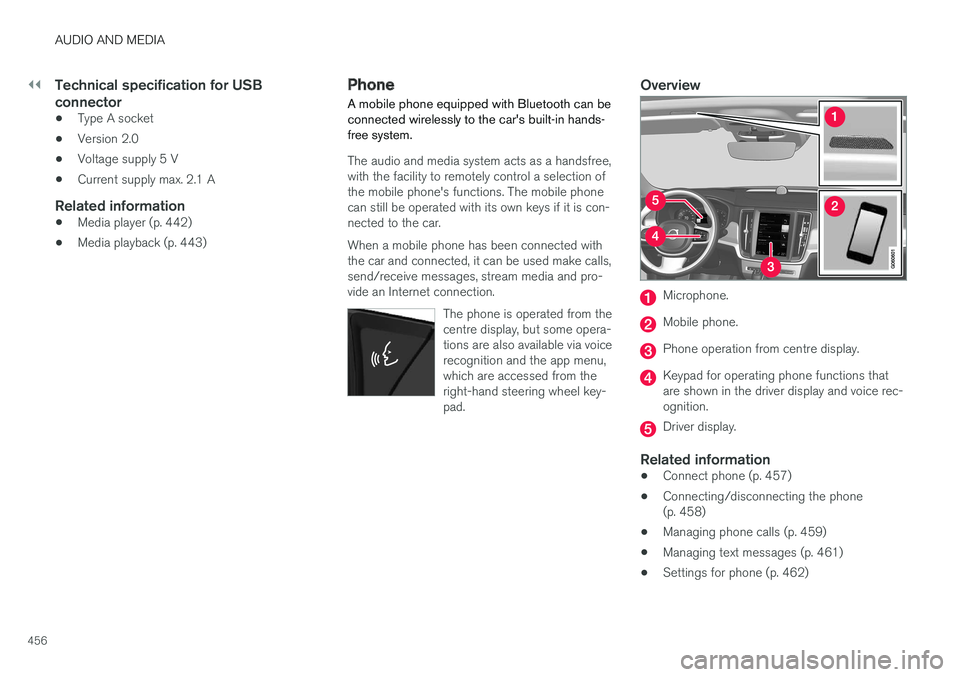
Overview
Microphone.
Mobile phone.
Phone operation from centre display.
Keypad for operating phone functions that are shown in the driver display and voice rec-ognition.
Driver display.
Related information
•Connect phone (p. 457)
• Connecting/disconnecting the phone (p. 458)
• Managing phone calls (p. 459)
• Managing text messages (p. 461)
• Settings for phone (p. 462)
Page 459 of 594
AUDIO AND MEDIA
}}
457
•
Settings for text messages (p. 463)
• Bluetooth settings (p. 463)
• Voice recognition (p. 115)
• Using the application menu in the driver dis- play (p. 105)
• Media player (p. 442)
Connect phone
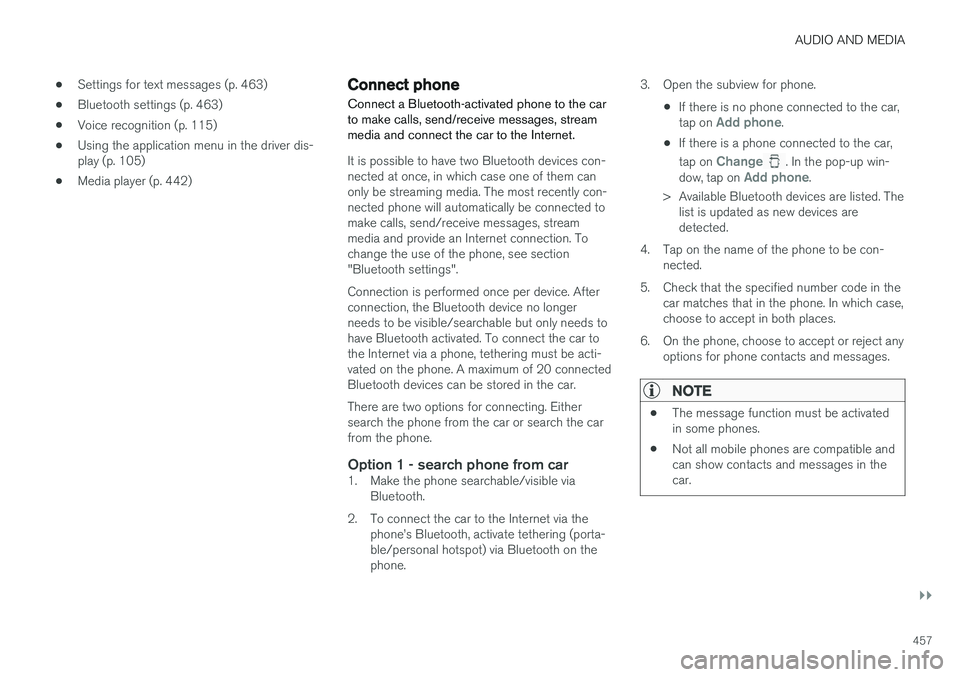
Connect a Bluetooth-activated phone to the car to make calls, send/receive messages, streammedia and connect the car to the Internet.
It is possible to have two Bluetooth devices con- nected at once, in which case one of them canonly be streaming media. The most recently con-nected phone will automatically be connected tomake calls, send/receive messages, streammedia and provide an Internet connection. Tochange the use of the phone, see section"Bluetooth settings". Connection is performed once per device. After connection, the Bluetooth device no longerneeds to be visible/searchable but only needs tohave Bluetooth activated. To connect the car tothe Internet via a phone, tethering must be acti-vated on the phone. A maximum of 20 connectedBluetooth devices can be stored in the car. There are two options for connecting. Either search the phone from the car or search the carfrom the phone.
Option 1 - search phone from car1. Make the phone searchable/visible via Bluetooth.
2. To connect the car to the Internet via the phone
Page 460 of 594
||
AUDIO AND MEDIA
* Option/accessory.
458
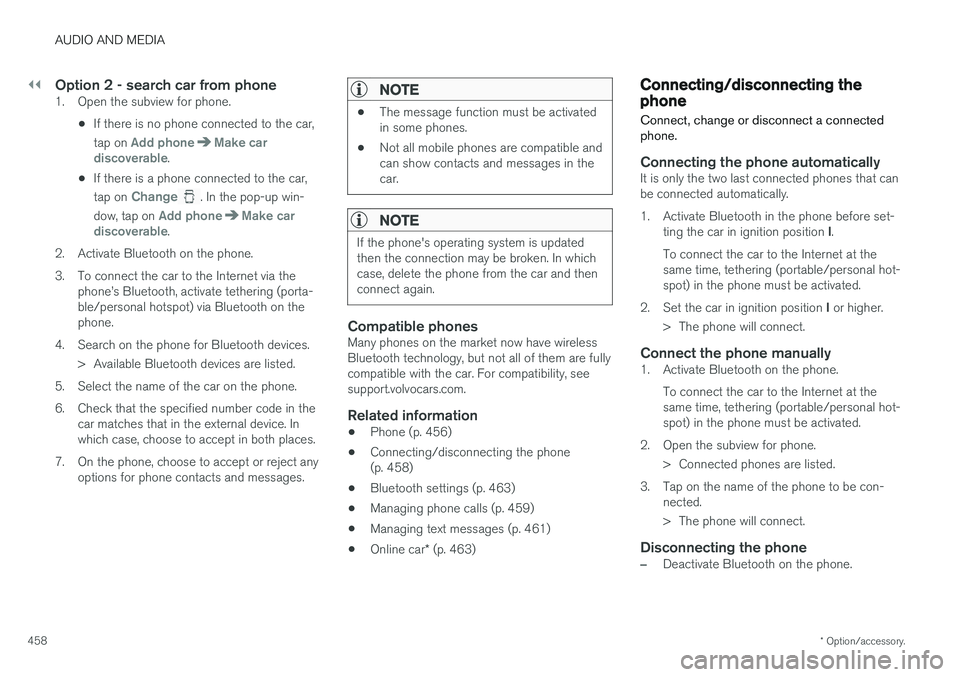
Option 2 - search car from phone1. Open the subview for phone.
•If there is no phone connected to the car, tap on
Add phoneMake car
discoverable.
• If there is a phone connected to the car, tap on
Change. In the pop-up win-
dow, tap on
Add phoneMake car
discoverable.
2. Activate Bluetooth on the phone.
3. To connect the car to the Internet via the phone