rear view mirror VOLVO V90 2017 User Guide
[x] Cancel search | Manufacturer: VOLVO, Model Year: 2017, Model line: V90, Model: VOLVO V90 2017Pages: 594, PDF Size: 15.07 MB
Page 185 of 594
CLIMATE CONTROL
* Option/accessory.183
Climate control - sensors The climate control system has a number of sen- sors to help control the climate in the car.
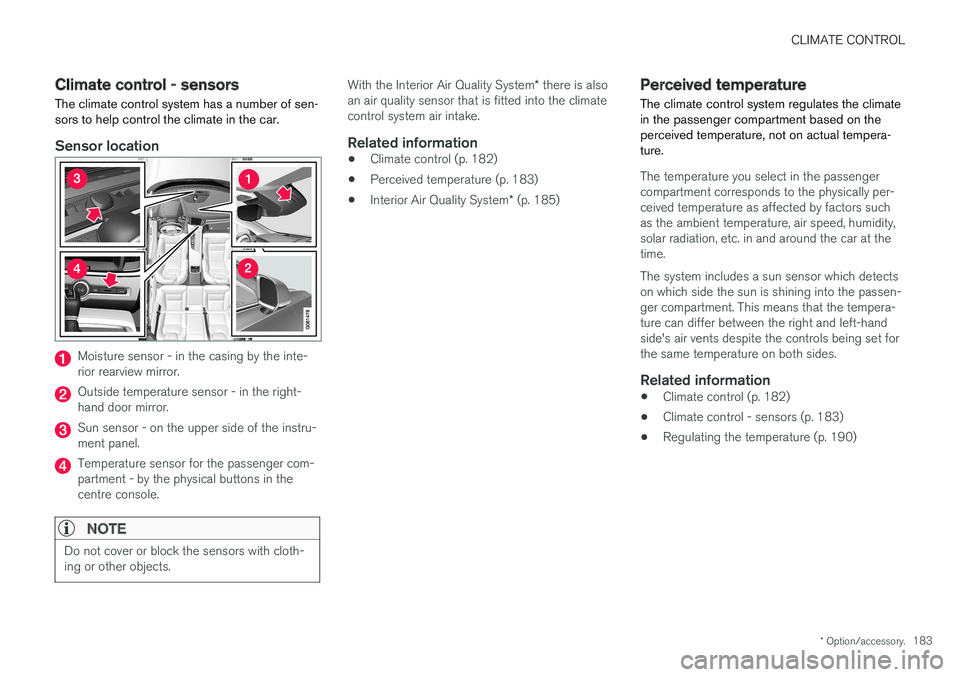
Sensor location
Moisture sensor - in the casing by the inte- rior rearview mirror.
Outside temperature sensor - in the right- hand door mirror.
Sun sensor - on the upper side of the instru- ment panel.
Temperature sensor for the passenger com- partment - by the physical buttons in thecentre console.
NOTE
Do not cover or block the sensors with cloth- ing or other objects.
With the Interior Air Quality System * there is also
an air quality sensor that is fitted into the climate control system air intake.
Related information
• Climate control (p. 182)
• Perceived temperature (p. 183)
• Interior Air Quality System
* (p. 185)
Perceived temperature
The climate control system regulates the climate in the passenger compartment based on theperceived temperature, not on actual tempera-ture.
The temperature you select in the passenger compartment corresponds to the physically per-ceived temperature as affected by factors suchas the ambient temperature, air speed, humidity,solar radiation, etc. in and around the car at thetime. The system includes a sun sensor which detects on which side the sun is shining into the passen-ger compartment. This means that the tempera-ture can differ between the right and left-handside's air vents despite the controls being set forthe same temperature on both sides.
Related information
• Climate control (p. 182)
• Climate control - sensors (p. 183)
• Regulating the temperature (p. 190)
Page 188 of 594
||
CLIMATE CONTROL
* Option/accessory.
186 1.
Press
Settings in the top view in the centre
display.
2. Press
Climate.
3. Select
Air Quality Sensor to activate/deac-
tivate the air quality sensor.
Related information
• Air quality (p. 184)
• Passenger compartment filter (p. 185)
• Clean Zone Interior Package
* (p. 185)
• Activating/deactivating air recirculation (p. 196)
Climate controls
The climate control system's functions are con- trolled from the centre display, physical buttonsin the centre console and the climate panel at the rear of the tunnel console *.
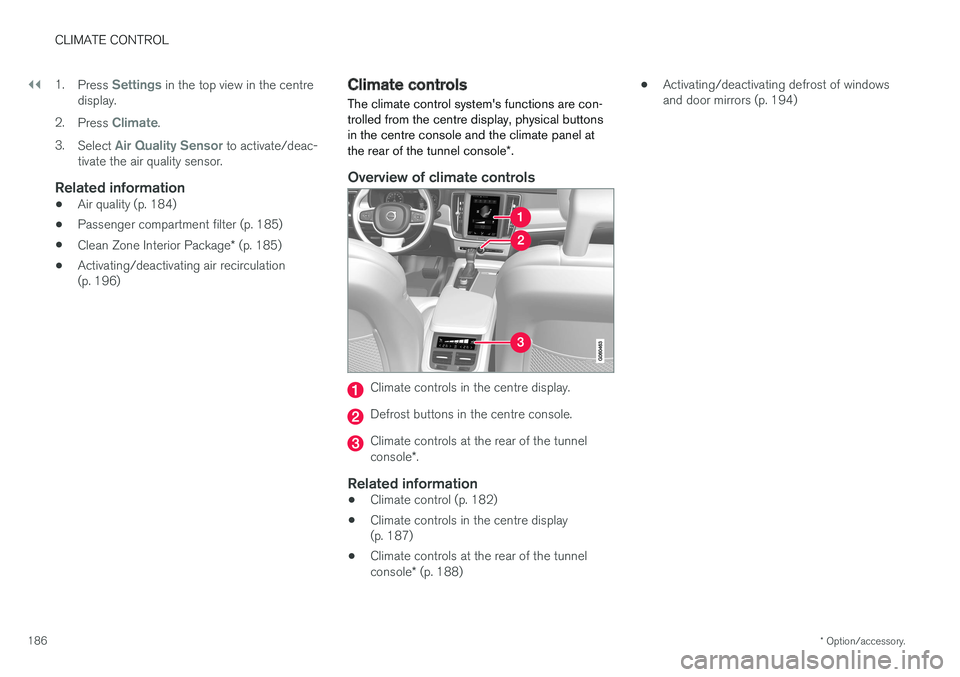
Overview of climate controls
Climate controls in the centre display.
Defrost buttons in the centre console.
Climate controls at the rear of the tunnel console *.
Related information
• Climate control (p. 182)
• Climate controls in the centre display (p. 187)
• Climate controls at the rear of the tunnel console
* (p. 188) •
Activating/deactivating defrost of windows and door mirrors (p. 194)
Page 189 of 594
CLIMATE CONTROL
}}
* Option/accessory.187
Climate controls in the centre display All climate functions can be regulated from the climate row and the climate view in the centredisplay.
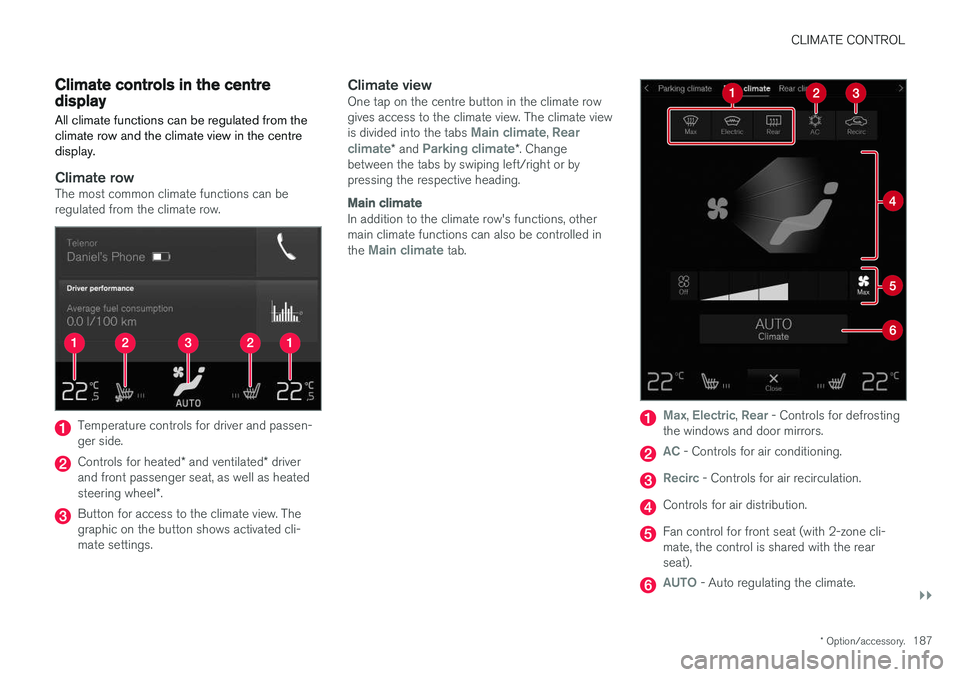
Climate rowThe most common climate functions can be regulated from the climate row.
Temperature controls for driver and passen- ger side.
Controls for heated * and ventilated * driver
and front passenger seat, as well as heated steering wheel *.
Button for access to the climate view. The graphic on the button shows activated cli-mate settings.
Climate viewOne tap on the centre button in the climate rowgives access to the climate view. The climate view is divided into the tabs
Main climate, Rear
climate* and Parking climate*. Change
between the tabs by swiping left/right or by pressing the respective heading.
Main climate
In addition to the climate row's functions, other main climate functions can also be controlled in the
Main climate tab.
Max, Electric, Rear - Controls for defrosting
the windows and door mirrors.
AC - Controls for air conditioning.
Recirc - Controls for air recirculation.
Controls for air distribution.
Fan control for front seat (with 2-zone cli- mate, the control is shared with the rearseat).
AUTO - Auto regulating the climate.
Page 196 of 594
||
CLIMATE CONTROL
* Option/accessory.
194
NOTE
The climate control system automatically adjusts the air flow within the selected fanlevel based on requirements. This means thatthe fan speed may change even though thefan level is the same.
Related information
• Climate controls in the centre display (p. 187)
• Climate controls at the rear of the tunnel console
* (p. 188)
Activating/deactivating defrost of windows and door mirrors The three functions max defroster, heated wind- screen *, and heated rear window and door mir-
rors are used to quickly remove misting and ice from the windows and door mirrors.
From physical buttons in the centre
console
The centre console contains physical buttons for quick access to the defrost functions. With heated windscreen * the max defroster can
only be activated individually from the climate view in the centre display.
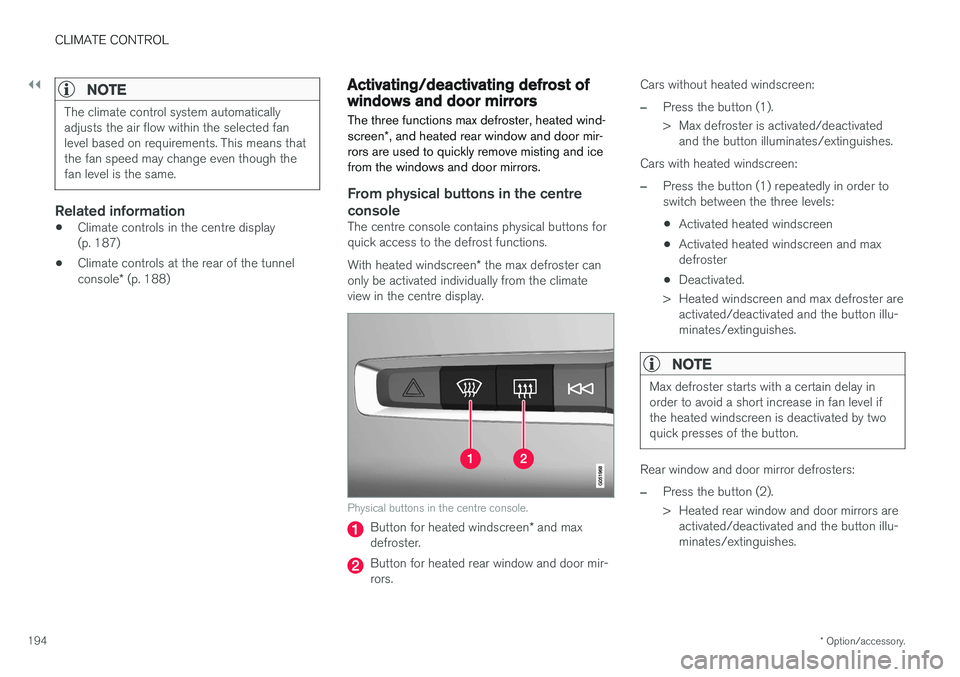
Physical buttons in the centre console.
Button for heated windscreen * and max
defroster.
Button for heated rear window and door mir- rors. Cars without heated windscreen:
–Press the button (1).
> Max defroster is activated/deactivated
and the button illuminates/extinguishes.
Cars with heated windscreen:
–Press the button (1) repeatedly in order to switch between the three levels:
• Activated heated windscreen
• Activated heated windscreen and maxdefroster
• Deactivated.
> Heated windscreen and max defroster are activated/deactivated and the button illu-minates/extinguishes.
NOTE
Max defroster starts with a certain delay in order to avoid a short increase in fan level ifthe heated windscreen is deactivated by twoquick presses of the button.
Rear window and door mirror defrosters:
–Press the button (2).
> Heated rear window and door mirrors areactivated/deactivated and the button illu- minates/extinguishes.
Page 198 of 594
||
CLIMATE CONTROL
* Option/accessory.
196
Activating/deactivating heated rear window and door mirrors
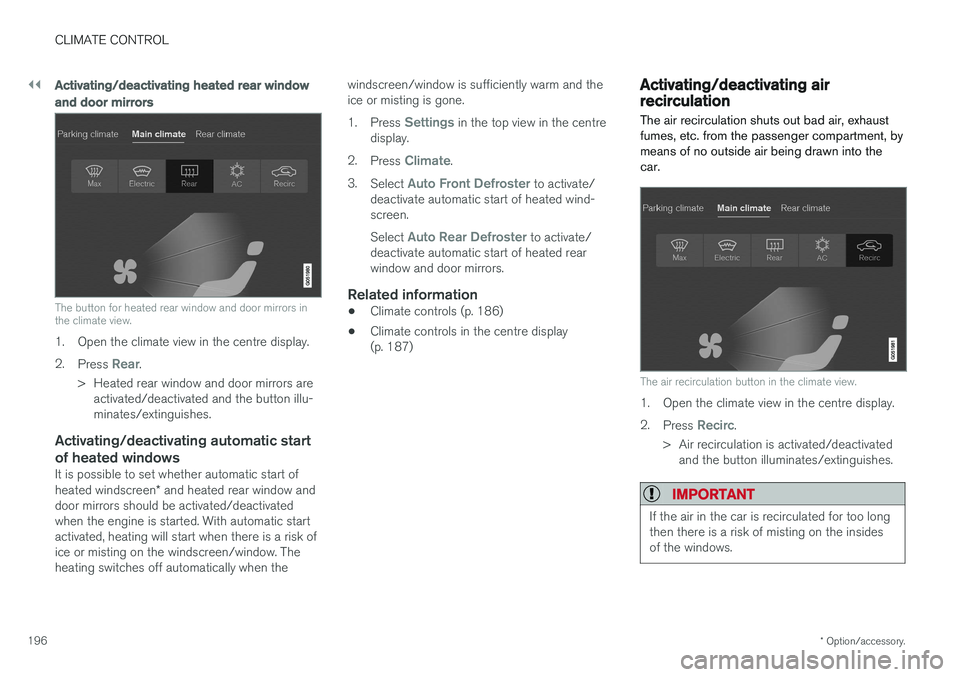
The button for heated rear window and door mirrors in the climate view.
1. Open the climate view in the centre display. 2.
Press
Rear.
> Heated rear window and door mirrors are activated/deactivated and the button illu- minates/extinguishes.
Activating/deactivating automatic start of heated windows
It is possible to set whether automatic start of heated windscreen * and heated rear window and
door mirrors should be activated/deactivated when the engine is started. With automatic startactivated, heating will start when there is a risk ofice or misting on the windscreen/window. Theheating switches off automatically when the windscreen/window is sufficiently warm and theice or misting is gone. 1.
Press
Settings in the top view in the centre
display.
2. Press
Climate.
3. Select
Auto Front Defroster to activate/
deactivate automatic start of heated wind- screen. Select
Auto Rear Defroster to activate/
deactivate automatic start of heated rear window and door mirrors.
Related information
• Climate controls (p. 186)
• Climate controls in the centre display(p. 187)
Activating/deactivating air recirculation
The air recirculation shuts out bad air, exhaust fumes, etc. from the passenger compartment, bymeans of no outside air being drawn into thecar.
The air recirculation button in the climate view.
1. Open the climate view in the centre display. 2. Press
Recirc.
> Air recirculation is activated/deactivated and the button illuminates/extinguishes.
IMPORTANT
If the air in the car is recirculated for too long then there is a risk of misting on the insidesof the windows.
Page 246 of 594
||
LOCKS AND ALARM
* Option/accessory.
244
Indication in lock buttons
Front doors
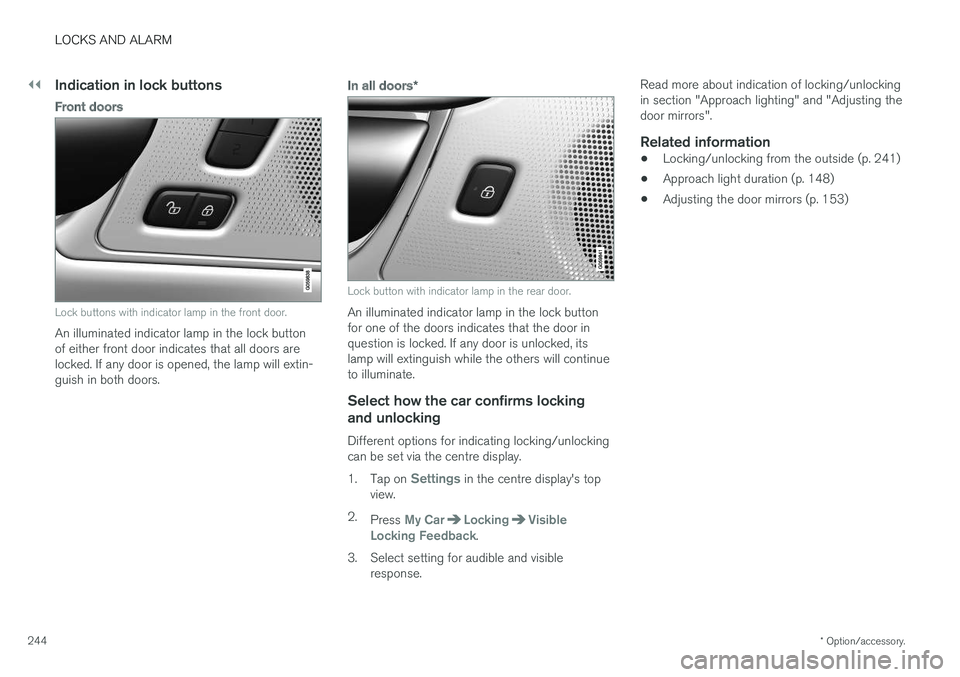
Lock buttons with indicator lamp in the front door.
An illuminated indicator lamp in the lock button of either front door indicates that all doors arelocked. If any door is opened, the lamp will extin-guish in both doors.
In all doors *
Lock button with indicator lamp in the rear door.
An illuminated indicator lamp in the lock button for one of the doors indicates that the door inquestion is locked. If any door is unlocked, itslamp will extinguish while the others will continueto illuminate.
Select how the car confirms locking
and unlocking
Different options for indicating locking/unlockingcan be set via the centre display. 1. Tap on
Settings in the centre display's top
view.
2. Press
My CarLockingVisible
Locking Feedback.
3. Select setting for audible and visible response. Read more about indication of locking/unlocking in section "Approach lighting" and "Adjusting thedoor mirrors".
Related information
•
Locking/unlocking from the outside (p. 241)
• Approach light duration (p. 148)
• Adjusting the door mirrors (p. 153)
Page 343 of 594
DRIVER SUPPORT
}}
341
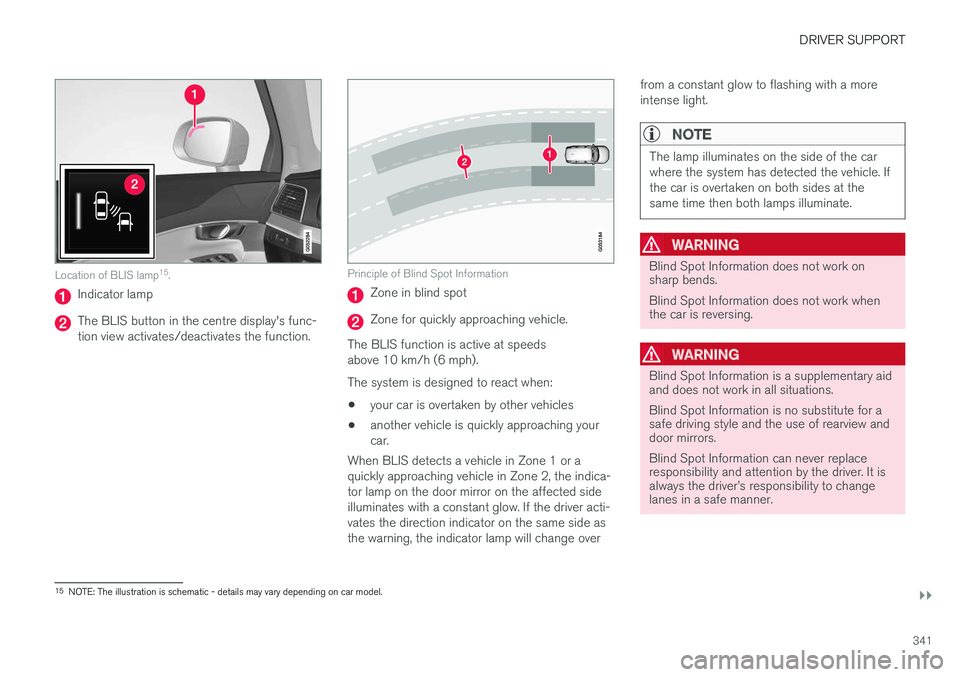
Location of BLIS lamp15
.
Indicator lamp
The BLIS button in the centre display's func- tion view activates/deactivates the function.
Principle of Blind Spot Information
Zone in blind spot
Zone for quickly approaching vehicle.
The BLIS function is active at speeds above 10 km/h (6 mph). The system is designed to react when: • your car is overtaken by other vehicles
• another vehicle is quickly approaching your car.
When BLIS detects a vehicle in Zone 1 or aquickly approaching vehicle in Zone 2, the indica-tor lamp on the door mirror on the affected sideilluminates with a constant glow. If the driver acti-vates the direction indicator on the same side asthe warning, the indicator lamp will change over from a constant glow to flashing with a moreintense light.
NOTE
The lamp illuminates on the side of the car where the system has detected the vehicle. Ifthe car is overtaken on both sides at thesame time then both lamps illuminate.
WARNING
Blind Spot Information does not work on sharp bends. Blind Spot Information does not work when the car is reversing.
WARNING
Blind Spot Information is a supplementary aid and does not work in all situations. Blind Spot Information is no substitute for a safe driving style and the use of rearview anddoor mirrors. Blind Spot Information can never replace responsibility and attention by the driver. It isalways the driver
Page 344 of 594
||
DRIVER SUPPORT
* Option/accessory.
342
WARNING
The system is a supplement to, not a replace- ment for, a safe driving style and use of therearview mirrors. It can never replace the driv-er's attention and responsibility. The responsi-bility for changing lanes safely always restswith the driver.
Related information
• Activate/deactivate Blind Spot Information
*
(p. 342)
• Limitations of Blind Spot Information
*
(p. 343)
• Messages for Blind Spot Information
* and
Cross Traffic Alert * (p. 347)
• Cross Traffic Alert
* (p. 343)
Activate/deactivate Blind Spot Information *
The Blind Spot Information (BLIS) function can be activated/deactivated.
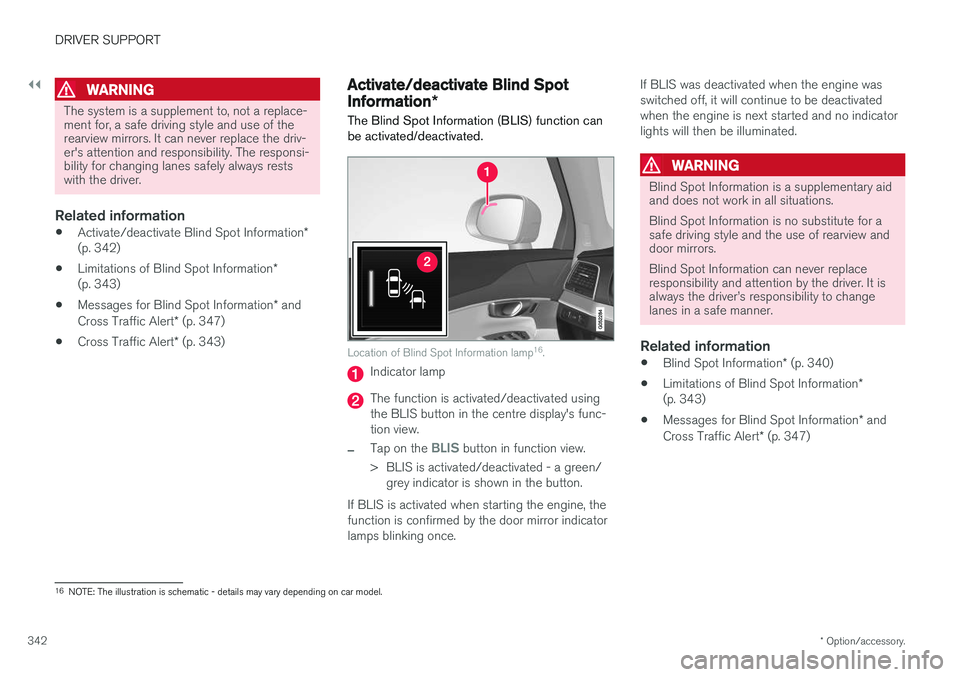
Location of Blind Spot Information lamp 16
.
Indicator lamp
The function is activated/deactivated using the BLIS button in the centre display's func-tion view.
–Tap on the BLIS button in function view.
> BLIS is activated/deactivated - a green/ grey indicator is shown in the button.
If BLIS is activated when starting the engine, the function is confirmed by the door mirror indicatorlamps blinking once. If BLIS was deactivated when the engine wasswitched off, it will continue to be deactivatedwhen the engine is next started and no indicatorlights will then be illuminated.
WARNING
Blind Spot Information is a supplementary aid and does not work in all situations. Blind Spot Information is no substitute for a safe driving style and the use of rearview anddoor mirrors. Blind Spot Information can never replace responsibility and attention by the driver. It isalways the driver
Page 346 of 594
||
DRIVER SUPPORT
* Option/accessory.
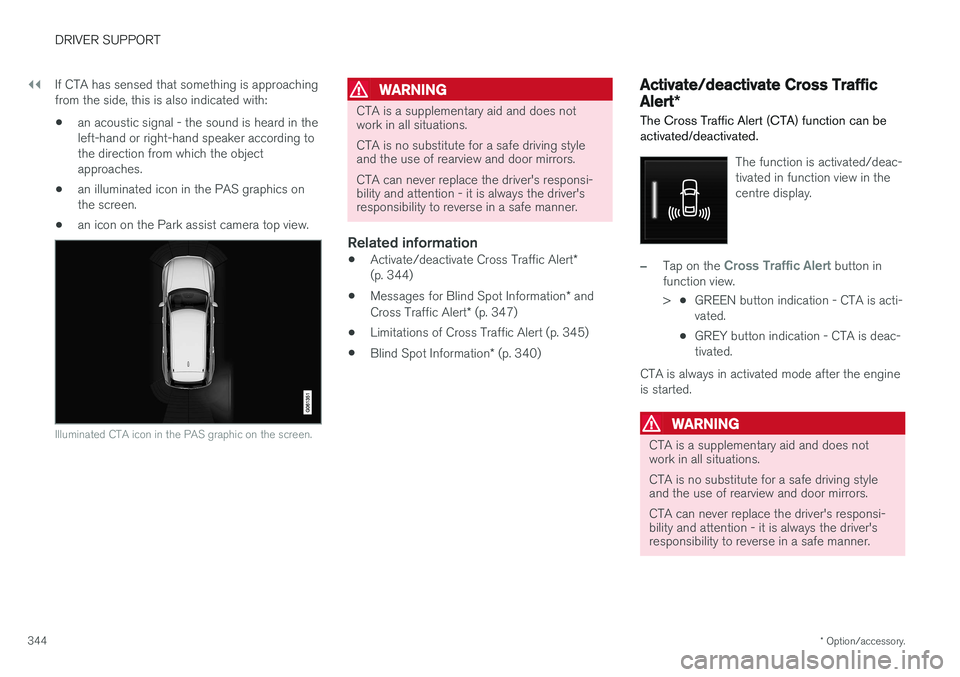
344 If CTA has sensed that something is approaching from the side, this is also indicated with:
• an acoustic signal - the sound is heard in theleft-hand or right-hand speaker according tothe direction from which the objectapproaches.
• an illuminated icon in the PAS graphics onthe screen.
• an icon on the Park assist camera top view.
Illuminated CTA icon in the PAS graphic on the screen.
WARNING
CTA is a supplementary aid and does not work in all situations. CTA is no substitute for a safe driving style and the use of rearview and door mirrors. CTA can never replace the driver's responsi- bility and attention - it is always the driver'sresponsibility to reverse in a safe manner.
Related information
•
Activate/deactivate Cross Traffic Alert
*
(p. 344)
• Messages for Blind Spot Information
* and
Cross Traffic Alert * (p. 347)
• Limitations of Cross Traffic Alert (p. 345)
• Blind Spot Information
* (p. 340)
Activate/deactivate Cross Traffic Alert *
The Cross Traffic Alert (CTA) function can be activated/deactivated.
The function is activated/deac- tivated in function view in thecentre display.
–Tap on the Cross Traffic Alert button in
function view. > •GREEN button indication - CTA is acti- vated.
• GREY button indication - CTA is deac-tivated.
CTA is always in activated mode after the engine
is started.
WARNING
CTA is a supplementary aid and does not work in all situations. CTA is no substitute for a safe driving style and the use of rearview and door mirrors. CTA can never replace the driver's responsi- bility and attention - it is always the driver'sresponsibility to reverse in a safe manner.
Page 372 of 594
DRIVER SUPPORT
* Option/accessory.
370
Park assist lines and fields for the Park Assist Camera *
The Park Assist Camera indicates the position of the car in relation to its surroundings by display-ing lines on the camera image.
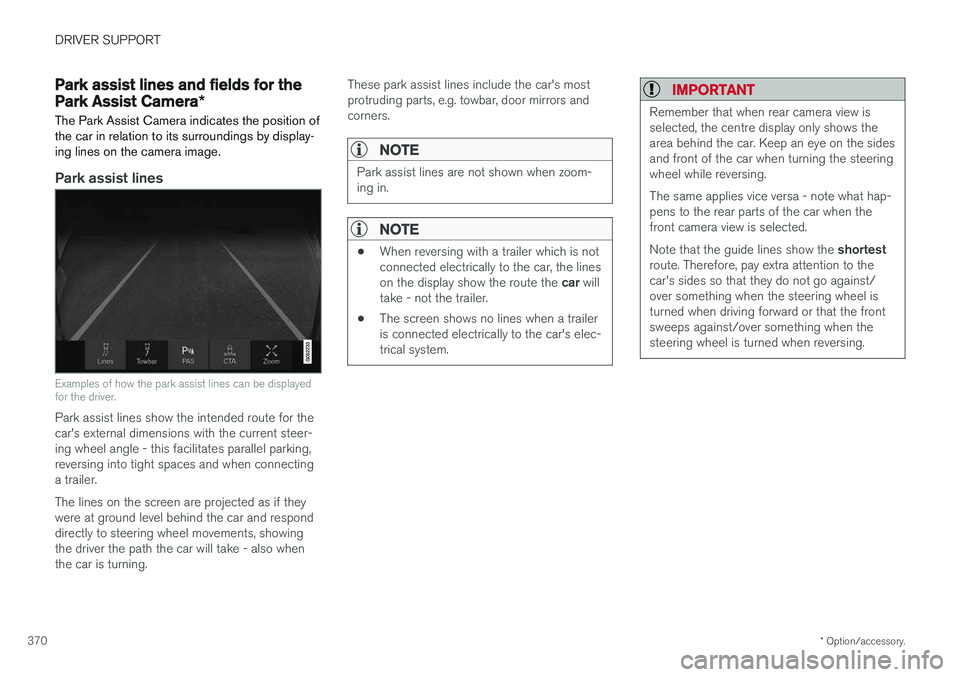
Park assist lines
Examples of how the park assist lines can be displayed for the driver.
Park assist lines show the intended route for the car's external dimensions with the current steer-ing wheel angle - this facilitates parallel parking,reversing into tight spaces and when connectinga trailer. The lines on the screen are projected as if they were at ground level behind the car and responddirectly to steering wheel movements, showingthe driver the path the car will take - also whenthe car is turning. These park assist lines include the car's mostprotruding parts, e.g. towbar, door mirrors andcorners.
NOTE
Park assist lines are not shown when zoom- ing in.
NOTE
•
When reversing with a trailer which is not connected electrically to the car, the lines on the display show the route the
car will
take - not the trailer.
• The screen shows no lines when a trailer is connected electrically to the car's elec-trical system.
IMPORTANT
Remember that when rear camera view is selected, the centre display only shows thearea behind the car. Keep an eye on the sidesand front of the car when turning the steeringwheel while reversing. The same applies vice versa - note what hap- pens to the rear parts of the car when thefront camera view is selected. Note that the guide lines show the
shortest
route. Therefore, pay extra attention to the car's sides so that they do not go against/over something when the steering wheel isturned when driving forward or that the frontsweeps against/over something when thesteering wheel is turned when reversing.