display VOLVO V90 2017 Owners Manual
[x] Cancel search | Manufacturer: VOLVO, Model Year: 2017, Model line: V90, Model: VOLVO V90 2017Pages: 594, PDF Size: 15.07 MB
Page 4 of 594
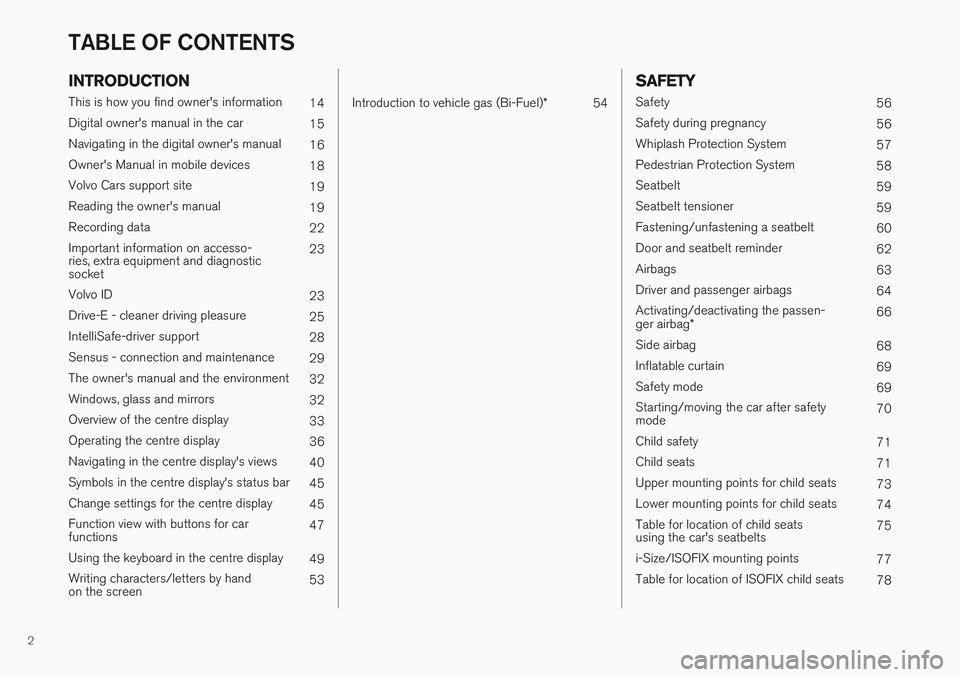
2
INTRODUCTION
This is how you find owner's information14
Digital owner's manual in the car 15
Navigating in the digital owner's manual 16
Owner's Manual in mobile devices 18
Volvo Cars support site 19
Reading the owner's manual 19
Recording data 22
Important information on accesso- ries, extra equipment and diagnosticsocket 23
Volvo ID 23
Drive-E - cleaner driving pleasure 25
IntelliSafe-driver support 28
Sensus - connection and maintenance 29
The owner's manual and the environment 32
Windows, glass and mirrors 32
Overview of the centre display 33
Operating the centre display 36
Navigating in the centre display's views 40
Symbols in the centre display's status bar 45
Change settings for the centre display 45
Function view with buttons for carfunctions 47
Using the keyboard in the centre display 49
Writing characters/letters by handon the screen 53
Introduction to vehicle gas (Bi-Fuel)
*
54
SAFETY
Safety
56
Safety during pregnancy 56
Whiplash Protection System 57
Pedestrian Protection System 58
Seatbelt 59
Seatbelt tensioner 59
Fastening/unfastening a seatbelt 60
Door and seatbelt reminder 62
Airbags 63
Driver and passenger airbags 64
Activating/deactivating the passen- ger airbag * 66
Side airbag 68
Inflatable curtain 69
Safety mode 69
Starting/moving the car after safety mode 70
Child safety 71
Child seats 71
Upper mounting points for child seats 73
Lower mounting points for child seats 74
Table for location of child seatsusing the car's seatbelts 75
i-Size/ISOFIX mounting points 77
Table for location of ISOFIX child seats 78
TABLE OF CONTENTS
Page 5 of 594
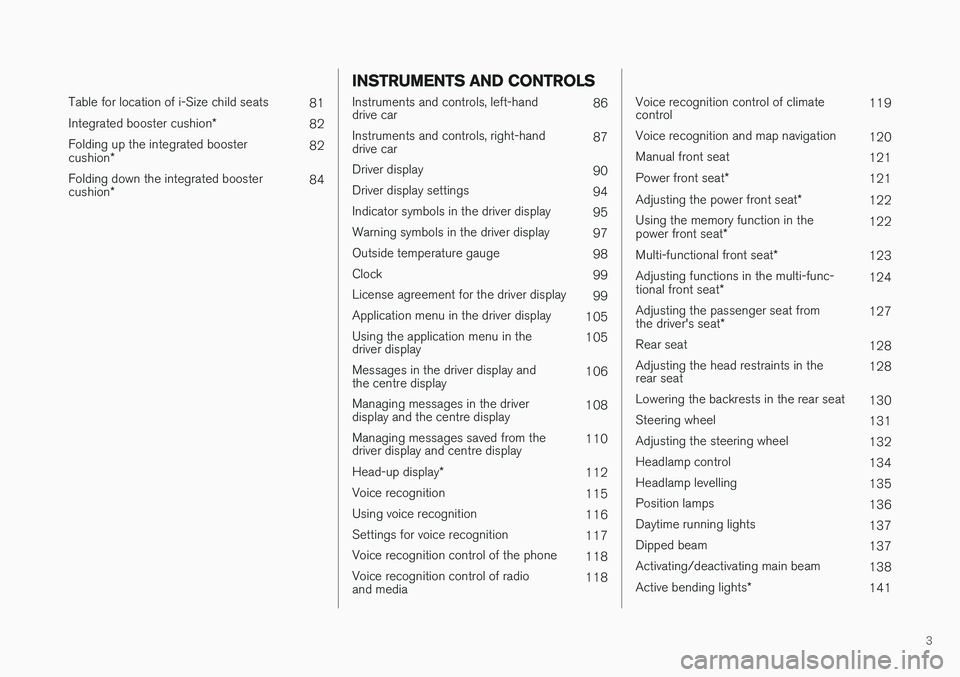
3
Table for location of i-Size child seats81
Integrated booster cushion *
82
Folding up the integrated booster cushion * 82
Folding down the integrated boostercushion * 84
INSTRUMENTS AND CONTROLS
Instruments and controls, left-hand drive car
86
Instruments and controls, right-handdrive car 87
Driver display 90
Driver display settings 94
Indicator symbols in the driver display 95
Warning symbols in the driver display 97
Outside temperature gauge 98
Clock 99
License agreement for the driver display 99
Application menu in the driver display 105
Using the application menu in thedriver display 105
Messages in the driver display andthe centre display 106
Managing messages in the driverdisplay and the centre display 108
Managing messages saved from thedriver display and centre display 110
Head-up display *
112
Voice recognition 115
Using voice recognition 116
Settings for voice recognition 117
Voice recognition control of the phone 118
Voice recognition control of radioand media 118
Voice recognition control of climate control119
Voice recognition and map navigation 120
Manual front seat 121
Power front seat *
121
Adjusting the power front seat *
122
Using the memory function in the power front seat * 122
Multi-functional front seat *
123
Adjusting functions in the multi-func-tional front seat * 124
Adjusting the passenger seat fromthe driver's seat * 127
Rear seat 128
Adjusting the head restraints in the rear seat 128
Lowering the backrests in the rear seat 130
Steering wheel 131
Adjusting the steering wheel 132
Headlamp control 134
Headlamp levelling 135
Position lamps 136
Daytime running lights 137
Dipped beam 137
Activating/deactivating main beam 138
Active bending lights *
141
Page 6 of 594
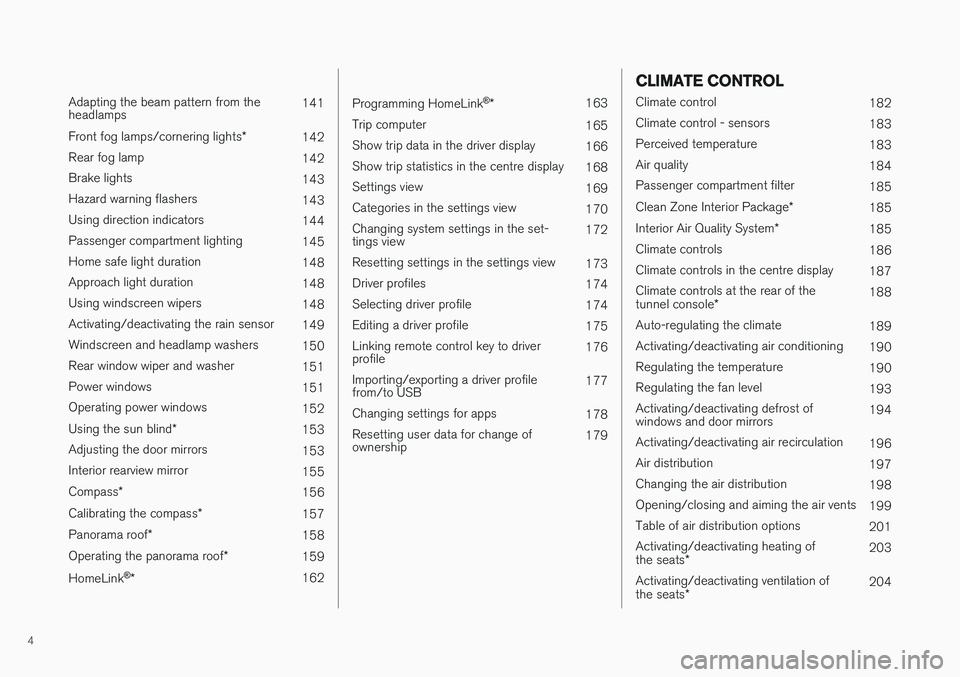
4
Adapting the beam pattern from the headlamps141
Front fog lamps/cornering lights *
142
Rear fog lamp 142
Brake lights 143
Hazard warning flashers 143
Using direction indicators 144
Passenger compartment lighting 145
Home safe light duration 148
Approach light duration 148
Using windscreen wipers 148
Activating/deactivating the rain sensor 149
Windscreen and headlamp washers 150
Rear window wiper and washer 151
Power windows 151
Operating power windows 152
Using the sun blind *
153
Adjusting the door mirrors 153
Interior rearview mirror 155
Compass *
156
Calibrating the compass *
157
Panorama roof *
158
Operating the panorama roof *
159
HomeLink ®
* 162
Programming HomeLink®
* 163
Trip computer 165
Show trip data in the driver display 166
Show trip statistics in the centre display 168
Settings view 169
Categories in the settings view 170
Changing system settings in the set- tings view 172
Resetting settings in the settings view 173
Driver profiles 174
Selecting driver profile 174
Editing a driver profile 175
Linking remote control key to driverprofile 176
Importing/exporting a driver profilefrom/to USB 177
Changing settings for apps 178
Resetting user data for change ofownership 179
CLIMATE CONTROL
Climate control
182
Climate control - sensors 183
Perceived temperature 183
Air quality 184
Passenger compartment filter 185
Clean Zone Interior Package *
185
Interior Air Quality System *
185
Climate controls 186
Climate controls in the centre display 187
Climate controls at the rear of the tunnel console * 188
Auto-regulating the climate 189
Activating/deactivating air conditioning 190
Regulating the temperature 190
Regulating the fan level 193
Activating/deactivating defrost of windows and door mirrors 194
Activating/deactivating air recirculation 196
Air distribution 197
Changing the air distribution 198
Opening/closing and aiming the air vents 199
Table of air distribution options 201
Activating/deactivating heating of the seats * 203
Activating/deactivating ventilation ofthe seats * 204
Page 9 of 594
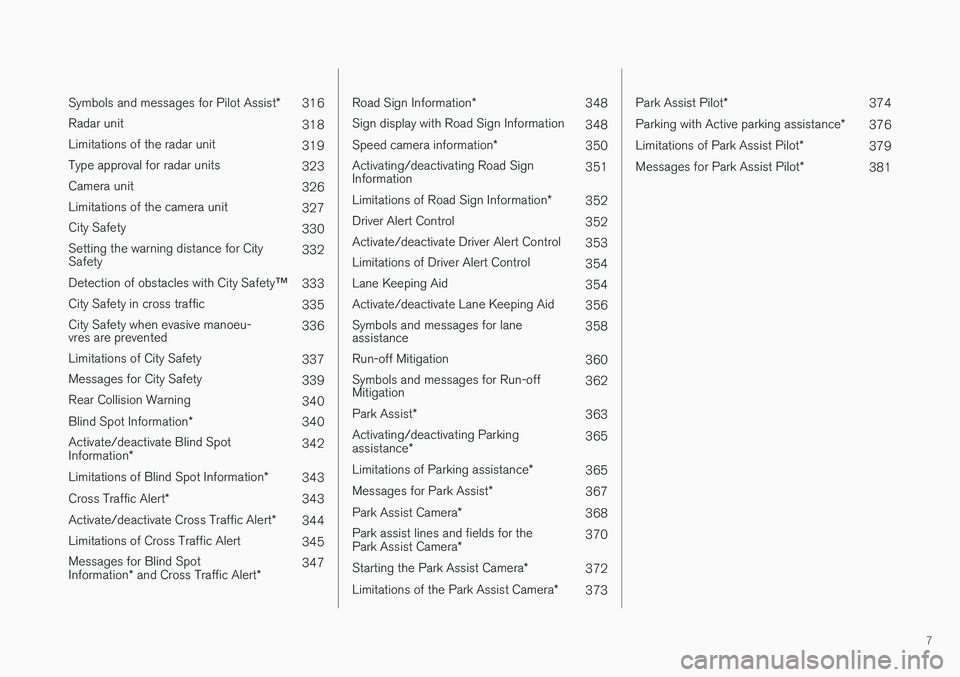
7
Symbols and messages for Pilot Assist*
316
Radar unit 318
Limitations of the radar unit 319
Type approval for radar units 323
Camera unit 326
Limitations of the camera unit 327
City Safety 330
Setting the warning distance for City Safety 332
Detection of obstacles with City Safety ™
333
City Safety in cross traffic 335
City Safety when evasive manoeu-vres are prevented 336
Limitations of City Safety 337
Messages for City Safety 339
Rear Collision Warning 340
Blind Spot Information *
340
Activate/deactivate Blind Spot Information * 342
Limitations of Blind Spot Information *
343
Cross Traffic Alert *
343
Activate/deactivate Cross Traffic Alert *
344
Limitations of Cross Traffic Alert 345
Messages for Blind SpotInformation * and Cross Traffic Alert *347
Road Sign Information
*
348
Sign display with Road Sign Information 348
Speed camera information *
350
Activating/deactivating Road Sign Information 351
Limitations of Road Sign Information *
352
Driver Alert Control 352
Activate/deactivate Driver Alert Control 353
Limitations of Driver Alert Control 354
Lane Keeping Aid 354
Activate/deactivate Lane Keeping Aid 356
Symbols and messages for laneassistance 358
Run-off Mitigation 360
Symbols and messages for Run-offMitigation 362
Park Assist *
363
Activating/deactivating Parking assistance * 365
Limitations of Parking assistance *
365
Messages for Park Assist *
367
Park Assist Camera *
368
Park assist lines and fields for thePark Assist Camera * 370
Starting the Park Assist Camera *
372
Limitations of the Park Assist Camera *
373
Park Assist Pilot *
374
Parking with Active parking assistance *
376
Limitations of Park Assist Pilot *
379
Messages for Park Assist Pilot *
381
Page 13 of 594
11
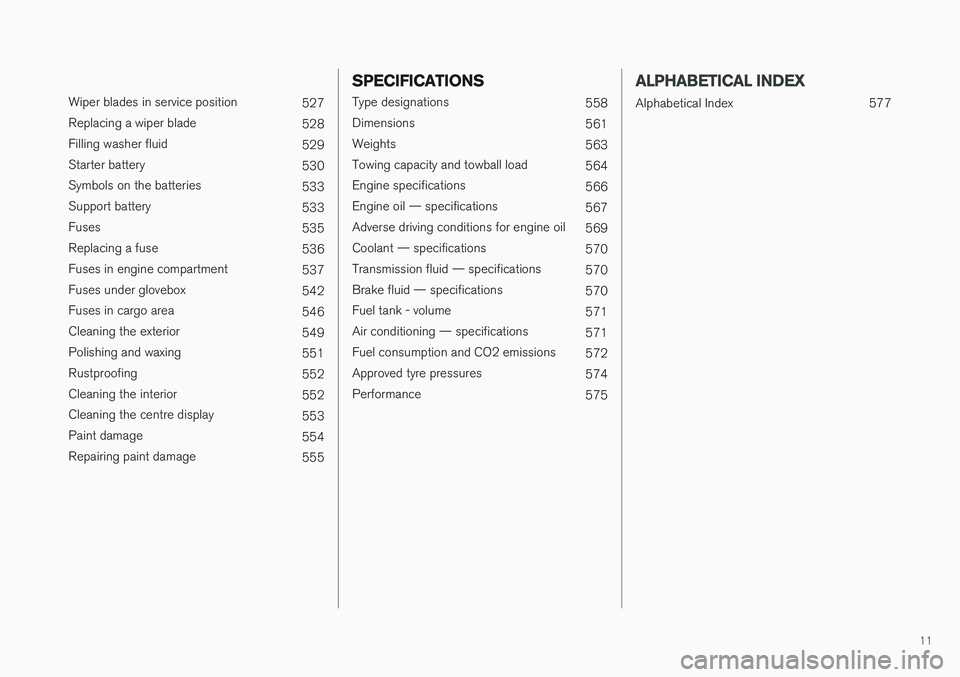
Wiper blades in service position527
Replacing a wiper blade 528
Filling washer fluid 529
Starter battery 530
Symbols on the batteries 533
Support battery 533
Fuses 535
Replacing a fuse 536
Fuses in engine compartment 537
Fuses under glovebox 542
Fuses in cargo area 546
Cleaning the exterior 549
Polishing and waxing 551
Rustproofing 552
Cleaning the interior 552
Cleaning the centre display 553
Paint damage 554
Repairing paint damage 555
SPECIFICATIONS
Type designations558
Dimensions 561
Weights 563
Towing capacity and towball load 564
Engine specifications 566
Engine oil — specifications 567
Adverse driving conditions for engine oil 569
Coolant — specifications 570
Transmission fluid — specifications 570
Brake fluid — specifications 570
Fuel tank - volume 571
Air conditioning — specifications 571
Fuel consumption and CO2 emissions 572
Approved tyre pressures 574
Performance 575
ALPHABETICAL INDEX
Alphabetical Index 577
Page 16 of 594

INTRODUCTION
14
This is how you find owner's informationOwner's information is available in several differ- ent product formats, both digital and printed.The owner's manual is available in the car's cen-tre display, as a mobile app and on the VolvoCars support site. There is a Quick Guide and asupplement to the owner's manual available inthe glovebox, with specifications and fuse infor-mation, amongst other things. A printed owner'smanual can be ordered.The car's centre display 1In the centre display, drag down the top view and tap on
Owner's manual. Available
here are options for visual navi- gation with exterior and interiorimages of the car. The informa-tion is searchable and is also
divided into categories.
Mobile appIn App Store or Google Play, search for "Volvo Manual",download the app to yoursmartphone or tablet and selectthe car. Available in the app arevideo tutorials and options forvisual navigation with exterior
and interior images of the car. It is easy to navi-gate between the different sections in theowner's manual and the content is searchable.
Volvo Cars support siteGo to support.volvocars.com and select your country. Hereyou can find owner's manuals,both online and in PDF format.On the Volvo Cars support sitethere are also video tutorialsand further information and
help regarding your Volvo and your car owner-ship. The page is available for most markets.
Printed informationThere is a supplement to the owner's manual 1
in the glove-
box that contains information on fuses and specifications, aswell as a summary of importantand practical information.
There is also a Quick Guide available in printedformat that helps you to get started with the mostcommonly used functions in the car. Depending on equipment level selected, market, etc. additional owner's information may also beavailable in printed format in the car. A printed owner's manual and associated supple- ment can be ordered. Contact a Volvo dealer toorder.
Changing the language in the car's centre display
Changing the language in the centre display may mean that some owner's information does notcorrespond to national or local laws and regula-tions. Don't change to a language that's difficultto understand, it may then be difficult to find yourway back in the structure on the screen.
1 A complete printed manual is included with the car for markets without owner's manual in the centre display.
Page 17 of 594
INTRODUCTION
}}
15
IMPORTANT
The driver is always responsible that the vehi- cle is driven safely in traffic and that applica-ble laws and regulations are followed. It isalso important that the car is maintained andhandled in accordance with Volvo's recom-mendations in the owner's information. If there should be a difference between the information in the centre display and the prin-ted information then it is always the printedinformation that applies.
Related information
•Digital owner's manual in the car (p. 15)
• Owner's Manual in mobile devices (p. 18)
• Volvo Cars support site (p. 19)
• Reading the owner's manual (p. 19)
Digital owner's manual in the car A digital 2
version of the owner's manual is availa-
ble in the car's centre display.
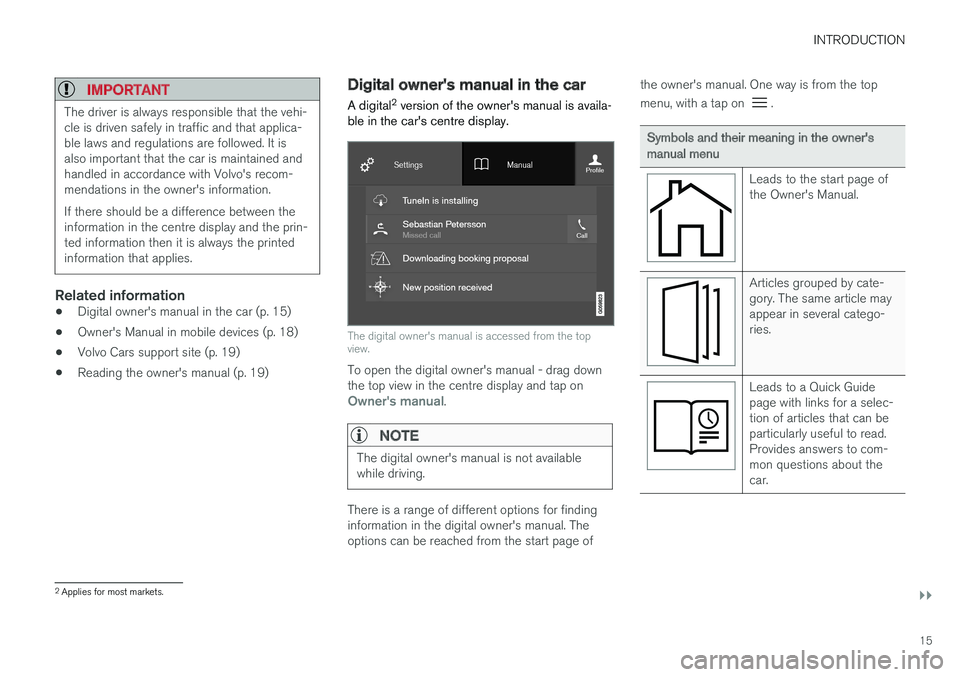
The digital owner's manual is accessed from the top view.
To open the digital owner's manual - drag down the top view in the centre display and tap on
Owner's manual.
NOTE
The digital owner's manual is not available while driving.
There is a range of different options for finding information in the digital owner's manual. Theoptions can be reached from the start page of the owner's manual. One way is from the top menu, with a tap on
.
Symbols and their meaning in the owner's manual menu
Leads to the start page of the Owner's Manual.
Articles grouped by cate- gory. The same article mayappear in several catego-ries.
Leads to a Quick Guide page with links for a selec-tion of articles that can beparticularly useful to read.Provides answers to com-mon questions about thecar.
2
Applies for most markets.
Page 18 of 594
||
INTRODUCTION
16
Symbols and their meaning in the owner's manual menu
Exterior and interior over- view images of the car. Dif-ferent parts are designatedwith hotspots that lead toarticles about those partsof the car.
All articles that have been favourited are compiledhere.
Symbols and their meaning in the owner's manual menu
Leads to short video tutori- als for different functions inthe car.
Indicates what version of the Owner's Manual isavailable in the car and pro-vides other useful informa-tion.
Related information
•Navigating in the digital owner's manual (p. 16)
Navigating in the digital owner's manual The digital owner's manual can be accessed from the centre display in the car. The content issearchable and it is easy to navigate betweendifferent sections.
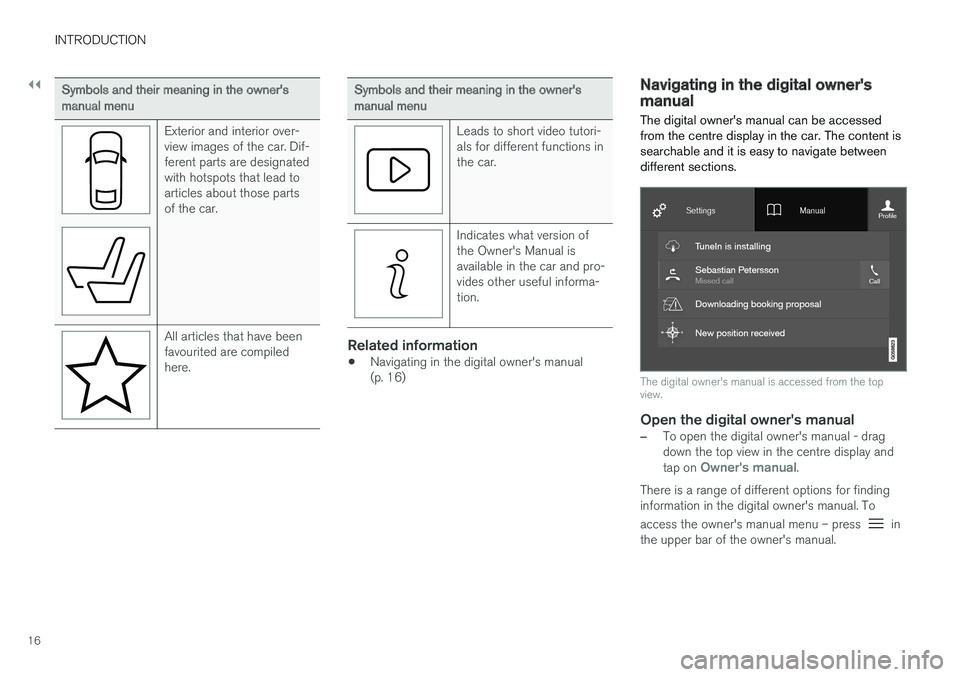
The digital owner's manual is accessed from the top view.
Open the digital owner's manual
–To open the digital owner's manual - drag down the top view in the centre display and tap on
Owner's manual.
There is a range of different options for finding information in the digital owner's manual. To access the owner's manual menu – press
in
the upper bar of the owner's manual.
Page 20 of 594
||
INTRODUCTION
18
Start pageTap on the symbol to go back to the start page in the owner'smanual.
Using the search function
1.Tap on in the top menu of the owner's
manual. A keyboard appears in the lower part of the screen.
2. Type in a keyword, such as "seatbelt". > Suggestions for articles and categoriesare shown while letters are being entered.
3. Tap on the article/category to access it.
Related information
• Digital owner's manual in the car (p. 15)
• Using the keyboard in the centre display(p. 49)
Owner's Manual in mobile devices
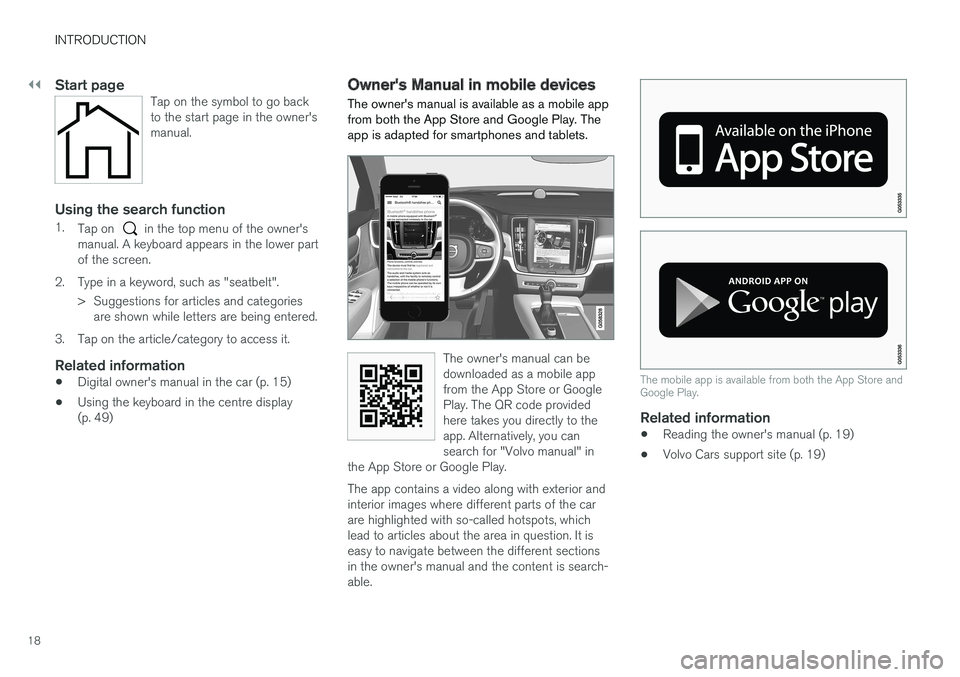
The owner's manual is available as a mobile app from both the App Store and Google Play. Theapp is adapted for smartphones and tablets.
The owner's manual can be downloaded as a mobile appfrom the App Store or GooglePlay. The QR code providedhere takes you directly to theapp. Alternatively, you cansearch for "Volvo manual" in
the App Store or Google Play.
The app contains a video along with exterior and interior images where different parts of the carare highlighted with so-called hotspots, whichlead to articles about the area in question. It iseasy to navigate between the different sectionsin the owner's manual and the content is search-able.
The mobile app is available from both the App Store and Google Play.
Related information
• Reading the owner's manual (p. 19)
• Volvo Cars support site (p. 19)
Page 22 of 594
||
INTRODUCTION
* Option/accessory.
20 All types of option/accessory are marked with an asterisk:
*.
The equipment described in the owner's manual is not available in all cars - they have differentequipment depending on adaptations for theneeds of different markets and national or locallaws and regulations. In the event of uncertainty over what is standard or an option/accessory, contact a Volvo dealer.
Special texts
WARNING
Warning texts appear if there is a risk of injury.
IMPORTANT
"Important" texts appear if there is a risk of damage.
NOTE
NOTE texts give advice or tips that facilitate the use of e.g. features and functions.
FootnoteThe owner's manual contains information in cer- tain locations in the form of a footnote at the bot-tom of the page or at the end of a table. Thisinformation is an addition to the text that it refers to via a number. If the footnote refers to text in atable then letters are used instead of numbersfor referral.
Message textsThere are displays in the car that show menu andmessage texts. In the owner's manual theappearance of these texts differs from the normaltext. Examples of menu texts and message texts:
Phone, New message.
DecalsThe car contains different types of decal which are designed to convey important information in asimple and clear manner. The decals in the carhave the following descending degree of impor-tance for the warning/information.
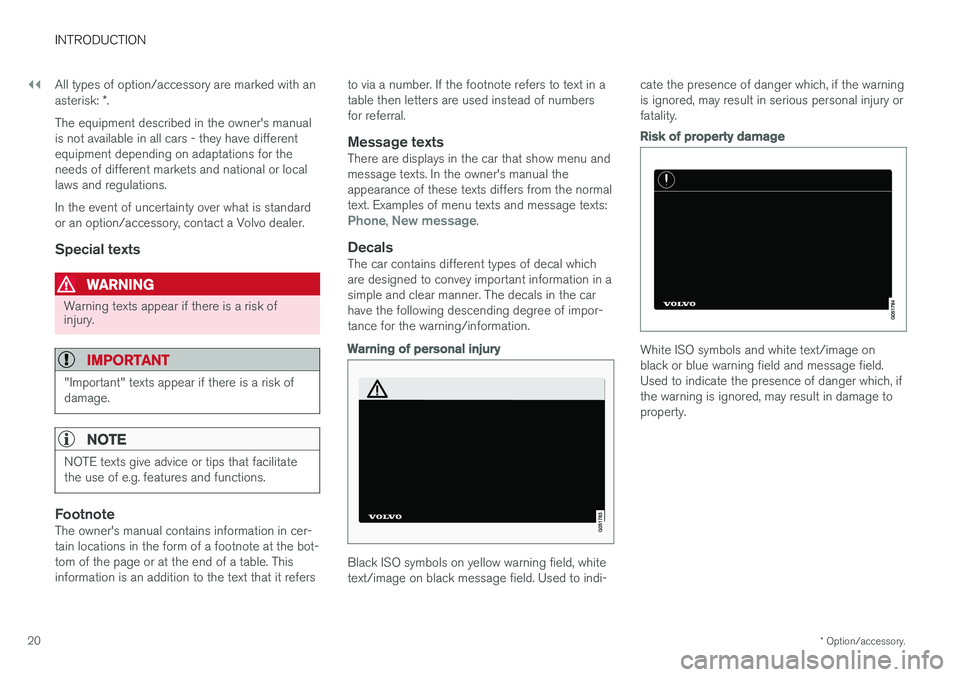
Warning of personal injury
Black ISO symbols on yellow warning field, white text/image on black message field. Used to indi-cate the presence of danger which, if the warningis ignored, may result in serious personal injury orfatality.
Risk of property damage
White ISO symbols and white text/image on black or blue warning field and message field.Used to indicate the presence of danger which, ifthe warning is ignored, may result in damage toproperty.