instrument panel VOLVO V90 2018 Owner´s Manual
[x] Cancel search | Manufacturer: VOLVO, Model Year: 2018, Model line: V90, Model: VOLVO V90 2018Pages: 656, PDF Size: 11.78 MB
Page 440 of 656
||
STARTING AND DRIVING
* Option/accessory.
438 the vehicle safely and letting the engine idle for a few minutes to let the transmissioncool.
• If the vehicle begins to overheat, the air con-ditioning may be temporarily switched off.
• After a prolonged period of driving indemanding conditions, do not turn off theengine immediately after stopping.
NOTE
It is normal for the engine's cooling fan to operate for a short time after the engine isswitched off.
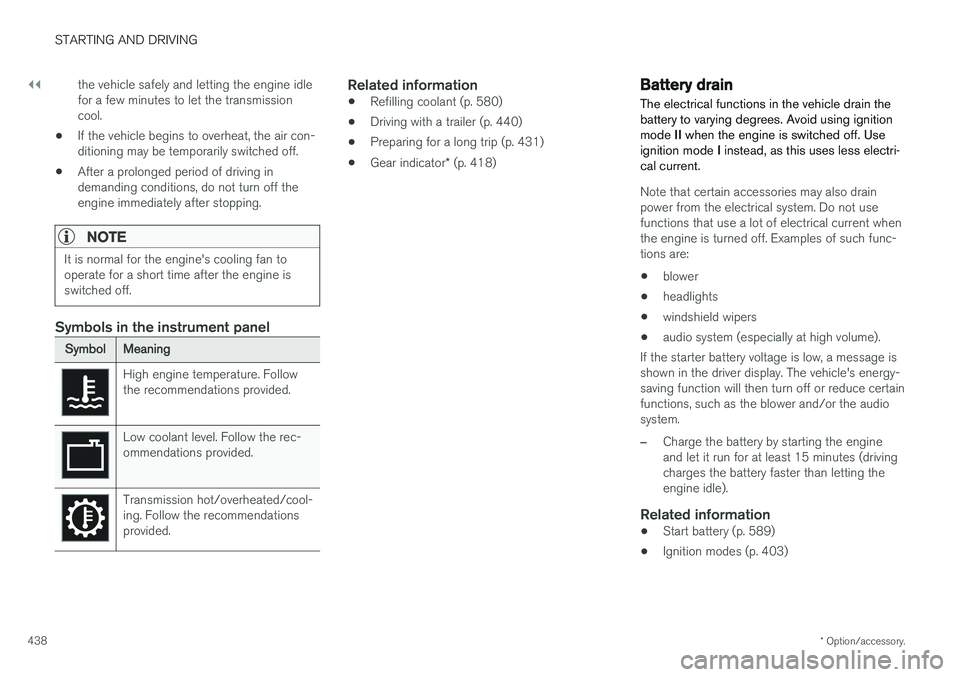
Symbols in the instrument panel
SymbolMeaning
High engine temperature. Follow the recommendations provided.
Low coolant level. Follow the rec- ommendations provided.
Transmission hot/overheated/cool- ing. Follow the recommendationsprovided.
Related information
•Refilling coolant (p. 580)
• Driving with a trailer (p. 440)
• Preparing for a long trip (p. 431)
• Gear indicator
* (p. 418)
Battery drain The electrical functions in the vehicle drain the battery to varying degrees. Avoid using ignitionmode II when the engine is switched off. Use
ignition mode I instead, as this uses less electri-
cal current.
Note that certain accessories may also drain power from the electrical system. Do not usefunctions that use a lot of electrical current whenthe engine is turned off. Examples of such func-tions are:
• blower
• headlights
• windshield wipers
• audio system (especially at high volume).
If the starter battery voltage is low, a message isshown in the driver display. The vehicle's energy-saving function will then turn off or reduce certainfunctions, such as the blower and/or the audio system.
–Charge the battery by starting the engine and let it run for at least 15 minutes (drivingcharges the battery faster than letting theengine idle).
Related information
• Start battery (p. 589)
• Ignition modes (p. 403)
Page 443 of 656
STARTING AND DRIVING
* Option/accessory.441
CAUTION
•Bumper-attached trailer hitches must not be used on Volvos, nor should safetychains be attached to the bumper.
• Trailer hitches attaching to the vehiclerear axle must not be used.
• Never connect a trailer's hydraulic brakesystem directly to the vehicle brake sys-tem, nor a trailer's lighting system directlyto the vehicle lighting system. Consultyour nearest authorized Volvo retailer forcorrect installation.
• When towing a trailer, the trailer's safetychains or wire must be correctly fastenedto the attachment points provided in thetrailer hitch on the vehicle. The safetychain or wire must never be fastened toor wound around the towing ball.
NOTE
The optional detachable trailer hitch may not be available in all markets or on all models.Consult your Volvo retailer.
NOTE
Extreme weather conditions, towing a trailer, driving at high altitudes and fuel quality arefactors that significantly increase a vehicle'sfuel consumption.
Trailer weights
WARNING
Please adhere to the recommendations provi- ded for trailer weight. If the recommendationsare not followed, the vehicle and trailer maybe difficult to control during evasive maneu-vers and braking.
NOTE
The specified maximum trailer weights are those permitted by Volvo. National vehicleregulations may set additional restrictions ontrailer weight and speed. The trailer hitchesmay be certified for higher towing weightsthan the vehicle is permitted to tow.
Self-leveling suspension
*The vehicle's self-leveling system attempts to keep the vehicle at a constant level, regardless ofload (up to the maximum permitted weight).When the vehicle is stationary, the rear end of thevehicle will be slightly lowered, which is normal.
Driving in hilly terrain or hot weatherIn certain conditions, there is a risk of overheat-ing when driving with a trailer. If overheating ofthe engine and drive system is detected, a warn-ing symbol will illuminate in the instrument panelalong with a message. The automatic transmission selects the optimalgear for the current load and engine speed.
Steep inclines
Do not lock the automatic transmission into a higher gear than what the engine can handle
‒ it
is not always preferable to drive in high gears at low rpm.
Parking on a hill
1. Depress the brake pedal.
2. Apply the parking brake.3. Put the gear selector in P.
4. Release the brake pedal.Put chocks behind the wheels when the vehicle is parked on a hill with a trailer attached.
Starting on a hill
1. Depress the brake pedal. 2. Put the gear selector in D.
3. Release the parking brake.
4. Release the brake pedal and start driving.
Related information
• Trailer Stability Assist
* (p. 442)
• Checking trailer lights (p. 443)
• Towing capacity and tongue weight (p. 632)
• Overheating of engine and transmission (p. 437)
Page 444 of 656
STARTING AND DRIVING
* Option/accessory.
442
Trailer Stability Assist *
Trailer Stability Assist (TSA 10
) is a function
designed to help stabilize a vehicle that is tow- ing a trailer when the vehicle and trailer havebegun to sway. The function is part of the Elec- tronic Stability Control system ESC 11
.
Reasons for swayingA vehicle towing a trailer may begin to sway for various reasons. Normally this only occurs at highspeeds. However, if the trailer is overloaded orunevenly distributed, e.g. too far back, there is arisk of swaying even at low speeds. Swaying may be caused by factors such as:
• The vehicle and trailer are hit by a sudden, strong crosswind.
• The vehicle and trailer are traveling on anuneven road or over a bump.
• Sudden movements of the steering wheel.
Once swaying has begun, it can be difficult orimpossible to stop it. This makes the vehicle andtrailer difficult to control and there is a risk ofswerving into oncoming traffic or driving off theroad.
Trailer Stability Assist functionTrailer Stability Assist continuously monitors thevehicle's movements, particularly lateral move- ments. If swaying is detected, the brakes areapplied individually on the front wheels, which hasa stabilizing effect on the vehicle and trailer. Thisis often enough to enable the driver to regaincontrol of the vehicle. If the Trailer Stability Assist function's first attempt is not adequate to stop the swayingmotion, the brakes are applied on all wheels andengine power is temporarily reduced. As theswaying motion begins to decrease and the vehi-cle and trailer have once again become stable,TSA stops regulating the brakes/engine powerand the driver regains control of the vehicle.
NOTE
Trailer Stability Assist is deactivated if the driver selects the sport mode by deactivating
ESC in the center display's menu system.
Trailer Stability Assist may not intervene if the driver tries to compensate for the swaying motionby moving the steering wheel rapidly, becausethe system will then not be able to determine if itis the trailer or the driver causing the swaying.
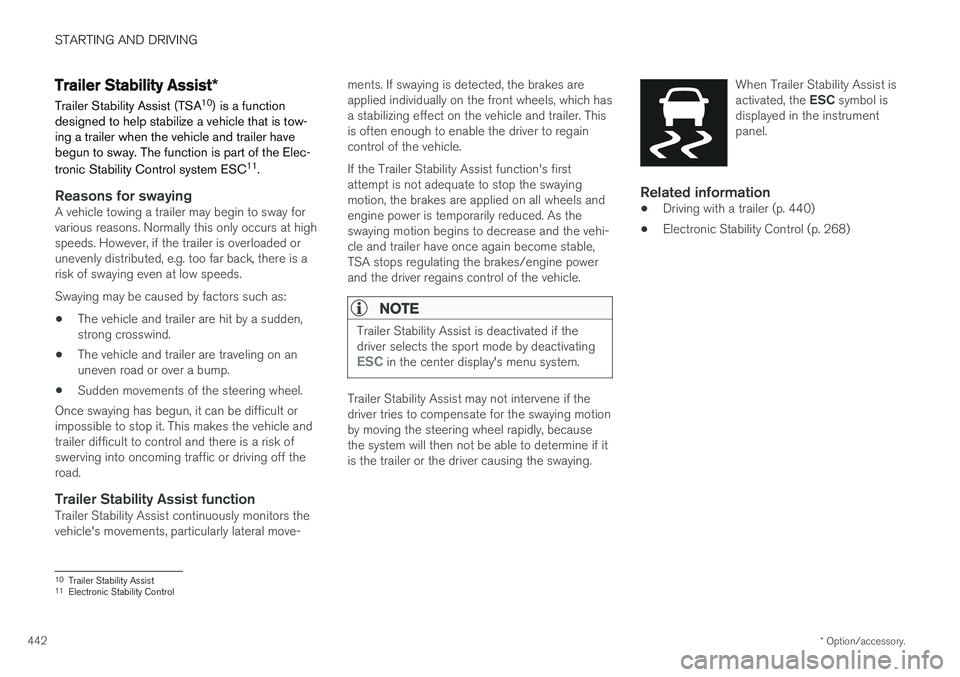
When Trailer Stability Assist is activated, the
ESC symbol is
displayed in the instrument panel.
Related information
• Driving with a trailer (p. 440)
• Electronic Stability Control (p. 268)
10
Trailer Stability Assist
11 Electronic Stability Control
Page 445 of 656
STARTING AND DRIVING
* Option/accessory.443
Checking trailer lights
When connecting a trailer, make sure that all of the lights on the trailer are functioning beforestarting to drive.
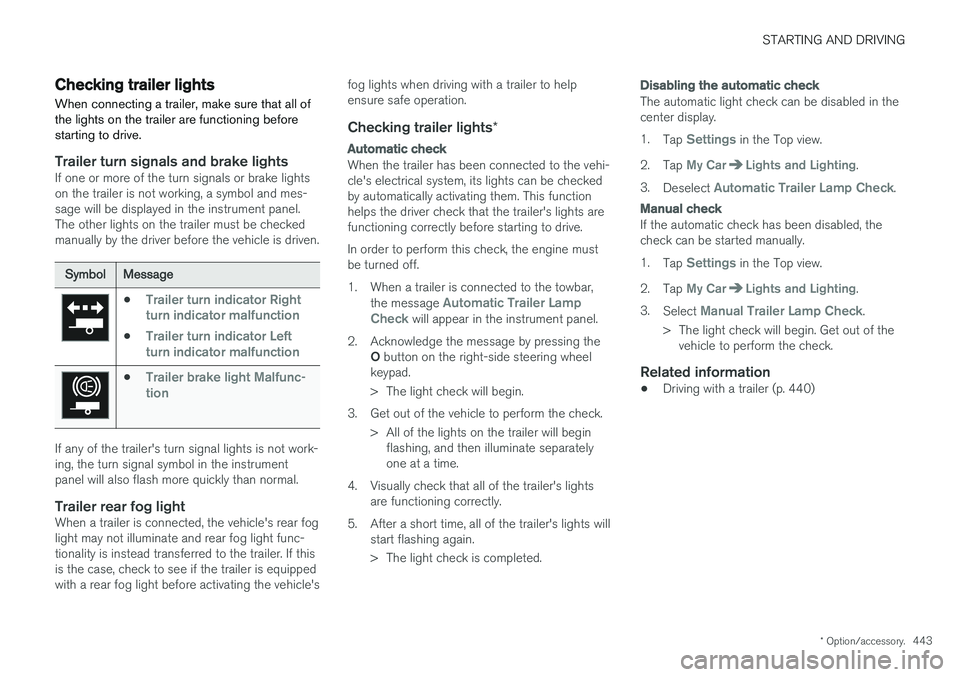
Trailer turn signals and brake lightsIf one or more of the turn signals or brake lights on the trailer is not working, a symbol and mes-sage will be displayed in the instrument panel.The other lights on the trailer must be checkedmanually by the driver before the vehicle is driven.
SymbolMessage
•Trailer turn indicator Right
turn indicator malfunction
•Trailer turn indicator Left
turn indicator malfunction
•Trailer brake light Malfunc-
tion
If any of the trailer's turn signal lights is not work- ing, the turn signal symbol in the instrumentpanel will also flash more quickly than normal.
Trailer rear fog lightWhen a trailer is connected, the vehicle's rear foglight may not illuminate and rear fog light func-tionality is instead transferred to the trailer. If thisis the case, check to see if the trailer is equippedwith a rear fog light before activating the vehicle's fog lights when driving with a trailer to helpensure safe operation.
Checking trailer lights
*
Automatic check
When the trailer has been connected to the vehi- cle's electrical system, its lights can be checkedby automatically activating them. This functionhelps the driver check that the trailer's lights arefunctioning correctly before starting to drive. In order to perform this check, the engine must be turned off.
1. When a trailer is connected to the towbar,
the message
Automatic Trailer Lamp
Check will appear in the instrument panel.
2. Acknowledge the message by pressing the O button on the right-side steering wheel
keypad.
> The light check will begin.
3. Get out of the vehicle to perform the check. > All of the lights on the trailer will beginflashing, and then illuminate separately one at a time.
4. Visually check that all of the trailer's lights are functioning correctly.
5. After a short time, all of the trailer's lights will start flashing again.
> The light check is completed.
Disabling the automatic check
The automatic light check can be disabled in the center display. 1.Tap
Settings in the Top view.
2. Tap
My CarLights and Lighting.
3. Deselect
Automatic Trailer Lamp Check.
Manual check
If the automatic check has been disabled, the check can be started manually. 1.Tap
Settings in the Top view.
2. Tap
My CarLights and Lighting.
3. Select
Manual Trailer Lamp Check.
> The light check will begin. Get out of the vehicle to perform the check.
Related information
• Driving with a trailer (p. 440)
Page 461 of 656
AUDIO, MEDIA AND INTERNET
}}
459
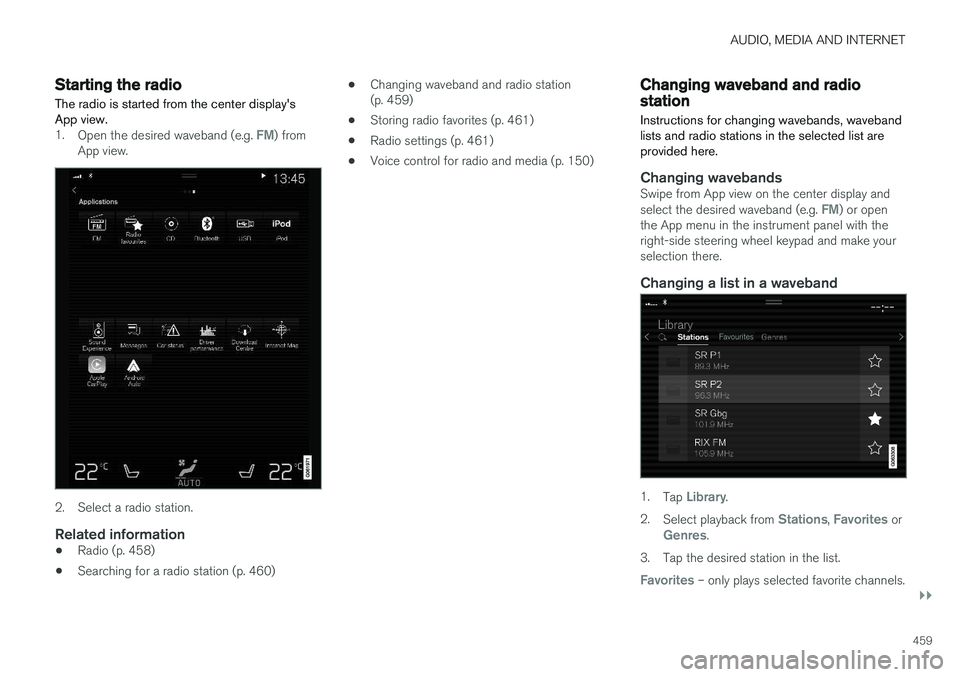
Starting the radio The radio is started from the center display's App view.
1.Open the desired waveband (e.g. FM) from
App view.
2. Select a radio station.
Related information
• Radio (p. 458)
• Searching for a radio station (p. 460) •
Changing waveband and radio station (p. 459)
• Storing radio favorites (p. 461)
• Radio settings (p. 461)
• Voice control for radio and media (p. 150)
Changing waveband and radiostation
Instructions for changing wavebands, waveband lists and radio stations in the selected list areprovided here.
Changing wavebandsSwipe from App view on the center display and select the desired waveband (e.g. FM) or open
the App menu in the instrument panel with the right-side steering wheel keypad and make yourselection there.
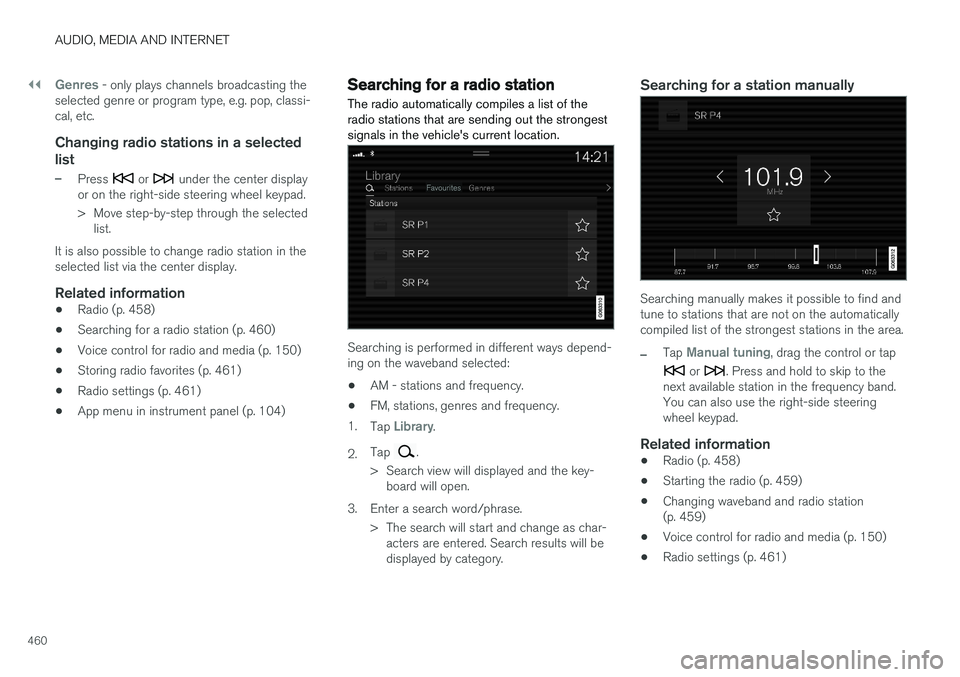
Changing a list in a waveband
1. Tap Library.
2. Select playback from
Stations, Favorites orGenres.
3. Tap the desired station in the list.
Favorites – only plays selected favorite channels.
Page 462 of 656
||
AUDIO, MEDIA AND INTERNET
460
Genres - only plays channels broadcasting the
selected genre or program type, e.g. pop, classi- cal, etc.
Changing radio stations in a selected
list
–Press or under the center display
or on the right-side steering wheel keypad.
> Move step-by-step through the selected list.
It is also possible to change radio station in the selected list via the center display.
Related information
• Radio (p. 458)
• Searching for a radio station (p. 460)
• Voice control for radio and media (p. 150)
• Storing radio favorites (p. 461)
• Radio settings (p. 461)
• App menu in instrument panel (p. 104)
Searching for a radio station
The radio automatically compiles a list of the radio stations that are sending out the strongestsignals in the vehicle's current location.
Searching is performed in different ways depend- ing on the waveband selected:
• AM - stations and frequency.
• FM, stations, genres and frequency.
1. Tap
Library.
2. Tap
.
> Search view will displayed and the key- board will open.
3. Enter a search word/phrase. > The search will start and change as char-acters are entered. Search results will be displayed by category.
Searching for a station manually
Searching manually makes it possible to find and tune to stations that are not on the automaticallycompiled list of the strongest stations in the area.
–Tap Manual tuning, drag the control or tap
or . Press and hold to skip to the
next available station in the frequency band. You can also use the right-side steeringwheel keypad.
Related information
• Radio (p. 458)
• Starting the radio (p. 459)
• Changing waveband and radio station(p. 459)
• Voice control for radio and media (p. 150)
• Radio settings (p. 461)
Page 463 of 656
AUDIO, MEDIA AND INTERNET
}}
461
Storing radio favorites
It is possible to add a radio a radio station in the
Radio favorites app and in the list of favorites
for the waveband (e.g. FM). Instructions for add- ing and removing favorites are provided below.
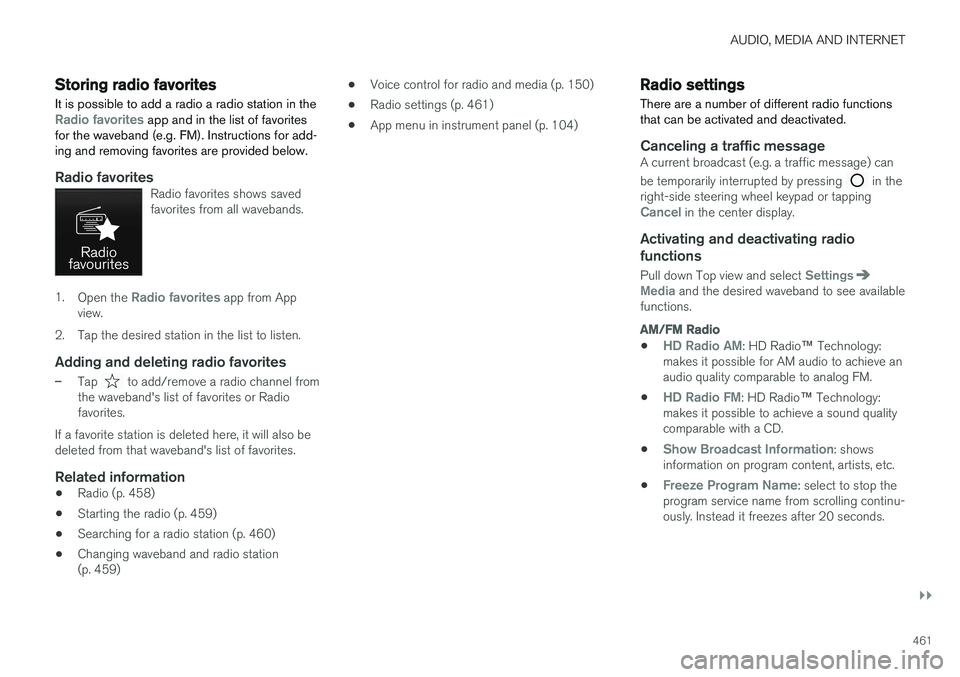
Radio favoritesRadio favorites shows saved favorites from all wavebands.
1. Open the Radio favorites app from App
view.
2. Tap the desired station in the list to listen.
Adding and deleting radio favorites
–Tap to add/remove a radio channel from
the waveband's list of favorites or Radio favorites.
If a favorite station is deleted here, it will also bedeleted from that waveband's list of favorites.
Related information
• Radio (p. 458)
• Starting the radio (p. 459)
• Searching for a radio station (p. 460)
• Changing waveband and radio station(p. 459) •
Voice control for radio and media (p. 150)
• Radio settings (p. 461)
• App menu in instrument panel (p. 104)
Radio settings
There are a number of different radio functions that can be activated and deactivated.
Canceling a traffic messageA current broadcast (e.g. a traffic message) can be temporarily interrupted by pressing
in the
right-side steering wheel keypad or tapping
Cancel in the center display.
Activating and deactivating radio
functions
Pull down Top view and select SettingsMedia and the desired waveband to see available
functions.
AM/FM Radio
•HD Radio AM: HD Radio ™
Technology:
makes it possible for AM audio to achieve an audio quality comparable to analog FM.
•
HD Radio FM: HD Radio ™ Technology:
makes it possible to achieve a sound quality comparable with a CD.
•
Show Broadcast Information: shows
information on program content, artists, etc.
•
Freeze Program Name: select to stop the
program service name from scrolling continu- ously. Instead it freezes after 20 seconds.
Page 479 of 656
AUDIO, MEDIA AND INTERNET
}}
* Option/accessory.477
Related information
•Handling the App menu in the instrument panel (p. 105)
• Radio (p. 458)
• Controlling and changing media (p. 477)
• Connecting a device via the USB port(p. 482)
• Connecting a device via Bluetooth ®
(p. 481)
• Download apps (p. 456)
• Internet-connected vehicle
* (p. 497)
• Video (p. 480)
• Apple ®
CarPlay ®
* (p. 483)
• Android Auto
* (p. 486)
• Voice control for radio and media (p. 150)
• Compatible file formats for media (p. 504)
Controlling and changing media
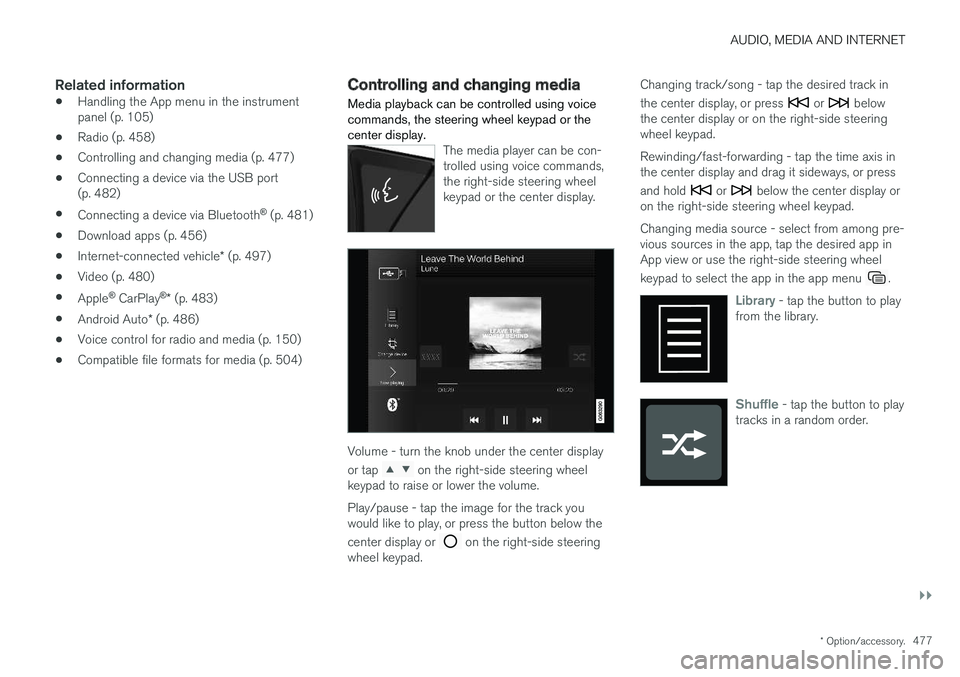
Media playback can be controlled using voice commands, the steering wheel keypad or thecenter display.
The media player can be con- trolled using voice commands,the right-side steering wheelkeypad or the center display.
Volume - turn the knob under the center display or tap
on the right-side steering wheel
keypad to raise or lower the volume. Play/pause - tap the image for the track you would like to play, or press the button below the center display or
on the right-side steering
wheel keypad. Changing track/song - tap the desired track in the center display, or press
or below
the center display or on the right-side steering wheel keypad. Rewinding/fast-forwarding - tap the time axis in the center display and drag it sideways, or press and hold
or below the center display or
on the right-side steering wheel keypad. Changing media source - select from among pre- vious sources in the app, tap the desired app inApp view or use the right-side steering wheel keypad to select the app in the app menu
.
Library - tap the button to play
from the library.
Shuffle - tap the button to play
tracks in a random order.
Page 485 of 656
AUDIO, MEDIA AND INTERNET
}}
* Option/accessory.483
Apple® CarPlay®
*
With CarPlay, you can listen to music, make phone calls, get driving instructions, send/receive messages and use Siri, all while remain-ing focused on driving.
CarPlay works with select Apple devices. If the car doesnot already support CarPlay,this can be retrofitted. Contacta Volvo retailer to installCarPlay.
Information about supported apps and compati- ble phones is available on the Apple website:www.apple.com/ios/carplay/. Using apps that arenot compatible with CarPlay could cause the con-nection between iPhone and the vehicle to belost. Please note that Volvo is not responsible forthe content of CarPlay. When using map navigation via CarPlay, guidance will only be shown on the center display and notin the instrument panel or head-up display. CarPlay apps can be controlled from the center display, a phone or with the right-side steeringwheel keypad (for certain functions). The appscan also be voice-controlled using Siri. Press and hold the
button on the steering wheel to
start voice control with Siri. Press briefly to acti- vate the vehicle's own voice control system. If Siri cuts off too soon, press and hold the
6
but-
ton on the steering wheel.
By using Apple CarPlay you acknowledge the following: Apple CarPlay is a serviceprovided by Apple Inc. under its terms andconditions. Volvo Cars is thus notresponsible for Apple CarPlay or itsfeatures/applications. When using AppleCarPlay, certain information from your car(including its position) is transferred to youriPhone. In relation to Volvo Cars, you arefully responsible for your and any othersperson
Page 488 of 656
AUDIO, MEDIA AND INTERNET
* Option/accessory.
486
Android Auto *
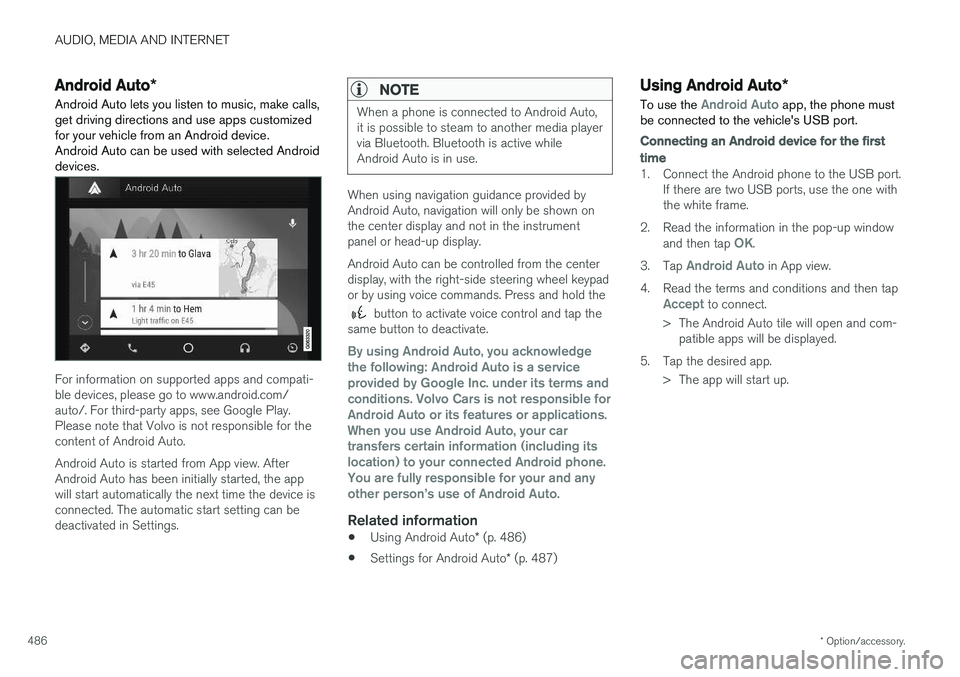
Android Auto lets you listen to music, make calls, get driving directions and use apps customizedfor your vehicle from an Android device.Android Auto can be used with selected Androiddevices.
For information on supported apps and compati- ble devices, please go to www.android.com/auto/. For third-party apps, see Google Play.Please note that Volvo is not responsible for thecontent of Android Auto. Android Auto is started from App view. After Android Auto has been initially started, the appwill start automatically the next time the device isconnected. The automatic start setting can bedeactivated in Settings.
NOTE
When a phone is connected to Android Auto, it is possible to steam to another media playervia Bluetooth. Bluetooth is active whileAndroid Auto is in use.
When using navigation guidance provided by Android Auto, navigation will only be shown onthe center display and not in the instrumentpanel or head-up display. Android Auto can be controlled from the center display, with the right-side steering wheel keypador by using voice commands. Press and hold the
button to activate voice control and tap the
same button to deactivate.
By using Android Auto, you acknowledge the following: Android Auto is a serviceprovided by Google Inc. under its terms andconditions. Volvo Cars is not responsible forAndroid Auto or its features or applications.When you use Android Auto, your cartransfers certain information (including itslocation) to your connected Android phone.You are fully responsible for your and anyother person