buttons VOLVO V90 CROSS COUNTRY 2017 Owner´s Manual
[x] Cancel search | Manufacturer: VOLVO, Model Year: 2017, Model line: V90 CROSS COUNTRY, Model: VOLVO V90 CROSS COUNTRY 2017Pages: 552, PDF Size: 13.6 MB
Page 271 of 552
DRIVER SUPPORT
}}
* Option/accessory.269
Changing Adaptive Cruise Control (ACC) speed
ACC makes it possible to set various speeds.
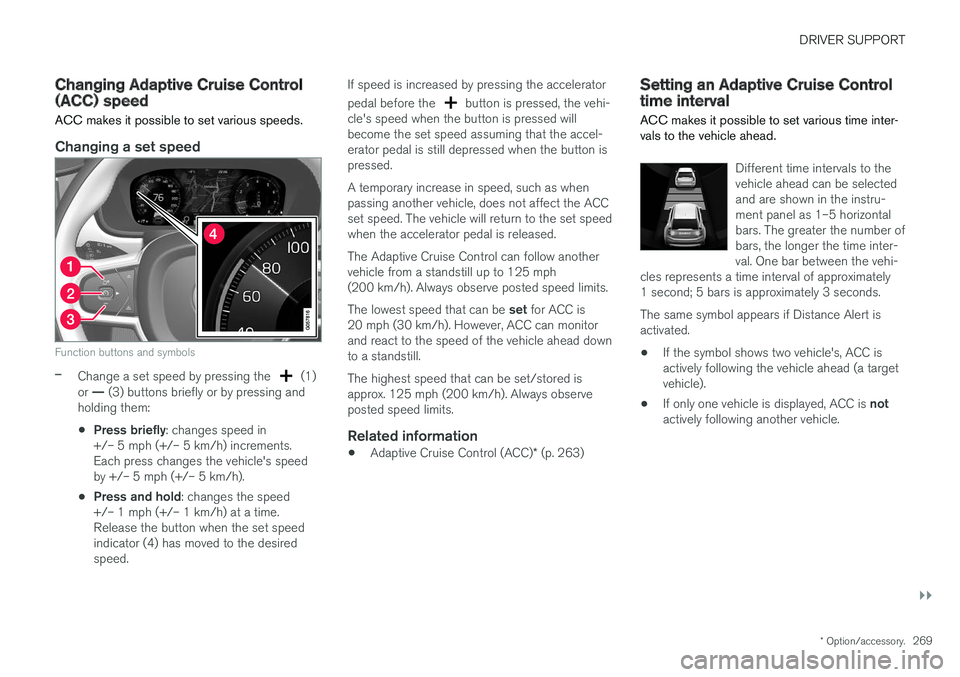
Changing a set speed
Function buttons and symbols
–Change a set speed by pressing the (1)
or — (3) buttons briefly or by pressing and
holding them:
• Press briefly
: changes speed in
+/– 5 mph (+/– 5 km/h) increments. Each press changes the vehicle's speedby +/– 5 mph (+/– 5 km/h).
• Press and hold
: changes the speed
+/– 1 mph (+/– 1 km/h) at a time.Release the button when the set speedindicator (4) has moved to the desiredspeed. If speed is increased by pressing the accelerator pedal before the
button is pressed, the vehi-
cle's speed when the button is pressed will become the set speed assuming that the accel-erator pedal is still depressed when the button ispressed. A temporary increase in speed, such as when passing another vehicle, does not affect the ACCset speed. The vehicle will return to the set speedwhen the accelerator pedal is released. The Adaptive Cruise Control can follow another vehicle from a standstill up to 125 mph(200 km/h). Always observe posted speed limits. The lowest speed that can be set for ACC is
20 mph (30 km/h). However, ACC can monitor and react to the speed of the vehicle ahead downto a standstill. The highest speed that can be set/stored is approx. 125 mph (200 km/h). Always observeposted speed limits.
Related information
• Adaptive Cruise Control (ACC)
* (p. 263)
Setting an Adaptive Cruise Control time interval
ACC makes it possible to set various time inter- vals to the vehicle ahead.
Different time intervals to the vehicle ahead can be selectedand are shown in the instru-ment panel as 1–5 horizontalbars. The greater the number ofbars, the longer the time inter-val. One bar between the vehi-
cles represents a time interval of approximately1 second; 5 bars is approximately 3 seconds. The same symbol appears if Distance Alert is activated.
• If the symbol shows two vehicle's, ACC is actively following the vehicle ahead (a targetvehicle).
• If only one vehicle is displayed, ACC is
not
actively following another vehicle.
Page 272 of 552
||
DRIVER SUPPORT
* Option/accessory.
270
Changing a time interval
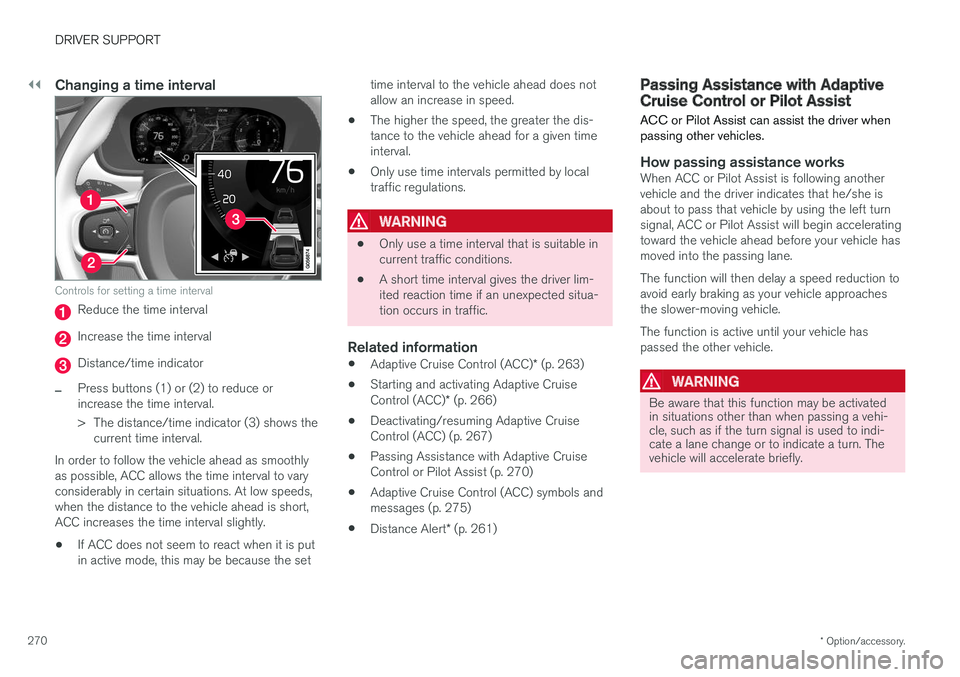
Controls for setting a time interval
Reduce the time interval
Increase the time interval
Distance/time indicator
–Press buttons (1) or (2) to reduce or increase the time interval.
> The distance/time indicator (3) shows the
current time interval.
In order to follow the vehicle ahead as smoothly as possible, ACC allows the time interval to varyconsiderably in certain situations. At low speeds,when the distance to the vehicle ahead is short,ACC increases the time interval slightly. • If ACC does not seem to react when it is put in active mode, this may be because the set time interval to the vehicle ahead does notallow an increase in speed.
• The higher the speed, the greater the dis-tance to the vehicle ahead for a given timeinterval.
• Only use time intervals permitted by localtraffic regulations.
WARNING
•
Only use a time interval that is suitable in current traffic conditions.
• A short time interval gives the driver lim-ited reaction time if an unexpected situa-tion occurs in traffic.
Related information
•
Adaptive Cruise Control (ACC)
* (p. 263)
• Starting and activating Adaptive Cruise Control (ACC)
* (p. 266)
• Deactivating/resuming Adaptive Cruise Control (ACC) (p. 267)
• Passing Assistance with Adaptive CruiseControl or Pilot Assist (p. 270)
• Adaptive Cruise Control (ACC) symbols andmessages (p. 275)
• Distance Alert
* (p. 261)
Passing Assistance with Adaptive Cruise Control or Pilot Assist
ACC or Pilot Assist can assist the driver when passing other vehicles.
How passing assistance worksWhen ACC or Pilot Assist is following another vehicle and the driver indicates that he/she isabout to pass that vehicle by using the left turnsignal, ACC or Pilot Assist will begin acceleratingtoward the vehicle ahead before your vehicle hasmoved into the passing lane. The function will then delay a speed reduction to avoid early braking as your vehicle approachesthe slower-moving vehicle. The function is active until your vehicle has passed the other vehicle.
WARNING
Be aware that this function may be activated in situations other than when passing a vehi-cle, such as if the turn signal is used to indi-cate a lane change or to indicate a turn. Thevehicle will accelerate briefly.
Page 280 of 552
||
DRIVER SUPPORT
278sensor, the system may apply the brakes in your vehicle suddenly or not at all. Pilot Assist is designed to follow a vehicle ahead in the same traffic lane at a preset time intervalset by the driver. If the radar sensor does notdetect a vehicle ahead, the vehicle will insteadmaintain the speed set by the driver. This will alsobe the case if a vehicle ahead accelerates andexceeds the set speed.
• Pilot Assist can follow another vehicle from astandstill up to a speed of approx. 125 mph(200 km/h)
• Pilot Assist can provide steering assistancefrom very low speeds up to approx. 87 mph(140 km/h).
Never exceed posted speed limits.
WARNING
• Pilot Assist is not a collision avoidance system. The driver must react if the sys-tem does not detect another vehicle.
• Pilot Assist does not react to people, ani-mals, stationary objects, small vehicles(such as bicycles and motorcycles), lowtrailers and slow moving, parked orapproaching vehicles.
• Do not use Pilot Assist in demandingdriving conditions such as city driving orother heavy traffic situations, in areas withintersections, in slippery conditions, whenthere is a great deal of water or slush onthe road, during heavy rain or snow, inpoor visibility, on winding roads, on high-way on- or off-ramps or if the vehicle istowing a trailer, boat, etc.
NOTE
•Pilot Assist maintenance should only be carried out by a trained and qualifiedVolvo service technician.
• Pilot Assist regulates your vehicle'sspeed using the accelerator pedal andthe brakes. Please be aware that theremay be a faint sound from the brakeswhen the system is using them.
Pilot Assist overview
Controls
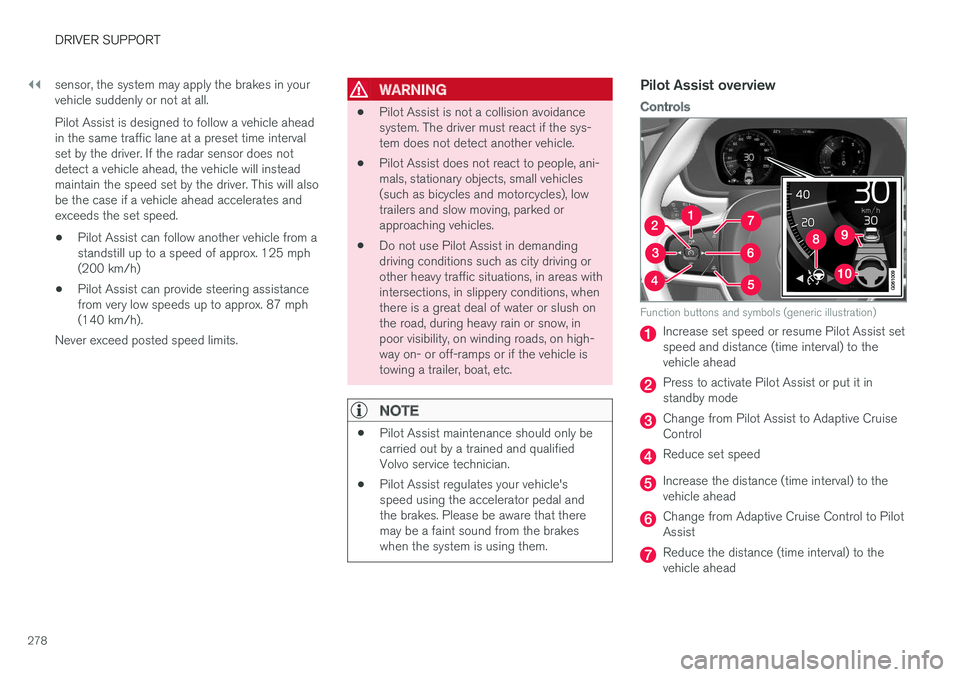
Function buttons and symbols (generic illustration)
Increase set speed or resume Pilot Assist set speed and distance (time interval) to thevehicle ahead
Press to activate Pilot Assist or put it in standby mode
Change from Pilot Assist to Adaptive Cruise Control
Reduce set speed
Increase the distance (time interval) to the vehicle ahead
Change from Adaptive Cruise Control to Pilot Assist
Reduce the distance (time interval) to the vehicle ahead
Page 282 of 552
||
DRIVER SUPPORT
* Option/accessory.
280
Head-up-display *
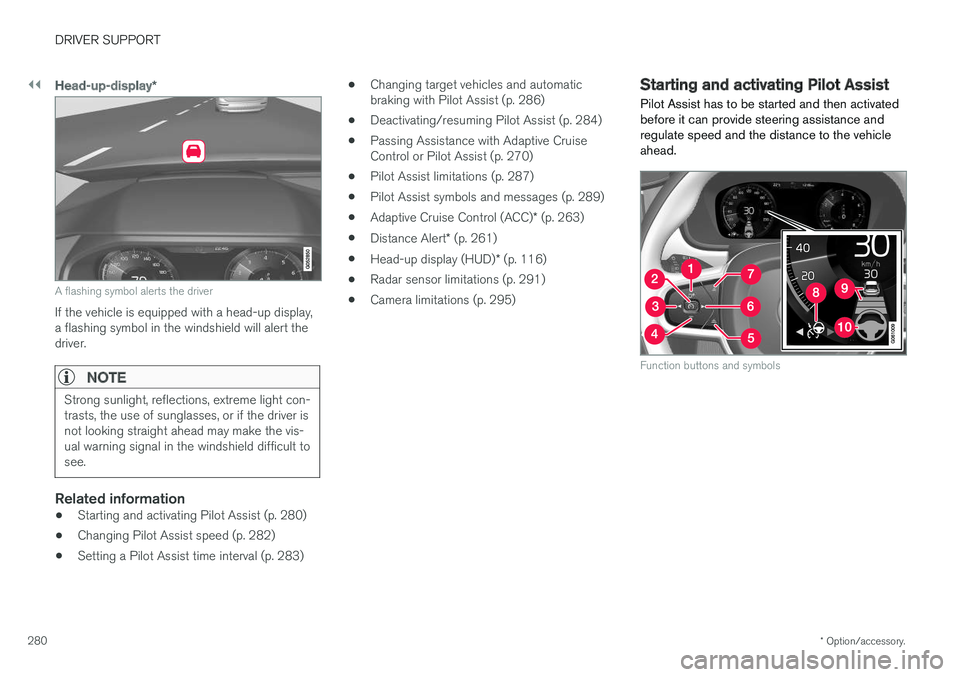
A flashing symbol alerts the driver
If the vehicle is equipped with a head-up display, a flashing symbol in the windshield will alert thedriver.
NOTE
Strong sunlight, reflections, extreme light con- trasts, the use of sunglasses, or if the driver isnot looking straight ahead may make the vis-ual warning signal in the windshield difficult tosee.
Related information
•Starting and activating Pilot Assist (p. 280)
• Changing Pilot Assist speed (p. 282)
• Setting a Pilot Assist time interval (p. 283) •
Changing target vehicles and automatic braking with Pilot Assist (p. 286)
• Deactivating/resuming Pilot Assist (p. 284)
• Passing Assistance with Adaptive CruiseControl or Pilot Assist (p. 270)
• Pilot Assist limitations (p. 287)
• Pilot Assist symbols and messages (p. 289)
• Adaptive Cruise Control (ACC)
* (p. 263)
• Distance Alert
* (p. 261)
• Head-up display (HUD)
* (p. 116)
• Radar sensor limitations (p. 291)
• Camera limitations (p. 295)
Starting and activating Pilot Assist
Pilot Assist has to be started and then activated before it can provide steering assistance andregulate speed and the distance to the vehicleahead.
Function buttons and symbols
Page 284 of 552
||
DRIVER SUPPORT
* Option/accessory.
282
• the lane is at the top of a hill, on an uneven road surface or over a bump.
• bad weather conditions (rain, snow, fog,slush, poor visibility, backlighting, etc).
The driver should also be aware that Pilot Assist has the following limitations: • High curbs, barriers and temporary obsta- cles (cones, barriers etc) may not bedetected or could be detected incorrectlyas side marker lines, which may create arisk of collision. The driver must ensure asafe distance to these obstacles.
• The camera or radar sensor may not beable to detect objects if there are pot-holes or if there are stationary objectspartially or completely blocking the road.
• Pilot Assist does not "see" pedestrians,animals, etc.
• Pilot Assist's steering capacity is limitedand may not always be able to help thedriver keep the vehicle in the lane.
Hands on the steering wheel
Pilot Assist only functions when the driver's hands are on the steering wheel
, which is con-
tinuously monitored by the system. If this is notthe case, the driver will be alerted by a text mes-sage in the instrument panel. If the driver's handsare not returned to the steering wheel, an audiblesignal will sound. If the driver does not return his/her hands to thesteering wheel after the audible signal, PilotAssist will go into standby mode and must be reactivated by pressing
.
Related information
•
Pilot Assist
* (p. 277)
• Changing Pilot Assist speed (p. 282)
• Setting a Pilot Assist time interval (p. 283)
• Changing target vehicles and automatic braking with Pilot Assist (p. 286)
• Deactivating/resuming Pilot Assist (p. 284)
• Passing Assistance with Adaptive CruiseControl or Pilot Assist (p. 270)
• Pilot Assist limitations (p. 287)
• Pilot Assist symbols and messages (p. 289)
Changing Pilot Assist speed
Different speeds can be set for Pilot Assist.
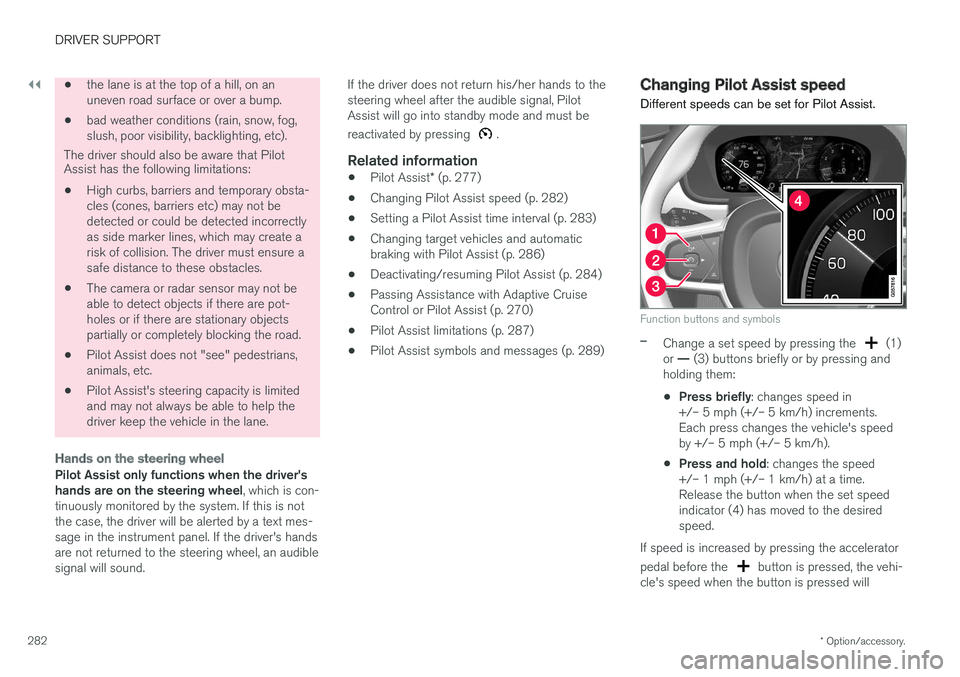
Function buttons and symbols
–Change a set speed by pressing the (1)
or — (3) buttons briefly or by pressing and
holding them:
• Press briefly
: changes speed in
+/– 5 mph (+/– 5 km/h) increments. Each press changes the vehicle's speedby +/– 5 mph (+/– 5 km/h).
• Press and hold
: changes the speed
+/– 1 mph (+/– 1 km/h) at a time.Release the button when the set speedindicator (4) has moved to the desiredspeed.
If speed is increased by pressing the accelerator pedal before the
button is pressed, the vehi-
cle's speed when the button is pressed will
Page 286 of 552
||
DRIVER SUPPORT
* Option/accessory.
284
Time interval controls
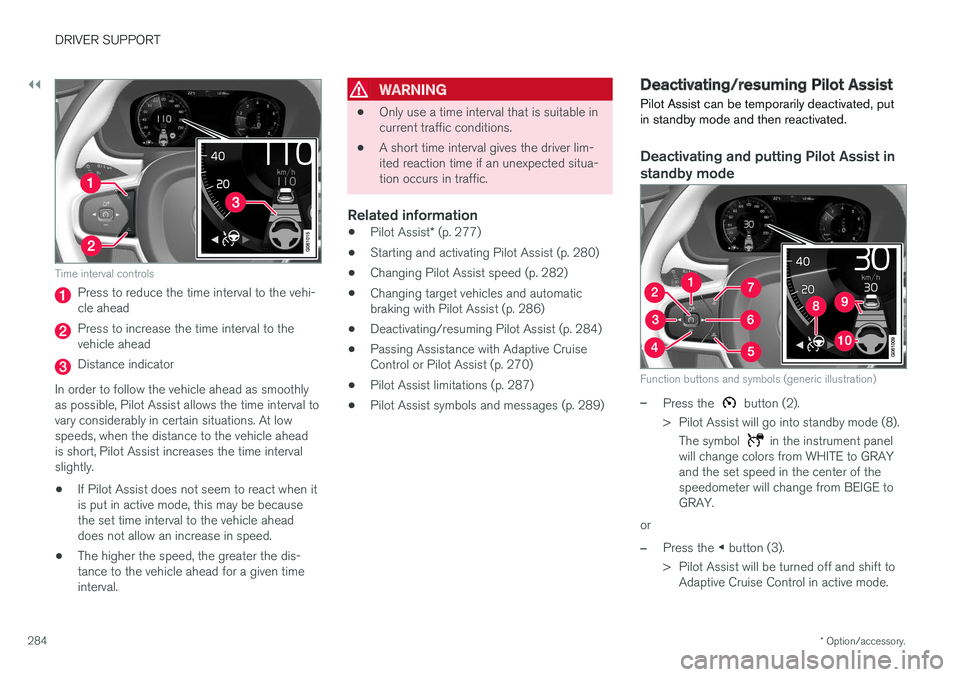
Press to reduce the time interval to the vehi- cle ahead
Press to increase the time interval to the vehicle ahead
Distance indicator
In order to follow the vehicle ahead as smoothly as possible, Pilot Assist allows the time interval tovary considerably in certain situations. At lowspeeds, when the distance to the vehicle aheadis short, Pilot Assist increases the time intervalslightly.
• If Pilot Assist does not seem to react when itis put in active mode, this may be becausethe set time interval to the vehicle aheaddoes not allow an increase in speed.
• The higher the speed, the greater the dis-tance to the vehicle ahead for a given timeinterval.
WARNING
• Only use a time interval that is suitable in current traffic conditions.
• A short time interval gives the driver lim-ited reaction time if an unexpected situa-tion occurs in traffic.
Related information
•
Pilot Assist
* (p. 277)
• Starting and activating Pilot Assist (p. 280)
• Changing Pilot Assist speed (p. 282)
• Changing target vehicles and automaticbraking with Pilot Assist (p. 286)
• Deactivating/resuming Pilot Assist (p. 284)
• Passing Assistance with Adaptive CruiseControl or Pilot Assist (p. 270)
• Pilot Assist limitations (p. 287)
• Pilot Assist symbols and messages (p. 289)
Deactivating/resuming Pilot Assist Pilot Assist can be temporarily deactivated, put in standby mode and then reactivated.
Deactivating and putting Pilot Assist in standby mode
Function buttons and symbols (generic illustration)
–Press the button (2).
> Pilot Assist will go into standby mode (8). The symbol
in the instrument panel
will change colors from WHITE to GRAY and the set speed in the center of thespeedometer will change from BEIGE toGRAY.
or
–Press the ◀ button (3).
> Pilot Assist will be turned off and shift to Adaptive Cruise Control in active mode.
Page 385 of 552
STARTING AND DRIVING
}}
* Option/accessory.383
•
A low reading in the green area indicates economical driving.
• A higher reading indicates higher fuel con-sumption.
The ECO gauge also has an indicator showinghow a "reference" driver would drive in the samesituation. This is indicated by a diamond in thegauge.
Eco climate
In the Eco drive mode, eco climate is automati-
cally activated in the passenger compartment to help minimize energy consumption. To restart the climate system functions that may have been reduced, press the
AUTO or defroster
buttons. In order to return to full functionality for all of the systems that may have been reduced to helpimprove economical driving, select another drivemode or adapt the climate system functions using the
Individual mode to full functionality.
Related information
• Driving economically (p. 358)
• Drive modes
* (p. 379)
• Start/Stop (p. 383)
Start/Stop
Start/Stop is a function that temporarily switches off the engine when the vehicle is not moving,for instance in heavy traffic or at a traffic light, tohelp reduce fuel consumption. The engine startsagain automatically when the brake pedal isreleased.
Start/Stop is one of several fuel-conserving fea- tures that also help reduce emissions. This feature helps make it possible to drive more economically by allowing the engine to auto-stopin certain situations.
Related information
• Conditions for Start/Stop (p. 385)
• Using the Start/Stop function (p. 383)
• ECO drive mode (p. 382)
Using the Start/Stop function Start/Stop is a function that temporarily switches off the engine when the vehicle is not moving,for instance in heavy traffic or at a traffic light, tohelp reduce fuel consumption. The engine startsagain automatically when the brake pedal isreleased.
Start/Stop is available when the engine has been started. The instrument panel will indicate if thefunction is available/unavailable/active. All of the vehicle's normal systems such as light- ing, infotainment, etc., function normally when theengine has auto-stopped. However, certain func-tions, such as climate system blower speed orvery high infotainment system volume, will betemporarily reduced.
Auto-stopThe following conditions must be met for theengine to auto-stop:
• Stop the vehicle by applying the brakes andkeep the brake pedal depressed. The engine will auto-stop. If the COMFORT 5
or ECO driv-
ing modes are activated, the engine can auto-stop before the vehicle has come to astandstill.
If the
Adaptive cruise or Pilot Assist functions
are activated, the engine will auto-stop after
5 The default driving mode.
Page 411 of 552
INFOTAINMENT
}}
409
SiriusXM Travel Link - Fuel
This SiriusXM Travel Link service provides infor- mation and guidance to service stations near thevehicle providing the type of fuel that you prefer/require for your vehicle.
From the SiriusXM Travel Link home screen, to display fuel information:
–Tap the Fuel button to display main fuel
screen.
The following
Fuel categories will be listed:
• Search (the magnifying glass icon)
•
Nearby
•Recommended
•Favorites
•Brands
Tap one of the alternatives to display its screen.
NOTE
In each of the Fuel categories listed, tapping
the Select fuel type button near the bottom
of the screen opens a sub-view where you can specify the type of fuel preferred/required (regular, premium, diesel, 120V, etc.). Tap
Done to return to the previous screen.
SearchTap the magnifying glass icon. If the function is supported in the current context, a keyboard will appear on the screen. Enter the text of your choice and tap
Search for detailed information if
available.
NearbyTap for a list of service stations in the vicinity of the vehicle, with the nearest station at the top ofthe list. The following information will be provided where available:
• For vehicles using gasoline, the price infor-mation for regular gasoline (unless anothergrade/type of fuel has been selected in
Select fuel type)
• For electric vehicles/hybrids, information about charging stations, showing the totalnumber of charging ports and the number ofports currently not in use
• the distance to the station
• a star icon to set the service station as afavorite
Tap the name of a service station to display moredetailed information. For guidance to the service station, tap the
Start
navigation or Add as waypoint buttons. See
the Sensus Navigation supplement for additional information about using the navigation system.
RecommendedTap for a list of service stations near the vehicle,displayed according to the price of regular gaso- line (unless another grade/type of fuel has been selected in
Select fuel type) or of stations
offering the greatest number of available charg- ing ports for electric vehicles/hybrids. The stationoffering the lowest price/most available chargingports will be displayed at the top of the list. Tapthe name of a service station to display moredetailed information.
FavoritesTap for a list of service stations that have beenstored as favorites. See also the heading
Favorites in the article "SiriusXM Travel Link" for
information explaining how to create favorites. Tap the name of a service station to display moredetailed information. In addition to the
Select fuel type button at the
bottom of the screen, tap the Edit button to
delete individual stations from the list or tap
Delete all to clear the list. Tap Done to return to
the previous screen.
Brands1. Tap Brands to display a list of service sta-
tion brands in the area.
2. Tap a brand to display a list of service sta- tions affiliated with that brand (e.g., BP, Exxon, etc.).
3. Tap the name of a service station to display detailed information.
In addition to the
Select fuel type button at the
bottom of the screen, tap the Sort button to
Page 414 of 552
INFOTAINMENT
412
Pairing a cell phone
A Bluetooth ®
-enabled cell phone or other device
can be paired and wirelessly connected to the infotainment system.
When a cell phone or other device is connected, audio can be streamed to the infotainment sys-tem. Toggle between the devices by pressing the TEL and MEDIA buttons to access the respective
sources' functions. Before a Bluetooth device can be used with the infotainment system, it has to be paired("registered"). This procedure only needs to be done once for each device (a maximum of 20 Bluetooth devicescan be paired to the system). Once a device hasbeen paired and its Bluetooth function is acti-vated, it can then be selected for use (wirelesslyconnected) to the vehicle's infotainment system. Two Bluetooth devices can be connected at the same time. However, if two cell phones are con-nected, only the most recently connected onecan be used as a phone. The other one can beused to e.g., to stream audio or video. To changewhat the phone will be used for, see the article"Bluetooth settings." A paired and connected cell phone can also be used to connect the vehicle to the Internet. To doso, its tethering/personal hotspot function mustbe activated. There are two ways of pairing a Bluetooth deviceto the infotainment system:
• Searching for the phone (or other device)from the vehicle
• Searching for the vehicle from the phone (orother device)
The following instructions assume that a cellphone is to be paired to the infotainment systembut the procedure is the same for any Bluetoothdevice.
Alternative 1: searching for the phone
from the vehicle
1. Make the phone discoverable/visible using its Bluetooth function. Refer to the phone'suser guide if necessary.
2. Open the Phone view on the center display. >
•If no phones have been paired to the vehicle, tap
Add phone.
• If a list of phones is displayed, tap
Change and tap Add phone in
the pop-up window.
3. Tap the name of the phone to be connected.
4. Check that the code displayed in the vehicle is the same as the one in the phone. Confirm in both places. 5. For the phone selected, accept or cancel the
alternatives for the phone book (list of con-tacts), text messages, etc. Full functionalitymay not be available in all cell phones.
6. To connect the vehicle to the Internet via the phone's Bluetooth function, activate thephone's function for tethering/personal hot-spot, etc.
Alternative 2: searching for the vehicle from the phone
1. Open the center display's Phone view.
•If no phones have been paired to the vehi- cle, tap
Add phoneMake vehicle
discoverable.
• If a phone has previously been paired to the vehicle, tap
Change and tap Add
phone
Make vehicle discoverable in
the pop-up window.
2. Activate the phone's Bluetooth function.
3. Search in the phone for Bluetooth devices. > A list of Bluetooth devices will be dis-played.
4. Select the vehicle's name in the list.
5. Check that the code displayed in the phone is the same as the one in the vehicle. Con- firm in both places.
Page 424 of 552
||
INFOTAINMENT
* Option/accessory.
422 2.
Tap
SoundSystem Volumes and select
the following settings: •
Voice Control
•Navi Voice Guidance
•Phone Ringtone
Related information
• Apple CarPlay (p. 420)
• Resetting the settings view (p. 113)
Android auto
*
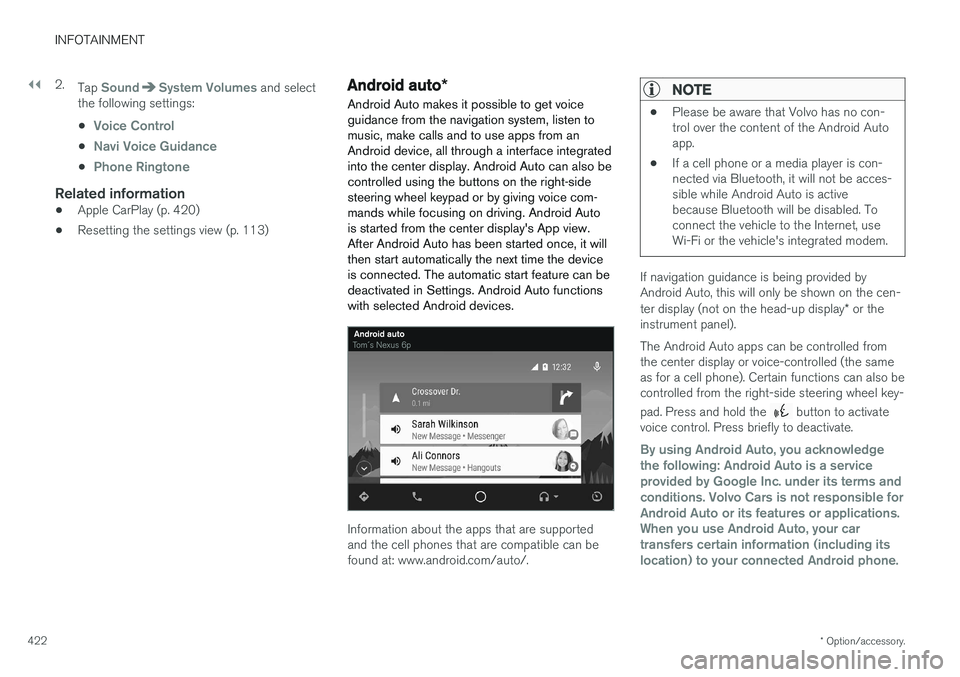
Android Auto makes it possible to get voice guidance from the navigation system, listen tomusic, make calls and to use apps from anAndroid device, all through a interface integratedinto the center display. Android Auto can also becontrolled using the buttons on the right-sidesteering wheel keypad or by giving voice com-mands while focusing on driving. Android Autois started from the center display's App view.After Android Auto has been started once, it willthen start automatically the next time the deviceis connected. The automatic start feature can bedeactivated in Settings. Android Auto functionswith selected Android devices.
Information about the apps that are supported and the cell phones that are compatible can befound at: www.android.com/auto/.
NOTE
• Please be aware that Volvo has no con- trol over the content of the Android Autoapp.
• If a cell phone or a media player is con-nected via Bluetooth, it will not be acces-sible while Android Auto is activebecause Bluetooth will be disabled. Toconnect the vehicle to the Internet, useWi-Fi or the vehicle's integrated modem.
If navigation guidance is being provided by Android Auto, this will only be shown on the cen- ter display (not on the head-up display
* or the
instrument panel). The Android Auto apps can be controlled from the center display or voice-controlled (the sameas for a cell phone). Certain functions can also becontrolled from the right-side steering wheel key- pad. Press and hold the
button to activate
voice control. Press briefly to deactivate.
By using Android Auto, you acknowledge the following: Android Auto is a serviceprovided by Google Inc. under its terms andconditions. Volvo Cars is not responsible forAndroid Auto or its features or applications.When you use Android Auto, your cartransfers certain information (including itslocation) to your connected Android phone.