USB VOLVO V90 CROSS COUNTRY 2018 Owner´s Manual
[x] Cancel search | Manufacturer: VOLVO, Model Year: 2018, Model line: V90 CROSS COUNTRY, Model: VOLVO V90 CROSS COUNTRY 2018Pages: 662, PDF Size: 11.93 MB
Page 13 of 662
11
SiriusXM Travel Link®
* - Fuel 479
SiriusXM Travel Link ®
* - Sports 480
Media player 481
Playing media 482
Controlling and changing media 483
Media searches 484
Gracenote ®
485
CD player *
485
Video 486
Playing video 486
Playing DivX ®
486
Video settings 487
Streaming media via Bluetooth ®
487
Connecting a device via Bluetooth ®
487
Playing media via the USB port 488
Connecting a device via the USB port 488
Apple ®
CarPlay ®
* 489
Using Apple ®
CarPlay ®
* 489
Settings for Apple ®
CarPlay ®
* 490
Tips for using Apple ®
CarPlay ®
* 491
Android Auto *
492
Using Android Auto *
492
Settings for Android Auto *
493
Tips for using Android Auto *
494
Phone 494
Connecting a phone to the car via Bluetooth for the first time 495
Connecting a phone to the car viaBluetooth automatically 497
Connecting a phone to the car viaBluetooth manually 497
Disconnecting a Bluetooth-con-nected phone 498
Switch between phones connectedvia Bluetooth 498
Removing a Bluetooth-connected phone 499
Handling phone calls 499
Handling text messages 500
Text message settings 501
Managing the phone book 501
Phone settings 502
Settings for Bluetooth devices 503
Internet-connected vehicle *
503
Connecting the car to the Internetvia a mobile device (Bluetooth) 505
Connecting the car to the Internetvia a mobile device (Wi-Fi) 505
Connect the car to the Internet viacar modem (SIM card) 506
Vehicle modem settings 507
Sharing Internet from the vehicle via Wi-Fi hotspot (tethering)507
No or poor Internet connection 508
Deleting Wi-Fi networks 509
Wi-Fi technology and security 509
Terms of use and data sharing 510
Activating and deactivating data sharing 510
Compatible file formats for media 510
Technical specifications for USB devices 511
Hard disk storage space 512
License agreement for audio and media 513
Page 128 of 662
DISPLAYS AND VOICE CONTROL
126
Moving apps and buttons in thecenter display
The apps and buttons for vehicle functions can be moved and organized in the App and Func-tion views.
1. Swipe from right to left 13
to access App view
or swipe from left to right 13
to access Func-
tion view.
2. Press and hold an app or button. > The app or button will change size andbecome slightly transparent. It can then be moved.
3. Drag the app or button to an available posi- tion in the view.
A maximum of 48 rows can be used to positionapps or buttons. To move an app or button out-side the visible view, drag it to the bottom of theview. New rows will be added and the app or but-ton can be placed in one of these. Apps or buttons placed below the view's normal display will not be visible on the screen. Swipe the screen to scroll up or down in the view to display information outside the view.
NOTE
Hide the apps that are rarely or never used by moving them far down, outside of the visibleview. This makes it easier to find the appsused more frequently.
NOTE
Apps and vehicle function buttons cannot be situated at spots already in use.
Related information
• Function view in the center display (p. 124)
• Apps (p. 461)
• Handling the center display (p. 114)
Symbols in the center display statusbar
Overview of symbols displayed in the center dis- play status bar.
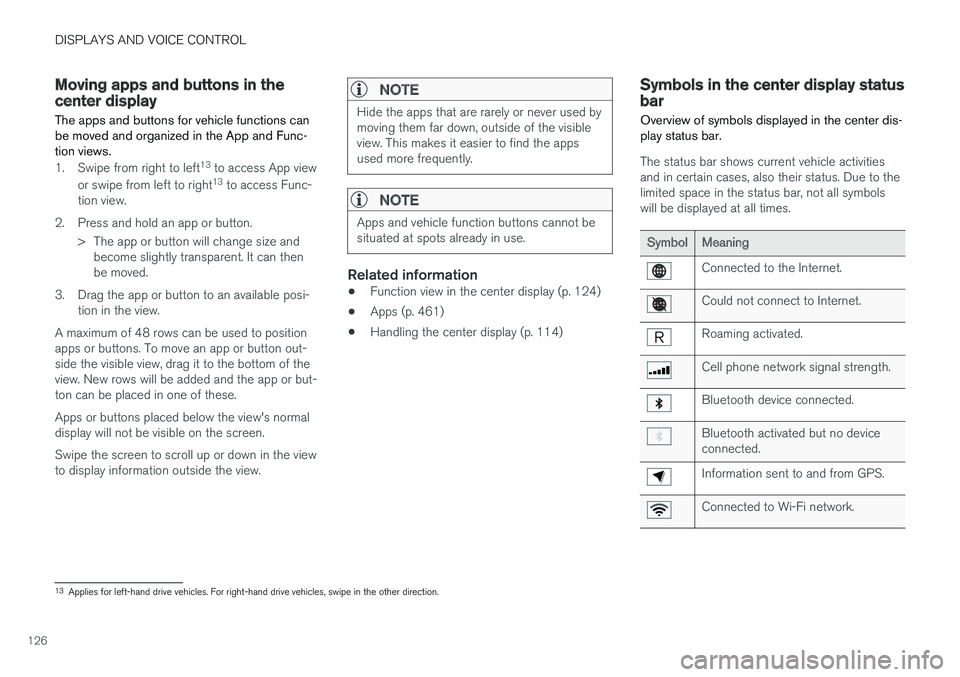
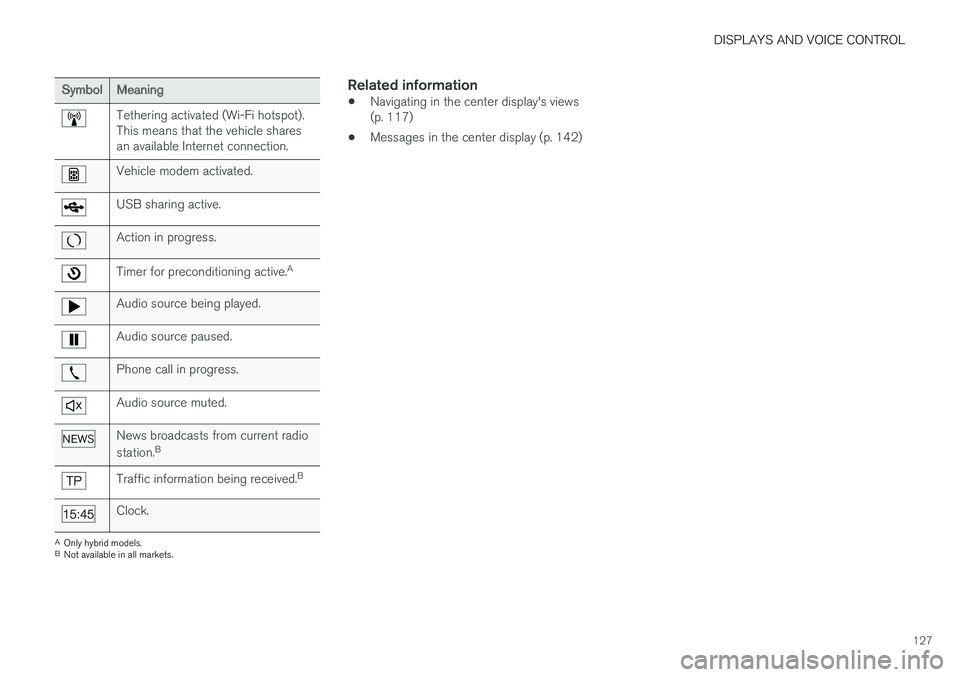
The status bar shows current vehicle activities and in certain cases, also their status. Due to thelimited space in the status bar, not all symbolswill be displayed at all times.
SymbolMeaning
Connected to the Internet.
Could not connect to Internet.
Roaming activated.
Cell phone network signal strength.
Bluetooth device connected.
Bluetooth activated but no device connected.
Information sent to and from GPS.
Connected to Wi-Fi network.
13 Applies for left-hand drive vehicles. For right-hand drive vehicles, swipe in the other direction.
Page 129 of 662
DISPLAYS AND VOICE CONTROL
127
SymbolMeaning
Tethering activated (Wi-Fi hotspot). This means that the vehicle sharesan available Internet connection.
Vehicle modem activated.
USB sharing active.
Action in progress.
Timer for preconditioning active.A
Audio source being played.
Audio source paused.
Phone call in progress.
Audio source muted.
News broadcasts from current radio station.B
Traffic information being received. B
Clock.
A
Only hybrid models.
B Not available in all markets.
Related information
• Navigating in the center display's views (p. 117)
• Messages in the center display (p. 142)
Page 137 of 662
DISPLAYS AND VOICE CONTROL
135
Related information
•Center display overview (p. 111)
• Changing settings in the center display (p. 136)
• Setting types in the center display (p. 137)
• Table of settings in the center display(p. 138)
Opening contextual setting in thecenter display
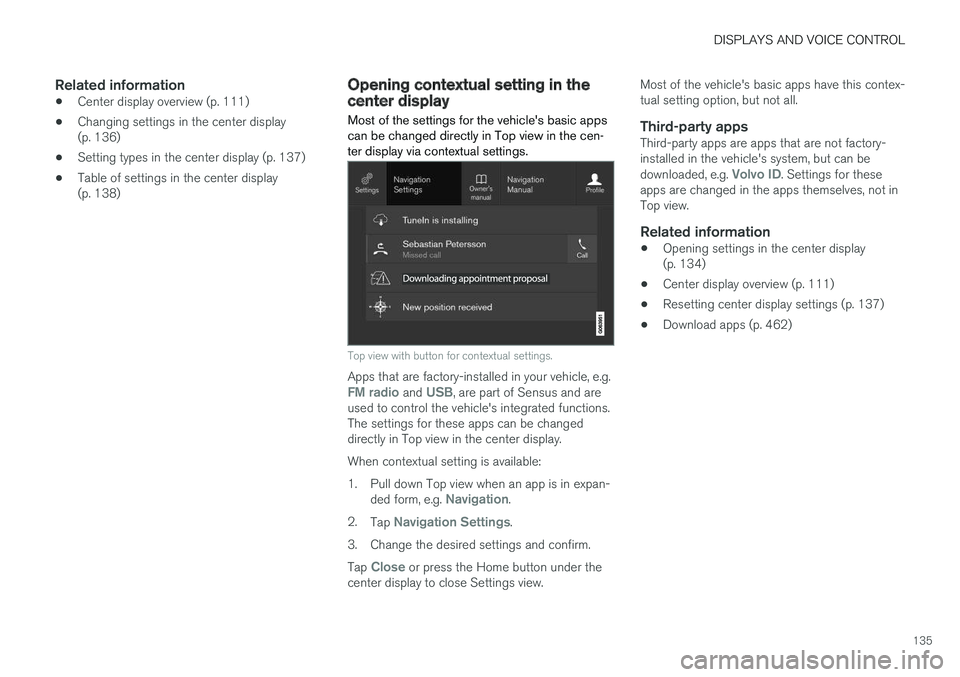
Most of the settings for the vehicle's basic apps can be changed directly in Top view in the cen-ter display via contextual settings.
Top view with button for contextual settings.
Apps that are factory-installed in your vehicle, e.g.FM radio and USB, are part of Sensus and are
used to control the vehicle's integrated functions. The settings for these apps can be changeddirectly in Top view in the center display. When contextual setting is available:
1. Pull down Top view when an app is in expan-
ded form, e.g.
Navigation.
2. Tap
Navigation Settings.
3. Change the desired settings and confirm. Tap
Close or press the Home button under the
center display to close Settings view. Most of the vehicle's basic apps have this contex- tual setting option, but not all.
Third-party appsThird-party apps are apps that are not factory-installed in the vehicle's system, but can be downloaded, e.g.
Volvo ID. Settings for these
apps are changed in the apps themselves, not in Top view.
Related information
• Opening settings in the center display(p. 134)
• Center display overview (p. 111)
• Resetting center display settings (p. 137)
• Download apps (p. 462)
Page 152 of 662
DISPLAYS AND VOICE CONTROL
* Option/accessory.
150
Voice control for radio and media23
Voice commands for the radio and media play- ers are shown below.
Tap and say one of the following commands:
• "
Media" - initiates a dialog for media and
radio and displays examples of commands.
• "
Play [artist]" - plays music by the selected
artist.
• "
Play [song title]" - plays the selected
song.
• "
Play [song title] from [album]" - plays
the selected song from the selected album.
• "
Play [radio station]" - starts the selected
radio station.
• "
Tune to [frequency]" - tunes to the
selected radio frequency in the currently active waveband. If no radio source is active,the FM band will be started as default.
• "
Tune to [frequency] [waveband]" - tunes
to the selected radio frequency on the selected waveband.
• "
Radio" - starts FM radio.
• "
Radio FM" - starts FM radio.
• "
Radio AM" - starts AM radio.
• "
SiriusXM" - starts SiriusXM radio
*
• "
CD" - starts playback from CD
*. •
"
USB" - starts playback from USB.
• "
iPod" - starts playback from iPod.
• "
Bluetooth" - starts playback from a Blue-
tooth-connected media source.
• "
Similar music" - plays music from a USB-
connected device with music similar to that currently playing.
Related information
• Voice control (p. 147)
• Using voice commands (p. 148)
• Voice control for cellular phones (p. 149)
• Climate control system voice commands(p. 204)
• Voice control settings (p. 150)
Voice control settings24
Settings for the voice control system are made here.
SettingsSystemVoice Control
Settings can be personalized in the following areas:
•
Repeat Voice Command
•Gender
•Speech Rate
Sound settingsSelect sound settings under:
SettingsSoundSystem VolumesVoice Control
Language settingsThe voice control system is not available for all languages. The languages available for voice commands are indicated by the
icon in the
list of languages. Changing the language here will also change the language in the menus, messages and help texts.
SettingsSystemSystem Languages
and Units
System Language
23 Certain markets only.
24 Certain markets only.
Page 476 of 662
||
AUDIO, MEDIA AND INTERNET
* Option/accessory.
474
iTunes taggingFrom the center display's Top view, tap SiriusXM
Settings. Tap the iTunes Tagging menu. Tap
the iTunes Tagging box to activate/deactivate
this function and tap Close to return to Home
view. Tap Tags List to display a list of all tagged
songs. If the function is activated, the
iTunes tag button
will be displayed in Home view. If a song is played that you would like to buy in the iTunes store, tapthis button while the song is playing to tag it. If a song with
iTunes Tagging information is availa-
ble, the button will be selectable. Tap the button to tag the song. If you would like to buy a taggedsong via iTunes, Tap the iTunes tag button. To buy a song in iTunes, begin by connecting an iPhone/iPod/iPad to the USB port in the tunnelconsole. The iTunes tagging list will automaticallybe transferred to the device and removed fromthe list in the vehicle. If the device is connectedwhen a song is tagged, the data will automaticallybe saved in the device. To purchase the song,consult the iTunes support page.
Related information
• SiriusXM ®
Satellite radio * (p. 472)
• Entering characters, letters and words byhand in the center display (p. 131)
• Settings for SiriusXM ®
Satellite radio *
(p. 474) •
Settings for SiriusXM ®
Satellite radio *
(p. 474)
• Connecting a device via the USB port(p. 488)
Settings for SiriusXM® Satellite
radio
*
There are numerous settings that can be made to enhance your SiriusXM ®
Satellite radio listen-
ing experience.
Settings
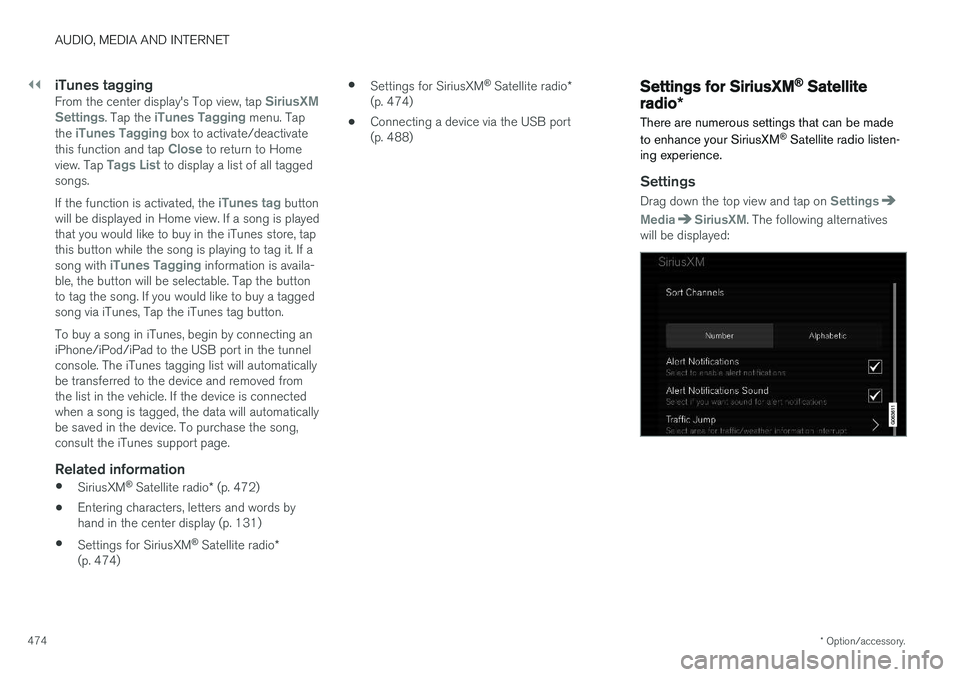
Drag down the top view and tap on Settings
MediaSiriusXM. The following alternatives
will be displayed:
Page 483 of 662
AUDIO, MEDIA AND INTERNET
* Option/accessory.481
4. Tap one of the divisions to display:
•
In progress: play-by-play information
about a match/game/tournament cur- rently in progress. Continue tapping todisplay. In the detailed view, you can alsoselect a radio station that is currentlybroadcasting an ongoing sporting event
•
Headlines for MLB: Tap to display brief
headline information
•
Scheduled: schedules for coming
matches, games, etc.
•
Scores: match/game results
The same principle applies to all sports.
Related information
• SiriusXM Travel Link ®
* (p. 476)
• SiriusXM Travel Link ®
* - Notifications
(p. 478)
• SiriusXM Travel Link ®
* - Fuel (p. 479)
• SiriusXM Travel Link ®
* - Weather (p. 477)
Media player
The media player can play audio from the CD player * and from external audio sources con-
nected via USB port or Bluetooth. It can also play video format via the USB port.
When the vehicle is connected to the Internet, it is also possible to listen to web radio, audiobooks and to access music services via apps.
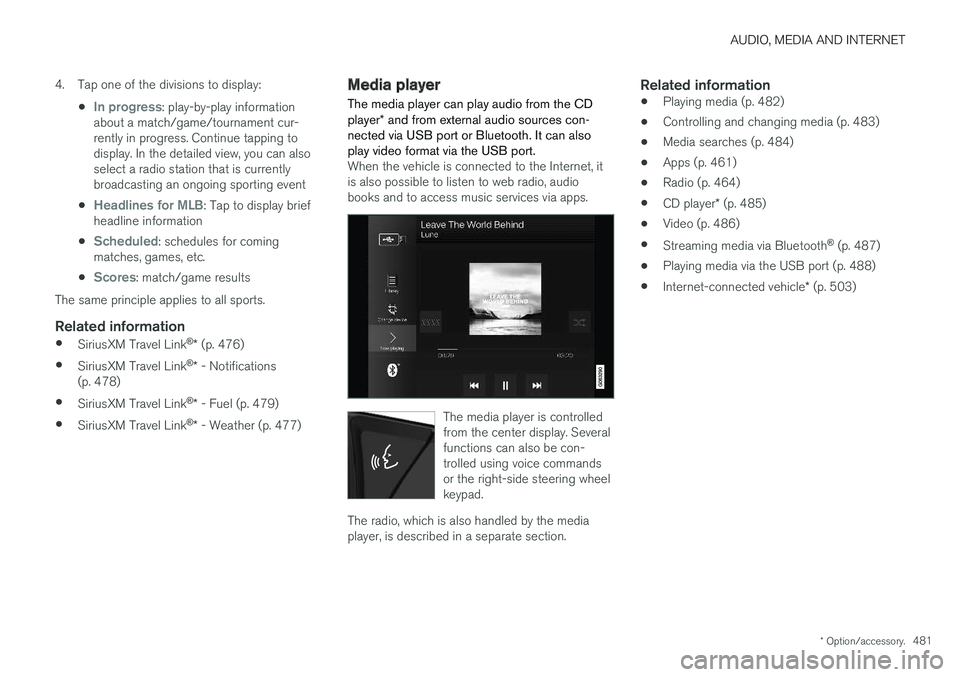
The media player is controlled from the center display. Severalfunctions can also be con-trolled using voice commandsor the right-side steering wheelkeypad.
The radio, which is also handled by the media player, is described in a separate section.
Related information
• Playing media (p. 482)
• Controlling and changing media (p. 483)
• Media searches (p. 484)
• Apps (p. 461)
• Radio (p. 464)
• CD player
* (p. 485)
• Video (p. 486)
• Streaming media via Bluetooth ®
(p. 487)
• Playing media via the USB port (p. 488)
• Internet-connected vehicle
* (p. 503)
Page 484 of 662
AUDIO, MEDIA AND INTERNET
* Option/accessory.
482
Playing media The media player is controlled from the center display. Several other functions can also be con-trolled using the right-side steering wheel key-pad or by using voice commands. The radio can also be controlled in the media player. See the section describing the radio.
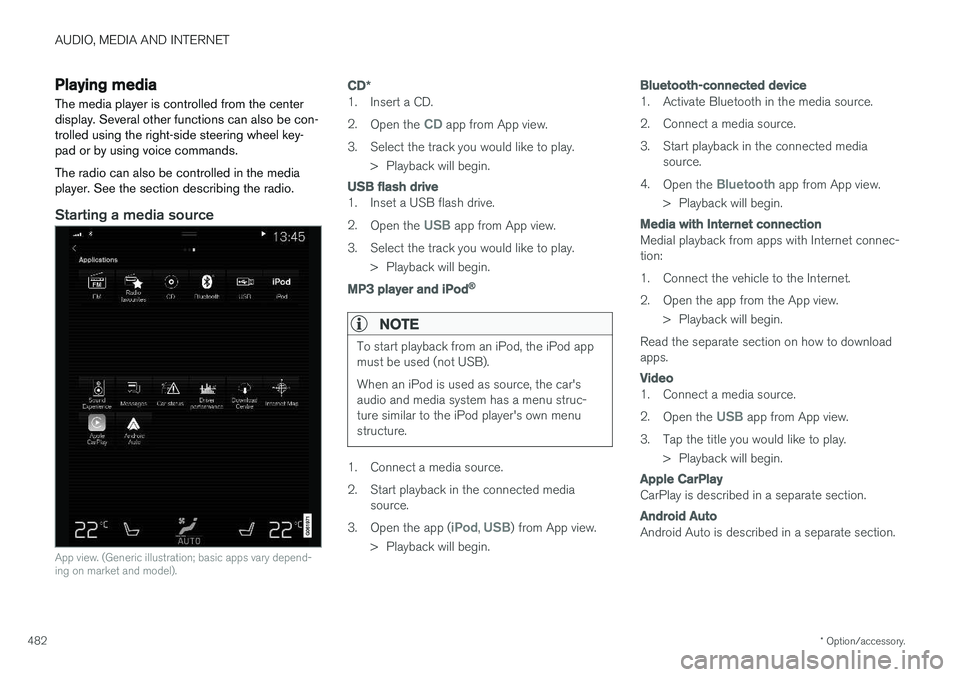
Starting a media source
App view. (Generic illustration; basic apps vary depend- ing on market and model).
CD *
1. Insert a CD. 2.
Open the
CD app from App view.
3. Select the track you would like to play. > Playback will begin.
USB flash drive
1. Inset a USB flash drive. 2.Open the
USB app from App view.
3. Select the track you would like to play. > Playback will begin.
MP3 player and iPod®
NOTE
To start playback from an iPod, the iPod app must be used (not USB). When an iPod is used as source, the car's audio and media system has a menu struc-ture similar to the iPod player's own menustructure.
1. Connect a media source.
2. Start playback in the connected mediasource.
3. Open the app (
iPod, USB) from App view.
> Playback will begin.
Bluetooth-connected device
1. Activate Bluetooth in the media source.
2. Connect a media source.
3. Start playback in the connected media source.
4. Open the
Bluetooth app from App view.
> Playback will begin.
Media with Internet connection
Medial playback from apps with Internet connec- tion:
1. Connect the vehicle to the Internet.
2. Open the app from the App view. > Playback will begin.
Read the separate section on how to download apps.
Video
1. Connect a media source. 2. Open the
USB app from App view.
3. Tap the title you would like to play. > Playback will begin.
Apple CarPlay
CarPlay is described in a separate section.
Android Auto
Android Auto is described in a separate section.
Page 485 of 662
AUDIO, MEDIA AND INTERNET
}}
* Option/accessory.483
Related information
•Handling the App menu in the instrument panel (p. 105)
• Radio (p. 464)
• Controlling and changing media (p. 483)
• Connecting a device via the USB port(p. 488)
• Connecting a device via Bluetooth ®
(p. 487)
• Download apps (p. 462)
• Internet-connected vehicle
* (p. 503)
• Video (p. 486)
• Apple ®
CarPlay ®
* (p. 489)
• Android Auto
* (p. 492)
• Voice control for radio and media (p. 150)
• Compatible file formats for media (p. 510)
Controlling and changing media
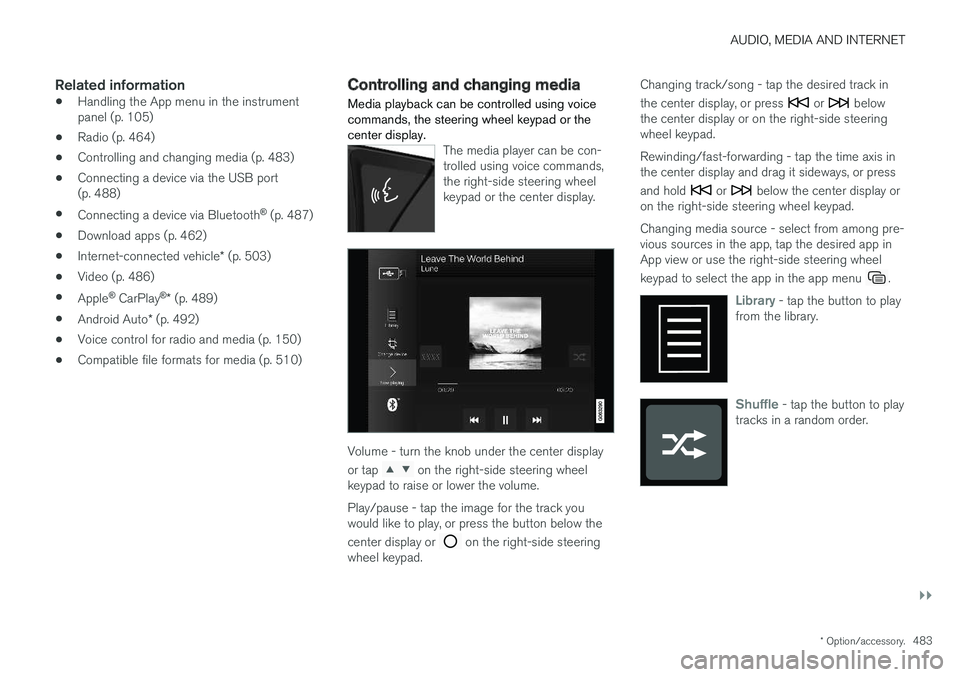
Media playback can be controlled using voice commands, the steering wheel keypad or thecenter display.
The media player can be con- trolled using voice commands,the right-side steering wheelkeypad or the center display.
Volume - turn the knob under the center display or tap
on the right-side steering wheel
keypad to raise or lower the volume. Play/pause - tap the image for the track you would like to play, or press the button below the center display or
on the right-side steering
wheel keypad. Changing track/song - tap the desired track in the center display, or press
or below
the center display or on the right-side steering wheel keypad. Rewinding/fast-forwarding - tap the time axis in the center display and drag it sideways, or press and hold
or below the center display or
on the right-side steering wheel keypad. Changing media source - select from among pre- vious sources in the app, tap the desired app inApp view or use the right-side steering wheel keypad to select the app in the app menu
.
Library - tap the button to play
from the library.
Shuffle - tap the button to play
tracks in a random order.
Page 486 of 662
||
AUDIO, MEDIA AND INTERNET
* Option/accessory.
484
Similar - tap the button to use
Gracenote to search for similar music on the USB device andcreate a playlist from the musicfound. The playlist can containup to 50 tracks.
Change device - tap the but-
ton to toggle between USB devices when more than one isconnected.
Related information
• Media player (p. 481)
• Media searches (p. 484)
• Sound settings (p. 460)
• Apps (p. 461)
• Gracenote ®
(p. 485)
• Voice control for radio and media (p. 150)
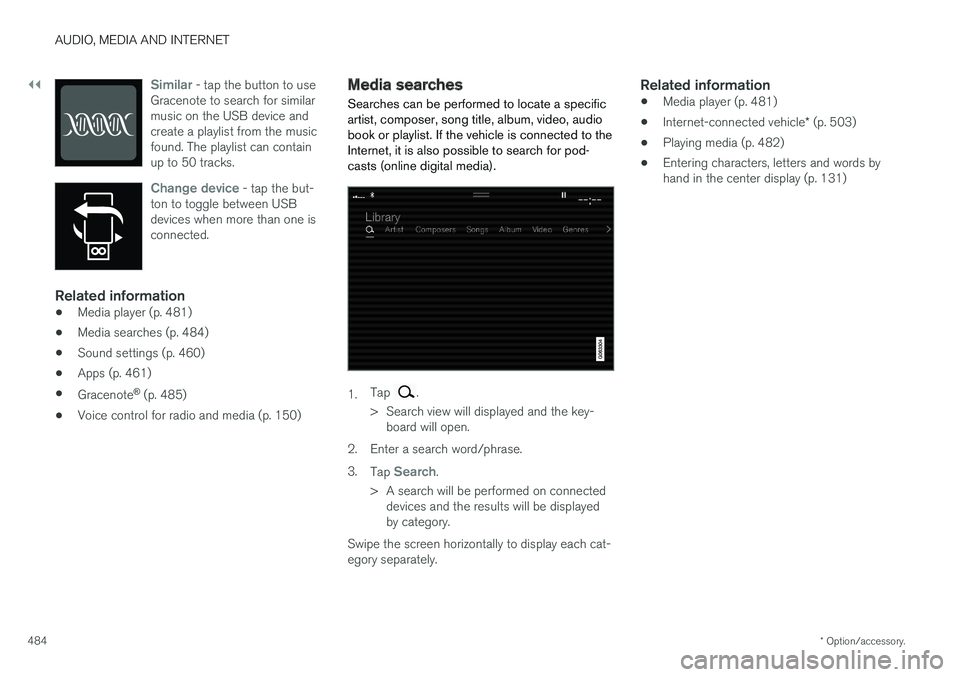
Media searches
Searches can be performed to locate a specific artist, composer, song title, album, video, audiobook or playlist. If the vehicle is connected to theInternet, it is also possible to search for pod-casts (online digital media).
1. Tap .
> Search view will displayed and the key- board will open.
2. Enter a search word/phrase. 3. Tap
Search.
> A search will be performed on connected devices and the results will be displayed by category.
Swipe the screen horizontally to display each cat-egory separately.
Related information
• Media player (p. 481)
• Internet-connected vehicle
* (p. 503)
• Playing media (p. 482)
• Entering characters, letters and words byhand in the center display (p. 131)