audio VOLVO V90 CROSS COUNTRY 2018 Owner´s Manual
[x] Cancel search | Manufacturer: VOLVO, Model Year: 2018, Model line: V90 CROSS COUNTRY, Model: VOLVO V90 CROSS COUNTRY 2018Pages: 662, PDF Size: 11.93 MB
Page 12 of 662
10
Economical driving433
Preparing for a long trip 434
Winter driving 435
Driving through standing water 435
Opening/closing the fuel filler door 436
Refueling 436
Fuel 437
Octane rating 438
Emission controls 440
Overheating of engine and transmission 440
Battery drain 441
Jump starting using another battery 442
Retractable towbar *
443
Driving with a trailer 445
Trailer Stability Assist *
447
Checking trailer lights 448
Towing using a towline 449
Attaching and removing the towing eyelet 450
Recovery 452
HomeLink ®
* 452
Programming HomeLink ®
* 453
Using HomeLink 454
Type approval for HomeLink ®
* 455
Compass 456
Activating and deactivating the compass456
Calibrating the compass 456
AUDIO, MEDIA AND INTERNET
Audio, media and Internet460
Sound settings 460
Apps 461
Download apps 462
Updating apps 463
Deleting apps 464
Radio 464
Starting the radio 465
Changing waveband and radio station 465
Searching for a radio station 466
Storing radio favorites 467
Radio settings 467
RBDS 468
HD Radio ™
468
Activating and deactivating the HD Radio ™ 470
HD Radio ™ sub-channels
470
HD Radio ™ limitations
471
SiriusXM ®
Satellite radio * 472
Using SiriusXM ®
Satellite radio *473
Settings for SiriusXM ®
Satellite radio *474
SiriusXM Travel Link ®
* 476
SiriusXM Travel Link ®
* - Weather 477
SiriusXM Travel Link ®
* - Notifications 478
Page 13 of 662
11
SiriusXM Travel Link®
* - Fuel 479
SiriusXM Travel Link ®
* - Sports 480
Media player 481
Playing media 482
Controlling and changing media 483
Media searches 484
Gracenote ®
485
CD player *
485
Video 486
Playing video 486
Playing DivX ®
486
Video settings 487
Streaming media via Bluetooth ®
487
Connecting a device via Bluetooth ®
487
Playing media via the USB port 488
Connecting a device via the USB port 488
Apple ®
CarPlay ®
* 489
Using Apple ®
CarPlay ®
* 489
Settings for Apple ®
CarPlay ®
* 490
Tips for using Apple ®
CarPlay ®
* 491
Android Auto *
492
Using Android Auto *
492
Settings for Android Auto *
493
Tips for using Android Auto *
494
Phone 494
Connecting a phone to the car via Bluetooth for the first time 495
Connecting a phone to the car viaBluetooth automatically 497
Connecting a phone to the car viaBluetooth manually 497
Disconnecting a Bluetooth-con-nected phone 498
Switch between phones connectedvia Bluetooth 498
Removing a Bluetooth-connected phone 499
Handling phone calls 499
Handling text messages 500
Text message settings 501
Managing the phone book 501
Phone settings 502
Settings for Bluetooth devices 503
Internet-connected vehicle *
503
Connecting the car to the Internetvia a mobile device (Bluetooth) 505
Connecting the car to the Internetvia a mobile device (Wi-Fi) 505
Connect the car to the Internet viacar modem (SIM card) 506
Vehicle modem settings 507
Sharing Internet from the vehicle via Wi-Fi hotspot (tethering)507
No or poor Internet connection 508
Deleting Wi-Fi networks 509
Wi-Fi technology and security 509
Terms of use and data sharing 510
Activating and deactivating data sharing 510
Compatible file formats for media 510
Technical specifications for USB devices 511
Hard disk storage space 512
License agreement for audio and media 513
Page 41 of 662
YOUR VOLVO
39
Driver distraction
A driver has a responsibility to do everything possible to ensure his or her own safety and thesafety of passengers in the vehicle and otherssharing the roadway. Part of this responsibility isavoiding distractions, including performing activi-ties that are not directly related to controlling thevehicle in the driving environment.
Your new Volvo is, or can be, equipped with fea- ture-rich entertainment and communication sys-tems. These include hands-free cellular tele-phones, navigation systems, and multipurposeaudio systems. You may also own other portableelectronic devices for your own convenience.When used properly and safely, they enrich thedriving experience. Improperly used, any of thesecould cause a distraction. For all of these systems, we want to provide the following warning that reflects the strong Volvoconcern for your safety. Never use these devicesor any feature of your vehicle in a way that dis-tracts you from the task of driving safely. Distrac-tion can lead to a serious accident. In addition tothis general warning, we offer the following guid-ance regarding specific new features that may befound in your vehicle:
WARNING
• Never use a hand-held cellular telephone while driving. Some jurisdictions prohibitcellular telephone use by a driver whilethe vehicle is moving.
• If your vehicle is equipped with a naviga-tion system, set and make changes toyour travel itinerary only with the vehicleparked.
• Never program your audio system whilethe vehicle is moving. Program radio pre-sets with the vehicle parked, and use yourprogrammed presets to make radio usequicker and simpler.
• Never use portable computers or per-sonal digital assistants while the vehicleis moving.
Related information
•Audio, media and Internet (p. 460)
Page 54 of 662
||
SAFETY
52
Rear seat
The rear seat belt reminder has two functions:• To indicate which seat belts are buckled in the rear seats. This will also be displayed inan instrument panel graphic.
• To provide audio and visual reminders if anyseat belt in the rear seat is removed whilethe vehicle is in motion. The reminder willstop when the seat belt has been rebuckled.
Door/hood/tailgate and fuel filler door
reminder
If the hood, tailgate, fuel filler door or any door isnot properly closed, this will be indicated by agraphic in the instrument panel. Stop the vehiclesafely and close the open door, hood, etc.
If the vehicle is moving at a speedunder approx. 10 km/h (6 mph), theinformation symbol will illuminate in theinstrument panel.
If the vehicle is moving at a speed above approx. 10 km/h (6 mph), thewarning symbol will illuminate in theinstrument panel.
Related information
•Seat belts (p. 47)
• Buckling and unbuckling seat belts (p. 48)
Airbags
The vehicle is equipped with airbags and inflat- able curtains for the driver and passengers.
WARNING
• If the airbag warning light stays on after the engine has started or if it illuminateswhile you are driving, have the vehicleinspected by a trained and qualified Volvoservice technician as soon as possible.
• Never attempt to alter or repair any of thevehicle's safety systems yourself. Incor-rectly performed repairs to any systemcould impair function and lead to seriousinjury. All work on these systems shouldbe performed by a trained and qualifiedVolvo service technician.
WARNING
If your vehicle has become water-damaged in any way (e.g., soaked floor mats/standingwater on the floor of the vehicle), do notattempt to start the engine. This may causeairbag deployment, which could result in seri-ous injury. Volvo recommends towing thevehicle directly to an authorized Volvo work-shop. Before attempting to tow the vehicle:
1. Switch off the ignition for at least 10
minutes and disconnect the battery.
2. Follow the instructions for manually over- riding the shiftlock system.
Deployed airbags
WARNING
If any of the airbags have deployed:
• Do not attempt to drive the vehicle. Have it towed to an authorized workshop.
• If necessary, seek medical attention.
Related information
•
Safety (p. 42)
• Driver/passenger-side airbags (p. 53)
• Side airbags (p. 59)
• Inflatable curtain (p. 60)
Page 119 of 662
DISPLAYS AND VOICE CONTROL
}}
* Option/accessory.117
Activating and deactivating thecenter display
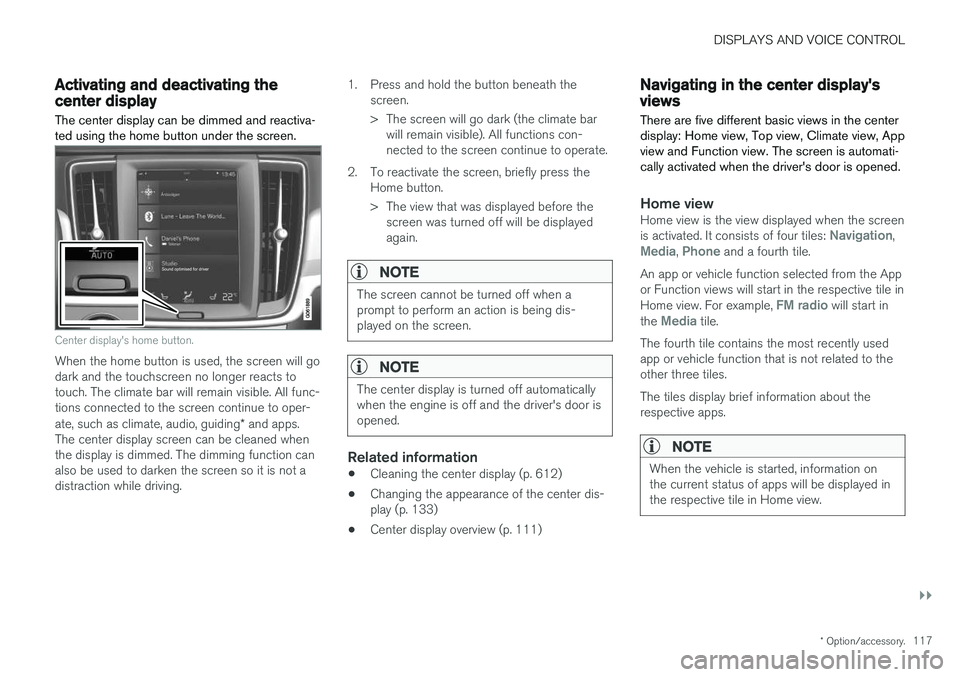
The center display can be dimmed and reactiva- ted using the home button under the screen.
Center display's home button.
When the home button is used, the screen will go dark and the touchscreen no longer reacts totouch. The climate bar will remain visible. All func-tions connected to the screen continue to oper- ate, such as climate, audio, guiding * and apps.
The center display screen can be cleaned when the display is dimmed. The dimming function can also be used to darken the screen so it is not adistraction while driving. 1. Press and hold the button beneath the
screen.
> The screen will go dark (the climate barwill remain visible). All functions con- nected to the screen continue to operate.
2. To reactivate the screen, briefly press the Home button.
> The view that was displayed before thescreen was turned off will be displayed again.
NOTE
The screen cannot be turned off when a prompt to perform an action is being dis-played on the screen.
NOTE
The center display is turned off automatically when the engine is off and the driver's door isopened.
Related information
• Cleaning the center display (p. 612)
• Changing the appearance of the center dis- play (p. 133)
• Center display overview (p. 111)
Navigating in the center display'sviews
There are five different basic views in the center display: Home view, Top view, Climate view, Appview and Function view. The screen is automati-cally activated when the driver's door is opened.
Home viewHome view is the view displayed when the screen is activated. It consists of four tiles: Navigation,Media, Phone and a fourth tile.
An app or vehicle function selected from the App or Function views will start in the respective tile in Home view. For example,
FM radio will start in
the Media tile.
The fourth tile contains the most recently used app or vehicle function that is not related to theother three tiles. The tiles display brief information about the respective apps.
NOTE
When the vehicle is started, information on the current status of apps will be displayed inthe respective tile in Home view.
Page 129 of 662
DISPLAYS AND VOICE CONTROL
127
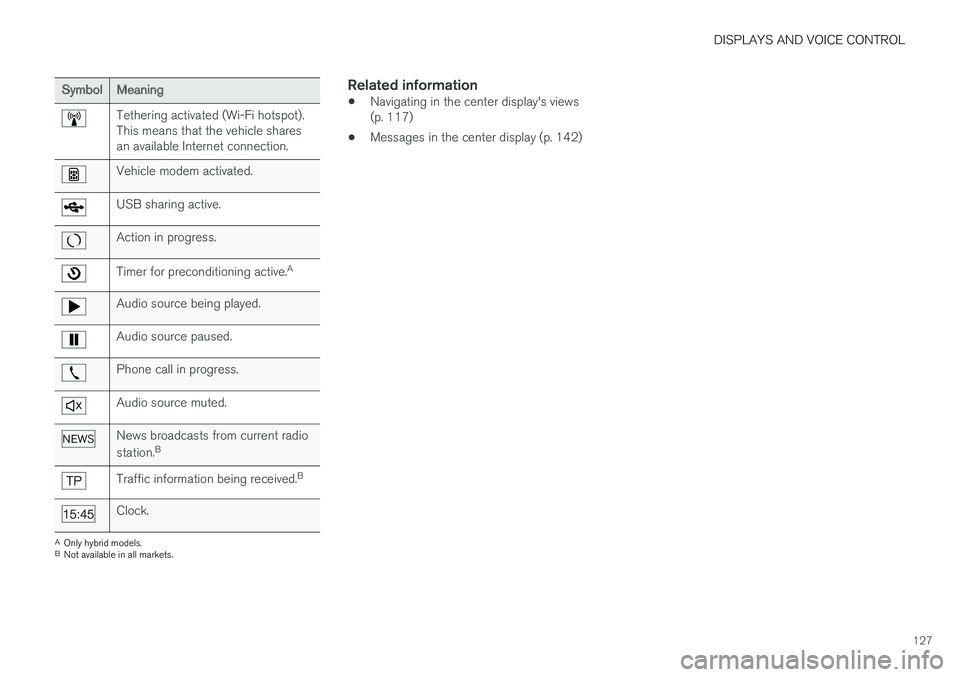
SymbolMeaning
Tethering activated (Wi-Fi hotspot). This means that the vehicle sharesan available Internet connection.
Vehicle modem activated.
USB sharing active.
Action in progress.
Timer for preconditioning active.A
Audio source being played.
Audio source paused.
Phone call in progress.
Audio source muted.
News broadcasts from current radio station.B
Traffic information being received. B
Clock.
A
Only hybrid models.
B Not available in all markets.
Related information
• Navigating in the center display's views (p. 117)
• Messages in the center display (p. 142)
Page 141 of 662
DISPLAYS AND VOICE CONTROL
}}
* Option/accessory.139
Sub-categories
Gracenote®
Video
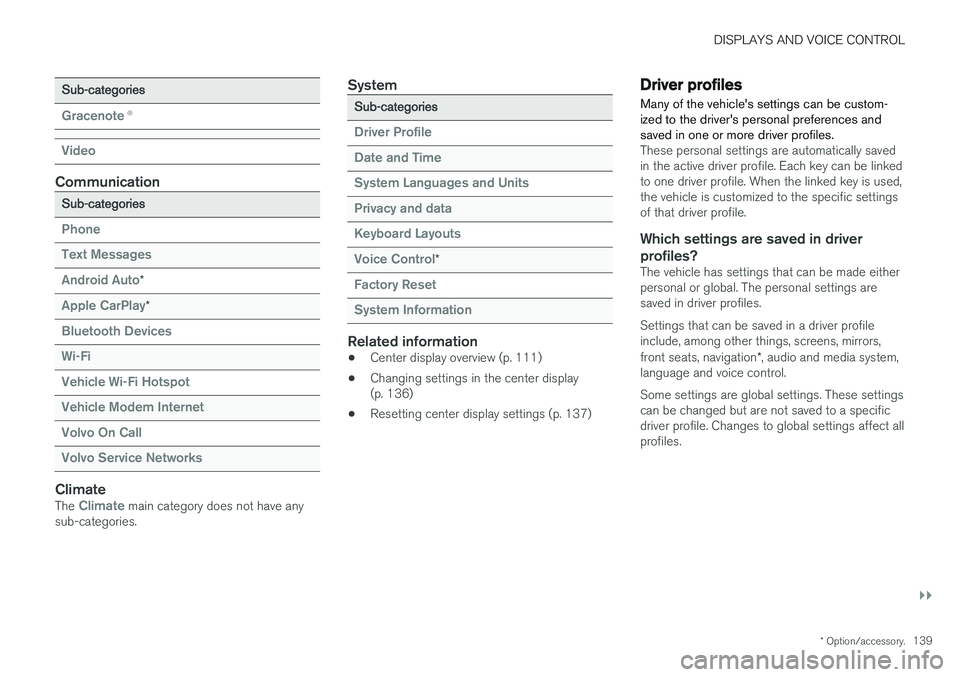
Communication
Sub-categories
Phone Text Messages Android Auto
*
Apple CarPlay*
Bluetooth Devices Wi-FiVehicle Wi-Fi HotspotVehicle Modem Internet Volvo On Call Volvo Service Networks
ClimateThe Climate main category does not have any
sub-categories.
System
Sub-categories
Driver Profile Date and TimeSystem Languages and UnitsPrivacy and dataKeyboard Layouts Voice Control
*
Factory Reset System Information
Related information
• Center display overview (p. 111)
• Changing settings in the center display (p. 136)
• Resetting center display settings (p. 137)
Driver profiles
Many of the vehicle's settings can be custom- ized to the driver's personal preferences andsaved in one or more driver profiles.
These personal settings are automatically saved in the active driver profile. Each key can be linkedto one driver profile. When the linked key is used,the vehicle is customized to the specific settingsof that driver profile.
Which settings are saved in driver profiles?
The vehicle has settings that can be made eitherpersonal or global. The personal settings aresaved in driver profiles. Settings that can be saved in a driver profile include, among other things, screens, mirrors, front seats, navigation *, audio and media system,
language and voice control. Some settings are global settings. These settings can be changed but are not saved to a specificdriver profile. Changes to global settings affect allprofiles.
Page 150 of 662
||
DISPLAYS AND VOICE CONTROL
* Option/accessory.
148 Voice control is carried out as a dialog, with spo- ken commands from the user and verbal respon-ses from the system. The voice control systemuses the same microphone as devices connectedwith Bluetooth, and the voice control systemresponds through the vehicle's loudspeakers. Incertain cases, text messages will also be dis-played in the instrument panel. The functions arecontrolled using the right-side steering wheelkeypad and settings are made in the center dis-play.
System updates
The voice control system is continuously improved. For optimal functionality, always down-load the latest update at support.volvocars.com.
Related information
•
Using voice commands (p. 148)
• Voice control for cellular phones (p. 149)
• Voice control for radio and media (p. 150)
• Climate control system voice commands(p. 204)
• Voice control settings (p. 150)
Using voice commands20
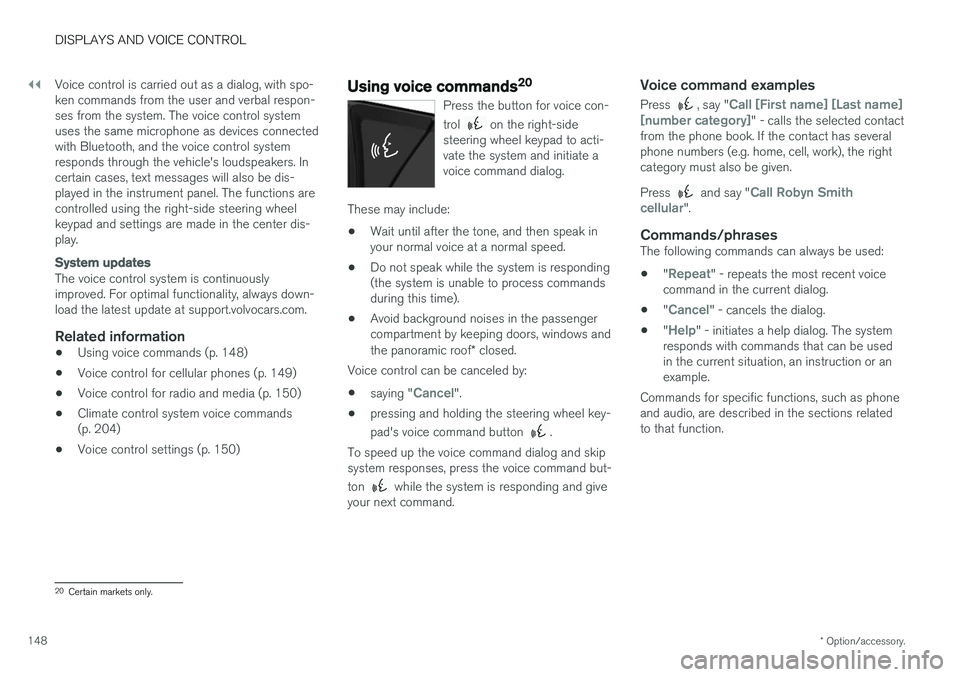
Press the button for voice con- trol
on the right-side
steering wheel keypad to acti- vate the system and initiate avoice command dialog.
These may include:
• Wait until after the tone, and then speak in your normal voice at a normal speed.
• Do not speak while the system is responding(the system is unable to process commandsduring this time).
• Avoid background noises in the passengercompartment by keeping doors, windows and the panoramic roof
* closed.
Voice control can be canceled by:
• saying "
Cancel".
• pressing and holding the steering wheel key- pad's voice command button
.
To speed up the voice command dialog and skip system responses, press the voice command but- ton
while the system is responding and give
your next command.
Voice command examples
Press , say "Call [First name] [Last name]
[number category]" - calls the selected contact
from the phone book. If the contact has several phone numbers (e.g. home, cell, work), the rightcategory must also be given. Press
and say "Call Robyn Smith
cellular".
Commands/phrasesThe following commands can always be used: • "
Repeat" - repeats the most recent voice
command in the current dialog.
• "
Cancel" - cancels the dialog.
• "
Help" - initiates a help dialog. The system
responds with commands that can be used in the current situation, an instruction or anexample.
Commands for specific functions, such as phoneand audio, are described in the sections relatedto that function.
20 Certain markets only.
Page 244 of 662
KEY, LOCKS AND ALARM
* Option/accessory.
242
Ordering additional remote keys
Two remote keys are provided with the vehicle. One Key Tag is also included if the vehicle is equipped with keyless locking/unlocking *. Addi-
tional keys can be ordered.
A total of 12 keys can be programmed and used for the same vehicle. An additional driver profilewill be added for each new remote key. This alsoapplies to the key tag.
Loss of a remote keyIf you lose your remote key, you can order areplacement from a workshop - an authorizedVolvo workshop is recommended. Bring the otherremaining remote keys to the workshop. As ananti-theft measure, the code of the lost remotekey must be erased from the system. The current number of keys registered for the vehicle can be checked via driver profiles in the center display's Top view. Select
Settings
SystemDriver Profiles.
NOTE
Volvo recommends that you order a new or duplicate remote control key from an author-ized Volvo workshop. You can also obtain additional or duplicate remote control keys from certain independentrepair facilities and locksmiths that are quali-fied to make remote control keys. Each keymust be programmed to work with your vehi-cle. A list of independent repair facilities and/or locksmiths known to Volvo that can cut andcode replacement keys can be found: • on Volvo's website www.volvocars.com/us
• by calling Volvo Customer Care 1-800-458-1552.
Related information
•
Remote key (p. 233)
Red Key - restricted remote key
*
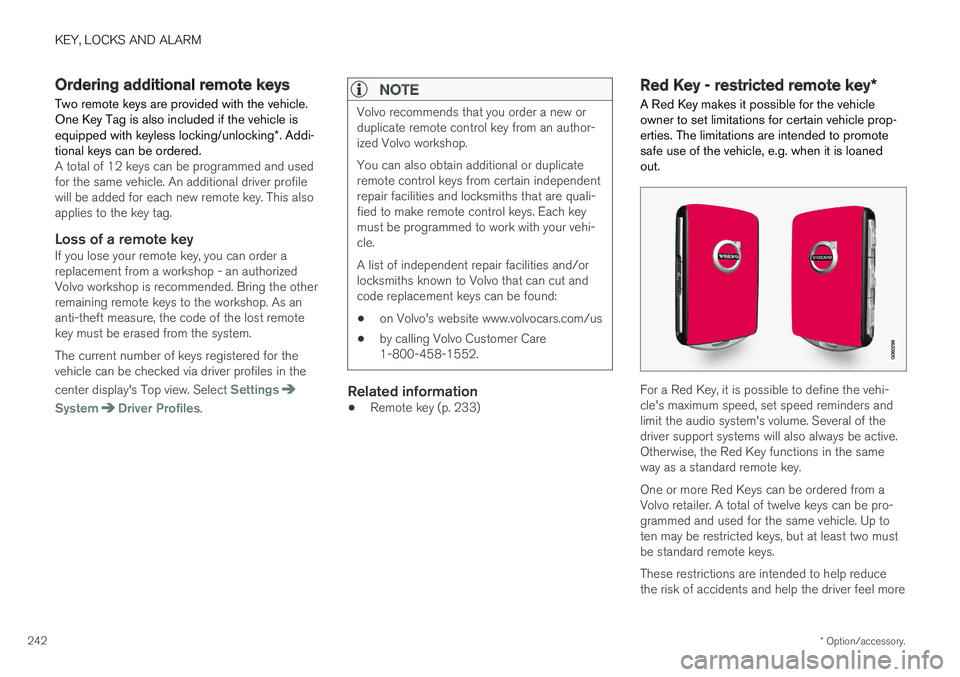
A Red Key makes it possible for the vehicle owner to set limitations for certain vehicle prop-erties. The limitations are intended to promotesafe use of the vehicle, e.g. when it is loanedout.
For a Red Key, it is possible to define the vehi- cle's maximum speed, set speed reminders andlimit the audio system's volume. Several of thedriver support systems will also always be active.Otherwise, the Red Key functions in the sameway as a standard remote key. One or more Red Keys can be ordered from a Volvo retailer. A total of twelve keys can be pro-grammed and used for the same vehicle. Up toten may be restricted keys, but at least two mustbe standard remote keys. These restrictions are intended to help reduce the risk of accidents and help the driver feel more
Page 260 of 662
||
KEY, LOCKS AND ALARM
* Option/accessory.
258
Related information
• Setting a maximum height for the power tail- gate
* (p. 258)
• Foot movement tailgate operation
* (p. 259)
• Remote key range (p. 237)
Setting a maximum height for the
power tailgate
*
The tailgate can be set to stop opening at a cer- tain height, for example if the tailgate needs tobe opened in a garage with a low ceiling.
Setting maximum opening height:
1. Open the tailgate to the desired opening height.
NOTE
It is not possible to program an opening posi- tion lower than half-open tailgate.
2.Press the button on the lower edge of
the tailgate and hold for at least 3 seconds.
> Two brief audio signals will sound to indi- cate that the position has been stored.
Resetting to maximum opening position:
–Move the tailgate manually to its highest possible position and press the
button
on the tailgate for at least 3 seconds.
> Two audio signals will sound to indicate that the stored position has been erased. The tailgate can then be opened to itsmaximum position.
NOTE
• If the system has been working continu- ously for a prolonged period of time, it willbe switched off to avoid overload. It canbe used again after approximately2 minutes.
Related information
•
Opening and closing the power tailgate
*
(p. 255)