change time VOLVO XC60 2009 Owner´s Manual
[x] Cancel search | Manufacturer: VOLVO, Model Year: 2009, Model line: XC60, Model: VOLVO XC60 2009Pages: 297, PDF Size: 21.16 MB
Page 145 of 297
04 Comfort and driving pleasure
Audio system04
}}
143
If a new song is selected when the memory is
full, you will be prompted to press
ENTER to
delete the last song on the list.
NOTE The remaining songs in the list will move
down one position, and the newly added
song will be placed at the top of the list.
Song seekWhen a satellite radio channel plays one of the
songs stored in the song memory, the listener
will be alerted by a text message and an audi-
ble signal.
Press ENTER to listen to the song or
EXIT to
cancel.
To activate/deactivate the song seek function:
1. Press MENU
2. Scroll to Song seek
3. Press ENTER to activate or deactivate the
function.
NOTE When the song has ended, the radio will
remain tuned to the channel on which the
song was played.
Radio textThe text that is displayed about the song that
is currently playing can be changed. Use the
AUTO button or the menu to display the Artist,
Title, Composer, or switch radio text off.
Advanced settings
This menu function enables you to make set-
tings on certain Sirius satellite radio functions.
To access this menu:
1.
Press MENU.
2. Scroll to the Sirius menu.
3. Select Advanced Sirius settings.
WARNING Settings should be made when the vehicle
is at a standstill.
The following settings can be made in the Sir-
ius menu:
\b
The list of saved songs can be displayed
\b Channel skip settings can be made
\b Channel lock settings can be made
\b The channel access code can be displayed
or changed
\b Your Sirius ID can be displayed
Skip optionsThis function is used to remove a channel from
the list of available channels.
Skipping a channel1.
Select CHANNEL SKIP LIST and press
ENTER.
2. Select a category in the list and press ENTER.
3. Skip channels in the list presented by pressing ENTER or right arrow key.
Unskip all channelsThis permanently removes all channels from
the skip list and makes them available for
selection.
Temp. unskip all ch.This function will temporarily unskip all chan-
nels and make them available for selection. The
channels remain on the skip list and will again
be skipped the next time the ignition is
switched on.
Channel lockAccess to specific channels can be restricted
(locked). A locked channel will not provide
audio, song titles, or artist information.
NOTE All channels are initially unlocked.
Page 146 of 297
04 Comfort and driving pleasureAudio system 04
144
Locking a channel:1.
Select Sirius ID in the menu and select
LOCK OPTIONS and press ENTER.
2. Select CHANNEL LOCK LIST and press
ENTER
3. Enter the channel access code 8
and press
ENTER.
4. Select a category in the list and press ENTER.
5. Lock channels in the list presented by pressing ENTER or right arrow.
The channel is now locked and a checked box
will be displayed to indicate this. It will be nec-
essary to enter the channel access code 8
in
order to listen to a locked channel.
Unlocking a channel
A channel\fs access code 8
is required to unlock
a channel.
Unlock all channelsThis permanently removes all channels from
the locked list and makes them available for
selection.
Temp. unlock all ch.This function will temporarily unlock all chan-
nels and make them available for selection. The channels remain on the locked list and will
again be locked the next time the ignition is
switched on.
CHANGE CODEThis function makes it possible to change the
channel access code. The default code is
0000.
To change the code:
1.
Select CHANGE CODE and press
ENTER.
2. Enter the current code and press ENTER.
3. Enter the new code and press ENTER.
4. Confirm the new code and press ENTER.
If an incorrect code is entered, the text
WRONG CODE! is displayed.
If you have forgotten the access code:1. Select SIRIUS ID in the Sirius settings
menu and press ENTER.
2. Press and hold the ENTER button for
2 seconds.
3. The current code will be displayed.
Your Volvo retailer can also provide you with
assistance.
SIRIUS IDThis function displays the 12-digit Sirius acti-
vation ID.
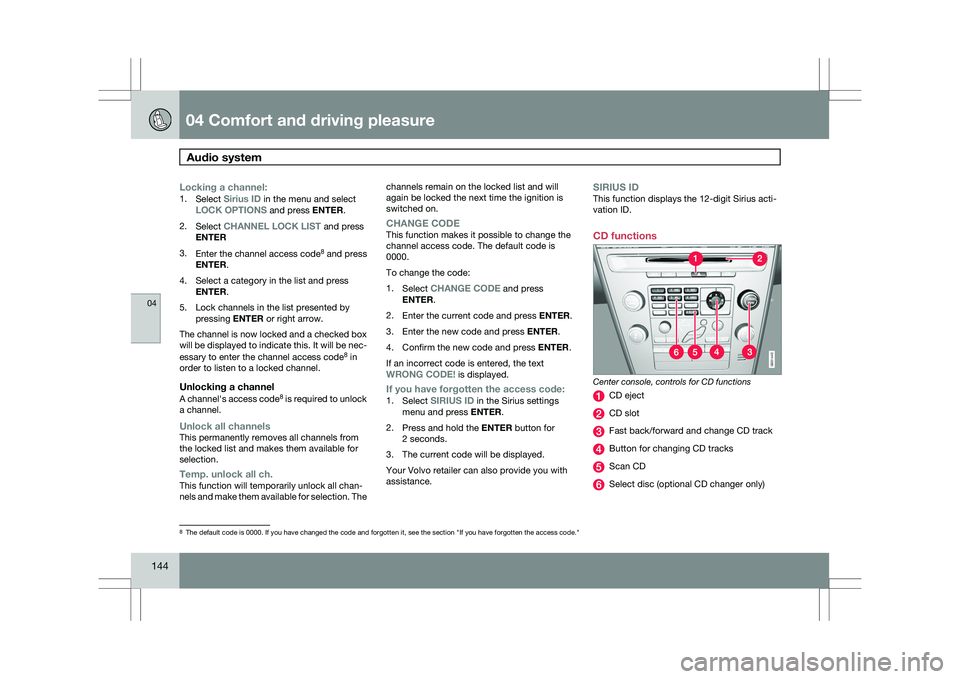
CD functions Center console, controls for CD functions
CD eject
CD slot
Fast back/forward and change CD track
Button for changing CD tracks
Scan CD
Select disc (optional CD changer only)
8
The default code is 0000. If you have changed the code and forgotten it,\
see the section "If you have forgotten the access code." G031443
Page 147 of 297
04 Comfort and driving pleasure
Audio system04
}}
145
Playing a CD (CD player
9
)If a music CD is in the player when CD is
pressed, it will be played automatically. Other-
wise, insert a disc and press CD.
Playing a CD (CD changer)If a CD position with a music CD is already
selected when CD is pressed, it will be played
automatically. Otherwise select a disc with the
number buttons 1 – 6 or / on the naviga-
tion button.
Insert a CD (CD changer)1. Select an empty position with the number
buttons 1 – 6 or / on the navigation
button.
> An empty position is marked on the dis-
play. The text Insert disc shows that a
new disc can be inserted. The CD
changer can hold up to six CDs.
2. Insert a CD in the CD changer slot.
Disc ejectFor reasons of traffic safety, an ejected CD
must be removed within 12 seconds or it will
be automatically drawn back into the slot and
the CD player will enter pause mode. Press the
CD button to restart the disc. Eject individual discs by pressing the eject but-
ton.
Eject all discs with a long press on the eject
button. The entire magazine is emptied disc by
disc.
NOTE
The Eject all function can only be used while
the vehicle is at a standstill and will be can-
celled if the vehicle begins to move.
PauseWhen the audio system volume is turned off
completely, the CD player will pause and will
resume playing when the volume is turned up
again.
Sound filesIn addition to playing normal music CDs, the
CD player/changer can also play discs con-
taining files in mp3 or wma format.
NOTE
Some copy protected sound files may not
be read by the player.
When a CD containing sound files is inserted
into the player the disc\fs folder structure isscanned before the CD begins playing. The
length of time that this takes depends on the
quality of the disc.
Navigating the disc and playing tracksIf a disc containing sound files is inside the CD
player, press ENTER to display the disc\fs
directory structure. The directory structure is
navigated in the same way as the audio sys-
tem\fs menu structure. Sound files have the
symbol and directories have the
symbol. Press ENTER to play a selected folder
or a file.
When the music file has been played, the
player will continue to play the rest of the files
in the current folder. When all of the files in the
folder have been played, the player will auto-
matically go to the next folder and play the files
in it.
Fast-forward/change CD tracks and
sound files
Short presses / on the navigation button
are used to scroll between CD tracks/sound
files. Long presses are used to search within
CD tracks/sound files. TUNING (or the steering
wheel keypad) can also be used for this pur-
pose.
9 Certain markets only.
Page 152 of 297
04 Comfort and driving pleasureBluetooth® hands-free connection 04
150
Ringing volume
Go to Phone settings Sounds and volume
Ring volume and adjust the volume with
the / keys on the center console.
Ringing tonesThe hands-free system’s integrated ringing
tones can be selected in Phone settings
Sounds and volume Ring signal Ring
signal 1,2,3....
NOTE The connected cell phone’s ring tone is not
switched off when one of the hands-free
system\fs ringing tones is used.
If you prefer to use the connected cell phone’s
ring tone
1
, go to Phone settings Sounds
and volume Ring signal Use mobile
phone signal More information about registering
and connecting cell phones
A maximum of 5 cell phones can be registered
in the hands-free system. Registration only
needs to be done once for each phone. After
registration, the cell phone no longer needs to
be in sight or searchable. Only one cell phone
can be connected to hands-free at a time.
Phones can be unregistered in
Bluetooth Remove telephoneAutomatic connectionWhen the hands-free system is active and the
most recently connected cell phone is within
range, it is detected automatically. When the
audio system searches for the most recently
connected phone, this phone’s name appears
in the display. To manually connect a different
cell phone, press EXIT.
Manual connectionTo connect a phone other than the one that
was most recently connected or to switch
between cell phones that are already regis-
tered in the hands-free system:
1. Put the audio system in telephone mode.
2.
Press PHONE in the center console and
select one of the phones on the list. A connection can also be established in the
menu system under Bluetooth Connect
phone or Change phone.
Phone book
In order to use the hands-free system’s phone
book (list of contacts), TELEPHONE must be
displayed at the top of the center console dis-
play and the symbol must be visible.
The audio system stores a copy of the phone
book of each registered cell phone. The phone
book is automatically copied each time a
phone is connected. This function can be acti-
vated in Phone settings Synchronise
phone book. Searches for contacts are only
made in the phone book of the currently con-
nected cell phone.
NOTE If a particular cell phone does not support
copying of the phone book,
List is empty
will be displayed when copying has been
completed. If the phone book contains information about
someone who is trying to call you, this infor-
mation will be shown in the display.
1
Not supported by all cell phones.
Page 153 of 297
04 Comfort and driving pleasure
Bluetooth® hands-free connection04
}}
151
Searching for contactsThe easiest way to search for a contact in the
phone book is to press and hold any of the
buttons 2–9 (see the illustration on page 147).
This starts a search based on the first letter on
the button that has been pressed.
The phone book can also be accessed by
pressing the navigation buttons / on the
center console or by pressing / on the
steering wheel keypad. A search can also be
made in the phone book’s search menu in
Phone book Search:
1.
Enter the first letter of the contact’s name and press ENTER or simply press ENTER.
2. Select the desired contact and press ENTER to make a call to that person.
Voice controlIf the cell phone that is currently connected
allows calls to be made via voice commands,
this function can be used by pressing and hold-
ing ENTER.
Voice mail numberThe phone number to your voice mail can be
changed in the menu Phone settings Call
options Voice mail number. If no number
has been stored, this menu can be accessed
by a prolonged press on button 1. Once a phone number has been stored, press and hold
1 to dial this number.
Call listsLists of calls in a particular cell phone are cop-
ied to the hands-free system each time that
phone is connected. These lists are then upda-
ted while the phone is connected. Press
ENTER to show the most recently dialed num-
bers. Other call lists can be found under Call
register.
NOTE
Certain cell phones display the list of the
most recently dialed numbers in reverse
order.
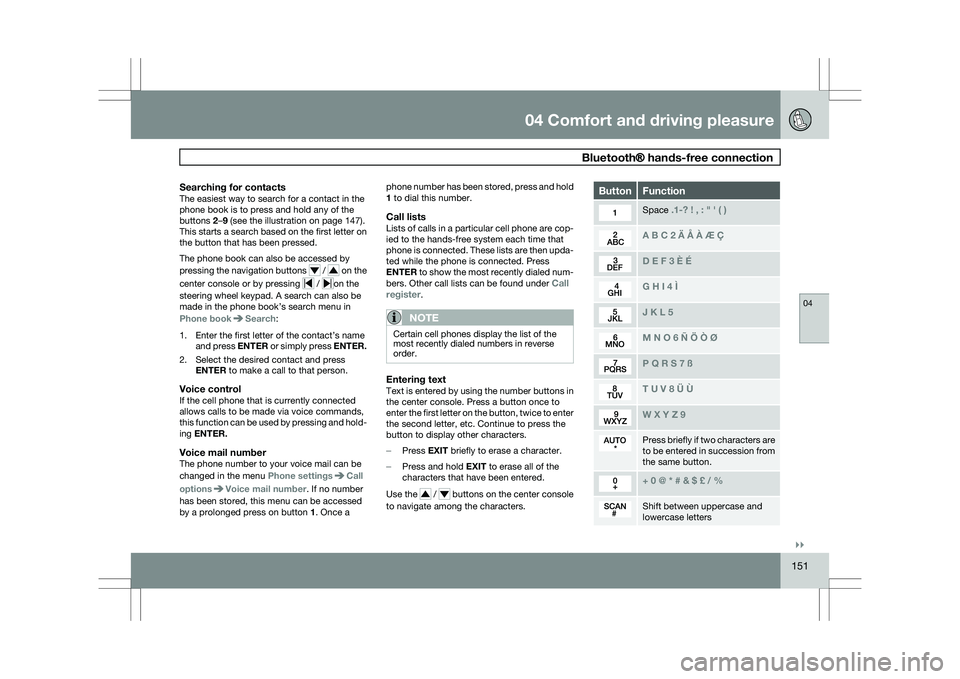
Entering textText is entered by using the number buttons in
the center console. Press a button once to
enter the first letter on the button, twice to enter
the second letter, etc. Continue to press the
button to display other characters.
–
Press EXIT briefly to erase a character.
– Press and hold EXIT to erase all of the
characters that have been entered.
Use the / buttons on the center console
to navigate among the characters. Button Function
Space .1-? ! , : " \f ( )
A B C 2 \b Å À Æ Ç
D E F 3 È É
G H I 4 Ì
J K L 5
M N O 6 Ñ Ö Ò Ø
P Q R S 7 ß
T U V 8 Ü Ù
W X Y Z 9
Press briefly if two characters are
to be entered in succession from
the same button.
+ 0 @ * # & $ £ / %
Shift between uppercase and
lowercase letters
Page 159 of 297
04 Comfort and driving pleasure
Active chassis system–Four C04
* Option/accessory, for more information, see Introduction. 157
Active chassis (Four C)*
Active chassis, Four-C (Continuously Con-
trolled Chassis Concept), regulates the cha-
racteristics of the shock absorbers so that the
car\fs driving characteristics can be adjusted.
There are three settings: Comfort, Sport and
Advanced.
ComfortComfort mode offers a somewhat softer ride
and the transmission shifts gears at lower rpm.
This mode is particularly suitable for long-dis-
tance highway driving. The indicator light in the
button will be on when this mode is selected.
SportIn this mode, the vehicle\fs body sway is
reduced during cornering and steering
response is more immediate. The transmission
shifts up at higher rpm for sportier driving. The
indicator light in the button will be on to indi-
cate that Sport mode has been selected.
AdvancedIn this mode, body sway in curves is minimal
and steering response is very direct. Gear shift-
ing is done at high rpm in each gear for
dynamic and active driving.
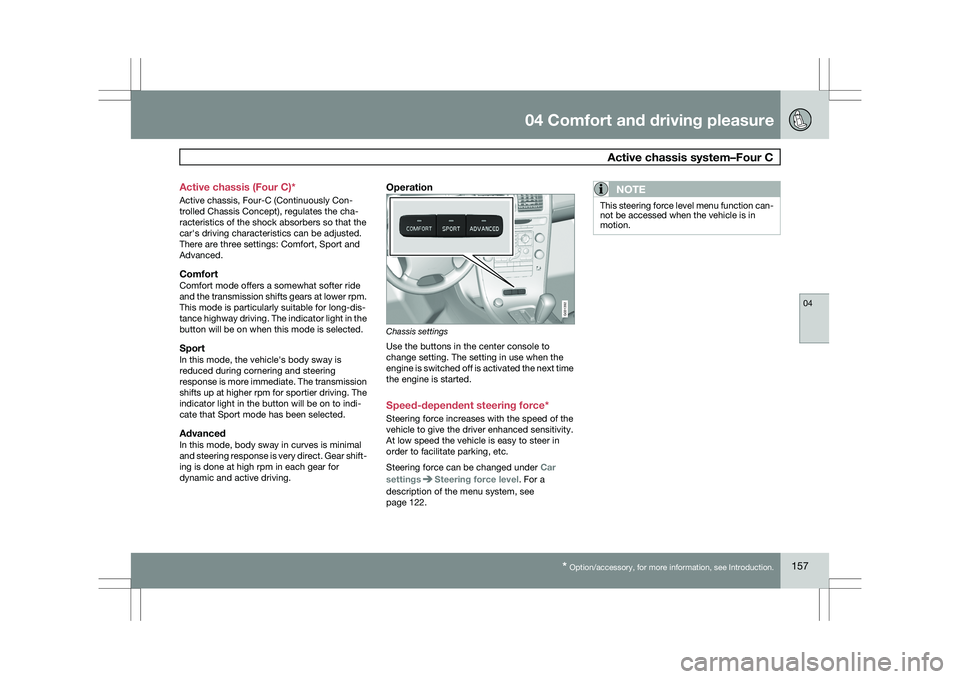
Operation
Chassis settings
Use the buttons in the center console to
change setting. The setting in use when the
engine is switched off is activated the next time
the engine is started.
Speed-dependent steering force*
Steering force increases with the speed of the
vehicle to give the driver enhanced sensitivity.
At low speed the vehicle is easy to steer in
order to facilitate parking, etc.
Steering force can be changed under
Car
settings Steering force level. For a
description of the menu system, see
page 122.NOTE This steering force level menu function can-
not be accessed when the vehicle is in
motion. G031392
Page 195 of 297
04 Comfort and driving pleasure
Blind Spot Information System*04
}}
* Option/accessory, for more information, see Introduction. 193
Introduction
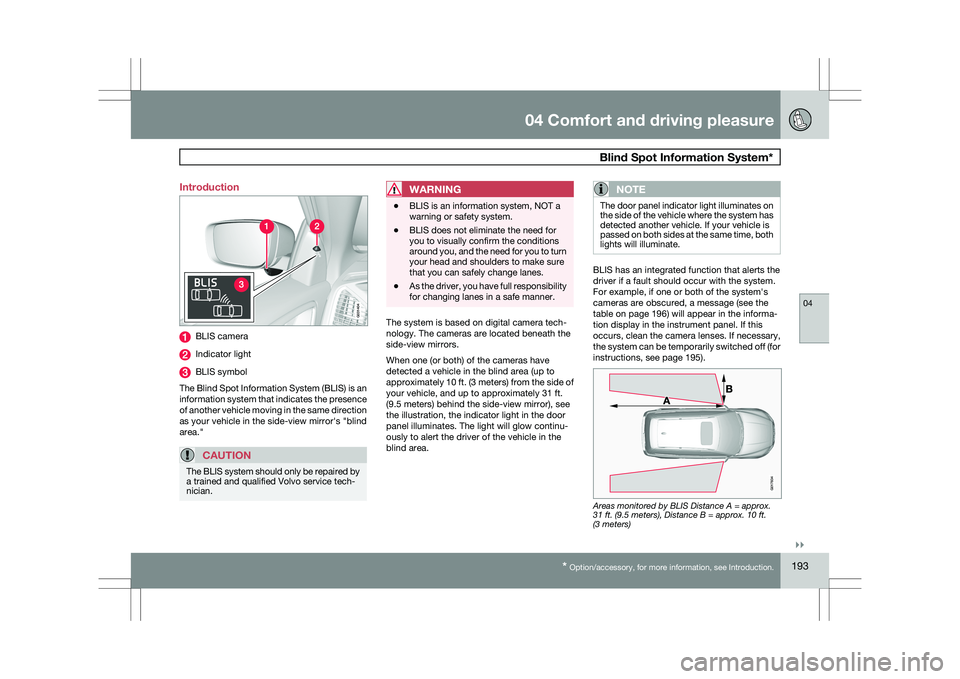
BLIS camera
Indicator light
BLIS symbol
The Blind Spot Information System (BLIS) is an
information system that indicates the presence
of another vehicle moving in the same direction
as your vehicle in the side-view mirror\fs "blind
area."
CAUTION The BLIS system should only be repaired by
a trained and qualified Volvo service tech-
nician.
WARNING \b
BLIS is an information system, NOT a
warning or safety system.
\b BLIS does not eliminate the need for
you to visually confirm the conditions
around you, and the need for you to turn
your head and shoulders to make sure
that you can safely change lanes.
\b As the driver, you have full responsibility
for changing lanes in a safe manner. The system is based on digital camera tech-
nology. The cameras are located beneath the
side-view mirrors.
When one (or both) of the cameras have
detected a vehicle in the blind area (up to
approximately 10 ft. (3 meters) from the side of
your vehicle, and up to approximately 31 ft.
(9.5 meters) behind the side-view mirror), see
the illustration, the indicator light in the door
panel illuminates. The light will glow continu-
ously to alert the driver of the vehicle in the
blind area.NOTE The door panel indicator light illuminates on
the side of the vehicle where the system has
detected another vehicle. If your vehicle is
passed on both sides at the same time, both
lights will illuminate.
BLIS has an integrated function that alerts the
driver if a fault should occur with the system.
For example, if one or both of the system\fs
cameras are obscured, a message (see the
table on page 196) will appear in the informa-
tion display in the instrument panel. If this
occurs, clean the camera lenses. If necessary,
the system can be temporarily switched off (for
instructions, see page 195).
Areas monitored by BLIS Distance A = approx.
31 ft. (9.5 meters), Distance B = approx. 10 ft.
(3 meters) G031404 G01783
4
Page 230 of 297
06 Maintenance and specificationsEngine oil 06
228 Checking the engine oil
The oil level should be checked every time the
vehicle is refueled. This is especially important
during the period up to the first scheduled
maintenance service.
\b
See page 283 for oil specifications.
\b Refer to the Warranty and Service Records
Information booklet for information on the
oil change intervals.
Volvo recommends Castrol oil products.
CAUTION \b
Not checking the oil level regularly can
result in serious engine damage if the oil
level becomes too low.
\b Oil that is lower than the specified qual-
ity can damage the engine.
\b Volvo does not recommend the use of
oil additives.
\b Always add oil of the same type and
viscosity as already used.
\b Never fill oil above the
MAX mark. This
could cause an increase in oil consump-
tion.
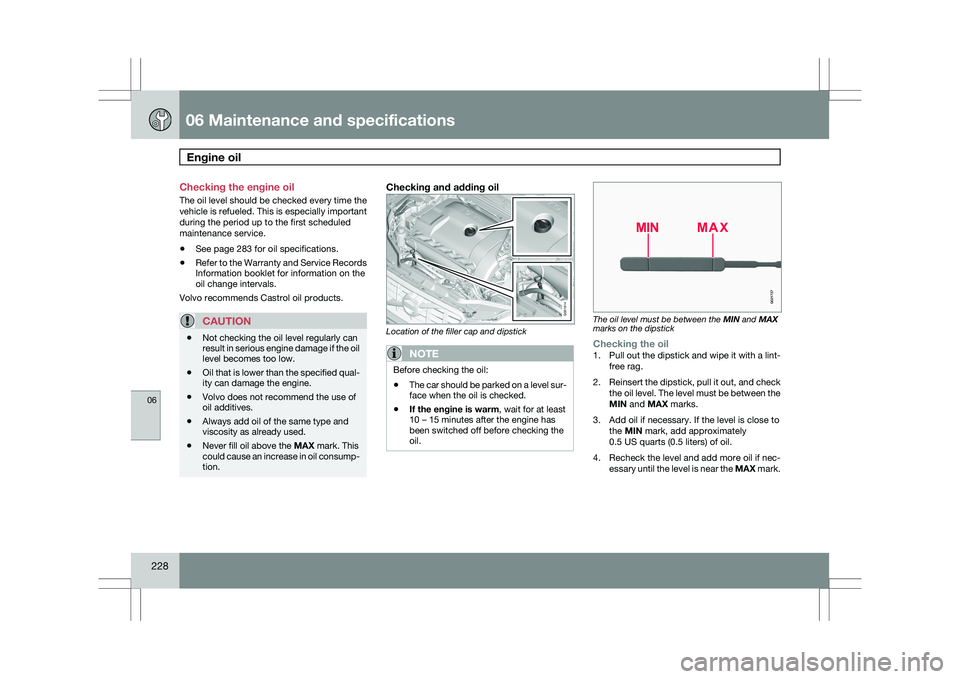
Checking and adding oil Location of the filler cap and dipstick
NOTE
Before checking the oil:
\b
The car should be parked on a level sur-
face when the oil is checked.
\b If the engine is warm, wait for at least
10 – 15 minutes after the engine has
been switched off before checking the
oil. The oil level must be between the MIN and MAX
marks on the dipstickChecking the oil1.
Pull out the dipstick and wipe it with a lint-
free rag.
2. Reinsert the dipstick, pull it out, and check
the oil level. The level must be between the
MIN and MAX marks.
3. Add oil if necessary. If the level is close to the MIN mark, add approximately
0.5 US quarts (0.5 liters) of oil.
4. Recheck the level and add more oil if nec-
essary until the level is near the MAX mark. G031914 G02173
7
Page 249 of 297
06 Maintenance and specifications
Fuses06
}}
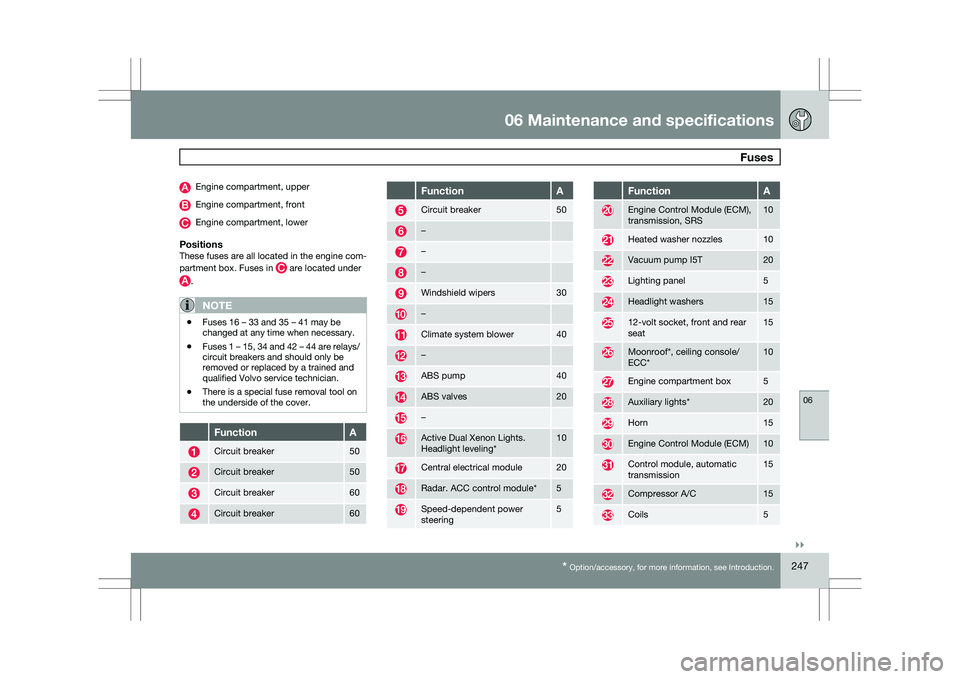
* Option/accessory, for more information, see Introduction. 247Engine compartment, upper
Engine compartment, front
Engine compartment, lower
PositionsThese fuses are all located in the engine com-
partment box. Fuses in
are located under
.
NOTE
\b
Fuses 16 – 33 and 35 – 41 may be
changed at any time when necessary.
\b Fuses 1 – 15, 34 and 42 – 44 are relays/
circuit breakers and should only be
removed or replaced by a trained and
qualified Volvo service technician.
\b There is a special fuse removal tool on
the underside of the cover. Function A
Circuit breaker 50
Circuit breaker 50
Circuit breaker 60
Circuit breaker 60 Function A
Circuit breaker 50
–
–
–
Windshield wipers 30
–
Climate system blower 40
–
ABS pump 40
ABS valves 20
–
Active Dual Xenon Lights.
Headlight leveling
* 10
Central electrical module 20
Radar. ACC control module* 5
Speed-dependent power
steering 5 Function A
Engine Control Module (ECM),
transmission, SRS 10
Heated washer nozzles 10
Vacuum pump I5T 20
Lighting panel 5
Headlight washers 15
12-volt socket, front and rear
seat 15
Moonroof*, ceiling console/
ECC* 10
Engine compartment box 5
Auxiliary lights* 20
Horn 15
Engine Control Module (ECM) 10
Control module, automatic
transmission 15
Compressor A/C 15
Coils 5
Page 275 of 297
06 Maintenance and specifications
Wheels and tires06
273
WARNINGIncorrect inflation pressure could lead to tire
failure, resulting in a loss of control of the
vehicle.
Changing wheels with TPMSPlease note the following when changing or
replacing the factory installed TPMS wheels/
tires on the vehicle:
\b
Only the factory-mounted wheels are
equipped with TPMS sensors in the valves.
\b If the vehicle is equipped with a temporary
spare tire, this tire does not have a TPMS
sensor.
\b If wheels without TPMS sensors are moun-
ted on the vehicle, TIRE PRESS SYST
SERVICE REQUIRED will be displayed
each time the vehicle is driven above
25 mph (40 km/h) for 10 minutes or more.
\b Once TPMS sensors are properly installed,
the warning message should not reappear.
If the message is still displayed, drive the
vehicle for several minutes at a speed of
20 mph (30 km/h) or faster to erase the
message.
\b Volvo recommends that TPMS sensors be
fitted on all wheels used on the vehicle.
Volvo does not recommend moving sen-
sors back and forth between sets of
wheels.
NOTE \b
If you change to tires with a different
recommended inflation pressure, the
TPMS system must be recalibrated to
these tires. This must be done by a
trained and qualified Volvo service tech-
nician.
\b If a tire is changed, or if the TPMS sen-
sor is moved to another wheel, the sen-
sor\fs seal, nut, and valve core should be
replaced.
\b When installing TPMS sensors, the
vehicle must be parked for at least
15 minutes with the ignition off. if the
vehicle is driven within 15 minutes, a
TPMS error message will be displayed.
CAUTION When inflating tires with TPMS valves, press
the pump\fs mouthpiece straight onto the
valve to help avoid bending or otherwise
damaging the valve.