turn signal VOLVO XC60 2009 Owner´s Manual
[x] Cancel search | Manufacturer: VOLVO, Model Year: 2009, Model line: XC60, Model: VOLVO XC60 2009Pages: 297, PDF Size: 21.16 MB
Page 89 of 297
03 Your driving environment
Lighting03
}}
87
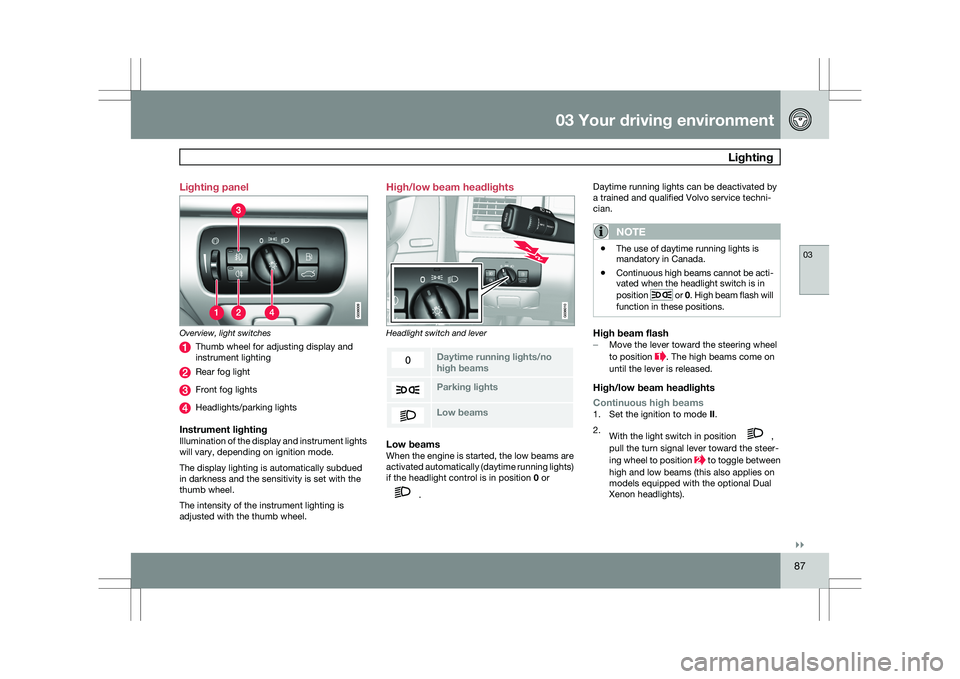
Lighting panel
Overview, light switches
Thumb wheel for adjusting display and
instrument lighting
Rear fog light
Front fog lights
Headlights/parking lights
Instrument lightingIllumination of the display and instrument lights
will vary, depending on ignition mode.
The display lighting is automatically subdued
in darkness and the sensitivity is set with the
thumb wheel.
The intensity of the instrument lighting is
adjusted with the thumb wheel. High/low beam headlights
Headlight switch and lever
Daytime running lights/no
high beams
Parking lights
Low beamsLow beamsWhen the engine is started, the low beams are
activated automatically (daytime running lights)
if the headlight control is in position
0 or .Daytime running lights can be deactivated by
a trained and qualified Volvo service techni-
cian.
NOTE \b
The use of daytime running lights is
mandatory in Canada.
\b Continuous high beams cannot be acti-
vated when the headlight switch is in
position or 0. High beam flash will
function in these positions.
High beam flash– Move the lever toward the steering wheel
to position . The high beams come on
until the lever is released.
High/low beam headlights
Continuous high beams
1. Set the ignition to mode II.
2. With the light switch in position ,
pull the turn signal lever toward the steer-
ing wheel to position to toggle between
high and low beams (this also applies on
models equipped with the optional Dual
Xenon headlights).
Page 92 of 297
03 Your driving environmentLighting 03
90
NOTE \b
Regulations regarding the use of the
hazard warning flasher may vary,
depending on where you live.
\b The hazard warning flashers will be acti-
vated automatically if an airbag
deploys. Turn signals
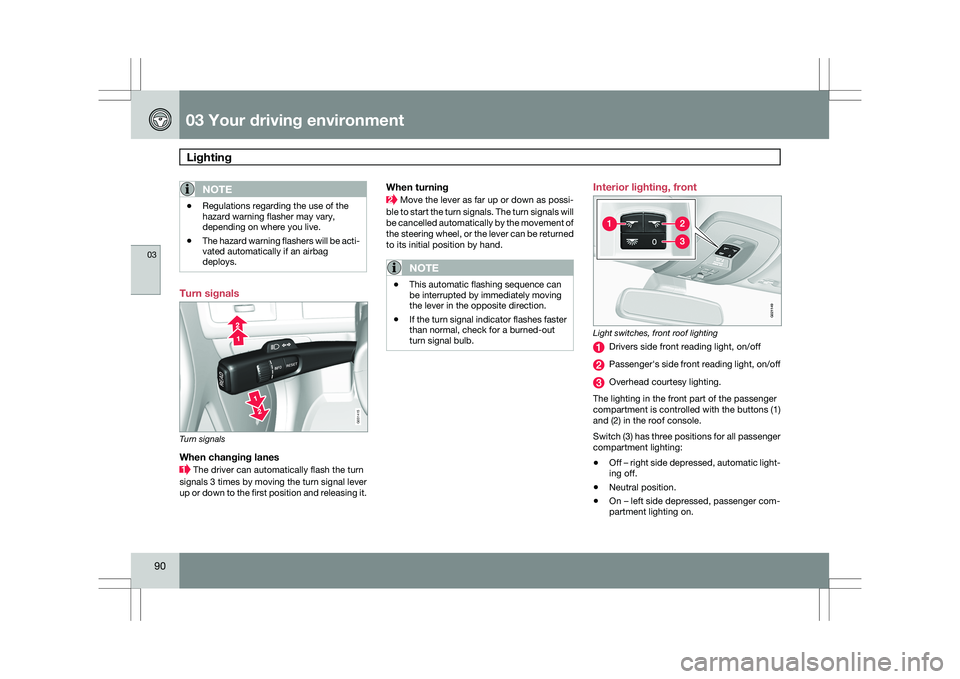
Turn signals
When changing lanes
The driver can automatically flash the turn
signals 3 times by moving the turn signal lever
up or down to the first position and releasing it.
When turning Move the lever as far up or down as possi-
ble to start the turn signals. The turn signals will
be cancelled automatically by the movement of
the steering wheel, or the lever can be returned
to its initial position by hand.
NOTE \b
This automatic flashing sequence can
be interrupted by immediately moving
the lever in the opposite direction.
\b If the turn signal indicator flashes faster
than normal, check for a burned-out
turn signal bulb. Interior lighting, front
Light switches, front roof lighting
Drivers side front reading light, on/off
Passenger\fs side front reading light, on/off
Overhead courtesy lighting.
The lighting in the front part of the passenger
compartment is controlled with the buttons (1)
and (2) in the roof console.
Switch (3) has three positions for all passenger
compartment lighting:
\b Off – right side depressed, automatic light-
ing off.
\b Neutral position.
\b On – left side depressed, passenger com-
partment lighting on. G031415 G02114
9
Page 93 of 297
03 Your driving environment
Lighting03
}}
* Option/accessory, for more information, see Introduction. 91
Interior lighting, rear
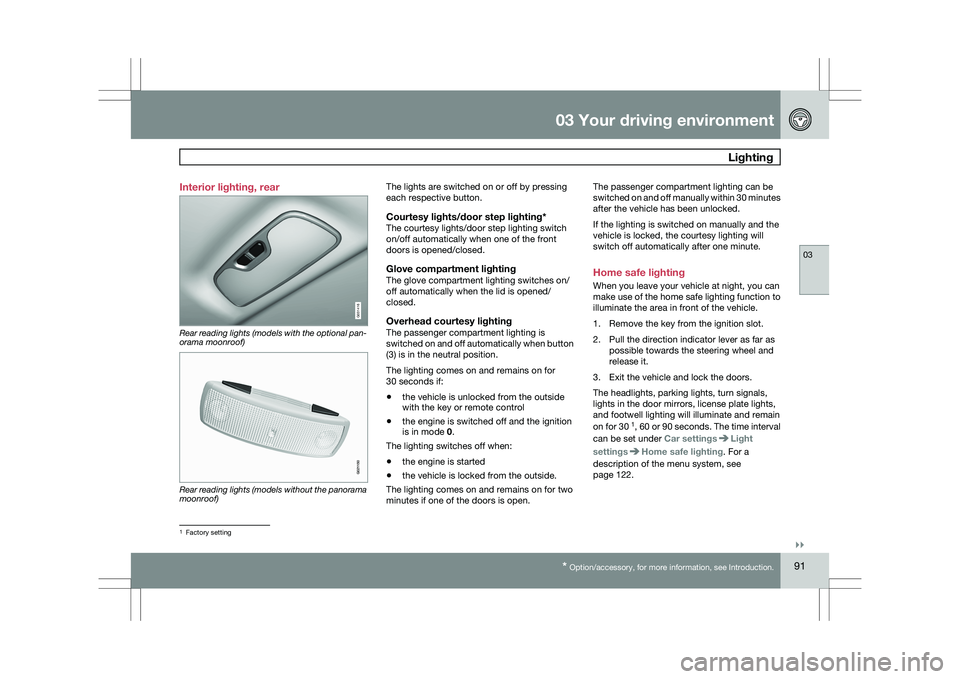
Rear reading lights (models with the optional pan-
orama moonroof)
Rear reading lights (models without the panorama
moonroof) The lights are switched on or off by pressing
each respective button.
Courtesy lights/door step lighting*The courtesy lights/door step lighting switch
on/off automatically when one of the front
doors is opened/closed.
Glove compartment lightingThe glove compartment lighting switches on/
off automatically when the lid is opened/
closed.
Overhead courtesy lightingThe passenger compartment lighting is
switched on and off automatically when button
(3) is in the neutral position.
The lighting comes on and remains on for
30 seconds if:
\b
the vehicle is unlocked from the outside
with the key or remote control
\b the engine is switched off and the ignition
is in mode 0.
The lighting switches off when:
\b the engine is started
\b the vehicle is locked from the outside.
The lighting comes on and remains on for two
minutes if one of the doors is open. The passenger compartment lighting can be
switched on and off manually within 30 minutes
after the vehicle has been unlocked.
If the lighting is switched on manually and the
vehicle is locked, the courtesy lighting will
switch off automatically after one minute.
Home safe lighting
When you leave your vehicle at night, you can
make use of the home safe lighting function to
illuminate the area in front of the vehicle.
1. Remove the key from the ignition slot.
2. Pull the direction indicator lever as far as
possible towards the steering wheel and
release it.
3. Exit the vehicle and lock the doors.
The headlights, parking lights, turn signals,
lights in the door mirrors, license plate lights,
and footwell lighting will illuminate and remain
on for 30 1
, 60 or 90 seconds. The time interval
can be set under Car settings Light
settings Home safe lighting. For a
description of the menu system, see
page 122. 1
Factory setting G031416 G021150
Page 104 of 297
03 Your driving environmentHomeLink® Wireless Control System* 03
102
* Option/accessory, for more information, see Introduction.
Introduction
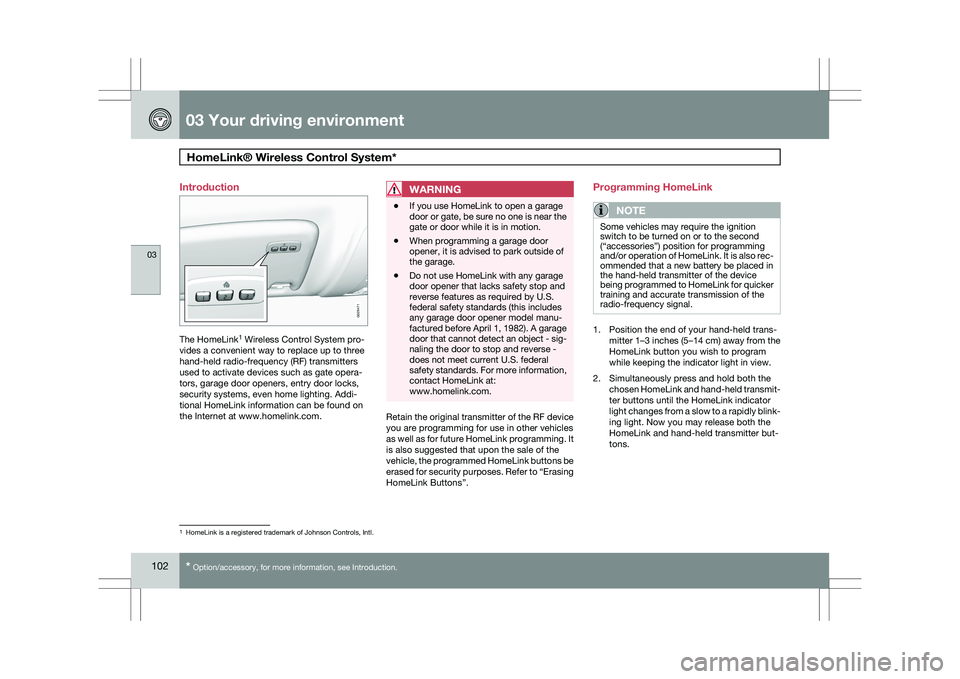
The HomeLink
1
Wireless Control System pro-
vides a convenient way to replace up to three
hand-held radio-frequency (RF) transmitters
used to activate devices such as gate opera-
tors, garage door openers, entry door locks,
security systems, even home lighting. Addi-
tional HomeLink information can be found on
the Internet at www.homelink.com.
WARNING \b
If you use HomeLink to open a garage
door or gate, be sure no one is near the
gate or door while it is in motion.
\b When programming a garage door
opener, it is advised to park outside of
the garage.
\b Do not use HomeLink with any garage
door opener that lacks safety stop and
reverse features as required by U.S.
federal safety standards (this includes
any garage door opener model manu-
factured before April 1, 1982). A garage
door that cannot detect an object - sig-
naling the door to stop and reverse -
does not meet current U.S. federal
safety standards. For more information,
contact HomeLink at:
www.homelink.com. Retain the original transmitter of the RF device
you are programming for use in other vehicles
as well as for future HomeLink programming. It
is also suggested that upon the sale of the
vehicle, the programmed HomeLink buttons be
erased for security purposes. Refer to “Erasing
HomeLink Buttons”.Programming HomeLink
NOTE Some vehicles may require the ignition
switch to be turned on or to the second
(“accessories”) position for programming
and/or operation of HomeLink. It is also rec-
ommended that a new battery be placed in
the hand-held transmitter of the device
being programmed to HomeLink for quicker
training and accurate transmission of the
radio-frequency signal.
1. Position the end of your hand-held trans-
mitter 1–3 inches (5–14 cm) away from the
HomeLink button you wish to program
while keeping the indicator light in view.
2. Simultaneously press and hold both the chosen HomeLink and hand-held transmit-
ter buttons until the HomeLink indicator
light changes from a slow to a rapidly blink-
ing light. Now you may release both the
HomeLink and hand-held transmitter but-
tons. 1
HomeLink is a registered trademark of Johnson Controls, Intl. G029471
Page 105 of 297
03 Your driving environment
HomeLink® Wireless Control System*03
}}
* Option/accessory, for more information, see Introduction. 103
NOTESome devices may require you to replace
this Programming Step 2 with procedures
noted in the “Gate Operator / Canadian Pro-
gramming” section. If the HomeLink indica-
tor light does not change to a rapidly blink-
ing light after performing these steps, con-
tact HomeLink at www.homelink.com
.3.
Firmly press, hold for five seconds and
release the programmed HomeLink but-
ton up to two separate times to activate the
door. If the door does not activate, press
and hold the just-trained HomeLink button
and observe the indicator light.
\bIf the indicator light
stays on con-
stantly, programming is complete
and your device should activate when
the HomeLink button is pressed and
released.
\b If the indicator light blinks
rapidly for
two seconds and then turns to a con-
stant light continue with “Program-
ming” steps 4-6 to complete the pro-
gramming of a rolling code equipped
device (most commonly a garage door
opener).
4. At the garage door opener receiver (motor-
head unit) in the garage, locate the “learn”
or “smart” button. This can usually be found where the hanging antenna wire is
attached to the motor-head unit.
5. Firmly press and release the “learn” or “smart” button. (The name and color of the
button may vary by manufacturer.) There
are 30 seconds to initiate step 6.
6. Return to the vehicle and firmly press, hold
for two seconds and release the pro-
grammed HomeLink button. Repeat the
“press/hold/release” sequence a second
time, and, depending on the brand of the
garage door opener (or other rolling code
equipped device), repeat this sequence a
third time to complete the programming
process.
HomeLink should now activate your rolling
code equipped device.
Gate Operator/Canadian ProgrammingCanadian radio-frequency laws require trans-
mitter signals to “time-out” (or quit) after sev-
eral seconds of transmission – which may not
be long enough for HomeLink to pick up the
signal during programming. Similar to this
Canadian law, some U.S. gate operators are
designed to “time-out” in the same manner.
If you live in Canada or you are having difficul-
ties programming a gate operator or garage
door opener by using the “Programming” pro- cedures, replace “Programming HomeLink”
step 2 with the following:
\b
Continue to press and hold the HomeLink
button while you press and release -
every two seconds (“cycle”) your hand-
held transmitter until the HomeLink indica-
tor light changes from a slow to a rapidly
blinking light. Now you may release both
the HomeLink and hand-held transmitter
buttons.
Proceed with “Programming” step 3 to com-
plete.
Using HomeLink
To operate, simply press and release the pro-
grammed HomeLink button. Activation will
now occur for the trained device (i.e., garage
door opener, gate operator, security system,
entry door lock, home/office lighting, etc.). For
convenience, the hand-held transmitter of the
device may also be used at any time. In the
event that there are still programming difficul-
ties or questions, contact HomeLink at:
www.homelink.com.
Page 118 of 297
03 Your driving environmentParking brake 03
116 Electric parking brake
An electric parking brake has the same func-
tion as a manual parking brake.
NOTE
\b
A faint sound from the parking brake\fs
electric motor can be heard when the
parking brake is being applied. This
sound can also be heard during the
automatic function check of the parking
brake.
\b The brake pedal will move slightly when
the electric parking brake is applied or
released.
Low battery voltageIf the battery voltage is too low, the parking
brake cannot be applied or released. Connect
an auxiliary battery if the battery voltage is too
low, see page 107.
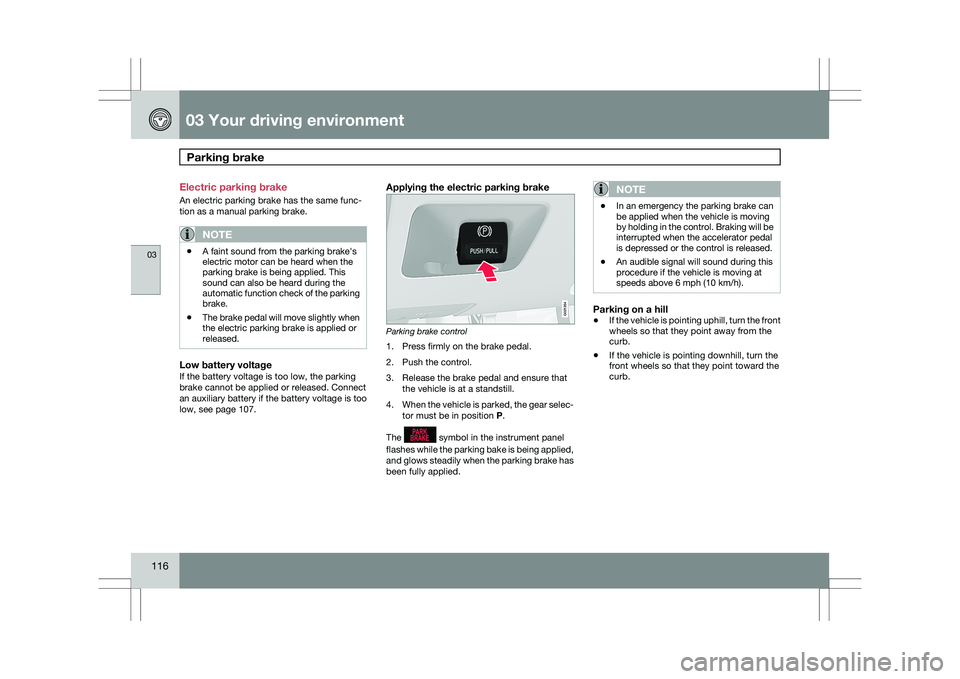
Applying the electric parking brake Parking brake control
1. Press firmly on the brake pedal.
2. Push the control.
3. Release the brake pedal and ensure that
the vehicle is at a standstill.
4. When the vehicle is parked, the gear selec-
tor must be in position P.
The symbol in the instrument panel
flashes while the parking bake is being applied,
and glows steadily when the parking brake has
been fully applied.NOTE \b
In an emergency the parking brake can
be applied when the vehicle is moving
by holding in the control. Braking will be
interrupted when the accelerator pedal
is depressed or the control is released.
\b An audible signal will sound during this
procedure if the vehicle is moving at
speeds above 6 mph (10 km/h).
Parking on a hill
\b
If the vehicle is pointing uphill, turn the front
wheels so that they point away from the
curb.
\b If the vehicle is pointing downhill, turn the
front wheels so that they point toward the
curb. G021354
Page 120 of 297
03 Your driving environmentParking brake 03
118 shop. If you drive off with this error message
showing, a warning signal sounds.
Parking brake not applied – A fault is pre-
venting the parking brake from being applied.
Try to apply and release. Contact a Volvo work-
shop if the message remains.
Parking brake Service required – A fault has
arisen. Contact a Volvo workshop if the fault
remains.
WARNING
If the vehicle must be parked before the fault
has been corrected, always put the gear
selector in
P and turn the wheels so that
they point away from the curb if the vehicle
is pointing uphill or toward the curb if it is
pointing downhill.
Page 139 of 297
04 Comfort and driving pleasure
Audio system04
}}
* Option/accessory, for more information, see Introduction. 137
Sound settingsPress the control (3) repeatedly to toggles
among the sound settings. Adjustments are
made by turning the control (3).
\b
Bass – Bass level.
\b Treble – Treble level.
\b Fader – Balance between the front and
rear speakers.
\b Balance – Balance between the right and
left speakers.
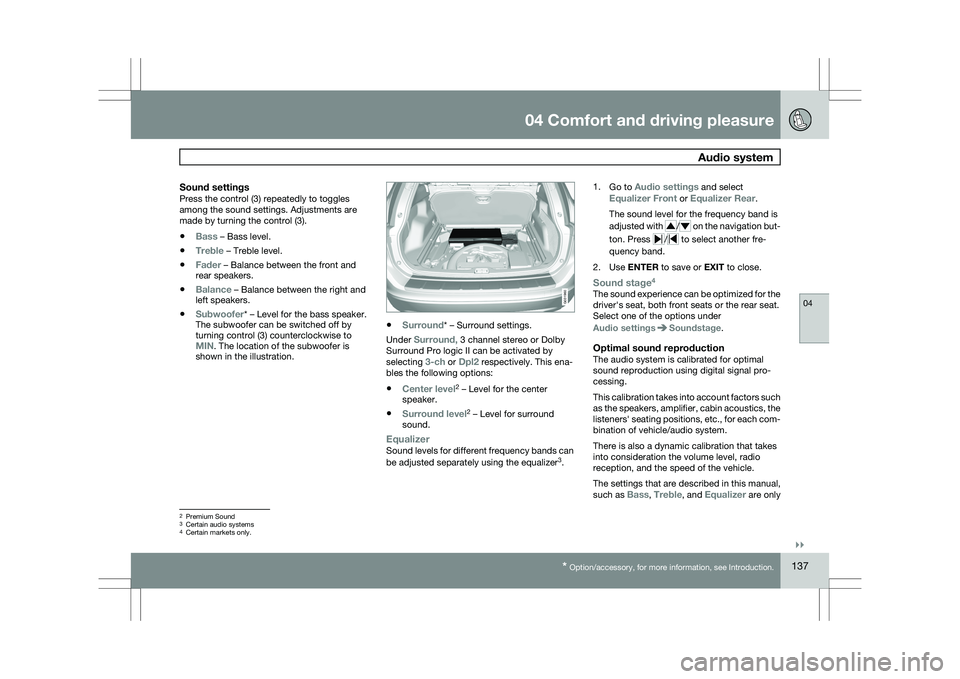
\b Subwoofer* – Level for the bass speaker.
The subwoofer can be switched off by
turning control (3) counterclockwise to
MIN. The location of the subwoofer is
shown in the illustration. \b
Surround* – Surround settings.
Under Surround, 3 channel stereo or Dolby
Surround Pro logic II can be activated by
selecting 3-ch or Dpl2 respectively. This ena-
bles the following options:
\b Center level 2
– Level for the center
speaker.
\b Surround level 2
– Level for surround
sound.
EqualizerSound levels for different frequency bands can
be adjusted separately using the equalizer 3
. 1.
Go to Audio settings and select
Equalizer Front or Equalizer Rear.
The sound level for the frequency band is
adjusted with / on the navigation but-
ton. Press / to select another fre-
quency band.
2. Use ENTER to save or EXIT to close.
Sound stage 4The sound experience can be optimized for the
driver\fs seat, both front seats or the rear seat.
Select one of the options under
Audio settings Soundstage.
Optimal sound reproductionThe audio system is calibrated for optimal
sound reproduction using digital signal pro-
cessing.
This calibration takes into account factors such
as the speakers, amplifier, cabin acoustics, the
listeners\f seating positions, etc., for each com-
bination of vehicle/audio system.
There is also a dynamic calibration that takes
into consideration the volume level, radio
reception, and the speed of the vehicle.
The settings that are described in this manual,
such as Bass,
Treble, and Equalizer are only2
Premium Sound
3 Certain audio systems
4Certain markets only. G031960
Page 143 of 297
04 Comfort and driving pleasure
Audio system04
}}
* Option/accessory, for more information, see Introduction. 141
Wavebands
DAB is broadcast on two wavebands
6
: Band
III and LBand
\b Band III 7
- nationwide
\b LBand – broadcasting primarily in metro-
politan areas
By selecting Band III only, learning channels
will take less time than if both Band III and
LBand are selected. It may not be possible to
find all ensembles (groups of stations). The
choice of waveband does not affect learned
(stored) ensembles.
Navigating via lists
\b Ensemble list – shows groups of channels
that the radio receiver has acquired
through the learn function.
\b Service list – shows channels regardless
which group of channels that they are in.
The list can also be filtered using the DAB
PTY function (see below).
\b Subchannel list – shows subchannels
that may be available on the selected
channel.
The lists can be accessed via the menu.
Groups of channels can also be accessed by
pressing ENTER.
ScanningSCAN automatically searches through the list
of available channels
Sirius satellite radio*
Listening to satellite radioThe Sirius satellite system consists of a number
of high elevation satellites that orbit over North
America. They are supplemented by a number
of ground repeaters that enhance radio cover-
age in urban areas.
NOTE \b
The digital signals from the Sirius satel-
lites are line-of-sight, which means that
physical obstructions such as bridges,
tunnels, etc, may temporarily interfere
with signal reception.
\b Avoid any obstructions, such as metal-
lic objects transported on roof racks or
in a ski box, or other antennas that may
impede signals from the SIRIUS satel-
lites.
Selecting Sirius radio mode1.
Press Power to switch on the audio sys-
tem (see page 136 for information on the
standard audio and radio functions).
2. Press the MODE button repeatedly until
Sirius 1 or 2 is displayed.
Activating Sirius radio1. Tune to a satellite channel that has no
audio, which means that the channel is
unsubscribed and the text "Call 888-539-
SIRIUS TO SUBSCRIBE" is displayed (see
also "Selecting a channel". This only needs
to be done once.
2. Call Sirius at 1-888-539-SIRIUS (7474).
3. When asked for the Sirius ID number press
AUTO to display this number. It is also
possible to retrieve the Sirius ID from the
menu.
4. UPDATING SUBSCRIPTION will be dis-
played while the subscription is being
updated, after which the display will return
to the normal view.
SIRIUS IDThe SIRIUS ID is required when contacting the
Sirius Call Center. It is used to activate your
account and when making any account trans- 6
All areas may not broadcast both wavebands.
7 During a transitional period, DAB may not have nationwide coverage and w\
ill only be available in metropolitan areas.
Page 163 of 297
04 Comfort and driving pleasure
Collision warning with Auto-brake*04
}}
* Option/accessory, for more information, see Introduction. 161
support is activated. Brake support prepares
the brake system to react quickly, and the
brakes are applied slightly. This may be expe-
rienced as a light tug.
If the brakes are applied quickly, full braking
effect will be provided, even if pressure on the
brake pedal is light.
Auto-brakeIf a collision is imminent and the driver has not
applied the brakes, the auto-brake function is
activated without the driver pressing the brake
pedal. Limited brake force is applied to reduce
the vehicle’s speed when the collision occurs.
WARNING
The auto-brake function connot prevent a
collision but instead is intended to reduce
speed at the moment of impact. For full
braking effect, driver must apply the brakes.
NOTE
The auto-brake function is always on and
cannot be turned off.
Operation
Some settings are controlled from the center
console via a menu system. For information on
how the menu system is used, see page 122.
On and offTo switch Collision Warning on or off, go into
the menu Car settings Collision warning
settings and select On or Off. When the engine
is started, the setting that was selected when
it was switched off will be used.
Activating/deactivating warning signalsThe collision warning system’s audible and vis-
ual signals are activated automatically when
the engine is started if the collision warning
system is activated.
The audible warning signal can be activated/
deactivated by selecting the alternative On or
Off in Car settings Collision warning
settings Warning sound.
Setting a warning distanceThis setting determines the distance at which
the visual and audible warnings are triggered.
Select Long, Normal or Short under Car
settings Collision warning settings
Warning distance
The warning distance determines the level of
sensitivity used by the system. The warning
distance Long provides an earlier warning.
Begin by using Long and if the system gives
too many warnings, try changing to
Normal.
WARNING \b
The setting
Short should only be used
in situations where traffic is light and
moving at low speeds.
\b Collision Warning alerts the driver to the
risk of a collision but this function can-
not reduce the driver’s reaction time.
\b For Collision Warning to be as effective
as possible, it is recommended that Dis-
tance Alert be set to 4 or 5, see
page 179.
NOTE \b
When adaptive cruise control is used,
the warning light and signal will be used
by cruise control, even if they have been
deactivated by the driver.
\b In situations where traffic is moving at
considerably different speeds, or if the
vehicle ahead brakes suddenly, warn-
ings may be considered to be late, even
if the setting Long has been selected.
Checking settingsThe current Collision Warning settings can be
checked by going into the menu system at
Car
settings Collision warning settings. See
page 122 for more information on the menu
system.