audio VOLVO XC60 2009 Owner´s Manual
[x] Cancel search | Manufacturer: VOLVO, Model Year: 2009, Model line: XC60, Model: VOLVO XC60 2009Pages: 297, PDF Size: 21.16 MB
Page 146 of 297
04 Comfort and driving pleasureAudio system 04
144
Locking a channel:1.
Select Sirius ID in the menu and select
LOCK OPTIONS and press ENTER.
2. Select CHANNEL LOCK LIST and press
ENTER
3. Enter the channel access code 8
and press
ENTER.
4. Select a category in the list and press ENTER.
5. Lock channels in the list presented by pressing ENTER or right arrow.
The channel is now locked and a checked box
will be displayed to indicate this. It will be nec-
essary to enter the channel access code 8
in
order to listen to a locked channel.
Unlocking a channel
A channel\fs access code 8
is required to unlock
a channel.
Unlock all channelsThis permanently removes all channels from
the locked list and makes them available for
selection.
Temp. unlock all ch.This function will temporarily unlock all chan-
nels and make them available for selection. The channels remain on the locked list and will
again be locked the next time the ignition is
switched on.
CHANGE CODEThis function makes it possible to change the
channel access code. The default code is
0000.
To change the code:
1.
Select CHANGE CODE and press
ENTER.
2. Enter the current code and press ENTER.
3. Enter the new code and press ENTER.
4. Confirm the new code and press ENTER.
If an incorrect code is entered, the text
WRONG CODE! is displayed.
If you have forgotten the access code:1. Select SIRIUS ID in the Sirius settings
menu and press ENTER.
2. Press and hold the ENTER button for
2 seconds.
3. The current code will be displayed.
Your Volvo retailer can also provide you with
assistance.
SIRIUS IDThis function displays the 12-digit Sirius acti-
vation ID.
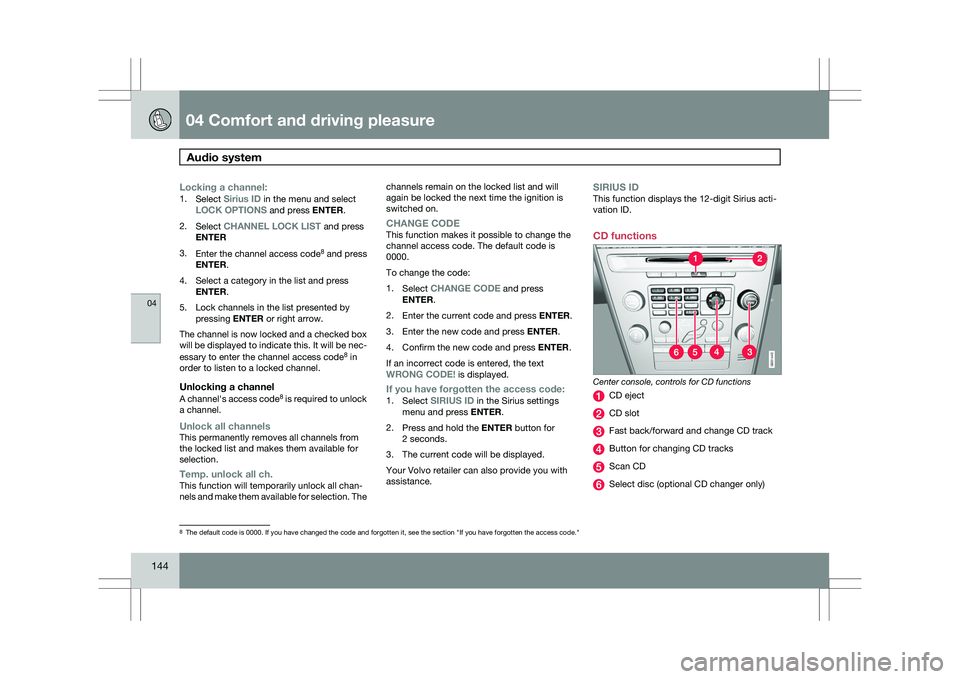
CD functions Center console, controls for CD functions
CD eject
CD slot
Fast back/forward and change CD track
Button for changing CD tracks
Scan CD
Select disc (optional CD changer only)
8
The default code is 0000. If you have changed the code and forgotten it,\
see the section "If you have forgotten the access code." G031443
Page 147 of 297
04 Comfort and driving pleasure
Audio system04
}}
145
Playing a CD (CD player
9
)If a music CD is in the player when CD is
pressed, it will be played automatically. Other-
wise, insert a disc and press CD.
Playing a CD (CD changer)If a CD position with a music CD is already
selected when CD is pressed, it will be played
automatically. Otherwise select a disc with the
number buttons 1 – 6 or / on the naviga-
tion button.
Insert a CD (CD changer)1. Select an empty position with the number
buttons 1 – 6 or / on the navigation
button.
> An empty position is marked on the dis-
play. The text Insert disc shows that a
new disc can be inserted. The CD
changer can hold up to six CDs.
2. Insert a CD in the CD changer slot.
Disc ejectFor reasons of traffic safety, an ejected CD
must be removed within 12 seconds or it will
be automatically drawn back into the slot and
the CD player will enter pause mode. Press the
CD button to restart the disc. Eject individual discs by pressing the eject but-
ton.
Eject all discs with a long press on the eject
button. The entire magazine is emptied disc by
disc.
NOTE
The Eject all function can only be used while
the vehicle is at a standstill and will be can-
celled if the vehicle begins to move.
PauseWhen the audio system volume is turned off
completely, the CD player will pause and will
resume playing when the volume is turned up
again.
Sound filesIn addition to playing normal music CDs, the
CD player/changer can also play discs con-
taining files in mp3 or wma format.
NOTE
Some copy protected sound files may not
be read by the player.
When a CD containing sound files is inserted
into the player the disc\fs folder structure isscanned before the CD begins playing. The
length of time that this takes depends on the
quality of the disc.
Navigating the disc and playing tracksIf a disc containing sound files is inside the CD
player, press ENTER to display the disc\fs
directory structure. The directory structure is
navigated in the same way as the audio sys-
tem\fs menu structure. Sound files have the
symbol and directories have the
symbol. Press ENTER to play a selected folder
or a file.
When the music file has been played, the
player will continue to play the rest of the files
in the current folder. When all of the files in the
folder have been played, the player will auto-
matically go to the next folder and play the files
in it.
Fast-forward/change CD tracks and
sound files
Short presses / on the navigation button
are used to scroll between CD tracks/sound
files. Long presses are used to search within
CD tracks/sound files. TUNING (or the steering
wheel keypad) can also be used for this pur-
pose.
9 Certain markets only.
Page 148 of 297
04 Comfort and driving pleasureAudio system 04
146
Scan CDThis function plays the first ten seconds of
each CD track/sound file. Press
SCAN to acti-
vate. Interrupt with EXIT or SCAN to continue
playing the current CD track/sound file.
RandomThis function plays the tracks in random order
(shuffle). The random CD tracks/sound files
can be scrolled through in the normal way.
NOTE It is only possible to scroll between random
CD tracks on the current disc.
Different messages are displayed depending
on which random function has been selected:
\b
RANDOM means that the tracks from only
one music CD are played
\b RND ALL means that all tracks on all
music CDs in the optional CD changer are
played.
\b RANDOM FOLDER means that the sound
files in a directory on the current CD are
played.
CD playerIf a normal music CD is being played, activate/
deactivate under Random. If a disc with sound files is being played, acti-
vate/deactivate under Random Folder.
CD changerIf a normal music CD is being played under
Random
Single disc or Random All
discs. The option All discs only applies to the
music CDs in the changer.
If a CD with sound files is being played, acti-
vate/deactivate instead under Random Folder. If you select another CD the function is
deactivated.
Disc textIf title information is stored on a music CD it can
be shown on the display
10
. Activate/deactivate
in CD mode under CD settings Disc text.
10
Only applies to the CD changer.
Page 149 of 297
04 Comfort and driving pleasure
Bluetooth® hands-free connection04
}}
147
Introduction
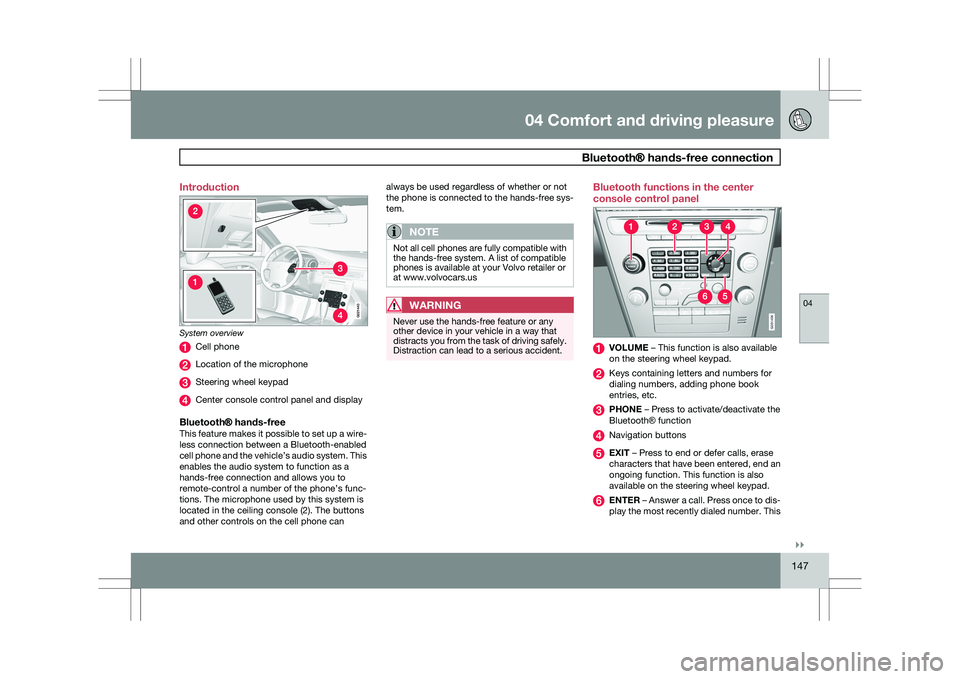
System overview
Cell phone
Location of the microphone
Steering wheel keypad
Center console control panel and display
Bluetooth® hands-freeThis feature makes it possible to set up a wire-
less connection between a Bluetooth-enabled
cell phone and the vehicle’s audio system. This
enables the audio system to function as a
hands-free connection and allows you to
remote-control a number of the phone’s func-
tions. The microphone used by this system is
located in the ceiling console (2). The buttons
and other controls on the cell phone can always be used regardless of whether or not
the phone is connected to the hands-free sys-
tem.
NOTE
Not all cell phones are fully compatible with
the hands-free system. A list of compatible
phones is available at your Volvo retailer or
at www.volvocars.us
WARNING
Never use the hands-free feature or any
other device in your vehicle in a way that
distracts you from the task of driving safely.
Distraction can lead to a serious accident. Bluetooth functions in the center
console control panel
VOLUME – This function is also available
on the steering wheel keypad.
Keys containing letters and numbers for
dialing numbers, adding phone book
entries, etc.
PHONE – Press to activate/deactivate the
Bluetooth
® function Navigation buttons
EXIT – Press to end or defer calls, erase
characters that have been entered, end an
ongoing function. This function is also
available on the steering wheel keypad.
ENTER – Answer a call. Press once to dis-
play the most recently dialed number. This G02144
3 G031456
Page 150 of 297
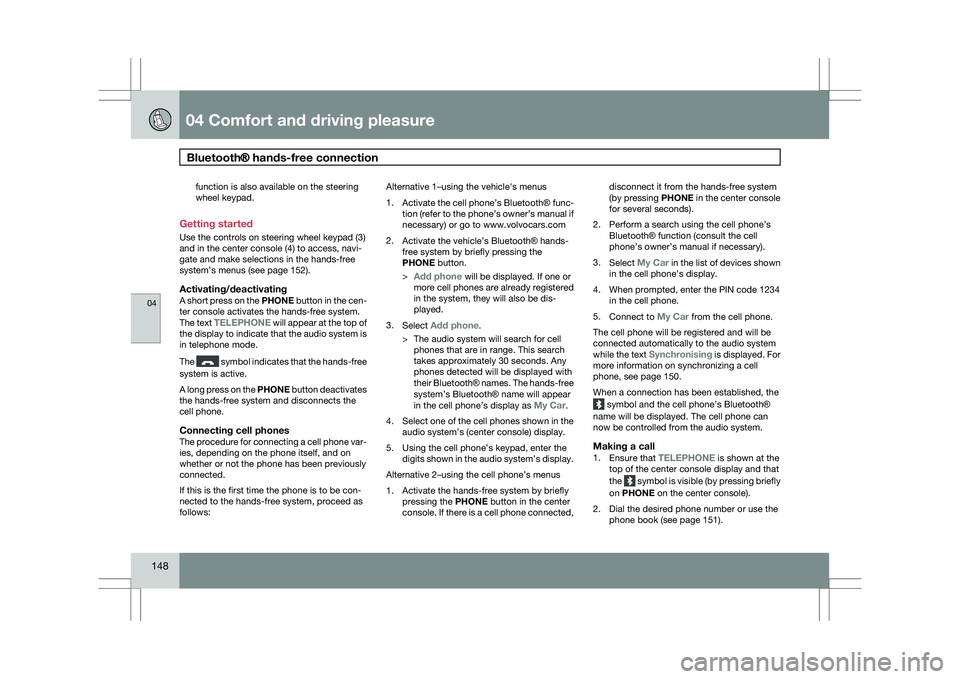
04 Comfort and driving pleasureBluetooth® hands-free connection 04
148 function is also available on the steering
wheel keypad.
Getting started
Use the controls on steering wheel keypad (3)
and in the center console (4) to access, navi-
gate and make selections in the hands-free
system’s menus (see page 152).
Activating/deactivatingA short press on the PHONE button in the cen-
ter console activates the hands-free system.
The text TELEPHONE will appear at the top of
the display to indicate that the audio system is
in telephone mode.
The symbol indicates that the hands-free
system is active.
A long press on the PHONE button deactivates
the hands-free system and disconnects the
cell phone.
Connecting cell phonesThe procedure for connecting a cell phone var-
ies, depending on the phone itself, and on
whether or not the phone has been previously
connected.
If this is the first time the phone is to be con-
nected to the hands-free system, proceed as
follows: Alternative 1–using the vehicle\fs menus
1.
Activate the cell phone’s Bluetooth® func-
tion (refer to the phone’s owner’s manual if
necessary) or go to www.volvocars.com
2. Activate the vehicle’s Bluetooth ® hands-
free system by briefly pressing the
PHONE button.
> Add phone will be displayed. If one or
more cell phones are already registered
in the system, they will also be dis-
played.
3. Select Add phone.
>The audio system will search for cell
phones that are in range. This search
takes approximately 30 seconds. Any
phones detected will be displayed with
their Bluetooth ® names. The hands-free
system’s Bluetooth ® name will appear
in the cell phone’s display as My Car.
4. Select one of the cell phones shown in the
audio system’s (center console) display.
5. Using the cell phone’s keypad, enter the digits shown in the audio system’s display.
Alternative 2–using the cell phone’s menus
1. Activate the hands-free system by briefly pressing the PHONE button in the center
console. If there is a cell phone connected, disconnect it from the hands-free system
(by pressing PHONE in the center console
for several seconds).
2. Perform a search using the cell phone’s Bluetooth ® function (consult the cell
phone’s owner’s manual if necessary).
3. Select My Car in the list of devices shown
in the cell phone’s display.
4. When prompted, enter the PIN code 1234 in the cell phone.
5. Connect to My Car from the cell phone.
The cell phone will be registered and will be
connected automatically to the audio system
while the text Synchronising is displayed. For
more information on synchronizing a cell
phone, see page 150.
When a connection has been established, the symbol and the cell phone’s Bluetooth
®
name will be displayed. The cell phone can
now be controlled from the audio system.Making a call1. Ensure that TELEPHONE is shown at the
top of the center console display and that
the symbol is visible (by pressing briefly
on PHONE on the center console).
2. Dial the desired phone number or use the phone book (see page 151).
Page 151 of 297
04 Comfort and driving pleasure
Bluetooth® hands-free connection04
}}
149
3.
Press ENTER.
End the call by pressing EXIT.
Disconnecting the cell phoneThe cell phone is automatically disconnected
from the audio system if it is moved out of
range. For more information about connec-
tions, see page 148.
The cell phone can be manually disconnected
from the hands-free system by pressing
PHONE. The hands-free system is also deac-
tivated when the ignition is switched off (or if
the driver’s door is opened on vehicles equip-
ped with the optional keyless drive).
When the cell phone is disconnected from the
hands-free system, a call in progress can be
continued using the cell phone’s own speaker
and microphone.
NOTE Certain cell phones may require confirma-
tion from the phone’s keypad when a call is
transferred from hands-free to the cell
phone. Handling calls
Incoming callsPress ENTER to answer a call, even if the audio
system is currently in e.g., CD or FM mode.
Press EXIT to defer a call.
Automatic answerThis function means that incoming calls will be
answered automatically. Activate or deactivate
the function in the menu system under Phone
settings Call options Automatic
answer.
Call settingsWhile a call is in progress, press MENU or
ENTER on the center console to access the
following functions:
\b Microphone off–mute the audio system’s
microphone.
\b Transfer call to mobile–transfer the call
from hands-free to the cell phone.
\b Phone book–this feature enables you to
search for a stored telephone number.
NOTE \b
On certain cell phones, the connection
is broken when the mute function is
used, which is normal. If this happens,
the hands-free system will prompt you
to reconnect.
\b A new call cannot be initiated while
another call is in progress. Sound settings
Call volumeCall volume can be adjusted when the hands-
free system is activated. Use the buttons in the
steering wheel keypad or the audio system’s
volume control.
Audio system volumeWhile a phone call is in progress, volume for
the audio system can be adjusted in the normal
way with the audio system\fs volume control. In
order to adjust volume during a phone call, the
audio system must be switched to one of the
other modes (FM, CD, etc).
Audio system sound can be automatically
muted when a phone call is received in
Phone
settings Sounds and volume Mute
radio and adjust the volume with the /
keys on the center console.
Page 152 of 297
04 Comfort and driving pleasureBluetooth® hands-free connection 04
150
Ringing volume
Go to Phone settings Sounds and volume
Ring volume and adjust the volume with
the / keys on the center console.
Ringing tonesThe hands-free system’s integrated ringing
tones can be selected in Phone settings
Sounds and volume Ring signal Ring
signal 1,2,3....
NOTE The connected cell phone’s ring tone is not
switched off when one of the hands-free
system\fs ringing tones is used.
If you prefer to use the connected cell phone’s
ring tone
1
, go to Phone settings Sounds
and volume Ring signal Use mobile
phone signal More information about registering
and connecting cell phones
A maximum of 5 cell phones can be registered
in the hands-free system. Registration only
needs to be done once for each phone. After
registration, the cell phone no longer needs to
be in sight or searchable. Only one cell phone
can be connected to hands-free at a time.
Phones can be unregistered in
Bluetooth Remove telephoneAutomatic connectionWhen the hands-free system is active and the
most recently connected cell phone is within
range, it is detected automatically. When the
audio system searches for the most recently
connected phone, this phone’s name appears
in the display. To manually connect a different
cell phone, press EXIT.
Manual connectionTo connect a phone other than the one that
was most recently connected or to switch
between cell phones that are already regis-
tered in the hands-free system:
1. Put the audio system in telephone mode.
2.
Press PHONE in the center console and
select one of the phones on the list. A connection can also be established in the
menu system under Bluetooth Connect
phone or Change phone.
Phone book
In order to use the hands-free system’s phone
book (list of contacts), TELEPHONE must be
displayed at the top of the center console dis-
play and the symbol must be visible.
The audio system stores a copy of the phone
book of each registered cell phone. The phone
book is automatically copied each time a
phone is connected. This function can be acti-
vated in Phone settings Synchronise
phone book. Searches for contacts are only
made in the phone book of the currently con-
nected cell phone.
NOTE If a particular cell phone does not support
copying of the phone book,
List is empty
will be displayed when copying has been
completed. If the phone book contains information about
someone who is trying to call you, this infor-
mation will be shown in the display.
1
Not supported by all cell phones.
Page 156 of 297
04 Comfort and driving pleasureCompass 04
154 Operation
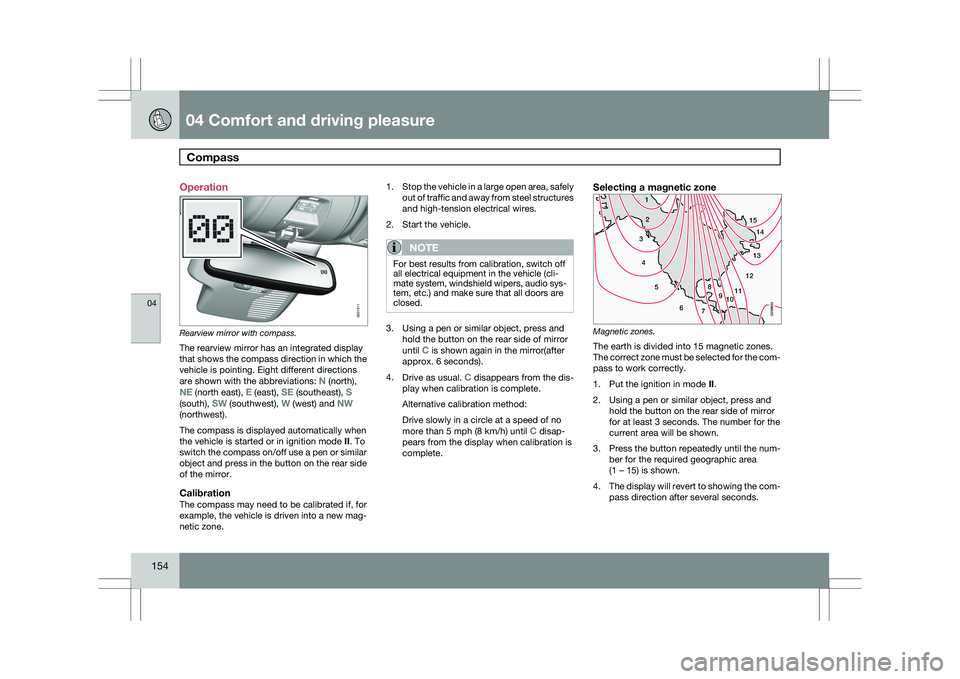
Rearview mirror with compass.
The rearview mirror has an integrated display
that shows the compass direction in which the
vehicle is pointing. Eight different directions
are shown with the abbreviations: N (north),
NE (north east), E (east), SE (southeast), S
(south), SW (southwest), W (west) and NW
(northwest).
The compass is displayed automatically when
the vehicle is started or in ignition mode II. To
switch the compass on/off use a pen or similar
object and press in the button on the rear side
of the mirror.
CalibrationThe compass may need to be calibrated if, for
example, the vehicle is driven into a new mag-
netic zone. 1.
Stop the vehicle in a large open area, safely
out of traffic and away from steel structures
and high-tension electrical wires.
2. Start the vehicle.
NOTE For best results from calibration, switch off
all electrical equipment in the vehicle (cli-
mate system, windshield wipers, audio sys-
tem, etc.) and make sure that all doors are
closed.
3. Using a pen or similar object, press and
hold the button on the rear side of mirror
until C is shown again in the mirror(after
approx. 6 seconds).
4. Drive as usual. C disappears from the dis-
play when calibration is complete.
Alternative calibration method:
Drive slowly in a circle at a speed of no
more than 5 mph (8 km/h) until C disap-
pears from the display when calibration is
complete.
Selecting a magnetic zone Magnetic zones.
The earth is divided into 15 magnetic zones.
The correct zone must be selected for the com-
pass to work correctly.
1.
Put the ignition in mode II.
2. Using a pen or similar object, press and hold the button on the rear side of mirror
for at least 3 seconds. The number for the
current area will be shown.
3. Press the button repeatedly until the num-
ber for the required geographic area
(1 – 15) is shown.
4. The display will revert to showing the com-
pass direction after several seconds. G031611
15
14
13
12
1198
76
5
4
3
2
1
10
G018632
Page 189 of 297
04 Comfort and driving pleasure
Park assist*04
}}
* Option/accessory, for more information, see Introduction. 187
Introduction
The park assist system is designed to assist
you when driving into parking spaces, garages,
etc. It utilizes four ultrasound sensors located
in one or both bumpers to measure the dis-
tance to a vehicle, object, or a person who may
be close to the front or rear of your vehicle.
This system is available in the rear bumper
only, or in both the front and rear bumpers.
Park assist utilizes four ultrasound sensors in
the bumper(s) to measure the distance to a
vehicle, object, or a person who may be close
to the front or rear of your vehicle. An audible
signal and symbols in the audio system’s dis-
play indicate the distance to the object
WARNING
Park Assist is an information system, NOT a
safety system. This system is designed to
be a supplementary aid when parking the
vehicle. It is not, however, intended to
replace the driver\fs attention and judge-
ment. Function
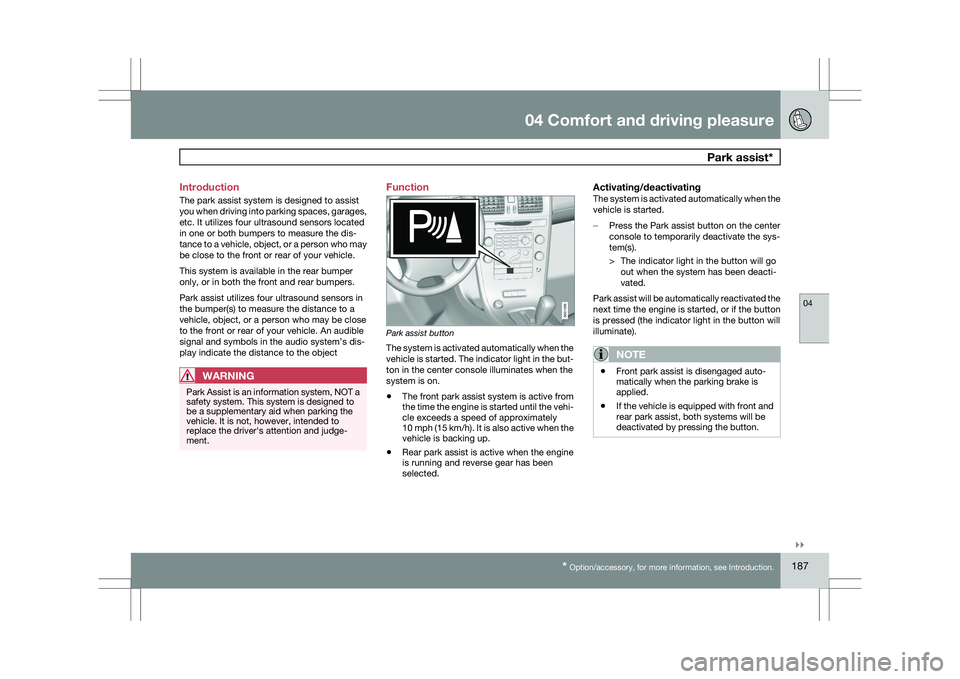
Park assist button
The system is activated automatically when the
vehicle is started. The indicator light in the but-
ton in the center console illuminates when the
system is on.
\b
The front park assist system is active from
the time the engine is started until the vehi-
cle exceeds a speed of approximately
10 mph (15 km/h). It is also active when the
vehicle is backing up.
\b Rear park assist is active when the engine
is running and reverse gear has been
selected.
Activating/deactivatingThe system is activated automatically when the
vehicle is started.
–
Press the Park assist button on the center
console to temporarily deactivate the sys-
tem(s).
> The indicator light in the button will go
out when the system has been deacti-
vated.
Park assist will be automatically reactivated the
next time the engine is started, or if the button
is pressed (the indicator light in the button will
illuminate).
NOTE \b
Front park assist is disengaged auto-
matically when the parking brake is
applied.
\b If the vehicle is equipped with front and
rear park assist, both systems will be
deactivated by pressing the button. G031399
Page 190 of 297
04 Comfort and driving pleasurePark assist* 04
188
* Option/accessory, for more information, see Introduction.
Signals from the park assist system
Views in the display
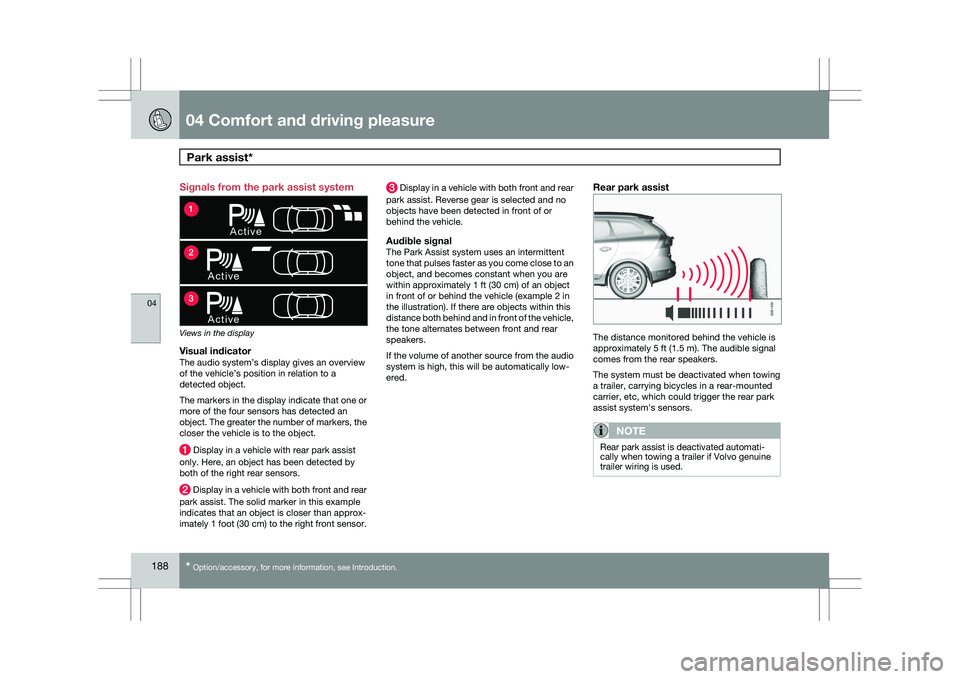
Visual indicatorThe audio system’s display gives an overview
of the vehicle’s position in relation to a
detected object.
The markers in the display indicate that one or
more of the four sensors has detected an
object. The greater the number of markers, the
closer the vehicle is to the object.
Display in a vehicle with rear park assist
only. Here, an object has been detected by
both of the right rear sensors. Display in a vehicle with both front and rear
park assist. The solid marker in this example
indicates that an object is closer than approx-
imately 1 foot (30 cm) to the right front sensor. Display in a vehicle with both front and rear
park assist. Reverse gear is selected and no
objects have been detected in front of or
behind the vehicle.
Audible signalThe Park Assist system uses an intermittent
tone that pulses faster as you come close to an
object, and becomes constant when you are
within approximately 1 ft (30 cm) of an object
in front of or behind the vehicle (example 2 in
the illustration). If there are objects within this
distance both behind and in front of the vehicle,
the tone alternates between front and rear
speakers.
If the volume of another source from the audio
system is high, this will be automatically low-
ered.
Rear park assist The distance monitored behind the vehicle is
approximately 5 ft (1.5 m). The audible signal
comes from the rear speakers.
The system must be deactivated when towing
a trailer, carrying bicycles in a rear-mounted
carrier, etc, which could trigger the rear park
assist system\fs sensors.
NOTE
Rear park assist is deactivated automati-
cally when towing a trailer if Volvo genuine
trailer wiring is used.
A c t i ve
A c t i v e
A c t i v e
1
2
3 G031400