display VOLVO XC60 2015 Owner´s Manual
[x] Cancel search | Manufacturer: VOLVO, Model Year: 2015, Model line: XC60, Model: VOLVO XC60 2015Pages: 406, PDF Size: 11.03 MB
Page 192 of 406
04 Driver support
Driver Alert System*
04
190* Option/accessory, for more information, see Introduction.
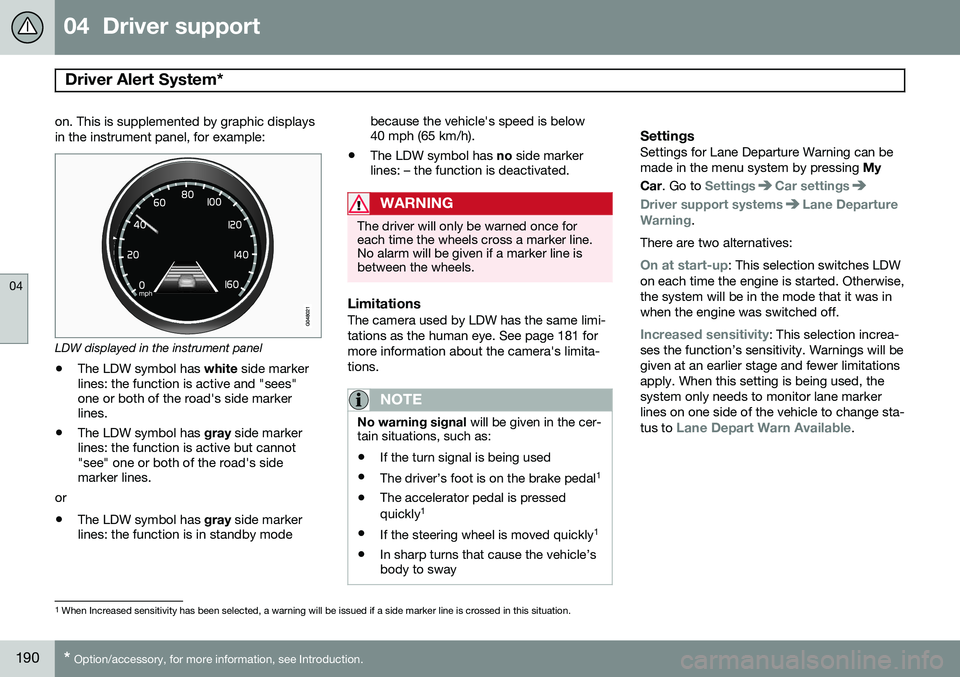
on. This is supplemented by graphic displays in the instrument panel, for example:
LDW displayed in the instrument panel
• The LDW symbol has
white side marker
lines: the function is active and "sees" one or both of the road's side markerlines.
• The LDW symbol has
gray side marker
lines: the function is active but cannot"see" one or both of the road's sidemarker lines.
or
• The LDW symbol has
gray side marker
lines: the function is in standby mode because the vehicle's speed is below40 mph (65 km/h).
• The LDW symbol has
no side marker
lines: – the function is deactivated.
WARNING
The driver will only be warned once for each time the wheels cross a marker line.No alarm will be given if a marker line isbetween the wheels.
LimitationsThe camera used by LDW has the same limi- tations as the human eye. See page 181 formore information about the camera's limita-tions.
NOTE
No warning signal will be given in the cer-
tain situations, such as:
• If the turn signal is being used
• The driver’s foot is on the brake pedal 1
• The accelerator pedal is pressed quickly 1
• If the steering wheel is moved quickly 1
• In sharp turns that cause the vehicle’s body to sway
SettingsSettings for Lane Departure Warning can be made in the menu system by pressing
My
Car . Go to
SettingsCar settings
Driver support systemsLane Departure
Warning.
There are two alternatives:
On at start-up: This selection switches LDW
on each time the engine is started. Otherwise, the system will be in the mode that it was inwhen the engine was switched off.
Increased sensitivity: This selection increa-
ses the function’s sensitivity. Warnings will be given at an earlier stage and fewer limitationsapply. When this setting is being used, thesystem only needs to monitor lane markerlines on one side of the vehicle to change sta- tus to
Lane Depart Warn Available.
1 When Increased sensitivity has been selected, a warning will be issued if a side marker line is crossed in this situation.
Page 193 of 406
04 Driver support
Driver Alert System*
04
* Option/accessory, for more information, see Introduction.191
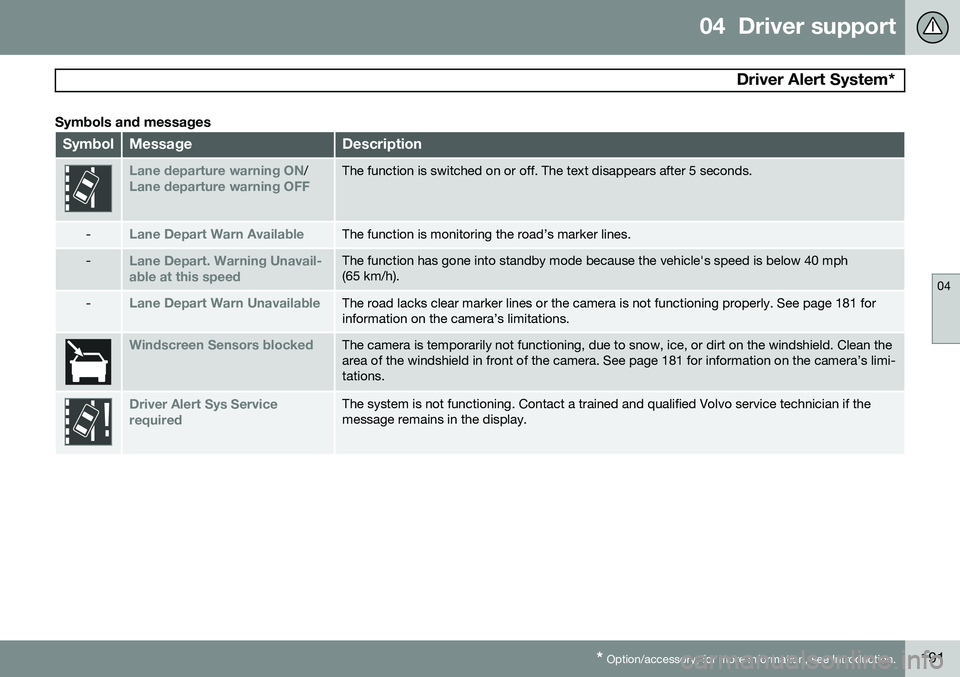
Symbols and messages
SymbolMessageDescription
Lane departure warning ON/Lane departure warning OFFThe function is switched on or off. The text disappears after 5 seconds.
-Lane Depart Warn AvailableThe function is monitoring the road’s marker lines.
-Lane Depart. Warning Unavail-
able at this speedThe function has gone into standby mode because the vehicle's speed is below 40 mph (65 km/h).
-Lane Depart Warn UnavailableThe road lacks clear marker lines or the camera is not functioning properly. See page 181 for information on the camera’s limitations.
Windscreen Sensors blockedThe camera is temporarily not functioning, due to snow, ice, or dirt on the windshield. Clean the area of the windshield in front of the camera. See page 181 for information on the camera’s limi-tations.
Driver Alert Sys Service requiredThe system is not functioning. Contact a trained and qualified Volvo service technician if the message remains in the display.
Page 194 of 406
04 Driver support
Park assist*
04
192* Option/accessory, for more information, see Introduction.
Introduction
The park assist system is designed to assist you when driving into parking spaces,garages, etc. It utilizes ultrasound sensors inthe front bumper and rear bumper(s) to meas-ure the distance to a vehicle or an object thatmay be close to the front or rear of your vehi-cle. An audible signal and symbols in theaudio system’s display indicate the distanceto the object.
NOTE
A trailer hitch whose wiring is integrated with the vehicle's electrical system will beincluded in the measurement of the availa-ble space behind the vehicle.
WARNING
Park Assist is an information system, NOT a safety system. This system is designedto be a supplementary aid when parkingthe vehicle. It is not, however, intended toreplace the driver's attention and judge-ment.
Function
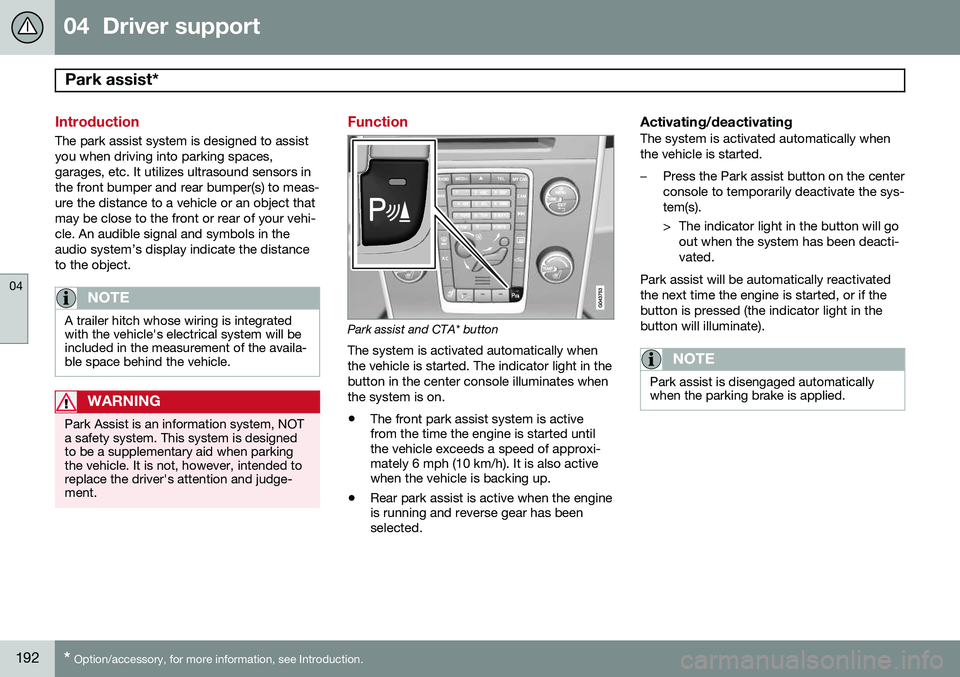
Park assist and CTA* button
The system is activated automatically when the vehicle is started. The indicator light in thebutton in the center console illuminates whenthe system is on.
• The front park assist system is active from the time the engine is started untilthe vehicle exceeds a speed of approxi-mately 6 mph (10 km/h). It is also activewhen the vehicle is backing up.
• Rear park assist is active when the engineis running and reverse gear has beenselected.
Activating/deactivatingThe system is activated automatically when the vehicle is started.
–Press the Park assist button on the center console to temporarily deactivate the sys-tem(s).
> The indicator light in the button will go
out when the system has been deacti- vated.
Park assist will be automatically reactivatedthe next time the engine is started, or if thebutton is pressed (the indicator light in thebutton will illuminate).
NOTE
Park assist is disengaged automatically when the parking brake is applied.
Page 195 of 406
04 Driver support
Park assist*
04
}}
* Option/accessory, for more information, see Introduction.193
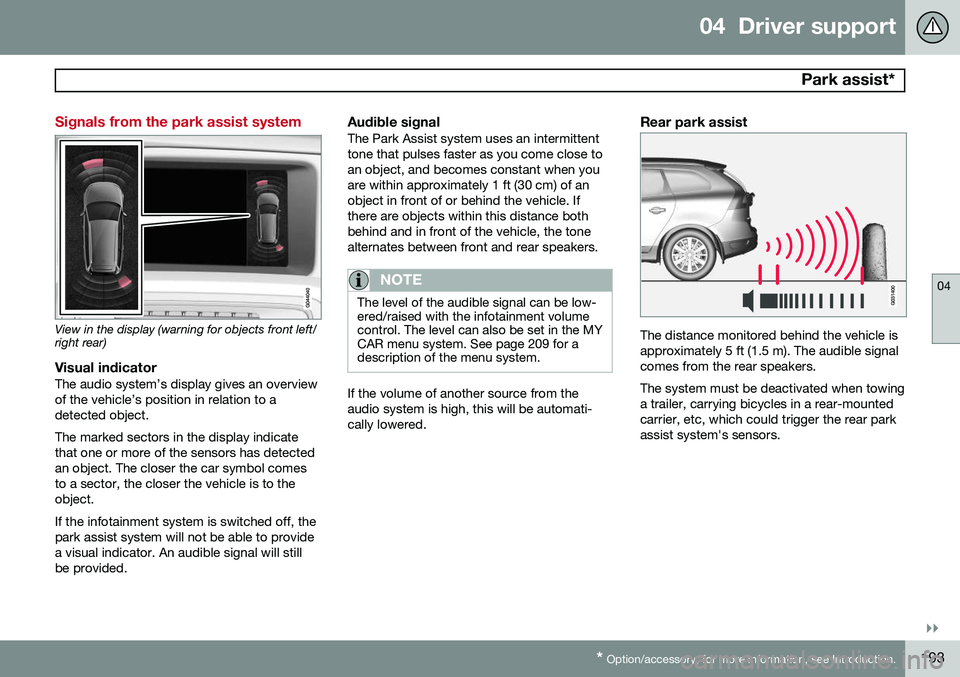
Signals from the park assist system
View in the display (warning for objects front left/ right rear)
Visual indicatorThe audio system’s display gives an overview of the vehicle’s position in relation to adetected object. The marked sectors in the display indicate that one or more of the sensors has detectedan object. The closer the car symbol comesto a sector, the closer the vehicle is to theobject. If the infotainment system is switched off, the park assist system will not be able to providea visual indicator. An audible signal will stillbe provided.
Audible signalThe Park Assist system uses an intermittenttone that pulses faster as you come close toan object, and becomes constant when youare within approximately 1 ft (30 cm) of anobject in front of or behind the vehicle. Ifthere are objects within this distance bothbehind and in front of the vehicle, the tonealternates between front and rear speakers.
NOTE
The level of the audible signal can be low- ered/raised with the infotainment volumecontrol. The level can also be set in the MYCAR menu system. See page 209 for adescription of the menu system.
If the volume of another source from the audio system is high, this will be automati-cally lowered.
Rear park assist
The distance monitored behind the vehicle is approximately 5 ft (1.5 m). The audible signalcomes from the rear speakers. The system must be deactivated when towing a trailer, carrying bicycles in a rear-mountedcarrier, etc, which could trigger the rear parkassist system's sensors.
Page 196 of 406
04 Driver support
Park assist*
04
194* Option/accessory, for more information, see Introduction.
NOTE
• Rear park assist is deactivated auto- matically when towing a trailer if Volvogenuine trailer wiring is used. If a non-Volvo trailer hitch is being used, it maybe necessary to switch off the systemmanually, see page 192.
• The system will not detect highobjects, such as a loading dock, etc.
• Objects such as chains, thin shinypoles or low objects may temporarilynot be detected by the system. Thismay result in the pulsing tone unex-pectedly stopping instead of changingto a constant tone as the vehicleapproaches the object. In such cases,use caution when backing up or stopthe vehicle to help avoid damage.
Front park assist
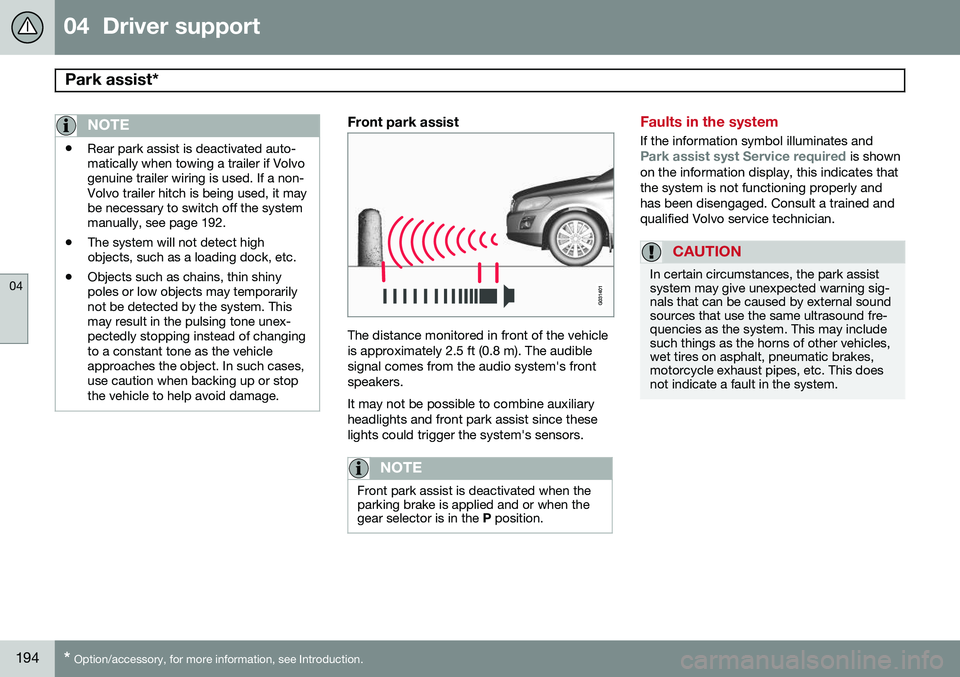
The distance monitored in front of the vehicle is approximately 2.5 ft (0.8 m). The audiblesignal comes from the audio system's frontspeakers. It may not be possible to combine auxiliary headlights and front park assist since theselights could trigger the system's sensors.
NOTE
Front park assist is deactivated when the parking brake is applied and or when thegear selector is in the
P position.
Faults in the system
If the information symbol illuminates andPark assist syst Service required is shown
on the information display, this indicates that the system is not functioning properly andhas been disengaged. Consult a trained andqualified Volvo service technician.
CAUTION
In certain circumstances, the park assist system may give unexpected warning sig-nals that can be caused by external soundsources that use the same ultrasound fre-quencies as the system. This may includesuch things as the horns of other vehicles,wet tires on asphalt, pneumatic brakes,motorcycle exhaust pipes, etc. This doesnot indicate a fault in the system.
Page 199 of 406
04 Driver support
Rear Park Assist Camera (PAC)*
04
}}
* Option/accessory, for more information, see Introduction.197
Using PAC
Activation
PAC is activated when the gear selector is moved to R if the system is selected in the
MY CAR menu system or by pressing the
CAM button in the center console. See page
209 for a description of the menu system. PAC will automatically override the view cur- rently displayed on the screen and display thecamera's view behind the vehicle.
ZoomThe camera can be useful when attaching atrailer. Press CAM to zoom in on the trailer
hitch (and press this button again to return tothe normal camera view). With the camera zoomed in on the trailerhitch, a guiding line showing the hitch's pathtoward the trailer will be projected. This fea-ture can be activated in the
MY CAR menu.
See page 209 for a description of the menusystem. The guiding lines for the wheels (seethe following section "Guiding lines") and forthe trailer hitch cannot be displayed at thesame time. If the camera shows an enlarged (zoomed) image, turn TUNE, or press CAM to return to
a normal view.
DeactivationMove the gear selector from R to another
gear. The camera remains active for approx.5 seconds after the gear selector has beenmoved from R or until the vehicle's forward
speed exceeds 6 mph (10 km/h)(21 mph/35 km/h in reverse). The screen willthen revert to the view that was displayedbefore R was selected.
NOTE
If any button on the center console control panel is pressed, the camera image willdisappear from the display. Pressing CAM
will return the camera image to the display.
Guiding lines
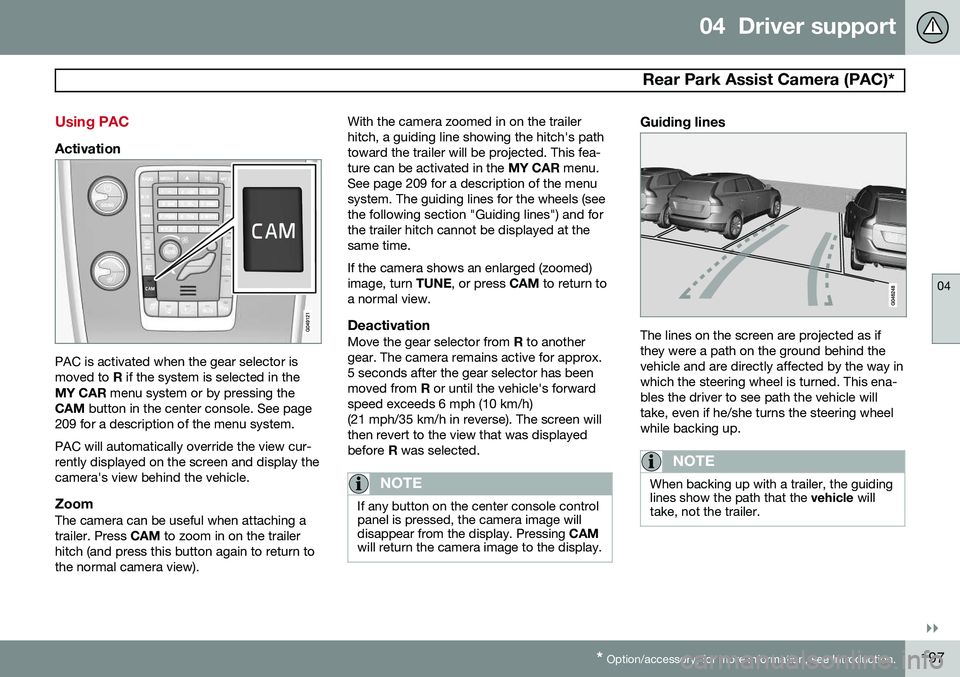
The lines on the screen are projected as if they were a path on the ground behind thevehicle and are directly affected by the way inwhich the steering wheel is turned. This ena-bles the driver to see path the vehicle willtake, even if he/she turns the steering wheelwhile backing up.
NOTE
When backing up with a trailer, the guiding lines show the path that the vehicle will
take, not the trailer.
Page 200 of 406
04 Driver support
Rear Park Assist Camera (PAC)*
04
198* Option/accessory, for more information, see Introduction.
WARNING
Keep in mind that the image on the screen only shows the area behind the vehicle.The driver must always watch for people,animals, other vehicles, etc., near the sidesof the vehicle when turning while backingup.
Marker lines
The PAC system's lines
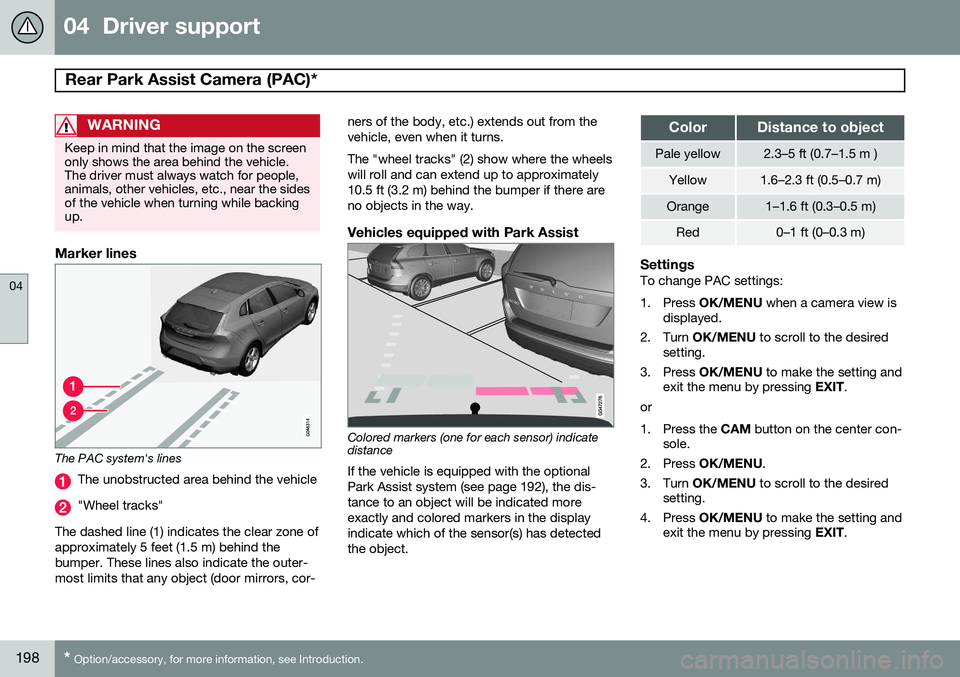
The unobstructed area behind the vehicle
"Wheel tracks"
The dashed line (1) indicates the clear zone of approximately 5 feet (1.5 m) behind thebumper. These lines also indicate the outer-most limits that any object (door mirrors, cor- ners of the body, etc.) extends out from thevehicle, even when it turns. The "wheel tracks" (2) show where the wheels will roll and can extend up to approximately10.5 ft (3.2 m) behind the bumper if there areno objects in the way.
Vehicles equipped with Park Assist
Colored markers (one for each sensor) indicate distance If the vehicle is equipped with the optional Park Assist system (see page 192), the dis-tance to an object will be indicated moreexactly and colored markers in the displayindicate which of the sensor(s) has detected the object.
ColorDistance to object
Pale yellow2.3–5 ft (0.7–1.5 m )
Yellow1.6–2.3 ft (0.5–0.7 m)
Orange1–1.6 ft (0.3–0.5 m)
Red0–1 ft (0–0.3 m)
SettingsTo change PAC settings:
1. Press
OK/MENU when a camera view is
displayed.
2. Turn OK/MENU to scroll to the desired
setting.
3. Press OK/MENU to make the setting and
exit the menu by pressing EXIT.
or
1. Press the CAM button on the center con-
sole.
2. Press OK/MENU .
3. Turn OK/MENU to scroll to the desired
setting.
4. Press OK/MENU to make the setting and
exit the menu by pressing EXIT.
Page 205 of 406
04 Driver support
Blind Spot Information System (BLIS)*
04
* Option/accessory, for more information, see Introduction.203
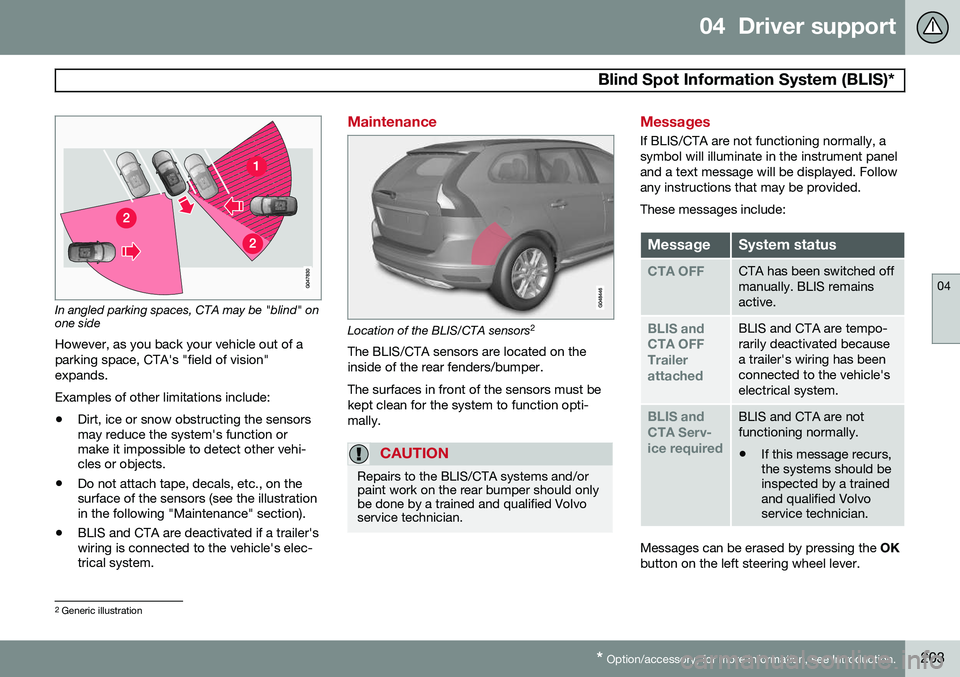
In angled parking spaces, CTA may be "blind" on one side
However, as you back your vehicle out of a parking space, CTA's "field of vision"expands. Examples of other limitations include:
• Dirt, ice or snow obstructing the sensors may reduce the system's function ormake it impossible to detect other vehi-cles or objects.
• Do not attach tape, decals, etc., on thesurface of the sensors (see the illustrationin the following "Maintenance" section).
• BLIS and CTA are deactivated if a trailer'swiring is connected to the vehicle's elec-trical system.
Maintenance
Location of the BLIS/CTA sensors 2
The BLIS/CTA sensors are located on the inside of the rear fenders/bumper. The surfaces in front of the sensors must be kept clean for the system to function opti-mally.
CAUTION
Repairs to the BLIS/CTA systems and/or paint work on the rear bumper should onlybe done by a trained and qualified Volvoservice technician.
Messages
If BLIS/CTA are not functioning normally, a symbol will illuminate in the instrument paneland a text message will be displayed. Followany instructions that may be provided. These messages include:
MessageSystem status
CTA OFFCTA has been switched off manually. BLIS remainsactive.
BLIS and CTA OFFTrailerattachedBLIS and CTA are tempo- rarily deactivated becausea trailer's wiring has beenconnected to the vehicle'selectrical system.
BLIS and CTA Serv-ice requiredBLIS and CTA are not functioning normally.
• If this message recurs, the systems should beinspected by a trainedand qualified Volvoservice technician.
Messages can be erased by pressing the
OK
button on the left steering wheel lever.
2 Generic illustration
Page 208 of 406

05 Comfort and driving pleasure
Volvo Sensus
05
206* Option/accessory, for more information, see Introduction.
Introduction
Center console control panel
Volvo Navigation System (VNS)* – NAV:
see the separate VNS manual for operat- ing instructions.
Infotainment ( RADIO, MEDIA , TEL ): see
page 238 .
Vehicle-related settings - MY CAR: see
page 209.
Park assist camera - CAM*: see
page 196.
Climate system: see page 215.
Volvo Sensus is the operating system in your vehicle providing a coordinated interface for anumber of functions such as the individual-ized settings that can be made in the MY
CAR menus, the climate and infotainment systems as well as other options such as thepark assist camera(s), etc. Volvo Sensus uses the screen in the center instrument panel to display information andselections are made using this panel’s con-trols and buttons. Certain features can alsobe controlled using the steering wheel key-pad. Press
MY CAR to present all of the available
settings related to driving and/or controlling the vehicle, such as City Safety, setting theclock, lock settings, etc. Press RADIO , MEDIA , TEL , NAV * and CAM*
to change a source and to activated systems or functions such as AM, FM1, CD, DVD,Bluetooth, navigation* and the park assistcamera *. See the respective sections in this manual for more detailed information about your vehi-cle's various features and functions.
Page 209 of 406
05 Comfort and driving pleasure
Menus and messages
05
}}
* Option/accessory, for more information, see Introduction.207
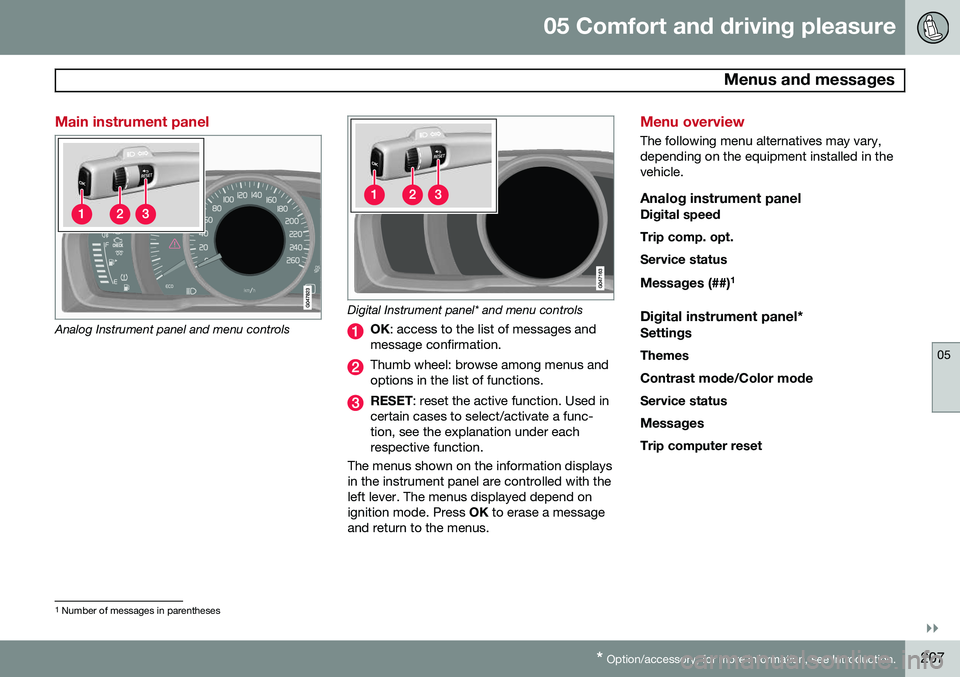
Main instrument panel
Analog Instrument panel and menu controls
Digital Instrument panel* and menu controls
OK : access to the list of messages and
message confirmation.
Thumb wheel: browse among menus and options in the list of functions.
RESET : reset the active function. Used in
certain cases to select/activate a func- tion, see the explanation under eachrespective function.
The menus shown on the information displaysin the instrument panel are controlled with theleft lever. The menus displayed depend onignition mode. Press OK to erase a message
and return to the menus.
Menu overview
The following menu alternatives may vary, depending on the equipment installed in thevehicle.
Analog instrument panelDigital speed Trip comp. opt.Service status
Messages (##) 1
Digital instrument panel*
Settings
Themes
Contrast mode /Color mode
Service status
Messages Trip computer reset
1 Number of messages in parentheses