trip computer VOLVO XC60 2017 Owner´s Manual
[x] Cancel search | Manufacturer: VOLVO, Model Year: 2017, Model line: XC60, Model: VOLVO XC60 2017Pages: 398, PDF Size: 9.17 MB
Page 121 of 398
INSTRUMENTS AND CONTROLS
}}
119
FunctionDescription
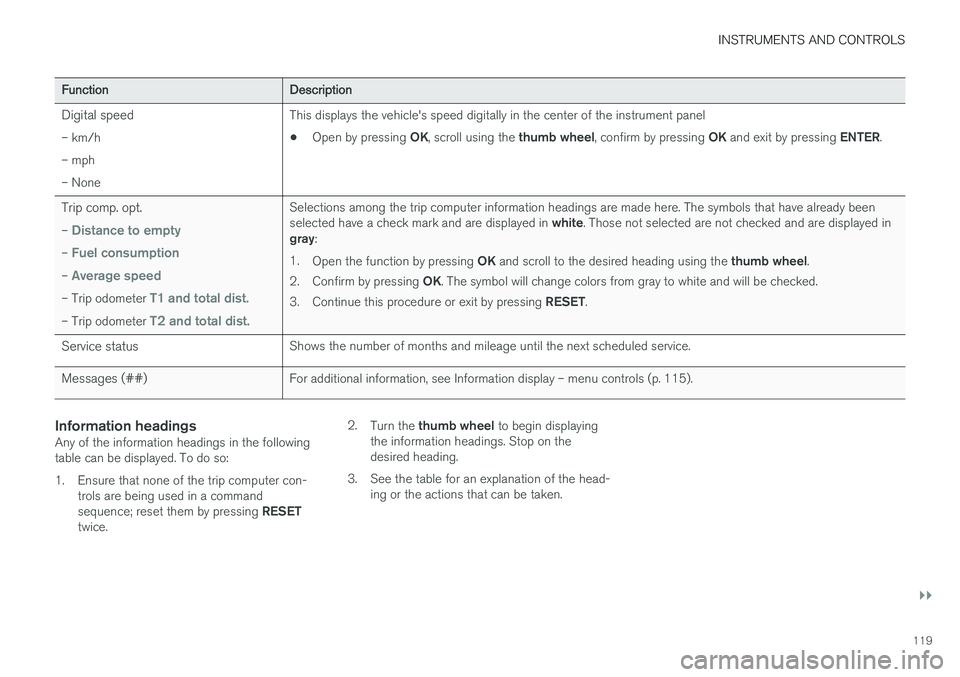
Digital speed– km/h – mph– NoneThis displays the vehicle's speed digitally in the center of the instrument panel • Open by pressing
OK, scroll using the thumb wheel, confirm by pressing OK and exit by pressing ENTER.
Trip comp. opt.
–
Distance to empty
– Fuel consumption
– Average speed
– Trip odometer T1 and total dist.
– Trip odometer T2 and total dist.
Selections among the trip computer information headings are made here. The symbols that have already been selected have a check mark and are displayed in white. Those not selected are not checked and are displayed in
gray :
1. Open the function by pressing OK and scroll to the desired heading using the thumb wheel.
2. Confirm by pressing OK. The symbol will change colors from gray to white and will be checked.
3. Continue this procedure or exit by pressing RESET.
Service statusShows the number of months and mileage until the next scheduled service.
Messages (##)For additional information, see Information display – menu controls (p. 115).
Information headingsAny of the information headings in the following table can be displayed. To do so:
1. Ensure that none of the trip computer con-
trols are being used in a command sequence; reset them by pressing RESET
twice. 2.
Turn the thumb wheel to begin displaying
the information headings. Stop on the desired heading.
3. See the table for an explanation of the head- ing or the actions that can be taken.
Page 122 of 398
||
INSTRUMENTS AND CONTROLS
120
Information headings in the instrument panelDescription
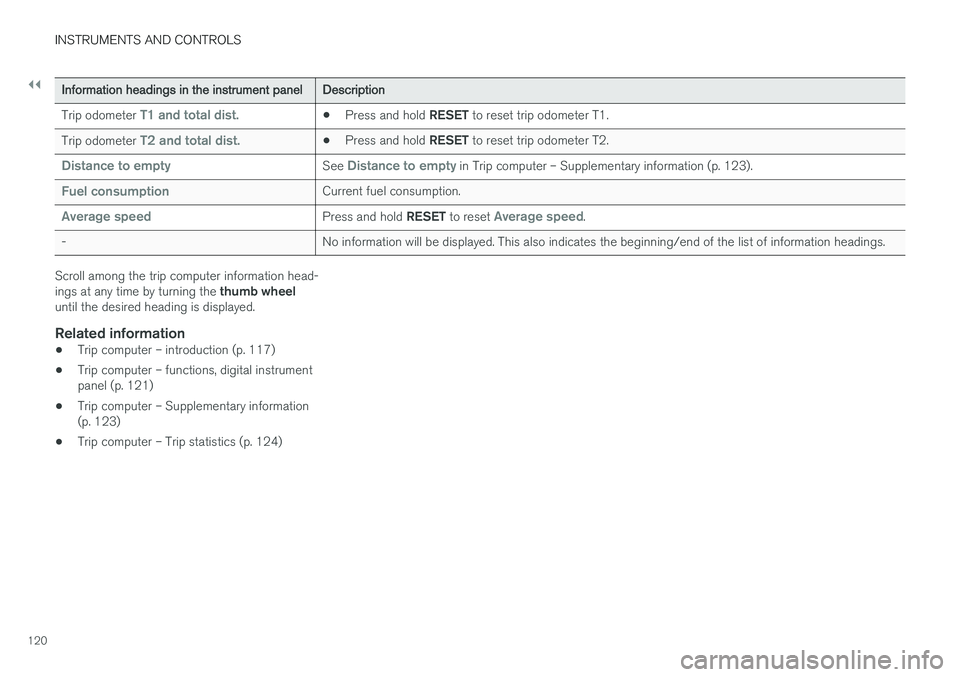
Trip odometer T1 and total dist.•Press and hold
RESET to reset trip odometer T1.
Trip odometer T2 and total dist.•Press and hold
RESET to reset trip odometer T2.
Distance to emptySee Distance to empty in Trip computer – Supplementary information (p. 123).
Fuel consumptionCurrent fuel consumption.
Average speedPress and hold RESET to reset Average speed.
-No information will be displayed. This also indicates the beginning/end of the list of information headings.
Scroll among the trip computer information head- ings at any time by turning the thumb wheel
until the desired heading is displayed.
Related information
• Trip computer – introduction (p. 117)
• Trip computer – functions, digital instrument panel (p. 121)
• Trip computer – Supplementary information(p. 123)
• Trip computer – Trip statistics (p. 124)
Page 123 of 398
INSTRUMENTS AND CONTROLS
}}
* Option/accessory, for more information, see Introduction.121
Trip computer – functions, digital instrument panel
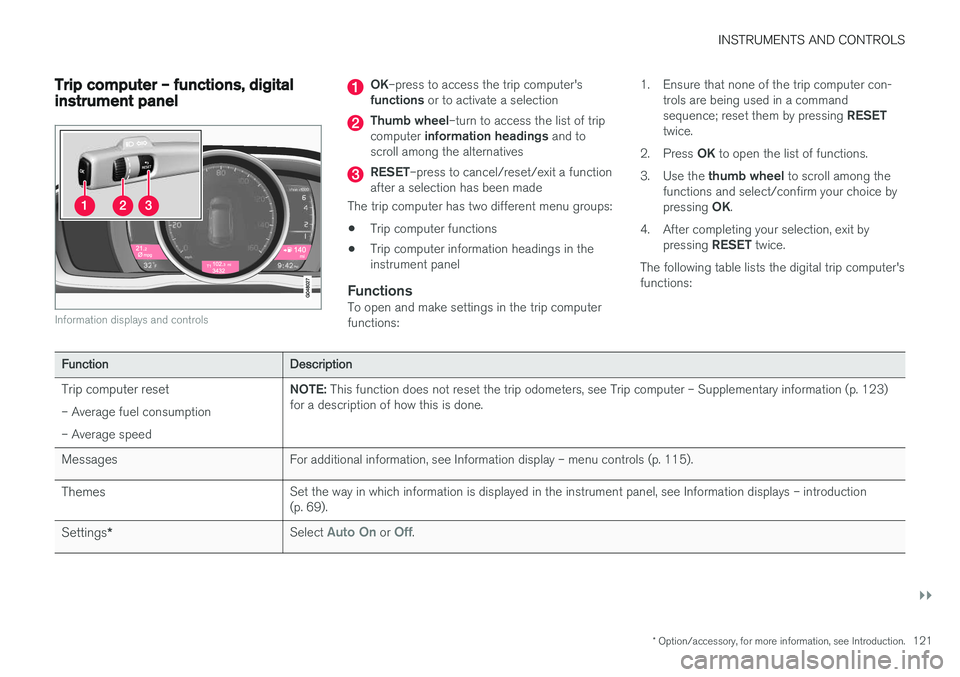
Information displays and controls
OK–press to access the trip computer's
functions or to activate a selection
Thumb wheel –turn to access the list of trip
computer information headings and to
scroll among the alternatives
RESET –press to cancel/reset/exit a function
after a selection has been made
The trip computer has two different menu groups: • Trip computer functions
• Trip computer information headings in the instrument panel
FunctionsTo open and make settings in the trip computerfunctions: 1. Ensure that none of the trip computer con-
trols are being used in a command sequence; reset them by pressing RESET
twice.
2. Press OK to open the list of functions.
3. Use the thumb wheel to scroll among the
functions and select/confirm your choice bypressing OK.
4. After completing your selection, exit by pressing RESET twice.
The following table lists the digital trip computer's functions:
FunctionDescription
Trip computer reset – Average fuel consumption – Average speedNOTE: This function does not reset the trip odometers, see Trip computer – Supplementary information (p. 123)
for a description of how this is done.
MessagesFor additional information, see Information display – menu controls (p. 115).
ThemesSet the way in which information is displayed in the instrument panel, see Information displays – introduction (p. 69).
Settings *Select Auto On or Off.
Page 124 of 398
||
INSTRUMENTS AND CONTROLS
122
FunctionDescription
Contrast mode/Color modeAdjust the instrument panel's contrast and color.
Service statusShows the number of months and mileage until the next scheduled service.
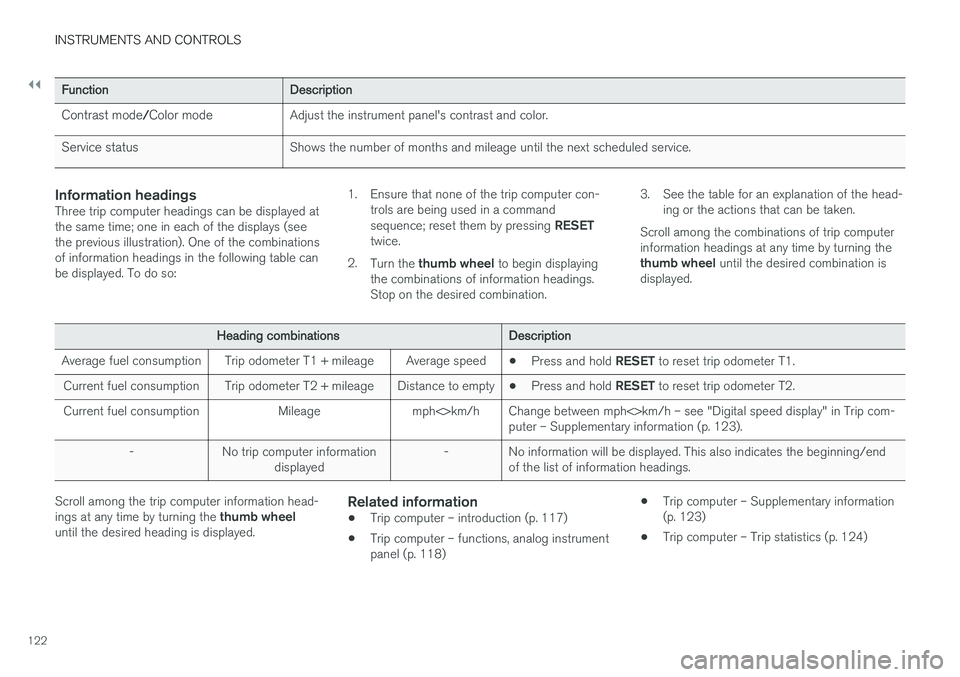
Information headingsThree trip computer headings can be displayed at the same time; one in each of the displays (seethe previous illustration). One of the combinationsof information headings in the following table canbe displayed. To do so: 1. Ensure that none of the trip computer con-
trols are being used in a command sequence; reset them by pressing RESET
twice.
2. Turn the thumb wheel to begin displaying
the combinations of information headings. Stop on the desired combination. 3. See the table for an explanation of the head-
ing or the actions that can be taken.
Scroll among the combinations of trip computerinformation headings at any time by turning the thumb wheel until the desired combination is
displayed.
Heading combinationsDescription
Average fuel consumptionTrip odometer T1 + mileageAverage speed• Press and hold
RESET to reset trip odometer T1.
Current fuel consumptionTrip odometer T2 + mileageDistance to empty•Press and hold
RESET to reset trip odometer T2.
Current fuel consumptionMileagemph<>km/hChange between mph<>km/h – see "Digital speed display" in Trip com- puter – Supplementary information (p. 123).
-No trip computer information
displayed-No information will be displayed. This also indicates the beginning/end of the list of information headings.
Scroll among the trip computer information head- ings at any time by turning the thumb wheel
until the desired heading is displayed.Related information
• Trip computer – introduction (p. 117)
• Trip computer – functions, analog instrument panel (p. 118) •
Trip computer – Supplementary information(p. 123)
• Trip computer – Trip statistics (p. 124)
Page 125 of 398
INSTRUMENTS AND CONTROLS
* Option/accessory, for more information, see Introduction.123
Trip computer – Supplementary information
General information for both Analog and Digital trip computer functions.
Average fuel consumptionFuel consumption since the last time this func- tion was reset.
Average speedThe vehicle's average speed since the last timethis function was reset.
Current fuel consumptionCurrent fuel consumption is calculated approxi-mately once a second. When the vehicle is mov-ing at low speed, fuel consumption is displayedper unit of time. At higher speeds, it is displayedin terms of distance. Miles or kilometers can be displayed, see the heading "Changing units".
Distance to emptyThis function shows the approximate distancethat can be driven on the fuel remaining in the tank. When
Distance to empty shows "----",
there is very little useable fuel remaining in that tank; refuel as soon as possible. The calculationis based on average fuel consumption during thelast 20 miles (30 km) of driving and the amountof fuel remaining in the tank (the accuracy of thisfigure may vary if your driving style changes). An economical driving style will generally increasethis distance. See Economical driving (p. 278) for information about driving economically.
Digital speed display
*Speed is expressed in the unit not used by theinstrument panel's speedometer e.g., if the nor-mal speedometer is in mph, the trip computer willdisplay in the speed in km/h and vice versa.
Resetting an analog instrument panel
Trip odometer(s) and average speed
1. Display trip odometer T1 or T1, or Average
speed.
2. Press and hold RESET until selected func-
tion is reset.
Each trip computer heading must be reset indi- vidually.
Resetting a digital instrument panel
Trip odometer
1. Turn the thumb wheel to select the combi-
nation of headings containing the trip odom- eter to be reset.
2. Press and hold RESET until selected trip
odometer is reset.
Average speed and fuel consumption
1. Select Trip computer reset and press OK. 2. Select one of the following alternatives using
the thumb wheel and press OK:
• mpg
• mph
• Reset both
3. Finish by pressing RESET.
Changing unitsTo change the unit (miles/km) used to measure distance and speed, go to
MY CARSettings
System optionsDistance and fuel units.
NOTE
In addition to changing units in the trip com- puter, this also changes the units used in the Volvo Navigation System (VNS) *.
Related information
• Trip computer – introduction (p. 117)
• Trip computer – functions, analog instrument panel (p. 118)
• Trip computer – functions, digital instrumentpanel (p. 121)
• Trip computer – Trip statistics (p. 124)
Page 126 of 398
INSTRUMENTS AND CONTROLS
* Option/accessory, for more information, see Introduction.
124
Trip computer – Trip statistics
Trip information from previous trips regarding average fuel consumption and average speed isstored and can be displayed in the form of a barchart.
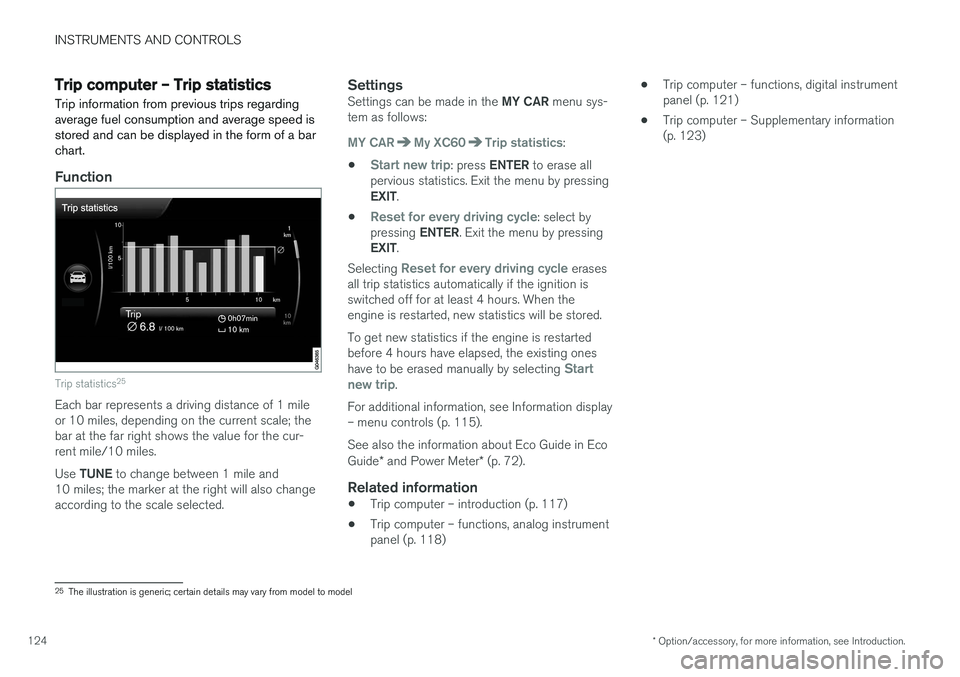
Function
Trip statistics 25
Each bar represents a driving distance of 1 mile or 10 miles, depending on the current scale; thebar at the far right shows the value for the cur-rent mile/10 miles. Use
TUNE to change between 1 mile and
10 miles; the marker at the right will also change according to the scale selected.
SettingsSettings can be made in the MY CAR menu sys-
tem as follows:
MY CARMy XC60Trip statistics:
•
Start new trip: press ENTER to erase all
pervious statistics. Exit the menu by pressing EXIT .
•
Reset for every driving cycle: select by
pressing ENTER. Exit the menu by pressing
EXIT .
Selecting
Reset for every driving cycle erases
all trip statistics automatically if the ignition is switched off for at least 4 hours. When theengine is restarted, new statistics will be stored. To get new statistics if the engine is restarted before 4 hours have elapsed, the existing ones have to be erased manually by selecting
Start
new trip.
For additional information, see Information display – menu controls (p. 115). See also the information about Eco Guide in Eco Guide * and Power Meter * (p. 72).
Related information
• Trip computer – introduction (p. 117)
• Trip computer – functions, analog instrument panel (p. 118) •
Trip computer – functions, digital instrumentpanel (p. 121)
• Trip computer – Supplementary information(p. 123)
25
The illustration is generic; certain details may vary from model to model
Page 280 of 398
||
STARTING AND DRIVING
278nents, altering emission system components or location or removing components, and/orrepeated use of leaded fuel.
NOTE
Unleaded fuel is required for vehicles with three-way catalytic converters.
Heated oxygen sensorsThe heated oxygen sensors monitor the oxygen content of the exhaust gases. Readings are fedinto a control module that continuously monitorsengine functions and controls fuel injection. Theratio of fuel to air into the engine is continuouslyadjusted for efficient combustion to help reduceharmful emissions.
Related information
•
Information displays – warning symbols(p. 75)
• Engine and cooling system (p. 271)
Economical driving
Better driving economy may be obtained by thinking ahead, avoiding rapid starts and stopsand adjusting the speed of your vehicle to imme-diate traffic conditions.
Economical driving conserves natural
resources
Observe the following rules: • Bring the engine to normal operating tem- perature as soon as possible by driving witha light foot on the accelerator pedal for thefirst few minutes of operation. A cold engineuses more fuel and is subject to increasedwear.
• Whenever possible, avoid using the vehiclefor driving short distances. This does notallow the engine to reach normal operatingtemperature.
• Drive carefully and avoid rapid accelerationand hard braking.
• Use the transmission's Drive (
D) position as
often as possible and avoid using kick-down.
• Using the transmission's Sport mode mayincrease fuel consumption somewhat. Use the transmission's Drive (
D) position as often
as possible. For additional information about Sport mode, see Transmission – Geartronic(p. 254).
• Do not exceed posted speed limits. •
Avoid carrying unnecessary items (extra load)in the vehicle.
• Maintain correct tire pressure. Check tirepressure regularly (when tires are cold).
• Remove snow tires when threat of snow orice has ended.
• Note that roof racks, ski racks, etc, increaseair resistance and also fuel consumption.
• At highway driving speeds, fuel consumptionwill be lower with the air conditioning on andthe windows closed than with the air condi-tioning off and the windows open.
• Using the onboard trip computer's fuel con-sumption modes can help you learn how todrive more economically.
Other factors that decrease gas mileage are:
• Dirty air cleaner
• Dirty engine oil and clogged oil filter
• Dragging brakes
• Incorrect front end alignment
Some of the above mentioned items and othersare checked at the standard maintenance inter-vals.
Page 327 of 398
MAINTENANCE AND SERVICING
}}
* Option/accessory, for more information, see Introduction.325
Onboard Diagnostic System OBD II is part of your vehicle's computerized engine management system. It stores diagnosticinformation about your vehicle's emission con-trols. It can light the Check Engine light (MIL) if itdetects an emission control "fault." A "fault" is acomponent or system that is not performingwithin an expected range. A fault may be perma-nent or temporary. OBD II will store a messageabout any fault.
Emission inspection readiness
How do states use OBD II for emission inspections?
Many states connect a computer directly to a vehicle's OBD II system. The inspector can thenread "faults." In some states, this type of inspec-tion has replaced the tailpipe emission test.
How can my vehicle fail OBD II emission inspection?
Your vehicle can fail OBD II emission inspection for any of the following reasons.
• If your Check Engine (MIL) light is lit, yourvehicle may fail inspection.
• If your vehicle's Check Engine light was lit,but went out without any action on your part,OBD II will still have a recorded fault. Yourvehicle may pass or fail, depending on theinspection practices in your area.
• If you had recent service that required dis-connecting the battery, OBD II diagnostic information may be incomplete and "notready" for inspection. A vehicle that is notready may fail inspection.
How can I prepare for my next OBD II
emission inspection?
• If your Check Engine (MIL) light is lit – or was lit but went out without service, have yourvehicle diagnosed and, if necessary, servicedby a qualified Volvo technician.
• If you recently had service for a lit CheckEngine light, or if you had service thatrequired disconnecting the battery, a periodof driving is necessary to bring the OBD IIsystem to "ready" for inspection. Two half-hour trips of mixed stop-and-go/highwaydriving are typically needed to allow OBD II toreach readiness. Your Volvo retailer can pro-vide you with more information on planning atrip.
• Maintain your vehicle in accordance with yourvehicle's maintenance schedule.
Booking service and repairs
Connected Service Booking (CSB) makes set- ting up a time for service, maintenance and/orrepairs directly from the vehicle quick and con-venient.
Prerequisites
• The owner (primary driver) must have a valid Volvo ID. See Volvo ID (p. 22) for additionalinformation.
• The vehicle must be connected to the Inter- net using a paired Bluetooth ®
cell phone.
See your Sensus Infotainment supplement for information on pairing a cell phone. On models equipped with Volvo On Call (VOC) *,
you can connect to the Internet using your separate VOC data plan. Refer to your sepa-rate Volvo On Call manual.
• By default, the retailer where you purchasedyour vehicle will be your preferred (primary)retailer/Volvo authorized workshop who willperform service and repairs on your vehicle.To change the preferred retailer, go to DealerLocator at volvocars.com and select aretailer, click on Service Scheduler and bookan appointment at the new preferred retailer.
• In order to be guided through the on-screen steps, the menu alternative
Display
notifications must be activated.
Page 395 of 398
INDEX
393
Supplemental restraint system 33
warning light 75
Symbols, overview 382
T
Tailgate locking/unlocking 165
opening manually 166
power operated 167, 168
wiper/washer 102
Tailgate wipers 343
Taillights, changing bulbs 339Temperature sensor ambient 78
Temporary spare tire 294
Three-way catalytic converter 277
Tire designations 298
Tire inflation pressure 379
Tire Monitor 305, 306, 307
Tire Pressure Monitoring System 308, 310 indicator light 74
Tires 288 age 289
changing from summer to winter 291
glossary of terms 301
improving economy 290
inflation pressure 296, 297
inflation pressure table 379
rotation 288
Self-supporting run flat tires (SST) 311
snow 303
spare 294
specifications 298
speed ratings 298
storing 289
studded 303
tire pressure monitoring system 308
tire sealing system 312
tread wear indicator 290
uniform tire quality grading 302
Tire sealing system 312 Top tether anchors (child restraint sys- tems) 58
Touching up paint 363
Towing a trailer 279, 281, 282 trailer hitch 281
Towing the vehicle 282, 283, 284
Traction control 174, 175
Trailer towing 279, 281, 282 trailer hitch 281
Transmission general description 252, 255
Hill Start Assist 253oil 377
shiftlock override 257
Tread wear indicator 290
Trip computer 117
Trip odometers 79
Trips, long distance 272
Tunnel detection 93
Turn signals 97 changing bulbs 338
indicator lights 74
Two-stage booster cushion 59, 61, 62
U
Uniform Tire Quality Grading 302
Unlocking the tailgate 165
Unlocking the vehicle 153, 163, 164, 165
V
Vanity mirror 143 changing bulbs 341
Vehicle dimensions 370
Vehicle Event Data 19
Vehicle information 21