center console VOLVO XC60 2017 Owner´s Manual
[x] Cancel search | Manufacturer: VOLVO, Model Year: 2017, Model line: XC60, Model: VOLVO XC60 2017Pages: 398, PDF Size: 9.17 MB
Page 207 of 398
DRIVER SUPPORT
}}
205
City Safety – operation
Using City Safety™
NOTE
The City Safety™ function is activated auto-
matically each time the engine has been switched off and restarted.
On and OffIn certain situations, it may be desirable to switch City Safety ™ off, such as when driving in close
quarters where leaves, branches, etc. may obscure the hood and windshield. When the engine is running, City Safety ™ can be
switched off as follows: Press My Car in the center console control panel
and go to
SettingsCar settingsDriver
support systems
City Safety. Select Off.
If the engine is switched off, City Safety ™ will
reactivate when the engine is restarted.
WARNING
The laser sensor emits light when the ignition is in mode II or higher, even if City Safety ™
has been switched off.
To switch City Safety ™ on again: •
Follow the same procedure as for switching City Safety
™ off but select
On.
Related information
• City Safety – introduction (p. 203)
• City Safety – function (p. 204)
• City Safety – limitations (p. 205)
• City Safety – troubleshooting (p. 206)
• City Safety – symbols and messages (p. 208)
• City Safety – Laser sensor (p. 209)
• My Car – introduction (p. 77)
City Safety – limitations
Limitations
WARNING
The laser sensor has certain limitations and its function may be reduced (or it may notfunction at all) in conditions such as heavyrain or snowfall, or by dense fog or thick,blowing dust or snow. Condensation, dirt, iceor snow on the windshield may also interferewith the sensor
Page 215 of 398
DRIVER SUPPORT
}}
* Option/accessory, for more information, see Introduction.213
Collision warning* – operation
Settings are made by pressing MY CAR on the
center console control panel and using the menus displayed.
Activating/deactivating both warning
signals
To switch the system's audible and visual sig-
nals on or off at the same time, press MY CAR
on the center console control panel and go to
SettingsCar settingsDriver support
systems
Collision Warning. If Pedestrian
and Cyclist Detection with Full Auto Brake is on, the system will perform a self-test each time theengine is started by briefly illuminating the warn-ing light. See My Car – introduction (p. 77) for adescription of the menu system. When the engine is switched on, the system set- ting that was being used when it was switchedoff will be the default setting.
NOTE
The auto-brake and pedestrian/cyclist detec- tion features are always on, even if the audi-ble and visual warning signals have beendeactivated.
Activating/deactivating the audible warning signal only
The audible warning signal can be activated/ deactivated by pressing MY CAR on the center
console control panel and going to
Settings
Car settingsDriver support systemsWarning sound if risk of collision.
Setting a warning distanceThis setting determines the distance at which the visual and audible warnings are triggered. Select
Long, Normal or Short by pressing MY CAR on
the center console control panel and going to
SettingsCar settingsDriver support
systems
Collision WarningWarning
distance.
The warning distance determines the level of sensitivity used by the system. The warning dis- tance
Long provides an earlier warning. Begin by
using Long and if the system gives too many
warnings, try changing to Normal.
WARNING
• The setting Short should only be used in
situations where traffic is light and mov- ing at low speeds.
• Pedestrian and Cyclist Detection with FullAuto Brake alerts the driver to the risk ofa collision but this function cannot reducethe driver
Page 226 of 398
DRIVER SUPPORT
224
Driver Alert Control (DAC) – operation
Operating DACSettings are made using menu system and the display in the center console. See My Car – intro-duction (p. 77) for more information on the menusystem.
On/Off
To put Driver Alert in standby mode:• In the
MY CAR menu, scroll to
Car settings
Driver support systemsDriver Alertand check the box. If the box is not checked, the function is off.
Related information
•Driver Alert Control (DAC) – introduction(p. 223)
• Driver Alert Control (DAC) – function(p. 224)
• Driver Alert Control (DAC) – limitations(p. 225)
• Driver Alert Control (DAC) – symbols andmessages (p. 226)
• Driver Alert Control (DAC) – introduction(p. 223)
• Lane Departure Warning (LDW) – introduc-tion (p. 228)
Driver Alert Control (DAC) – function
FunctionDriver Alert is activated when the vehicle exceeds a speed of 40 mph (65 km/h) and will remainactive as long as the speed is over approx.37 mph (60 km/h).
If the vehicle is being driven erratically,the driver will be alerted by an audible signal and the message
Driver Alert
Time for a break is displayed. The
warning will be repeated after a short time if the driving pattern remains the same. Press the OK button to erase a message.
WARNING
• An alert should be taken seriously since it is sometimes difficult for a driver to real-ize that he/she is fatigued.
• In the event of a warning or if the driverfeels fatigued, stop as soon as possible ina safe place and rest.
Related information
• Driver Alert Control (DAC) – introduction (p. 223)
• Driver Alert Control (DAC) – operation(p. 224)
• Driver Alert Control (DAC) – limitations(p. 225) •
Driver Alert Control (DAC) – symbols andmessages (p. 226)
• Driver Alert System (p. 223)
• Lane Departure Warning (LDW) – introduc-tion (p. 228)
Page 228 of 398
DRIVER SUPPORT
226
Driver Alert Control (DAC) – symbols and messages Depending on the situation, DAC may display certain symbols and text messages in the instru-ment panel or center console screen.
Symbols and messages
Instrument panel
SymbolMessageDescription
Driver Alert Time for a breakThe vehicle has been driven erratically. The driver receives an audible signal and a text message.
Windscreen Sensors blockedThe camera is temporarily not functioning, due to snow, ice, or dirt on the windshield. Clean the area of the wind- shield in front of the camera. See The camera
Page 229 of 398
DRIVER SUPPORT
227
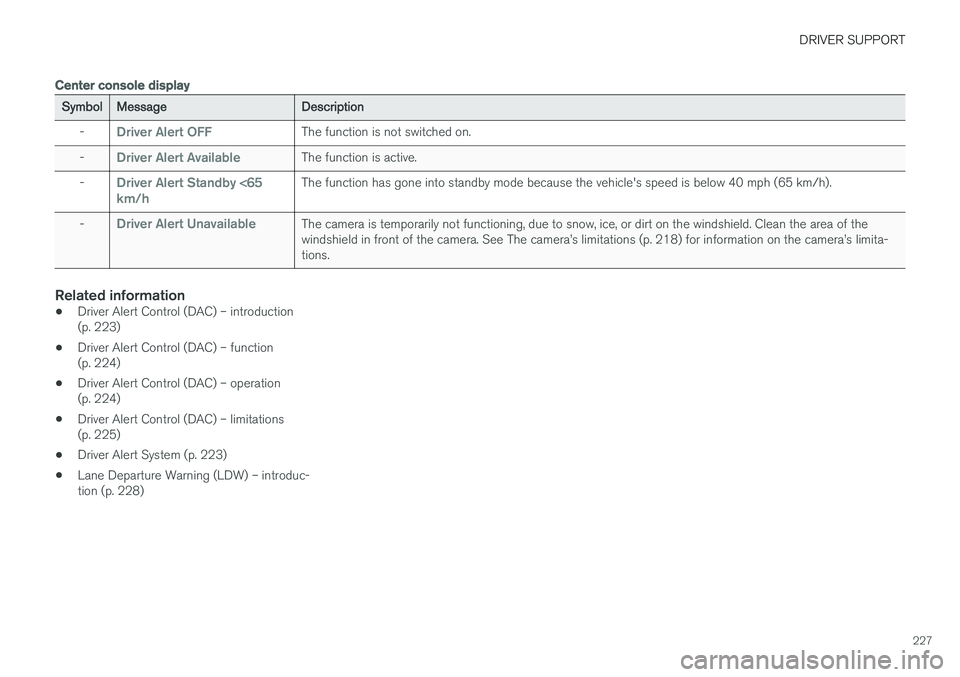
Center console display
SymbolMessageDescription
-Driver Alert OFFThe function is not switched on.
-Driver Alert AvailableThe function is active.
-Driver Alert Standby <65 km/hThe function has gone into standby mode because the vehicle's speed is below 40 mph (65 km/h).
-Driver Alert UnavailableThe camera is temporarily not functioning, due to snow, ice, or dirt on the windshield. Clean the area of the windshield in front of the camera. See The camera
Page 237 of 398
DRIVER SUPPORT
}}
* Option/accessory, for more information, see Introduction.235
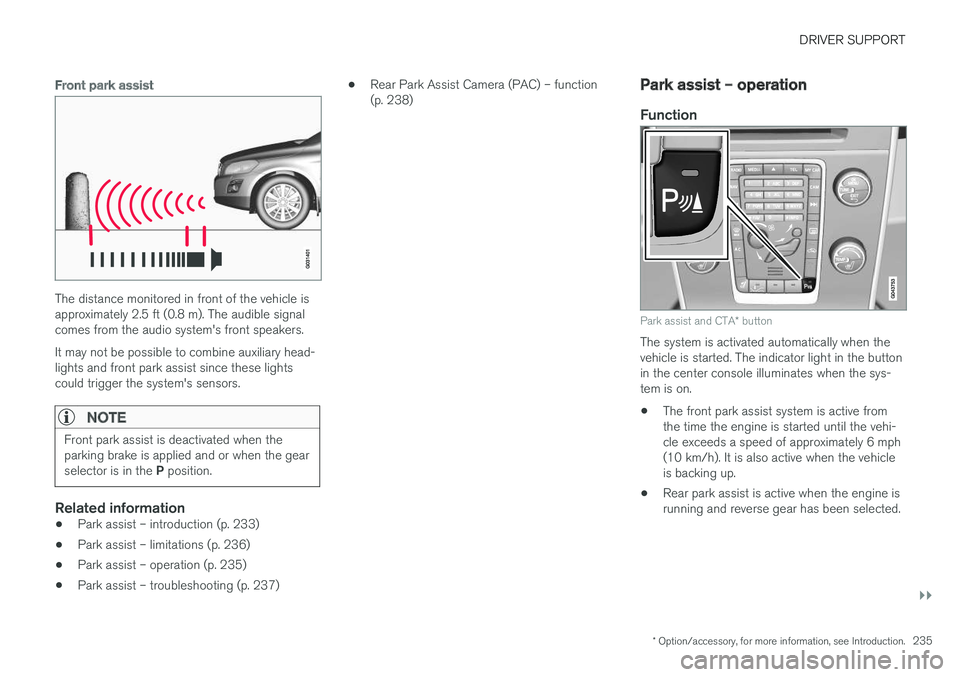
Front park assist
The distance monitored in front of the vehicle is approximately 2.5 ft (0.8 m). The audible signalcomes from the audio system's front speakers. It may not be possible to combine auxiliary head- lights and front park assist since these lightscould trigger the system's sensors.
NOTE
Front park assist is deactivated when the parking brake is applied and or when the gear selector is in the P position.
Related information
• Park assist – introduction (p. 233)
• Park assist – limitations (p. 236)
• Park assist – operation (p. 235)
• Park assist – troubleshooting (p. 237) •
Rear Park Assist Camera (PAC) – function (p. 238)
Park assist – operation
Function
Park assist and CTA
* button
The system is activated automatically when the vehicle is started. The indicator light in the buttonin the center console illuminates when the sys-tem is on. • The front park assist system is active from the time the engine is started until the vehi-cle exceeds a speed of approximately 6 mph(10 km/h). It is also active when the vehicleis backing up.
• Rear park assist is active when the engine isrunning and reverse gear has been selected.
Page 238 of 398
||
DRIVER SUPPORT
236
Activating/deactivating
The system is activated automatically when the vehicle is started.
–Press the Park assist button on the center console to temporarily deactivate the sys-tem(s).
> The indicator light in the button will go outwhen the system has been deactivated.
Park assist will be automatically reactivated the next time the engine is started, or if the button ispressed (the indicator light in the button will illu-minate).
NOTE
Park assist is disengaged automatically when the parking brake is applied.
Related information
• Park assist – introduction (p. 233)
• Park assist – limitations (p. 236)
• Park assist – function (p. 233)
• Park assist – troubleshooting (p. 237)
• Rear Park Assist Camera (PAC) – function (p. 238)
Park assist – limitations
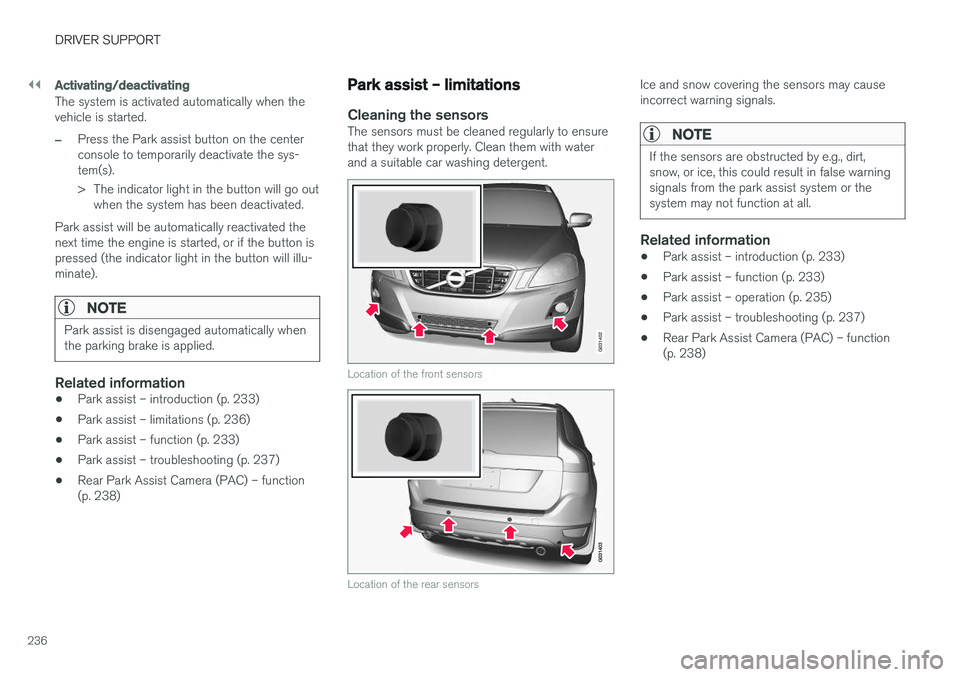
Cleaning the sensorsThe sensors must be cleaned regularly to ensure that they work properly. Clean them with waterand a suitable car washing detergent.
G031402
Location of the front sensors
Location of the rear sensors
Ice and snow covering the sensors may cause incorrect warning signals.
NOTE
If the sensors are obstructed by e.g., dirt, snow, or ice, this could result in false warningsignals from the park assist system or thesystem may not function at all.
Related information
•Park assist – introduction (p. 233)
• Park assist – function (p. 233)
• Park assist – operation (p. 235)
• Park assist – troubleshooting (p. 237)
• Rear Park Assist Camera (PAC) – function (p. 238)
Page 239 of 398
DRIVER SUPPORT
237
Park assist – troubleshooting
Faults in the systemIf the information symbol illuminates and Park
assist syst Service required is shown on the
information display, this indicates that the system is not functioning properly and has been disen-gaged. Consult a trained and qualified Volvo serv-ice technician.
CAUTION
In certain circumstances, the park assist sys- tem may give unexpected warning signalsthat can be caused by external sound sourcesthat use the same ultrasound frequencies asthe system. This may include such things asthe horns of other vehicles, wet tires onasphalt, pneumatic brakes, motorcycleexhaust pipes, etc. This does not indicate afault in the system.
Related information
• Park assist – introduction (p. 233)
• Park assist – limitations (p. 236)
• Park assist – function (p. 233)
• Park assist – operation (p. 235)
• Rear Park Assist Camera (PAC) – function (p. 238)
Rear Park Assist Camera (PAC) – introduction
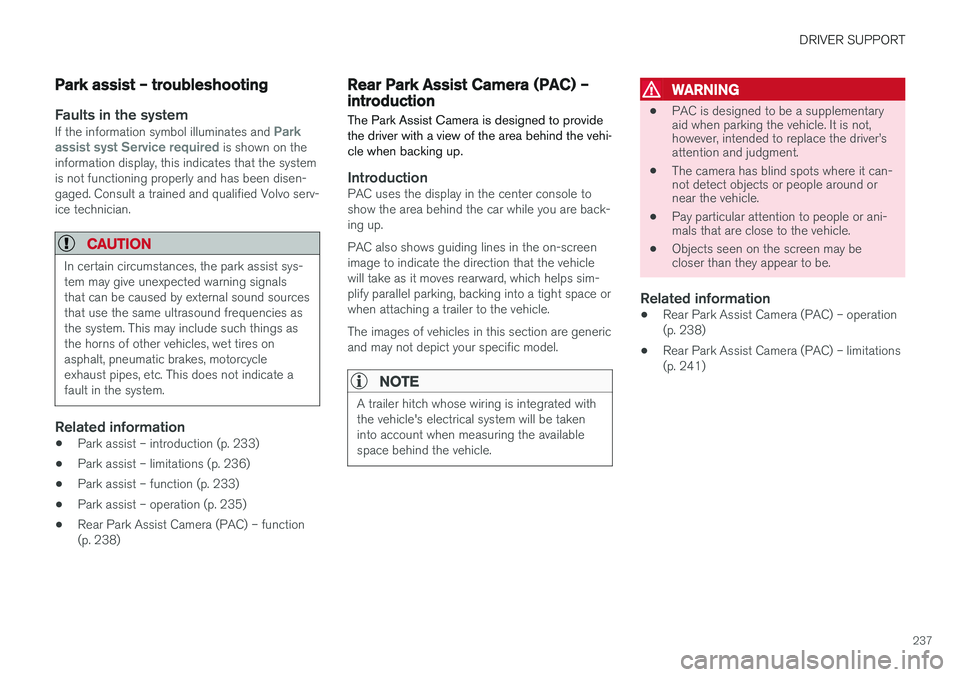
The Park Assist Camera is designed to provide the driver with a view of the area behind the vehi-cle when backing up.
IntroductionPAC uses the display in the center console to show the area behind the car while you are back-ing up. PAC also shows guiding lines in the on-screen image to indicate the direction that the vehiclewill take as it moves rearward, which helps sim-plify parallel parking, backing into a tight space orwhen attaching a trailer to the vehicle. The images of vehicles in this section are generic and may not depict your specific model.
NOTE
A trailer hitch whose wiring is integrated with the vehicle's electrical system will be takeninto account when measuring the availablespace behind the vehicle.
WARNING
• PAC is designed to be a supplementary aid when parking the vehicle. It is not,however, intended to replace the driver
Page 240 of 398
DRIVER SUPPORT
238
Rear Park Assist Camera (PAC) – function
Function
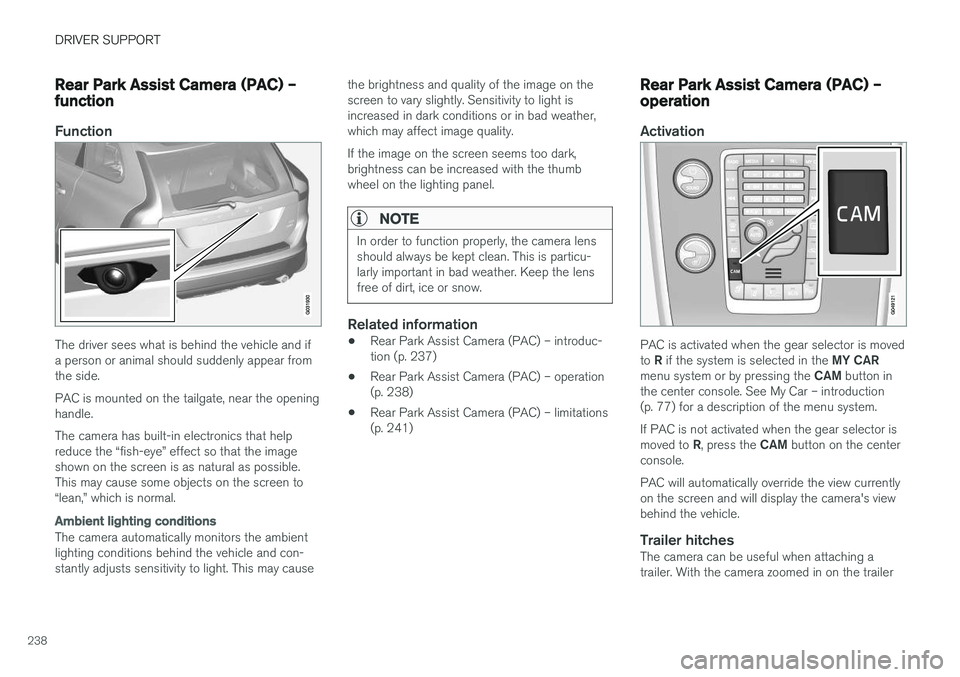
The driver sees what is behind the vehicle and if a person or animal should suddenly appear fromthe side. PAC is mounted on the tailgate, near the opening handle. The camera has built-in electronics that help reduce the “fish-eye” effect so that the imageshown on the screen is as natural as possible.This may cause some objects on the screen to“lean,” which is normal.
Ambient lighting conditions
The camera automatically monitors the ambient lighting conditions behind the vehicle and con-stantly adjusts sensitivity to light. This may causethe brightness and quality of the image on thescreen to vary slightly. Sensitivity to light isincreased in dark conditions or in bad weather,which may affect image quality. If the image on the screen seems too dark, brightness can be increased with the thumbwheel on the lighting panel.
NOTE
In order to function properly, the camera lens should always be kept clean. This is particu-larly important in bad weather. Keep the lensfree of dirt, ice or snow.
Related information
•
Rear Park Assist Camera (PAC) – introduc- tion (p. 237)
• Rear Park Assist Camera (PAC) – operation(p. 238)
• Rear Park Assist Camera (PAC) – limitations(p. 241)
Rear Park Assist Camera (PAC) – operation
Activation
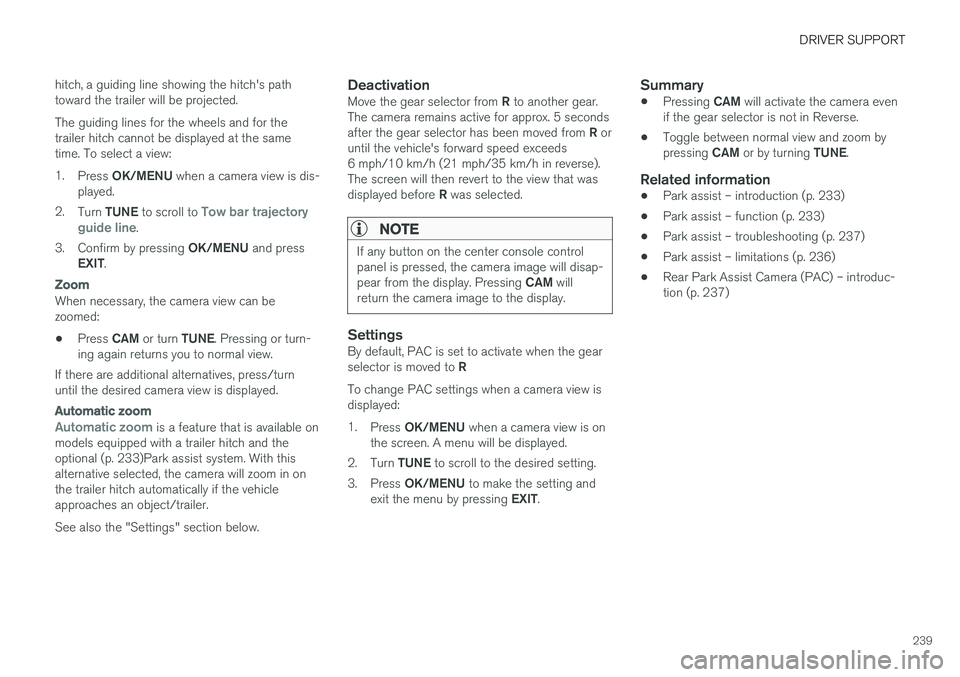
PAC is activated when the gear selector is moved to
R if the system is selected in the MY CAR
menu system or by pressing the CAM button in
the center console. See My Car – introduction (p. 77) for a description of the menu system. If PAC is not activated when the gear selector is moved to R, press the CAM button on the center
console. PAC will automatically override the view currently on the screen and will display the camera's viewbehind the vehicle.
Trailer hitchesThe camera can be useful when attaching atrailer. With the camera zoomed in on the trailer
Page 241 of 398
DRIVER SUPPORT
239
hitch, a guiding line showing the hitch's path toward the trailer will be projected. The guiding lines for the wheels and for the trailer hitch cannot be displayed at the sametime. To select a view: 1.
Press OK/MENU when a camera view is dis-
played.
2. Turn TUNE to scroll to
Tow bar trajectory
guide line.
3. Confirm by pressing OK/MENU and press
EXIT .
Zoom
When necessary, the camera view can be zoomed:
• Press
CAM or turn TUNE. Pressing or turn-
ing again returns you to normal view.
If there are additional alternatives, press/turnuntil the desired camera view is displayed.
Automatic zoom
Automatic zoom is a feature that is available on
models equipped with a trailer hitch and the optional (p. 233)Park assist system. With thisalternative selected, the camera will zoom in onthe trailer hitch automatically if the vehicleapproaches an object/trailer. See also the "Settings" section below.
DeactivationMove the gear selector from R to another gear.
The camera remains active for approx. 5 seconds after the gear selector has been moved from R or
until the vehicle's forward speed exceeds 6 mph/10 km/h (21 mph/35 km/h in reverse).The screen will then revert to the view that was displayed before R was selected.
NOTE
If any button on the center console control panel is pressed, the camera image will disap- pear from the display. Pressing CAM will
return the camera image to the display.
SettingsBy default, PAC is set to activate when the gear selector is moved to R
To change PAC settings when a camera view is displayed: 1. Press OK/MENU when a camera view is on
the screen. A menu will be displayed.
2. Turn TUNE to scroll to the desired setting.
3. Press OK/MENU to make the setting and
exit the menu by pressing EXIT.
Summary
•Pressing
CAM will activate the camera even
if the gear selector is not in Reverse.
• Toggle between normal view and zoom by pressing
CAM or by turning TUNE.
Related information
•Park assist – introduction (p. 233)
• Park assist – function (p. 233)
• Park assist – troubleshooting (p. 237)
• Park assist – limitations (p. 236)
• Rear Park Assist Camera (PAC) – introduc- tion (p. 237)