key VOLVO XC60 2018 Owner´s Manual
[x] Cancel search | Manufacturer: VOLVO, Model Year: 2018, Model line: XC60, Model: VOLVO XC60 2018Pages: 660, PDF Size: 11.77 MB
Page 449 of 660
STARTING AND DRIVING
}}
447
Disabling the automatic check
The automatic light check can be disabled in the center display. 1.Tap
Settings in the Top view.
2. Tap
My CarLights and Lighting.
3. Deselect
Automatic Trailer Lamp Check.
Manual check
If the automatic check has been disabled, the check can be started manually. 1.Tap
Settings in the Top view.
2. Tap
My CarLights and Lighting.
3. Select
Manual Trailer Lamp Check.
> The light check will begin. Get out of the vehicle to perform the check.
Related information
• Driving with a trailer (p. 443)
Towing using a towline
This section refers to one vehicle being towed behind another using a towline.
Before towing another vehicle, check applicable speed limit regulations.
Preparations and towing
CAUTION
Note that the vehicle must always be towed with the wheels rolling forward.
• Do not tow a vehicle with automatictransmission at a speed greater than80 km/h (50 mph) or for a distancegreater than 80 km (50 miles).
WARNING
•
Ignition mode
II must be active – all air-
bags are deactivated in ignition mode I.
• Always have the remote key in the vehicle when it is towed.
WARNING
The brake and steering servos do not work when the engine is off – it takesabout 5 times more pressure on the brakepedal and steering requires much more effortthan normal. 1. Turn on the hazard warning flashers.
2. Attach the towline to the towing eyelet.3.
Put the vehicle in ignition mode II – without
pressing the brake pedal, turn the start knob clockwise and hold it there for about4 seconds. Release the knob, which willautomatically return to its original position.
4. Move the gear selector to neutral ( N) and
release the parking brake. If the battery charge level is too low, it may not be possible to release the parking brake.Connect an auxiliary battery to the vehicle ifthe battery is discharged.
> The towing vehicle can now start driving.
5. Keep the towline taut when the towing vehi- cle slows down by applying light pressure to the brake pedal. This will help avoid jarringmovements.
6. Be prepared to apply the brakes to stop the vehicle.
Jump startingDo not tow the vehicle to start the engine. Use anauxiliary battery if the start battery's charge levelis so low that the engine cannot be started.
Page 460 of 660
AUDIO, MEDIA AND INTERNET
* Option/accessory.
458
Audio, media and Internet
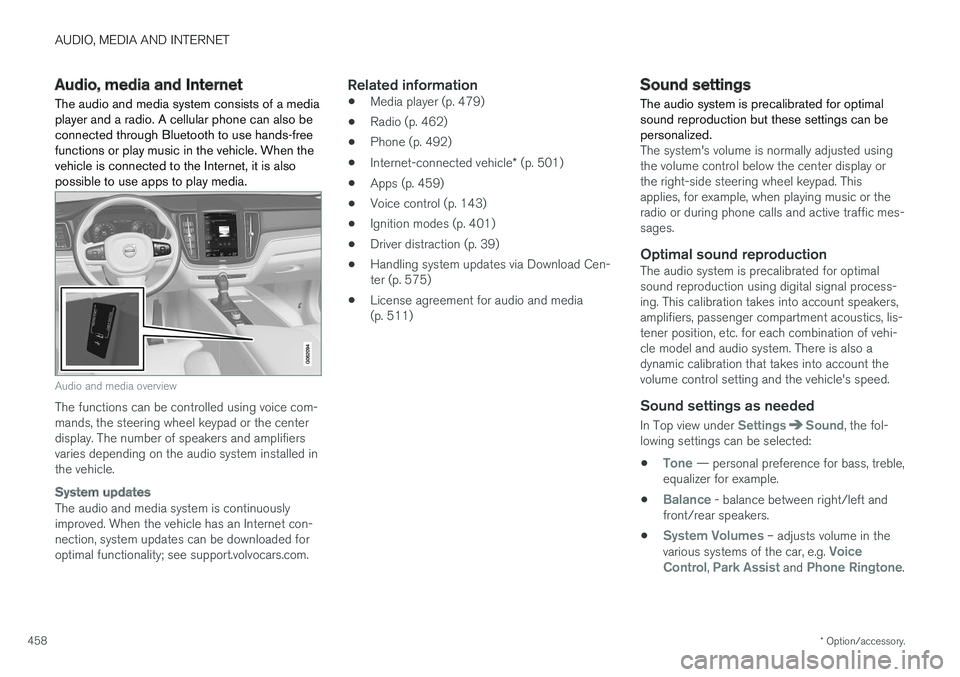
The audio and media system consists of a media player and a radio. A cellular phone can also beconnected through Bluetooth to use hands-freefunctions or play music in the vehicle. When thevehicle is connected to the Internet, it is alsopossible to use apps to play media.
Audio and media overview
The functions can be controlled using voice com- mands, the steering wheel keypad or the centerdisplay. The number of speakers and amplifiersvaries depending on the audio system installed inthe vehicle.
System updates
The audio and media system is continuously improved. When the vehicle has an Internet con-nection, system updates can be downloaded foroptimal functionality; see support.volvocars.com.
Related information
• Media player (p. 479)
• Radio (p. 462)
• Phone (p. 492)
• Internet-connected vehicle
* (p. 501)
• Apps (p. 459)
• Voice control (p. 143)
• Ignition modes (p. 401)
• Driver distraction (p. 39)
• Handling system updates via Download Cen-ter (p. 575)
• License agreement for audio and media(p. 511)
Sound settings
The audio system is precalibrated for optimal sound reproduction but these settings can bepersonalized.
The system's volume is normally adjusted using the volume control below the center display orthe right-side steering wheel keypad. Thisapplies, for example, when playing music or theradio or during phone calls and active traffic mes-sages.
Optimal sound reproductionThe audio system is precalibrated for optimalsound reproduction using digital signal process-ing. This calibration takes into account speakers,amplifiers, passenger compartment acoustics, lis-tener position, etc. for each combination of vehi-cle model and audio system. There is also adynamic calibration that takes into account thevolume control setting and the vehicle's speed.
Sound settings as needed
In Top view under SettingsSound, the fol-
lowing settings can be selected:
•
Tone — personal preference for bass, treble,
equalizer for example.
•
Balance - balance between right/left and
front/rear speakers.
•
System Volumes – adjusts volume in the
various systems of the car, e.g. Voice
Control, Park Assist and Phone Ringtone.
Page 464 of 660
AUDIO, MEDIA AND INTERNET
* Option/accessory.
462
Deleting apps
When the vehicle is connected to the Internet, it is possible to uninstall apps.
If the app is being used, it must be closed before it can be uninstalled. 1. Open the
Download Center app in App
view.
2. Select Application updates to open a list
of all installed apps.
3. Find the desired app and select
Uninstall to
begin uninstalling the app.
> When the app has been uninstalled, it will be removed from the list.
Related information
• Apps (p. 459)
• Download apps (p. 460)
• Updating apps (p. 461)
• Handling system updates via Download Cen- ter (p. 575)
• Internet-connected vehicle
* (p. 501)
Radio The radio can receive broadcasting from AM and FM wavebands with HD Radio ™
Technology and SiriusXM ®
Satellite radio *.
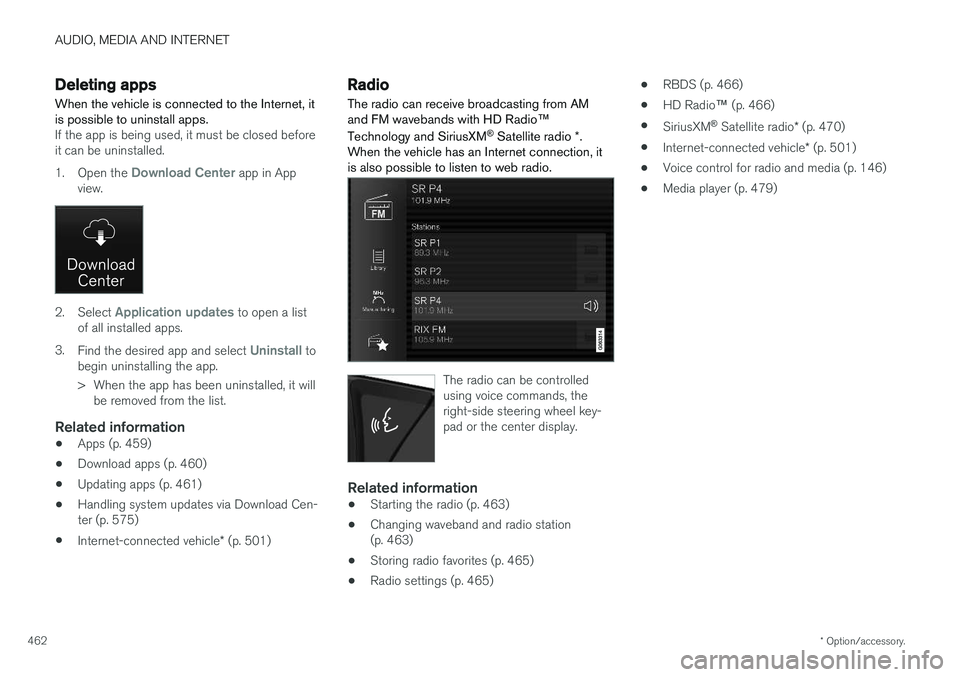
When the vehicle has an Internet connection, it is also possible to listen to web radio.
The radio can be controlled using voice commands, theright-side steering wheel key-pad or the center display.
Related information
• Starting the radio (p. 463)
• Changing waveband and radio station (p. 463)
• Storing radio favorites (p. 465)
• Radio settings (p. 465) •
RBDS (p. 466)
• HD Radio
™ (p. 466)
• SiriusXM ®
Satellite radio * (p. 470)
• Internet-connected vehicle
* (p. 501)
• Voice control for radio and media (p. 146)
• Media player (p. 479)
Page 465 of 660
AUDIO, MEDIA AND INTERNET
}}
463
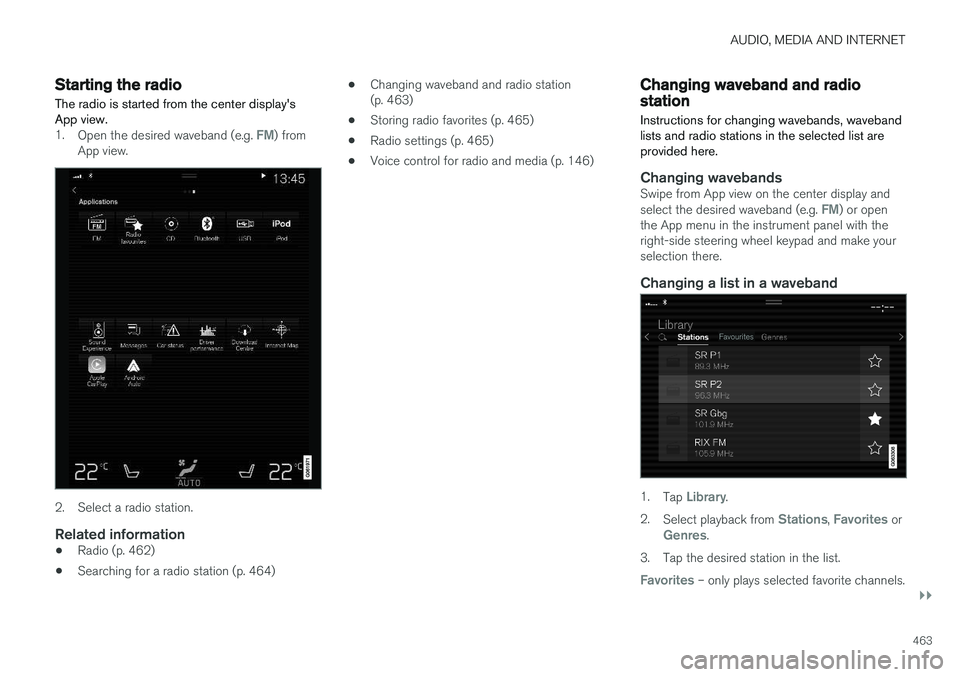
Starting the radio The radio is started from the center display's App view.
1.Open the desired waveband (e.g. FM) from
App view.
2. Select a radio station.
Related information
• Radio (p. 462)
• Searching for a radio station (p. 464) •
Changing waveband and radio station (p. 463)
• Storing radio favorites (p. 465)
• Radio settings (p. 465)
• Voice control for radio and media (p. 146)
Changing waveband and radiostation
Instructions for changing wavebands, waveband lists and radio stations in the selected list areprovided here.
Changing wavebandsSwipe from App view on the center display and select the desired waveband (e.g. FM) or open
the App menu in the instrument panel with the right-side steering wheel keypad and make yourselection there.
Changing a list in a waveband
1. Tap Library.
2. Select playback from
Stations, Favorites orGenres.
3. Tap the desired station in the list.
Favorites – only plays selected favorite channels.
Page 466 of 660
||
AUDIO, MEDIA AND INTERNET
464
Genres - only plays channels broadcasting the
selected genre or program type, e.g. pop, classi- cal, etc.
Changing radio stations in a selected
list
–Press or under the center display
or on the right-side steering wheel keypad.
> Move step-by-step through the selected list.
It is also possible to change radio station in the selected list via the center display.
Related information
• Radio (p. 462)
• Searching for a radio station (p. 464)
• Voice control for radio and media (p. 146)
• Storing radio favorites (p. 465)
• Radio settings (p. 465)
• App menu in instrument panel (p. 100)
Searching for a radio station
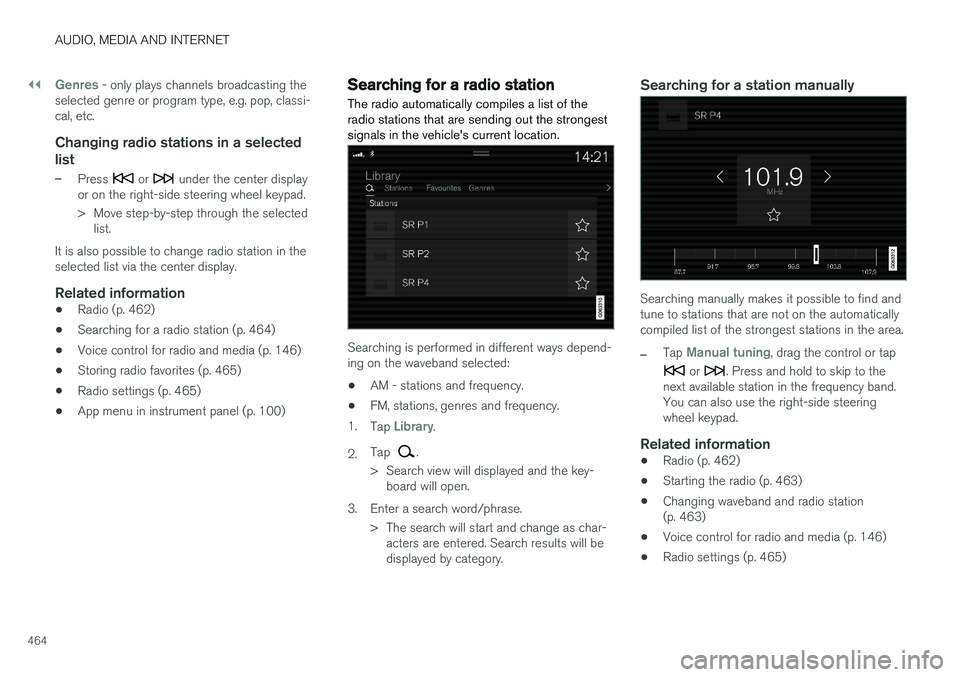
The radio automatically compiles a list of the radio stations that are sending out the strongestsignals in the vehicle's current location.
Searching is performed in different ways depend- ing on the waveband selected:
• AM - stations and frequency.
• FM, stations, genres and frequency.
1. Tap
Library.
2. Tap
.
> Search view will displayed and the key- board will open.
3. Enter a search word/phrase. > The search will start and change as char-acters are entered. Search results will be displayed by category.
Searching for a station manually
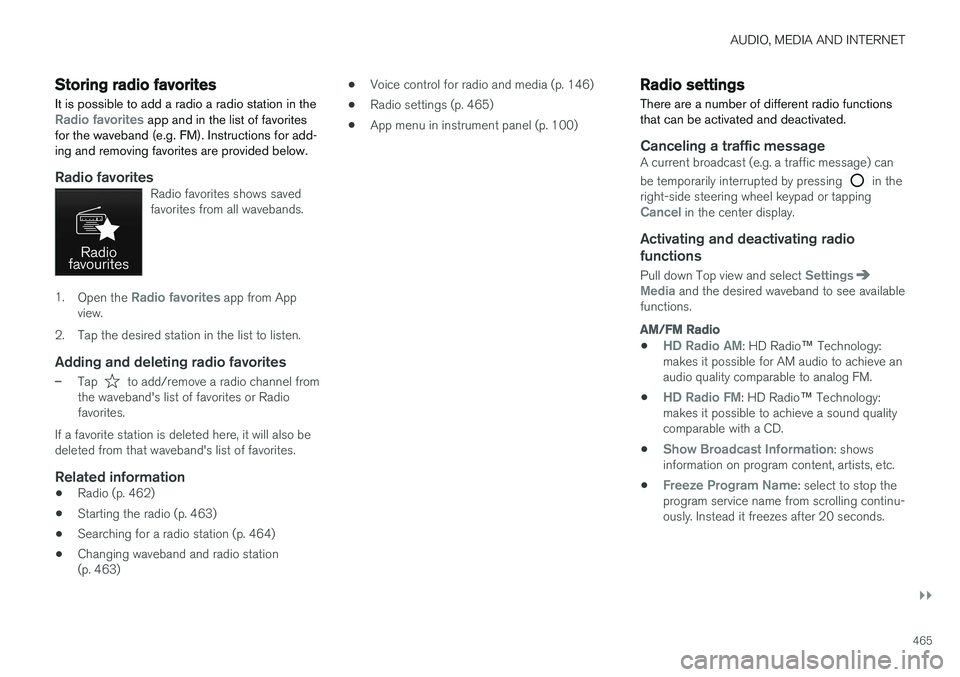
Searching manually makes it possible to find and tune to stations that are not on the automaticallycompiled list of the strongest stations in the area.
–Tap Manual tuning, drag the control or tap
or . Press and hold to skip to the
next available station in the frequency band. You can also use the right-side steeringwheel keypad.
Related information
• Radio (p. 462)
• Starting the radio (p. 463)
• Changing waveband and radio station(p. 463)
• Voice control for radio and media (p. 146)
• Radio settings (p. 465)
Page 467 of 660
AUDIO, MEDIA AND INTERNET
}}
465
Storing radio favorites
It is possible to add a radio a radio station in the
Radio favorites app and in the list of favorites
for the waveband (e.g. FM). Instructions for add- ing and removing favorites are provided below.
Radio favoritesRadio favorites shows saved favorites from all wavebands.
1. Open the Radio favorites app from App
view.
2. Tap the desired station in the list to listen.
Adding and deleting radio favorites
–Tap to add/remove a radio channel from
the waveband's list of favorites or Radio favorites.
If a favorite station is deleted here, it will also bedeleted from that waveband's list of favorites.
Related information
• Radio (p. 462)
• Starting the radio (p. 463)
• Searching for a radio station (p. 464)
• Changing waveband and radio station(p. 463) •
Voice control for radio and media (p. 146)
• Radio settings (p. 465)
• App menu in instrument panel (p. 100)
Radio settings
There are a number of different radio functions that can be activated and deactivated.
Canceling a traffic messageA current broadcast (e.g. a traffic message) can be temporarily interrupted by pressing
in the
right-side steering wheel keypad or tapping
Cancel in the center display.
Activating and deactivating radio
functions
Pull down Top view and select SettingsMedia and the desired waveband to see available
functions.
AM/FM Radio
•HD Radio AM: HD Radio ™
Technology:
makes it possible for AM audio to achieve an audio quality comparable to analog FM.
•
HD Radio FM: HD Radio ™ Technology:
makes it possible to achieve a sound quality comparable with a CD.
•
Show Broadcast Information: shows
information on program content, artists, etc.
•
Freeze Program Name: select to stop the
program service name from scrolling continu- ously. Instead it freezes after 20 seconds.
Page 469 of 660
AUDIO, MEDIA AND INTERNET
467
The IBOC system is referred to as a "hybrid" since it is both analog and digital. During hybridoperation, receivers still continue to receive theanalog (non-digital) signal. HD Radio receiversincorporate both modes of reception, where thereceiver will automatically switch to the analogsignal if the digital signal cannot be decoded oris lost by the receiver. When you have tuned to an HD Radio station, the
symbol will appear in the infotainment sys-
tem display. The symbol will be displayed in dif- ferent colors:
• Grayed-out symbol
: No HD Radio broad-
cast reception
• White symbol
: the radio is actively receiving
an HD broadcast
• Orange symbol
: the radio is receiving an
HD broadcast with digital sound
More information about HD Radio and IBOC canbe found on DTS, Inc.'s website, www.dts.com.
Artist Experience ™A radio station's logo and album art can be dis-played. If a station opts to provide this informa-tion, it is broadcast once every 12 minutes, whichmeans that there may be a delay before thelogo/album art appear on the screen. The radiocan store 100 station logos so the next time theradio is tuned to the same station, the logo willbe displayed immediately. Album art is synchedwith the artist that you are currently listening to.
Ball game modeThis feature means that a main FM station (HD1)will broadcast live events, where the content ofthe programming is more important than soundquality, in analog mode only to help prevent thedelay between analog and digital broadcasting.The HD Radio symbol will be white during livebroadcasts and "Live" will be displayed next tothe symbol.
Benefits of digital broadcasting
•Better sound (FM sounds near CD qualityand AM as analog FM).
• Some FM frequencies offer a greater num-ber of listening choices through "multicast-ing" (consisting of a frequency's main chan-nel and any sub-channels that may also beavailable on that particular frequency.)
• When receiving a digital signal there is nomultipath disturbance or hisses/pops/crack-ling due to outside influences.
How HD Radio
™ Technology
broadcasting works
HD Radio works similarly to conventional radioand broadcasts of this type are available in manyareas of the United States. However, there are afew key differences: •
Instead of transmitting one analog signal,stations send out a bundled signal - bothanalog and digital.
• An HD Radio receiver can receive both digi-tal and analog broadcasts. Depending on theterrain and location of the vehicle (which willinfluence the signal strength), the receiverwill determine which signal to receive.
Related information
• Radio (p. 462)
• Activating and deactivating the HD Radio
™
(p. 468)
• HD Radio
™ sub-channels (p. 468)
• HD Radio
™ limitations (p. 469)
• Changing waveband and radio station(p. 463)
• Searching for a radio station (p. 464)
Page 471 of 660
AUDIO, MEDIA AND INTERNET
469
Selecting sub-channels
To listen to a station's sub-channel(s), tap the station on the screen or press the forward/backarrow keys on the right-side steering wheel key-pad or below the screen. Sub-channels can also be saved as radio favor- ites. If you tap a sub-channel favorite, it may take up to 6 seconds before the channel becomes audi-
ble. If you tap a station while you are out of digital range of the transmitter,
No reception will be
displayed.
Related information
• HD Radio
™ (p. 466)
• Activating and deactivating the HD Radio
™
(p. 468)
• Changing waveband and radio station (p. 463)
• Searching for a radio station (p. 464)
• HD Radio
™ limitations (p. 469)
HD Radio™ limitations
Limitations
• Main channel vs. sub-channels (FM only)
:
The main channel is the only channel that can receive in hybrid mode (both digital andanalog). If a frequency has sub-channels,they are broadcast in digital mode only. Themain FM channel will be displayed as, forexample, "WRIF-FM HD1". The sub-FMchannels will be displayed as"WRIF-FMHD2", "WRIF-FM HD3", etc.
• Reception coverage area
: Due to current
IBOC transmitter power limitations, thereception coverage area in digital mode issomewhat more limited than the station'sanalog coverage area. Be aware that, like allradio transmission technology, terrain, time ofday, vegetation and buildings can have apositive or negative effect on radio reception.
• Analog to digital/digital to analog blend-ing
: Analog to digital blending will occur as
the signal strength reaches a preset thresh-old in the receiver. This will be noticeable infringe areas (areas with weak reception) andis normal.
NOTE
There may be a noticeable difference in sound quality when a change from analogueto digital or digital to analogue occurs, suchas:
• Volume increase or decrease
• Equalizer settings, i.e., Bass/ Midrange/Treble cut or boost
• Time alignment (Digital program materialin extreme cases can be as much as 8seconds behind the analogue). This willnoticeable as a "stuttering" effect.
The above items are dependant on thebroadcaster's equipment settings and donot indicate a fault in the vehicle's radioreceiver or antenna systems .
Related information
•HD Radio
™ (p. 466)
• Activating and deactivating the HD Radio
™
(p. 468)
• HD Radio
™
sub-channels (p. 468)
Page 473 of 660
AUDIO, MEDIA AND INTERNET
}}
* Option/accessory.471
Using SiriusXM® Satellite radio *
SiriusXM ®
Satellite radio offers several features
for finding and listening to music, news, sporting events, etc. being broadcast on satellite radiostations.
SiriusXM ®
Satellite radio functions
With SiriusXM ®
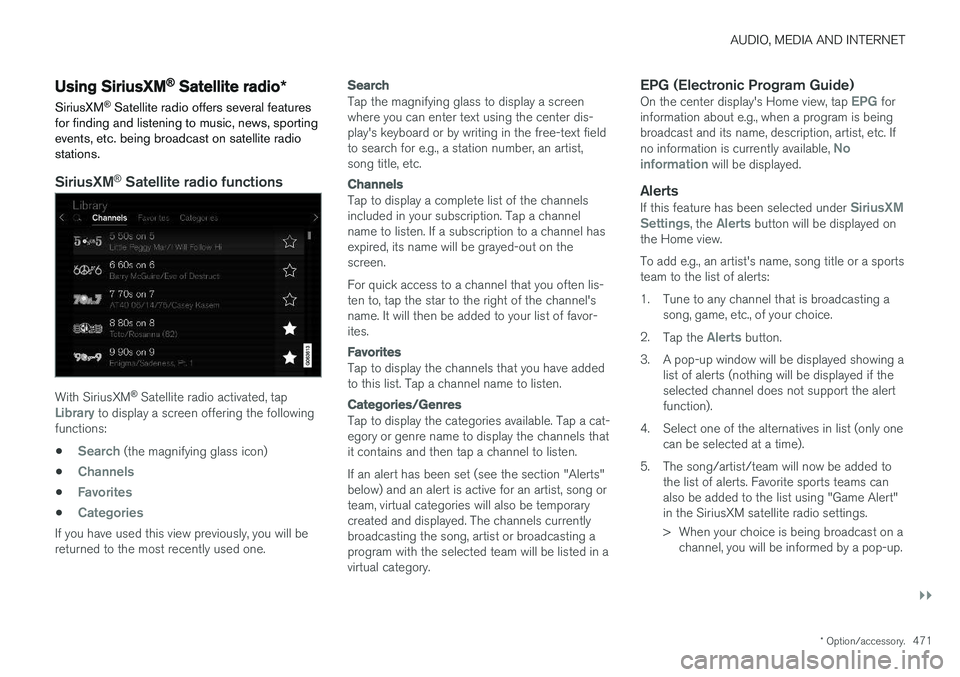
Satellite radio activated, tapLibrary to display a screen offering the following
functions: •
Search (the magnifying glass icon)
•
Channels
•Favorites
•Categories
If you have used this view previously, you will be returned to the most recently used one.
Search
Tap the magnifying glass to display a screen where you can enter text using the center dis-play's keyboard or by writing in the free-text fieldto search for e.g., a station number, an artist,song title, etc.
Channels
Tap to display a complete list of the channels included in your subscription. Tap a channelname to listen. If a subscription to a channel hasexpired, its name will be grayed-out on thescreen. For quick access to a channel that you often lis- ten to, tap the star to the right of the channel'sname. It will then be added to your list of favor-ites.
Favorites
Tap to display the channels that you have added to this list. Tap a channel name to listen.
Categories/Genres
Tap to display the categories available. Tap a cat- egory or genre name to display the channels thatit contains and then tap a channel to listen. If an alert has been set (see the section "Alerts" below) and an alert is active for an artist, song orteam, virtual categories will also be temporarycreated and displayed. The channels currentlybroadcasting the song, artist or broadcasting aprogram with the selected team will be listed in avirtual category.
EPG (Electronic Program Guide)On the center display's Home view, tap EPG for
information about e.g., when a program is being broadcast and its name, description, artist, etc. If no information is currently available,
No
information will be displayed.
AlertsIf this feature has been selected under SiriusXM
Settings, the Alerts button will be displayed on
the Home view. To add e.g., an artist's name, song title or a sports team to the list of alerts:
1. Tune to any channel that is broadcasting a song, game, etc., of your choice.
2. Tap the
Alerts button.
3. A pop-up window will be displayed showing a list of alerts (nothing will be displayed if the selected channel does not support the alertfunction).
4. Select one of the alternatives in list (only one can be selected at a time).
5. The song/artist/team will now be added to the list of alerts. Favorite sports teams canalso be added to the list using "Game Alert"in the SiriusXM satellite radio settings.
> When your choice is being broadcast on achannel, you will be informed by a pop-up.
Page 477 of 660
AUDIO, MEDIA AND INTERNET
}}
* Option/accessory.475
•
SiriusXM Travel Link ®
* - Sports (p. 478)
• SiriusXM Travel Link ®
* - Weather (p. 475)
• SiriusXM Travel Link ®
* - Notifications
(p. 476)
SiriusXM Travel Link® * - Weather
This SiriusXM Travel Link service provides weather-related information near the vehicle, at alocal ski resort, etc.
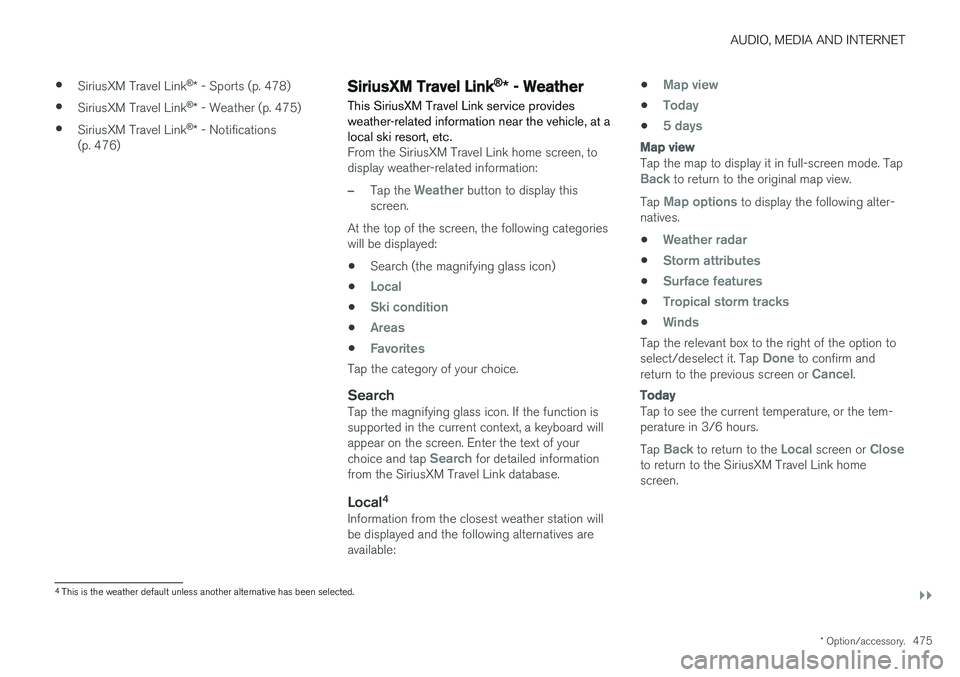
From the SiriusXM Travel Link home screen, to display weather-related information:
–Tap the Weather button to display this
screen.
At the top of the screen, the following categories will be displayed:
• Search (the magnifying glass icon)
•
Local
•Ski condition
•Areas
•Favorites
Tap the category of your choice.
SearchTap the magnifying glass icon. If the function is supported in the current context, a keyboard willappear on the screen. Enter the text of your choice and tap
Search for detailed information
from the SiriusXM Travel Link database.
Local 4Information from the closest weather station will be displayed and the following alternatives areavailable: •
Map view
•Today
•5 days
Map view
Tap the map to display it in full-screen mode. TapBack to return to the original map view.
Tap
Map options to display the following alter-
natives. •
Weather radar
•Storm attributes
•Surface features
•Tropical storm tracks
•Winds
Tap the relevant box to the right of the option to select/deselect it. Tap Done to confirm and
return to the previous screen or Cancel.
Today
Tap to see the current temperature, or the tem- perature in 3/6 hours. Tap
Back to return to the Local screen or Closeto return to the SiriusXM Travel Link home screen.
4 This is the weather default unless another alternative has been selected.