wheel VOLVO XC60 2018 Owner´s Manual
[x] Cancel search | Manufacturer: VOLVO, Model Year: 2018, Model line: XC60, Model: VOLVO XC60 2018Pages: 660, PDF Size: 11.77 MB
Page 447 of 660
STARTING AND DRIVING
}}
* Option/accessory.445
The automatic transmission selects the optimal gear for the current load and engine speed.
Steep inclines
Do not lock the automatic transmission into a higher gear than what the engine can handle
‒ it
is not always preferable to drive in high gears at low rpm.
Parking on a hill
1. Depress the brake pedal.
2. Apply the parking brake.3. Put the gear selector in P.
4. Release the brake pedal.Put chocks behind the wheels when the vehicle is parked on a hill with a trailer attached.
Starting on a hill
1. Depress the brake pedal. 2. Put the gear selector in D.
3. Release the parking brake.
4. Release the brake pedal and start driving.
Related information
• Trailer Stability Assist
* (p. 445)
• Checking trailer lights (p. 446)
• Towing capacity and tongue weight (p. 636)
• Overheating of engine and transmission (p. 440)
Trailer Stability Assist
*
Trailer Stability Assist (TSA 9
) is a function
designed to help stabilize a vehicle that is tow- ing a trailer when the vehicle and trailer havebegun to sway. The function is part of the Elec- tronic Stability Control system ESC 10
.
Reasons for swayingA vehicle towing a trailer may begin to sway for various reasons. Normally this only occurs at highspeeds. However, if the trailer is overloaded orunevenly distributed, e.g. too far back, there is arisk of swaying even at low speeds. Swaying may be caused by factors such as:
• The vehicle and trailer are hit by a sudden, strong crosswind.
• The vehicle and trailer are traveling on anuneven road or over a bump.
• Sudden movements of the steering wheel.
Once swaying has begun, it can be difficult orimpossible to stop it. This makes the vehicle andtrailer difficult to control and there is a risk ofswerving into oncoming traffic or driving off theroad.
Trailer Stability Assist functionTrailer Stability Assist continuously monitors thevehicle's movements, particularly lateral move- ments. If swaying is detected, the brakes areapplied individually on the front wheels, which hasa stabilizing effect on the vehicle and trailer. Thisis often enough to enable the driver to regaincontrol of the vehicle. If the Trailer Stability Assist function's first attempt is not adequate to stop the swayingmotion, the brakes are applied on all wheels andengine power is temporarily reduced. As theswaying motion begins to decrease and the vehi-cle and trailer have once again become stable,TSA stops regulating the brakes/engine powerand the driver regains control of the vehicle.
NOTE
Trailer Stability Assist is deactivated if the driver selects the sport mode by deactivating
ESC in the center display's menu system.
Trailer Stability Assist may not intervene if the driver tries to compensate for the swaying motionby moving the steering wheel rapidly, becausethe system will then not be able to determine if itis the trailer or the driver causing the swaying.
9
Trailer Stability Assist
10 Electronic Stability Control
Page 448 of 660
||
STARTING AND DRIVING
* Option/accessory.
446 When Trailer Stability Assist is activated, the
ESC symbol is
displayed in the instrument panel.
Related information
• Driving with a trailer (p. 443)
• Electronic Stability Control (p. 266)
Checking trailer lights
When connecting a trailer, make sure that all of the lights on the trailer are functioning beforestarting to drive.
Trailer turn signals and brake lightsIf one or more of the turn signals or brake lights on the trailer is not working, a symbol and mes-sage will be displayed in the instrument panel.The other lights on the trailer must be checkedmanually by the driver before the vehicle is driven.
SymbolMessage
•Trailer turn indicator Right
turn indicator malfunction
•Trailer turn indicator Left
turn indicator malfunction
•Trailer brake light Malfunc-
tion
If any of the trailer's turn signal lights is not work- ing, the turn signal symbol in the instrumentpanel will also flash more quickly than normal.
Trailer rear fog lightWhen a trailer is connected, the vehicle's rear foglight may not illuminate and rear fog light func-tionality is instead transferred to the trailer. If thisis the case, check to see if the trailer is equippedwith a rear fog light before activating the vehicle's fog lights when driving with a trailer to helpensure safe operation.
Checking trailer lights
*
Automatic check
When the trailer has been connected to the vehi- cle's electrical system, its lights can be checkedby automatically activating them. This functionhelps the driver check that the trailer's lights arefunctioning correctly before starting to drive. In order to perform this check, the engine must be turned off.
1. When a trailer is connected to the towbar,
the message
Automatic Trailer Lamp
Check will appear in the instrument panel.
2. Acknowledge the message by pressing the O button on the right-side steering wheel
keypad.
> The light check will begin.
3. Get out of the vehicle to perform the check. > All of the lights on the trailer will beginflashing, and then illuminate separately one at a time.
4. Visually check that all of the trailer's lights are functioning correctly.
5. After a short time, all of the trailer's lights will start flashing again.
> The light check is completed.
Page 449 of 660
STARTING AND DRIVING
}}
447
Disabling the automatic check
The automatic light check can be disabled in the center display. 1.Tap
Settings in the Top view.
2. Tap
My CarLights and Lighting.
3. Deselect
Automatic Trailer Lamp Check.
Manual check
If the automatic check has been disabled, the check can be started manually. 1.Tap
Settings in the Top view.
2. Tap
My CarLights and Lighting.
3. Select
Manual Trailer Lamp Check.
> The light check will begin. Get out of the vehicle to perform the check.
Related information
• Driving with a trailer (p. 443)
Towing using a towline
This section refers to one vehicle being towed behind another using a towline.
Before towing another vehicle, check applicable speed limit regulations.
Preparations and towing
CAUTION
Note that the vehicle must always be towed with the wheels rolling forward.
• Do not tow a vehicle with automatictransmission at a speed greater than80 km/h (50 mph) or for a distancegreater than 80 km (50 miles).
WARNING
•
Ignition mode
II must be active – all air-
bags are deactivated in ignition mode I.
• Always have the remote key in the vehicle when it is towed.
WARNING
The brake and steering servos do not work when the engine is off – it takesabout 5 times more pressure on the brakepedal and steering requires much more effortthan normal. 1. Turn on the hazard warning flashers.
2. Attach the towline to the towing eyelet.3.
Put the vehicle in ignition mode II – without
pressing the brake pedal, turn the start knob clockwise and hold it there for about4 seconds. Release the knob, which willautomatically return to its original position.
4. Move the gear selector to neutral ( N) and
release the parking brake. If the battery charge level is too low, it may not be possible to release the parking brake.Connect an auxiliary battery to the vehicle ifthe battery is discharged.
> The towing vehicle can now start driving.
5. Keep the towline taut when the towing vehi- cle slows down by applying light pressure to the brake pedal. This will help avoid jarringmovements.
6. Be prepared to apply the brakes to stop the vehicle.
Jump startingDo not tow the vehicle to start the engine. Use anauxiliary battery if the start battery's charge levelis so low that the engine cannot be started.
Page 452 of 660
STARTING AND DRIVING
* Option/accessory.
450
Recovery
This section refers to transporting the vehicle with a tow truck or similar vehicle.
Call a professional towing service for assistance. In certain conditions, the towing eyelet can be used to pull the vehicle onto a flatbed tow truck. For vehicles equipped with leveling control *:
If the vehicle is equipped with pneumatic suspen- sion, this feature must be turned off before thevehicle is lifted onto a tow truck. Turning off thefunction in the center display. 1. Tap
Settings in the Top view.
2. Tap
My CarParking Brake and
Suspension.
3. Select
Disable Leveling Control.
The vehicle's location and ground clearance determine if it can be lifted onto a tow truck. Ifthe incline of the tow truck is too steep or if theground clearance under the vehicle is insufficient,attempting to pull it up may result in damage. Inthis case, the vehicle should only be lifted withthe tow truck's lifting equipment.
WARNING
No person or object should be behind the tow truck when the vehicle is lifted onto the bedof the truck.
CAUTION
The towing eyelet is only intended for towing on roads, and must not be used to pull vehi-
cles from ditches or any similar purpose involving severe strain. Call a tow truck forprofessional assistance.
CAUTION
Note that the vehicle must always be towed with the wheels rolling forward.
Related information
• Attaching and removing the towing eyelet (p. 448)
HomeLink®
*11
HomeLink ®
12
is a programmable remote control,
integrated in the vehicle electrical system, that can control up to three different devices (e.g.garage door opener, alarm system, outdoor andindoor lighting, etc.) and thereby replace theremote controls for these.
General
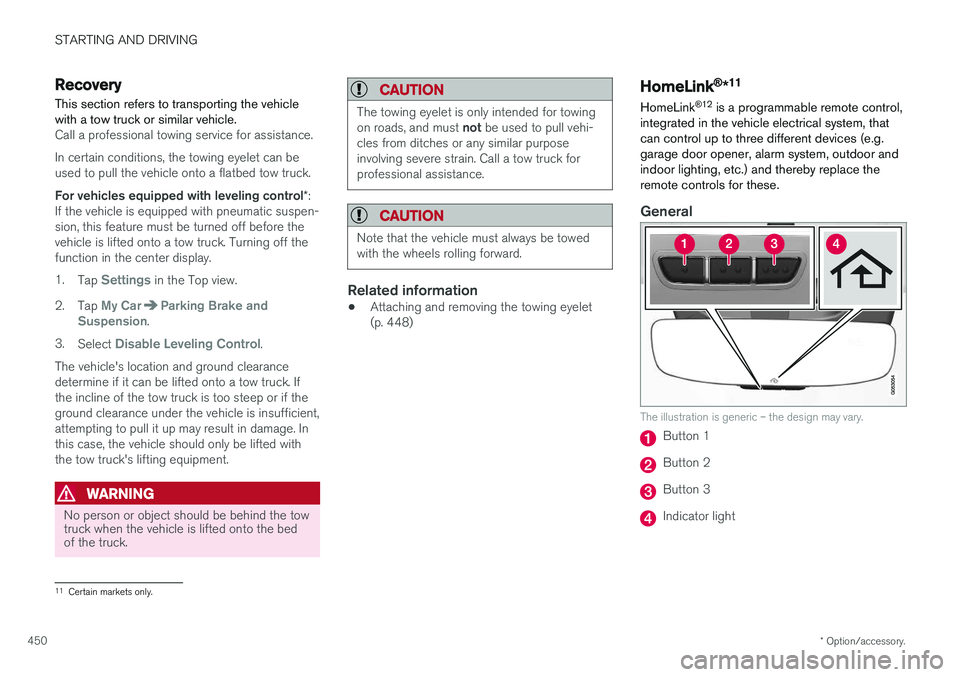
The illustration is generic – the design may vary.
Button 1
Button 2
Button 3
Indicator light
11 Certain markets only.
Page 460 of 660
AUDIO, MEDIA AND INTERNET
* Option/accessory.
458
Audio, media and Internet
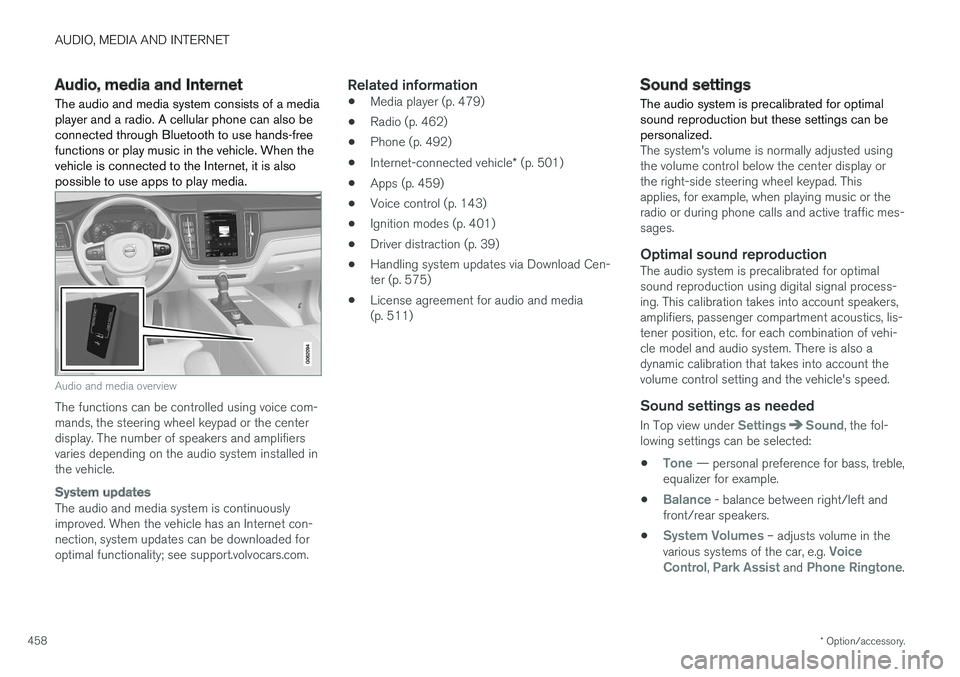
The audio and media system consists of a media player and a radio. A cellular phone can also beconnected through Bluetooth to use hands-freefunctions or play music in the vehicle. When thevehicle is connected to the Internet, it is alsopossible to use apps to play media.
Audio and media overview
The functions can be controlled using voice com- mands, the steering wheel keypad or the centerdisplay. The number of speakers and amplifiersvaries depending on the audio system installed inthe vehicle.
System updates
The audio and media system is continuously improved. When the vehicle has an Internet con-nection, system updates can be downloaded foroptimal functionality; see support.volvocars.com.
Related information
• Media player (p. 479)
• Radio (p. 462)
• Phone (p. 492)
• Internet-connected vehicle
* (p. 501)
• Apps (p. 459)
• Voice control (p. 143)
• Ignition modes (p. 401)
• Driver distraction (p. 39)
• Handling system updates via Download Cen-ter (p. 575)
• License agreement for audio and media(p. 511)
Sound settings
The audio system is precalibrated for optimal sound reproduction but these settings can bepersonalized.
The system's volume is normally adjusted using the volume control below the center display orthe right-side steering wheel keypad. Thisapplies, for example, when playing music or theradio or during phone calls and active traffic mes-sages.
Optimal sound reproductionThe audio system is precalibrated for optimalsound reproduction using digital signal process-ing. This calibration takes into account speakers,amplifiers, passenger compartment acoustics, lis-tener position, etc. for each combination of vehi-cle model and audio system. There is also adynamic calibration that takes into account thevolume control setting and the vehicle's speed.
Sound settings as needed
In Top view under SettingsSound, the fol-
lowing settings can be selected:
•
Tone — personal preference for bass, treble,
equalizer for example.
•
Balance - balance between right/left and
front/rear speakers.
•
System Volumes – adjusts volume in the
various systems of the car, e.g. Voice
Control, Park Assist and Phone Ringtone.
Page 464 of 660
AUDIO, MEDIA AND INTERNET
* Option/accessory.
462
Deleting apps
When the vehicle is connected to the Internet, it is possible to uninstall apps.
If the app is being used, it must be closed before it can be uninstalled. 1. Open the
Download Center app in App
view.
2. Select Application updates to open a list
of all installed apps.
3. Find the desired app and select
Uninstall to
begin uninstalling the app.
> When the app has been uninstalled, it will be removed from the list.
Related information
• Apps (p. 459)
• Download apps (p. 460)
• Updating apps (p. 461)
• Handling system updates via Download Cen- ter (p. 575)
• Internet-connected vehicle
* (p. 501)
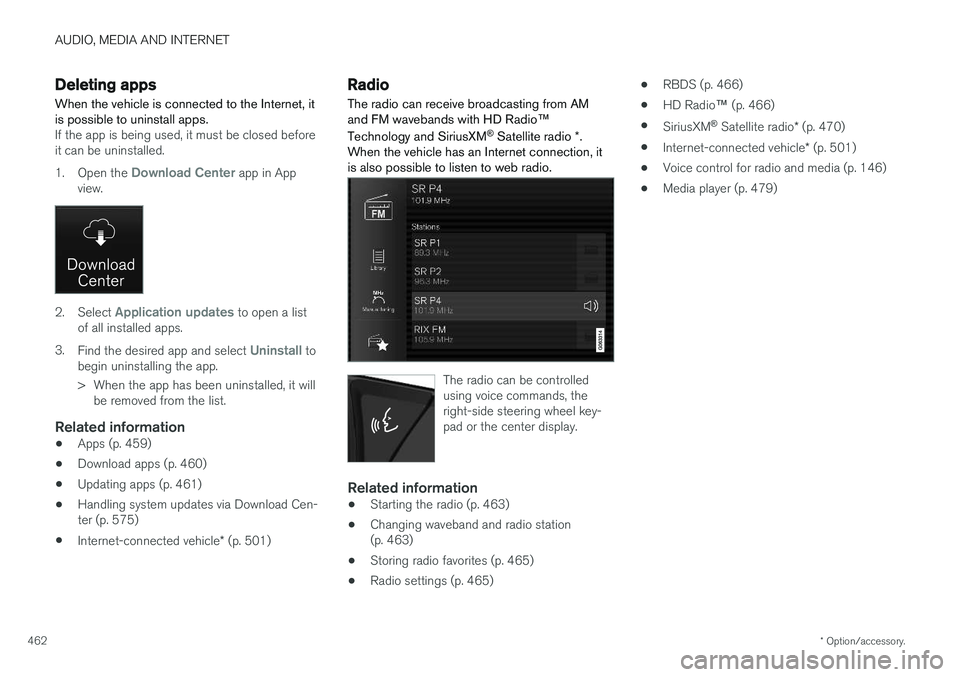
Radio The radio can receive broadcasting from AM and FM wavebands with HD Radio ™
Technology and SiriusXM ®
Satellite radio *.
When the vehicle has an Internet connection, it is also possible to listen to web radio.
The radio can be controlled using voice commands, theright-side steering wheel key-pad or the center display.
Related information
• Starting the radio (p. 463)
• Changing waveband and radio station (p. 463)
• Storing radio favorites (p. 465)
• Radio settings (p. 465) •
RBDS (p. 466)
• HD Radio
™ (p. 466)
• SiriusXM ®
Satellite radio * (p. 470)
• Internet-connected vehicle
* (p. 501)
• Voice control for radio and media (p. 146)
• Media player (p. 479)
Page 465 of 660
AUDIO, MEDIA AND INTERNET
}}
463
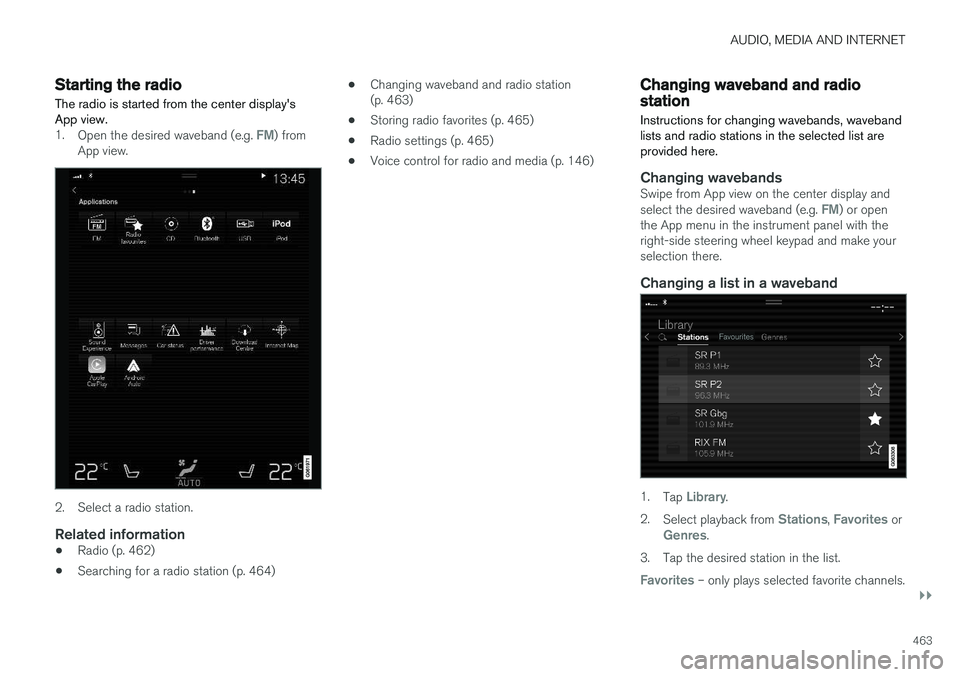
Starting the radio The radio is started from the center display's App view.
1.Open the desired waveband (e.g. FM) from
App view.
2. Select a radio station.
Related information
• Radio (p. 462)
• Searching for a radio station (p. 464) •
Changing waveband and radio station (p. 463)
• Storing radio favorites (p. 465)
• Radio settings (p. 465)
• Voice control for radio and media (p. 146)
Changing waveband and radiostation
Instructions for changing wavebands, waveband lists and radio stations in the selected list areprovided here.
Changing wavebandsSwipe from App view on the center display and select the desired waveband (e.g. FM) or open
the App menu in the instrument panel with the right-side steering wheel keypad and make yourselection there.
Changing a list in a waveband
1. Tap Library.
2. Select playback from
Stations, Favorites orGenres.
3. Tap the desired station in the list.
Favorites – only plays selected favorite channels.
Page 466 of 660
||
AUDIO, MEDIA AND INTERNET
464
Genres - only plays channels broadcasting the
selected genre or program type, e.g. pop, classi- cal, etc.
Changing radio stations in a selected
list
–Press or under the center display
or on the right-side steering wheel keypad.
> Move step-by-step through the selected list.
It is also possible to change radio station in the selected list via the center display.
Related information
• Radio (p. 462)
• Searching for a radio station (p. 464)
• Voice control for radio and media (p. 146)
• Storing radio favorites (p. 465)
• Radio settings (p. 465)
• App menu in instrument panel (p. 100)
Searching for a radio station
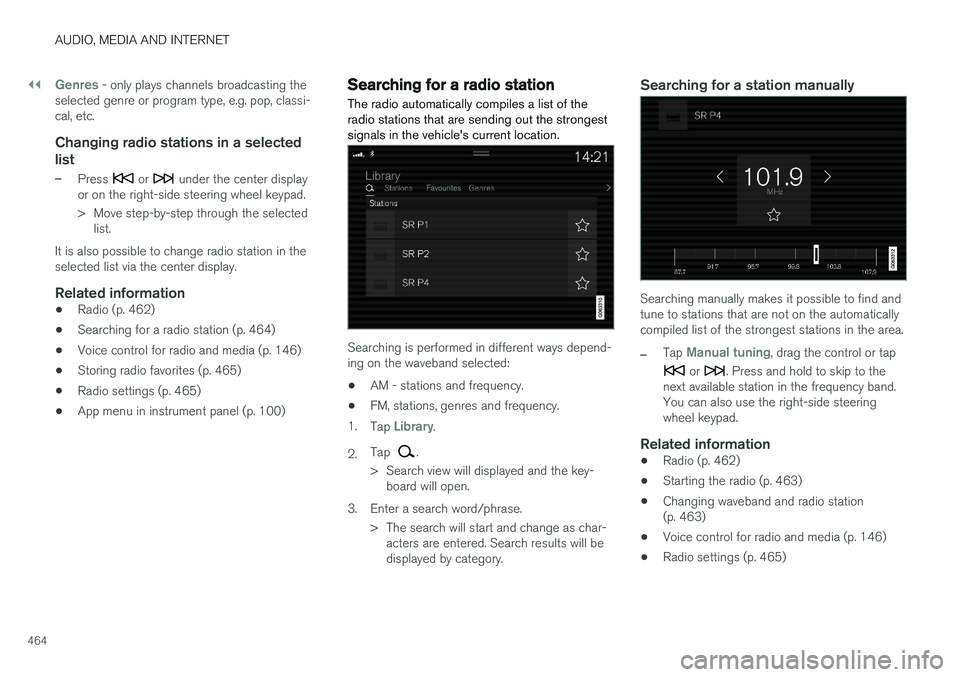
The radio automatically compiles a list of the radio stations that are sending out the strongestsignals in the vehicle's current location.
Searching is performed in different ways depend- ing on the waveband selected:
• AM - stations and frequency.
• FM, stations, genres and frequency.
1. Tap
Library.
2. Tap
.
> Search view will displayed and the key- board will open.
3. Enter a search word/phrase. > The search will start and change as char-acters are entered. Search results will be displayed by category.
Searching for a station manually
Searching manually makes it possible to find and tune to stations that are not on the automaticallycompiled list of the strongest stations in the area.
–Tap Manual tuning, drag the control or tap
or . Press and hold to skip to the
next available station in the frequency band. You can also use the right-side steeringwheel keypad.
Related information
• Radio (p. 462)
• Starting the radio (p. 463)
• Changing waveband and radio station(p. 463)
• Voice control for radio and media (p. 146)
• Radio settings (p. 465)
Page 467 of 660
AUDIO, MEDIA AND INTERNET
}}
465
Storing radio favorites
It is possible to add a radio a radio station in the
Radio favorites app and in the list of favorites
for the waveband (e.g. FM). Instructions for add- ing and removing favorites are provided below.
Radio favoritesRadio favorites shows saved favorites from all wavebands.
1. Open the Radio favorites app from App
view.
2. Tap the desired station in the list to listen.
Adding and deleting radio favorites
–Tap to add/remove a radio channel from
the waveband's list of favorites or Radio favorites.
If a favorite station is deleted here, it will also bedeleted from that waveband's list of favorites.
Related information
• Radio (p. 462)
• Starting the radio (p. 463)
• Searching for a radio station (p. 464)
• Changing waveband and radio station(p. 463) •
Voice control for radio and media (p. 146)
• Radio settings (p. 465)
• App menu in instrument panel (p. 100)
Radio settings
There are a number of different radio functions that can be activated and deactivated.
Canceling a traffic messageA current broadcast (e.g. a traffic message) can be temporarily interrupted by pressing
in the
right-side steering wheel keypad or tapping
Cancel in the center display.
Activating and deactivating radio
functions
Pull down Top view and select SettingsMedia and the desired waveband to see available
functions.
AM/FM Radio
•HD Radio AM: HD Radio ™
Technology:
makes it possible for AM audio to achieve an audio quality comparable to analog FM.
•
HD Radio FM: HD Radio ™ Technology:
makes it possible to achieve a sound quality comparable with a CD.
•
Show Broadcast Information: shows
information on program content, artists, etc.
•
Freeze Program Name: select to stop the
program service name from scrolling continu- ously. Instead it freezes after 20 seconds.
Page 471 of 660
AUDIO, MEDIA AND INTERNET
469
Selecting sub-channels
To listen to a station's sub-channel(s), tap the station on the screen or press the forward/backarrow keys on the right-side steering wheel key-pad or below the screen. Sub-channels can also be saved as radio favor- ites. If you tap a sub-channel favorite, it may take up to 6 seconds before the channel becomes audi-
ble. If you tap a station while you are out of digital range of the transmitter,
No reception will be
displayed.
Related information
• HD Radio
™ (p. 466)
• Activating and deactivating the HD Radio
™
(p. 468)
• Changing waveband and radio station (p. 463)
• Searching for a radio station (p. 464)
• HD Radio
™ limitations (p. 469)
HD Radio™ limitations
Limitations
• Main channel vs. sub-channels (FM only)
:
The main channel is the only channel that can receive in hybrid mode (both digital andanalog). If a frequency has sub-channels,they are broadcast in digital mode only. Themain FM channel will be displayed as, forexample, "WRIF-FM HD1". The sub-FMchannels will be displayed as"WRIF-FMHD2", "WRIF-FM HD3", etc.
• Reception coverage area
: Due to current
IBOC transmitter power limitations, thereception coverage area in digital mode issomewhat more limited than the station'sanalog coverage area. Be aware that, like allradio transmission technology, terrain, time ofday, vegetation and buildings can have apositive or negative effect on radio reception.
• Analog to digital/digital to analog blend-ing
: Analog to digital blending will occur as
the signal strength reaches a preset thresh-old in the receiver. This will be noticeable infringe areas (areas with weak reception) andis normal.
NOTE
There may be a noticeable difference in sound quality when a change from analogueto digital or digital to analogue occurs, suchas:
• Volume increase or decrease
• Equalizer settings, i.e., Bass/ Midrange/Treble cut or boost
• Time alignment (Digital program materialin extreme cases can be as much as 8seconds behind the analogue). This willnoticeable as a "stuttering" effect.
The above items are dependant on thebroadcaster's equipment settings and donot indicate a fault in the vehicle's radioreceiver or antenna systems .
Related information
•HD Radio
™ (p. 466)
• Activating and deactivating the HD Radio
™
(p. 468)
• HD Radio
™
sub-channels (p. 468)