service VOLVO XC60 2018 Owner´s Manual
[x] Cancel search | Manufacturer: VOLVO, Model Year: 2018, Model line: XC60, Model: VOLVO XC60 2018Pages: 660, PDF Size: 11.77 MB
Page 440 of 660
||
STARTING AND DRIVING
438
Minimum octane
Decals
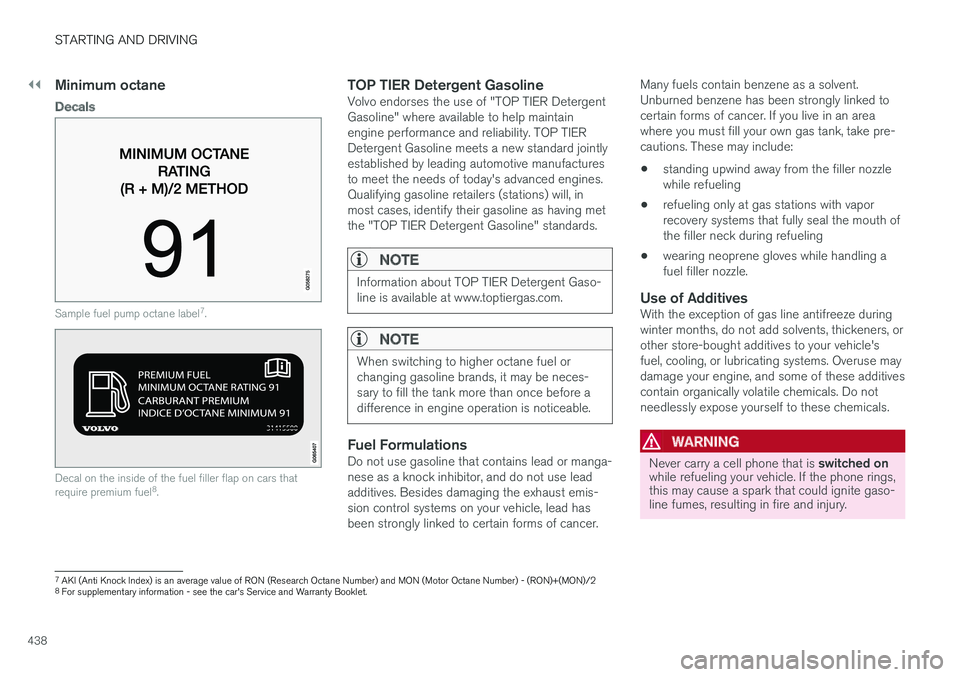
Sample fuel pump octane label7
.
Decal on the inside of the fuel filler flap on cars that require premium fuel 8
.
TOP TIER Detergent GasolineVolvo endorses the use of "TOP TIER Detergent Gasoline" where available to help maintainengine performance and reliability. TOP TIERDetergent Gasoline meets a new standard jointlyestablished by leading automotive manufacturesto meet the needs of today's advanced engines.Qualifying gasoline retailers (stations) will, inmost cases, identify their gasoline as having metthe "TOP TIER Detergent Gasoline" standards.
NOTE
Information about TOP TIER Detergent Gaso- line is available at www.toptiergas.com.
NOTE
When switching to higher octane fuel or changing gasoline brands, it may be neces-sary to fill the tank more than once before adifference in engine operation is noticeable.
Fuel FormulationsDo not use gasoline that contains lead or manga- nese as a knock inhibitor, and do not use leadadditives. Besides damaging the exhaust emis-sion control systems on your vehicle, lead hasbeen strongly linked to certain forms of cancer. Many fuels contain benzene as a solvent.Unburned benzene has been strongly linked tocertain forms of cancer. If you live in an areawhere you must fill your own gas tank, take pre-cautions. These may include: •
standing upwind away from the filler nozzle while refueling
• refueling only at gas stations with vaporrecovery systems that fully seal the mouth ofthe filler neck during refueling
• wearing neoprene gloves while handling afuel filler nozzle.
Use of AdditivesWith the exception of gas line antifreeze duringwinter months, do not add solvents, thickeners, orother store-bought additives to your vehicle'sfuel, cooling, or lubricating systems. Overuse maydamage your engine, and some of these additivescontain organically volatile chemicals. Do notneedlessly expose yourself to these chemicals.
WARNING
Never carry a cell phone that is
switched on
while refueling your vehicle. If the phone rings, this may cause a spark that could ignite gaso-line fumes, resulting in fire and injury.
7 AKI (Anti Knock Index) is an average value of RON (Research Octane Number) and MON (Motor Octane Number) - (RON)+(MON)/2
8 For supplementary information - see the car's Service and Warranty Booklet.
Page 441 of 660
STARTING AND DRIVING
439
WARNING
Carbon monoxide is a poisonous, colorless, and odorless gas. It is present in all exhaustgases. If you ever smell exhaust fumes insidethe vehicle, make sure the passenger com-partment is ventilated, and immediately returnthe vehicle to a trained and qualified Volvoservice technician for correction.
Demanding drivingIn demanding driving conditions, e.g. when driving in a hot climates, driving with a trailer or drivingfor longer periods at higher altitudes (mountainlandscapes) than normal, it is recommended switching to a higher octane fuel than AKI 917
or
changing gasoline brand to take full advantage of your car's engine capacity and obtain the opti-mum driving force.
Related information
• Fuel (p. 436)
• Emission controls (p. 439)
Emission controls
Three-way catalytic converter
•Keep your engine properly tuned. Certain engine malfunctions, particularly involving theelectrical, fuel or distributor ignition systems,may cause unusually high three-way catalyticconverter temperatures. Do not continue tooperate your vehicle if you detect enginemisfire, noticeable loss of power or otherunusual operating conditions, such as engineoverheating or backfiring. A properly tunedengine will help avoid malfunctions thatcould damage the three-way catalytic con-verter.
• Do not park your vehicle over combustiblematerials, such as grass or leaves, which cancome into contact with the hot exhaust sys-tem and cause such materials to ignite undercertain wind and weather conditions.
• Excessive starter cranking (in excess of oneminute), or an intermittently firing or floodedengine can cause three-way catalytic con-verter or exhaust system overheating.
• Remember that tampering or unauthorizedmodifications to the engine, the Engine Con-trol Module, or the vehicle may be illegal andcan cause three-way catalytic converter orexhaust system overheating. This includes:altering fuel injection settings or compo-nents, altering emission system components or location or removing components, and/orrepeated use of leaded fuel.NOTE
Unleaded fuel is required for vehicles with three-way catalytic converters.
Heated oxygen sensorsThe heated oxygen sensors monitor the oxygen content of the exhaust gases. Readings are fedinto a control module that continuously monitorsengine functions and controls fuel injection. Theratio of fuel to air into the engine is continuouslyadjusted for efficient combustion to help reduceharmful emissions.
Related information
•
Octane rating (p. 437)
• Fuel (p. 436)
7
AKI (Anti Knock Index) is an average value of RON (Research Octane Number) and MON (Motor Octane Number) - (RON)+(MON)/2
Page 452 of 660
STARTING AND DRIVING
* Option/accessory.
450
Recovery
This section refers to transporting the vehicle with a tow truck or similar vehicle.
Call a professional towing service for assistance. In certain conditions, the towing eyelet can be used to pull the vehicle onto a flatbed tow truck. For vehicles equipped with leveling control *:
If the vehicle is equipped with pneumatic suspen- sion, this feature must be turned off before thevehicle is lifted onto a tow truck. Turning off thefunction in the center display. 1. Tap
Settings in the Top view.
2. Tap
My CarParking Brake and
Suspension.
3. Select
Disable Leveling Control.
The vehicle's location and ground clearance determine if it can be lifted onto a tow truck. Ifthe incline of the tow truck is too steep or if theground clearance under the vehicle is insufficient,attempting to pull it up may result in damage. Inthis case, the vehicle should only be lifted withthe tow truck's lifting equipment.
WARNING
No person or object should be behind the tow truck when the vehicle is lifted onto the bedof the truck.
CAUTION
The towing eyelet is only intended for towing on roads, and must not be used to pull vehi-
cles from ditches or any similar purpose involving severe strain. Call a tow truck forprofessional assistance.
CAUTION
Note that the vehicle must always be towed with the wheels rolling forward.
Related information
• Attaching and removing the towing eyelet (p. 448)
HomeLink®
*11
HomeLink ®
12
is a programmable remote control,
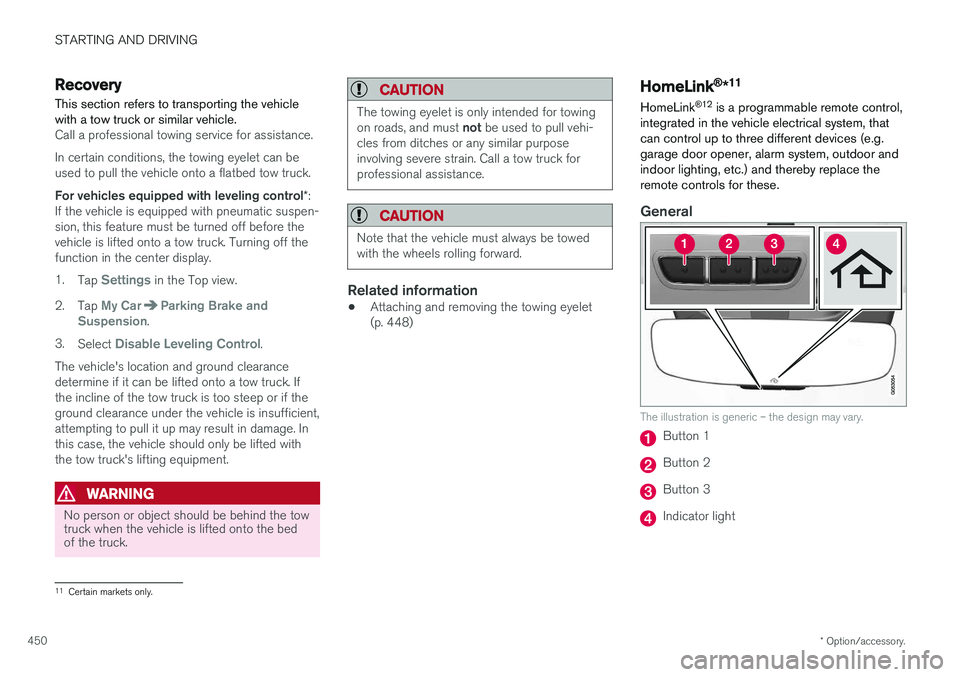
integrated in the vehicle electrical system, that can control up to three different devices (e.g.garage door opener, alarm system, outdoor andindoor lighting, etc.) and thereby replace theremote controls for these.
General
The illustration is generic – the design may vary.
Button 1
Button 2
Button 3
Indicator light
11 Certain markets only.
Page 461 of 660
AUDIO, MEDIA AND INTERNET
}}
* Option/accessory.459
Sound experience *
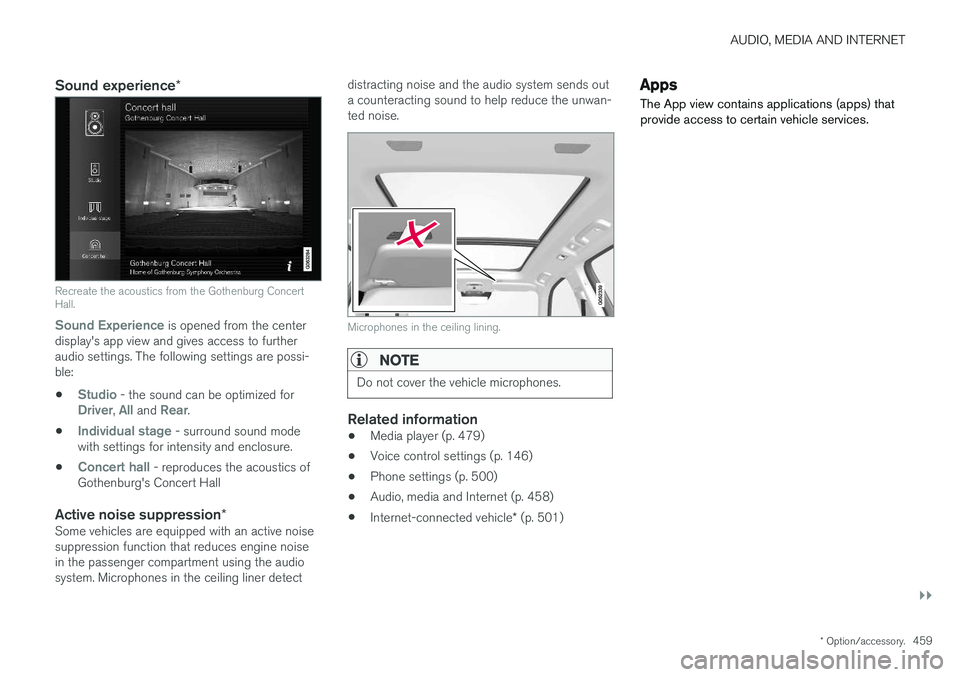
Recreate the acoustics from the Gothenburg Concert Hall.
Sound Experience
is opened from the center
display's app view and gives access to further audio settings. The following settings are possi-ble:
•
Studio - the sound can be optimized forDriver, All and Rear.
•
Individual stage - surround sound mode
with settings for intensity and enclosure.
•
Concert hall - reproduces the acoustics of
Gothenburg's Concert Hall
Active noise suppression *Some vehicles are equipped with an active noise suppression function that reduces engine noisein the passenger compartment using the audiosystem. Microphones in the ceiling liner detect distracting noise and the audio system sends outa counteracting sound to help reduce the unwan-ted noise.
Microphones in the ceiling lining.
NOTE
Do not cover the vehicle microphones.
Related information
•
Media player (p. 479)
• Voice control settings (p. 146)
• Phone settings (p. 500)
• Audio, media and Internet (p. 458)
• Internet-connected vehicle
* (p. 501)
Apps
The App view contains applications (apps) that provide access to certain vehicle services.
Page 462 of 660
||
AUDIO, MEDIA AND INTERNET
* Option/accessory.
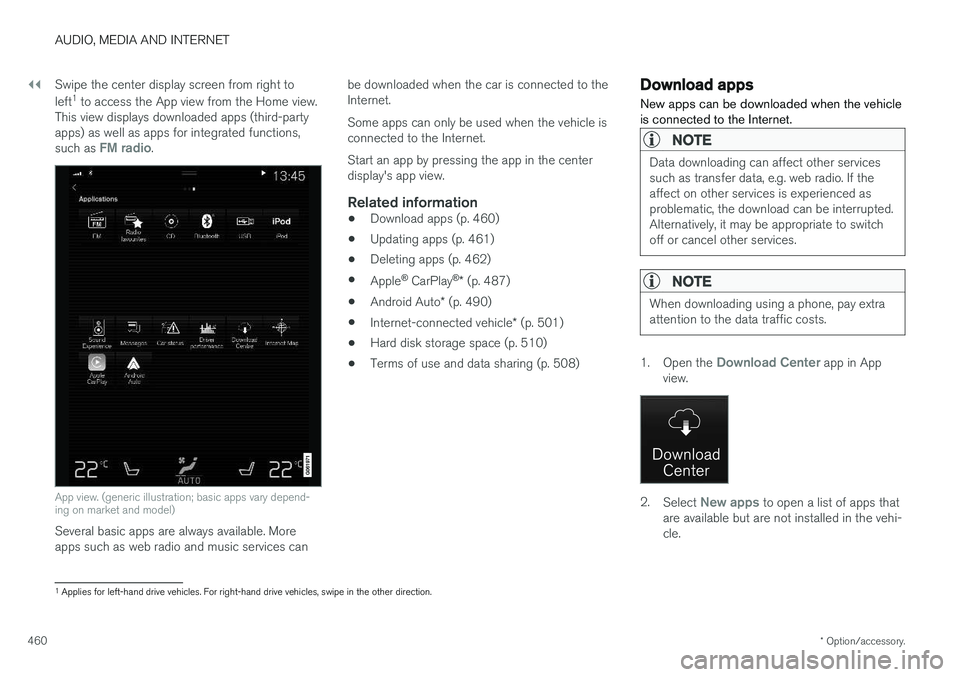
460 Swipe the center display screen from right to left
1
to access the App view from the Home view.
This view displays downloaded apps (third-party apps) as well as apps for integrated functions, such as
FM radio.
App view. (generic illustration; basic apps vary depend- ing on market and model)
Several basic apps are always available. More apps such as web radio and music services can be downloaded when the car is connected to theInternet. Some apps can only be used when the vehicle is connected to the Internet. Start an app by pressing the app in the center display's app view.
Related information
•
Download apps (p. 460)
• Updating apps (p. 461)
• Deleting apps (p. 462)
• Apple ®
CarPlay ®
* (p. 487)
• Android Auto
* (p. 490)
• Internet-connected vehicle
* (p. 501)
• Hard disk storage space (p. 510)
• Terms of use and data sharing (p. 508)
Download apps
New apps can be downloaded when the vehicle is connected to the Internet.
NOTE
Data downloading can affect other services such as transfer data, e.g. web radio. If theaffect on other services is experienced asproblematic, the download can be interrupted.Alternatively, it may be appropriate to switchoff or cancel other services.
NOTE
When downloading using a phone, pay extra attention to the data traffic costs.
1. Open the Download Center app in App
view.
2. Select New apps to open a list of apps that
are available but are not installed in the vehi- cle.
1 Applies for left-hand drive vehicles. For right-hand drive vehicles, swipe in the other direction.
Page 463 of 660
AUDIO, MEDIA AND INTERNET
* Option/accessory.461
3. Tap on the row for an app in order to expand
in the list and get more information about the app.
4. Select
Install to start the download and
installation of the app.
> The current status of the download and installation will be shown. If a download cannot be started immedi- ately, a message will be displayed. Theapp will remain in the list and it will bepossible to reattempt downloading.
Canceling a download
–Tap Abort to cancel a download in progress.
Note that only a download can be cancelled. An installation cannot be cancelled once it hasbegun.
Related information
• Apps (p. 459)
• Updating apps (p. 461)
• Deleting apps (p. 462)
• Internet-connected vehicle
* (p. 501)
• Handling system updates via Download Cen-ter (p. 575)
• Hard disk storage space (p. 510)
Updating apps
Apps can be updated when the vehicle is con- nected to the Internet.
NOTE
Data downloading can affect other services such as transfer data, e.g. web radio. If theaffect on other services is experienced asproblematic, the download can be interrupted.Alternatively, it may be appropriate to switchoff or cancel other services.
NOTE
When downloading using a phone, pay extra attention to the data traffic costs.
If an app is being used while an update is in pro- gress, it will be restarted to complete the update.
Update all
1. Open the Download Center app in App
view.
2. Select Install all.
> The update will begin.
Update certain apps
1. Open the Download Center app in App
view.
2. Select
Application updates to open a list
of all available updates.
3. Find the desired app and select
Install.
> The update will begin.
Related information
• Apps (p. 459)
• Download apps (p. 460)
• Deleting apps (p. 462)
• Handling system updates via Download Cen- ter (p. 575)
• Internet-connected vehicle
* (p. 501)
Page 467 of 660
AUDIO, MEDIA AND INTERNET
}}
465
Storing radio favorites
It is possible to add a radio a radio station in the
Radio favorites app and in the list of favorites
for the waveband (e.g. FM). Instructions for add- ing and removing favorites are provided below.
Radio favoritesRadio favorites shows saved favorites from all wavebands.
1. Open the Radio favorites app from App
view.
2. Tap the desired station in the list to listen.
Adding and deleting radio favorites
–Tap to add/remove a radio channel from
the waveband's list of favorites or Radio favorites.
If a favorite station is deleted here, it will also bedeleted from that waveband's list of favorites.
Related information
• Radio (p. 462)
• Starting the radio (p. 463)
• Searching for a radio station (p. 464)
• Changing waveband and radio station(p. 463) •
Voice control for radio and media (p. 146)
• Radio settings (p. 465)
• App menu in instrument panel (p. 100)
Radio settings
There are a number of different radio functions that can be activated and deactivated.
Canceling a traffic messageA current broadcast (e.g. a traffic message) can be temporarily interrupted by pressing
in the
right-side steering wheel keypad or tapping
Cancel in the center display.
Activating and deactivating radio
functions
Pull down Top view and select SettingsMedia and the desired waveband to see available
functions.
AM/FM Radio
•HD Radio AM: HD Radio ™
Technology:
makes it possible for AM audio to achieve an audio quality comparable to analog FM.
•
HD Radio FM: HD Radio ™ Technology:
makes it possible to achieve a sound quality comparable with a CD.
•
Show Broadcast Information: shows
information on program content, artists, etc.
•
Freeze Program Name: select to stop the
program service name from scrolling continu- ously. Instead it freezes after 20 seconds.
Page 472 of 660
AUDIO, MEDIA AND INTERNET
* Option/accessory.
470
SiriusXM® Satellite radio *
The SiriusXM ®
Satellite system broadcasts from
of a number of high elevation satellites in geo- synchronous orbit.
Listening to satellite radioThe digital signals from the satellites are line-of- sight, which means that physical obstructionssuch as bridges, tunnels, etc, may temporarilyinterfere with signal reception. Avoid any obstructions, such as metallic objects transported on roof racks or in a ski box, or otherantennas that may impede signals from the SiriusXM ®
satellites.
Selecting SiriusXM ®
Satellite radio
mode
1. From the center display's Home view, swipe from right to left to come to App view.
2.Tap the SiriusXM ®
Satellite radio icon.
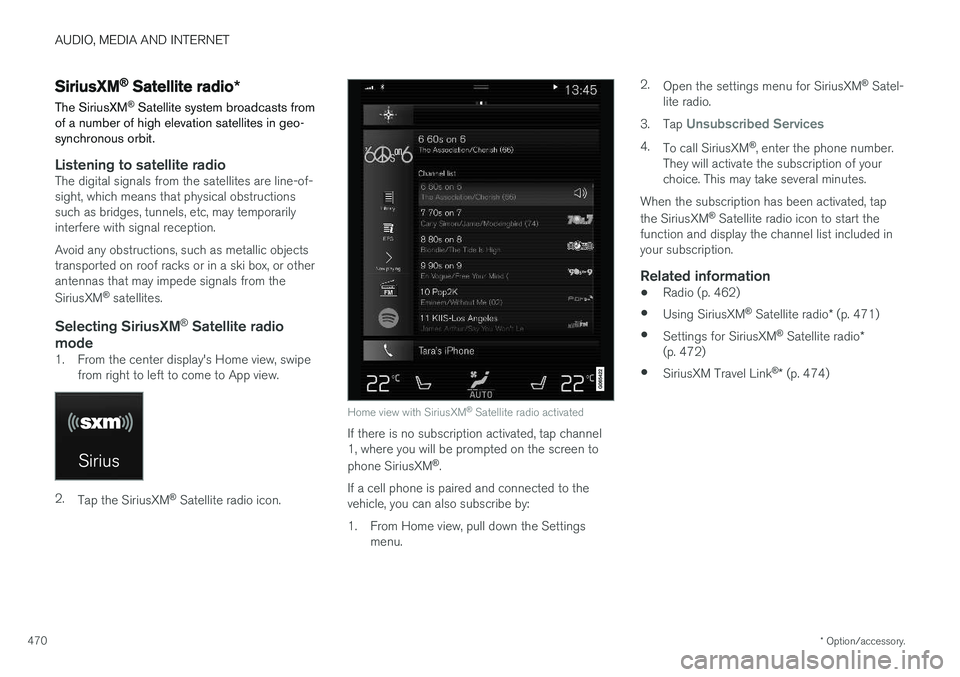
Home view with SiriusXM ®
Satellite radio activated
If there is no subscription activated, tap channel 1, where you will be prompted on the screen to phone SiriusXM ®
.
If a cell phone is paired and connected to the vehicle, you can also subscribe by:
1. From Home view, pull down the Settings menu. 2.
Open the settings menu for SiriusXM ®
Satel-
lite radio.
3. Tap
Unsubscribed Services
4.
To call SiriusXM ®
, enter the phone number.
They will activate the subscription of your choice. This may take several minutes.
When the subscription has been activated, tap the SiriusXM ®
Satellite radio icon to start the
function and display the channel list included in your subscription.
Related information
• Radio (p. 462)
• Using SiriusXM ®
Satellite radio * (p. 471)
• Settings for SiriusXM ®
Satellite radio *
(p. 472)
• SiriusXM Travel Link ®
* (p. 474)
Page 475 of 660
AUDIO, MEDIA AND INTERNET
* Option/accessory.473
Traffic Jump
Tap to display a list of cities from which you can choose to get traffic/weather information (or
Traffic jump off to deactivate the feature). Tap
to select a city (JUMP will be displayed on the
Home screen next to Library). Tap Back to
return to the list of settings or Close to return to
the Home screen. From the Home screen, tap
JUMP to activate the
function. When traffic/weather information is available from the selected city, the radio willautomatically tune to the channel providing theinformation. When the information/announce-ment is finished, the radio will automaticallyreturn to the channel that you were previously lis-tening to. During an announcement, tap
JUMP to interrupt
the message and return to the station that you were currently listening to.
Alert Notifications
Tap the box to activate/deactivate. When acti- vated, you will be notified if a song, artist, etc. thatyou have selected is playing. You will be asked ifyou want to listen.
Alert Notifications Sound
Opt to receive an audible alert when one of your selected choices is being played.
Sort Channels
Select how to sort your channels list.
iTunes Tagging
Tap to display a menu with the options: iTunes
Tagging and Tags List. With this feature acti-
vated, songs can be tagged for later purchase from the iTunes store.
Game Alerts
Tap to display a list of sports. Tap a sport to display a list of teams and tap a box on the right side of the screen to select ateam as a favorite. An alert will then be providedwhen information about the team is being broad-cast. Tap
Confirm below the list to return to the list of
sports. Tap
Back to return to the list of settings orClose to return to the main screen.
Unsubscribed Services
If you have a SiriusXM ®
Satellite radio subscrip-
tion, any channels not included in the subscrip- tion will be listed here. Call SiriusXM ™ to sub-
scribe. The phone number will be shown on the screen. If a cell phone is paired and connected tothe vehicle, tap the phone number to make thecall.
Skipped Stations
Tap to display a list of channels that you would like to skip (hide). Hide channels from the chan-nel list by tapping the boxes to the right of thescreen. Skipped (hidden) channels will not beshown in the channel list. However, a channel previously selected as a favorite will still be dis-played in the list of favorites, even it has beenadded to the skip list.
Skipped Categories
Tap to display a list of categories. Tap a category to skip (hide) it. It will not be displayed in the listof categories.
Related information
•
SiriusXM ®
Satellite radio * (p. 470)
• Using SiriusXM ®
Satellite radio * (p. 471)
Page 476 of 660
AUDIO, MEDIA AND INTERNET
* Option/accessory.
474
SiriusXM Travel Link®
*
SiriusXM Travel Link is a feature offered by
SiriusXM ®
Satellite radio * that can provide infor-
mation about e.g., weather forecasts, weather alerts, service stations, sports, etc. in the vicinityof the vehicle.
Starting SiriusXM Travel Link
NOTE
SiriusXM Travel Link services are only availa- ble in vehicles equipped with the SensusNavigation system.
From the center display's App view, tap Travel
Link to activate the feature. A disclaimer text will
be displayed. Tap OK to display a list of SiriusXM
Travel Link services: •
Alerts
•Fuel
•Sports
•Weather
•Favorites
In order to use one or more of these services, the user has to subscribe to the ones desired. To subscribe to a SiriusXM Travel Link service:
1. Open the center display's Top view.2. Tap
Settings. 3.
Press
SiriusXM Travel Link andSubscription Status.
> To subscribe, call the phone number listed on the screen.
Any services not subscribed will be grayed out and contain the text
Service not subscribed.
When the services have been activated (subscri- bed), tap the one of your choice to start it. The following applies for all of the
SiriusXM
Travel Link services:
• Pressing the
Back button will take you back
to the previous screen
• Pressing the
Close button will take you to
the SiriusXM Travel Link home screen.
NOTE
If the Close button is used to return to theSiriusXM Travel Link home screen, the fol-
lowing applies (the Weather service is used
here as an example):
• If you have already used the
Weatherfunction, tapping Weather again in theSiriusXM Travel Link home screen
before using any other SiriusXM
Travel Link service will return you to the
point where you left the Weather service.
• If another
SiriusXM Travel Link service
is used (e.g., Fuel, Sports, etc.) before
you return to the Weather service, you
will be returned to the default Weatherview (in this case, Local).
The same principle applies to all of the
SiriusXM Travel Link services.
FavoritesMany SiriusXM Travel Link selections can be saved for easy access as favorites by tapping the"star" icon next to the selection where applicable. To display a list of your favorites, tap the
Favorites application in the SiriusXM Travel Link
home screen.
Related information
• SiriusXM ®
Satellite radio * (p. 470)
• SiriusXM Travel Link ®
* - Fuel (p. 477)