intellisafe VOLVO XC60 2018 Owner´s Manual
[x] Cancel search | Manufacturer: VOLVO, Model Year: 2018, Model line: XC60, Model: VOLVO XC60 2018Pages: 660, PDF Size: 11.77 MB
Page 4 of 660
2
OWNER'S INFORMATION
Owner's information16
Owner's Manual in the center display 17
Navigate in the Owner's Manual in the center display 18
Owner's manual in mobile devices 20
Volvo Cars support site 20
Using the Owner's Manual 21
The Owner's Manual and the envi-ronment 23
YOUR VOLVO
Contacting Volvo
26
Volvo ID 26
Creating and registering a Volvo ID 27
Drive-E ‒ purer driving pleasure
27
IntelliSafe - driver support 28
Sensus - connection and entertainment 30
Software Updates 33
Data recording 33
Terms & Conditions for Services 34
Customer Privacy Policy 34
Important information on accessories and extra equipment 35
Accessory installation 36
Connecting equipment to the vehi-cle's data link connector 36
Technician certification 37
Viewing the Vehicle IdentificationNumber (VIN) 38
Volvo Structural Parts Statement 38
Driver distraction 39
SAFETY
Safety42
Safety during pregnancy 43
Occupant safety 43
Reporting safety defects 44
Recall information 45
Whiplash Protection System 46
Seat belts 47
Buckling and unbuckling seat belts 48
Seat belt tensioners 50
Resetting the electric seat belt ten- sioners * 51
Door and seat belt reminders 51
Airbags 52
Driver/passenger-side airbags 53
Occupant weight sensor 56
Side airbags 59
Inflatable curtain 60
Safety mode 61
Starting and moving the vehicle when it is in safety mode 62
Child safety 63
Child restraints 65
Infant seats 67
Convertible seats 69
Booster cushions 71
TABLE OF CONTENTS
Page 30 of 660
||
YOUR VOLVO
* Option/accessory.
28 goal. In addition to continuous environmental refinement of conventional gasoline-poweredinternal combustion engines, Volvo is activelylooking at advanced technology alternative-fuelvehicles. When you drive a Volvo, you become our partner in the work to lessen the vehicle's impact on theenvironment. To reduce your vehicle's environ-mental impact, you can:
• Maintain proper air pressure in your tires.Tests have shown decreased fuel economywith improperly inflated tires.
• Follow the recommended maintenanceschedule in your Warranty and ServiceRecords Information booklet.
• Drive at a constant speed whenever possible.
• See a trained and qualified Volvo servicetechnician as soon as possible for inspectionif the check engine (malfunction indicator)light illuminates, or stays on after the vehiclehas started.
• Properly dispose of any vehicle-related wastesuch as used motor oil, used batteries, brakepads, etc.
• When cleaning your vehicle, please use gen-uine Volvo car care products. All Volvo carcare products are formulated to be environ-mentally friendly.
Related information
•Economical driving (p. 432)
• The Owner's Manual and the environment(p. 23)
• Air quality (p. 203)
IntelliSafe - driver support
IntelliSafe is Volvo Cars' philosophy regarding vehicle safety. IntelliSafe consists of a number ofsystems, both standard and optional, that aredesigned to help make driving safer, preventaccidents and protect passengers and otherroad users.
SupportIntelliSafe includes driver support functions such as Adaptive cruise control * which helps the driver
to maintain an even speed combined with a pre- selected time interval to the vehicle ahead. Pilot Assist 4
helps the driver keep the vehicle in
the current traffic lane by providing steering assistance and maintaining an even speed and aset time interval to the vehicle ahead. Park Assist Pilot * helps the driver pull into and
out of parking spaces. Other examples of systems that can help the driver are the Active main beam, Cross Traffic Alert (CTA) * and Blind Spot Information (BLIS) *
systems.
PreventionCity Safety is a function intended to help prevent accidents. The function can help prevent or miti-gate a collision with pedestrians, cyclists, largeanimals or other vehicles. Light, sound and pulsa-tions in the brake pedal are provided to alert of a
4 Depending on market, this function can be either standard or optional.
Page 136 of 660
||
DISPLAYS AND VOICE CONTROL
* Option/accessory.
134
Type ofsettingDescription
Slider Select a level for a function by pressing and dragging the slider control, e.g. to set volume level.
Informa-tion dis-play This is not an actual setting, butinstead displays information suchas the vehicle's VIN number.
Related information
•
Center display overview (p. 107)
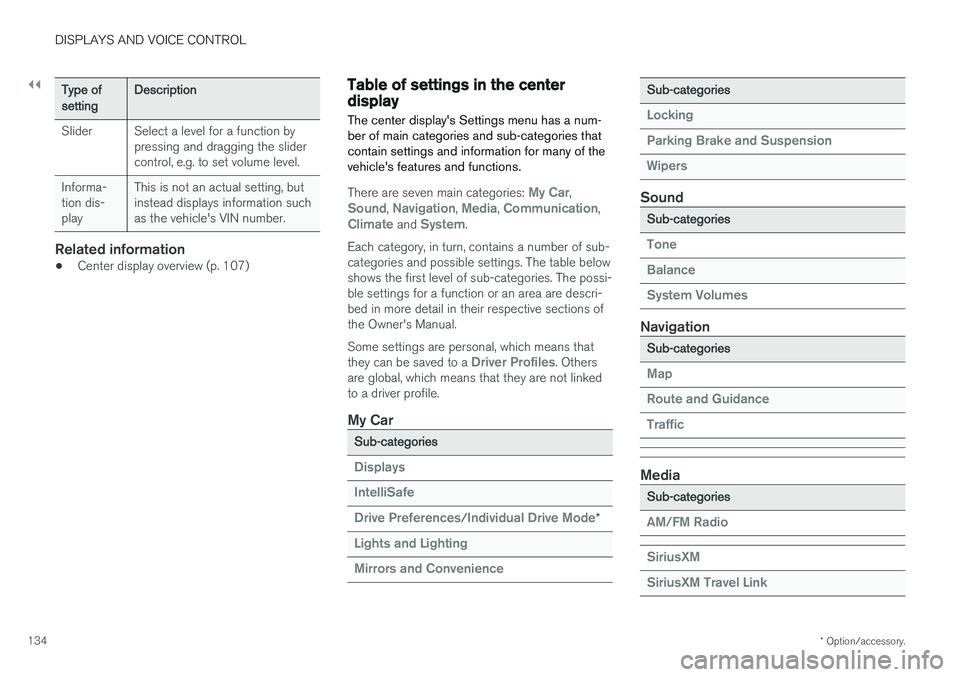
Table of settings in the centerdisplay The center display's Settings menu has a num- ber of main categories and sub-categories thatcontain settings and information for many of thevehicle's features and functions.
There are seven main categories: My Car,Sound, Navigation, Media, Communication,Climate and System.
Each category, in turn, contains a number of sub- categories and possible settings. The table belowshows the first level of sub-categories. The possi-ble settings for a function or an area are descri-bed in more detail in their respective sections ofthe Owner's Manual. Some settings are personal, which means that they can be saved to a
Driver Profiles. Others
are global, which means that they are not linked to a driver profile.
My Car
Sub-categories
Displays IntelliSafe Drive Preferences
/Individual Drive Mode*
Lights and Lighting Mirrors and Convenience
Sub-categories
Locking Parking Brake and SuspensionWipers
Sound
Sub-categories
Tone BalanceSystem Volumes
Navigation
Sub-categories
Map Route and GuidanceTraffic
Media
Sub-categories
AM/FM Radio SiriusXM SiriusXM Travel Link
Page 332 of 660
||
DRIVER SUPPORT
330
3 - Auto-brake
The automatic braking function is activated at the last moment. If the driver has not taken evasive action by this stage and a collision is imminent, the automaticbraking function will be triggered. This occurswhether or not the driver is pressing the brakepedal. Full braking force will be applied to reducethe speed at impact or reduced braking effect willbe applied if this is sufficient to avoid the colli-sion. The seat belt tensioners may be activated along with the automatic braking function. See "Seatbelt tensioners" for more information. In certain situations, auto-braking may begin with a limited braking force before applying full brak- ing force. If City Safety has prevented a collision, the vehi- cle will be kept at a standstill until the drivertakes action. If the vehicle has slowed to avoidcolliding with a slower-moving vehicle ahead, yourspeed will be reduced to that vehicle's speed. Auto-braking can always be cancelled if the driver presses hard on the accelerator pedal.
NOTE
When City Safety activates the brakes, the brake lights come on.
When City Safety applies the brakes, a text mes- sage will appear in the instrument panel to notifythe driver that the function is/was activated.
WARNING
City Safety may not be used to change how the driver operates the vehicle. The drivermust not only rely on City Safety to brake thevehicle.
Related information
•City Safety
™ (p. 327)
Setting a warning distance for CitySafety
City Safety is always active, but the function's warning distance can be adjusted.
NOTE
The City Safety function cannot be deacti- vated. It is activated automatically each timethe engine/electric motor is started.
The alert distance determines the sensitivity of the system and regulates the distance at whichthe light, sound and brake pulsations will be acti-vated. To select warning distance:
1. Select
SettingsMy CarIntelliSafe in
the center display's Top view.
2. Under
City Safety Warning, tap Late,Normal or Early to set the desired warning
distance.
If the driver feels that the
Early setting is giving
too many warnings or finds them irritating, the
Normal or Late warning distance settings can
be selected instead. If the driver feels that the warnings are too fre- quent and distracting, the warning distance canbe reduced. This will reduce the total number ofwarnings, but it will also result in City Safety pro-viding warnings at a later stage.
Page 340 of 660

||
DRIVER SUPPORT
338
Other limitations
WARNING
•Warnings and brake interventions can be triggered late or not at all if the traffic sit-uation or external influences prevent thecamera and radar unit from properlydetecting pedestrians, cyclists, large ani-mals or vehicles ahead of the vehicle.
• To be able to detect vehicles at night, itsfront and rear lights must work and illumi-nate clearly.
• The camera and radar unit have a limitedrange for pedestrians and cyclists – thesystem can provide effective warningsand brake interventions if the relativespeed is lower than 50 km/h (30 mph).For stationary or slow-moving vehicles,warnings and brake interventions areeffective at vehicle speeds of up to70 km/h (43 mph). Speed reduction forlarge animals is less than 15 km/h(9 mph) and can be achieved at vehiclespeeds over 70 km/h (43 mph). At lowerspeeds, the warning and brake interven-tion for large animals is less effective.
• Warnings for stationary or slow-movingvehicles and large animals can be disen-gaged due to darkness or poor visibility.
• Warnings and brake interventions for pedestrians and cyclists are disengagedat vehicle speeds over 80 km/h(50 mph).
• Do not place, affix or mount anything onthe inside or outside of the windshield, orin front of or around the camera andradar unit – this could disrupt camera-based functions.
• Objects, snow, ice or dirt in the area ofthe camera sensor can reduce the func-tion, disengage it completely or give animproper function response.
NOTE
The function uses the vehicle's camera unit, which has some general limitations – see thesection "Camera unit limitations".
NOTE
The function uses the vehicle's radar unit, which has some general limitations – see thesection "Radar unit limitations".
Market limitationsCity Safety is not available in all countries. If City Safety is not shown in the center display's
Settings menu, your vehicle is not equipped with
this function. In the center display's Top view, tap:
•
SettingsMy CarIntelliSafe
Related information
• City Safety
™ (p. 327)
Page 355 of 660
DRIVER SUPPORT
* Option/accessory.353
Settings
Adjusting the Speed Warning limit
The driver can adjust the settings to be alerted at a higher speed than the posted speed limit. To adjust the Speed Warning limit:
1. Select
SettingsMy CarIntelliSafe
Road Sign Information in the center
display's Top view.
2. Mark
Speed Limit Warning.
> The function is activated and a speed limit selector is displayed.
3. Tap the up/down arrows on the screen to adjust the speed at which the Speed Warn- ing will be given.
Please note that the set warn-ing limit will not be used whena speed camera symbol is dis-played in the instrument panel.
Audible alert On/Off
An audible alert can also be given along with the Speed Warning. To adjust the audible alert settings:
1. Select
SettingsMy CarIntelliSafe
Road Sign Information in the center
display's Top view. 2.
Select/deselect
Road Sign Audio Warningto activate/deactivate the audible alert.
When
Road Sign Audio Warning is activated,
the driver will also be alerted if the vehicle is approaching a one-way/"no-entry" road orentrance.
Related information
• Road Sign Information
* (p. 350)
Activating/deactivating SpeedWarning in Road Sign Information
To activate the Speed Limit Warning sub-func-
tion:
1. Select
SettingsMy CarIntelliSafe
Road Sign Information in the center
display's Top view.
2. Mark
Speed Limit Warning.
> The function is activated and a speed limit selector is displayed. (see description for "selecting speed limit" in section "Road Sign Informationwith Speed warning and Settings")
Related information
• Road Sign Information
* (p. 350)
• Road Sign Information with Speed Warningand Settings (p. 352)
Page 358 of 660
||
DRIVER SUPPORT
356The warnings will be repeated after a short time if driving behavior does not improve.
WARNING
•
The Driver Alert Control function is sup- plementary driver support intended tofacilitate driving and help make it safer –it cannot handle all situations in all traffic,weather and road conditions.
• Driver Alert Control must not be used toextend a period of driving. The drivershould plan in breaks at regular intervalsand make sure they are well rested.
• Driver Alert Control is not a substitute forthe driver's attention and judgment. Thedriver is always responsible for ensuringthe vehicle is driven in a safe manner, atthe appropriate speed, with an appropri-ate distance to other vehicles, and inaccordance with current traffic rules andregulations.
WARNING
An alarm from Driver Alert Control should be taken very seriously since a sleepy driver isoften not aware of their own condition. If the alarm sounds or you feel fatigued:
• Stop the vehicle safely as soon as possi- ble and rest.
Studies have shown that it is just as danger- ous to drive while tired as it is to drive underthe influence of alcohol or other stimulants.
Related information
• Activating/deactivating Driver Alert Control (p. 356)
• Selecting guidance to a rest area if theDriver Alert Control warning has been given(p. 357)
• Driver Alert Control limitations (p. 357)
Activating/deactivating Driver AlertControl
The Driver Alert Control (DAC) function can be activated/deactivated.
On/OffTo change DAC settings: 1. Tap
Settings in the center display's Top
view.
2. Select
My CarIntelliSafeDriver Alert
Control.
3. Select/deselect
Alertness Warning to acti-
vate/deactivate DAC.
Related information
• Driver Alert Control (p. 355)
Page 359 of 660
DRIVER SUPPORT
}}
357
Selecting guidance to a rest area ifthe Driver Alert Control warning hasbeen givenThe
Rest Stop Guidance function can be
switched on or off.
When the guide is activated, it will automatically display suggestions for a suitable place to take abreak if the DAC warning is given. To select
Rest Stop Guidance:
1. Tap
Settings in the center display's Top
view.
2. Select
My CarIntelliSafeDriver Alert
Control.
3. Select/deselect
Rest Stop Guidance to
activate/deactivate the function.
Related information
• Driver Alert Control (p. 355)
Driver Alert Control limitations
Driver Alert Control (DAC) functionality may be reduced in certain situations.
In certain situations, the system may provide a warning even if it has not detected a change indriving behavior, e.g.:
• in strong crosswinds
• on grooved road surfaces.
WARNING
In certain cases, driving behavior might not be affected despite the driver's fatigue – whenusing the Pilot Assist function – resulting inthe driver not getting a warning from DAC. It is therefore very important to always stop and take a break at the slightest sign of fati-gue, regardless of whether the DAC functionhas issued a warning or not.
NOTE
The function uses the vehicle's camera unit, which has some general limitations – see thesection "Camera unit limitations".
Related information
• Driver Alert Control (p. 355)
Lane Keeping Aid
Lane Keeping Aid (LKA 106
) is designed to
actively steer the vehicle on freeways, highways and other major roads to help the driver reducethe risk of the vehicle unintentionally veering outof the lane.
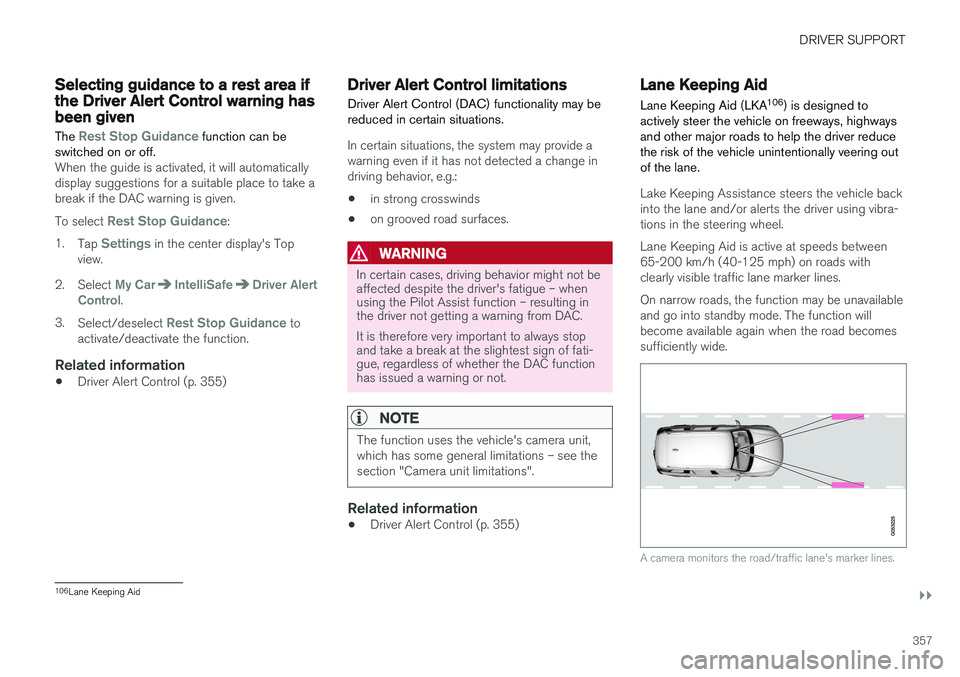
Lake Keeping Assistance steers the vehicle back into the lane and/or alerts the driver using vibra-tions in the steering wheel. Lane Keeping Aid is active at speeds between 65-200 km/h (40-125 mph) on roads withclearly visible traffic lane marker lines. On narrow roads, the function may be unavailable and go into standby mode. The function willbecome available again when the road becomessufficiently wide.
A camera monitors the road/traffic lane's marker lines.
106 Lane Keeping Aid
Page 362 of 660
DRIVER SUPPORT
360
Activating/deactivating LaneKeeping Aid The Lane Keeping Aid (LKA110
) function can be
switched On or Off.
On/OffPress the Lane Keeping Aidbutton in the center display's Function view.
• GREEN button indicator light - LKA is acti- vated.
• GRAY button indicator light - LKA is deacti-vated.
Related information
•Lane Keeping Aid (p. 357)
Selecting type of assistance forLane Keeping Aid
The driver can determine what types of assis- tance LKA 111
should provide if the vehicle veers
from its lane.
1. Select SettingsMy CarIntelliSafe in
the center display's Top view.
2. Under
Lane Keeping Aid Mode, select
what assistance LKA should provide:
•
Assist the driver will receive steering
assistance but no warning.
•
Both - the driver will receive both steering
assistance and a warning.
•
Warning - the driver will only receive a
warning.
Related information
• Lane Keeping Aid (p. 357)
Lane Keeping Aid limitations
In certain demanding driving conditions, Lane Keeping Aid may not be able to properly assistthe driver. In these situations, it is recommendedthat the function be deactivated.
Examples of such situations include:
• road work
• winter driving conditions
• poor road surfaces
• a very sporty driving style
• bad weather with reduced visibility
• roads with indistinct or no lane markings
• sharp edges or lines other than the lane's side markings
• when the power steering works at reducedpower - e.g. during cooling due to overheat-ing (see section "Speed-dependent steeringforce").
NOTE
The function uses the vehicle's camera unit, which has some general limitations – see thesection "Camera unit limitations".
110
Lane Keeping Aid
111 Lane Keeping Aid
Page 367 of 660
DRIVER SUPPORT
* Option/accessory.365
Steering assistance at risk ofcollision
The
Collision avoidance assistance function
is intended to help the driver reduce the risk of the vehicle inadvertently veering from the trafficlane and/or colliding with another vehicle orobstacle by actively steering the vehicle backinto the lane and/or swerving out of the way.
Collision avoidance assistance consists of
three sub-functions:
• Run-Off Mitigation with steering assistance
• Steering assistance during collision risks from oncoming traffic
• Steering assistance during collision risks from behind
*
After the system has automatically intervened, this text message will appear in the instrumentpanel:
•
Collision avoidance assistance –Automatic intervention
NOTE
It is always the driver who must decide how much the vehicle should be in control – thevehicle can never take command.
Related information
• Activating/deactivating steering assistance during collision risks (p. 365)
• Symbols and messages for steering assis-tance during collision risks (p. 373)
• Run-Off Mitigation with steering assistance(p. 366)
• Run-Off Mitigation with steering assistancelevels (p. 366)
• Activating/deactivating Run-Off Mitigationwith steering assistance (p. 367)
• Limitations of Run-Off Mitigation with steer-ing assistance (p. 367)
• Steering assistance during collision risksfrom oncoming traffic (p. 368)
• Activating/deactivating Steering assistanceduring collision risks with oncoming vehicles(p. 369)
• Limitations of steering assistance during col-lision risks from oncoming traffic (p. 369)
• Steering assistance during collision risks from behind
* (p. 370)
• Activating/deactivating Steering assistanceduring collision risks from behind
* (p. 371)
• Limitations of steering assistance during col- lision risks from behind (p. 371)
Activating/deactivating steeringassistance during collision risks The driver can choose to have this function
On
or Off .
To switch off the function:
1. Select
SettingsMy CarIntelliSafe in
the center display's Top view.
2. Deselect
Collision avoidance assistance.
> The function will be deactivated.
NOTE
When the Collision avoidance assistancefunction is deactivated, all subfunctions of the following are deactivated: • Steering assistance at risk of run-off
• Steering assistance at risk of head-on collision
• Steering assistance during collision risks from behind
*
Although it is possible to deactivate the func- tion, the driver is advised to keep it activatedsince it can help improve driving safety inmost cases.
Related information
• Steering assistance at risk of collision (p. 365)