map VOLVO XC60 T8 2018 Owner´s Manual
[x] Cancel search | Manufacturer: VOLVO, Model Year: 2018, Model line: XC60 T8, Model: VOLVO XC60 T8 2018Pages: 674, PDF Size: 11.93 MB
Page 474 of 674
STARTING AND DRIVING
* Option/accessory.
472
Activating and deactivating thecompass
An integrated compass in the upper right corner of the rearview mirror shows the direction thevehicle is traveling.
Activating and deactivating the compass
The compass is automatically activated when the vehicle is started. To deactivate/activate the compass manually:
–Use a paper clip or similar object to press the button on the bottom of the mirror.
Related information
• Compass (p. 471)
• Calibrating the compass (p. 472)
Calibrating the compass
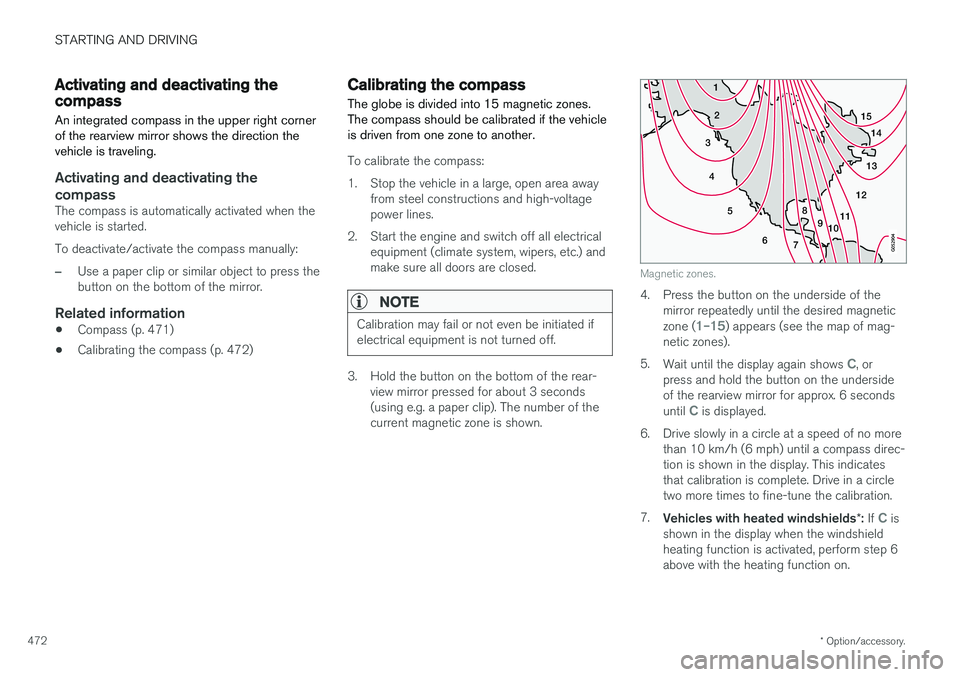
The globe is divided into 15 magnetic zones. The compass should be calibrated if the vehicleis driven from one zone to another.
To calibrate the compass:
1. Stop the vehicle in a large, open area away from steel constructions and high-voltage power lines.
2. Start the engine and switch off all electrical equipment (climate system, wipers, etc.) andmake sure all doors are closed.
NOTE
Calibration may fail or not even be initiated if electrical equipment is not turned off.
3. Hold the button on the bottom of the rear-view mirror pressed for about 3 seconds (using e.g. a paper clip). The number of thecurrent magnetic zone is shown.
15
14
13
12
11
9
8
7
6
5
4
3
2
1
10
Magnetic zones.
4. Press the button on the underside of themirror repeatedly until the desired magnetic zone (
1–15) appears (see the map of mag-
netic zones).
5. Wait until the display again shows
C, or
press and hold the button on the underside of the rearview mirror for approx. 6 seconds until
C is displayed.
6. Drive slowly in a circle at a speed of no more than 10 km/h (6 mph) until a compass direc- tion is shown in the display. This indicatesthat calibration is complete. Drive in a circletwo more times to fine-tune the calibration.
7. Vehicles with heated windshields *: If
C is
shown in the display when the windshield heating function is activated, perform step 6above with the heating function on.
Page 495 of 674
AUDIO, MEDIA AND INTERNET
}}
* Option/accessory.493
•
SiriusXM Travel Link ®
* - Sports (p. 496)
• SiriusXM Travel Link ®
* - Weather (p. 493)
• SiriusXM Travel Link ®
* - Notifications
(p. 494)
SiriusXM Travel Link® * - Weather
This SiriusXM Travel Link service provides weather-related information near the vehicle, at alocal ski resort, etc.
From the SiriusXM Travel Link home screen, to display weather-related information:
–Tap the Weather button to display this
screen.
At the top of the screen, the following categories will be displayed:
• Search (the magnifying glass icon)
•
Local
•Ski condition
•Areas
•Favorites
Tap the category of your choice.
SearchTap the magnifying glass icon. If the function is supported in the current context, a keyboard willappear on the screen. Enter the text of your choice and tap
Search for detailed information
from the SiriusXM Travel Link database.
Local 4Information from the closest weather station will be displayed and the following alternatives areavailable: •
Map view
•Today
•5 days
Map view
Tap the map to display it in full-screen mode. TapBack to return to the original map view.
Tap
Map options to display the following alter-
natives. •
Weather radar
•Storm attributes
•Surface features
•Tropical storm tracks
•Winds
Tap the relevant box to the right of the option to select/deselect it. Tap Done to confirm and
return to the previous screen or Cancel.
Today
Tap to see the current temperature, or the tem- perature in 3/6 hours. Tap
Back to return to the Local screen or Closeto return to the SiriusXM Travel Link home screen.
4 This is the weather default unless another alternative has been selected.
Page 496 of 674
||
AUDIO, MEDIA AND INTERNET
* Option/accessory.
494
5 days
Tap to see weather information for the coming 5 days. Tap
Back to return to the Local screen or Closeto return to the SiriusXM Travel Link home screen.
Ski conditionTap to display a list of ski areas in the vicinity ofthe vehicle. Tap a name in the list for informationsuch as if the ski area is open/closed, tempera-ture, wind conditions, snow conditions, the num-ber of lifts that are in operation, etc.
• Weather locations
• Ski location
Tap Map view to display a map and a weatherlegend. Tap
Map options to display the following alter-
natives. •
Weather radar
•Storm attributes
•Surface features
•Tropical storm tracks
•Winds
Tap the relevant box to the right of the option to select/deselect it. Tap Done to confirm and
return to the previous screen or Cancel.
AreasTap Areas to display a list of areas/locations in
states from the SiriusXM Travel Link database. Scroll to a state and tap to display:
•
Weather locations: tap arrow to the right to
display a list of towns. Scroll to desired town and tap for detailed weather information. Youcan choose Map view, today, 5 days or Favor-ites (star)
•
Ski locations: tap arrow at right to display
local ski areas. Tap an area for detailed info.
For information about storing a location, state, town, etc. as a favorite, see the heading "Favor-ites" in the article "SiriusXM Travel Link."
Related information
• SiriusXM Travel Link ®
* (p. 492)
• SiriusXM Travel Link ®
* - Fuel (p. 495)
• SiriusXM Travel Link ®
* - Sports (p. 496)
• SiriusXM Travel Link ®
* - Notifications
(p. 494)
SiriusXM Travel Link® * -Notifications
This SiriusXM Travel Link service provides notifi- cations of potential weather problems or otheremergency situations in the vicinity of the vehi-cle.
From the SiriusXM Travel Link home screen, to show notifications:
–Tap the Alerts button to display this screen.
• If any notifications are currently available, a message will appear at the top of the screen. They can also be listed from the
Settingsmenu in the center display's Top view.
• If no notifications are available,
No active
alerts will be displayed.
Types of notifications
To select the types of notifications to be dis- played: 1. From the
Alerts screen, tap the Select
alerts button at the bottom of the screen.
2. This displays the types of notifications that can be displayed. Tap the box to the right of each type of notification to select/deselect it.
3. Tap
Done when you have made your selec-
tions. You will return to the Alerts screen.
Page 497 of 674
AUDIO, MEDIA AND INTERNET
}}
* Option/accessory.495
Information about a notification
If any notifications have been displayed on the screen, tap one for more detailed information (i.e.,the location of the weather problem on a mapand a description of the situation). If a phone number is available in a notification, a
Call button will be displayed. Tap this button for
additional information.
Related information
• SiriusXM Travel Link ®
* (p. 492)
• SiriusXM Travel Link ®
* - Fuel (p. 495)
• SiriusXM Travel Link ®
* - Sports (p. 496)
• SiriusXM Travel Link ®
* - Weather (p. 493)
SiriusXM Travel Link®
* - Fuel5
This SiriusXM Travel Link service provides infor- mation and guidance to service stations near thevehicle providing the type of fuel that you prefer/require for your vehicle.
From the SiriusXM Travel Link home screen, to show fuel information:
–Tap the Fuel button to display the main fuel
screen.
The following categories are shown:
• Search (the magnifying glass icon)
•
Nearby
•Recommended
•Favorites
•Brands
Tap one of the alternatives to display its screen.
NOTE
In each of the categories listed, tapping theSelect fuel type button near the bottom of
the screen opens a sub-view where you can specify the type of fuel preferred/required (
Regular, Midrange, Premium, Diesel,Electric 120V, etc.) Tap Done to return to
the previous screen.
SearchTap the magnifying glass icon. If the function is supported in the current context, a keyboard willappear on the screen. Enter the text of your choice and tap
Search for detailed information if
available.
NearbyTap for a list of service stations in the vicinity of the vehicle, with the nearest station at the top ofthe list. The following information will be provided where available:
• For vehicles using gasoline, the price infor-mation for regular gasoline (unless anothergrade/type of fuel has been selected in
Select fuel type)
• For electric vehicles/hybrids, information about charging stations, showing the totalnumber of charging ports and the number ofports currently not in use
• the distance to the station
• a star icon to set the service station as afavorite
Tap the name of a service station to display moredetailed information. For guidance to the service station, tap the
Start
navigation or Add as waypoint buttons. See
5 This service is not available in Canada.
Page 507 of 674
AUDIO, MEDIA AND INTERNET
}}
* Option/accessory.505
Apple® CarPlay®
*
With CarPlay, you can listen to music, make phone calls, get driving instructions, send/receive messages and use Siri, all while remain-ing focused on driving.
CarPlay works with select Apple devices. If the car doesnot already support CarPlay,this can be retrofitted. Contacta Volvo retailer to installCarPlay.
Information about supported apps and compati- ble phones is available on the Apple website:www.apple.com/ios/carplay/. Using apps that arenot compatible with CarPlay could cause the con-nection between iPhone and the vehicle to belost. Please note that Volvo is not responsible forthe content of CarPlay. When using map navigation via CarPlay, guidance will only be shown on the center display and notin the instrument panel or head-up display. CarPlay apps can be controlled from the center display, a phone or with the right-side steeringwheel keypad (for certain functions). The appscan also be voice-controlled using Siri. Press and hold the
button on the steering wheel to
start voice control with Siri. Press briefly to acti- vate the vehicle's own voice control system. If Siri cuts off too soon, press and hold the
6
but-
ton on the steering wheel.
By using Apple CarPlay you acknowledge the following: Apple CarPlay is a serviceprovided by Apple Inc. under its terms andconditions. Volvo Cars is thus notresponsible for Apple CarPlay or itsfeatures/applications. When using AppleCarPlay, certain information from your car(including its position) is transferred to youriPhone. In relation to Volvo Cars, you arefully responsible for your and any othersperson
Page 577 of 674
LOADING, STORAGE AND PASSENGER COMPARTMENT
}}
* Option/accessory.575
WARNING
•Only use accessories that are not dam- aged or malfunctioning. The accessoriesmust be designed for 120 V and 60 Hz,with plugs intended for the outlet. Theaccessories must be CE marked, ULmarked or have an equivalent safetymarking.
• New let outlets, plugs or accessoriescome into contact with water or anotherfluid. Do not touch or use the outlet if itappears damaged or has been in contactwith water or another fluid.
• Do not connect power strips, adapters orextension cords to the outlet has thiscould cause the outlet's safety functionsto malfunction.
• The outlet is equipped with a pet guard.Make sure that no one picks at or dam-ages the outlet in such a way that theguard is disabled. Children should not beleft unsupervised in the vehicle when theoutlet is active.
Failure to follow the above could lead to severe or fatal electrical shocks.
Related information
• Electrical outlets (p. 572)
• Passenger compartment interior (p. 570)
Using the glove compartment
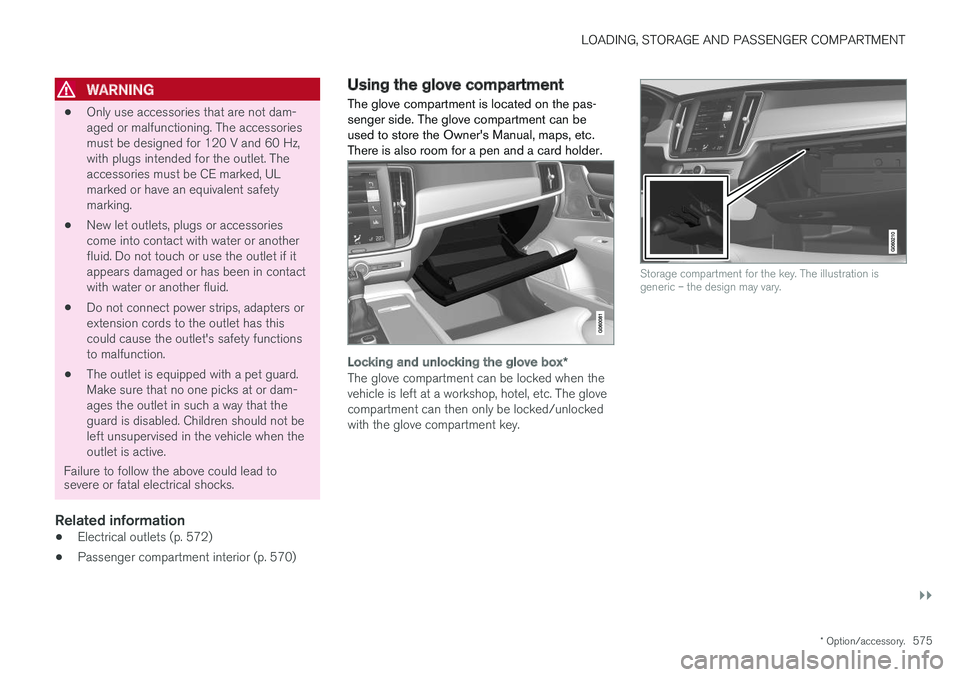
The glove compartment is located on the pas- senger side. The glove compartment can beused to store the Owner's Manual, maps, etc.There is also room for a pen and a card holder.
Locking and unlocking the glove box *
The glove compartment can be locked when the vehicle is left at a workshop, hotel, etc. The glovecompartment can then only be locked/unlockedwith the glove compartment key.
Storage compartment for the key. The illustration is generic – the design may vary.
Page 593 of 674
MAINTENANCE AND SERVICE
}}
* Option/accessory.591
WARNING
The vehicle may not be driven when it is con- nected to the workshop's networks and sys-tems.
Related information
•Handling system updates via Download Cen- ter (p. 591)
• Scheduling service and repairs (p. 593)
Download Center
With the vehicle connected to the Internet 1
,
updates for a number of the vehicle's systems can be downloaded from the center display.
The Download Center app is
started from the center display and makes it possible to:
• search for and update system software
• update Sensus Navigation
* map data
• download, update and delete apps.
Related information
•
Handling system updates via Download Cen- ter (p. 591)
• Download apps (p. 478)
• Updating apps (p. 479)
• Deleting apps (p. 480)
• Internet-connected vehicle
* (p. 519)
• Navigating in the center display's views(p. 111)
Handling system updates viaDownload Center
System updates are available for infotainment and Internet-related functions and systems in thevehicle. If system software updates are available,they can be downloaded all at once or sepa-rately.
Searching for updateIn order for system updates to be possible, the vehicle must have an Internet connection 2
.
System updates are handled through the
Download
Center app in the center dis-
play's App view. If no search for updates has been performed since the last time the infotain-ment system was started, a search will be initi-ated. No search will begin if a software download is in progress. A number in the
System updatesbutton shows how many updates are available. Tap the button to display a list of updates thatcan be installed in the vehicle. If an update is available, the message
New software updates
available will also be displayed in the center dis-
play's status field.
1 There may be a charge for transmitting data over the Internet, depending on your service plan.
2 There may be a charge for transmitting data over the Internet, depending on your service plan.