map VOLVO XC60 T8 2018 Owner´s Manual
[x] Cancel search | Manufacturer: VOLVO, Model Year: 2018, Model line: XC60 T8, Model: VOLVO XC60 T8 2018Pages: 674, PDF Size: 11.93 MB
Page 22 of 674
OWNER'S INFORMATION
* Option/accessory.
20
Owner's manual in mobile devices
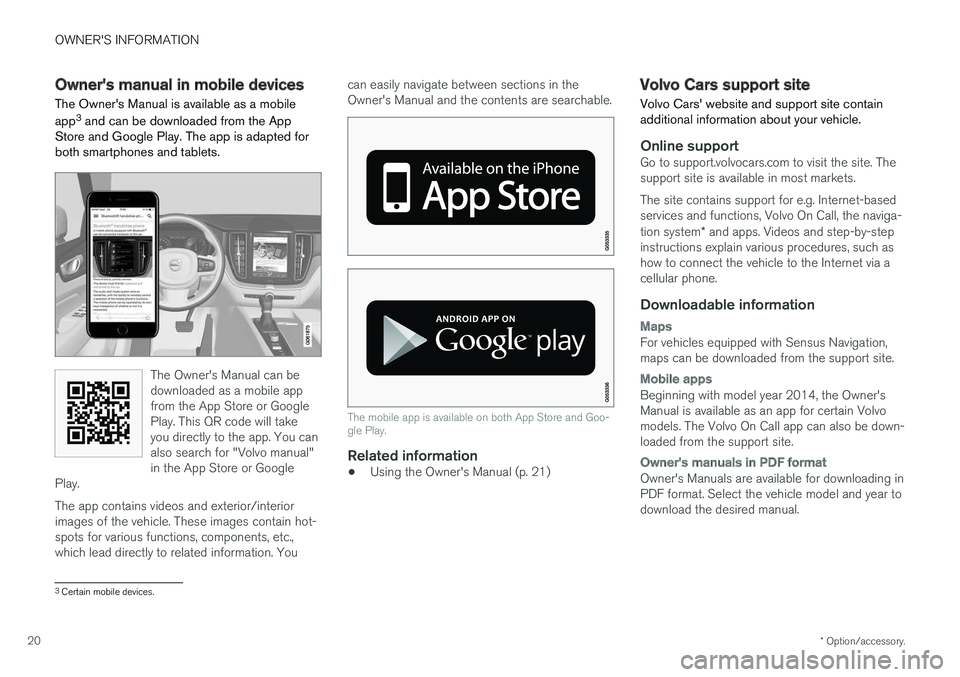
The Owner's Manual is available as a mobile app 3
and can be downloaded from the App
Store and Google Play. The app is adapted for both smartphones and tablets.
The Owner's Manual can be downloaded as a mobile appfrom the App Store or GooglePlay. This QR code will takeyou directly to the app. You canalso search for "Volvo manual"in the App Store or Google
Play.
The app contains videos and exterior/interior images of the vehicle. These images contain hot- spots for various functions, components, etc.,which lead directly to related information. You can easily navigate between sections in theOwner's Manual and the contents are searchable.
The mobile app is available on both App Store and Goo- gle Play.
Related information
•
Using the Owner's Manual (p. 21)
Volvo Cars support site
Volvo Cars' website and support site contain additional information about your vehicle.
Online supportGo to support.volvocars.com to visit the site. The support site is available in most markets. The site contains support for e.g. Internet-based services and functions, Volvo On Call, the naviga- tion system * and apps. Videos and step-by-step
instructions explain various procedures, such as how to connect the vehicle to the Internet via acellular phone.
Downloadable information
Maps
For vehicles equipped with Sensus Navigation, maps can be downloaded from the support site.
Mobile apps
Beginning with model year 2014, the Owner's Manual is available as an app for certain Volvomodels. The Volvo On Call app can also be down-loaded from the support site.
Owner's manuals in PDF format
Owner's Manuals are available for downloading in PDF format. Select the vehicle model and year todownload the desired manual.
3 Certain mobile devices.
Page 28 of 674
YOUR VOLVO
26
Contacting Volvo
Use the following contact information if you would like to get in touch with Volvo in the Uni-ted States or Canada.
In the USA: Volvo Car USA, LLC Customer Care Center1 Volvo Drive,P.O. Box 914Rockleigh, New Jersey 076471-800-458-1552www.volvocars.com/us In Canada: Volvo Car Canada Ltd. Customer Care Centre9130 Leslie Street, Suite 101Richmond Hill, Ontario L4B 0B91-800-663-8255www.volvocars.com/ca
Volvo ID
A Volvo ID gives you access to a wide range of personalized Volvo services 1
online.
A Volvo ID can be created from the vehicle or the Volvo On Call app 2
. To access certain functions
and services, the vehicle must be registered to a personal Volvo ID. Registering a Volvo ID to thevehicle gives you access to a wide range of Volvo services directly from the vehicle. Examples of services:
• Volvo On Call - Volvo ID is used to log in to the Volvo On Call app.
• Send to Car - Send an address from anonline map service directly to the vehicle.
• Book service and repairs - Register your pre-ferred workshop/retailer on volvocars.com toschedule service directly from the vehicle.
Advantages of having a Volvo ID
•Only one username and password are nee-ded to access online services (i.e. you onlyneed to remember one username and onepassword).
• If you change your username or password forone service (e.g. Volvo On Call), it will also be automatically changed for the other services.
Related information
•Creating and registering a Volvo ID (p. 27)
• Scheduling service and repairs (p. 593)
1
The services available may vary over time and depending on equipment level and market.
2 For Volvo On Call users.
Page 83 of 674
DISPLAYS AND VOICE CONTROL
81
Left sideIn the centerRight side
– Media player Distance to discharged battery
– Navigation system map Current fuel consumption
– PhoneApp menu (activated using steering wheel keypad)
– Voice Control –
– CompassA
–
ADepends on selected drive mode.
B Total distance.
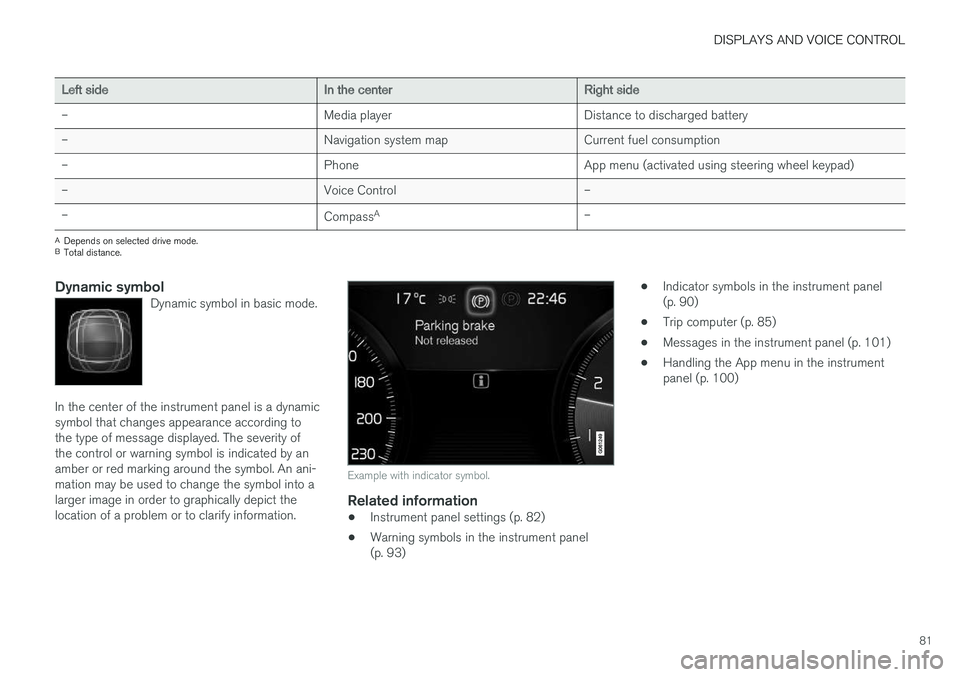
Dynamic symbolDynamic symbol in basic mode.
In the center of the instrument panel is a dynamic symbol that changes appearance according tothe type of message displayed. The severity ofthe control or warning symbol is indicated by anamber or red marking around the symbol. An ani-mation may be used to change the symbol into alarger image in order to graphically depict thelocation of a problem or to clarify information.
Example with indicator symbol.
Related information
• Instrument panel settings (p. 82)
• Warning symbols in the instrument panel (p. 93) •
Indicator symbols in the instrument panel(p. 90)
• Trip computer (p. 85)
• Messages in the instrument panel (p. 101)
• Handling the App menu in the instrumentpanel (p. 100)
Page 109 of 674
DISPLAYS AND VOICE CONTROL
* Option/accessory.107
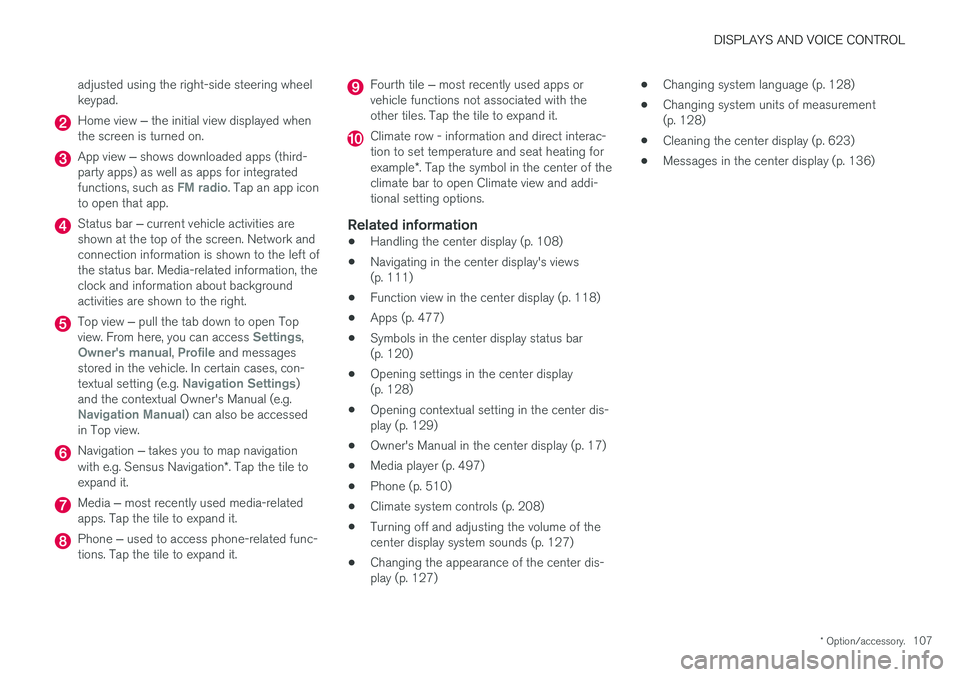
adjusted using the right-side steering wheel keypad.
Home view
‒ the initial view displayed when
the screen is turned on.
App view ‒ shows downloaded apps (third-
party apps) as well as apps for integrated functions, such as
FM radio. Tap an app icon
to open that app.
Status bar ‒ current vehicle activities are
shown at the top of the screen. Network and connection information is shown to the left ofthe status bar. Media-related information, theclock and information about backgroundactivities are shown to the right.
Top view ‒ pull the tab down to open Top
view. From here, you can access Settings,Owner's manual, Profile and messages
stored in the vehicle. In certain cases, con- textual setting (e.g.
Navigation Settings)
and the contextual Owner's Manual (e.g.
Navigation Manual) can also be accessed
in Top view.
Navigation ‒ takes you to map navigation
with e.g. Sensus Navigation *. Tap the tile to
expand it.
Media ‒ most recently used media-related
apps. Tap the tile to expand it.
Phone ‒ used to access phone-related func-
tions. Tap the tile to expand it.
Fourth tile ‒ most recently used apps or
vehicle functions not associated with the other tiles. Tap the tile to expand it.
Climate row - information and direct interac- tion to set temperature and seat heating for example *. Tap the symbol in the center of the
climate bar to open Climate view and addi- tional setting options.
Related information
• Handling the center display (p. 108)
• Navigating in the center display's views(p. 111)
• Function view in the center display (p. 118)
• Apps (p. 477)
• Symbols in the center display status bar(p. 120)
• Opening settings in the center display(p. 128)
• Opening contextual setting in the center dis-play (p. 129)
• Owner's Manual in the center display (p. 17)
• Media player (p. 497)
• Phone (p. 510)
• Climate system controls (p. 208)
• Turning off and adjusting the volume of thecenter display system sounds (p. 127)
• Changing the appearance of the center dis-play (p. 127) •
Changing system language (p. 128)
• Changing system units of measurement(p. 128)
• Cleaning the center display (p. 623)
• Messages in the center display (p. 136)
Page 110 of 674
DISPLAYS AND VOICE CONTROL
* Option/accessory.
108
Handling the center display
Many of the vehicle's functions and features can be controlled and adjusted from the center dis-play. The center display is a touchscreen thatreacts to taps and other gestures.
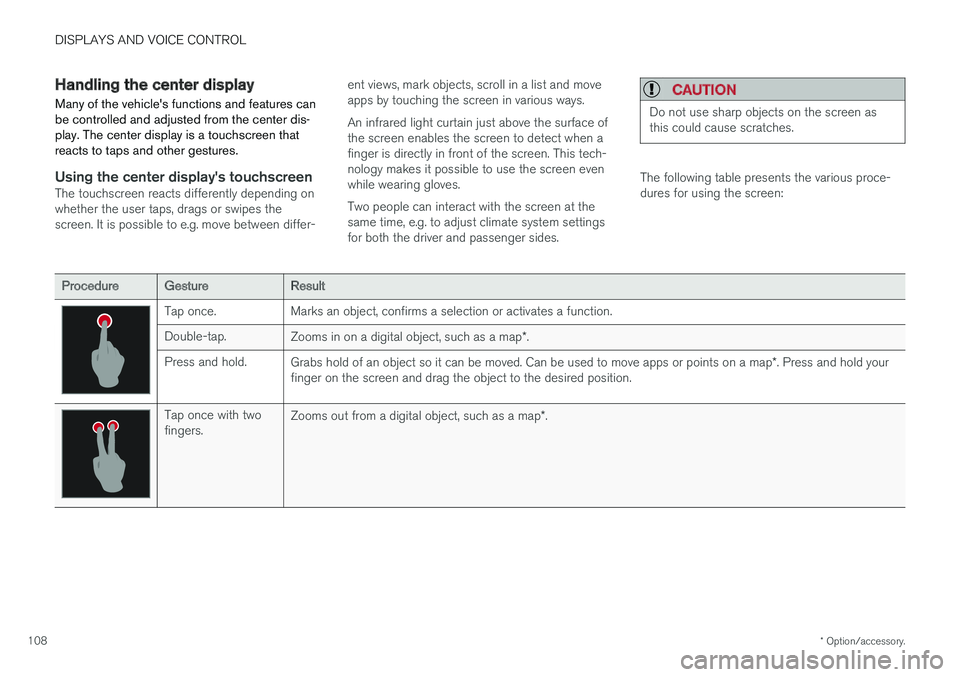
Using the center display's touchscreenThe touchscreen reacts differently depending on whether the user taps, drags or swipes thescreen. It is possible to e.g. move between differ- ent views, mark objects, scroll in a list and moveapps by touching the screen in various ways. An infrared light curtain just above the surface of the screen enables the screen to detect when afinger is directly in front of the screen. This tech-nology makes it possible to use the screen evenwhile wearing gloves. Two people can interact with the screen at the same time, e.g. to adjust climate system settingsfor both the driver and passenger sides.
CAUTION
Do not use sharp objects on the screen as this could cause scratches.
The following table presents the various proce- dures for using the screen:
ProcedureGestureResult
Tap once. Marks an object, confirms a selection or activates a function. Double-tap.
Zooms in on a digital object, such as a map *.
Press and hold. Grabs hold of an object so it can be moved. Can be used to move apps or points on a map *. Press and hold your
finger on the screen and drag the object to the desired position.
Tap once with two fingers. Zooms out from a digital object, such as a map
*.
Page 111 of 674
DISPLAYS AND VOICE CONTROL
}}
* Option/accessory.109
ProcedureGestureResult
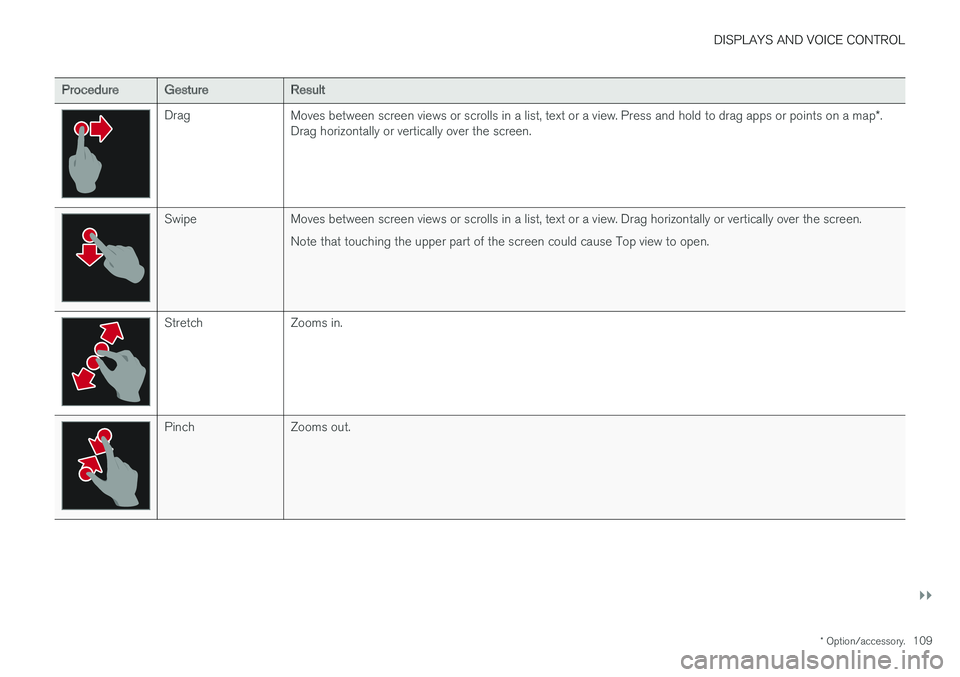
Drag
Moves between screen views or scrolls in a list, text or a view. Press and hold to drag apps or points on a map *.
Drag horizontally or vertically over the screen.
Swipe Moves between screen views or scrolls in a list, text or a view. Drag horizontally or vertically over the screen.
Note that touching the upper part of the screen could cause Top view to open.
Stretch Zooms in.
Pinch Zooms out.
Page 134 of 674
||
DISPLAYS AND VOICE CONTROL
* Option/accessory.
132
Type ofsettingDescription
Slider Select a level for a function by pressing and dragging the slider control, e.g. to set volume level.
Informa-tion dis-play This is not an actual setting, butinstead displays information suchas the vehicle's VIN number.
Related information
•
Center display overview (p. 105)
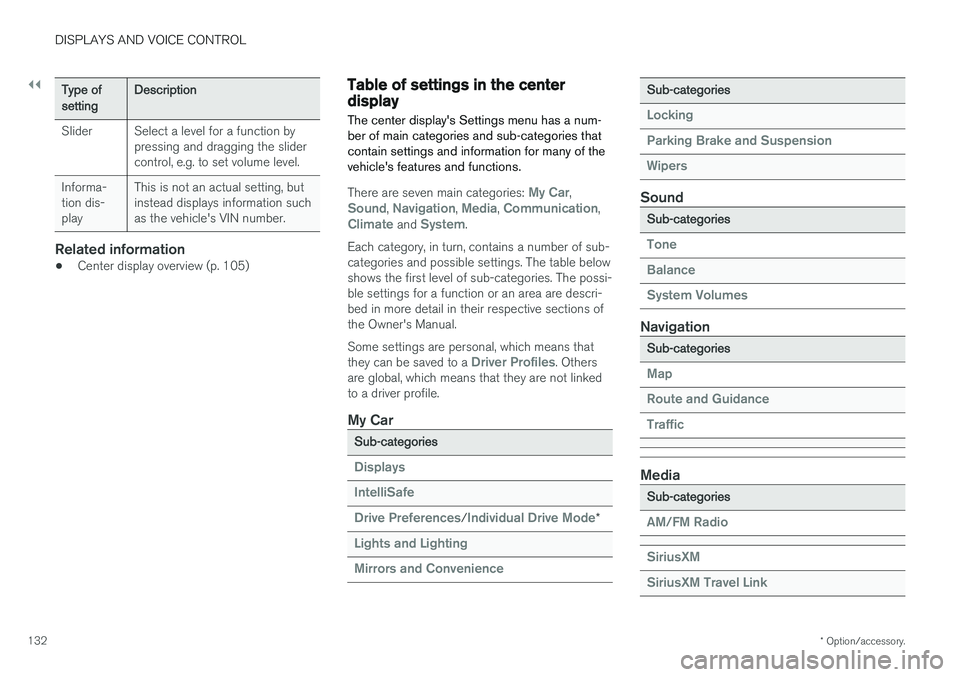
Table of settings in the centerdisplay The center display's Settings menu has a num- ber of main categories and sub-categories thatcontain settings and information for many of thevehicle's features and functions.
There are seven main categories: My Car,Sound, Navigation, Media, Communication,Climate and System.
Each category, in turn, contains a number of sub- categories and possible settings. The table belowshows the first level of sub-categories. The possi-ble settings for a function or an area are descri-bed in more detail in their respective sections ofthe Owner's Manual. Some settings are personal, which means that they can be saved to a
Driver Profiles. Others
are global, which means that they are not linked to a driver profile.
My Car
Sub-categories
Displays IntelliSafe Drive Preferences
/Individual Drive Mode*
Lights and Lighting Mirrors and Convenience
Sub-categories
Locking Parking Brake and SuspensionWipers
Sound
Sub-categories
Tone BalanceSystem Volumes
Navigation
Sub-categories
Map Route and GuidanceTraffic
Media
Sub-categories
AM/FM Radio SiriusXM SiriusXM Travel Link
Page 352 of 674
||
DRIVER SUPPORT
* Option/accessory.
350
Signs for "School" and "Children playing"
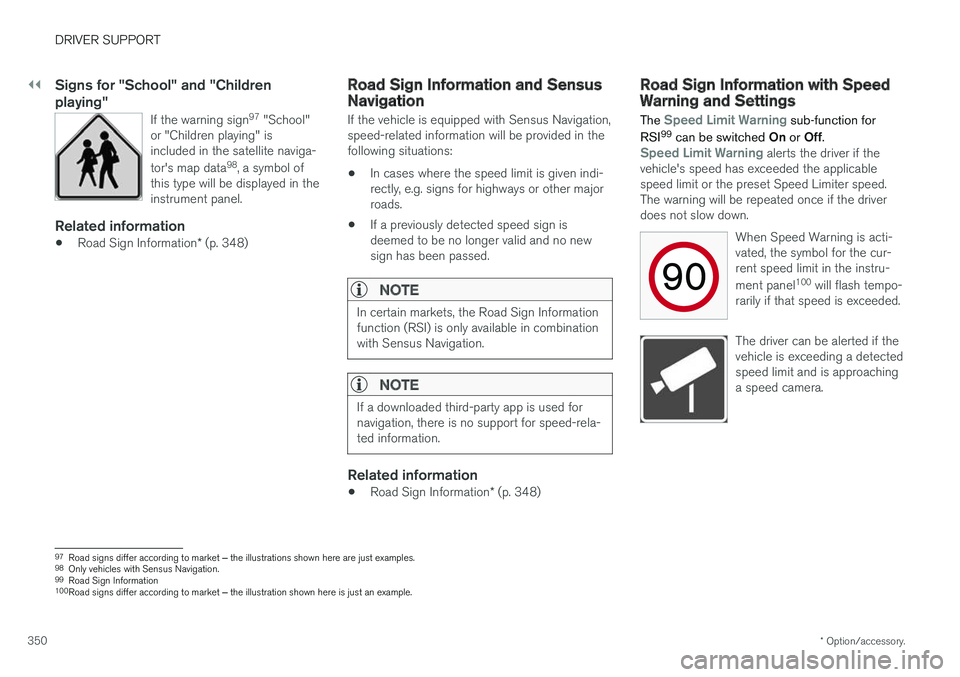
If the warning sign 97
"School"
or "Children playing" is included in the satellite naviga- tor's map data 98
, a symbol of
this type will be displayed in the instrument panel.
Related information
• Road Sign Information
* (p. 348)
Road Sign Information and SensusNavigation
If the vehicle is equipped with Sensus Navigation, speed-related information will be provided in thefollowing situations:
• In cases where the speed limit is given indi-rectly, e.g. signs for highways or other majorroads.
• If a previously detected speed sign isdeemed to be no longer valid and no newsign has been passed.
NOTE
In certain markets, the Road Sign Information function (RSI) is only available in combinationwith Sensus Navigation.
NOTE
If a downloaded third-party app is used for navigation, there is no support for speed-rela-ted information.
Related information
•
Road Sign Information
* (p. 348)
Road Sign Information with SpeedWarning and Settings
The
Speed Limit Warning sub-function for
RSI 99
can be switched On or Off.
Speed Limit Warning alerts the driver if the
vehicle's speed has exceeded the applicable speed limit or the preset Speed Limiter speed.The warning will be repeated once if the driverdoes not slow down.
When Speed Warning is acti-vated, the symbol for the cur-rent speed limit in the instru- ment panel100
will flash tempo-
rarily if that speed is exceeded.
The driver can be alerted if the vehicle is exceeding a detectedspeed limit and is approachinga speed camera.
97 Road signs differ according to market ‒ the illustrations shown here are just examples.
98 Only vehicles with Sensus Navigation.
99 Road Sign Information
100 Road signs differ according to market ‒ the illustration shown here is just an example.
Page 354 of 674
DRIVER SUPPORT
* Option/accessory.
352
Road Sign Information with speedcamera information
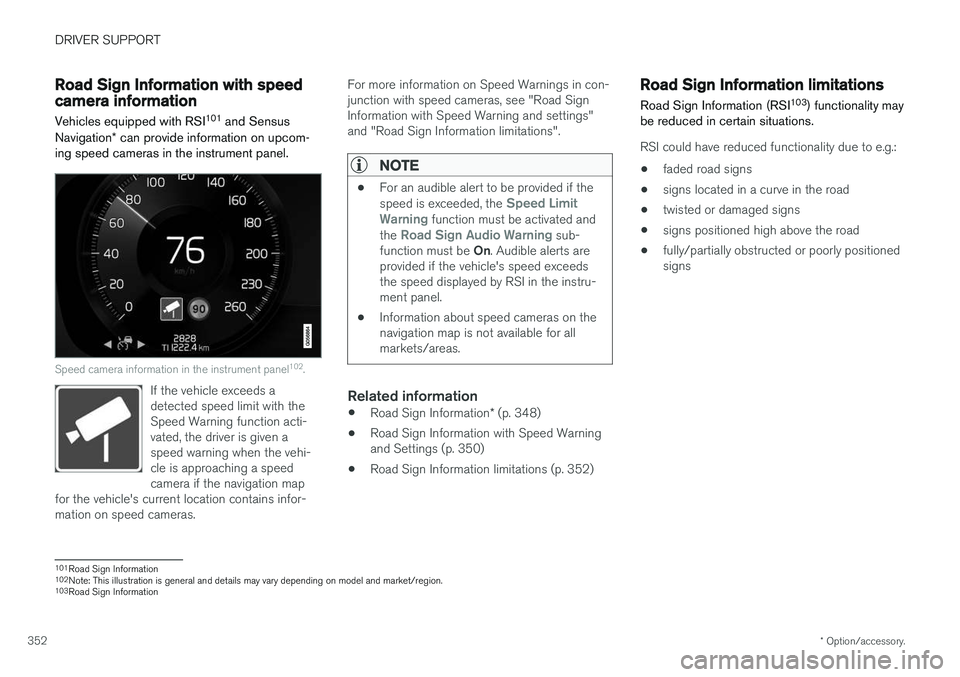
Vehicles equipped with RSI 101
and Sensus
Navigation * can provide information on upcom-
ing speed cameras in the instrument panel.
Speed camera information in the instrument panel 102
.
If the vehicle exceeds a detected speed limit with theSpeed Warning function acti-vated, the driver is given aspeed warning when the vehi-cle is approaching a speedcamera if the navigation map
for the vehicle's current location contains infor-mation on speed cameras.
For more information on Speed Warnings in con- junction with speed cameras, see "Road SignInformation with Speed Warning and settings"and "Road Sign Information limitations".
NOTE
• For an audible alert to be provided if the speed is exceeded, the Speed Limit
Warning function must be activated and
the Road Sign Audio Warning sub-
function must be On. Audible alerts are
provided if the vehicle's speed exceeds the speed displayed by RSI in the instru-ment panel.
• Information about speed cameras on thenavigation map is not available for allmarkets/areas.
Related information
•
Road Sign Information
* (p. 348)
• Road Sign Information with Speed Warning and Settings (p. 350)
• Road Sign Information limitations (p. 352)
Road Sign Information limitations
Road Sign Information (RSI 103
) functionality may
be reduced in certain situations.
RSI could have reduced functionality due to e.g.:
• faded road signs
• signs located in a curve in the road
• twisted or damaged signs
• signs positioned high above the road
• fully/partially obstructed or poorly positioned signs
101
Road Sign Information
102 Note: This illustration is general and details may vary depending on model and market/region.
103 Road Sign Information
Page 355 of 674
DRIVER SUPPORT
}}
* Option/accessory.353
•
signs partially or fully covered by frost, snow and/or dirt
• digital road maps 104
that are outdated, incor-
rect or do not contain speed information 105
.
NOTE
Certain types of bike carriers that are con- nected to the trailer socket may be interpre-ted as a connected trailer by the RSI function.In such cases, the instrument panel may indi-cate incorrect speed information.
NOTE
The function uses the vehicle's camera unit, which has some general limitations – see thesection "Camera unit limitations".
Related information
• Road Sign Information
* (p. 348)
Driver Alert Control
The Driver Alert Control (DAC) function is designed to help capture the driver becomeaware of erratic behavior, e.g. if the driver is dis-tracted or showing signs of fatigue.
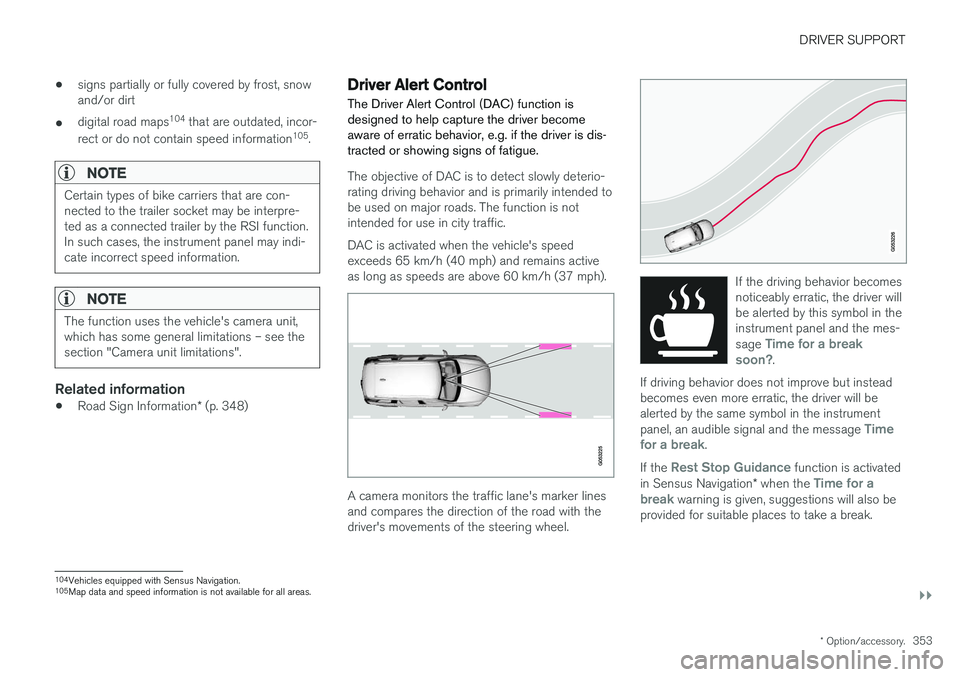
The objective of DAC is to detect slowly deterio- rating driving behavior and is primarily intended tobe used on major roads. The function is notintended for use in city traffic. DAC is activated when the vehicle's speed exceeds 65 km/h (40 mph) and remains activeas long as speeds are above 60 km/h (37 mph).
A camera monitors the traffic lane's marker lines and compares the direction of the road with thedriver's movements of the steering wheel.
If the driving behavior becomes noticeably erratic, the driver willbe alerted by this symbol in theinstrument panel and the mes- sage
Time for a break
soon?.
If driving behavior does not improve but instead becomes even more erratic, the driver will bealerted by the same symbol in the instrument panel, an audible signal and the message
Time
for a break.
If the Rest Stop Guidance function is activated
in Sensus Navigation * when the Time for a
break warning is given, suggestions will also be
provided for suitable places to take a break.
104 Vehicles equipped with Sensus Navigation.
105 Map data and speed information is not available for all areas.