display VOLVO XC60 T8 2018 Owner´s Manual
[x] Cancel search | Manufacturer: VOLVO, Model Year: 2018, Model line: XC60 T8, Model: VOLVO XC60 T8 2018Pages: 674, PDF Size: 11.93 MB
Page 553 of 674
WHEELS AND TIRES
}}
* Option/accessory.551
Calibrating the tire pressure
monitoring system *
In order for the tire pressure monitoring system, Tyre Pressure Monitoring System (TPMS), tofunction correctly, tire pressure reference valuesmust be set correctly. This must be done eachtime the tires are changed or the tire pressure isadjusted.
For example, when driving with a heavy load or at high speeds (over 160 km/h (100 mph)), tirepressure should be adjusted to the Volvo-recom-mended tire pressure values. The system shouldthen be recalibrated.
1. Switch off the ignition.
2. Inflate the tires to the pressure indicated on the tire pressure placard on the driver's side B pillar.
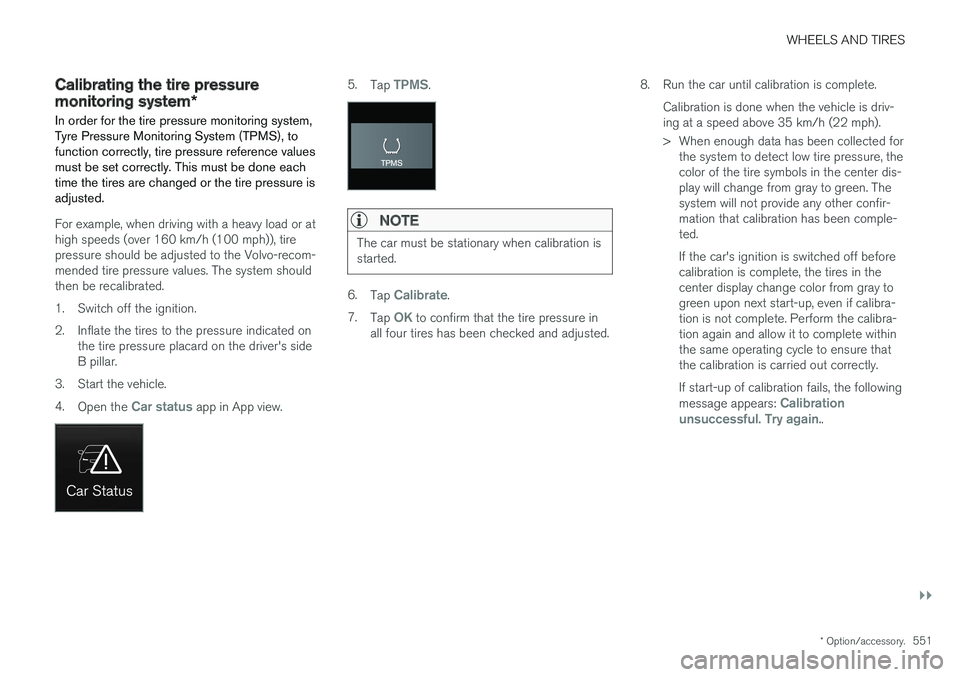
3. Start the vehicle. 4. Open the
Car status app in App view.
5.Tap TPMS.
NOTE
The car must be stationary when calibration is started.
6.Tap Calibrate.
7. Tap
OK to confirm that the tire pressure in
all four tires has been checked and adjusted. 8. Run the car until calibration is complete.
Calibration is done when the vehicle is driv- ing at a speed above 35 km/h (22 mph).
> When enough data has been collected forthe system to detect low tire pressure, the color of the tire symbols in the center dis-play will change from gray to green. Thesystem will not provide any other confir-mation that calibration has been comple-ted. If the car's ignition is switched off before calibration is complete, the tires in thecenter display change color from gray togreen upon next start-up, even if calibra-tion is not complete. Perform the calibra-tion again and allow it to complete withinthe same operating cycle to ensure thatthe calibration is carried out correctly. If start-up of calibration fails, the following message appears:
Calibration
unsuccessful. Try again..
Page 554 of 674
||
WHEELS AND TIRES
* Option/accessory.
552
NOTE
Always remember to calibrate the Tire Pres- sure Monitoring System when the wheelshave been changed or the tire inflation pres-sure has been corrected according to the tirepressure decal or tire inflation pressure table. If correct reference values have not been set, the system cannot issue low tire pressurealerts correctly. The vehicle must be stationary with the engine running to access the calibration but-ton and to start the calibration process.
WARNING
The exhaust gases contain carbon monoxide, which is invisible and odorless but very poi-sonous. For this reason, always perform thecalibration procedure outdoors or in a work-shop with exhaust gas evacuation equipment.
Related information
• Recommended tire pressure (p. 549)
• Adjusting tire pressure (p. 548)
• Viewing tire pressure status in the center display
* (p. 552)
• Action when warned of low tire pressure (p. 553)
• Tire pressure monitoring system
* (p. 549)
Viewing tire pressure status in the
center display *
With the system for tire pressure monitoring, Tyre Pressure Monitoring System (TPMS), tirepressure status can be viewed in the center dis-play.
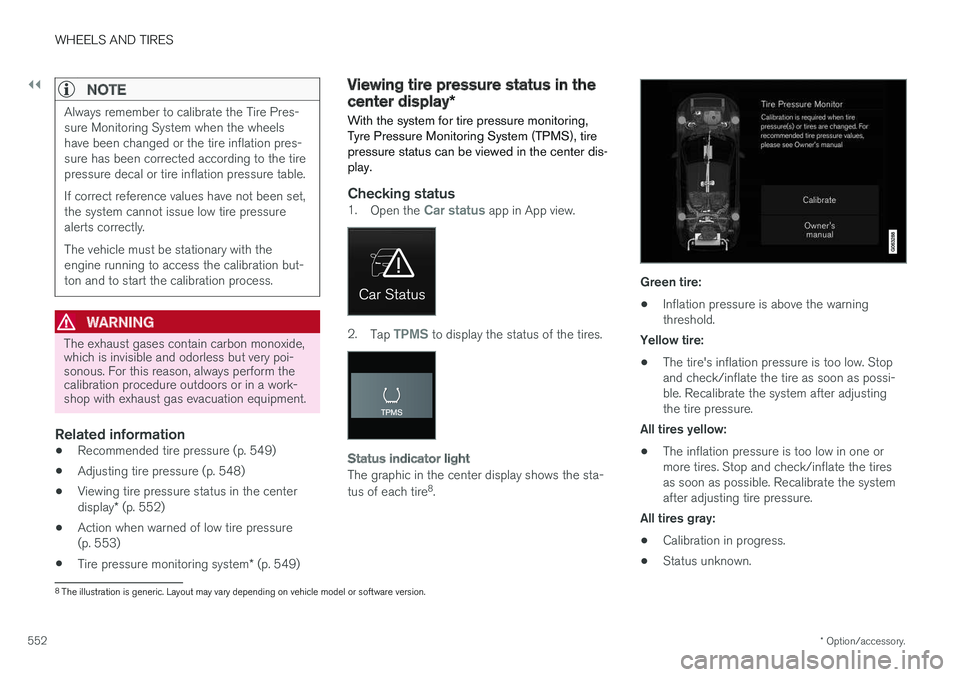
Checking status1. Open the Car status app in App view.
2.Tap TPMS to display the status of the tires.
Status indicator light
The graphic in the center display shows the sta- tus of each tire 8
.
Green tire:
• Inflation pressure is above the warning threshold.
Yellow tire:
• The tire's inflation pressure is too low. Stopand check/inflate the tire as soon as possi-ble. Recalibrate the system after adjustingthe tire pressure.
All tires yellow:
• The inflation pressure is too low in one ormore tires. Stop and check/inflate the tiresas soon as possible. Recalibrate the systemafter adjusting tire pressure.
All tires gray: • Calibration in progress.
• Status unknown.
8
The illustration is generic. Layout may vary depending on vehicle model or software version.
Page 555 of 674
WHEELS AND TIRES
}}
* Option/accessory.553
The vehicle may need to be driven for a few minutes at a speed above 35 km/h (22 mph) toactivate the system. All tires gray and a message: •
Tire pressure system Temporarily
unavailable. The indicator symbol will flash
for about 1 minute and then glow steadily. The system is temporarily unavailable and willbe activated momentarily.
•
Tire pressure system Service required.
The indicator symbol will flash for about 1 minute and then glow steadily. If the system is not working properly, contact a workshop 9
.
Related information
• Calibrating the tire pressure monitoring sys- tem
* (p. 551)
• Action when warned of low tire pressure (p. 553)
• Tire pressure monitoring system
* (p. 549)
• Vehicle status (p. 592)
Action when warned of low tirepressure
When the tire pressure monitoring system, Tyre Pressure Monitoring System (TPMS), detectslow pressure in one or more of the vehicle'stires, the driver will be alerted that action is nee-ded.
If the system's indicator symbol illumi- nates and the message Tire pressure
low is displayed, check the tire pres-
sure and inflate if necessary.
1. Switch off the ignition.
2. Check the inflation pressure on all four tires using a tire pressure gauge.
3. Inflate the tire to the correct pressure (see the tire pressure decal on the driver's side door pillar).
4. Through calibration of the system via the center display after the tire pressure hasbeen adjusted. Please be aware that the indicator symbol will not go out until the low tire pressure hasbeen corrected and the system has beenrecalibrated.
NOTE
To help prevent incorrect inflation pressure, pressure should be checked when the tiresare cold. The tires are considered to be coldwhen they have reached the same tempera-ture as the ambient temperature (about 3hours after the vehicle was last driven). Afterdriving for a few kilometers, the tires will warmup and the pressure will increase.
NOTE
• After inflating a tire, always replace the valve cap to help prevent valve damagecaused by gravel, dirt, etc.
• Use plastic valve caps only. Metal capscould corrode and become difficult toremove.
WARNING
•Incorrect inflation pressure could lead to tire failure, which could cause the driverto lose control of the vehicle.
• The system cannot predict sudden tiredamage.
9
An authorized Volvo workshop is recommended.
Page 556 of 674
||
WHEELS AND TIRES
* Option/accessory.
554
Related information
• Recommended tire pressure (p. 549)
• Adjusting tire pressure (p. 548)
• Calibrating the tire pressure monitoring sys- tem
* (p. 551)
• Viewing tire pressure status in the centerdisplay
* (p. 552)
• Tire pressure monitoring system
* (p. 549)
• Inflate tires with the compressor included in the tire sealing system (p. 567)
When changing wheels
The wheels can be changed, e.g. to switch to snow tires or spare tires. Follow the applicableinstructions for removing and installing thewheel.
Changing to tires of another dimensionMake sure that the tire dimension is approved for use on the vehicle. If you change to tires of another dimension, con- tact an authorized Volvo workshop to update thevehicle's software. A software update may benecessary when changing to tires of larger/smaller dimensions or when changing to or fromsnow tires.
Related information
• Removing a wheel (p. 556)
• Installing a wheel (p. 558)
• Tool kit (p. 554)
• Snow tires (p. 561)
• Spare wheel (p. 559)
• Wheel bolts (p. 555)
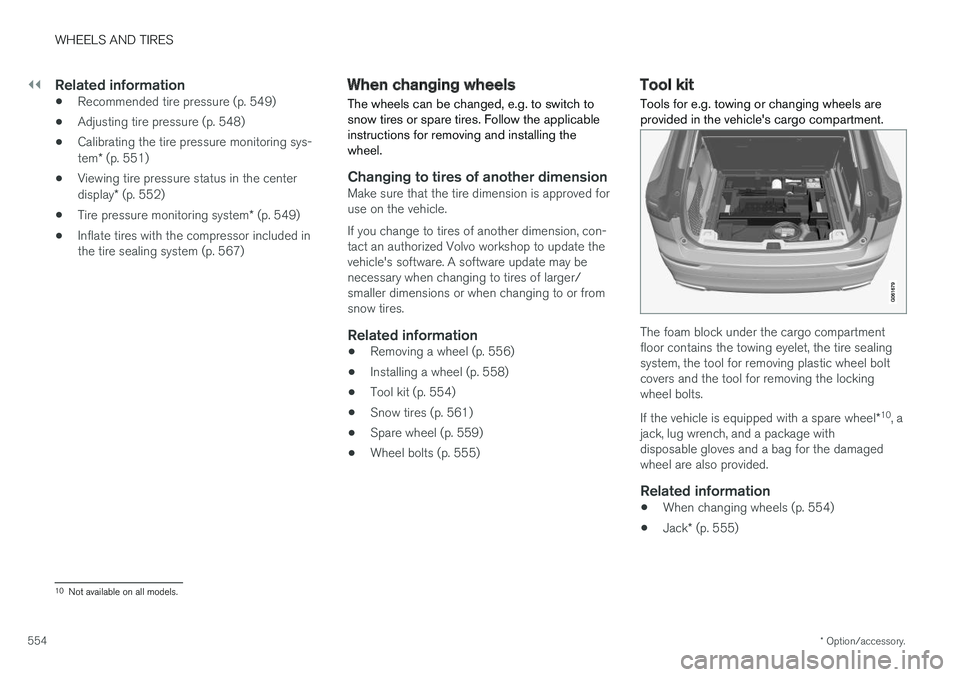
Tool kit Tools for e.g. towing or changing wheels are provided in the vehicle's cargo compartment.
The foam block under the cargo compartment floor contains the towing eyelet, the tire sealingsystem, the tool for removing plastic wheel boltcovers and the tool for removing the lockingwheel bolts. If the vehicle is equipped with a spare wheel
*10
, a
jack, lug wrench, and a package with disposable gloves and a bag for the damagedwheel are also provided.
Related information
• When changing wheels (p. 554)
• Jack
* (p. 555)
10
Not available on all models.
Page 592 of 674
||
MAINTENANCE AND SERVICE
590
Monthly:
•Check cold tire pressure in all tires. Inspect the tires for wear.
• Check that engine coolant and other fluidlevels are between the indicated "min" and"max" markings.
• Clean interior glass surfaces with a glasscleaner and soft paper towels.
• Wipe driver information displays with a softcloth.
• Visually inspect battery terminals for corro-sion. Corrosion may indicate a loose terminalconnector, or a battery near the end of itsuseful service life. Consult your Volvo retailerfor additional information.
As needed:
Wash the car, including the undercarriage, to reduce wear that can be caused by a buildup ofdirt, and corrosion that can be caused by salt res-idues. Clean leaves and twigs from air intake vents at the base of the windshield, and from other placeswhere they may collect.
NOTE
Complete service information for qualified technicians is available online for purchase orsubscription at www.volvotechinfo.com.
Related information
•Vehicle status (p. 592)
• Scheduling service and repairs (p. 593)
• Connecting equipment to the vehicle's data link connector (p. 36)
• Technician certification (p. 37)
• Climate control system service (p. 598)
• Maintenance of the brake system (p. 422)
• Engine compartment overview (p. 599)
Data transfer between vehicle andworkshop over Wi-Fi
Volvo workshops have a designated Wi-Fi net- work for secure data transfer between your vehi-cle and the workshop. Your visit to the workshopwill be easier and more effective when diagnos-tics information and software can be transferredover the workshop's network.
When you arrive at the workshop, your technician can connect your vehicle to the workshop's Wi-Finetwork to perform troubleshooting and down-load software. For this type of communication,the vehicle only connects to the workshop's net-work. The vehicle can only be connected to thedesignated workshop networks, not to any othernetwork, e.g. your home network.
Manual connection to workshop Wi-FiManual connection is usually performed by aservice technician. Because the technician usesthe buttons on your remote key to connect thevehicle, it is important that you bring a key withbuttons when taking the vehicle in to a workshop.Pressing the lock button on the remote key threetimes will connect the vehicle to the workshop'sWi-Fi network. When the car is connected to a Wi-Fi network, the
symbol appears in the center display.
Page 593 of 674
MAINTENANCE AND SERVICE
}}
* Option/accessory.591
WARNING
The vehicle may not be driven when it is con- nected to the workshop's networks and sys-tems.
Related information
•Handling system updates via Download Cen- ter (p. 591)
• Scheduling service and repairs (p. 593)
Download Center
With the vehicle connected to the Internet 1
,
updates for a number of the vehicle's systems can be downloaded from the center display.
The Download Center app is
started from the center display and makes it possible to:
• search for and update system software
• update Sensus Navigation
* map data
• download, update and delete apps.
Related information
•
Handling system updates via Download Cen- ter (p. 591)
• Download apps (p. 478)
• Updating apps (p. 479)
• Deleting apps (p. 480)
• Internet-connected vehicle
* (p. 519)
• Navigating in the center display's views(p. 111)
Handling system updates viaDownload Center
System updates are available for infotainment and Internet-related functions and systems in thevehicle. If system software updates are available,they can be downloaded all at once or sepa-rately.
Searching for updateIn order for system updates to be possible, the vehicle must have an Internet connection 2
.
System updates are handled through the
Download
Center app in the center dis-
play's App view. If no search for updates has been performed since the last time the infotain-ment system was started, a search will be initi-ated. No search will begin if a software download is in progress. A number in the
System updatesbutton shows how many updates are available. Tap the button to display a list of updates thatcan be installed in the vehicle. If an update is available, the message
New software updates
available will also be displayed in the center dis-
play's status field.
1 There may be a charge for transmitting data over the Internet, depending on your service plan.
2 There may be a charge for transmitting data over the Internet, depending on your service plan.
Page 594 of 674
||
MAINTENANCE AND SERVICE
* Option/accessory.
592
NOTE
Data downloading can affect other services such as transfer data, e.g. web radio. If theaffect on other services is experienced asproblematic, the download can be interrupted.Alternatively, it may be appropriate to switchoff or cancel other services.
NOTE
An update can be interrupted when the igni- tion is switched off and the vehicle is left. However, the update does not have to be completed before the vehicle is left as theupdate is resumed the next time the vehicle isused.
Updating all system software
–Select Install all at the bottom of the list.
To avoid displaying a list, select
Install all via theSystem updates button.
Updating individual system software
–Select Install to choose the software you
would like to download.
Canceling software download
–Tap the checkbox in the activity indicator that replaced the Install button when the down-
load began. Note that only a download can be cancelled. An installation cannot be cancelled once it hasbegun.
Deactivating the background search for
software update
Automatic background searching for softwareupdates is activated as the default factory setting,but the function can be deactivated. 1. Tap
Settings in the center display's Top
view.
2. Tap
SystemDownload Center.
3. Tap to deselect
Auto Software Update.
Related information
• Download Center (p. 591)
• Internet-connected vehicle
* (p. 519)
• Navigating in the center display's views (p. 111)
Vehicle status
The vehicle's general status can be displayed in the center display along with the option to schedule service 3
.
The Car status app is started
from the center display's App view and has four tabs:
•Messages - status messages
•
Status - engine oil level check
•
TPMS - tire inflation pressure check
•
Appointments - appointment information
and vehicle information 3
.
Related information
• Handling messages saved from the instru- ment panel (p. 103)
• Checking and filling engine oil (p. 601)
• Tire pressure monitoring system
* (p. 549)
• Scheduling service and repairs (p. 593)
• Sending vehicle information to the workshop(p. 594)
• Navigating in the center display's views(p. 111)
Page 595 of 674
MAINTENANCE AND SERVICE
}}
593
Scheduling service and repairs4
This service offers a convenient way to schedule service and workshop appoints directly from thevehicle.
When it is time for service, and in certain cases if the vehicle requires repairs, a message will bedisplayed in the instrument panel and at the topof the center display. The time for service isdetermined by how much time has elapsed, thenumber of hours the engine has run, or the dis-tance driven since the last service.
To use the service
• Create a Volvo ID and register the Volvo IDto the vehicle.
• To select a Volvo retailer you would like tocontact, go to www.volvocars.com and log in.
• To send and receive appointment informa-tion, the vehicle must be connected to the Internet 5
.
Book serviceWhen you schedule service from your vehicle, theinformation is sent via your Internet connection 5
.
Submit an appointment request whenever you need service or when a message regarding theneed for service or repairs has been displayed in the instrument panel and at the top of the centerdisplay.
1.
Open the Car status app from App view in
the center display.
2. Tap the
Appointments button.
3. Tap the
Request appointment button.
4. Check that your
Volvo ID is correct.
5. Make sure your preferred
Workshop is cor-
rect.
6. In the
Tap to write information to the
Workshop field, you can provide details on
what you would like performed during the visit or other important information to yourworkshop. 7.
Tap the
Send appointment request but-
ton.
> You will receive an appointment sugges- tion to your vehicle within a couple of days 6
. You will also receive the same
message via email and when you log in to www.volvocars.com. On some markets, the message in the instrument panel indicating that the vehi-cle requires service will go out once theappointment request has been sent.
8. Tap
Cancel request if you would like to
cancel your request.
The appointment request contains information about your vehicle that helps the workshop planfor your visit. The retailer will send you a digital appointment suggestion. Information about your retailer is alsoavailable in the vehicle so that you can contactyour workshop at any time.
Accepting an appointment suggestionWhen the vehicle has received an appointmentsuggestion, a message will be displayed at thetop of the center display.
1. Tap the message.
3 Certain markets only.
4 Certain markets only.
5 There may be a charge for transmitting data over the Internet, depending on your service plan.
6 Timespan may vary depending on market.
Page 596 of 674
||
MAINTENANCE AND SERVICE
* Option/accessory.
594 2. To accept the suggested appointment, tap
Accept. To decline the suggested appoint-
ment, tap Send new proposal or Decline.
For some markets, the system reminds you when an appointment time is approaching and the navi- gation system 7
can also guide you to the work-
shop at the appointed time.
Related information
• Vehicle status (p. 592)
• Sending vehicle information to the workshop (p. 594)
• Navigating in the center display's views (p. 111)
• Volvo ID (p. 26)
• Internet-connected vehicle
* (p. 519)
Sending vehicle information to the
workshop8
Vehicle-related information can be sent at any time from the vehicle, e.g. if you schedule a visitto a workshop and would like to assist yourworkshop by providing additional basic informa-tion. Sending vehicle information is not the sameas scheduling service.
1. Open the Car status app from App view in
the center display.
2. Tap the
Appointments button.
3. Tap the
Send vehicle data button.
> A message confirming that vehicle-related information has been sent will appear at the top of the center display. You cancancel data transmission by tapping thecheckbox in the activity indicator. Information is sent via the vehicle's Inter- net connection 9
. Vehicle information can be accessed by any retailer if they are provided with your vehicle iden- tification number (VIN
10
).
Vehicle information contentsThe most recently saved vehicle-related informa- tion will be sent (the last time the vehicle wasturned on). This includes information regarding:
• service requirements
• time since last service was performed
• function status
• fluid levels
• mileage (odometer reading)
• Vehicle Identification Number (VIN 10
)
• software version
• diagnostic information.
Related information
•Scheduling service and repairs (p. 593)
• Vehicle status (p. 592)
• Navigating in the center display's views(p. 111)
• Internet-connected vehicle
* (p. 519)
7
For vehicles with Sensus Navigation *.
8 Certain markets only.
9 There may be a charge for transmitting data over the Internet, depending on your service plan.
10 Vehicle Identification Number.
Page 597 of 674
MAINTENANCE AND SERVICE
}}
* Option/accessory.595
Hoisting the vehicle When hoisting the vehicle, it is important to ensure the jack/vehicle hoist is correctlyengaged in the designated attachment pointsunder the vehicle.
For vehicles with self-leveling *, pneumatic sus-
pension (if installed) must be turned off before the vehicle is lifted. Turning off the function in thecenter display.
WARNING
If the vehicle is lifted on a garage jack, the jack must be placed under one of the four lift-ing points. Make sure that the vehicle is cor-rectly positioned on the jack and that it can-not slide off. Make sure the jack plate has arubber pad to help keep the vehicle stableand prevent damage. Always use axle standsor similar.
NOTE
Volvo recommends only using the jack intended for your specific vehicle model. If ajack other than that recommended by Volvo isused, follow the instructions included with theequipment. The vehicle's ordinary jack is only intended to be used in temporary situations for short peri-ods of time, such as when changing wheels inthe event of a flat tire. If the vehicle needs tobe lifted more frequently, or for a longerperiod of time than for a wheel change, agarage jack or hoist is recommended. Alwaysfollow the instructions for use provided withthe equipment.