navigation VOLVO XC60 T8 2018 Owner´s Manual
[x] Cancel search | Manufacturer: VOLVO, Model Year: 2018, Model line: XC60 T8, Model: VOLVO XC60 T8 2018Pages: 674, PDF Size: 11.93 MB
Page 498 of 674
||
AUDIO, MEDIA AND INTERNET
* Option/accessory.
496 the Sensus Navigation
* supplement for additional
information about using the navigation system.
RecommendedTap for a list of service stations near the vehicle, displayed according to the price of regular gaso-line (unless another grade/type of fuel has been selected in
Select fuel type) or of stations
offering the greatest number of available charg- ing ports for electric vehicles/hybrids. The stationoffering the lowest price/most available chargingports will be displayed at the top of the list. Tapthe name of a service station to display moredetailed information.
FavoritesTap for a list of service stations that have beenstored as favorites. See also the heading
Favorites in the article "SiriusXM Travel Link" for
information explaining how to create favorites. Tap the name of a service station to display moredetailed information. In addition to the
Select fuel type button at the
bottom of the screen, tap the Edit button to
delete individual stations from the list or tap
Delete to clear the list. Tap Done to return to
the previous screen.
Brands1. Tap Brands to display a list of service sta-
tion brands in the area. 2. Tap a brand to display a list of service sta-
tions affiliated with that brand (BP, Exxon, etc.).
3. Tap the name of a service station to display more detailed information.
In addition to the
Select fuel type button at the
bottom of the screen, tap the Sort button to
arrange the list according to Nearest orCheapest/Recommended. Tap Done to
return to the previous screen.
Related information
• SiriusXM Travel Link ®
* (p. 492)
• SiriusXM Travel Link ®
* - Notifications
(p. 494)
• SiriusXM Travel Link ®
* - Sports (p. 496)
• SiriusXM Travel Link ®
* - Weather (p. 493)
SiriusXM Travel Link®
* - Sports
This SiriusXM Travel Link service provides infor- mation about sporting events, tournaments,teams, leagues, etc.
From the SiriusXM Travel Link home screen, to display sports information:
–Tap the Sports button to display the main
sports screen.
A number of sports categories will be listed (Football, Baseball, Basketball, etc.) Tap a sport to select a league in that sport (NFL, MLB, etc.) or a sport organization (PGA, LPGA, etc.). The following is an example of the result of tapping Baseball :
1. MLB (Major League Baseball) will be dis- played.
2. Tap MLB to display the two leagues in Major League Baseball (American League orNational League).
3. Tap one of the league names to display the divisions in the league.
Page 507 of 674
AUDIO, MEDIA AND INTERNET
}}
* Option/accessory.505
Apple® CarPlay®
*
With CarPlay, you can listen to music, make phone calls, get driving instructions, send/receive messages and use Siri, all while remain-ing focused on driving.
CarPlay works with select Apple devices. If the car doesnot already support CarPlay,this can be retrofitted. Contacta Volvo retailer to installCarPlay.
Information about supported apps and compati- ble phones is available on the Apple website:www.apple.com/ios/carplay/. Using apps that arenot compatible with CarPlay could cause the con-nection between iPhone and the vehicle to belost. Please note that Volvo is not responsible forthe content of CarPlay. When using map navigation via CarPlay, guidance will only be shown on the center display and notin the instrument panel or head-up display. CarPlay apps can be controlled from the center display, a phone or with the right-side steeringwheel keypad (for certain functions). The appscan also be voice-controlled using Siri. Press and hold the
button on the steering wheel to
start voice control with Siri. Press briefly to acti- vate the vehicle's own voice control system. If Siri cuts off too soon, press and hold the
6
but-
ton on the steering wheel.
By using Apple CarPlay you acknowledge the following: Apple CarPlay is a serviceprovided by Apple Inc. under its terms andconditions. Volvo Cars is thus notresponsible for Apple CarPlay or itsfeatures/applications. When using AppleCarPlay, certain information from your car(including its position) is transferred to youriPhone. In relation to Volvo Cars, you arefully responsible for your and any othersperson
Page 510 of 674
AUDIO, MEDIA AND INTERNET
* Option/accessory.
508
Android Auto *
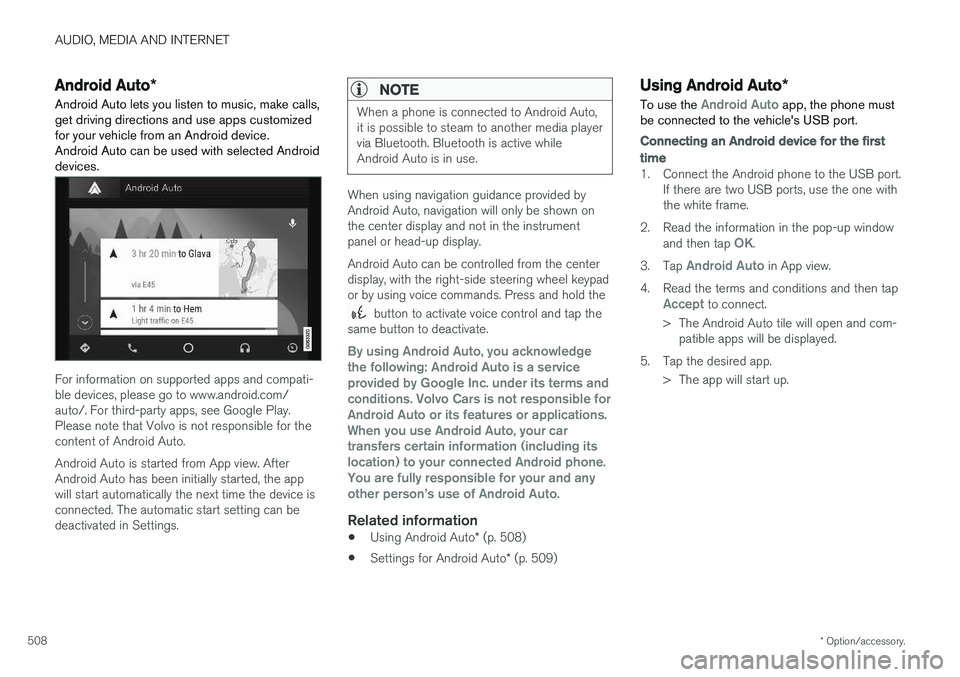
Android Auto lets you listen to music, make calls, get driving directions and use apps customizedfor your vehicle from an Android device.Android Auto can be used with selected Androiddevices.
For information on supported apps and compati- ble devices, please go to www.android.com/auto/. For third-party apps, see Google Play.Please note that Volvo is not responsible for thecontent of Android Auto. Android Auto is started from App view. After Android Auto has been initially started, the appwill start automatically the next time the device isconnected. The automatic start setting can bedeactivated in Settings.
NOTE
When a phone is connected to Android Auto, it is possible to steam to another media playervia Bluetooth. Bluetooth is active whileAndroid Auto is in use.
When using navigation guidance provided by Android Auto, navigation will only be shown onthe center display and not in the instrumentpanel or head-up display. Android Auto can be controlled from the center display, with the right-side steering wheel keypador by using voice commands. Press and hold the
button to activate voice control and tap the
same button to deactivate.
By using Android Auto, you acknowledge the following: Android Auto is a serviceprovided by Google Inc. under its terms andconditions. Volvo Cars is not responsible forAndroid Auto or its features or applications.When you use Android Auto, your cartransfers certain information (including itslocation) to your connected Android phone.You are fully responsible for your and anyother person
Page 536 of 674
||
AUDIO, MEDIA AND INTERNET
534
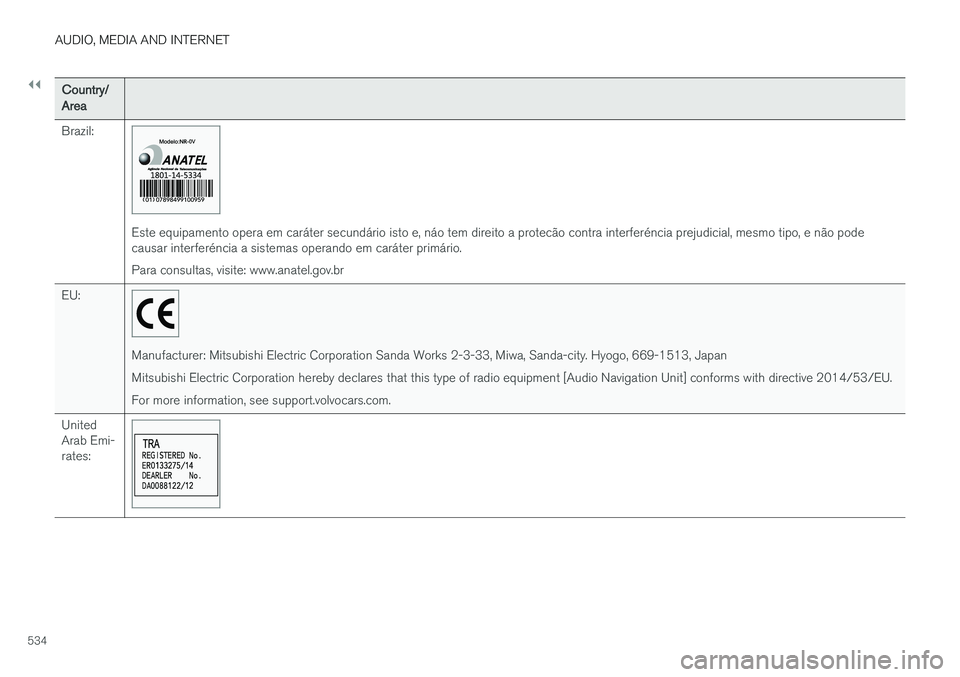
Country/Area Brazil:
Este equipamento opera em caráter secundário isto e, náo tem direito a protecão contra interferéncia prejudicial, mesmo tipo, e não pode causar interferéncia a sistemas operando em caráter primário. Para consultas, visite: www.anatel.gov.br
EU:
Manufacturer: Mitsubishi Electric Corporation Sanda Works 2-3-33, Miwa, Sanda-city. Hyogo, 669-1513, Japan Mitsubishi Electric Corporation hereby declares that this type of radio equipment [Audio Navigation Unit] conforms with directive 2014/53/EU.For more information, see support.volvocars.com.
United Arab Emi-rates:
Page 593 of 674
MAINTENANCE AND SERVICE
}}
* Option/accessory.591
WARNING
The vehicle may not be driven when it is con- nected to the workshop's networks and sys-tems.
Related information
•Handling system updates via Download Cen- ter (p. 591)
• Scheduling service and repairs (p. 593)
Download Center
With the vehicle connected to the Internet 1
,
updates for a number of the vehicle's systems can be downloaded from the center display.
The Download Center app is
started from the center display and makes it possible to:
• search for and update system software
• update Sensus Navigation
* map data
• download, update and delete apps.
Related information
•
Handling system updates via Download Cen- ter (p. 591)
• Download apps (p. 478)
• Updating apps (p. 479)
• Deleting apps (p. 480)
• Internet-connected vehicle
* (p. 519)
• Navigating in the center display's views(p. 111)
Handling system updates viaDownload Center
System updates are available for infotainment and Internet-related functions and systems in thevehicle. If system software updates are available,they can be downloaded all at once or sepa-rately.
Searching for updateIn order for system updates to be possible, the vehicle must have an Internet connection 2
.
System updates are handled through the
Download
Center app in the center dis-
play's App view. If no search for updates has been performed since the last time the infotain-ment system was started, a search will be initi-ated. No search will begin if a software download is in progress. A number in the
System updatesbutton shows how many updates are available. Tap the button to display a list of updates thatcan be installed in the vehicle. If an update is available, the message
New software updates
available will also be displayed in the center dis-
play's status field.
1 There may be a charge for transmitting data over the Internet, depending on your service plan.
2 There may be a charge for transmitting data over the Internet, depending on your service plan.
Page 596 of 674
||
MAINTENANCE AND SERVICE
* Option/accessory.
594 2. To accept the suggested appointment, tap
Accept. To decline the suggested appoint-
ment, tap Send new proposal or Decline.
For some markets, the system reminds you when an appointment time is approaching and the navi- gation system 7
can also guide you to the work-
shop at the appointed time.
Related information
• Vehicle status (p. 592)
• Sending vehicle information to the workshop (p. 594)
• Navigating in the center display's views (p. 111)
• Volvo ID (p. 26)
• Internet-connected vehicle
* (p. 519)
Sending vehicle information to the
workshop8
Vehicle-related information can be sent at any time from the vehicle, e.g. if you schedule a visitto a workshop and would like to assist yourworkshop by providing additional basic informa-tion. Sending vehicle information is not the sameas scheduling service.
1. Open the Car status app from App view in
the center display.
2. Tap the
Appointments button.
3. Tap the
Send vehicle data button.
> A message confirming that vehicle-related information has been sent will appear at the top of the center display. You cancancel data transmission by tapping thecheckbox in the activity indicator. Information is sent via the vehicle's Inter- net connection 9
. Vehicle information can be accessed by any retailer if they are provided with your vehicle iden- tification number (VIN
10
).
Vehicle information contentsThe most recently saved vehicle-related informa- tion will be sent (the last time the vehicle wasturned on). This includes information regarding:
• service requirements
• time since last service was performed
• function status
• fluid levels
• mileage (odometer reading)
• Vehicle Identification Number (VIN 10
)
• software version
• diagnostic information.
Related information
•Scheduling service and repairs (p. 593)
• Vehicle status (p. 592)
• Navigating in the center display's views(p. 111)
• Internet-connected vehicle
* (p. 519)
7
For vehicles with Sensus Navigation *.
8 Certain markets only.
9 There may be a charge for transmitting data over the Internet, depending on your service plan.
10 Vehicle Identification Number.
Page 669 of 674
INDEX
667
S
Safety 42pregnancy 43
Safety belt, see Seat belt 47
Safety defects, reporting 44
Safety mode 61 starting/moving 62
Sealing compound 562
Seat, see Seats 180
Seat belt reminder 51
Seat belts 47 Automatic locking retractor/Emergency
locking retractor 65
buckling/unbuckling 48
pregnancy 43
seat belt reminder 51
seat belt tensioner 50
securing child restraint systems 67, 69, 71
Seat belt tensioner 50 resetting 51
Seats heating 209, 210
manual front seat 180
memory function front seat 182, 183
power front seats 181
ventilation 211
whiplash protection 46
Sensors
air quality 201
climate 196
Sensus connection and entertainment 30
Sensus Navigation 350
Service position 639
Service program 588
Set time interval 283
settings 131 Categories 132
contextual 129
resetting 131
settings menu 131
Shiftlock 432
Side airbag 59
Side Impact Protection System 59, 60
SIM card 523
SIPS (Side Impact Protection System) 59, 60Sirius Satellite radio Travel link 492
SiriusXM ®
Satellite radio
traffic information 488, 489, 490
Ski hatch 580
Slippery conditions 451
Slippery road conditions 451Software updates 33
Sound settings 476, 517 phone 518
playing media 498, 499
text message 517
Spare tire 559, 560
Speed camera 352
Speed Limiter 268, 271, 272, 275 getting started 269
shut down 271
temporary deactivation 270
Speed symbols, tires 544
Spin control 264
Stability and traction control system 264, 267 operation 265, 266
Stability system 264
Stains 623, 625, 626, 627, 628 Start and lock system type designations 242
Start battery 459, 605 overload 459
Start engine 414 Starting the engine after a collision 62
Start the vehicle 414
Steel cargo grid 583