buttons VOLVO XC60 T8 2018 Owner´s Manual
[x] Cancel search | Manufacturer: VOLVO, Model Year: 2018, Model line: XC60 T8, Model: VOLVO XC60 T8 2018Pages: 674, PDF Size: 11.93 MB
Page 283 of 674
DRIVER SUPPORT
}}
* Option/accessory.281
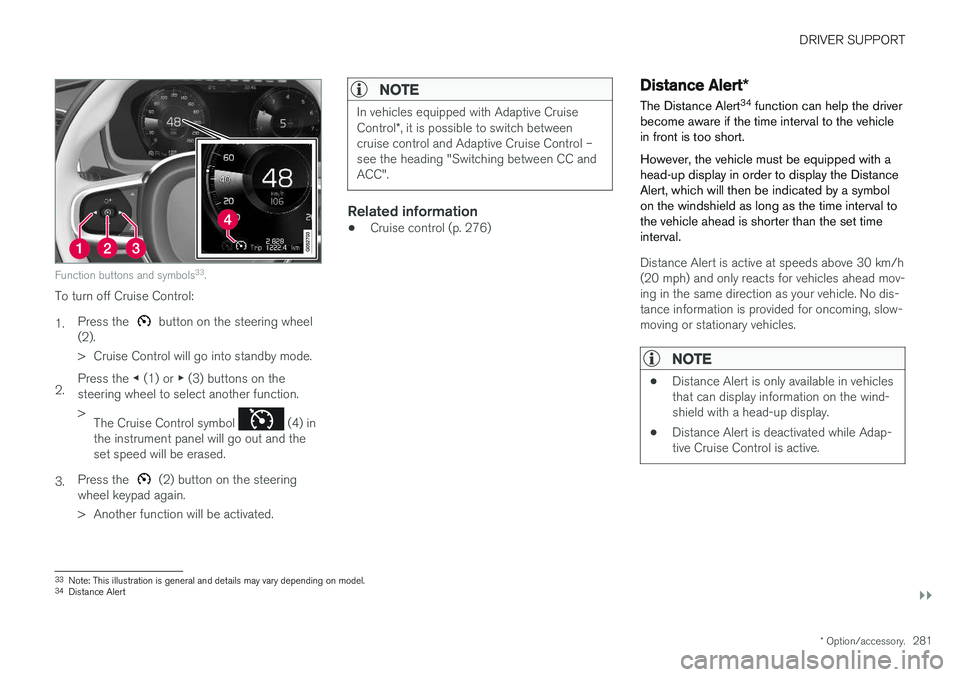
Function buttons and symbols 33
.
To turn off Cruise Control: 1. Press the
button on the steering wheel
(2).
> Cruise Control will go into standby mode.
2. Press the
◀ (1) or ▶ (3) buttons on the
steering wheel to select another function.> The Cruise Control symbol
(4) in
the instrument panel will go out and the set speed will be erased.
3. Press the
(2) button on the steering
wheel keypad again.
> Another function will be activated.
NOTE
In vehicles equipped with Adaptive Cruise Control *, it is possible to switch between
cruise control and Adaptive Cruise Control – see the heading "Switching between CC andACC".
Related information
• Cruise control (p. 276)
Distance Alert
*
The Distance Alert 34
function can help the driver
become aware if the time interval to the vehicle in front is too short. However, the vehicle must be equipped with a head-up display in order to display the DistanceAlert, which will then be indicated by a symbolon the windshield as long as the time interval tothe vehicle ahead is shorter than the set timeinterval.
Distance Alert is active at speeds above 30 km/h (20 mph) and only reacts for vehicles ahead mov-ing in the same direction as your vehicle. No dis-tance information is provided for oncoming, slow-moving or stationary vehicles.
NOTE
• Distance Alert is only available in vehicles that can display information on the wind-shield with a head-up display.
• Distance Alert is deactivated while Adap-tive Cruise Control is active.
33
Note: This illustration is general and details may vary depending on model.
34 Distance Alert
Page 288 of 674

||
DRIVER SUPPORT
286Adaptive Cruise Control regulates speed by accelerating and braking. It is normal for thebrakes to emit a slight sound when they arebeing used to adjust speed. Adaptive Cruise Control always attempts to regu- late speed smoothly. The driver must apply thebrakes in situations requiring immediate braking.For example, when there are great differences inspeed between vehicles or if the vehicle aheadbrakes suddenly. Due to limitations in the radarsensor, braking may occur unexpectedly or not atall. Adaptive Cruise Control is designed to follow a vehicle ahead in the same lane and maintain atime interval to that vehicle set by the driver. If theradar sensor does not detect a vehicle ahead, itwill instead maintain the speed set by the driver.This will also happen if the speed of the vehicleahead exceeds the set speed for your vehicle.
• Adaptive Cruise Control can follow anothervehicle at speeds from a standstill up to200 km/h (125 mph).
WARNING
• Adaptive Cruise Control is not a collision avoidance system. The driver is alwaysresponsible and must intervene if the sys-tem fails to detect a vehicle ahead.
• Adaptive Cruise Control does not brakefor people or animals and does not brakefor small vehicles, such as bikes andmotorcycles. Similarly, it does not brakefor low trailers, oncoming, slow-moving orstationary vehicles and objects.
• Do not use Adaptive Cruise Control indemanding situations, such as in city traf-fic, at intersections, on slippery surfaces,with a lot of water or slush on the road, inheavy rain/snow, in poor visibility, onwinding roads, or on on/off ramps.
CAUTION
Maintenance of Adaptive Cruise Control com- ponents may only be performed by a work-shop – an authorized Volvo workshop is rec-ommended.
Overview
Controls
Function buttons and symbols 41
.
: Activates Adaptive Cruise Control from
standby mode and resumes the set speed
: Increases the set speed
: From standby mode - activates the
Adaptive Cruise Control and stores the cur- rent speed
: From active mode - deactivates/
switches the Adaptive Cruise Control to standby mode
: Reduces the set speed
Increases the time interval to the vehicle ahead
41 Note: This illustration is general and details may vary depending on model.
Page 292 of 674
DRIVER SUPPORT
* Option/accessory.
290
Managing Adaptive Cruise Controlspeed
Adaptive Cruise Control (ACC 45
) can be set to
various speeds.
Setting/changing set speed
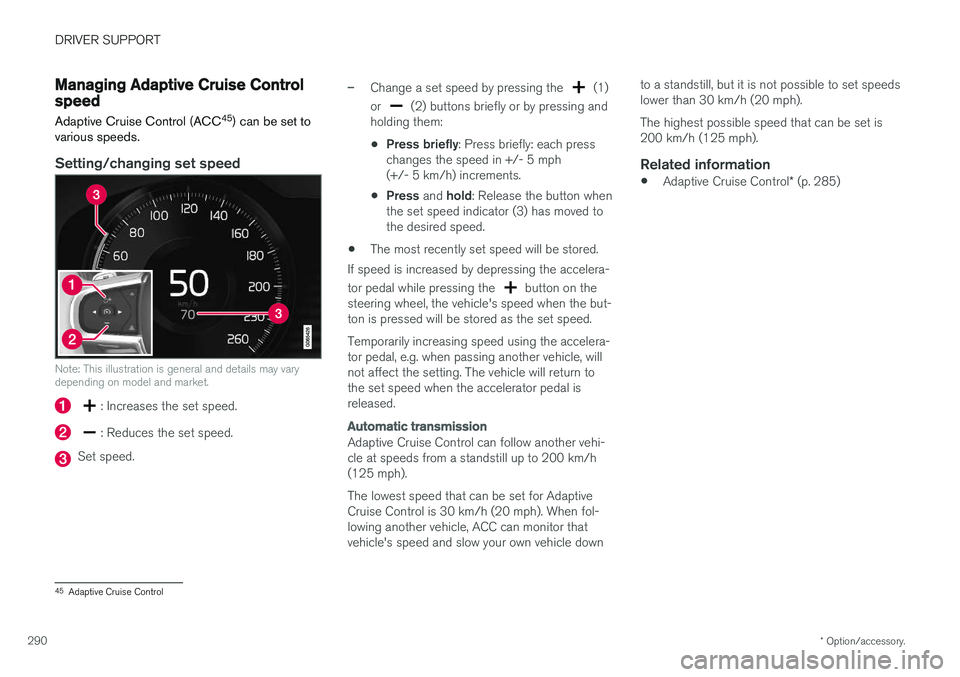
Note: This illustration is general and details may vary depending on model and market.
: Increases the set speed.
: Reduces the set speed.
Set speed.
–Change a set speed by pressing the (1)
or
(2) buttons briefly or by pressing and
holding them:
• Press briefly
: Press briefly: each press
changes the speed in +/- 5 mph (+/- 5 km/h) increments.
• Press
and hold: Release the button when
the set speed indicator (3) has moved tothe desired speed.
• The most recently set speed will be stored.
If speed is increased by depressing the accelera- tor pedal while pressing the
button on the
steering wheel, the vehicle's speed when the but- ton is pressed will be stored as the set speed. Temporarily increasing speed using the accelera- tor pedal, e.g. when passing another vehicle, willnot affect the setting. The vehicle will return tothe set speed when the accelerator pedal isreleased.
Automatic transmission
Adaptive Cruise Control can follow another vehi- cle at speeds from a standstill up to 200 km/h(125 mph). The lowest speed that can be set for Adaptive Cruise Control is 30 km/h (20 mph). When fol-lowing another vehicle, ACC can monitor thatvehicle's speed and slow your own vehicle down to a standstill, but it is not possible to set speedslower than 30 km/h (20 mph). The highest possible speed that can be set is 200 km/h (125 mph).
Related information
•
Adaptive Cruise Control
* (p. 285)
45
Adaptive Cruise Control
Page 305 of 674
DRIVER SUPPORT
}}
303
When the vehicle is approaching an off-ramp or a fork in the road, the driver should steer towardthe desired lane to indicate to Pilot Assist thedesired direction of travel.
Pilot Assist strives to keep the vehicle
in the center of the lane
When Pilot Assist provides steering assistance, itstrives to position the vehicle in the center of thelane between the lane markings. For the smooth-est driving experience possible, the driver shouldpermit the vehicle to find the optimal positioning.The driver should check that the vehicle is posi-tioned safely in the lane and can always adjustthe vehicle's position by applying more force tothe steering wheel. If Pilot Assist does not position the vehicle appro- priately in the lane, the driver should turn off PilotAssist or switch to Adaptive Cruise Control.
Overview
Controls
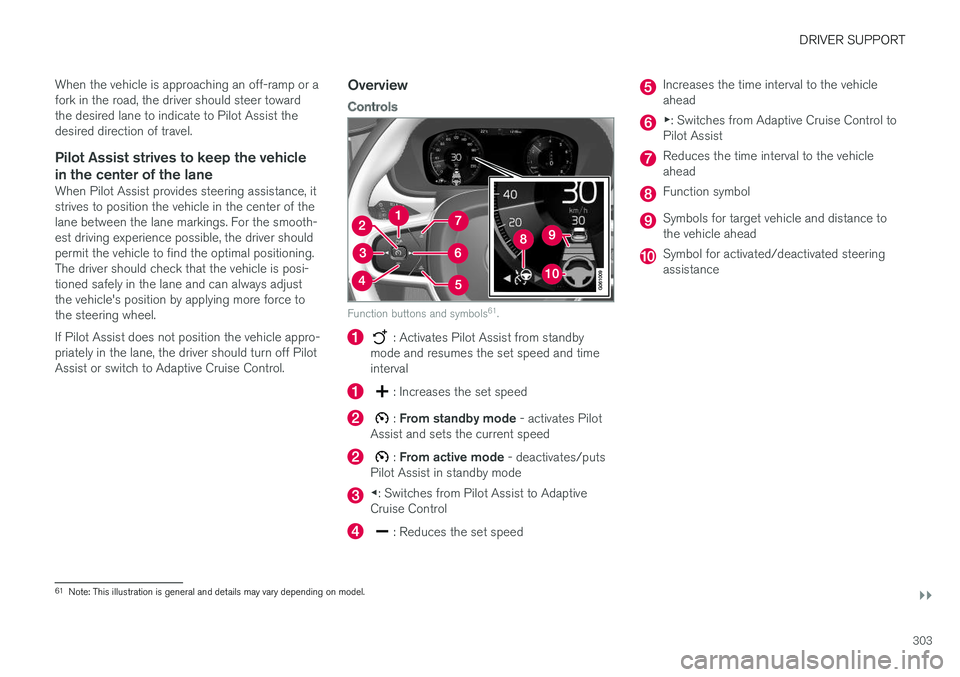
Function buttons and symbols 61
.
: Activates Pilot Assist from standby
mode and resumes the set speed and time interval
: Increases the set speed
: From standby mode - activates Pilot
Assist and sets the current speed
: From active mode - deactivates/puts
Pilot Assist in standby mode
◀ : Switches from Pilot Assist to Adaptive
Cruise Control
: Reduces the set speed
Increases the time interval to the vehicle ahead
▶ : Switches from Adaptive Cruise Control to
Pilot Assist
Reduces the time interval to the vehicle ahead
Function symbol
Symbols for target vehicle and distance to the vehicle ahead
Symbol for activated/deactivated steering assistance
61 Note: This illustration is general and details may vary depending on model.
Page 309 of 674
DRIVER SUPPORT
}}
307
–Change a set speed by pressing the (1)
or
(2) buttons briefly or by pressing and
holding them:
• Press briefly
: Press briefly: each press
changes the speed in +/- 5 mph (+/- 5 km/h) increments.
• Press
and hold: Release the button when
the set speed indicator (3) has moved tothe desired speed.
• The most recently set speed will be stored.
If speed is increased by depressing the accelera- tor pedal while pressing the
button on the
steering wheel, the vehicle's speed when the but- ton is pressed will be stored as the set speed. Temporarily increasing speed using the accelera- tor pedal, e.g. when passing another vehicle, willnot affect the setting. The vehicle will return tothe set speed when the accelerator pedal isreleased.
Automatic transmission
Pilot Assist can follow another vehicle at speeds from a standstill up to 200 km/h (125 mph). The lowest speed that can be set for Pilot Assist is 30 km/h (20 mph). When following anothervehicle, ACC can monitor that vehicle's speedand slow your own vehicle down to a standstill,but it is not possible to set speeds lower than30 km/h (20 mph). The highest possible speed that can be set is200 km/h (125 mph).
Related information
•
Pilot Assist (p. 301)
Setting a time interval for PilotAssist
Pilot Assist can be set to different time intervals.
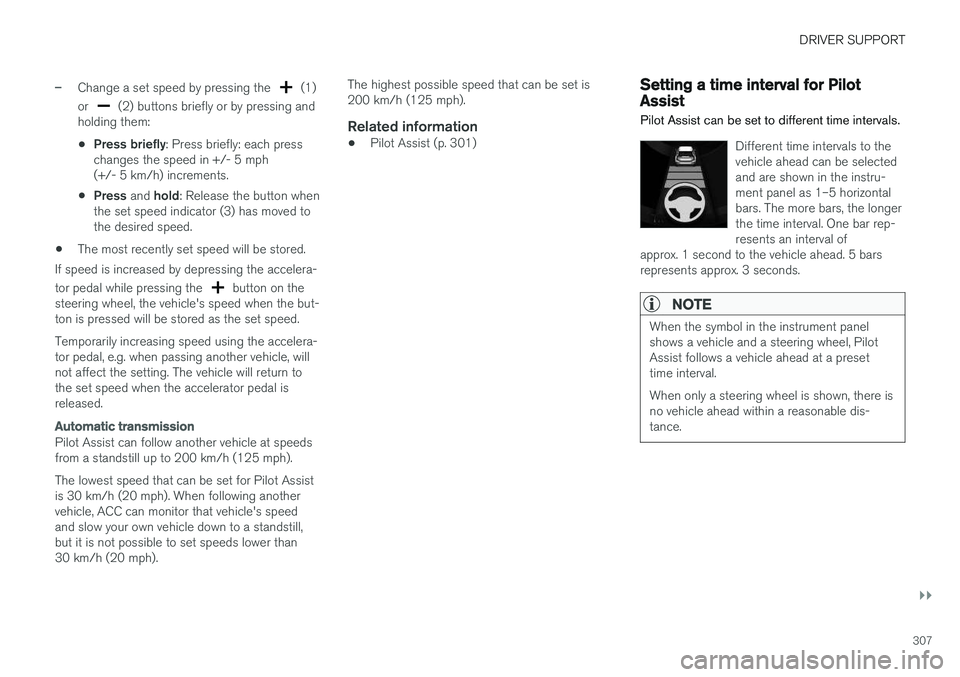
Different time intervals to the vehicle ahead can be selectedand are shown in the instru-ment panel as 1–5 horizontalbars. The more bars, the longerthe time interval. One bar rep-resents an interval of
approx. 1 second to the vehicle ahead. 5 barsrepresents approx. 3 seconds.
NOTE
When the symbol in the instrument panel shows a vehicle and a steering wheel, PilotAssist follows a vehicle ahead at a presettime interval. When only a steering wheel is shown, there is no vehicle ahead within a reasonable dis-tance.
Page 384 of 674
DRIVER SUPPORT
* Option/accessory.
382
Starting the Park Assist Camera
The Park Assist Camera starts automatically when reverse gear is engaged or can be startedmanually using one of the center display's func-tion buttons.
Camera view when backing upWhen reverse gear is engaged, the screen shows the rear view 122
.
Camera view when manually starting
the camera
Start the Park Assist Camera using this button in the centerdisplay's Function view. The screen will first show the most recently used cameraview. However, each time the
engine is started, the previous side view will bereplaced by the 360° view and a previously dis-played zoomed-in rear view will be replaced bythe regular rear view.
Automatically deactivating the cameraFront view switches off when the vehicle's speed reaches 25 km/h (16 mph) to help avoid dis-tracting the driver. It will be automatically reactiva-ted if the vehicle's speed falls below 22 km/h(14 mph) within 1 minute as long as the vehicle'sspeed has not exceeded 50 km/h (31 mph). Other camera views switch off at 15 km/h(9 mph) and are not reactivated.
Related information
•
Park Assist Camera
* (p. 377)
Park Assist Camera limitations
The Park Assist Camera may not be able to detect all conditions in all situations and func-tionality may therefore be limited.
The driver should be aware of the following limi- tations for the Park Assist Camera:
WARNING
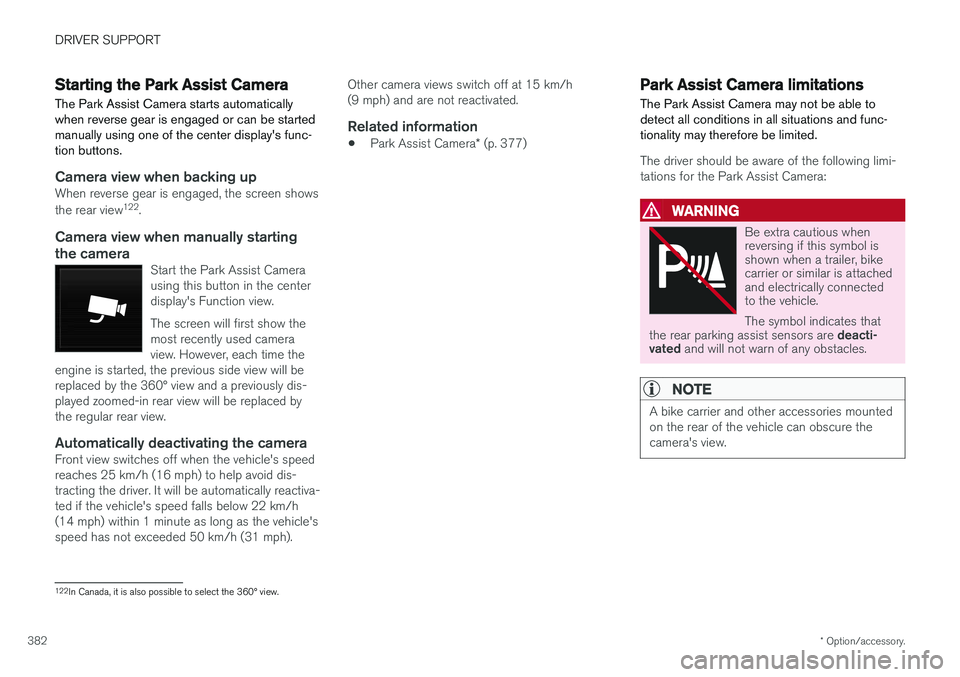
Be extra cautious when reversing if this symbol isshown when a trailer, bikecarrier or similar is attachedand electrically connectedto the vehicle. The symbol indicates that
the rear parking assist sensors are deacti-
vated and will not warn of any obstacles.
NOTE
A bike carrier and other accessories mounted on the rear of the vehicle can obscure thecamera's view.
122
In Canada, it is also possible to select the 360° view.
Page 445 of 674
STARTING AND DRIVING
}}
* Option/accessory.443
Leveling control settings *
The vehicle can be lowered or raised to make it easier to load or for passengers to get in andout. Turn off leveling control before lifting the vehicle with a jack to help avoid problems with thepneumatic suspension.
Adjusting loading mode
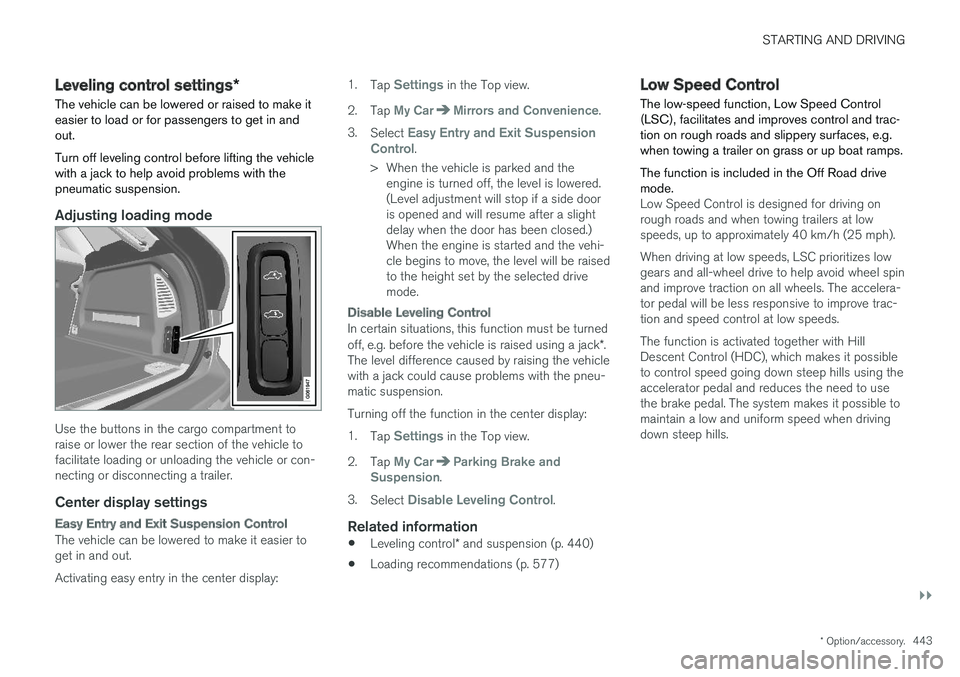
Use the buttons in the cargo compartment to raise or lower the rear section of the vehicle tofacilitate loading or unloading the vehicle or con-necting or disconnecting a trailer.
Center display settings
Easy Entry and Exit Suspension Control
The vehicle can be lowered to make it easier to get in and out. Activating easy entry in the center display: 1.
Tap
Settings in the Top view.
2. Tap
My CarMirrors and Convenience.
3. Select
Easy Entry and Exit Suspension
Control.
> When the vehicle is parked and the engine is turned off, the level is lowered. (Level adjustment will stop if a side dooris opened and will resume after a slightdelay when the door has been closed.)When the engine is started and the vehi-cle begins to move, the level will be raisedto the height set by the selected drivemode.
Disable Leveling Control
In certain situations, this function must be turned off, e.g. before the vehicle is raised using a jack *.
The level difference caused by raising the vehicle with a jack could cause problems with the pneu-matic suspension. Turning off the function in the center display:1. Tap
Settings in the Top view.
2. Tap
My CarParking Brake and
Suspension.
3. Select
Disable Leveling Control.
Related information
• Leveling control
* and suspension (p. 440)
• Loading recommendations (p. 577)
Low Speed Control The low-speed function, Low Speed Control (LSC), facilitates and improves control and trac-tion on rough roads and slippery surfaces, e.g.when towing a trailer on grass or up boat ramps. The function is included in the Off Road drive mode.
Low Speed Control is designed for driving on rough roads and when towing trailers at lowspeeds, up to approximately 40 km/h (25 mph). When driving at low speeds, LSC prioritizes low gears and all-wheel drive to help avoid wheel spinand improve traction on all wheels. The accelera-tor pedal will be less responsive to improve trac-tion and speed control at low speeds. The function is activated together with Hill Descent Control (HDC), which makes it possibleto control speed going down steep hills using theaccelerator pedal and reduces the need to usethe brake pedal. The system makes it possible tomaintain a low and uniform speed when drivingdown steep hills.
Page 451 of 674
STARTING AND DRIVING
}}
449
Factors the driver can control
The driver should be aware that the following fac- tors help conserve energy and improve drivingrange:• charging the battery regularly
• preconditioning
• Pure drive mode
• climate control settings
• speed and acceleration
• the
Hold function
• tires and tire pressure.
The following table shows the approximate rela- tionship between constant speed and drivingrange. Driving at a lower constant speed helpsincrease the electric motor's driving range.
Constant speed
100 km/h (62 mph) 50 %80 km/h (50 mph) 70 %
60 km/h (37 mph) 90 %
50 km/h (31 mph) 100 %
NOTE
• The figures shown in the tables pertain to a new vehicle.
• None of the figures are absolute and areaffected by e.g. driving style, environmentand other conditions.
Related information
• Using the electric motor only (p. 447)
• Economical driving (p. 446)
• "Hold" and "Charge" functions (p. 449)
• Drive modes (p. 435)
"Hold" and "Charge" functions
In certain situations, it can be useful to control the hybrid battery's charge level while driving. This is possible with the
Hold and Charge func-
tions, which are available in all drive modes.
Function buttons for Hold and ChargeThe functions can be activated in the center dis- play's Function view.
Hold
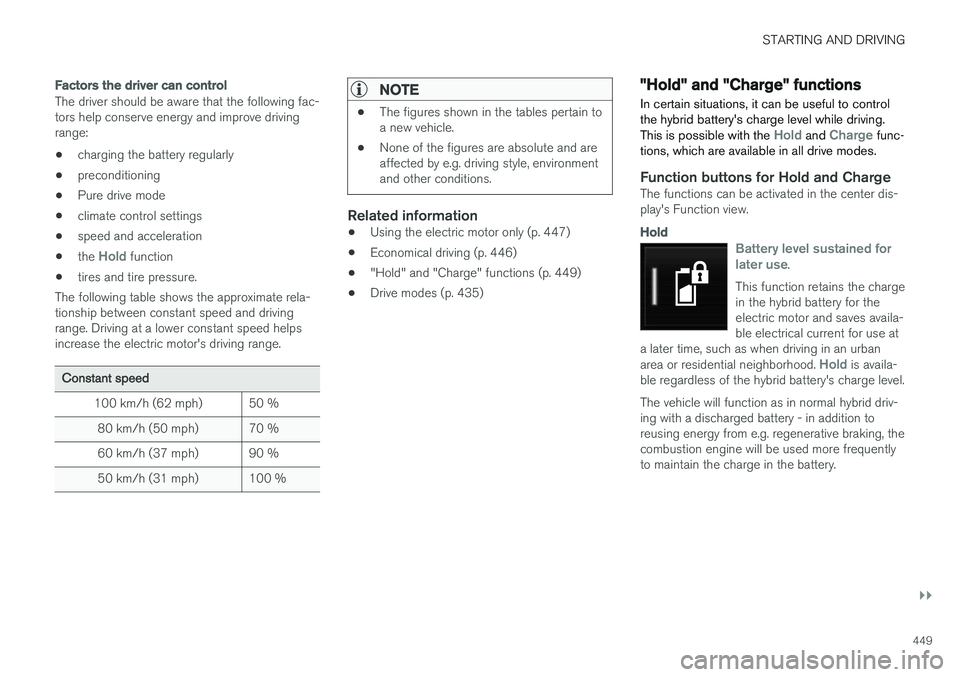
Battery level sustained for later use.
This function retains the charge in the hybrid battery for theelectric motor and saves availa-ble electrical current for use at
a later time, such as when driving in an urban area or residential neighborhood.
Hold is availa-
ble regardless of the hybrid battery's charge level. The vehicle will function as in normal hybrid driv- ing with a discharged battery - in addition toreusing energy from e.g. regenerative braking, thecombustion engine will be used more frequentlyto maintain the charge in the battery.
Page 470 of 674
||
STARTING AND DRIVING
* Option/accessory.
468
WARNING
No person or object should be behind the tow truck when the vehicle is lifted onto the bedof the truck.
Related information
• Attaching and removing the towing eyelet (p. 466)
HomeLink®
*10
HomeLink ®
11
is a programmable remote control,
integrated in the vehicle electrical system, that can control up to three different devices (e.g.garage door opener, alarm system, outdoor andindoor lighting, etc.) and thereby replace theremote controls for these.
General
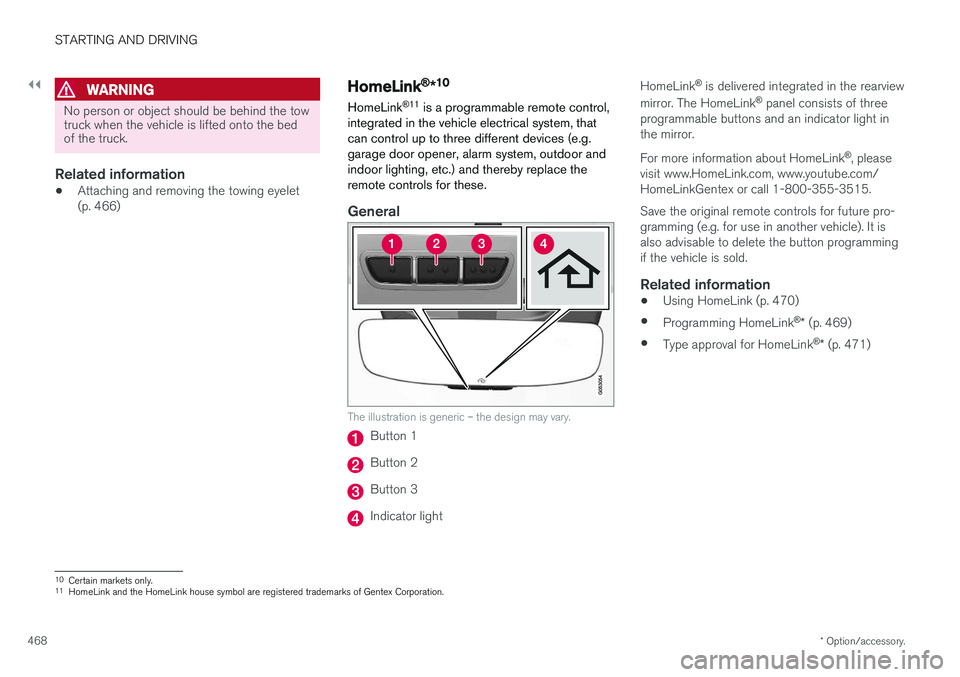
The illustration is generic – the design may vary.
Button 1
Button 2
Button 3
Indicator light HomeLink
®
is delivered integrated in the rearview
mirror. The HomeLink ®
panel consists of three
programmable buttons and an indicator light in the mirror. For more information about HomeLink ®
, please
visit www.HomeLink.com, www.youtube.com/ HomeLinkGentex or call 1-800-355-3515. Save the original remote controls for future pro- gramming (e.g. for use in another vehicle). It isalso advisable to delete the button programmingif the vehicle is sold.
Related information
• Using HomeLink (p. 470)
• Programming HomeLink ®
* (p. 469)
• Type approval for HomeLink ®
* (p. 471)
10
Certain markets only.
11 HomeLink and the HomeLink house symbol are registered trademarks of Gentex Corporation.
Page 471 of 674
STARTING AND DRIVING
}}
* Option/accessory.469
Programming HomeLink®
*12
Follow these instructions to program HomeLink ®
, reset all programming, or program
individual buttons.
NOTE
In some vehicles, the ignition must be on or in the "accessory position" before HomeLink ®
can be programmed or used. It can be a good idea to put new batteries in the remote con- trol being replaced by HomeLink ®
for faster
programming and better radio signal trans-mission. The HomeLink ®
buttons should be
reset before programming.
WARNING
While HomeLink ®
is being programmed, the
garage door or gate being programmed may be activated. Make sure that no one is nearthe door or gate during programming. Whenprogramming a garage door opener, it isadvised to park outside of the garage. 1.
Point the remote control at the HomeLink ®
button to be programmed and hold it about 2-8 cm (1-3 inches) from the button. Do not obstruct the HomeLink ®
indicator light.
Note: Some remote controls are more effec-
tive at programming HomeLink ®
from a dis-
tance of about 15-20 cm (6-12 inches). Try moving the remote control closer or furtheraway if you are experiencing any difficultiesprogramming.
2. Press and hold both the remote control but- ton and the HomeLink ®
button to be pro-
grammed.
3. Do not release the buttons until the indicator light has stopped flashing slowly (about oncea second) and either flashes quickly (about10 times a second) or glows steadily. >Steady glow: Indication that program-
ming is complete. Press the programmed button twice to activate. Flashing quickly: The device being pro-
grammed with HomeLink ®
may have a
security function that requires an extra step. Try pressing the programmed buttontwice to see whether the programmingworks. Otherwise, continue with the fol-lowing steps.
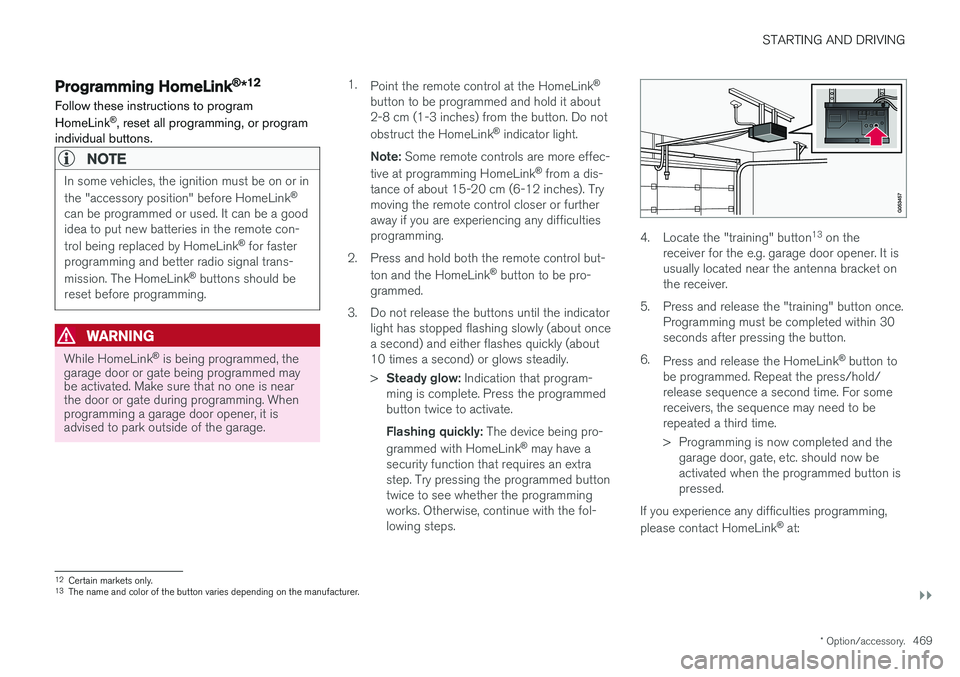
4. Locate the "training" button 13
on the
receiver for the e.g. garage door opener. It is usually located near the antenna bracket onthe receiver.
5. Press and release the "training" button once. Programming must be completed within 30seconds after pressing the button.
6. Press and release the HomeLink ®
button to
be programmed. Repeat the press/hold/release sequence a second time. For somereceivers, the sequence may need to berepeated a third time.
> Programming is now completed and the garage door, gate, etc. should now be activated when the programmed button ispressed.
If you experience any difficulties programming, please contact HomeLink ®
at:
12 Certain markets only.
13 The name and color of the button varies depending on the manufacturer.