phone VOLVO XC60 T8 2018 Owner´s Manual
[x] Cancel search | Manufacturer: VOLVO, Model Year: 2018, Model line: XC60 T8, Model: VOLVO XC60 T8 2018Pages: 674, PDF Size: 11.93 MB
Page 521 of 674
AUDIO, MEDIA AND INTERNET
}}
* Option/accessory.519
Settings for Bluetooth devices
Settings for Bluetooth-connected devices.
1. Tap Settings in the Top view.
2. Tap
CommunicationBluetooth
Devices and select settings:
•
Add device - start the procedure for pairing
a new device.
•
Previously paired devices - list con-
nected/paired devices.
•
Remove device - remove a connected
device.
•
Allowed services for this device - select
what the device will be used for: making calls, sending/receiving messages, stream-ing media, Internet connection.
•
Internet connection connect the vehicle to
the Internet using the device's Bluetooth connection.
Bluetooth ®
declaration of conformityUSA FCC CAUTION Changes or modifications not expressly approved by the party responsible for compliance couldvoid the user's authority to operate the equip-ment. This transmitter must not be co-located oroperated in conjunction with any other antennaor transmitter. Canada This device complies with Industry Canada license-exempt RSS standard(s). Operation issubject to the following two conditions: (1) this device may not cause interference, and(2) this device must accept any interference, including interference that may cause undesiredoperation of the device.
Related information
•
Phone (p. 510)
• Phone settings (p. 518)
• Internet-connected vehicle
* (p. 519)
• Connecting a phone to the car via Bluetoothfor the first time (p. 511)
Internet-connected vehicle
*
When the vehicle is connected to the Internet, it is possible to use web radio and music servicesvia apps, download software and contact retail-ers from the vehicle.
The vehicle can be connected to the Internet using Bluetooth, Wi-Fi or the vehicle's integratedmodem.
Page 523 of 674
AUDIO, MEDIA AND INTERNET
}}
* Option/accessory.521
Connecting the car to the Internetvia a mobile device (Bluetooth)
Establish an Internet connection using Bluetooth and tethering from a phone and get access tomultiple connected services in your vehicle.
The phone and the network service provider must support Internet sharing (tethering) and the sub-scription must include data transfer.
1. To connect the vehicle to the Internet via a Bluetooth-connected phone, the phone must first be paired with the vehicle via Bluetooth.Ensure that the personal hotspot (portable/personal hotspot) is activated in your phone.
2. If the phone has been connected via Blue- tooth previously, tap
Settings in the center
display's Top view.
3. In the center display: Tap
Communication
Bluetooth Devices.
4. Mark the window for
Bluetooth Internet
connection under the heading Internet
connection.
> Your vehicle is now connected to the Internet via your Bluetooth-connected phone.
NOTE
When using Apple CarPlay, it is only possible to connect the vehicle to the Internet usingWi-Fi or the vehicle's modem.
Related information
• Internet-connected vehicle
* (p. 519)
• Connect the car to the Internet via car modem (SIM card) (p. 522)
• Connecting a phone to the car via Bluetoothfor the first time (p. 511)
• Connecting the car to the Internet via amobile device (Wi-Fi) (p. 521)
• Apple ®
CarPlay ®
* (p. 505)
• No or poor Internet connection (p. 524)
• Settings for Bluetooth devices (p. 519)
Connecting the car to the Internetvia a mobile device (Wi-Fi)
Establish an Internet connection via Wi-Fi tether- ing from a phone and get access to multipleconnected services in your vehicle.
The phone and the network service provider must support Internet sharing (tethering) and the sub-scription must include data transfer.
1. Activate Internet sharing (personal hotspot) in the phone.
2. Tap
Settings in the Top view.
3. Proceed to
CommunicationWi-Fi.
4. Activate/deactivate by tapping to check/ uncheck the Wi-Fi box.
5. Tap the name of the network you would like to connect.
6. Enter the network password.
7. If a different connection was used previously, confirm the connection change.
> The vehicle will connect to the network.
Please note that certain cellular phones will disa- ble Internet sharing (tethering) when the connec-
Page 524 of 674
||
AUDIO, MEDIA AND INTERNET
* Option/accessory.
522 tion to the vehicle has been broken, e.g. when the phone has been removed from the vehicle. Thephone's tethering function will then need to bereactivated the next time the phone's hotspot isused to connect to the Internet. When a phone is connected to the vehicle, it will be saved for future use. When the maximumnumber of 50 connected phones has beenreached, the first will be deleted. To display a listof saved networks or to manually delete saved networks, tap
SettingsCommunication
Wi-FiSaved networks.
Technical and security requirements for Wi-Fi connection are described in a separate section.
Related information
• Internet-connected vehicle
* (p. 519)
• Deleting Wi-Fi networks (p. 525)
• No or poor Internet connection (p. 524)
• Wi-Fi technology and security (p. 525)
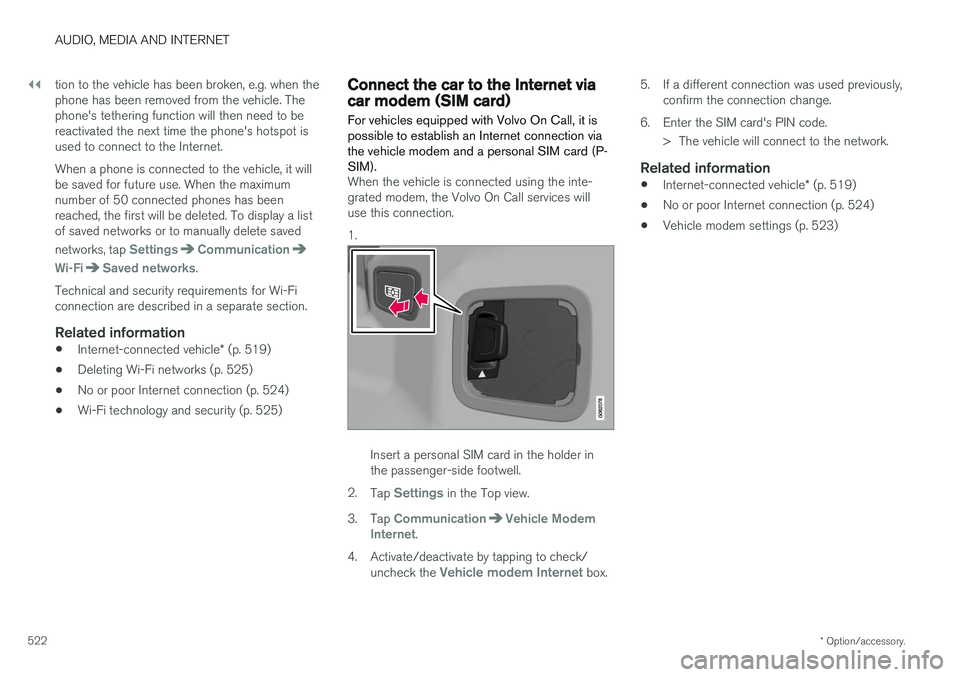
Connect the car to the Internet viacar modem (SIM card) For vehicles equipped with Volvo On Call, it is possible to establish an Internet connection viathe vehicle modem and a personal SIM card (P-SIM).
When the vehicle is connected using the inte- grated modem, the Volvo On Call services willuse this connection. 1.
Insert a personal SIM card in the holder in the passenger-side footwell.
2. Tap
Settings in the Top view.
3. Tap
CommunicationVehicle Modem
Internet.
4. Activate/deactivate by tapping to check/ uncheck the
Vehicle modem Internet box. 5. If a different connection was used previously,
confirm the connection change.
6. Enter the SIM card's PIN code. > The vehicle will connect to the network.
Related information
• Internet-connected vehicle
* (p. 519)
• No or poor Internet connection (p. 524)
• Vehicle modem settings (p. 523)
Page 525 of 674
AUDIO, MEDIA AND INTERNET
}}
523
Vehicle modem settings
Your vehicle is equipped with a modem that can be used to connect the vehicle to the Internet. Itis also possible to share this Internet connectionover Wi-Fi.
1. Tap Settings in the Top view.
2. Tap
CommunicationVehicle Modem
Internet and select settings:
•
Vehicle modem Internet - select this to
use the vehicle's modem to connect to the Internet.
•
Data usage - tap Reset to reset the coun-
ter for the amount of data received and sent.
•
Network Select carrier
- select a service provider
manually or automatically.
Data roaming - if the box is checked, the
vehicle modem will attempt to connect to the Internet when the vehicle is outside its homenetwork (e.g. if you are in another country).Please note that this could entail additionalcharges. Consult with your service providerfor data roaming terms under your contract.
•
SIM card PIN Change PIN
- a maximum of 4 digits can be
entered.
Disable PIN - select whether a PIN code
will be required to access the SIM card. •
Send request code - used to e.g. download
or check the balance remaining on a prepaid phone card. This function is specific to yourservice provider.
Related information
• Connect the car to the Internet via carmodem (SIM card) (p. 522)
• No or poor Internet connection (p. 524)
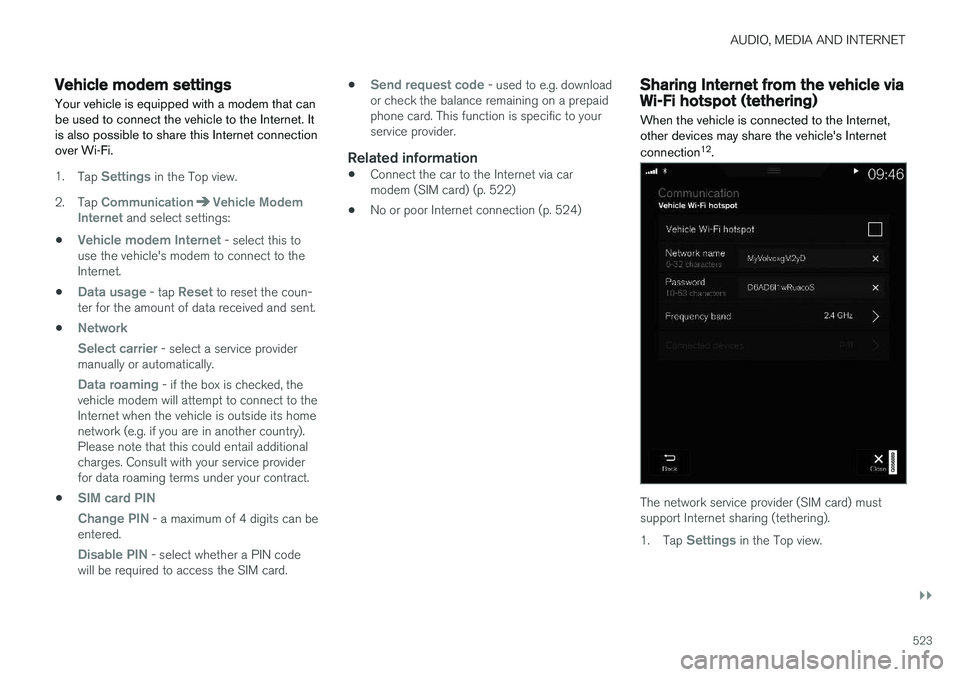
Sharing Internet from the vehicle viaWi-Fi hotspot (tethering)
When the vehicle is connected to the Internet, other devices may share the vehicle's Internet connection 12
.
The network service provider (SIM card) must support Internet sharing (tethering). 1. Tap
Settings in the Top view.
Page 526 of 674
||
AUDIO, MEDIA AND INTERNET
* Option/accessory.
524 2. Tap
CommunicationVehicle Wi-Fi
Hotspot.
3. Tap
Network name to assign a name to the
hotspot.
4. Tap
Password and create a password. This
password can then be used to connect other devices to this hotspot.
5. Tap
Frequency band and select a fre-
quency for the hotspot to use to transmit data. Please note that selecting a frequencyis not possible on all markets.
6. Activate/deactivate by tapping to check/ uncheck the
Vehicle Wi-Fi Hotspot box.
7. If Wi-Fi was previously used to connect to the Internet, confirm the change of connec- tions.
> It is now possible for external devices toconnect to the vehicle's Wi-Fi hotspot.
NOTE
Activation of Wi-Fi hotspot can cause addi- tional charges from your network operator. Contact your network operator about data traffic costs.
The connection status is shown by a symbol in the center display's status bar. Tap
Connected devices to see a list of cur-
rently connected devices.
Related information
• Symbols in the center display status bar (p. 120)
• Internet-connected vehicle
* (p. 519)
• No or poor Internet connection (p. 524)
No or poor Internet connection Factors affecting the Internet connection.
The amount of data transmitted depends on the services or apps currently in use in the vehicle.Streaming music, for example, involves the trans-mission of a large amount of data, and thisrequires a good connection and a strong signal.
Phone to vehicleInternet connection speed may vary dependingon the location of the cellular phone in the vehi-cle. Move the phone closer to the center displayto increase signal strength. Make sure that noth-ing is between the phone and center display thatcould be blocking the signal.
Phone to network operatorThe speed of the mobile network varies depend-ing on the coverage in the vehicle's current loca-tion. Coverage may be poorer in e.g. tunnels,mountainous areas, deep valleys or indoors. Con-nection speed is also dependent on the subscrip-tion you have with your service provider.
NOTE
If you experience any problems with data traf- fic, contact your network service provider.
12
This does not apply when the vehicle is connected to the Internet via Wi-Fi.
Page 527 of 674
AUDIO, MEDIA AND INTERNET
* Option/accessory.525
Restarting the phoneIf you experience any Internet connection prob- lems, it may help to restart your phone.
Related information
•Internet-connected vehicle
* (p. 519)
• Wi-Fi technology and security (p. 525)
Deleting Wi-Fi networks
Networks that are not needed can be deleted.
1. Tap Settings in the Top view.
2. Proceed to
CommunicationWi-FiSaved networks.
3. Tap
Forget to delete the network.
4. Confirm the selection. > The vehicle will no longer connect to thedeleted network.
Deleting all networksAll networks can be deleted at once by perform- ing a factory reset. Please note that all user dataand system settings will be restored to originaldefault factory settings.
Related information
• Internet-connected vehicle
* (p. 519)
• No or poor Internet connection (p. 524)
• Resetting center display settings (p. 131)
• Connecting the car to the Internet via amobile device (Wi-Fi) (p. 521)
Wi-Fi technology and security
Networks must meet certain criteria in order for the vehicle to connect.
It is possible to connect to the following types of networks:
• Frequency - 2.4 or 5 GHz 13
.
• Standards - 802.11 a/b/g/n.
• Security type - WPA2-AES-CCMP.
The vehicle's Wi-Fi system is designed to handleWi-Fi devices inside the vehicle. Performance may be impaired if multiple devices are using a frequency at the same time.
Related information
• Internet-connected vehicle
* (p. 519)
13
Selecting a frequency is not possible on all markets.
Page 532 of 674
||
AUDIO, MEDIA AND INTERNET
530Portions of the content are copyright
© of
Gracenote or its providers. Gracenote, the Gracenote logo and logotype, "Powered by Gracenote" and Gracenote MusicIDare either registered trademarks of Gracenote,Inc. in the United States and/or other countries.
Gracenote ® End User License Agreement
This application or device contains software from Gracenote, Inc. in Emeryville, California, UnitedStates ("Gracenote"). The software from Grace-note (the “Gracenote Software”) enables thisapplication to perform disc and/or file identifica-tion and obtain music-related information, includ-ing name, artist, track, and title information(“Gracenote Data”) from online servers or embed-ded databases (collectively “Gracenote Servers”)and to perform other functions. You may useGracenote Data only by means of the intendedEnd-User functions of this application or device. You agree that you will use Gracenote Data, the Gracenote Software, and Gracenote Servers foryour own personal non-commercial use only. Youagree not to assign, copy, transfer or transmit theGracenote Software or any Gracenote Data toany third party. YOU AGREE NOT TO USE OREXPLOIT GRACENOTE DATA, THE GRACE-NOTE SOFTWARE, OR GRACENOTE SERVERS,EXCEPT AS EXPRESSLY PERMITTED HEREIN. You agree that your non-exclusive license to use the Gracenote Data, the Gracenote Software, andGracenote Servers will terminate if you violate these restrictions. If your license terminates, youagree to cease any and all use of the GracenoteData, the Gracenote Software, and GracenoteServers. Gracenote reserves all rights in allGracenote Data, all Gracenote Software, and allGracenote Servers, including all ownership rights.Under no circumstances will Gracenote becomeliable for any payment to you for any informationthat you provide. You agree that Gracenote, Inc.may enforce its rights under this Agreementagainst you directly in its own name. The Gracenote service uses a unique identifier to track queries for statistical purposes. The pur-pose of a randomly assigned numeric identifier isto allow the Gracenote service to count querieswithout knowing anything about who you are. Formore information, see the web page for theGracenote Privacy Policy for the Gracenote serv-ice. The Gracenote Software and each item of Grace- note Data are licensed to you “AS IS.” Gracenotemakes no representations or warranties, expressor implied, regarding the accuracy of any Grace-note Data from in the Gracenote Servers. Grace-note reserves the right to delete data from theGracenote Servers or to change data categoriesfor any cause that Gracenote deems sufficient.No warranty is made that the Gracenote Softwareor Gracenote Servers are error-free or that func-tioning of Gracenote Software or GracenoteServers will be uninterrupted. Gracenote is notobligated to provide you with new enhanced or
additional data types or categories that Grace-note may provide in the future and is free to dis-continue its services at any time. GRACENOTE DISCLAIMS ALL WARRANTIES EXPRESS OR IMPLIED, INCLUDING, BUT NOTLIMITED TO, IMPLIED WARRANTIES OF MER-CHANTABILITY, FITNESS FOR A PARTICULARPURPOSE, TITLE, AND NON-INFRINGEMENT.GRACENOTE DOES NOT WARRANT THERESULTS THAT WILL BE OBTAINED BY YOURUSE OF THE GRACENOTE SOFTWARE ORANY GRACENOTE SERVER. IN NO CASE WILLGRACENOTE BE LIABLE FOR ANY CONSE-QUENTIAL OR INCIDENTAL DAMAGES ORFOR ANY LOST PROFITS OR LOST REVENUES. ©
Gracenote, Inc. 2009
Sensus software
This software uses parts of sources from clib2 and Prex Embedded Real-time OS - Source(Copyright (c) 1982, 1986, 1991, 1993, 1994),and Quercus Robusta (Copyright (c) 1990,1993), The Regents of the University ofCalifornia. All or some portions are derived frommaterial licensed to the University of California byAmerican Telephone and Telegraph Co. or UnixSystem Laboratories, Inc. and are reproducedherein with the permission of UNIX SystemLaboratories, Inc. Redistribution and use insource and binary forms, with or withoutmodification, are permitted provided that thefollowing conditions are met: Redistributions of
Page 534 of 674
||
AUDIO, MEDIA AND INTERNET
532The website provides the Source Code "As Is" and without warranty of any kind. By downloading Source Code, you expressly assume all risk and liability associated withdownloading and using the Source Code andcomplying with the user agreements thataccompany each Source Code. Please note that we cannot respond to any inquiries regarding the source code.
camellia:1.2.0Copyright (c) 2006, 2007 NTT (Nippon Telegraph and Telephone Corporation). All rights reserved. Redistribution and use in source and binary forms, with or without modification, are permittedprovided that the following conditions are met:
1. Redistributions of source code must retain
the above copyright notice, this list of conditions and the following disclaimer asthe first lines of this file unmodified.
2. Redistributions in binary form must reproduce the above copyright notice, this listof conditions and the following disclaimer inthe documentation and/or other materialsprovided with the distribution.
THIS SOFTWARE IS PROVIDED BY NTT ``ASIS'' AND ANY EXPRESS OR IMPLIEDWARRANTIES, INCLUDING, BUT NOT LIMITEDTO, THE IMPLIED WARRANTIES OFMERCHANTABILITY AND FITNESS FOR A PARTICULAR PURPOSE ARE DISCLAIMED. INNO EVENT SHALL NTT BE LIABLE FOR ANYDIRECT, INDIRECT, INCIDENTAL, SPECIAL,EXEMPLARY, OR CONSEQUENTIAL DAMAGES(INCLUDING, BUT NOT LIMITED TO,PROCUREMENT OF SUBSTITUTE GOODS ORSERVICES; LOSS OF USE, DATA, OR PROFITS;OR BUSINESS INTERRUPTION) HOWEVERCAUSED AND ON ANY THEORY OF LIABILITY,WHETHER IN CONTRACT, STRICT LIABILITY,OR TORT (INCLUDING NEGLIGENCE OROTHERWISE) ARISING IN ANY WAY OUT OFTHE USE OF THIS SOFTWARE, EVEN IFADVISED OF THE POSSIBILITY OF SUCHDAMAGE.
Unicode: 5.1.0COPYRIGHT AND PERMISSION NOTICE Copyright c 1991-2013 Unicode, Inc. All rights reserved. Distributed under the Terms of Use inhttp://www.unicode.org/copyright.html. Permission is hereby granted, free of charge, to any person obtaining a copy of the Unicode datafiles and any associated documentation (the"Data Files") or Unicode software and anyassociated documentation (the "Software") todeal in the Data Files or Software withoutrestriction, including without limitation the rightsto use, copy, modify, merge, publish, distribute,and/or sell copies of the Data Files or Software,and to permit persons to whom the Data Files orSoftware are furnished to do so, provided that (a)
the above copyright notice(s) and this permissionnotice appear with all copies of the Data Files orSoftware, (b) both the above copyright notice(s)and this permission notice appear in associateddocumentation, and (c) there is clear notice ineach modified Data File or in the Software aswell as in the documentation associated with theData File(s) or Software that the data or softwarehas been modified. THE DATA FILES AND SOFTWARE ARE PROVIDED "AS IS", WITHOUT WARRANTY OFANY KIND, EXPRESS OR IMPLIED, INCLUDINGBUT NOT LIMITED TO THE WARRANTIES OFMERCHANTABILITY, FITNESS FOR APARTICULAR PURPOSE ANDNONINFRINGEMENT OF THIRD PARTYRIGHTS. IN NO EVENT SHALL THECOPYRIGHT HOLDER OR HOLDERSINCLUDED IN THIS NOTICE BE LIABLE FORANY CLAIM, OR ANY SPECIAL INDIRECT ORCONSEQUENTIAL DAMAGES, OR ANYDAMAGES WHATSOEVER RESULTING FROMLOSS OF USE, DATA OR PROFITS, WHETHERIN AN ACTION OF CONTRACT, NEGLIGENCEOR OTHER TORTIOUS ACTION, ARISING OUTOF OR IN CONNECTION WITH THE USE ORPERFORMANCE OF THE DATA FILES ORSOFTWARE. Except as contained in this notice, the name of a copyright holder shall not be used in advertising or otherwise to promote the sale, use or other
Page 572 of 674
LOADING, STORAGE AND PASSENGER COMPARTMENT
* Option/accessory.
570
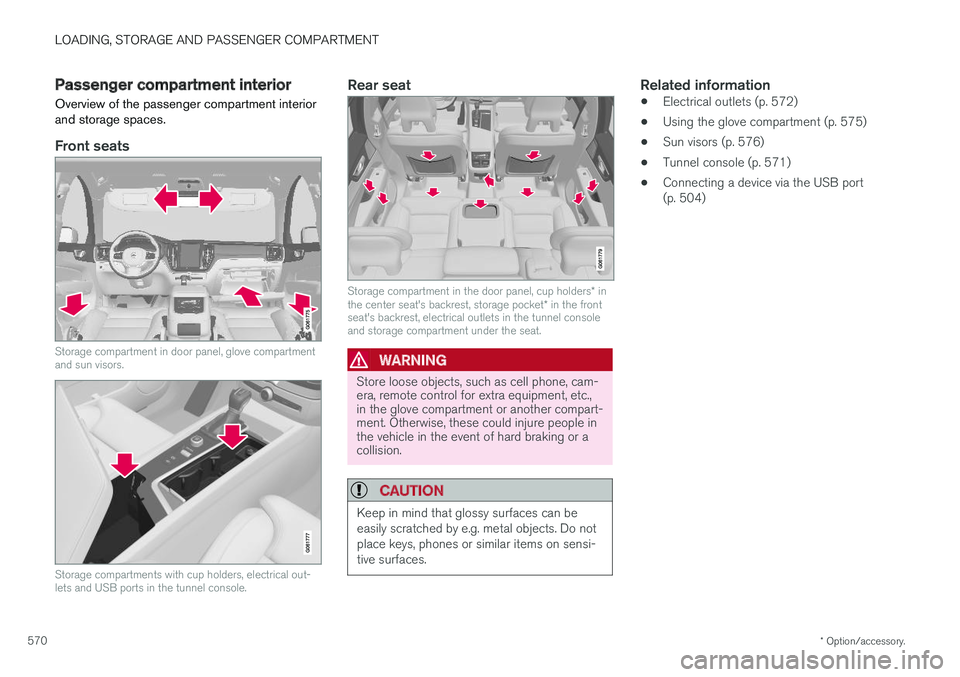
Passenger compartment interior
Overview of the passenger compartment interior and storage spaces.
Front seats
Storage compartment in door panel, glove compartment and sun visors.
Storage compartments with cup holders, electrical out- lets and USB ports in the tunnel console.
Rear seat
Storage compartment in the door panel, cup holders * in
the center seat's backrest, storage pocket * in the front
seat's backrest, electrical outlets in the tunnel console and storage compartment under the seat.
WARNING
Store loose objects, such as cell phone, cam- era, remote control for extra equipment, etc.,in the glove compartment or another compart-ment. Otherwise, these could injure people inthe vehicle in the event of hard braking or acollision.
CAUTION
Keep in mind that glossy surfaces can be easily scratched by e.g. metal objects. Do notplace keys, phones or similar items on sensi-tive surfaces.
Related information
• Electrical outlets (p. 572)
• Using the glove compartment (p. 575)
• Sun visors (p. 576)
• Tunnel console (p. 571)
• Connecting a device via the USB port (p. 504)
Page 573 of 674
LOADING, STORAGE AND PASSENGER COMPARTMENT
* Option/accessory.571
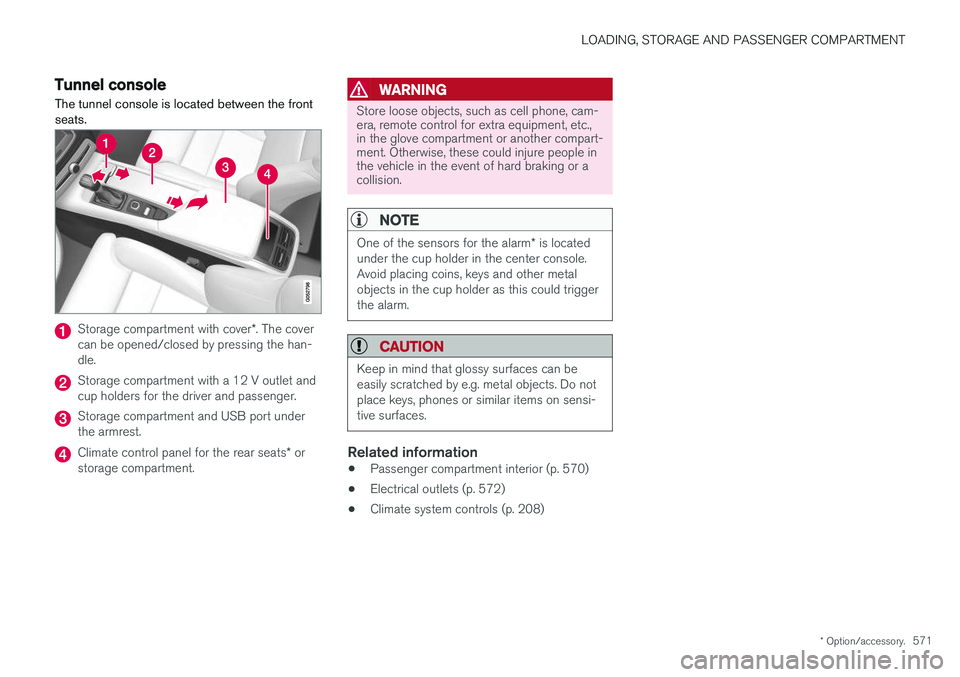
Tunnel console The tunnel console is located between the front seats.
Storage compartment with cover *. The cover
can be opened/closed by pressing the han- dle.
Storage compartment with a 12 V outlet and cup holders for the driver and passenger.
Storage compartment and USB port under the armrest.
Climate control panel for the rear seats * or
storage compartment.
WARNING
Store loose objects, such as cell phone, cam- era, remote control for extra equipment, etc.,in the glove compartment or another compart-ment. Otherwise, these could injure people inthe vehicle in the event of hard braking or acollision.
NOTE
One of the sensors for the alarm * is located
under the cup holder in the center console. Avoid placing coins, keys and other metalobjects in the cup holder as this could triggerthe alarm.
CAUTION
Keep in mind that glossy surfaces can be easily scratched by e.g. metal objects. Do notplace keys, phones or similar items on sensi-tive surfaces.
Related information
• Passenger compartment interior (p. 570)
• Electrical outlets (p. 572)
• Climate system controls (p. 208)