reset VOLVO XC60 TWIN ENGINE 2019 Service Manual
[x] Cancel search | Manufacturer: VOLVO, Model Year: 2019, Model line: XC60 TWIN ENGINE, Model: VOLVO XC60 TWIN ENGINE 2019Pages: 695, PDF Size: 14.96 MB
Page 506 of 695
AUDIO, MEDIA AND INTERNET
* Option/accessory.504
HD Radio™ limitations
Limitations
Main channel vs. sub-channels (FM only):The main channel is the only channel thatcan receive in hybrid mode (both digital andanalog). If a frequency has sub-channels,they are broadcast in digital mode only. Themain FM channel will be displayed as, forexample, "WRIF-FM HD1". The sub-FMchannels will be displayed as"WRIF-FMHD2", "WRIF-FM HD3", etc.
Reception coverage area: Due to currentIBOC transmitter power limitations, thereception coverage area in digital mode issomewhat more limited than the station'sanalog coverage area. Be aware that, like allradio transmission technology, terrain, time ofday, vegetation and buildings can have apositive or negative effect on radio reception.
Analog to digital/digital to analog blend-ing: Analog to digital blending will occur asthe signal strength reaches a preset thresh-old in the receiver. This will be noticeable infringe areas (areas with weak reception) andis normal.
NOTE
There may be a noticeable difference insound quality when a change from analogueto digital or digital to analogue occurs, suchas:
Volume increase or decrease
Equalizer settings, i.e., Bass/ Midrange/Treble cut or boost
Time alignment (Digital program materialin extreme cases can be as much as 8seconds behind the analogue). This willnoticeable as a "stuttering" effect.
The above items are dependant on thebroadcaster's equipment settings and donot indicate a fault in the vehicle's radioreceiver or antenna systems.
Related information
HD Radio™ (p. 501)
Activating and deactivating the HD Radio™(p. 502)
HD Radio™ sub-channels (p. 503)
SiriusXM® Satellite radio*
The SiriusXM® Satellite system broadcasts fromof a number of high elevation satellites in geo-synchronous orbit.
Listening to satellite radio
The digital signals from the satellites are line-of-sight, which means that physical obstructionssuch as bridges, tunnels, etc, may temporarilyinterfere with signal reception.
Avoid any obstructions, such as metallic objectstransported on roof racks or in a ski box, or otherantennas that may impede signals from the
SiriusXM® satellites.
Selecting SiriusXM ®
Satellite radio
mode
1. From the center display's Home view, swipefrom right to left to come to App view.
2.Tap the SiriusXM® Satellite radio icon.
Page 526 of 695
||
AUDIO, MEDIA AND INTERNET
* Option/accessory.524
5. Tap the desired app.
> The app will start up.
Starting CarPlay
CarPlay can be started as follows after an iPhoneis connected.
1. Connect an iPhone to the USB port. If thereare two USB ports, use the one with thewhite frame.
>If the auto start setting is selected -the name of the phone will be displayed.
2. Tap the name of the phone - the CarPlay tilewill open and compatible apps will be dis-played.
3.If the CarPlay tile does not open, tap AppleCarPlay in App view.
>The CarPlay tile will open and compatibleapps will be displayed.
4. Tap the desired app.
> The app will start up.
CarPlay will run in the background if another appis started in the same tile. To display CarPlay inthe tile, tap the CarPlay icon in App view.
Switching connection between CarPlay
and iPod
CarPlay to iPod
1.Tap Settings in the Top view.
2.Proceed to CommunicationAppleCarPlay.
3.Uncheck the box for the Apple device thatshould no longer start CarPlay automaticallywhen the USB cable is connected.
4. Remove and then reinsert the Apple deviceinto the USB port.
5.Open the iPod app from App view.
iPod to CarPlay
1.Tap Apple CarPlay in App view.
2.Read the information in the pop-up windowand then tap OK.
3.Remove and then reinsert the Apple deviceinto the USB port.
> The Apple CarPlay tile will open and com-
patible apps will be displayed7.
Related information
Connecting a device via the USB port(p. 521)
Apple® CarPlay®* (p. 523)
Settings for Apple® CarPlay®* (p. 524)
Connecting the vehicle to the Internet via aphone (Wi-Fi) (p. 539)
Connecting the vehicle to the Internet viavehicle modem (SIM card) (p. 540)
Voice control (p. 145)
Settings for Apple® CarPlay®*
Settings for an Apple device connected through
CarPlay8.
Automatic start
1.Tap Settings in the Top view.
2.Tap CommunicationApple CarPlay andselect the desired setting:
Check the box - CarPlay will start auto-matically when the USB cable is con-nected.
Uncheck the box - CarPlay will not startautomatically when the USB cable is con-nected.
A maximum of 20 Apple devices can be stored inthe list. When the list is full and a new device isconnected, the oldest one will be deleted.
To delete the list, the settings must be rest in thecenter display (factory reset).
System Volumes
1.Tap Settings in the Top view.
2.Tap SoundSystem Volumes to changethe settings for the following:
Voice Control
Navi Voice Guidance
Phone Ringtone
7Apple, CarPlay, iPhone and iPod are registered trademarks of Apple Inc.
Page 527 of 695
AUDIO, MEDIA AND INTERNET
* Option/accessory.525
Related information
Apple® CarPlay®* (p. 523)
Using Apple® CarPlay®* (p. 523)
Resetting center display settings (p. 134)
Tips for using Apple® CarPlay®*
Here are some useful tips for when you use
CarPlay®.
Update your iPhone with the latest version ofiOS operating system and ensure that theapps have been updated.
In the event of a problem with CarPlay, dis-connect the phone from the USB port andreconnect. Otherwise, try to close the app onthe phone that is not working and thenrestart the app, or try closing all apps andrestart your phone.
If the apps do not appear when CarPlaystarts (black screen), try minimizing andexpanding the tile for CarPlay.
Using apps that are not compatible withCarPlay may sometimes mean that the con-nection between the phone and the car isbroken. Information about supported appsand compatible phone models can be foundon Apple's website. You can also search forCarPlay in the App Store to find informationabout apps that are compatible with CarPlayin your market.
CarPlay only works with iPhone9.
NOTE
Availability and functionality can vary depend-ing on market.
Related information
Apple® CarPlay®* (p. 523)
8Apple and CarPlay are registered trademarks of Apple Inc..9Apple, CarPlay and iPhone are registered trademarks owned by Apple Inc.
Page 529 of 695
AUDIO, MEDIA AND INTERNET
* Option/accessory.527
From a previously connected Android device
1. Connect the device to the USB port.
>If the auto start setting is selected -the name of the phone will be displayed.
2. Tap the name of the phone - theAndroid Auto tile will open and compatibleapps will be displayed.
3.If the automatic start setting is not acti-vated - open the Android Auto app fromApp view.
>The Android Auto tile will open and com-patible apps will be displayed.
4. Tap the desired app.
> The app will start up.
Android Auto will run in the background ifanother app is started in the same tile. To displayAndroid Auto in the tile, tap the Android Autoicon in App view.
Related information
Android Auto* (p. 526)
Settings for Android Auto* (p. 527)
Connecting a device via the USB port(p. 521)
Voice control (p. 145)
Settings for Android Auto*
Settings for phones initially connected withAndroid Auto.
Automatic start
1.Tap Settings in the Top view.
2.Tap CommunicationAndroid Auto andselect setting:
Check the box - Android Auto will startautomatically when the USB cable is con-nected.
Uncheck the box - Android Auto will notstart automatically when the USB cable isconnected.
A maximum of 20 Android devices can be storedin the list. When the list is full and a new device isconnected, the oldest one will be deleted.
A factory reset must be performed to delete thelist.
System Volumes
1.Tap Settings in the Top view.
2.Tap SoundSystem Volumes to changethe settings for the following:
Voice Control
Navi Voice Guidance
Phone Ringtone
Related information
Android Auto* (p. 526)
Using Android Auto* (p. 526)
Resetting center display settings (p. 134)
Page 543 of 695
AUDIO, MEDIA AND INTERNET
}}
541
Vehicle modem settings
Your vehicle is equipped with a modem that canbe used to connect the vehicle to the Internet. Itis also possible to share this Internet connectionover Wi-Fi.
1.Tap Settings in the Top view.
2.Tap CommunicationVehicle ModemInternet and select settings:
Vehicle modem Internet - select this touse the vehicle's modem to connect to theInternet.
Data usage - tap Reset to reset the coun-ter for the amount of data received and sent.
Network
Select carrier - select a service providermanually or automatically.
Data roaming - if the box is checked, thevehicle modem will attempt to connect to theInternet when the vehicle is outside its homenetwork (e.g. if you are in another country).Please note that this could entail additionalcharges. Consult with your service providerfor data roaming terms under your contract.
SIM card PIN
Change PIN - a maximum of 4 digits can beentered.
Disable PIN - select whether a PIN codewill be required to access the SIM card.
Send request code - used to e.g. downloador check the balance remaining on a prepaidphone card. This function is specific to yourservice provider.
Related information
Connecting the vehicle to the Internet viavehicle modem (SIM card) (p. 540)
No or poor Internet connection (p. 542)
Sharing Internet from the vehicle viaWi-Fi hotspot (tethering)
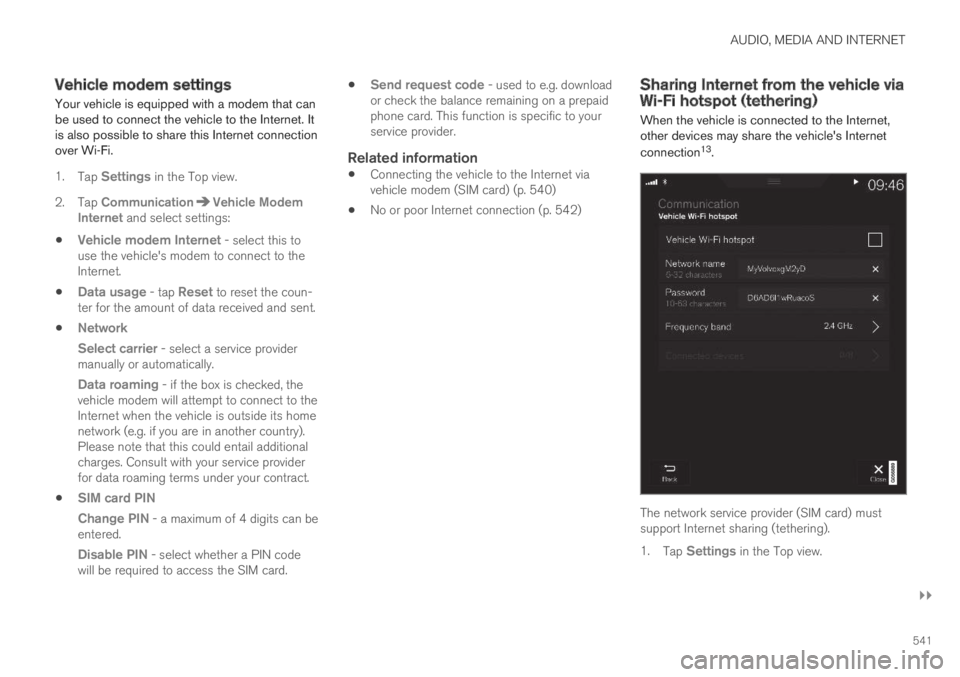
When the vehicle is connected to the Internet,other devices may share the vehicle's Internet
connection13.
The network service provider (SIM card) mustsupport Internet sharing (tethering).
1.Tap Settings in the Top view.
Page 545 of 695
AUDIO, MEDIA AND INTERNET
* Option/accessory.543
Restarting the phone
If you experience any Internet connection prob-lems, it may help to restart your phone.
Related information
Internet-connected vehicle* (p. 537)
Wi-Fi technology and security (p. 543)
Deleting Wi-Fi networks
Networks that are not needed can be deleted.
1.Tap Settings in the Top view.
2.Proceed to CommunicationWi-FiSaved networks.
3.Tap Forget to delete the network.
4.Confirm the selection.
> The vehicle will no longer connect to thedeleted network.
Deleting all networks
All networks can be deleted at once by perform-ing a factory reset. Please note that all user dataand system settings will be restored to originaldefault factory settings.
Related information
Internet-connected vehicle* (p. 537)
No or poor Internet connection (p. 542)
Resetting center display settings (p. 134)
Connecting the vehicle to the Internet via aphone (Wi-Fi) (p. 539)
Wi-Fi technology and security
Networks must meet certain criteria in order forthe vehicle to connect.
It is possible to connect to the following types ofnetworks:
Frequency - 2.4 or 5 GHz14.
Standards - 802.11 a/b/g/n.
Security type - WPA2-AES-CCMP.
The vehicle's Wi-Fi system is designed to handleWi-Fi devices inside the vehicle.
Performance may be impaired if multiple devicesare using a frequency at the same time.
Related information
Internet-connected vehicle* (p. 537)
14Selecting a frequency is not possible on all markets.
Page 629 of 695
MAINTENANCE AND SERVICE
}}
627
Location
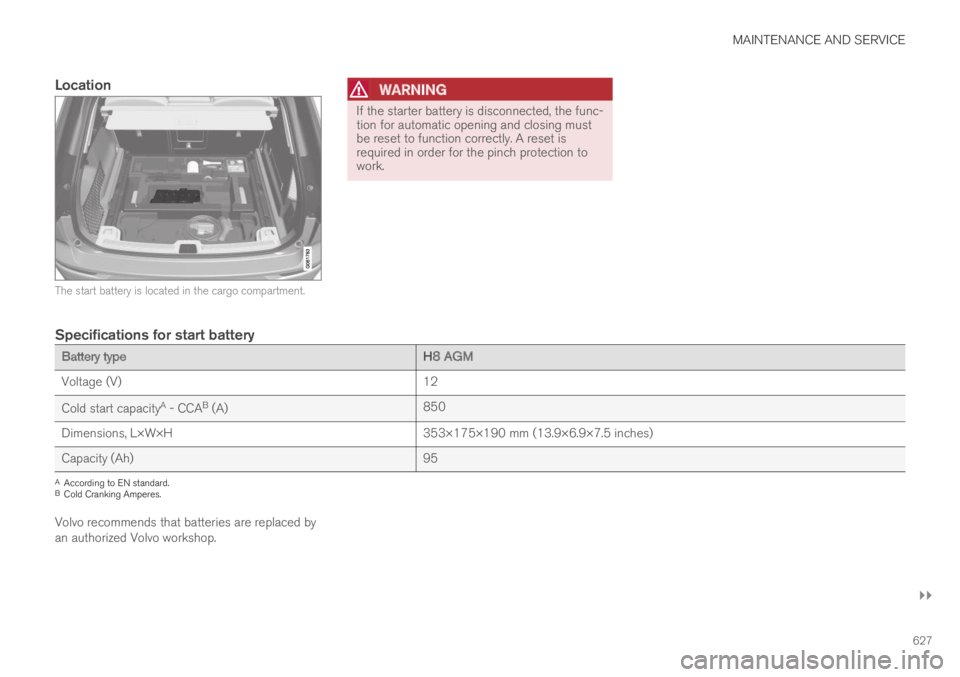
The start battery is located in the cargo compartment.
WARNING
If the starter battery is disconnected, the func-tion for automatic opening and closing mustbe reset to function correctly. A reset isrequired in order for the pinch protection towork.
Specifications for start battery
Battery typeH8 AGM
Voltage (V)12
Cold start capacityA - CCAB (A)850
Dimensions, L×W×H353×175×190 mm (13.9×6.9×7.5 inches)
Capacity (Ah)95
AAccording to EN standard.BCold Cranking Amperes.
Volvo recommends that batteries are replaced byan authorized Volvo workshop.
Page 680 of 695
INDEX
678
Coolant, filling 623
Cooling system
overheating 475
Corner Traction Control 273
Corrosion protection 654
Covering
cargo compartment 600
Crash, see Collision 42
Crash event data 33
Cross Traffic Alert – CTA 355, 356, 357, 358
Cruise control 285, 286
manage speed 286, 287
temporary deactivation 288, 289
turn off 290
CTA – Cross Traffic Alert 355, 356, 357, 358
Curb weight 667
Customer Privacy Policy 35
CZIP (Clean Zone Interior Package) 204
D
Data
recording33
transferring between vehicle and work-
shop610
Data sharing544
Daytime running lights154
Decals
location662
Defrosting218
Detection of cyclist339
Dimensions665
Dipstick, electronic622
Direction of rotation558
Display
driver information84
Display lighting163
Distance Alert290, 291, 292
limitations293
DivX®519
Door mirrors169, 170
compass489
dimming170
outer169, 170
power folding170
resetting170
store position186, 187
Driveline
transmission444
Drive mode450
changing455
Driver Alert Control365
operation366, 367
Driver Alert Control limitations367
Driver performance92, 93
Driver profile136
edit137, 138, 139
select137
Driver support system272
Drive systems449
Driving
cooling system475
with a trailer479
Driving economy463
Driving through standing water469
driving with a trailer
towball load668
towing capacity668
E
Economical driving463
Electrical outlet590
use592
Electrical system 625
Electric drive motor
specifications 669
Page 686 of 695
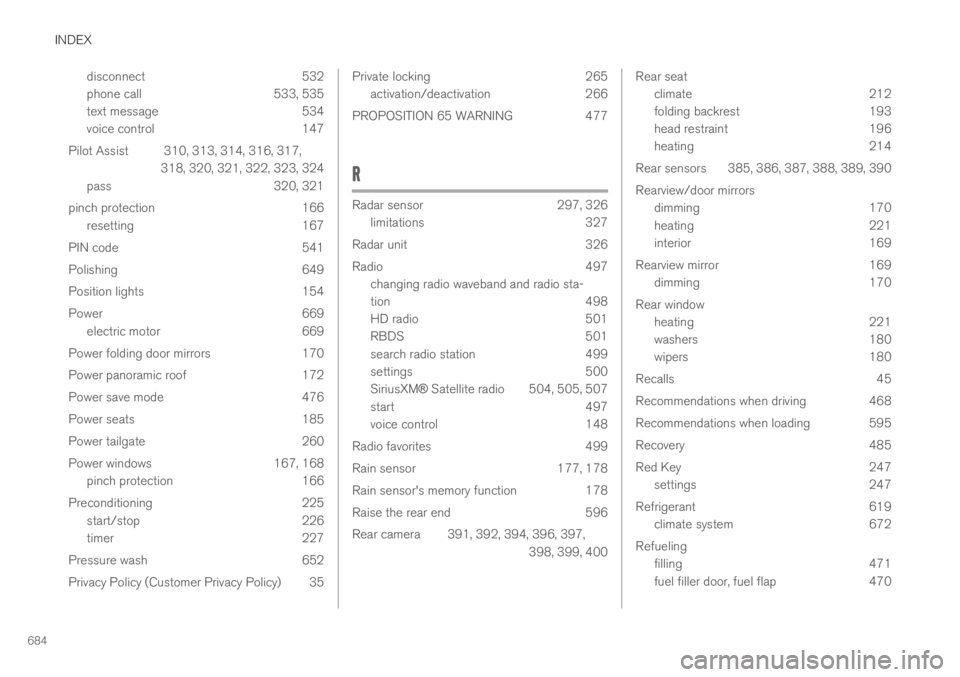
INDEX
684
disconnect 532
phone call 533, 535
text message 534
voice control 147
Pilot Assist 310, 313, 314, 316, 317,
318, 320, 321, 322, 323, 324
pass 320, 321
pinch protection 166
resetting 167
PIN code 541
Polishing 649
Position lights 154
Power 669
electric motor 669
Power folding door mirrors 170
Power panoramic roof 172
Power save mode 476
Power seats 185
Power tailgate 260
Power windows 167, 168
pinch protection 166
Preconditioning 225
start/stop 226
timer 227
Pressure wash 652
Privacy Policy (Customer Privacy Policy) 35
Private locking265
activation/deactivation266
PROPOSITION 65 WARNING477
R
Radar sensor297, 326
limitations327
Radar unit 326
Radio 497
changing radio waveband and radio sta-
tion 498
HD radio 501
RBDS 501
search radio station 499
settings 500
SiriusXM® Satellite radio 504, 505, 507
start497
voice control 148
Radio favorites 499
Rain sensor 177, 178
Rain sensor's memory function 178
Raise the rear end 596
Rear camera 391, 392, 394, 396, 397,
398, 399, 400
Rear seat
climate212
folding backrest193
head restraint196
heating214
Rear sensors 385, 386, 387, 388, 389, 390
Rearview/door mirrors
dimming 170
heating 221
interior 169
Rearview mirror 169
dimming 170
Rear window
heating 221
washers 180
wipers 180
Recalls 45
Recommendations when driving 468
Recommendations when loading 595
Recovery 485
Red Key 247
settings 247
Refrigerant 619
climate system 672
Refueling
filling 471
fuel filler door, fuel flap 470
Page 687 of 695
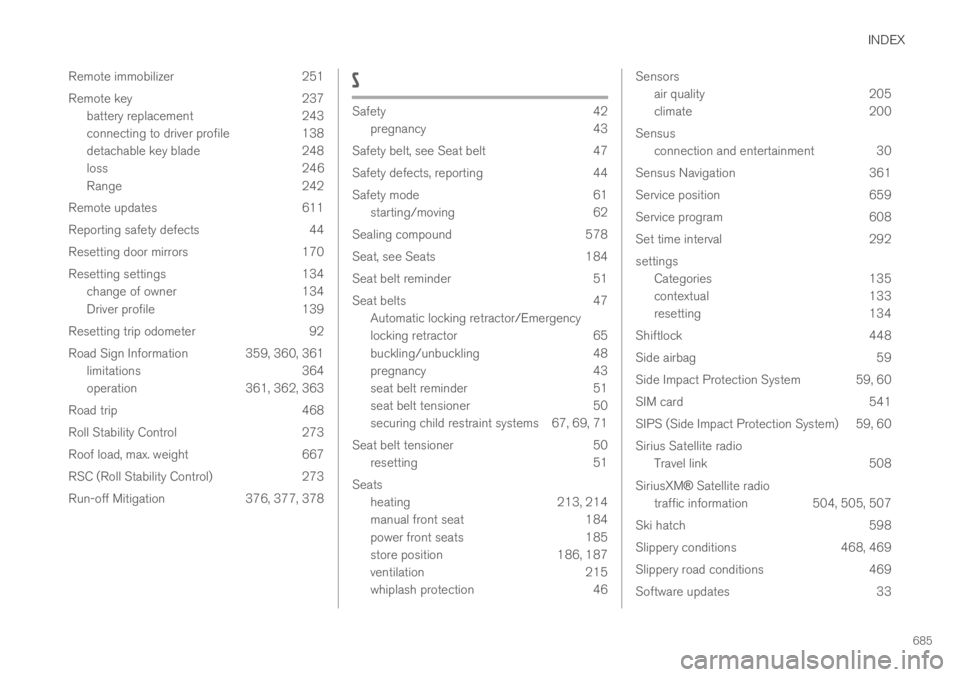
INDEX
685
Remote immobilizer 251
Remote key 237
battery replacement 243
connecting to driver profile 138
detachable key blade 248
loss 246
Range 242
Remote updates 611
Reporting safety defects 44
Resetting door mirrors 170
Resetting settings 134
change of owner 134
Driver profile 139
Resetting trip odometer 92
Road Sign Information 359, 360, 361
limitations 364
operation 361, 362, 363
Road trip 468
Roll Stability Control 273
Roof load, max. weight 667
RSC (Roll Stability Control) 273
Run-off Mitigation 376, 377, 378
S
Safety42
pregnancy43
Safety belt, see Seat belt 47
Safety defects, reporting 44
Safety mode 61
starting/moving 62
Sealing compound 578
Seat, see Seats 184
Seat belt reminder 51
Seat belts 47
Automatic locking retractor/Emergency
locking retractor 65
buckling/unbuckling 48
pregnancy 43
seat belt reminder 51
seat belt tensioner 50
securing child restraint systems 67, 69, 71
Seat belt tensioner 50
resetting 51
Seats
heating 213, 214
manual front seat 184
power front seats 185
store position 186, 187
ventilation 215
whiplash protection 46
Sensors
air quality205
climate200
Sensus
connection and entertainment 30
Sensus Navigation 361
Service position 659
Service program 608
Set time interval 292
settings
Categories 135
contextual 133
resetting 134
Shiftlock 448
Side airbag 59
Side Impact Protection System 59, 60
SIM card 541
SIPS (Side Impact Protection System) 59, 60
Sirius Satellite radio
Travel link 508
SiriusXM® Satellite radio
traffic information 504, 505, 507
Ski hatch 598
Slippery conditions 468, 469
Slippery road conditions 469
Software updates 33