start VOLVO XC70 2013 Owner´s Manual
[x] Cancel search | Manufacturer: VOLVO, Model Year: 2013, Model line: XC70, Model: VOLVO XC70 2013Pages: 382, PDF Size: 6.78 MB
Page 190 of 382
05 Comfort and driving pleasure
Menus and messages
05
188
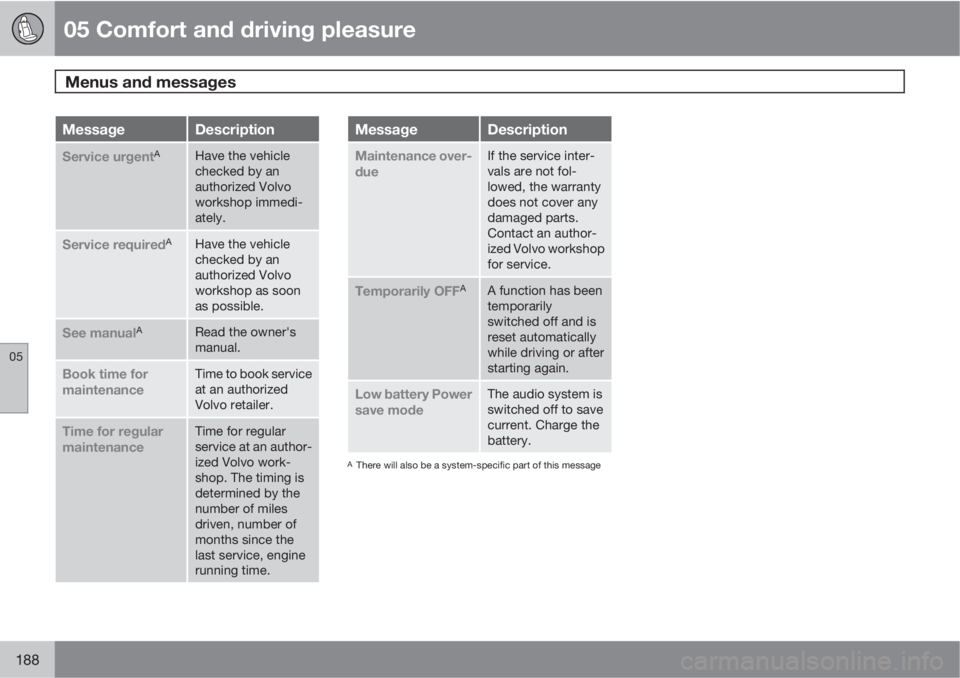
MessageDescription
Service urgentAHave the vehicle
checked by an
authorized Volvo
workshop immedi-
ately.
Service requiredAHave the vehicle
checked by an
authorized Volvo
workshop as soon
as possible.
See manualARead the owner's
manual.
Book time for
maintenanceTime to book service
at an authorized
Volvo retailer.
Time for regular
maintenanceTime for regular
service at an author-
ized Volvo work-
shop. The timing is
determined by the
number of miles
driven, number of
months since the
last service, engine
running time.
MessageDescription
Maintenance over-
dueIf the service inter-
vals are not fol-
lowed, the warranty
does not cover any
damaged parts.
Contact an author-
ized Volvo workshop
for service.
Temporarily OFFAA function has been
temporarily
switched off and is
reset automatically
while driving or after
starting again.
Low battery Power
save modeThe audio system is
switched off to save
current. Charge the
battery.
AThere will also be a system-specific part of this message
Page 194 of 382
05 Comfort and driving pleasure
The MY CAR menus
05
192
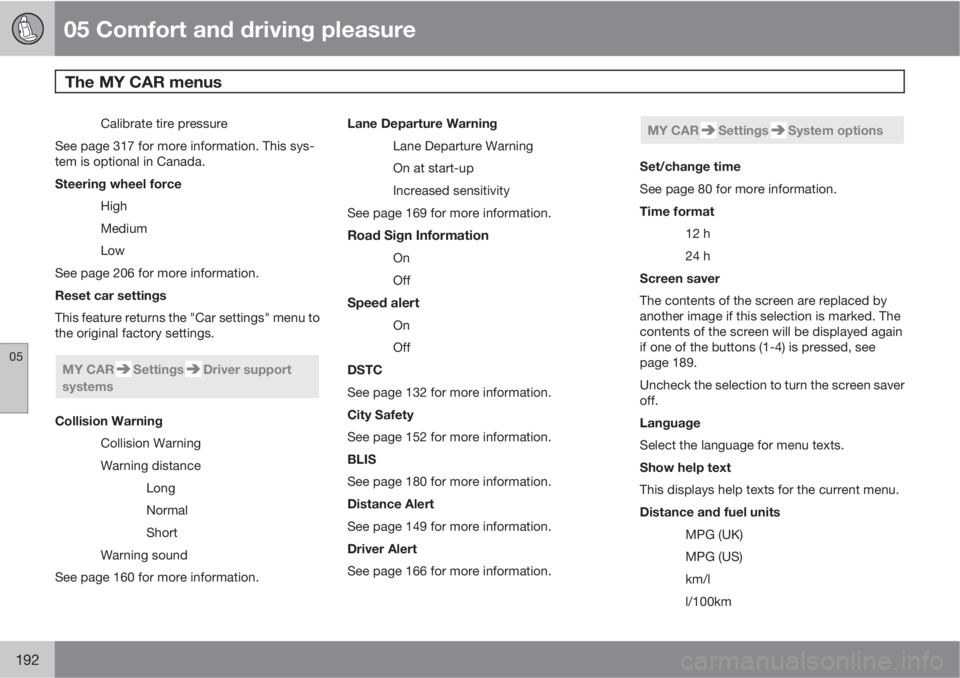
Calibrate tire pressure
See page 317 for more information. This sys-
tem is optional in Canada.
Steering wheel force
High
Medium
Low
See page 206 for more information.
Reset car settings
This feature returns the "Car settings" menu to
the original factory settings.
MY CARSettingsDriver support
systems
Collision Warning
Collision Warning
Warning distance
Long
Normal
Short
Warning sound
See page 160 for more information.Lane Departure Warning
Lane Departure Warning
On at start-up
Increased sensitivity
See page 169 for more information.
Road Sign Information
On
Off
Speed alert
On
Off
DSTC
See page 132 for more information.
City Safety
See page 152 for more information.
BLIS
See page 180 for more information.
Distance Alert
See page 149 for more information.
Driver Alert
See page 166 for more information.
MY CARSettingsSystem options
Set/change time
See page 80 for more information.
Time format
12 h
24 h
Screen saver
The contents of the screen are replaced by
another image if this selection is marked. The
contents of the screen will be displayed again
if one of the buttons (1-4) is pressed, see
page 189.
Uncheck the selection to turn the screen saver
off.
Language
Select the language for menu texts.
Show help text
This displays help texts for the current menu.
Distance and fuel units
MPG (UK)
MPG (US)
km/l
l/100km
Page 202 of 382

05 Comfort and driving pleasure
Climate system
05
200
Air distribution
Manual air distribution—defroster
Manual air distribution—dashboard air
vents
Manual air distribution—floor
The figure consists of three buttons. When a
button is pressed, the corresponding figure will
appear in the display with an arrow indicating
which manual air flow has been selected (see
the following illustration). See also the air dis-
tribution chart on page 202.
Air distribution is shown in the center console dis-
play
AutoThe function automatically
regulates cooling, heating,
blower speed, recirculation,
and air distribution to main-
tain the chosen temperature.
If you select one or more man-
ual functions, the other func-
tions continue to be controlled automatically.
The air quality sensor is engaged and all man-
ual settings are switched off when AUTO is
pressed. The display shows
AUTO CLIMATE.
Blower speed in automatic mode can be set
under Climate settings
Automatic blower
adjustment. Choose between
Low, Normalor High.
NOTE
Selecting the lowest blower speed may
increases the risk of fog forming on the win-
dows.
Temperature controlThe temperatures on the
driver and passenger sides
can be set separately. When
the vehicle is started, the
most recent setting is
resumed.
NOTE
Heating or cooling cannot be speeded up by
selecting a higher/lower temperature than
the actual temperature required.
Page 204 of 382

05 Comfort and driving pleasure
Climate system
05
202
NOTE
•The air quality sensor should always be
engaged in order to obtain the best air
in the passenger compartment.
•Recirculation is limited in cold weather
to avoid fogging.
•If the insides of the windows start fog-
ging, disengage the air quality sensor.
Use the defroster function to increase
airflow to the front, side, and rear win-
dows.
Air distribution table
Air distributionUseAir distributionUse
Air to windows. Some air
flows from the dashboard
air vents. The air is not
recirculated. Air condition-
ing is always engaged.To remove de-fog/de-
ice the front side win-
dows and windshield
quickly.Air to the floor and windows.
Some air flows from the
dashboard air vents.To ensure comfortable
conditions and good de-
fogging in cold or humid
weather.
Air to windshield and side
windows. Some air flows
from the air dashboard
vents.In cold or humid
weather (blower
speed should be
moderate to high).Air to floor and from dash-
board air vents.In sunny weather with
cool outside tempera-
tures.
Page 206 of 382
05 Comfort and driving pleasure
Trip computer
05
204
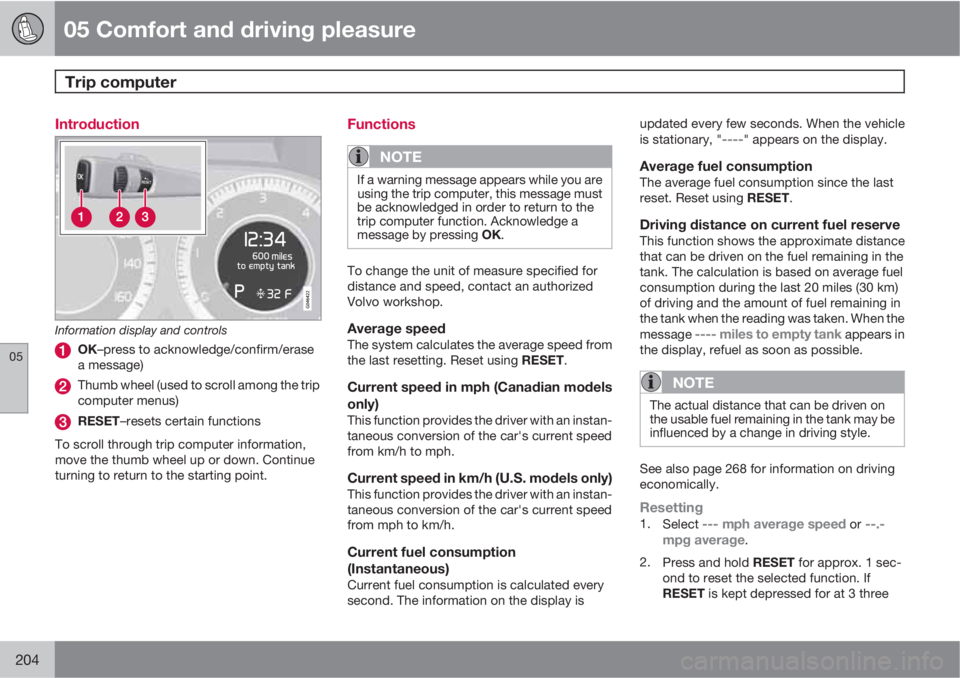
Introduction
Information display and controls
OK–press to acknowledge/confirm/erase
a message)
Thumb wheel (used to scroll among the trip
computer menus)
RESET–resets certain functions
To scroll through trip computer information,
move the thumb wheel up or down. Continue
turning to return to the starting point.
Functions
NOTE
If a warning message appears while you are
using the trip computer, this message must
be acknowledged in order to return to the
trip computer function. Acknowledge a
message by pressing OK.
To change the unit of measure specified for
distance and speed, contact an authorized
Volvo workshop.
Average speedThe system calculates the average speed from
the last resetting. Reset using RESET.
Current speed in mph (Canadian models
only)
This function provides the driver with an instan-
taneous conversion of the car's current speed
from km/h to mph.
Current speed in km/h (U.S. models only)This function provides the driver with an instan-
taneous conversion of the car's current speed
from mph to km/h.
Current fuel consumption
(Instantaneous)
Current fuel consumption is calculated every
second. The information on the display isupdated every few seconds. When the vehicle
is stationary, "
----" appears on the display.
Average fuel consumptionThe average fuel consumption since the last
reset. Reset using RESET.
Driving distance on current fuel reserveThis function shows the approximate distance
that can be driven on the fuel remaining in the
tank. The calculation is based on average fuel
consumption during the last 20 miles (30 km)
of driving and the amount of fuel remaining in
the tank when the reading was taken. When the
message
---- miles to empty tank appears in
the display, refuel as soon as possible.
NOTE
The actual distance that can be driven on
the usable fuel remaining in the tank may be
influenced by a change in driving style.
See also page 268 for information on driving
economically.
Resetting1.
Select --- mph average speed or --.-
mpg average.
2.
Press and hold RESET for approx. 1 sec-
ond to reset the selected function. If
RESET is kept depressed for at 3 three
Page 208 of 382
05 Comfort and driving pleasure
Active chassis system–Four C*
05
206* Option/accessory, for more information, see Introduction.
Active chassis (Four C)
Active chassis, Four-C (Continuously Con-
trolled Chassis Concept), regulates the cha-
racteristics of the shock absorbers so that the
car's driving characteristics can be adjusted.
There are three settings: Comfort, Sport and
Advanced.
NOTE
This system is available on Canadian mod-
els only.
ComfortComfort mode offers a somewhat softer ride
and the transmission shifts gears at lower rpm.
This mode is particularly suitable for long-dis-
tance highway driving. The indicator light in the
button will be on when this mode is selected.
SportIn this mode, the vehicle's body sway is
reduced during cornering and steering
response is more immediate. The transmission
shifts up at higher rpm for sportier driving. The
indicator light in the button will be on to indi-
cate that Sport mode has been selected.
AdvancedIn this mode, body sway in curves is minimal
and steering response is very direct. Gear shift-ing is done at high rpm in each gear for
dynamic and active driving.
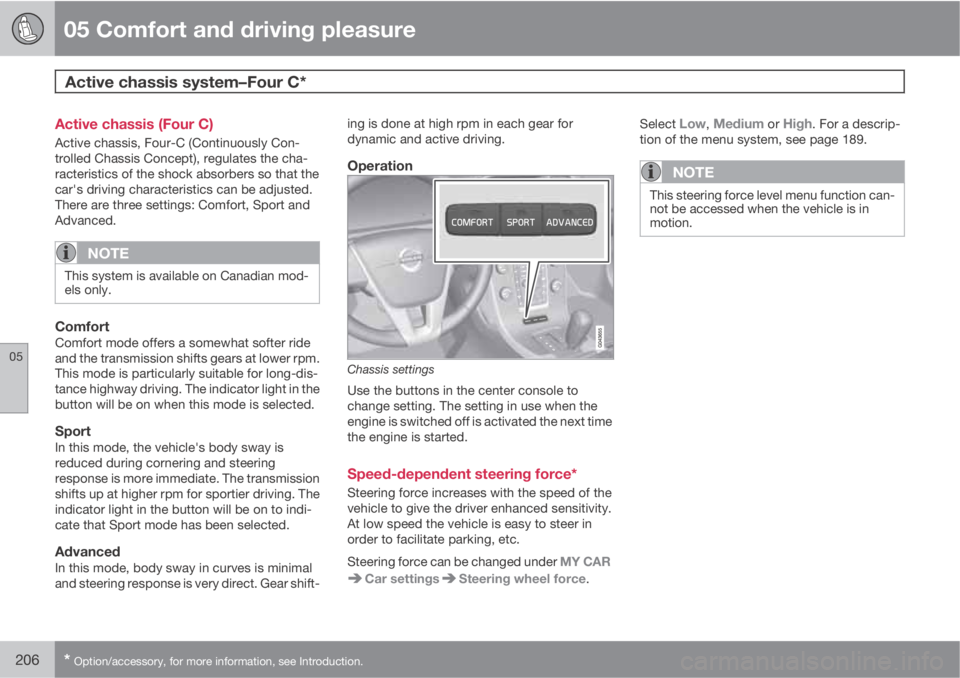
Operation
Chassis settings
Use the buttons in the center console to
change setting. The setting in use when the
engine is switched off is activated the next time
the engine is started.
Speed-dependent steering force*
Steering force increases with the speed of the
vehicle to give the driver enhanced sensitivity.
At low speed the vehicle is easy to steer in
order to facilitate parking, etc.
Steering force can be changed under MY CAR
Car settingsSteering wheel force.Select
Low, Medium or High. For a descrip-
tion of the menu system, see page 189.
NOTE
This steering force level menu function can-
not be accessed when the vehicle is in
motion.
Page 216 of 382
06 Infotainment
Introduction
06
214* Option/accessory, for more information, see Introduction.
General information
The infotainment system consists of radio and
media player features and also makes it pos-
sible to communicate via a cell phone. The
information is displayed on a 7" screen in the
center console. Infotainment functions can be
controlled from the center console or via the
buttons on the steering wheel keypad. On
models equipped with the optional navigation
system, voice commands can also be used to
e.g., set destinations, make calls from a
Bluetooth
Ÿ-connected cell phone, etc.
If the infotainment system was on when the
ignition was switched off, the most recently
used source (
FM1, etc.) will restart the next
time the ignition is put in mode I or higher. The
driver's door must also be closed on vehicles
with keyless drive*.
The infotainment system can be operated for
15 minutes at a time while the engine is
switched off by pressing the On/Off button.
While the engine is being started, the infotain-
ment system will be temporarily interrupted
and will resume when the engine has started.
NOTE
To help avoid excessive battery drain,
remove the remote key from the ignition slot
if the infotainment system is used while the
engine is switched off.
Dolby Pro Logic
The system is manufactured under license
from Dolby Laboratories Licensing
Corporation.
Dolby Pro Logic II and the
symbol are
trademarks of Dolby Laboratories Licensing
Corporation.
Audyssey MultEQ1
The Audyssey MultEQ system has been used
to optimize sound quality to help ensure a
world-class listening experience.
1Applies only to models with Premium Sound Multimedia.
Page 222 of 382
06 Infotainment
Introduction
06
220* Option/accessory, for more information, see Introduction.
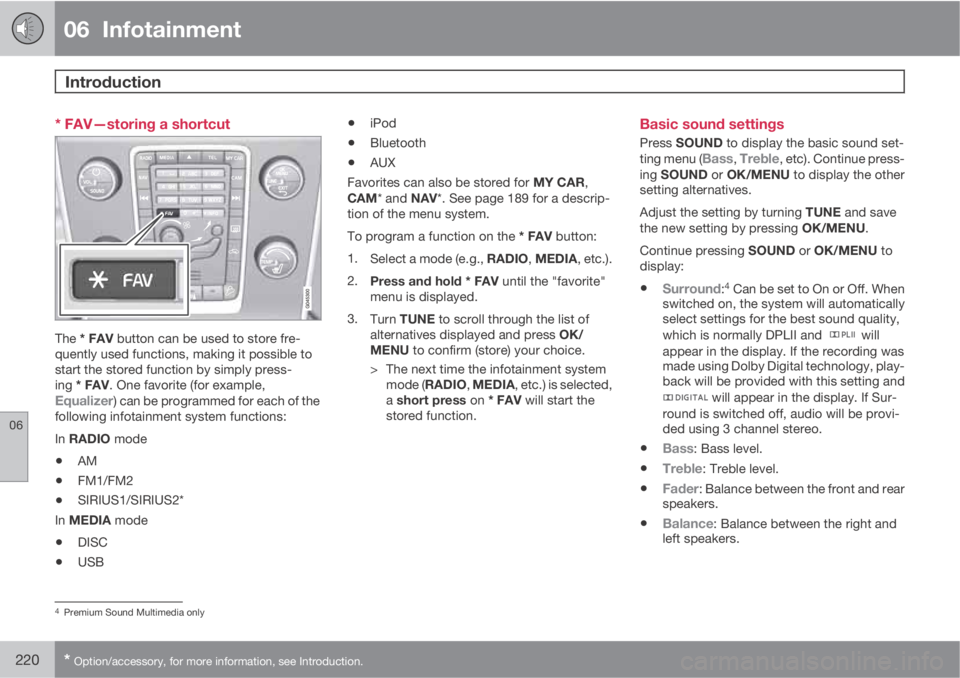
* FAV—storing a shortcut
The * FAV button can be used to store fre-
quently used functions, making it possible to
start the stored function by simply press-
ing * FAV. One favorite (for example,
Equalizer) can be programmed for each of the
following infotainment system functions:
In RADIO mode
•AM
•FM1/FM2
•SIRIUS1/SIRIUS2*
In MEDIA mode
•DISC
•USB
•iPod
•Bluetooth
•AUX
Favorites can also be stored for MY CAR,
CAM* and NAV*. See page 189 for a descrip-
tion of the menu system.
To program a function on the * FAV button:
1.
Select a mode (e.g., RADIO, MEDIA, etc.).
2.
Press and hold * FAV until the "favorite"
menu is displayed.
3.
Turn TUNE to scroll through the list of
alternatives displayed and press OK/
MENU to confirm (store) your choice.
> The next time the infotainment system
mode (RADIO, MEDIA, etc.) is selected,
a short press on * FAV will start the
stored function.
Basic sound settings
Press SOUND to display the basic sound set-
ting menu (Bass, Treble, etc). Continue press-
ing SOUND or OK/MENU to display the other
setting alternatives.
Adjust the setting by turning TUNE and save
the new setting by pressing OK/MENU.
Continue pressing SOUND or OK/MENU to
display:
•Surround:4 Can be set to On or Off. When
switched on, the system will automatically
select settings for the best sound quality,
which is normally DPLII and
will
appear in the display. If the recording was
made using Dolby Digital technology, play-
back will be provided with this setting and
will appear in the display. If Sur-
round is switched off, audio will be provi-
ded using 3 channel stereo.
•Bass: Bass level.
•Treble: Treble level.
•Fader: Balance between the front and rear
speakers.
•Balance: Balance between the right and
left speakers.
4Premium Sound Multimedia only
Page 228 of 382
06 Infotainment
Radio
06
226
keypad on the center console to switch to
manual tuning (or to switch back from manual
tuning to the "list of stations" function).
Manual tuningBy default, the list of stations of the strongest
stations in the area will be displayed when you
turn TUNE (see the preceding section, "List of
stations"). While the list of stations is displayed,
press
on the center console keypad to
switch to manual tuning, which enables you to
select a frequency from the complete list of all
radio frequencies available on the currently
selected waveband. In other words, in manual
tuning mode, turning TUNE one step will
change from e.g., 93.3 to 93.5, etc.).
To manually tune a station:
1.
Press RADIO. Turn TUNE to scroll to the
desired waveband (
AM, FM1, etc.) and
press OK/MENU or the thumb wheel on
the steering wheel keypad to confirm.
2.
Turn TUNE or the thumb wheel to select a
frequency.
NOTE
The radio is initially set to automatically
search for stations in the area in which you
are driving (see the preceding section, "List
of stations").
However, if you have switched to manual
tuning (by pressing
on the keypad on
the center console while the list of stations
is displayed), the radio will remain in manual
tuning mode the next time it is switched on.
To switch back to "list of stations" mode,
turn TUNE one step (to display the full list of
stations) and press
.
Please note that if you press
when the
list of stations is not displayed, this will acti-
vate the INFO function.
Storing preset stationsTen preset stations can be stored for each
waveband (AM, FM1, etc.).
Stored preset stations are selected using the
buttons on the keypad on the center console.
Manually storing preset stations1. Tune to a station (see "Selecting a station"
on page 225).
2. Press and hold one of the number key but-
tons.
> The sound will be muted for several sec-
onds and when it returns, the station hasbeen stored on the number key button
used.
A list of preset stations can be displayed. This
function can be activated/deactivated in AM/
FM mode in FM menu
Show presets or in
AM menu
Show presets
ScanThe function automatically searches the cur-
rent waveband for radio stations. When a sta-
tion is found, it is played for several seconds
before scanning is resumed. While the station
is playing it can be stored as a preset in the
usual way (see "Manually storing preset sta-
tions").
–To start scanning in AM/FM mode, go to
FM menu
Scan or in AM menu
Scan.
Stop station scanning by pressing EXIT.
NOTE
Storing a station interrupts the SCAN func-
tion.
Radio textSome stations transmit information on pro-
gram content, artists, etc. This information can
be shown on the display.
Page 236 of 382
06 Infotainment
Media player
06
234
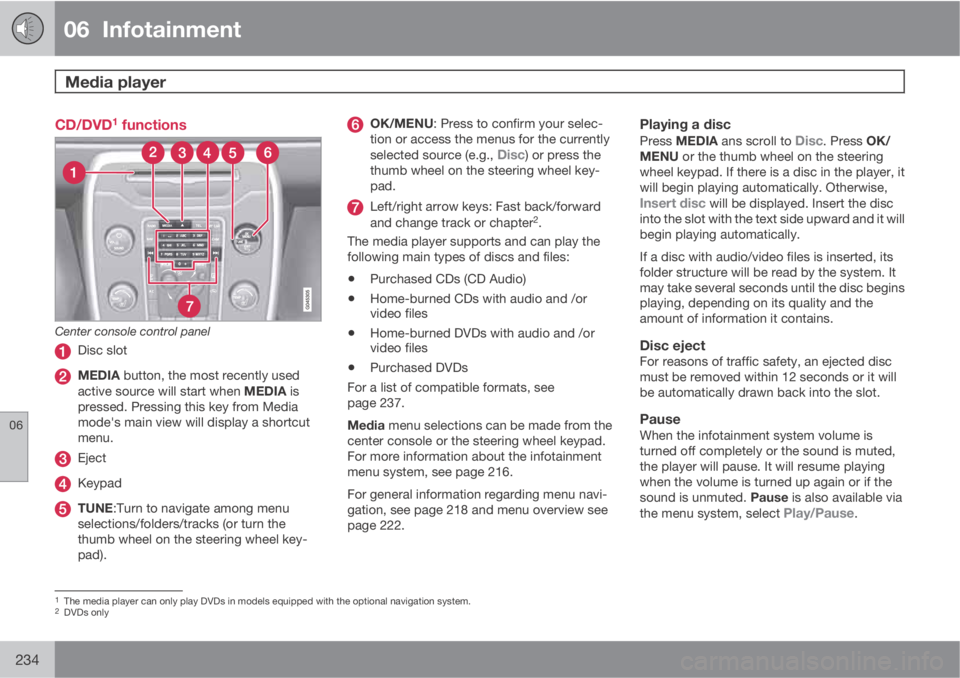
CD/DVD1 functions
Center console control panel
Disc slot
MEDIA button, the most recently used
active source will start when MEDIA is
pressed. Pressing this key from Media
mode's main view will display a shortcut
menu.
Eject
Keypad
TUNE:Turn to navigate among menu
selections/folders/tracks (or turn the
thumb wheel on the steering wheel key-
pad).
OK/MENU: Press to confirm your selec-
tion or access the menus for the currently
selected source (e.g.,
Disc) or press the
thumb wheel on the steering wheel key-
pad.
Left/right arrow keys: Fast back/forward
and change track or chapter2.
The media player supports and can play the
following main types of discs and files:
•Purchased CDs (CD Audio)
•Home-burned CDs with audio and /or
video files
•Home-burned DVDs with audio and /or
video files
•Purchased DVDs
For a list of compatible formats, see
page 237.
Media menu selections can be made from the
center console or the steering wheel keypad.
For more information about the infotainment
menu system, see page 216.
For general information regarding menu navi-
gation, see page 218 and menu overview see
page 222.
Playing a disc
Press MEDIA ans scroll to Disc. Press OK/
MENU or the thumb wheel on the steering
wheel keypad. If there is a disc in the player, it
will begin playing automatically. Otherwise,
Insert disc will be displayed. Insert the disc
into the slot with the text side upward and it will
begin playing automatically.
If a disc with audio/video files is inserted, its
folder structure will be read by the system. It
may take several seconds until the disc begins
playing, depending on its quality and the
amount of information it contains.
Disc ejectFor reasons of traffic safety, an ejected disc
must be removed within 12 seconds or it will
be automatically drawn back into the slot.
PauseWhen the infotainment system volume is
turned off completely or the sound is muted,
the player will pause. It will resume playing
when the volume is turned up again or if the
sound is unmuted. Pause is also available via
the menu system, select
Play/Pause.
1The media player can only play DVDs in models equipped with the optional navigation system.2DVDs only