start VOLVO XC70 2013 Owner´s Manual
[x] Cancel search | Manufacturer: VOLVO, Model Year: 2013, Model line: XC70, Model: VOLVO XC70 2013Pages: 382, PDF Size: 6.78 MB
Page 237 of 382
06 Infotainment
Media player
06
* Option/accessory, for more information, see Introduction.235
Navigating a disc and playing tracks
CD audio discs
Turn TUNE to access the disc's playlist and to
navigate in this list. Press OK/MENU to con-
firm a choice and begin listening. Press EXIT
to cancel. Press and hold EXIT to return to the
playlist's root level.
The
/ buttons on the center console or
steering wheel keypad can also be used to
change tracks.
Home-burned CD/DVD audio/video filesTurn TUNE to access the disc's playlist and to
navigate in this list. Press OK/MENU to con-
firm a choice and begin listening. Use EXIT to
stop or to go back in the disc's folder structure.
Press and hold EXIT to return to the playlist's
root level.
The
/ buttons on the center console or
steering wheel keypad* can also be used to
change audio/video files.
The following symbols are used in the display:
•- audio files
•- video files
•- foldersWhen a file has been played, the player will
continue to play the rest of the files (of the same
type) in the current folder. When all of the files
in the folder have been played, the player will
automatically go to the next folder and play the
files in it (unless
Repeat folder is activated).
The system automatically detects and changes
settings if a disc containing only audio or only
video files is inserted in the player and will play
these files. However, the system will not
change settings if a disc containing both audio
and video files is inserted and the player will
continue to play the current type of file.
NOTE
Video images will only be visible when the
vehicle is not moving. When the vehicle is
traveling faster than approximately 4 mph
(6 km/h),
No visual media available while
driving will be displayed. Sound from the
film will still be audible and video images will
be shown again when the vehicle stops.
NOTE
Some copy protected audio files or home-
burned audio files may not be read by the
player.
DVD videosFor information, see page 234.
Fast forward/reverse
Press and hold the / buttons to fast
forward/reverse. This is done at one speed for
audio files but several speeds can be chosen
for video files. Press the
/ buttons sev-
eral times to increase the speed. Release the
button to return to normal viewing speed.
Scan3
This function plays the first ten seconds of
each track/audio file. To start scanning:
1.
Press OK/MENU.
2.
Scroll to
Scan.
> The first ten seconds of each track/
audio file will be played.
3.
Stop scanning by pressing EXIT. The cur-
rent track/audio file will continue playing.
Random3
This function plays the tracks in random order
(shuffle). The random tracks/sound files can be
scrolled through in the normal way. To listen to
tracks in random order:
1.
Press OK/MENU,
3Not video DVDs
Page 241 of 382
06 Infotainment
AUX/USB sockets
06
239
The / buttons on the center console or
steering wheel keypad can also be used to
change tracks/files.
The following symbols are used in the display:
•- audio files
•- video files
•- folders
When a file has been played, the player will
continue to play the rest of the files (of the same
type) in the current folder. When all of the files
in the folder have been played, the player will
automatically go to the next folder
1 (unlessRepeat folder is activated) and play the files
in it.
The system automatically detects and changes
settings if a device containing only audio or
only video files is connected to the USB socket
and will play these files. However, the system
will not change settings if the device contains
both audio and video files and will continue to
play the current type of file.
Fast forward/reverse1
For information, see page 235.
Scan1
For information, see page 235.
Random1
For information, see page 235.
Search1
The keypad in the center console can be used
to search for a file in the currently selected
folder.
Start the search by either turning TUNE (to
access the folders) or by pressing one of the
character keys to enter a letter/number. Pos-
sible search results will be displayed as char-
acters are entered.
Play the file by pressing OK/MENU.
Repeat2
This function makes it possible to play files in
a folder repeatedly. When the last file has been
played, the first file will begin again. For infor-
mation, see page 236.
PauseWhen the infotainment system volume is
turned off completely or the sound is muted,
the player will pause. It will resume playing
when the volume is turned up again or if the
sound is unmuted. Pause is also available via
the menu system, select
Play/Pause.
External sound sources
USB flash drive
To simplify the use of a USB flash drive, it is
advisable to only store music files on the drive.
It will take considerably longer for the system
to index the files on the drive if it contains any-
thing other than compatible music files.
NOTE
•The system supports removable media
that uses the USB 2.0 standard and the
FAT32 file system. It can index up to
1,000 folders and a maximum of 254
sub-folders/files for each folder. How-
ever, the highest folder level can sup-
port up to 1,000 sub-folders/files.
•When using a longer type of USB
device, connecting it with a USB
adapter cable will help reduce mechan-
ical wear on the USB socket and on the
device.
USB hubA USB hub can be connected to the USB
socket, making it possible to connect several
USB devices at the same time. To select one
of the devices, go to the menu USB menu
Select USB device
1USB and iPodŸ only2USB only
Page 243 of 382
06 Infotainment
BluetoothŸŸ media
06
241 Introduction
The vehicle's media player is equipped with
BluetoothŸ and can play streaming audio files
from a BluetoothŸ device such as a cell phone
or mp3 player. Navigation and control of the
device can be done through the vehicle's cen-
ter console control panel or the steering wheel
keypad. On certain external devices, it is also
possible to change tracks from the device.
NOTE
Any Bluetooth cell phones used must sup-
port Audio/Video Remote Control Profile
(AVRCP) and Advanced Audio Distribution
Profile (A2DP). The phone must use AVRCP
version 1.3 and A2DP 1.2. If older versions
of these standards are used, certain fea-
tures (e.g., scan or random) may not func-
tion.
Not all cell phones are fully compatible with
the vehicle's Bluetooth system. A list of
compatible phones is available at you Volvo
retailer or at www.volvocars.us.
Menu navigation
Choices can be made in the Bluetooth menus
from the center console control panel or the
steering wheel keypad. For additional informa-
tion about navigating the various menus, see
page 216.The vehicle's media player can only play audio
files through the Bluetooth
Ÿ function.
Overview
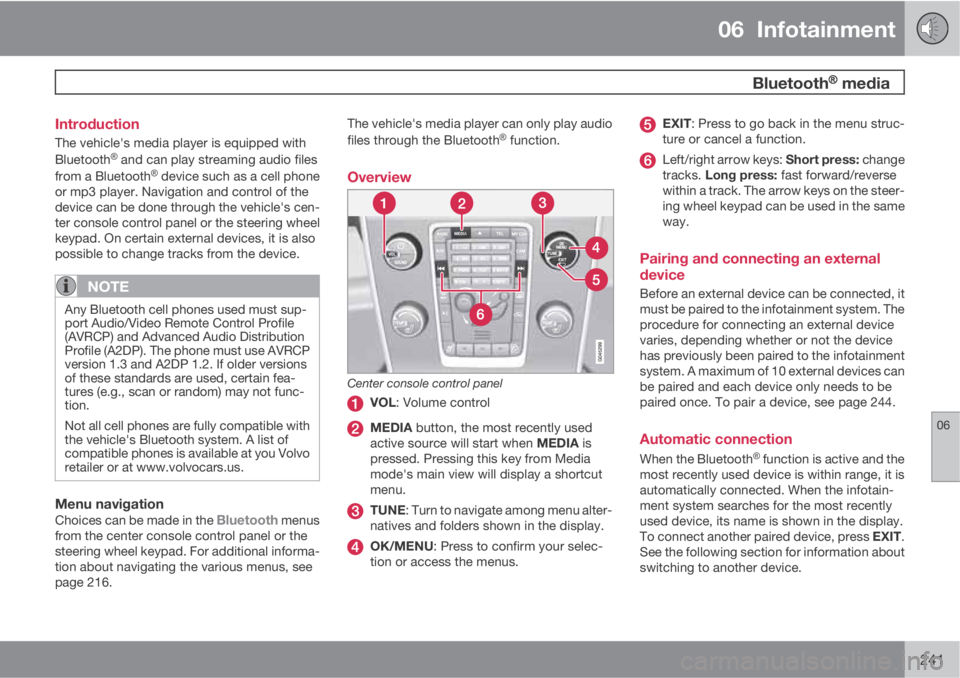
Center console control panel
VOL: Volume control
MEDIA button, the most recently used
active source will start when MEDIA is
pressed. Pressing this key from Media
mode's main view will display a shortcut
menu.
TUNE: Turn to navigate among menu alter-
natives and folders shown in the display.
OK/MENU: Press to confirm your selec-
tion or access the menus.
EXIT: Press to go back in the menu struc-
ture or cancel a function.
Left/right arrow keys: Short press: change
tracks. Long press: fast forward/reverse
within a track. The arrow keys on the steer-
ing wheel keypad can be used in the same
way.
Pairing and connecting an external
device
Before an external device can be connected, it
must be paired to the infotainment system. The
procedure for connecting an external device
varies, depending whether or not the device
has previously been paired to the infotainment
system. A maximum of 10 external devices can
be paired and each device only needs to be
paired once. To pair a device, see page 244.
Automatic connection
When the BluetoothŸ function is active and the
most recently used device is within range, it is
automatically connected. When the infotain-
ment system searches for the most recently
used device, its name is shown in the display.
To connect another paired device, press EXIT.
See the following section for information about
switching to another device.
Page 246 of 382
06 Infotainment
Bluetooth® hands-free connection
06
244
Bluetooth® functions in the center
console control panel
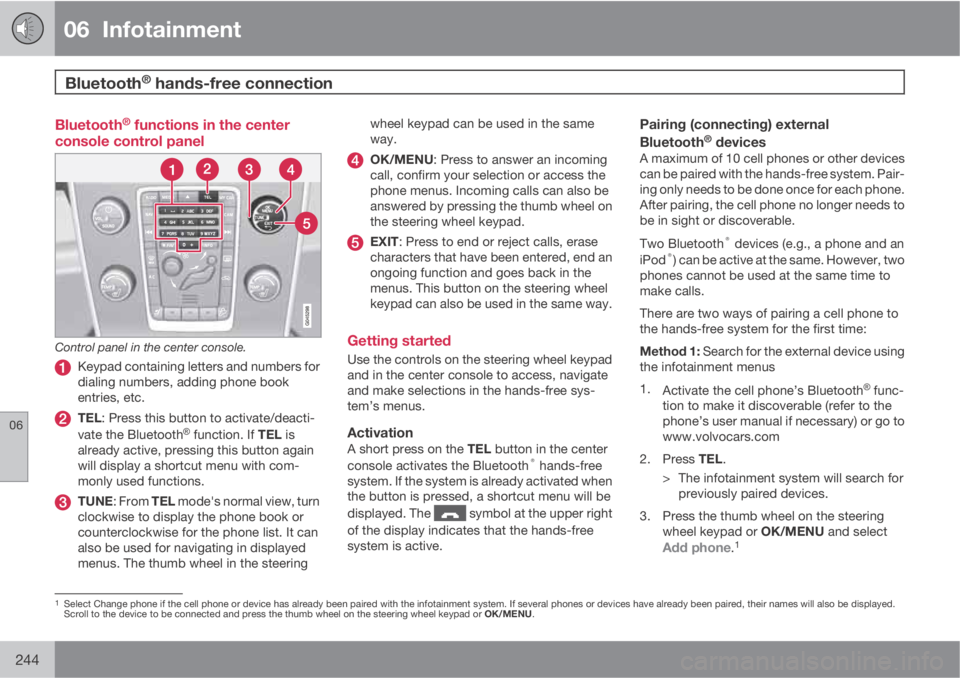
Control panel in the center console.
Keypad containing letters and numbers for
dialing numbers, adding phone book
entries, etc.
TEL: Press this button to activate/deacti-
vate the BluetoothŸ function. If TEL is
already active, pressing this button again
will display a shortcut menu with com-
monly used functions.
TUNE: From TEL mode's normal view, turn
clockwise to display the phone book or
counterclockwise for the phone list. It can
also be used for navigating in displayed
menus. The thumb wheel in the steeringwheel keypad can be used in the same
way.
OK/MENU: Press to answer an incoming
call, confirm your selection or access the
phone menus. Incoming calls can also be
answered by pressing the thumb wheel on
the steering wheel keypad.
EXIT: Press to end or reject calls, erase
characters that have been entered, end an
ongoing function and goes back in the
menus. This button on the steering wheel
keypad can also be used in the same way.
Getting started
Use the controls on the steering wheel keypad
and in the center console to access, navigate
and make selections in the hands-free sys-
tem’s menus.
ActivationA short press on the TEL button in the center
console activates the Bluetooth® hands-free
system. If the system is already activated when
the button is pressed, a shortcut menu will be
displayed. The
symbol at the upper right
of the display indicates that the hands-free
system is active.
Pairing (connecting) external
Bluetooth® devicesA maximum of 10 cell phones or other devices
can be paired with the hands-free system. Pair-
ing only needs to be done once for each phone.
After pairing, the cell phone no longer needs to
be in sight or discoverable.
Two Bluetooth
® devices (e.g., a phone and an
iPod®) can be active at the same. However, two
phones cannot be used at the same time to
make calls.
There are two ways of pairing a cell phone to
the hands-free system for the first time:
Method 1: Search for the external device using
the infotainment menus
1.
Activate the cell phone’s Bluetooth
Ÿ func-
tion to make it discoverable (refer to the
phone’s user manual if necessary) or go to
www.volvocars.com
2.
Press TEL.
> The infotainment system will search for
previously paired devices.
3. Press the thumb wheel on the steering
wheel keypad or OK/MENU and select
Add phone.1
1Select Change phone if the cell phone or device has already been paired with the infotainment system. If several phones or devices have already been paired, their names will also be displayed.
Scroll to the device to be connected and press the thumb wheel on the steering wheel keypad or OK/MENU.
Page 254 of 382
06 Infotainment
Cell phone voice control
06
252
Getting started
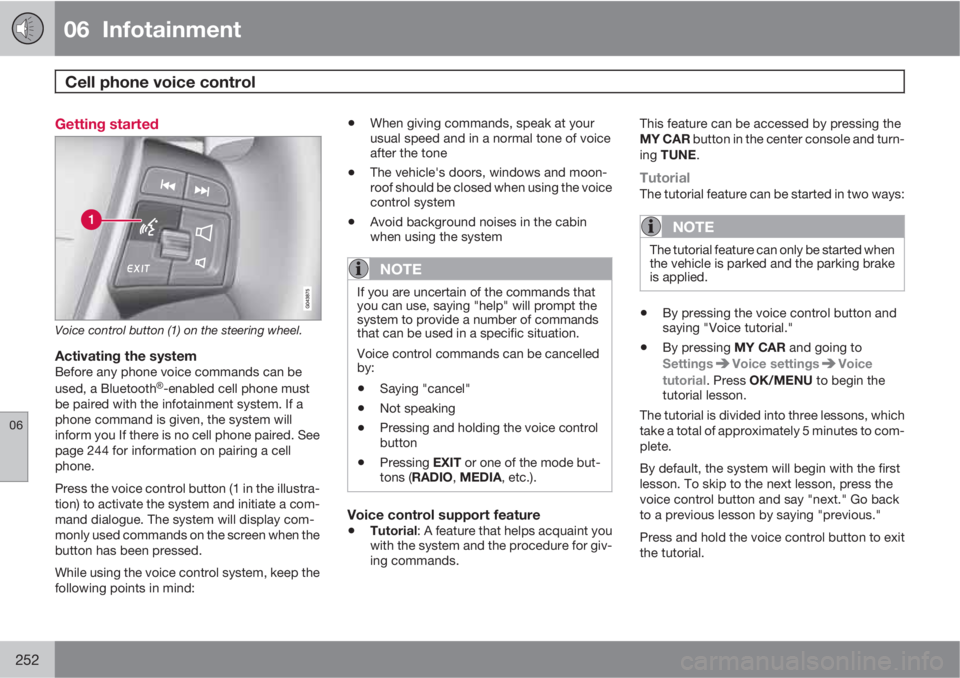
Voice control button (1) on the steering wheel.
Activating the systemBefore any phone voice commands can be
used, a BluetoothŸ-enabled cell phone must
be paired with the infotainment system. If a
phone command is given, the system will
inform you If there is no cell phone paired. See
page 244 for information on pairing a cell
phone.
Press the voice control button (1 in the illustra-
tion) to activate the system and initiate a com-
mand dialogue. The system will display com-
monly used commands on the screen when the
button has been pressed.
While using the voice control system, keep the
following points in mind:
•When giving commands, speak at your
usual speed and in a normal tone of voice
after the tone
•The vehicle's doors, windows and moon-
roof should be closed when using the voice
control system
•Avoid background noises in the cabin
when using the system
NOTE
If you are uncertain of the commands that
you can use, saying "help" will prompt the
system to provide a number of commands
that can be used in a specific situation.
Voice control commands can be cancelled
by:
•Saying "cancel"
•Not speaking
•Pressing and holding the voice control
button
•Pressing EXIT or one of the mode but-
tons (RADIO, MEDIA, etc.).
Voice control support feature
•Tutorial: A feature that helps acquaint you
with the system and the procedure for giv-
ing commands.This feature can be accessed by pressing the
MY CAR button in the center console and turn-
ing TUNE.
TutorialThe tutorial feature can be started in two ways:
NOTE
The tutorial feature can only be started when
the vehicle is parked and the parking brake
is applied.
•By pressing the voice control button and
saying "Voice tutorial."
•By pressing MY CAR and going to
Settings
Voice settingsVoice
tutorial. Press OK/MENU to begin the
tutorial lesson.
The tutorial is divided into three lessons, which
take a total of approximately 5 minutes to com-
plete.
By default, the system will begin with the first
lesson. To skip to the next lesson, press the
voice control button and say "next." Go back
to a previous lesson by saying "previous."
Press and hold the voice control button to exit
the tutorial.
Page 258 of 382
06 Infotainment
Rear Seat Entertainment (RSE)*
06
256* Option/accessory, for more information, see Introduction.
more of the screens. However, it is not possible
to play a film from USB while a CD or DVD is
being played.
CAUTION
When transporting large objects in the rear
seat, be sure that there is adequate space
between the object(s) and the RSE screens
to help avoid scratching or damaging these
screens.
If necessary, cover the screens with a suit-
able material.
NOTE
•The RSE screens and remote control
may not function in very low or very high
cabin temperatures. They will become
operable again after the climate control
system has created a comfortable tem-
perature in the cabin.
•Keep the IR transceivers' lenses clean
by wiping them regularly with a damp
cloth. A dirty lens could affect the func-
tion of the remote control.
Ignition modes and electrical current to
RSE
RSE can be activated with the ignition in
modes I or II (and when the engine is running).See page 82 for detailed information about the
various ignition modes. If a film is being played,
it will stop momentarily while the engine is
being started and will resume when the engine
is running.
NOTE
Using RSE for more than approx.
10 minutes when the engine is not running
will drain the vehicle's battery and may
make the engine difficult or impossible to
start.
A message will be displayed on the screen
if the battery's charge level becomes too
low.
Using the system's menusSelections in the RSE menus are made using
the remote control. See page 261 for more
information about the RSE menus.
Remote control
A remote control is included with the RSE sys-
tem, which can be used to control both screens
in the rear seat as well as other infotainment
system functions.
See page 264 for more detailed information
about the remote control.
Cordless headphones
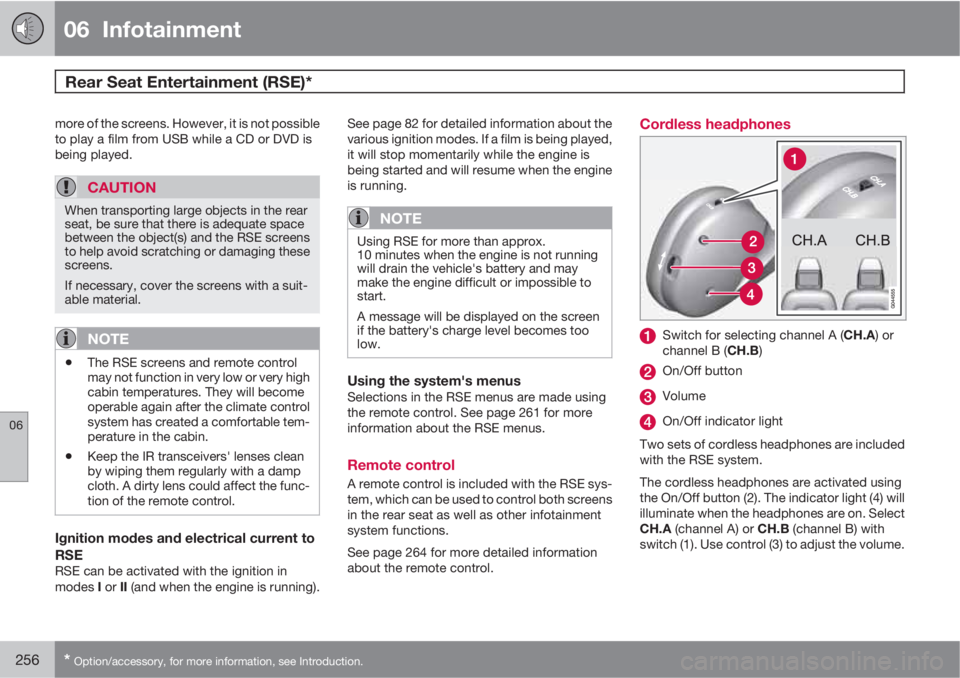
Switch for selecting channel A (CH.A) or
channel B (CH.B)
On/Off button
Volume
On/Off indicator light
Two sets of cordless headphones are included
with the RSE system.
The cordless headphones are activated using
the On/Off button (2). The indicator light (4) will
illuminate when the headphones are on. Select
CH.A (channel A) or CH.B (channel B) with
switch (1). Use control (3) to adjust the volume.
Page 270 of 382
07 During your trip
Driving recommendations
07
268
General information
Economical driving conserves natural
resources
Better driving economy may be obtained by
thinking ahead, avoiding rapid starts and stops
and adjusting the speed of your vehicle to
immediate traffic conditions.
Observe the following rules:
•Bring the engine to normal operating tem-
perature as soon as possible by driving
with a light foot on the accelerator pedal for
the first few minutes of operation. A cold
engine uses more fuel and is subject to
increased wear.
•Whenever possible, avoid using the vehicle
for driving short distances. This does not
allow the engine to reach normal operating
temperature.
•Drive carefully and avoid rapid acceleration
and hard braking.
•Use the transmission's Drive (D) position
as often as possible and avoid using kick-
down.
•Using the transmission's Sport mode1 may
increase fuel consumption somewhat. Use
the transmission's Drive (D) position as
often as possible. See page 119 for addi-
tional information about Sport mode.
•Do not exceed posted speed limits.
•Avoid carrying unnecessary items (extra
load) in the vehicle.
•Maintain correct tire pressure. Check tire
pressure regularly (when tires are cold).
•Remove snow tires when threat of snow or
ice has ended.
•Note that roof racks, ski racks, etc,
increase air resistance and also fuel con-
sumption.
•At highway driving speeds, fuel consump-
tion will be lower with the air conditioning
on and the windows closed than with the
air conditioning off and the windows open.
•Using the onboard trip computer's fuel
consumption modes can help you learn
how to drive more economically.
Other factors that decrease gas mileage
are:
•Dirty air cleaner
•Dirty engine oil and clogged oil filter
•Dragging brakes
•Incorrect front end alignment
Some of the above mentioned items and others
are checked at the standard maintenance
intervals.
WARNING
Driving with the tailgate open: Driving with
the tailgate open could lead to poisonous
exhaust gases entering the passenger com-
partment. If the tailgate must be kept open
for any reason, proceed as follows:
•Close the windows
•Set the ventilation system control to air
flow to floor, windshield and side win-
dows and the blower control to its high-
est setting.
Weight distribution affects handlingAt the specified curb weight your vehicle has a
tendency to understeer, which means that the
steering wheel has to be turned more than
might seem appropriate for the curvature of a
bend. This ensures good stability and reduces
the risk of rear wheel skid. Remember that
these properties can alter with the vehicle load.
The heavier the load in the cargo area, the less
the tendency to understeer.
Handling, roadholdingVehicle load, tire design and inflation pressure
all affect vehicle handling. Therefore, check
that the tires are inflated to the recommended
pressure according to the vehicle load. See the
"Tire pressure" section. Loads should be dis-
1Models with the T6 turbo engine only.
Page 271 of 382
07 During your trip
Driving recommendations
07
269
tributed so that capacity weight or maximum
permissible axle loads are not exceeded.
Driving through water
•The vehicle can be driven through water up
to a depth of approximately 10 in. (25 cm),
at a maximum speed of 6 mph (10 km/h).
•Take particular care when driving through
flowing water.
•Clean the electrical connections for trailer
wiring after driving in mud or water.
•When driving through water, maintain low
speed and do not stop in the water.
WARNING
After driving through water, press lightly on
the brake pedal to ensure that the brakes
are functioning normally. Water or mud can
make the brake linings slippery, resulting in
delayed braking effect.
CAUTION
•Engine damage will occur if water is
drawn into the air cleaner.
•If the vehicle is driven through water
deeper than 10 in (25 cm), water may
enter the differential and the transmis-
sion. This reduces the oil's lubricating
capacity and may shorten the service
life of these components.
•Do not allow the vehicle to stand in
water up to the door sills longer than
absolutely necessary. This could result
in electrical malfunctions.
•If the engine has been stopped while the
vehicle is in water, do not attempt to
restart it. Have the vehicle towed out of
the water.
Engine and cooling systemUnder special conditions, for example when
driving in hilly terrain, extreme heat or with
heavy loads, there is a risk that the engine and
cooling system will overheat. Proceed as fol-
lows to avoid overheating the engine.
•Maintain a low speed when driving with a
trailer up long, steep hills.
•Do not turn the engine off immediately
when stopping after a hard drive.
WARNING
The cooling fan may start or continue to
operate (for up to 6 minutes) after the engine
has been switched off.
•Remove any auxiliary lights from in front of
the grille when driving in hot weather con-
ditions.
•Do not exceed engine speeds of 4500 rpm
if driving with a trailer in hilly terrain. The oil
temperature could become too high.
Conserving electrical currentKeep the following in mind to help minimize
battery drain:
•When the engine is not running, avoid
using ignition mode II. Many electrical sys-
tems (the audio system, the optional navi-
gation system, power windows, etc) will
function in ignition modes 0 and I. These
modes reduce drain on the battery.
•Please keep in mind that using systems,
accessories, etc., that consume a great
deal of current when the engine is not run-
ning could result in the battery being com-
pletely drained. Driving or having the
engine running for approximately
15 minutes will help keep the battery
charged.
•The optional 12 volt socket in the cargo
area provides electrical current even with
Page 272 of 382

07 During your trip
Driving recommendations
07
270
the ignition switched off, which drains the
battery.
Before a long distance tripIt is always worthwhile to have your vehicle
checked by a trained and qualified Volvo serv-
ice technician before driving long distances.
Your retailer will also be able to supply you with
bulbs, fuses, spark plugs and wiper blades for
your use in the event that problems occur.
As a minimum, the following items should be
checked before any long trip:
•Check that engine runs smoothly and that
fuel consumption is normal.
•Check for fuel, oil, and fluid leakage.
•Have the transmission oil level checked.
•Check condition of drive belts.
•Check state of the battery's charge.
•Examine tires carefully (the spare tire as
well), and replace those that are worn.
Check tire pressures.
•The brakes, front wheel alignment, and
steering gear should be checked by a
trained and qualified Volvo service techni-
cian only.
•Check all lights, including high beams.
•Reflective warning triangles are legally
required in some states/provinces.
•Have a word with a trained and qualified
Volvo service technician if you intend to
drive in countries where it may be difficult
to obtain the correct fuel.
•Consider your destination. If you will be
driving through an area where snow or ice
are likely to occur, consider snow tires.
Cold weather precautionsIf you wish to check your vehicle before the
approach of cold weather, the following advice
is worth noting:
•Make sure that the engine coolant contains
50 percent antifreeze. Any other mixture
will reduce freeze protection. This gives
protection against freezing down to
–31 °F (–35 °C). The use of "recycled" anti-
freeze is not approved by Volvo. Different
types of antifreeze must not be mixed.
•Volvo recommends using only genuine
Volvo antifreeze in your vehicle's radiator.
•Try to keep the fuel tank well filled – this
helps prevent the formation of condensa-
tion in the tank. In addition, in extremely
cold weather conditions it is worthwhile to
add fuel line de-icer before refueling.
•The viscosity of the engine oil is important.
Oil with low viscosity (thinner oil) improves
cold-weather starting as well as decreas-
ing fuel consumption while the engine is
warming up. 0W-30 oil is recommended fordriving in areas with sustained low temper-
atures.
•The load placed on the battery is greater
during the winter since the windshield wip-
ers, lighting, etc., are used more often.
Moreover, the capacity of the battery
decreases as the temperature drops. In
very cold weather, a poorly charged bat-
tery can freeze and be damaged. It is there-
fore advisable to check the state of charge
more frequently and spray an anti-rust oil
on the battery posts.
•Volvo recommends the use of snow tires
on all four wheels for winter driving, see
page 306.
•To prevent the washer fluid reservoir from
freezing, add washer solvents containing
antifreeze. This is important since dirt is
often splashed on the windshield during
winter driving, requiring the frequent use of
the washers and wipers. Volvo Washer
Solvent should be diluted as follows: Down
to 14 °F (–10 °C): 1 part washer solvent and
4 parts water Down to 5 °F (–15 °C): 1 part
washer solvent and 3 parts water Down to
0 °F (–18 °C): 1 part washer solvent and
2 parts water Down to –18 °F (–28 °C):
1 part washer solvent and 1 part water.
•Use Volvo Teflon Lock Spray in the locks.
•Avoid using de-icing sprays as they can
cause damage to the locks.
Page 276 of 382
07 During your trip
Refueling
07
274
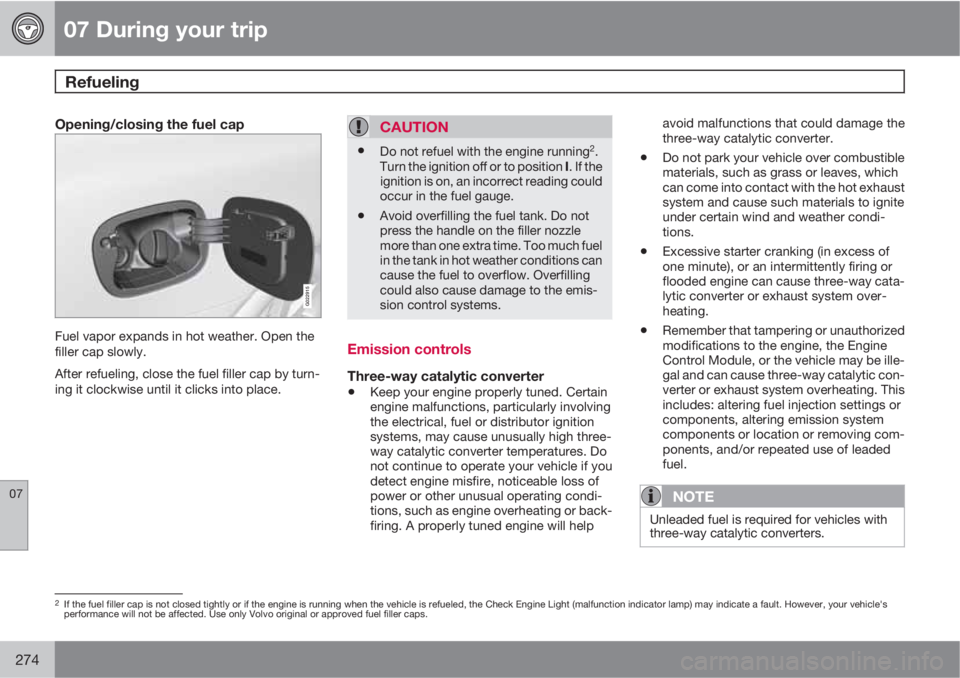
Opening/closing the fuel cap
G022915
Fuel vapor expands in hot weather. Open the
filler cap slowly.
After refueling, close the fuel filler cap by turn-
ing it clockwise until it clicks into place.
CAUTION
•Do not refuel with the engine running2.
Turn the ignition off or to position I. If the
ignition is on, an incorrect reading could
occur in the fuel gauge.
•Avoid overfilling the fuel tank. Do not
press the handle on the filler nozzle
more than one extra time. Too much fuel
in the tank in hot weather conditions can
cause the fuel to overflow. Overfilling
could also cause damage to the emis-
sion control systems.
Emission controls
Three-way catalytic converter
•Keep your engine properly tuned. Certain
engine malfunctions, particularly involving
the electrical, fuel or distributor ignition
systems, may cause unusually high three-
way catalytic converter temperatures. Do
not continue to operate your vehicle if you
detect engine misfire, noticeable loss of
power or other unusual operating condi-
tions, such as engine overheating or back-
firing. A properly tuned engine will helpavoid malfunctions that could damage the
three-way catalytic converter.
•Do not park your vehicle over combustible
materials, such as grass or leaves, which
can come into contact with the hot exhaust
system and cause such materials to ignite
under certain wind and weather condi-
tions.
•Excessive starter cranking (in excess of
one minute), or an intermittently firing or
flooded engine can cause three-way cata-
lytic converter or exhaust system over-
heating.
•Remember that tampering or unauthorized
modifications to the engine, the Engine
Control Module, or the vehicle may be ille-
gal and can cause three-way catalytic con-
verter or exhaust system overheating. This
includes: altering fuel injection settings or
components, altering emission system
components or location or removing com-
ponents, and/or repeated use of leaded
fuel.
NOTE
Unleaded fuel is required for vehicles with
three-way catalytic converters.
2If the fuel filler cap is not closed tightly or if the engine is running when the vehicle is refueled, the Check Engine Light (malfunction indicator lamp) may indicate a fault. However, your vehicle's
performance will not be affected. Use only Volvo original or approved fuel filler caps.