center console VOLVO XC90 2014 Owner´s Manual
[x] Cancel search | Manufacturer: VOLVO, Model Year: 2014, Model line: XC90, Model: VOLVO XC90 2014Pages: 308, PDF Size: 13.31 MB
Page 118 of 308
04 Interior
Storage compartments
04
116
G027018
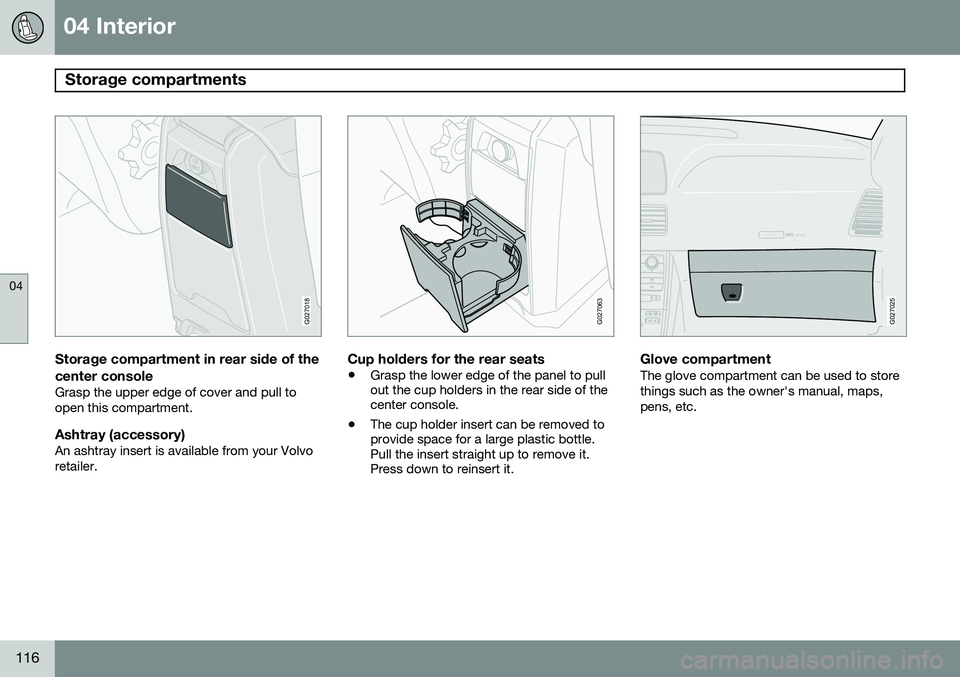
Storage compartment in rear side of the
center console
Grasp the upper edge of cover and pull to open this compartment.
Ashtray (accessory)An ashtray insert is available from your Volvoretailer.
G027063
Cup holders for the rear seats
• Grasp the lower edge of the panel to pull out the cup holders in the rear side of thecenter console.
• The cup holder insert can be removed toprovide space for a large plastic bottle.Pull the insert straight up to remove it.Press down to reinsert it.
ATTENTIONPakjdskdl ioiuip kjöpp opoodidåuswi
CSOUND
MENU
80
ENTERLSEEEXITMY KEYRTO
AIRBAG
G027025
Glove compartmentThe glove compartment can be used to store things such as the owner's manual, maps,pens, etc.
Page 134 of 308
05 Locks and alarm
Child safety locks
05
132* Option/accessory, for more information, see Introduction.
G021513
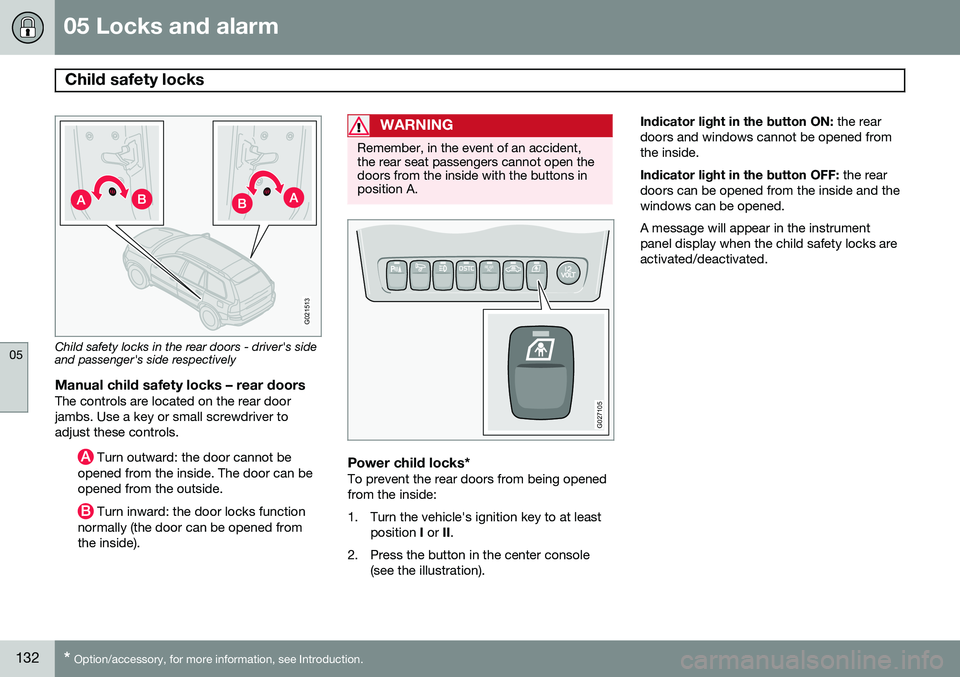
Child safety locks in the rear doors - driver's side and passenger's side respectively
Manual child safety locks – rear doorsThe controls are located on the rear door jambs. Use a key or small screwdriver toadjust these controls.
Turn outward: the door cannot be
opened from the inside. The door can be opened from the outside.
Turn inward: the door locks function
normally (the door can be opened from the inside).
WARNING
Remember, in the event of an accident, the rear seat passengers cannot open thedoors from the inside with the buttons inposition A.
REAR AC
G027105
Power child locks*To prevent the rear doors from being opened from the inside:
1. Turn the vehicle's ignition key to at least
position I or II.
2. Press the button in the center console (see the illustration). Indicator light in the button ON:
the rear
doors and windows cannot be opened from the inside. Indicator light in the button OFF: the rear
doors can be opened from the inside and the windows can be opened. A message will appear in the instrument panel display when the child safety locks areactivated/deactivated.
Page 162 of 308
06 Starting and driving
Front/rear park assist*
06
160* Option/accessory, for more information, see Introduction.
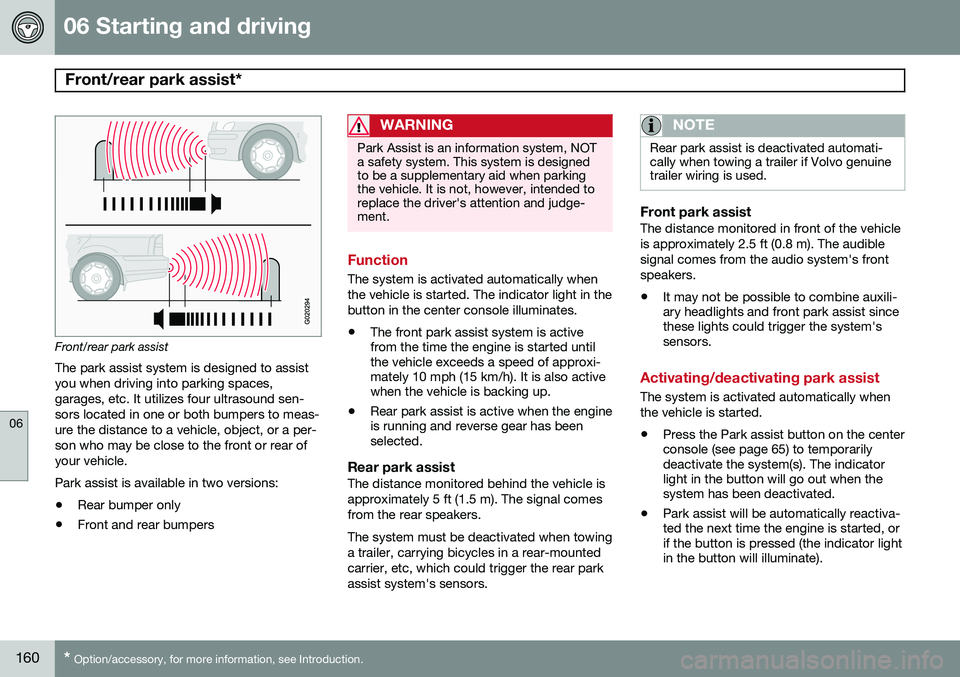
Front/rear park assist
The park assist system is designed to assist you when driving into parking spaces,garages, etc. It utilizes four ultrasound sen-sors located in one or both bumpers to meas-ure the distance to a vehicle, object, or a per-son who may be close to the front or rear ofyour vehicle. Park assist is available in two versions:
• Rear bumper only
• Front and rear bumpers
WARNING
Park Assist is an information system, NOT a safety system. This system is designedto be a supplementary aid when parkingthe vehicle. It is not, however, intended toreplace the driver's attention and judge-ment.
Function
The system is activated automatically when the vehicle is started. The indicator light in thebutton in the center console illuminates. • The front park assist system is active from the time the engine is started untilthe vehicle exceeds a speed of approxi-mately 10 mph (15 km/h). It is also activewhen the vehicle is backing up.
• Rear park assist is active when the engineis running and reverse gear has beenselected.
Rear park assistThe distance monitored behind the vehicle is approximately 5 ft (1.5 m). The signal comesfrom the rear speakers. The system must be deactivated when towing a trailer, carrying bicycles in a rear-mountedcarrier, etc, which could trigger the rear parkassist system's sensors.
NOTE
Rear park assist is deactivated automati- cally when towing a trailer if Volvo genuinetrailer wiring is used.
Front park assistThe distance monitored in front of the vehicle is approximately 2.5 ft (0.8 m). The audiblesignal comes from the audio system's frontspeakers.
• It may not be possible to combine auxili- ary headlights and front park assist sincethese lights could trigger the system'ssensors.
Activating/deactivating park assist
The system is activated automatically when the vehicle is started.
• Press the Park assist button on the center console (see page 65) to temporarilydeactivate the system(s). The indicatorlight in the button will go out when thesystem has been deactivated.
• Park assist will be automatically reactiva-ted the next time the engine is started, orif the button is pressed (the indicator lightin the button will illuminate).
Page 175 of 308
06 Starting and driving
Blind Spot Information System*
06
}}
* Option/accessory, for more information, see Introduction.173
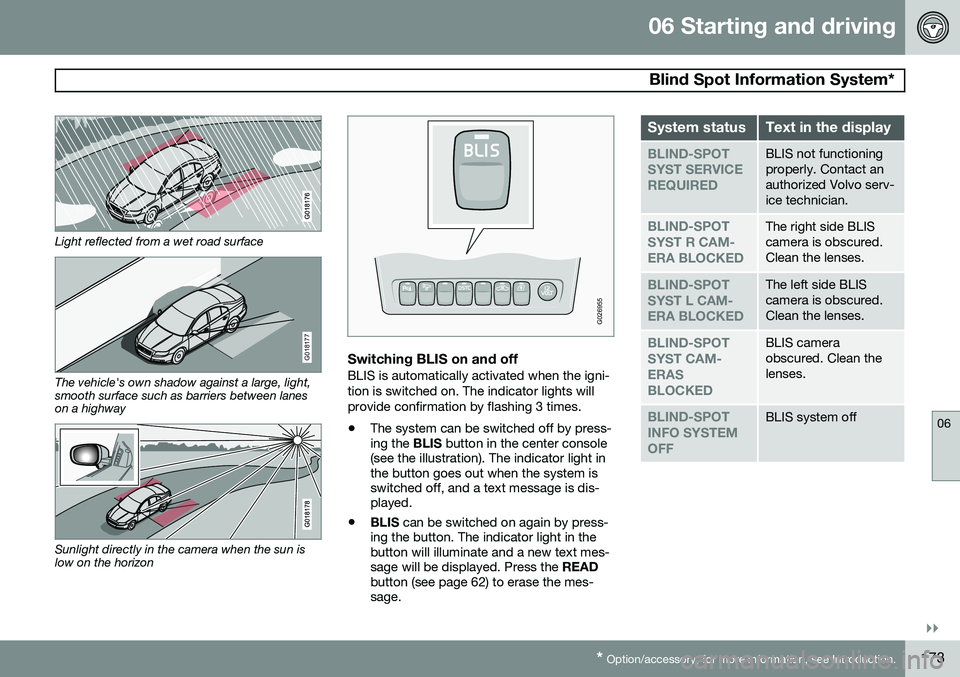
Light reflected from a wet road surface
G018177
The vehicle's own shadow against a large, light, smooth surface such as barriers between laneson a highway
Sunlight directly in the camera when the sun is low on the horizon
G026955
Switching BLIS on and offBLIS is automatically activated when the igni- tion is switched on. The indicator lights willprovide confirmation by flashing 3 times.
• The system can be switched off by press- ing the
BLIS button in the center console
(see the illustration). The indicator light inthe button goes out when the system isswitched off, and a text message is dis-played.
• BLIS
can be switched on again by press-
ing the button. The indicator light in thebutton will illuminate and a new text mes-sage will be displayed. Press the READ
button (see page 62) to erase the mes-sage.
System statusText in the display
BLIND-SPOT SYST SERVICEREQUIREDBLIS not functioning properly. Contact anauthorized Volvo serv-ice technician.
BLIND-SPOT SYST R CAM-ERA BLOCKEDThe right side BLIS camera is obscured.Clean the lenses.
BLIND-SPOT SYST L CAM-ERA BLOCKEDThe left side BLIS camera is obscured.Clean the lenses.
BLIND-SPOT SYST CAM-ERASBLOCKEDBLIS camera obscured. Clean thelenses.
BLIND-SPOT INFO SYSTEMOFFBLIS system off
Page 194 of 308
07 Wheels and tires
Tire Sealing System
07
192* Option/accessory, for more information, see Introduction.
Introduction
Certain models are equipped with a tire seal- ing system* that enables you to temporarilyseal a hole in the tread surface and re-inflatea flat tire, or to adjust a tire’s inflation pres-sure. The system consists of an air compressor, a container for the sealing compound, wiring toconnect the system to the vehicle’s electricalsystem via one of the 12-volt sockets, and ahose used to connect the system to the tire’sinflation valve.
NOTE
The tire sealing system's compressor has been tested and approved by Volvo.
The 12-volt sockets are located on the rear side of the center console (in the rear seat)and in the cargo area.
Accessing the tire sealing systemThe tire sealing system is stowed under thefloor of the cargo area. To access it:
1. Fold up or remove any protective floor
covering or carpet.
2. Open the floor hatch.
3. Lift out the tire sealing system.
NOTE
• The tire sealing system is only intended to seal holes on the tire’stread area, not the sidewall.
• Tires with large holes or tears cannotbe repaired with the tire sealing sys-tem.
• After use, stow the tire sealing systemproperly to help prevent rattling.
WARNING
•After using the tire sealing system, the vehicle should not be driven fartherthan approximately 120 miles (200km).
• Have the tire inspected by a trainedand qualified Volvo service technicianas soon as possible to determine if itcan be permanently repaired or mustbe replaced.
• The vehicle should not be driven fasterthan 50 mph (80 km/h) while using atire that has been temporarily repairedwith the tire sealing system.
• After using the tire sealing system,drive carefully and avoid abrupt steer-ing maneuvers and sudden stops.
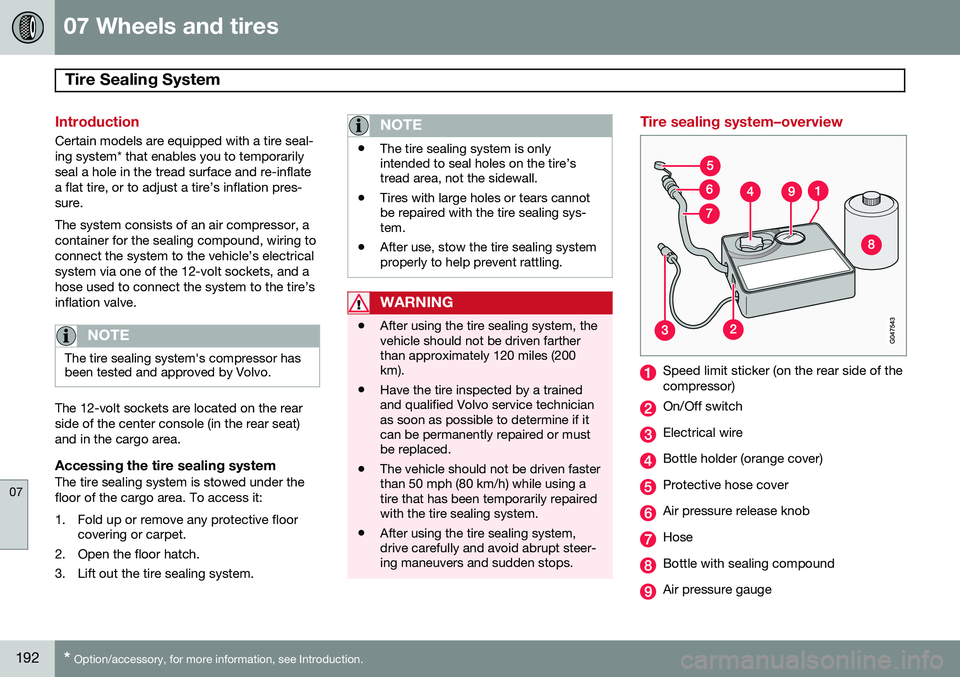
Tire sealing system–overview
Speed limit sticker (on the rear side of the compressor)
On/Off switch
Electrical wire
Bottle holder (orange cover)
Protective hose cover
Air pressure release knob
Hose
Bottle with sealing compound
Air pressure gauge
Page 263 of 308
10 Audio
Radio functions
10
261
channels will be displayed as 93.9 – 2 WNYC, 93.9 - 3 WNYC, etc.
• Reception coverage area
: Due to cur-
rent IBOC transmitter power limitations,the reception coverage area in digitalmode is somewhat more limited than thestation's analogue coverage area. Pleasebe aware that as with any radio broadcasttechnology, terrain, time of day, foliagelevel and building location can have posi-tive or negative effects on radio recep-tion.
• Analogue to digital/digital to analogue blending
: Analogue to digital blending
will occur as the signal strength reaches a preset threshold in the receiver. This willbe noticeable in fringe areas (areas withweak reception) and is normal.
NOTE
There may be a noticeable difference in sound quality when a change from ana-logue to digital or digital to analogueoccurs, such as:
• Volume increase or decrease
• Equalizer settings, i.e., Bass/ Mid- range/Treble cut or boost
• Time alignment (Digital program mate-rial in extreme cases can be as muchas 8 seconds behind the analogue).This will noticeable as a "stuttering"effect.
The above items are dependant on the broadcaster's equipment settings and do not indicate a fault in the vehicle's radio receiver or antenna systems .
Switching HD on or offThe factory setting for HD radio is on. How-
ever, when driving through areas with weak HD signals (fringe areas), you may experiencethat the radio repeatedly switches betweenanalogue/digital and digital/analogue recep-tion. If this happens, it may be desirable toswitch HD off. To do so:
1. Be sure the audio system is switched on and in AM or FM mode.
2. Press MENU in the center console con-
trol panel. 3. Press
ENTER to turn HD off (the X will
disappear from the box on the display screen).
This will disable the radio's capability to receive digital broadcasts but it will continueto function as a conventional (analogue)AM/FM receiver. Please note that when HD isswitched off, it will not be possible to tune tosub-channels (see the following section for amore detailed explanation of sub-channels). Repeat steps 2 and 3 above to reactivate HD (an X will appear in the box on the displayscreen).
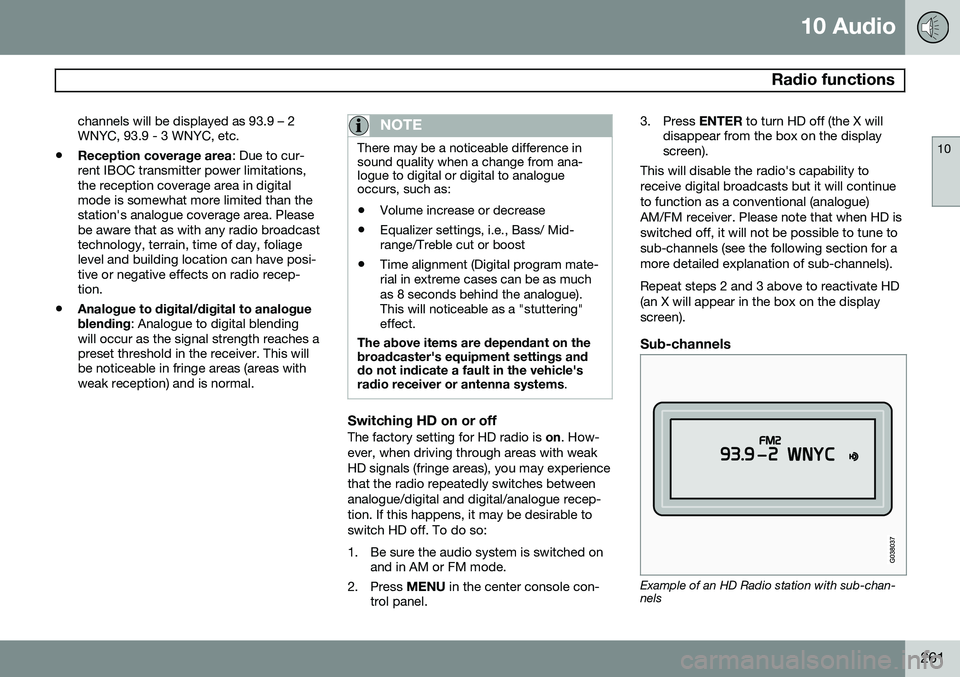
Sub-channels
Example of an HD Radio station with sub-chan- nels
Page 264 of 308
10 Audio
Radio functions
10
262
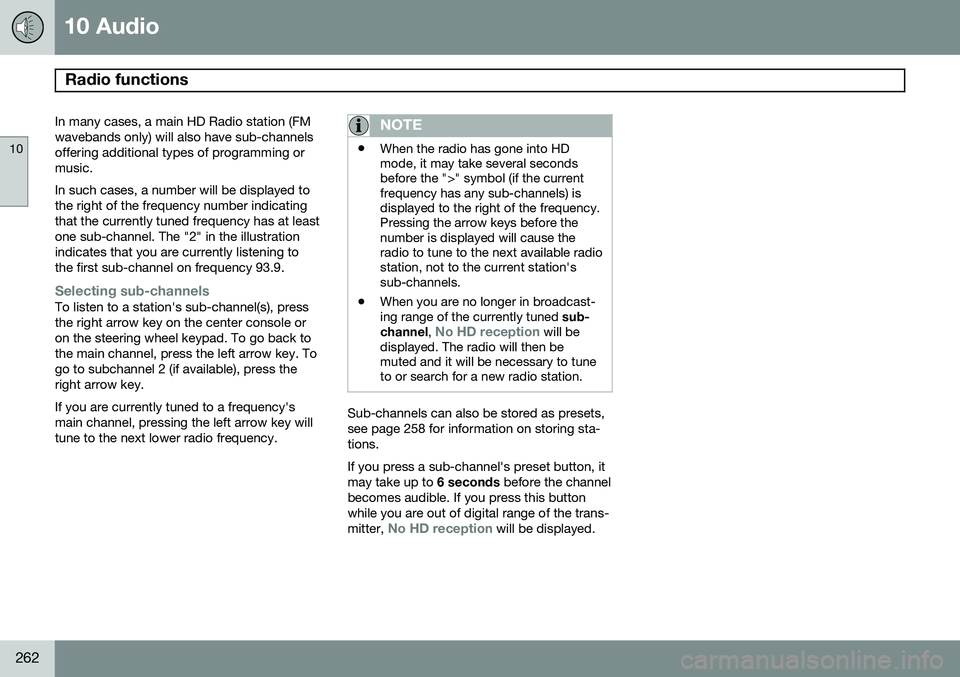
In many cases, a main HD Radio station (FM wavebands only) will also have sub-channelsoffering additional types of programming ormusic. In such cases, a number will be displayed to the right of the frequency number indicatingthat the currently tuned frequency has at leastone sub-channel. The "2" in the illustrationindicates that you are currently listening tothe first sub-channel on frequency 93.9.
Selecting sub-channelsTo listen to a station's sub-channel(s), press the right arrow key on the center console oron the steering wheel keypad. To go back tothe main channel, press the left arrow key. Togo to subchannel 2 (if available), press theright arrow key. If you are currently tuned to a frequency's main channel, pressing the left arrow key willtune to the next lower radio frequency.
NOTE
•When the radio has gone into HD mode, it may take several secondsbefore the ">" symbol (if the currentfrequency has any sub-channels) isdisplayed to the right of the frequency.Pressing the arrow keys before thenumber is displayed will cause theradio to tune to the next available radiostation, not to the current station'ssub-channels.
• When you are no longer in broadcast-ing range of the currently tuned
sub-
channel ,
No HD reception will be
displayed. The radio will then be muted and it will be necessary to tuneto or search for a new radio station.
Sub-channels can also be stored as presets, see page 258 for information on storing sta-tions. If you press a sub-channel's preset button, it may take up to 6 seconds before the channel
becomes audible. If you press this buttonwhile you are out of digital range of the trans- mitter,
No HD reception will be displayed.
Page 270 of 308
10 Audio
Auxiliary equipment
10
268
2. Connect the iPod®, MP3 player or USB
flash drive to the USB connector (see the illustration). > The text
Loading will be displayed
while the system loads the files (folder structure) on the device. This may takea short time.
When the information has been loaded, infor-mation about the tracks on the device will bedisplayed. The
/ buttons can be used to fast
forward/reverse or change tracks:
• Press briefly to change tracks.
• Press slightly longer to fast forward/ reverse.
The arrow keys on the steering wheel keypad can also be used in the same way.
NOTE
• The system supports a number of iPod ®
models produced in 2005 or
later.
• In order to help avoid damage to the USB socket, it will be switched off ifthere is a short circuit or if the con-nected device uses too much current(which can happen if the device doesnot comply with the USB standard).The USB socket will reactivate thenext time the ignition is switched on ifthe problem no longer exists. If theproblem persists, contact a trainedand authorized Volvo service techni-cian.
USB flash driveTo simplify the use of a USB flash drive, it is advisable to only store music files on thedrive. It will take considerably longer for thesystem to index the files on the drive if it con-tains anything other than compatible musicfiles.
NOTE
• The system supports removable media that uses the USB 2.0 standard andthe FAT32 file system. It can index upto 1,000 folders and a maximum of254 sub-folders/files for each folder.However, the highest folder level cansupport up to 1,000 sub-folders/files.
• When using a longer type of USBdevice, connecting it with a USBadapter cable will help reducemechanical wear on the USB socketand on the device.
iPod®
An iPod ®
is charged and draws current if it is
connected to the USB connector. However, if the battery is completely discharged, it should be charged before the iPod ®
is con-
nected to the USB connector.
Bluetooth ®
streaming audio (BT)The vehicle's audio system is equipped withBluetooth ®
, which makes it possible to play
streaming audio files from a Bluetooth ®
con-
nected cell phone. Navigation and control of the phone can be done through the vehicle'scenter console control panel or the steeringwheel keypad. On certain cell phones, it is
Page 276 of 308
10 Audio
Bluetooth®
hands-free connection
10
274
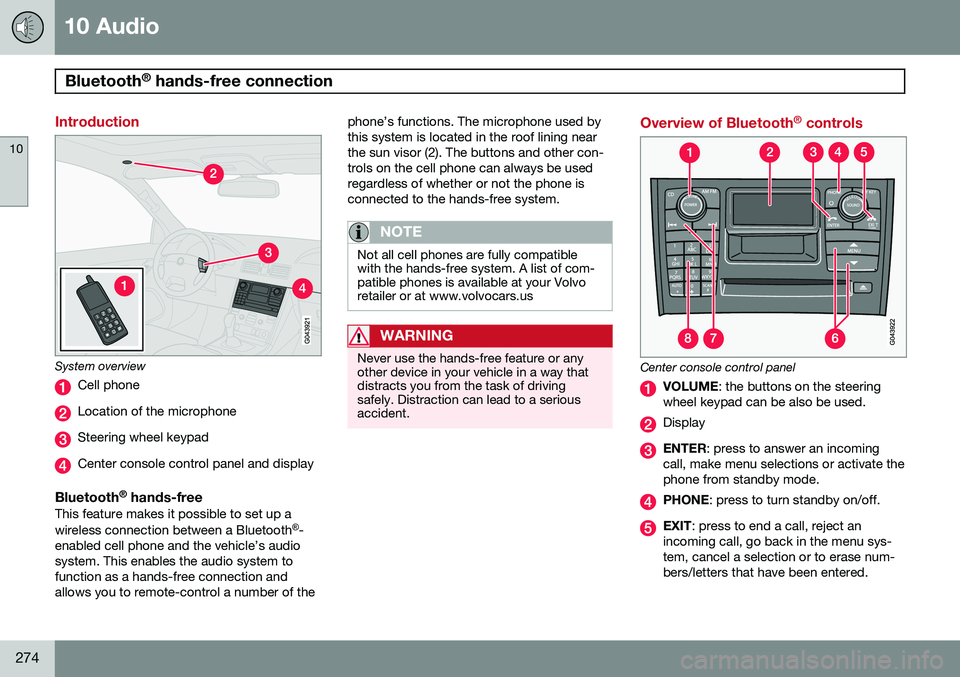
Introduction
System overview
Cell phone
Location of the microphone
Steering wheel keypad
Center console control panel and display
Bluetooth ®
hands-freeThis feature makes it possible to set up a wireless connection between a Bluetooth ®
-
enabled cell phone and the vehicle’s audio system. This enables the audio system tofunction as a hands-free connection andallows you to remote-control a number of the phone’s functions. The microphone used bythis system is located in the roof lining nearthe sun visor (2). The buttons and other con-trols on the cell phone can always be usedregardless of whether or not the phone isconnected to the hands-free system.
NOTE
Not all cell phones are fully compatible with the hands-free system. A list of com-patible phones is available at your Volvoretailer or at www.volvocars.us
WARNING
Never use the hands-free feature or any other device in your vehicle in a way thatdistracts you from the task of drivingsafely. Distraction can lead to a seriousaccident.
Overview of Bluetooth
®
controls
Center console control panel
VOLUME : the buttons on the steering
wheel keypad can be also be used.
Display
ENTER : press to answer an incoming
call, make menu selections or activate the phone from standby mode.
PHONE : press to turn standby on/off.
EXIT: press to end a call, reject an
incoming call, go back in the menu sys- tem, cancel a selection or to erase num-bers/letters that have been entered.
Page 277 of 308
10 Audio
Bluetooth®
hands-free connection
10
}}
275
MENU : press to access the menu sys-
tem. Press the arrow keys to go up or down among menu alternatives.
Search: go forward or back when enter- ing text/numbers.
Alphanumeric keys and menu shortcuts.
Getting started
Use the controls in the center console (3) or the buttons in the steering wheel keypad toaccess, navigate and make selections in thehands-free system’s menus (see page 278).
Activating/deactivatingA short press on the PHONE button in the
center console activates the hands-free sys- tem. The text
PHONE will appear at the top
of the display to indicate that the audio sys- tem is in telephone mode. The
symbol indicates that the hands-
free system is active. A long press on the PHONE button deacti-
vates the hands-free system and disconnects the cell phone.
Connecting cell phonesThe procedure for connecting a cell phonevaries, depending on the phone itself, and on whether or not the phone has been previouslyconnected. If this is the first time the phone is to be con- nected to the hands-free system, proceed asfollows: Alternative 1–using the vehicle's menus 1.
Activate the cell phone’s Bluetooth ®
func-
tion (refer to the phone’s owner’s manual if necessary) or go to www.volvocars.com
2. Activate the vehicle’s Bluetooth ®
hands-
free system by briefly pressing thePHONE button.
>
Add phone will be displayed. If one or
more cell phones are already regis- tered in the system, they will also bedisplayed.
3. Select
Add phone.
> The audio system will search for cell phones that are in range. This search takes approximately 30 seconds. Anyphones detected will be displayed with their Bluetooth ®
names. The hands-
free system’s Bluetooth ®
name will
appear in the cell phone’s display as
My Volvo Car.
4. Select one of the cell phones shown in the audio system’s (center console) dis- play. 5. Using the cell phone’s keypad, enter the
digits shown in the audio system’s dis-play.
Alternative 2–using the cell phone’s menus
1. Activate the hands-free system by briefly pressing the PHONE button in the center
console. If there is a cell phone con- nected, disconnect it from the hands-freesystem.
2. Perform a search using the cell phone’s Bluetooth ®
function (consult the cell
phone’s owner’s manual if necessary).
3. Select
My Volvo Car in the list of devices
shown in the cell phone’s display.
4. When prompted, enter the PIN code 1234 in the cell phone.
5. Connect to
My Volvo Car from the cell
phone.
The cell phone will be registered and will be connected automatically to the audio system while the text
Synchronizing is displayed.
For more information on synchronizing a cell phone, see page 277. When a connection has been established, the
symbol and the cell phone’s Bluetooth ®
name will be displayed. The cell phone can now be controlled from the audio system.