key VOLVO XC90 2014 Owner´s Manual
[x] Cancel search | Manufacturer: VOLVO, Model Year: 2014, Model line: XC90, Model: VOLVO XC90 2014Pages: 308, PDF Size: 13.31 MB
Page 255 of 308
10 Audio
Audio system controls
10
}}
253
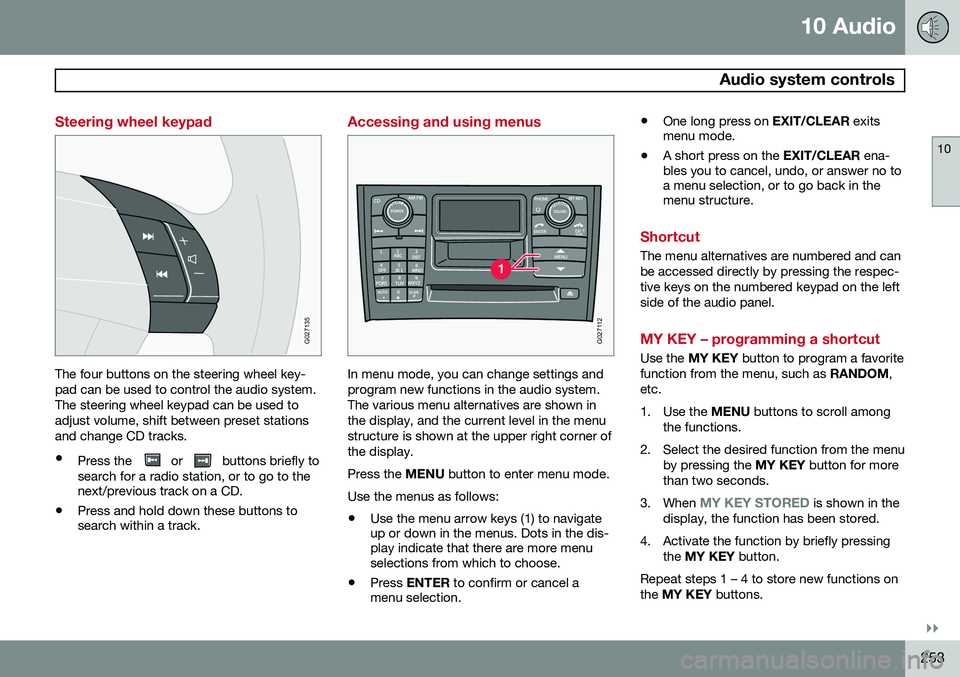
Steering wheel keypad
G027135
The four buttons on the steering wheel key- pad can be used to control the audio system.The steering wheel keypad can be used toadjust volume, shift between preset stationsand change CD tracks.
• Press the
or buttons briefly to
search for a radio station, or to go to the next/previous track on a CD.
• Press and hold down these buttons tosearch within a track.
Accessing and using menus
G027112
In menu mode, you can change settings and program new functions in the audio system.The various menu alternatives are shown inthe display, and the current level in the menustructure is shown at the upper right corner ofthe display. Press the
MENU button to enter menu mode.
Use the menus as follows:
• Use the menu arrow keys (1) to navigate up or down in the menus. Dots in the dis-play indicate that there are more menuselections from which to choose.
• Press
ENTER to confirm or cancel a
menu selection. •
One long press on
EXIT/CLEAR exits
menu mode.
• A short press on the
EXIT/CLEAR ena-
bles you to cancel, undo, or answer no toa menu selection, or to go back in themenu structure.
Shortcut
The menu alternatives are numbered and can be accessed directly by pressing the respec-tive keys on the numbered keypad on the leftside of the audio panel.
MY KEY – programming a shortcut
Use the MY KEY button to program a favorite
function from the menu, such as RANDOM,
etc.
1. Use the MENU buttons to scroll among
the functions.
2. Select the desired function from the menu by pressing the MY KEY button for more
than two seconds.
3. When
MY KEY STORED is shown in the
display, the function has been stored.
4. Activate the function by briefly pressing the MY KEY button.
Repeat steps 1 – 4 to store new functions on the MY KEY buttons.
Page 256 of 308
10 Audio
Audio system controls
10
254* Option/accessory, for more information, see Introduction.
NOTE
The MY KEY buttons can only be pro-
grammed for one shortcut function at a time.
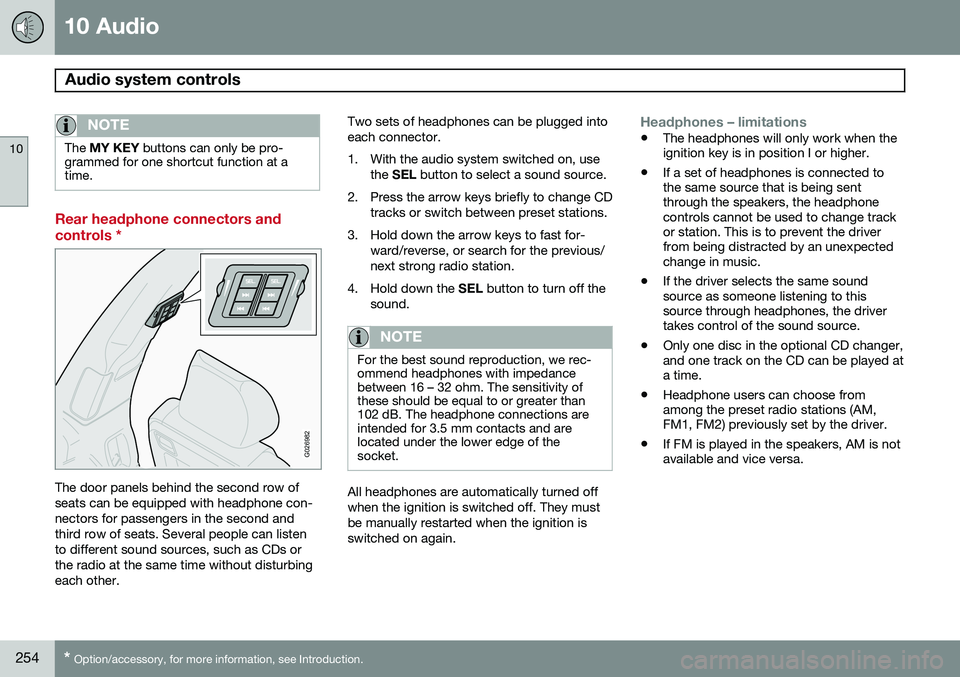
Rear headphone connectors and controls *
G026982
The door panels behind the second row of seats can be equipped with headphone con-nectors for passengers in the second andthird row of seats. Several people can listento different sound sources, such as CDs orthe radio at the same time without disturbingeach other. Two sets of headphones can be plugged intoeach connector.
1. With the audio system switched on, use
the SEL button to select a sound source.
2. Press the arrow keys briefly to change CD tracks or switch between preset stations.
3. Hold down the arrow keys to fast for- ward/reverse, or search for the previous/ next strong radio station.
4. Hold down the SEL button to turn off the
sound.
NOTE
For the best sound reproduction, we rec- ommend headphones with impedancebetween 16 – 32 ohm. The sensitivity ofthese should be equal to or greater than102 dB. The headphone connections areintended for 3.5 mm contacts and arelocated under the lower edge of thesocket.
All headphones are automatically turned off when the ignition is switched off. They mustbe manually restarted when the ignition isswitched on again.
Headphones – limitations
• The headphones will only work when the ignition key is in position I or higher.
• If a set of headphones is connected tothe same source that is being sentthrough the speakers, the headphonecontrols cannot be used to change trackor station. This is to prevent the driverfrom being distracted by an unexpectedchange in music.
• If the driver selects the same soundsource as someone listening to thissource through headphones, the drivertakes control of the sound source.
• Only one disc in the optional CD changer,and one track on the CD can be played ata time.
• Headphone users can choose fromamong the preset radio stations (AM,FM1, FM2) previously set by the driver.
• If FM is played in the speakers, AM is notavailable and vice versa.
Page 257 of 308
10 Audio
Audio system controls
10
* Option/accessory, for more information, see Introduction.255
On/Off button
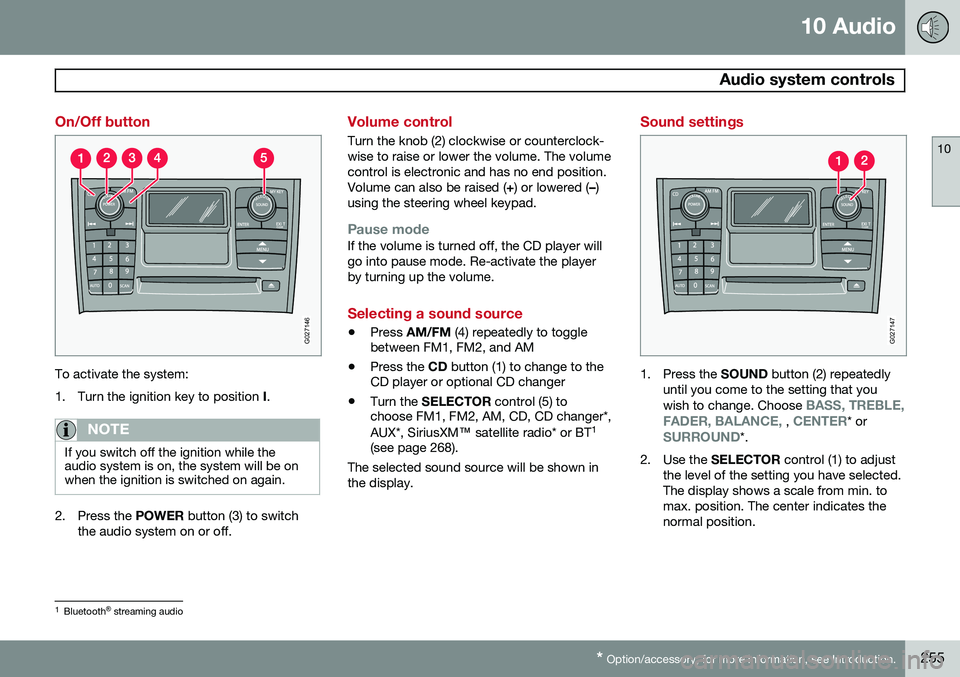
G027146
To activate the system:
1. Turn the ignition key to position I.
NOTE
If you switch off the ignition while the audio system is on, the system will be onwhen the ignition is switched on again.
2. Press the POWER button (3) to switch
the audio system on or off.
Volume control
Turn the knob (2) clockwise or counterclock- wise to raise or lower the volume. The volumecontrol is electronic and has no end position.Volume can also be raised ( +) or lowered ( –)
using the steering wheel keypad.
Pause modeIf the volume is turned off, the CD player will go into pause mode. Re-activate the playerby turning up the volume.
Selecting a sound source
• Press
AM/FM (4) repeatedly to toggle
between FM1, FM2, and AM
• Press the
CD button (1) to change to the
CD player or optional CD changer
• Turn the
SELECTOR control (5) to
choose FM1, FM2, AM, CD, CD changer*, AUX*, SiriusXM ™ satellite radio* or BT 1
(see page 268).
The selected sound source will be shown in the display.
Sound settings
G027147
1. Press the SOUND button (2) repeatedly
until you come to the setting that you wish to change. Choose
BASS, TREBLE,
FADER, BALANCE, , CENTER* orSURROUND*.
2. Use the SELECTOR control (1) to adjust
the level of the setting you have selected. The display shows a scale from min. tomax. position. The center indicates thenormal position.
1 Bluetooth ®
streaming audio
Page 260 of 308
10 Audio
Radio functions
10
258
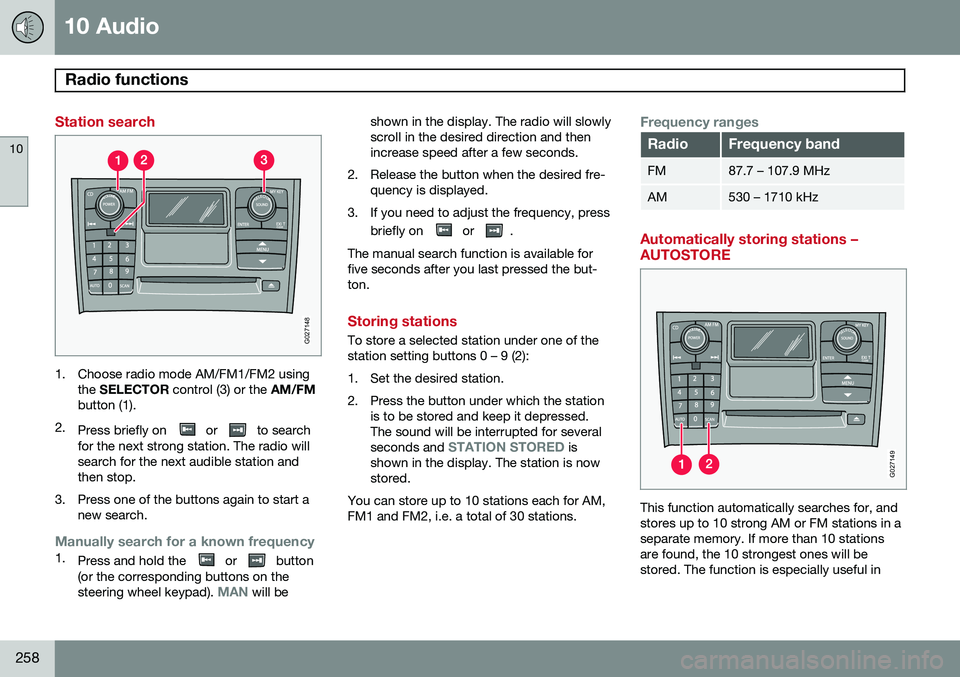
Station search
G027148
1. Choose radio mode AM/FM1/FM2 usingthe SELECTOR control (3) or the AM/FM
button (1).
2. Press briefly on
or to search
for the next strong station. The radio will search for the next audible station andthen stop.
3. Press one of the buttons again to start a new search.
Manually search for a known frequency1.Press and hold the or button
(or the corresponding buttons on the steering wheel keypad).
MAN will be shown in the display. The radio will slowly scroll in the desired direction and thenincrease speed after a few seconds.
2. Release the button when the desired fre- quency is displayed.
3. If you need to adjust the frequency, press briefly on
or .
The manual search function is available for five seconds after you last pressed the but-ton.
Storing stations
To store a selected station under one of the station setting buttons 0 – 9 (2):
1. Set the desired station.
2. Press the button under which the station is to be stored and keep it depressed. The sound will be interrupted for several seconds and
STATION STORED is
shown in the display. The station is now stored.
You can store up to 10 stations each for AM,FM1 and FM2, i.e. a total of 30 stations.
Frequency ranges
RadioFrequency band
FM87.7 – 107.9 MHz
AM530 – 1710 kHz
Automatically storing stations – AUTOSTORE
G027149
This function automatically searches for, and stores up to 10 strong AM or FM stations in aseparate memory. If more than 10 stationsare found, the 10 strongest ones will bestored. The function is especially useful in
Page 261 of 308
10 Audio
Radio functions
10
}}
259
areas in which you are not acquainted with radio stations or their frequencies.
Starting autostore1. Choose a frequency band with the
AM/FM button.
2. Press and hold down the AUTO button
(1) until
AUTOSTORING is shown in the
display.
When
AUTOSTORING is no longer dis-
played, the autostore process is complete. The automatically stored stations can beselected withe the preset (number) keys Ifthere are no stations with sufficient signal strength,
NO AST FOUND is displayed.
Stopping autostorePress EXIT.
Selecting an autostored station1. Press AUTO (1) briefly. AUTO will be dis-
played.
2. Press one of the preset buttons (0 – 9). The radio will remain in Autostore mode until AUTO, EXIT , or AM/FM is pressed.
SCAN
This function automatically searches the cur- rently selected waveband (AM, FM1, or FM2)for strong stations. When the radio finds astation, it will pause for approximately 8 sec-onds, after which it will continue scanning.
Activating/deactivating Scan1. Choose a waveband by pressing the
AM/FM button.
2. Press SCAN (2). SCAN will be shown in
the display.
3. Press EXIT to stop scanning.
Storing a station found by SCANStations can be stored on the preset buttons while the SCAN function is activated.
• Press a preset button and hold it down until Station stored is displayed.
This deactivates SCAN and the stored station
can be selected by pressing the preset but- ton.
Radio text
Certain stations broadcast program informa- tion, which can be shown in the display.
1. Press the MENU button.
2. Select
RADIOTEXT in the menu and
press ENTER .
Select
RADIOTEXT again to deactivate.
Page 262 of 308
10 Audio
Radio functions
10
260
HD Radio™reception (U.S.
models only) 1
Introduction
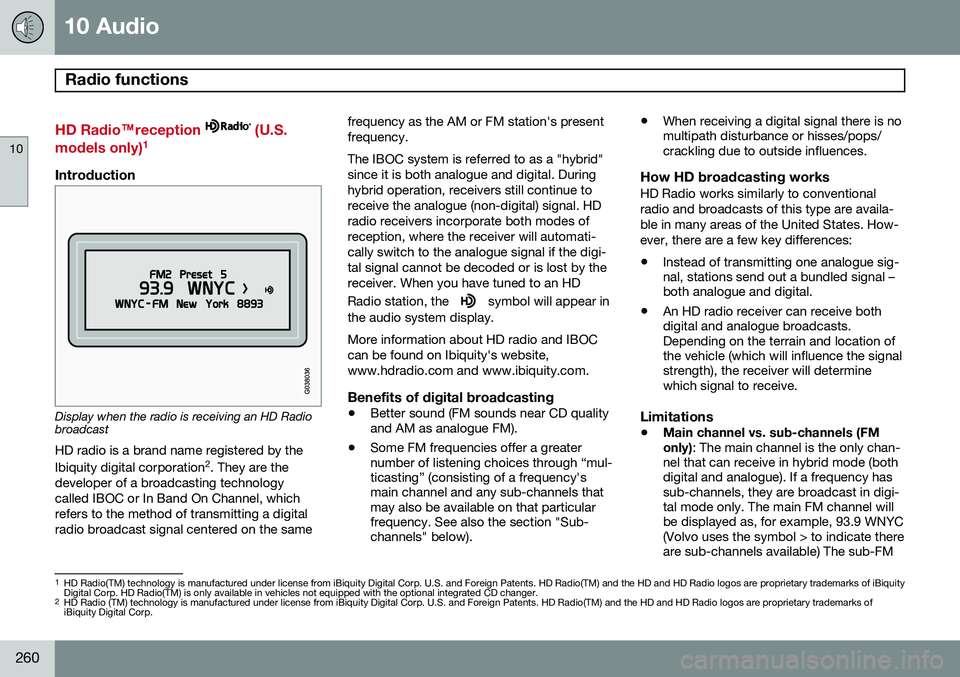
Display when the radio is receiving an HD Radio broadcast HD radio is a brand name registered by the Ibiquity digital corporation
2
. They are the
developer of a broadcasting technology called IBOC or In Band On Channel, whichrefers to the method of transmitting a digitalradio broadcast signal centered on the same frequency as the AM or FM station's presentfrequency. The IBOC system is referred to as a "hybrid" since it is both analogue and digital. Duringhybrid operation, receivers still continue toreceive the analogue (non-digital) signal. HDradio receivers incorporate both modes ofreception, where the receiver will automati-cally switch to the analogue signal if the digi-tal signal cannot be decoded or is lost by thereceiver. When you have tuned to an HD Radio station, the
symbol will appear in
the audio system display. More information about HD radio and IBOC can be found on Ibiquity's website,www.hdradio.com and www.ibiquity.com.
Benefits of digital broadcasting
• Better sound (FM sounds near CD quality and AM as analogue FM).
• Some FM frequencies offer a greaternumber of listening choices through “mul-ticasting” (consisting of a frequency'smain channel and any sub-channels thatmay also be available on that particularfrequency. See also the section "Sub-channels" below). •
When receiving a digital signal there is nomultipath disturbance or hisses/pops/crackling due to outside influences.
How HD broadcasting worksHD Radio works similarly to conventional radio and broadcasts of this type are availa-ble in many areas of the United States. How-ever, there are a few key differences:
• Instead of transmitting one analogue sig- nal, stations send out a bundled signal –both analogue and digital.
• An HD radio receiver can receive bothdigital and analogue broadcasts.Depending on the terrain and location ofthe vehicle (which will influence the signalstrength), the receiver will determinewhich signal to receive.
Limitations
• Main channel vs. sub-channels (FM only)
: The main channel is the only chan-
nel that can receive in hybrid mode (both digital and analogue). If a frequency hassub-channels, they are broadcast in digi-tal mode only. The main FM channel willbe displayed as, for example, 93.9 WNYC(Volvo uses the symbol > to indicate thereare sub-channels available) The sub-FM
1 HD Radio(TM) technology is manufactured under license from iBiquity Digital Corp. U.S. and Foreign Patents. HD Radio(TM) and the HD and HD Radio logos are proprietary trademarks of iBiquity Digital Corp. HD Radio(TM) is only available in vehicles not equipped with the optional integrated CD changer.
2 HD Radio (TM) technology is manufactured under license from iBiquity Digital Corp. U.S. and Foreign Patents. HD Radio(TM) and the HD and HD Radio logos are proprietary trademarks ofiBiquity Digital Corp.
Page 264 of 308
10 Audio
Radio functions
10
262
In many cases, a main HD Radio station (FM wavebands only) will also have sub-channelsoffering additional types of programming ormusic. In such cases, a number will be displayed to the right of the frequency number indicatingthat the currently tuned frequency has at leastone sub-channel. The "2" in the illustrationindicates that you are currently listening tothe first sub-channel on frequency 93.9.
Selecting sub-channelsTo listen to a station's sub-channel(s), press the right arrow key on the center console oron the steering wheel keypad. To go back tothe main channel, press the left arrow key. Togo to subchannel 2 (if available), press theright arrow key. If you are currently tuned to a frequency's main channel, pressing the left arrow key willtune to the next lower radio frequency.
NOTE
•When the radio has gone into HD mode, it may take several secondsbefore the ">" symbol (if the currentfrequency has any sub-channels) isdisplayed to the right of the frequency.Pressing the arrow keys before thenumber is displayed will cause theradio to tune to the next available radiostation, not to the current station'ssub-channels.
• When you are no longer in broadcast-ing range of the currently tuned
sub-
channel ,
No HD reception will be
displayed. The radio will then be muted and it will be necessary to tuneto or search for a new radio station.
Sub-channels can also be stored as presets, see page 258 for information on storing sta-tions. If you press a sub-channel's preset button, it may take up to 6 seconds before the channel
becomes audible. If you press this buttonwhile you are out of digital range of the trans- mitter,
No HD reception will be displayed.
Page 265 of 308
10 Audio
SiriusXM™ satellite radio
10
263
Listening to satellite radio
The SiriusXM ™ satellite system consists of a
number of high elevation satellites in geosyn- chronous orbit.
NOTE
• The digital signals from the SiriusXM
™
satellites are line-of-sight, which means that physical obstructions suchas bridges, tunnels, etc, may tempo-rarily interfere with signal reception.
• Avoid any obstructions, such as metal-lic objects transported on roof racks orin a ski box, or other antennas thatmay impede signals from the Sir-iusXM
™ satellites.
Selecting SiriusXM™ radio mode
1. Press Power to switch on the audio sys-
tem (see page 252 for information on the standard radio functions).
2. Turn the SELECTOR dial until Sirius 1 or
2 is displayed.
Activating SiriusXM ™ radio
1. Tune to a satellite channel that has no
audio, which means that the channel is unsubscribed and the text "
Call
888-539-SIRIUS TO SUBSCRIBE" is displayed (see also "Selecting a channel" in the right column).
2. Call SiriusXM ™ at 1-888-539-SIRIUS
(7474).
3. When asked for the SiriusXM ™ ID num-
ber press AUTO to display this number. It
is also possible to retrieve the SiriusXM ™
ID from the MENU.
4. "
UPDATING SUBSCRIPTION" will be
displayed while the subscription is being updated, after which the display willreturn to the normal view.
SiriusXM™ ID
The SiriusXM ™ ID is required when contact-
ing the SiriusXM ™ Call Center. It is used to
activate your account and when making any account transactions. The SiriusXM ™ ID is
sometimes referred to as the Electronic SerialNumber (ESN). This function displays the 12-digit Sir- iusXM ™ID.
Selecting a channel category1. Select SiriusXM ™ radio mode as descri-
bed above.
2. Press ENTER. 3. Use the up/down arrow keys to scroll
through the list of categories.
4. Press ENTER to select a category.
5. Use the
and buttons to select
a channel in the currently chosen cate- gory.
NOTE
The category "All" is default, which ena- bles you to scroll through the entire list ofavailable satellite channels. The channel categories are automatically updated several times a year. This takesapproximately two minutes and will inter-rupt normal broadcasting. A message willbe displayed while updating is in progress.Information on channel or feature updatesis available at www.sirius.com.
Selecting a channelThere are two ways of tuning in a channel:
• By pressing and holding the
and
buttons to start the scroll function.
The scrolling function begins slowly and increases speed after approximately5 seconds. Release the button to listen tothe currently displayed channel.
• Through direct channel entry
Page 266 of 308
10 Audio
SiriusXM™ satellite radio
10
264
Direct channel entryThe SiriusXM ™ satellite channels are num-
bered consecutively throughout all of the cat- egories. To access a channel directly: 1. Press MENU and scroll to
Direct
channel entry.
2. Use the numerical keypad to enter the channel's number. Press EXIT if neces-
sary to erase a digit.
3. Press ENTER. The radio will tune to this
channel, even if it belongs to a category other than the currently selected one.
NOTE
The numbers of skipped or locked chan- nels will not be displayed.
• If a channel is locked, the access code must be entered before the channelcan be selected. See "Unlocking achannel" on page 266.
Scanning
SCAN
automatically searches through the list
of satellite channels. See page 259 for more detailed information.
Storing a channel
A total of 20 satellite channels can be stored; 10 channels each for SiriusXM ™ 1 and 2. See
page 258 for detailed information on storingchannels.
• A
long press on one of the number keys
stores the currently tuned channel on that key.
• A
short press on a number key while the
radio is in SiriusXM ™ 1 or 2 mode will
tune to the preset satellite channel storedon that button, regardless of the currentlyselected channel category.
Song Seek and Song Memory
The Song Seek and Song Memory func-
tions provide both audio and visual notifica- tion when SiriusXM ™ is broadcasting your
favorite songs. Song Seek enables you tostore the name of the song for future advancenotification when that song is being played. The
Song Memory feature makes it possible
to view all of the current songs that are stored in memory.
Song memoryUp to ten songs can be saved in the system'smemory.
1. Press MENU.
2. Scroll to "
Add song to song mem." and
follow the instructions shown in the dis- play.
If a new song is selected when the memory isfull, you will be prompted to press ENTER to
delete the last song on the list. The remaining songs in the list will move down one position, and the newly addedsong will be placed at the top of the list.
Song seekWhen a satellite radio channel plays one ofthe songs stored in the song memory, the lis-tener will be alerted by a text message and anaudible signal. Press ENTER to listen to the song or EXIT to
cancel.To activate/deactivate the song seek func- tion:
1. Press MENU
2. Scroll to "
Song seek"
3. Press ENTER to activate or deactivate
the function.
Page 270 of 308
10 Audio
Auxiliary equipment
10
268
2. Connect the iPod®, MP3 player or USB
flash drive to the USB connector (see the illustration). > The text
Loading will be displayed
while the system loads the files (folder structure) on the device. This may takea short time.
When the information has been loaded, infor-mation about the tracks on the device will bedisplayed. The
/ buttons can be used to fast
forward/reverse or change tracks:
• Press briefly to change tracks.
• Press slightly longer to fast forward/ reverse.
The arrow keys on the steering wheel keypad can also be used in the same way.
NOTE
• The system supports a number of iPod ®
models produced in 2005 or
later.
• In order to help avoid damage to the USB socket, it will be switched off ifthere is a short circuit or if the con-nected device uses too much current(which can happen if the device doesnot comply with the USB standard).The USB socket will reactivate thenext time the ignition is switched on ifthe problem no longer exists. If theproblem persists, contact a trainedand authorized Volvo service techni-cian.
USB flash driveTo simplify the use of a USB flash drive, it is advisable to only store music files on thedrive. It will take considerably longer for thesystem to index the files on the drive if it con-tains anything other than compatible musicfiles.
NOTE
• The system supports removable media that uses the USB 2.0 standard andthe FAT32 file system. It can index upto 1,000 folders and a maximum of254 sub-folders/files for each folder.However, the highest folder level cansupport up to 1,000 sub-folders/files.
• When using a longer type of USBdevice, connecting it with a USBadapter cable will help reducemechanical wear on the USB socketand on the device.
iPod®
An iPod ®
is charged and draws current if it is
connected to the USB connector. However, if the battery is completely discharged, it should be charged before the iPod ®
is con-
nected to the USB connector.
Bluetooth ®
streaming audio (BT)The vehicle's audio system is equipped withBluetooth ®
, which makes it possible to play
streaming audio files from a Bluetooth ®
con-
nected cell phone. Navigation and control of the phone can be done through the vehicle'scenter console control panel or the steeringwheel keypad. On certain cell phones, it is