radio VOLVO XC90 2014 Owner´s Manual
[x] Cancel search | Manufacturer: VOLVO, Model Year: 2014, Model line: XC90, Model: VOLVO XC90 2014Pages: 308, PDF Size: 13.31 MB
Page 7 of 308
Contents
5
09
09 Maintenance and servicing
Volvo service........................................... 216
Maintaining your vehicle......................... 217
Working on your vehicle......................... 219
Engine compartment............................... 221
Engine oil................................................ 222
Fluids...................................................... 224
Wiper blades........................................... 226
Battery..................................................... 227
Replacing bulbs...................................... 230
Fuses...................................................... 238
10
10 Audio
Audio system overview........................... 252
Audio system controls............................ 253
Radio functions....................................... 258SiriusXM™ satellite radio........................ 263
Auxiliary equipment................................ 267
CD player/changer.................................. 270
Menu structure........................................ 273 Bluetooth ®
hands-free connection......... 274
11
11 Specifications
Label information.................................... 282
Dimensions ............................................ 284
Weights .................................................. 286
Fluids...................................................... 288
Suspension............................................. 289
Engine oil................................................ 290
Engine specifications.............................. 291
Electrical system..................................... 292
Three-way catalytic converter................. 293Overview of information and warning
symbols .................................................. 294
Volvo programs....................................... 296
Page 16 of 308
Introduction
Important warnings
14
Driver distraction
A driver has a responsibility to do everything possible to ensure his or her own safety andthe safety of passengers in the vehicle andothers sharing the roadway. Avoiding distrac-tions is part of that responsibility. Driver distraction results from driver activities that are not directly related to controlling thevehicle in the driving environment. Your newVolvo is, or can be, equipped with many fea-ture-rich entertainment and communicationsystems. These include hands-free cellulartelephones, navigation systems, and multi-purpose audio systems. You may also ownother portable electronic devices for your ownconvenience. When used properly and safely,they enrich the driving experience. Improperlyused, any of these could cause a distraction. For all of these systems, we want to provide the following warning that reflects the strongVolvo concern for your safety. Never usethese devices or any feature of your vehicle ina way that distracts you from the task of driv-ing safely. Distraction can lead to a seriousaccident. In addition to this general warning,we offer the following guidance regardingspecific newer features that may be found inyour vehicle: •Never use a hand-held cellular telephone while driving. Some jurisdictions prohibit cellular telephone use by a driver whilethe vehicle is moving.
• If your vehicle is equipped with a naviga-tion system, set and make changes toyour travel itinerary only with the vehicleparked.
• Never program your audio system whilethe vehicle is moving. Program radio pre-sets with the vehicle parked, and useyour programmed presets to make radiouse quicker and simpler.
• Never use portable computers or per-sonal digital assistants while the vehicle ismoving.
Accessory installation
• We strongly recommend that Volvo own- ers install only genuine, Volvo-approvedaccessories, and that accessory installa-tions be performed only by a trained andqualified Volvo service technician.
• Genuine Volvo accessories are tested toensure compatibility with the perform-ance, safety, and emission systems inyour vehicle. Additionally, a trained andqualified Volvo service technician knowswhere accessories may and may not besafely installed in your Volvo. In all cases,please consult a trained and qualifiedVolvo service technician before installingany accessory in or on your vehicle. •
Accessories that have not been approvedby Volvo may or may not be specificallytested for compatibility with your vehicle.Additionally, an inexperienced installermay not be familiar with some of yourcar's systems.
• Any of your car's performance and safetysystems could be adversely affected ifyou install accessories that Volvo has nottested, or if you allow accessories to beinstalled by someone unfamiliar with yourvehicle.
• Damage caused by unapproved orimproperly installed accessories may notbe covered by your new vehicle warranty.See your Warranty and Service RecordsInformation booklet for more warrantyinformation. Volvo assumes no responsi-bility for death, injury, or expenses thatmay result from the installation of non-genuine accessories.
Page 91 of 308
02 Instruments and controls
HomeLink®
Wireless Control System*
02
* Option/accessory, for more information, see Introduction.89
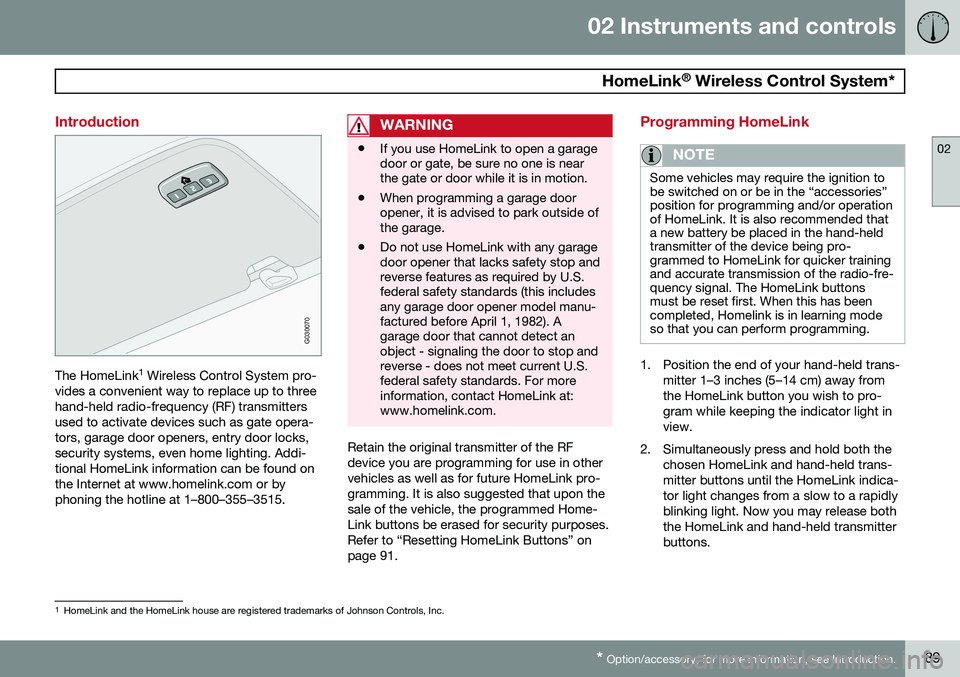
Introduction
G030070
The HomeLink 1
Wireless Control System pro-
vides a convenient way to replace up to three hand-held radio-frequency (RF) transmittersused to activate devices such as gate opera-tors, garage door openers, entry door locks,security systems, even home lighting. Addi-tional HomeLink information can be found onthe Internet at www.homelink.com or byphoning the hotline at 1–800–355–3515.
WARNING
• If you use HomeLink to open a garage door or gate, be sure no one is nearthe gate or door while it is in motion.
• When programming a garage dooropener, it is advised to park outside ofthe garage.
• Do not use HomeLink with any garagedoor opener that lacks safety stop andreverse features as required by U.S.federal safety standards (this includesany garage door opener model manu-factured before April 1, 1982). Agarage door that cannot detect anobject - signaling the door to stop andreverse - does not meet current U.S.federal safety standards. For moreinformation, contact HomeLink at:www.homelink.com.
Retain the original transmitter of the RF device you are programming for use in othervehicles as well as for future HomeLink pro-gramming. It is also suggested that upon thesale of the vehicle, the programmed Home-Link buttons be erased for security purposes.Refer to “Resetting HomeLink Buttons” onpage 91.
Programming HomeLink
NOTE
Some vehicles may require the ignition to be switched on or be in the “accessories”position for programming and/or operationof HomeLink. It is also recommended thata new battery be placed in the hand-heldtransmitter of the device being pro-grammed to HomeLink for quicker trainingand accurate transmission of the radio-fre-quency signal. The HomeLink buttonsmust be reset first. When this has beencompleted, Homelink is in learning modeso that you can perform programming.
1. Position the end of your hand-held trans-
mitter 1–3 inches (5–14 cm) away from the HomeLink button you wish to pro-gram while keeping the indicator light inview.
2. Simultaneously press and hold both the chosen HomeLink and hand-held trans-mitter buttons until the HomeLink indica-tor light changes from a slow to a rapidlyblinking light. Now you may release boththe HomeLink and hand-held transmitterbuttons.
1HomeLink and the HomeLink house are registered trademarks of Johnson Controls, Inc.
Page 92 of 308
02 Instruments and controls
HomeLink®
Wireless Control System*
02
90* Option/accessory, for more information, see Introduction.
NOTE
Some devices may require you to replace this Programming Step 2 with proceduresnoted in the “Gate Operator / CanadianProgramming” section. If the HomeLinkindicator light does not change to a rapidlyblinking light after performing these steps,contact HomeLink at www.homelink.comor by phoning the hotline at1–800–355–3515.
3. Firmly press, hold for five seconds and
release the programmed HomeLink but-
ton up to two separate times to activate the door. If the door does not activate,press and hold the just-trained HomeLinkbutton and observe the indicator light.
• If the indicator light
stays on con-
stantly, programming is complete and your device should activate when the HomeLink button is pressed andreleased.
• If the indicator light blinks
rapidly for
two seconds and then turns to aconstant light continue with “Pro- gramming” steps 4-6 to complete the
programming of a rolling code equip- ped device (most commonly a garagedoor opener). 4. At the garage door opener receiver
(motor-head unit) in the garage, locate the “learn” or “smart” button. This canusually be found where the hangingantenna wire is attached to the motor-head unit.
5. Firmly press and release the “learn” or “smart” button. (The name and color ofthe button may vary by manufacturer.)There are 30 seconds to initiate step 6.
6. Return to the vehicle and firmly press, hold for two seconds and release the pro-grammed HomeLink button. Repeat the“press/hold/release” sequence a secondtime, and, depending on the brand of thegarage door opener (or other rolling codeequipped device), repeat this sequence athird time to complete the programmingprocess.
HomeLink should now activate your rollingcode equipped device.
Gate Operator/Canadian ProgrammingCanadian radio-frequency laws require trans-mitter signals to “time-out” (or quit) after sev-eral seconds of transmission – which may notbe long enough for HomeLink to pick up thesignal during programming. Similar to thisCanadian law, some U.S. gate operators aredesigned to “time-out” in the same manner. If you live in Canada or you are having diffi-culties programming a gate operator orgarage door opener by using the “Program-ming” procedures,
replace “Programming
HomeLink” step 2 with the following :
• Continue to press and hold the HomeLink button while you
press and release -
every two seconds (“cycle”) your hand-
held transmitter until the HomeLink indi-cator light changes from a slow to a rap-idly blinking light. Now you may releaseboth the HomeLink and hand-held trans-mitter buttons.
Proceed with “Programming” step 3 to com- plete.
Using HomeLink
To operate, simply press and hold the pro- grammed HomeLink button until the traineddevice begins to operate (this may take sev-eral seconds). Activation will now occur forthe trained device (i.e., garage door opener,gate operator, security system, entry doorlock, home/office lighting, etc.). For conven-ience, the hand-held transmitter of the devicemay also be used at any time. In the eventthat there are still programming difficulties orquestions, contact HomeLink at:www.homelink.com or by phoning the hotlineat 1–800–355–3515.
Page 129 of 308
05 Locks and alarm
Remote keys and key blades
05
127
Remote keys
G026963
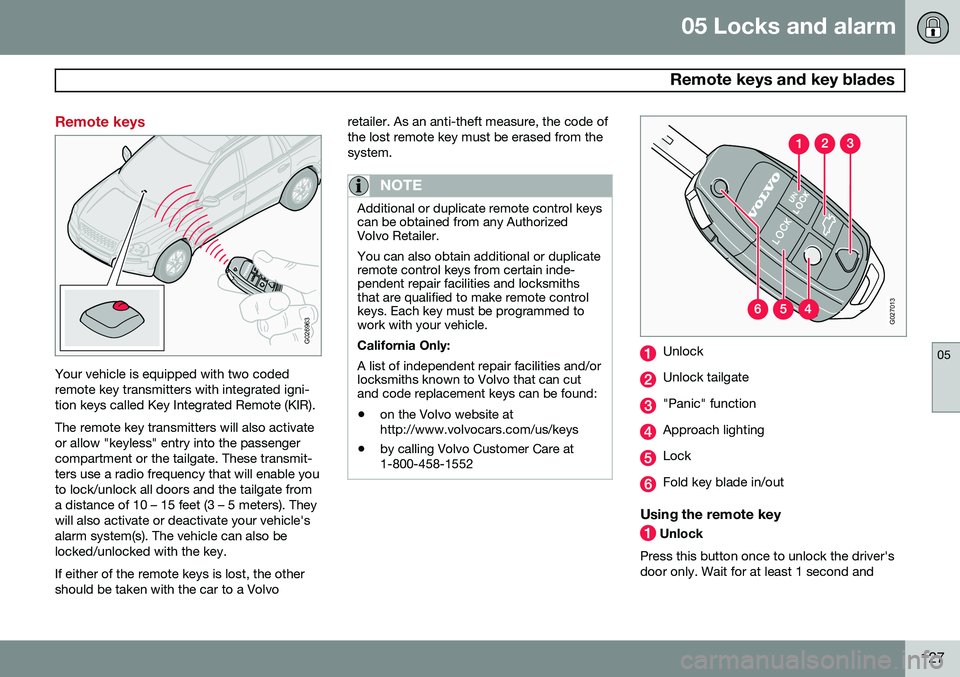
Your vehicle is equipped with two coded remote key transmitters with integrated igni-tion keys called Key Integrated Remote (KIR). The remote key transmitters will also activate or allow "keyless" entry into the passengercompartment or the tailgate. These transmit-ters use a radio frequency that will enable youto lock/unlock all doors and the tailgate froma distance of 10 – 15 feet (3 – 5 meters). Theywill also activate or deactivate your vehicle'salarm system(s). The vehicle can also belocked/unlocked with the key. If either of the remote keys is lost, the other should be taken with the car to a Volvoretailer. As an anti-theft measure, the code ofthe lost remote key must be erased from thesystem.
NOTE
Additional or duplicate remote control keys can be obtained from any AuthorizedVolvo Retailer. You can also obtain additional or duplicate remote control keys from certain inde-pendent repair facilities and locksmithsthat are qualified to make remote controlkeys. Each key must be programmed towork with your vehicle. California Only: A list of independent repair facilities and/or locksmiths known to Volvo that can cutand code replacement keys can be found:
• on the Volvo website at http://www.volvocars.com/us/keys
• by calling Volvo Customer Care at1-800-458-1552
G027013
Unlock
Unlock tailgate
"Panic" function
Approach lighting
Lock
Fold key blade in/out
Using the remote key
Unlock
Press this button once to unlock the driver's door only. Wait for at least 1 second and
Page 147 of 308
06 Starting and driving
Ignition switch and steering wheel lock
06
145
Ignition switch and steering wheel lock
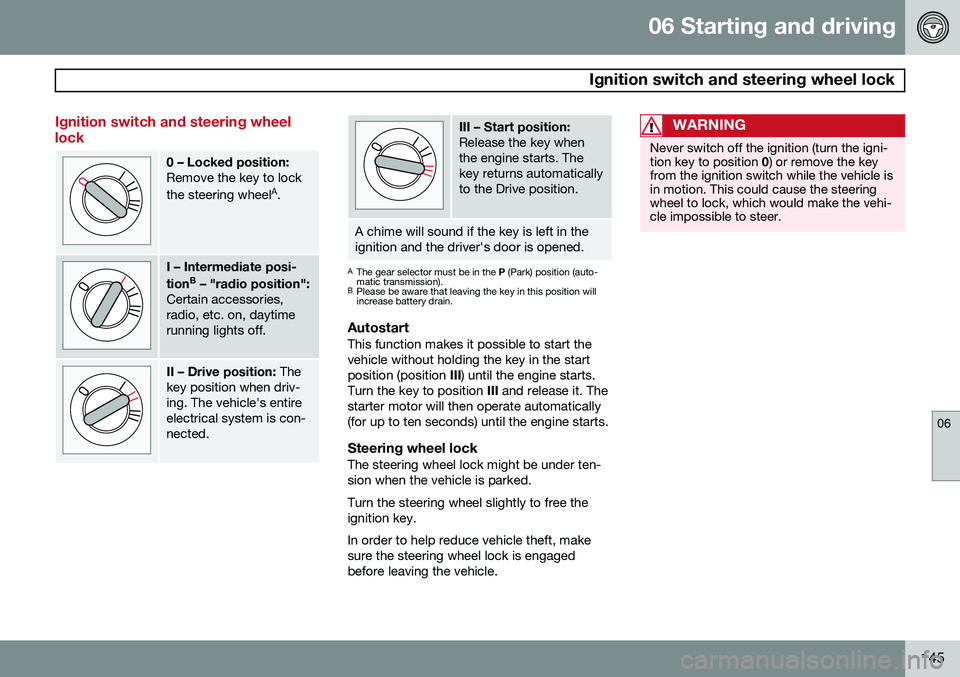
0 – Locked position: Remove the key to lock the steering wheelA
.
I – Intermediate posi- tion B
– "radio position":
Certain accessories, radio, etc. on, daytimerunning lights off.
II – Drive position: The
key position when driv- ing. The vehicle's entireelectrical system is con-nected.
III – Start position: Release the key when the engine starts. Thekey returns automaticallyto the Drive position.
A chime will sound if the key is left in the ignition and the driver's door is opened.
A The gear selector must be in the P (Park) position (auto-
matic transmission).
B Please be aware that leaving the key in this position will increase battery drain.
AutostartThis function makes it possible to start the vehicle without holding the key in the startposition (position III) until the engine starts.
Turn the key to position III and release it. The
starter motor will then operate automatically(for up to ten seconds) until the engine starts.
Steering wheel lockThe steering wheel lock might be under ten-sion when the vehicle is parked. Turn the steering wheel slightly to free the ignition key. In order to help reduce vehicle theft, make sure the steering wheel lock is engagedbefore leaving the vehicle.
WARNING
Never switch off the ignition (turn the igni- tion key to position 0) or remove the key
from the ignition switch while the vehicle isin motion. This could cause the steeringwheel to lock, which would make the vehi-cle impossible to steer.
Page 244 of 308
09 Maintenance and servicing
Fuses 09
242* Option/accessory, for more information, see Introduction.
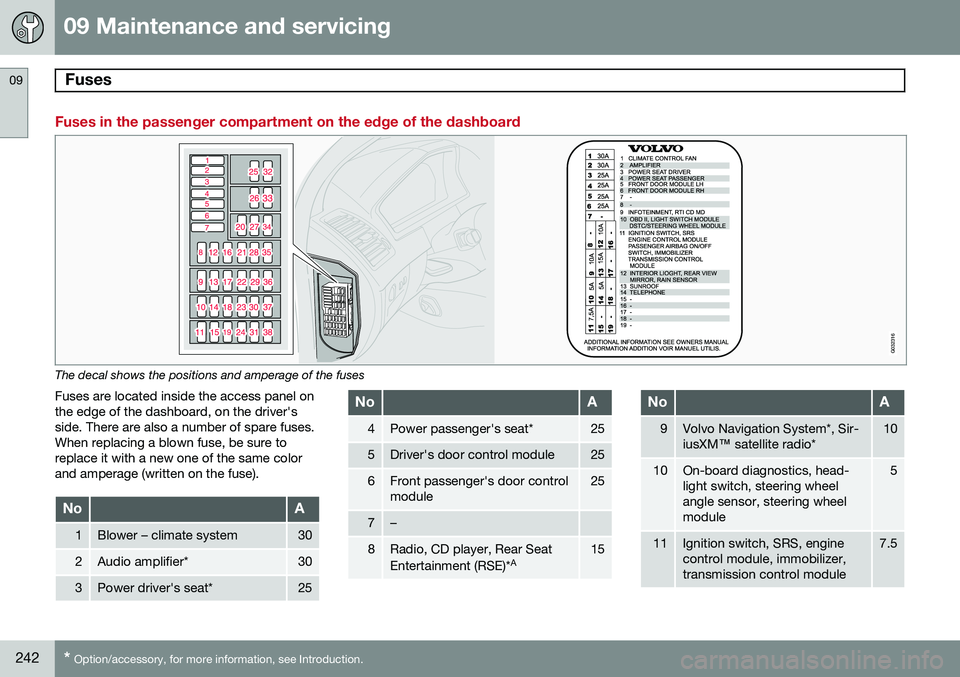
Fuses in the passenger compartment on the edge of the dashboard
G032316
The decal shows the positions and amperage of the fuses
Fuses are located inside the access panel on the edge of the dashboard, on the driver'sside. There are also a number of spare fuses.When replacing a blown fuse, be sure toreplace it with a new one of the same colorand amperage (written on the fuse).
NoA
1Blower – climate system30
2Audio amplifier*30
3Power driver's seat*25
NoA
4Power passenger's seat*25
5Driver's door control module25
6Front passenger's door control module25
7–
8Radio, CD player, Rear Seat Entertainment (RSE)* A15
NoA
9Volvo Navigation System*, Sir- iusXM
™ satellite radio*10
10On-board diagnostics, head- light switch, steering wheelangle sensor, steering wheelmodule5
11Ignition switch, SRS, engine control module, immobilizer,transmission control module7.5
Page 252 of 308
250
Audio system overview......................................................................... 252
Audio system controls.......................................................................... 253
Radio functions.....................................................................................258SiriusXM™ satellite radio...................................................................... 263
Auxiliary equipment............................................................................... 267
CD player/changer................................................................................ 270
Menu structure......................................................................................273 Bluetooth ®
hands-free connection....................................................... 274
Page 254 of 308
10 Audio
Audio system overview
10
252* Option/accessory, for more information, see Introduction.
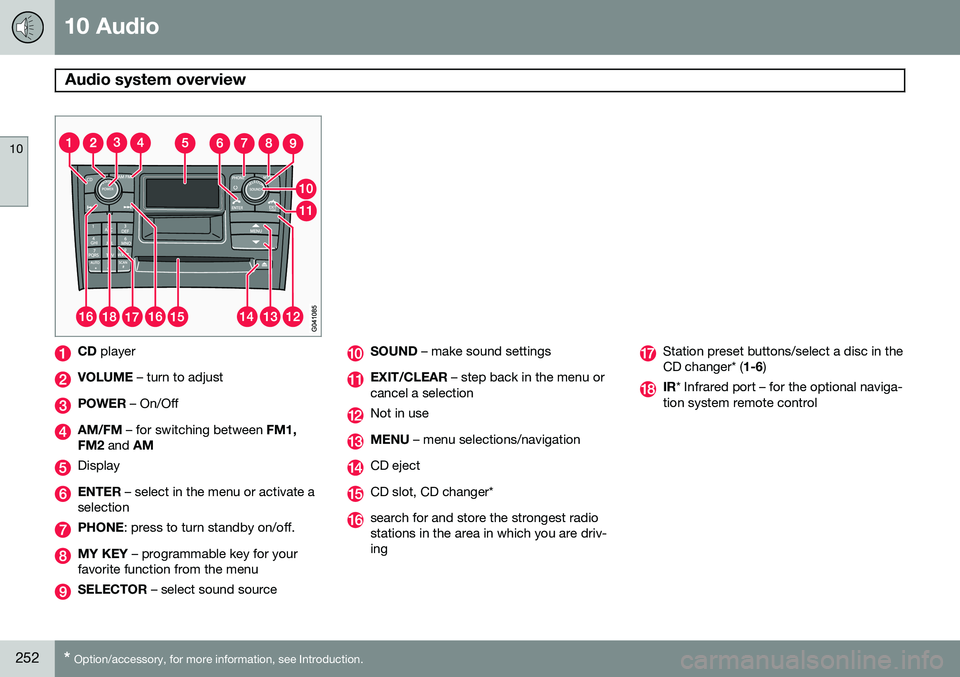
CD player
VOLUME – turn to adjust
POWER – On/Off
AM/FM – for switching between FM1,
FM2 and AM
Display
ENTER – select in the menu or activate a
selection
PHONE : press to turn standby on/off.
MY KEY – programmable key for your
favorite function from the menu
SELECTOR – select sound source
SOUND – make sound settings
EXIT/CLEAR – step back in the menu or
cancel a selection
Not in use
MENU – menu selections/navigation
CD eject
CD slot, CD changer*
search for and store the strongest radio stations in the area in which you are driv-ing
Station preset buttons/select a disc in the CD changer* ( 1-6)
IR* Infrared port – for the optional naviga-
tion system remote control
Page 255 of 308
10 Audio
Audio system controls
10
}}
253
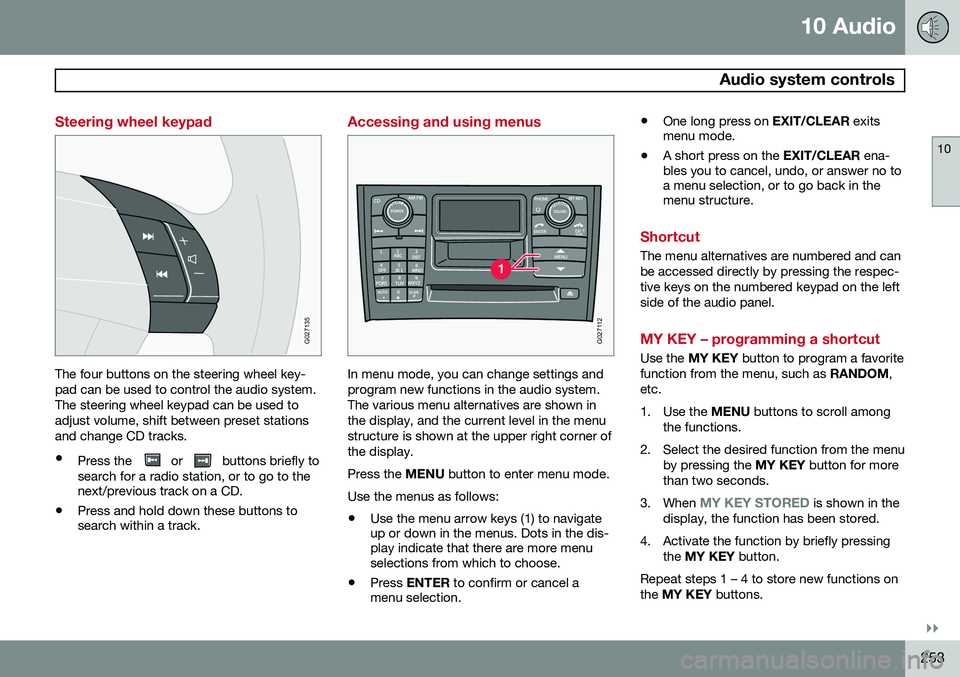
Steering wheel keypad
G027135
The four buttons on the steering wheel key- pad can be used to control the audio system.The steering wheel keypad can be used toadjust volume, shift between preset stationsand change CD tracks.
• Press the
or buttons briefly to
search for a radio station, or to go to the next/previous track on a CD.
• Press and hold down these buttons tosearch within a track.
Accessing and using menus
G027112
In menu mode, you can change settings and program new functions in the audio system.The various menu alternatives are shown inthe display, and the current level in the menustructure is shown at the upper right corner ofthe display. Press the
MENU button to enter menu mode.
Use the menus as follows:
• Use the menu arrow keys (1) to navigate up or down in the menus. Dots in the dis-play indicate that there are more menuselections from which to choose.
• Press
ENTER to confirm or cancel a
menu selection. •
One long press on
EXIT/CLEAR exits
menu mode.
• A short press on the
EXIT/CLEAR ena-
bles you to cancel, undo, or answer no toa menu selection, or to go back in themenu structure.
Shortcut
The menu alternatives are numbered and can be accessed directly by pressing the respec-tive keys on the numbered keypad on the leftside of the audio panel.
MY KEY – programming a shortcut
Use the MY KEY button to program a favorite
function from the menu, such as RANDOM,
etc.
1. Use the MENU buttons to scroll among
the functions.
2. Select the desired function from the menu by pressing the MY KEY button for more
than two seconds.
3. When
MY KEY STORED is shown in the
display, the function has been stored.
4. Activate the function by briefly pressing the MY KEY button.
Repeat steps 1 – 4 to store new functions on the MY KEY buttons.