ESP VOLVO XC90 2015 User Guide
[x] Cancel search | Manufacturer: VOLVO, Model Year: 2015, Model line: XC90, Model: VOLVO XC90 2015Pages: 570, PDF Size: 12.44 MB
Page 102 of 570
INSTRUMENTS AND CONTROLS
* Option/accessory, for more information, see Introduction.
100
Adjusting the power door mirrors
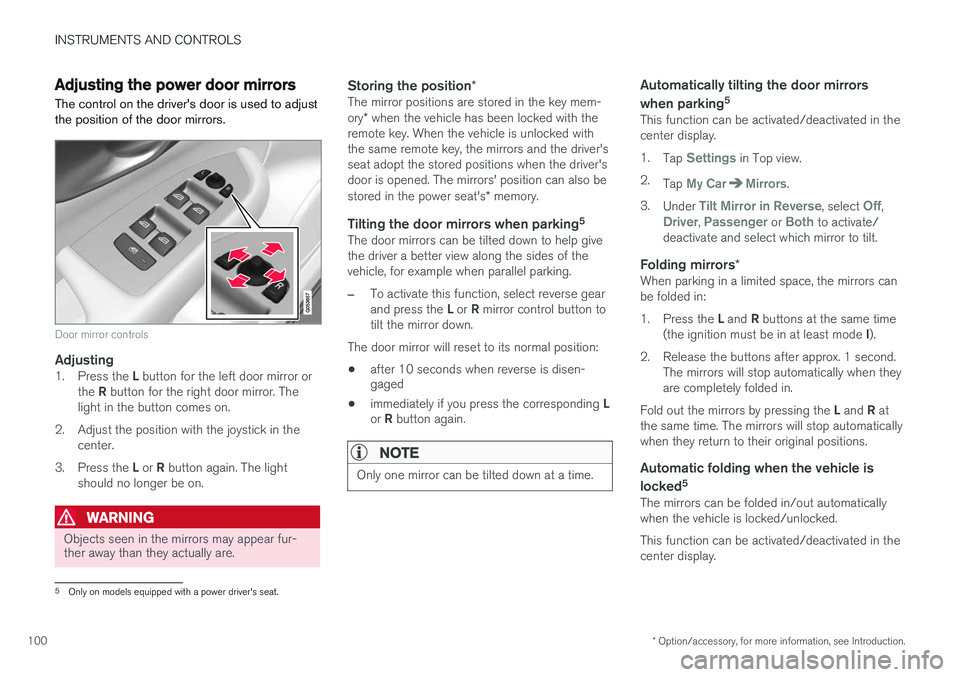
The control on the driver's door is used to adjust the position of the door mirrors.
Door mirror controls
Adjusting1. Press the L button for the left door mirror or
the R button for the right door mirror. The
light in the button comes on.
2. Adjust the position with the joystick in the center.
3. Press the L or R button again. The light
should no longer be on.
WARNING
Objects seen in the mirrors may appear fur- ther away than they actually are.
Storing the position *The mirror positions are stored in the key mem- ory* when the vehicle has been locked with the
remote key. When the vehicle is unlocked with the same remote key, the mirrors and the driver'sseat adopt the stored positions when the driver'sdoor is opened. The mirrors' position can also be stored in the power seat's * memory.
Tilting the door mirrors when parking 5The door mirrors can be tilted down to help give the driver a better view along the sides of thevehicle, for example when parallel parking.
–To activate this function, select reverse gear and press the
L or R mirror control button to
tilt the mirror down.
The door mirror will reset to its normal position:
• after 10 seconds when reverse is disen- gaged
• immediately if you press the corresponding
L
or R button again.
NOTE
Only one mirror can be tilted down at a time.
Automatically tilting the door mirrors when parking 5
This function can be activated/deactivated in the center display. 1.
Tap
Settings in Top view.
2. Tap
My CarMirrors.
3. Under
Tilt Mirror in Reverse, select Off,Driver, Passenger or Both to activate/
deactivate and select which mirror to tilt.
Folding mirrors *When parking in a limited space, the mirrors can be folded in: 1.
Press the L and R buttons at the same time
(the ignition must be in at least mode I).
2. Release the buttons after approx. 1 second. The mirrors will stop automatically when they are completely folded in.
Fold out the mirrors by pressing the L and R at
the same time. The mirrors will stop automaticallywhen they return to their original positions.
Automatic folding when the vehicle is
locked 5
The mirrors can be folded in/out automaticallywhen the vehicle is locked/unlocked. This function can be activated/deactivated in the center display.
5
Only on models equipped with a power driver's seat.
Page 106 of 570
INSTRUMENTS AND CONTROLS
* Option/accessory, for more information, see Introduction.
104
Power windows
All power windows can be operated using the control panel in the driver's door. The controlpanels in the other doors only operate the win-dow in the respective doors.
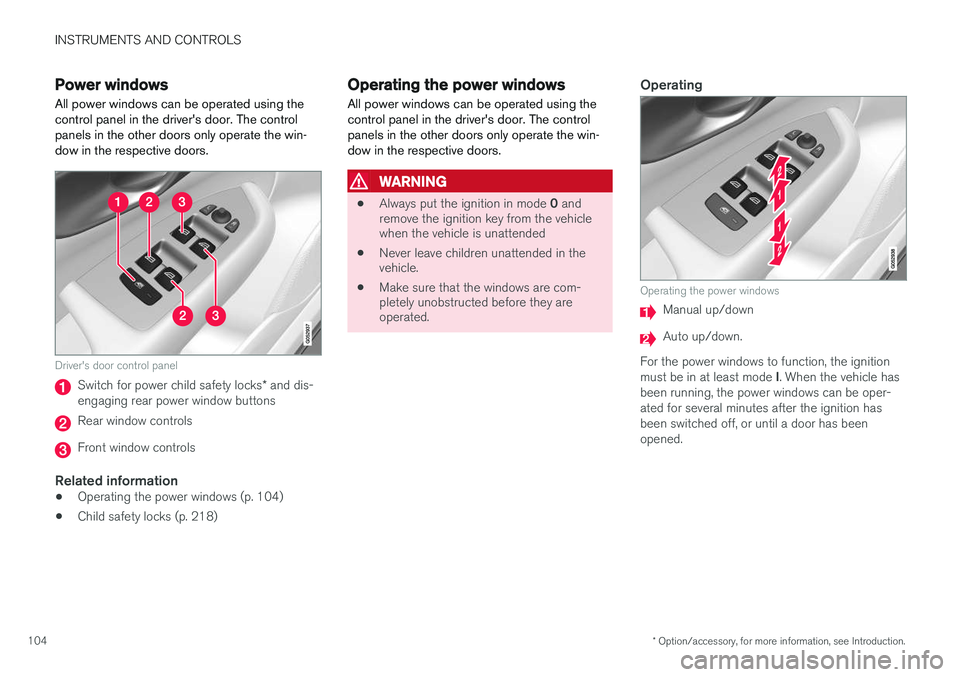
Driver's door control panel
Switch for power child safety locks * and dis-
engaging rear power window buttons
Rear window controls
Front window controls
Related information
• Operating the power windows (p. 104)
• Child safety locks (p. 218)
Operating the power windows
All power windows can be operated using the control panel in the driver's door. The controlpanels in the other doors only operate the win-dow in the respective doors.
WARNING
• Always put the ignition in mode
0 and
remove the ignition key from the vehicle when the vehicle is unattended
• Never leave children unattended in thevehicle.
• Make sure that the windows are com-pletely unobstructed before they areoperated.
Operating
Operating the power windows
Manual up/down
Auto up/down.
For the power windows to function, the ignition must be in at least mode I. When the vehicle has
been running, the power windows can be oper- ated for several minutes after the ignition hasbeen switched off, or until a door has beenopened.
Page 109 of 570
INSTRUMENTS AND CONTROLS
107
Sub-categoriesSettings
Gracenote®Personal
VideoPersonal
Communication
Sub-categoriesSettings
Phone–
Text Messages–
Bluetooth–
Wi-FiGlobal
Vehicle Wi-Fi HotspotGlobal
Vehicle Modem InternetGlobal
Volvo On Call–
Volvo Service NetworksGlobal
Climate
The main category Climate has no sub-catego-
ries. All settings in this category are personal.
System
Sub-categoriesSettings
Driver ProfilePersonal
Date & Time–
LanguagePersonal
Sub-categoriesSettings
Keyboard LayoutsGlobal
Voice ControlPersonal
UnitsPersonal
Storage–
Software Updates–
Global Reset–
Services–
Related information
• Center display overview (p. 29)
• Navigating in the center display's views (p. 39)
• Using the center display (p. 46)
Categories in Settings view
Settings view consists of a number of main cate- gories and sub-categories that contain settingsand information for many of the vehicle's fea-tures and functions.
The main categories in Settings view are: My
Car, Sound, Navigation, Media,Communication, Climate and System.
Each main category, in turn, contains several sub- categories with possible settings. The tableshows the first level of sub-categories. The possi-ble settings for a function or area are describedin greater detail in their respective articles in theowner's manual. For system settings not descri-bed in the respective articles, see "Changing sys-tem settings in Settings view." Certain settings are personal, which means that they can be saved in a driver profile. Other set-tings are global and are not linked to a driver pro-file. The table indicates if a category's settings are personal, global or a combination of the two.
My Car
Sub-categoriesSettings
DisplaysPersonal
IntelliSafeCombination
Park AssistGlobal
Page 111 of 570
INSTRUMENTS AND CONTROLS
* Option/accessory, for more information, see Introduction.109
Related information
•Driver profiles (p. 112)
• Settings view (p. 106)
• Changing system settings in Settings view (p. 109)
Changing system settings in Settings view
Settings view's main category
System contains
general settings and information, such as lan- guage, units of measure, etc.
The system settings under Driver Profile, Date
& Time, Keyboard Layouts, Voice Control,Software Updates, Global Reset andServices are described in their respective arti-
cles in the owner's manual.
Changing system languages1. Pull down the center display's Top view and
tap Settings.
2. Tap
SystemLanguage.
3. Select a new system language. Languages that can be used for voice commands are indicated by a voice control symbol.
> This change affects the language used inthe instrument panel, center display and the head-up display *.
Changing units of measure
Changing length and volume units1. Pull down the center display's Top view and
tap Settings.
2. Tap
SystemUnitsUnits. 3. Select one of the following measurement
standards:
•
Metric: kilometers, liters and degrees Cel-
sius.
•
Imperial: miles, gallons and degrees Cel-
sius.
•
US: miles, gallons and degrees Fahren-
heit.
> This change affects the units of measure used in the instrument panel, center dis- play and the head-up display *
Changing tire inflation pressure units1. Pull down the center display's Top view and
tap Settings.
2. Tap
SystemUnitsTire Pressure.
3. Select a unit of measure for tire pressure. > This changes the tire inflation pressureunits used in the
Car status app in the
center display.
Viewing storage information1. Pull down the center display's Top view and
tap Settings.
2. Tap
SystemStorage.
> Storage information for the vehicle's hard drive will be displayed, including total capacity, available capacity and theamount of storage space used by theapps that have been installed.
Page 122 of 570
INSTRUMENTS AND CONTROLS
* Option/accessory, for more information, see Introduction.
120 Never use strong stain removers. For difficult cleaning conditions, a special cleaning agent canbe purchased at a Volvo retailer.
Related information
•
Driver profiles (p. 112)
• Center display overview (p. 29)
• Navigating in the center display's views (p. 39)
Voice control
Voice commands make it possible for the driver to voice-control certain functions in the mediaplayer, a Bluetooth-connected cell phone, cli- mate system and the Volvo navigation system *.
Voice control offers convenience and enables the driver to keep his/her hands on the steeringwheel and concentrate on driving and the trafficsituation around the vehicle.
WARNING
As the driver, you have full responsibility for operating the vehicle safely and adhering toall applicable traffic regulations.
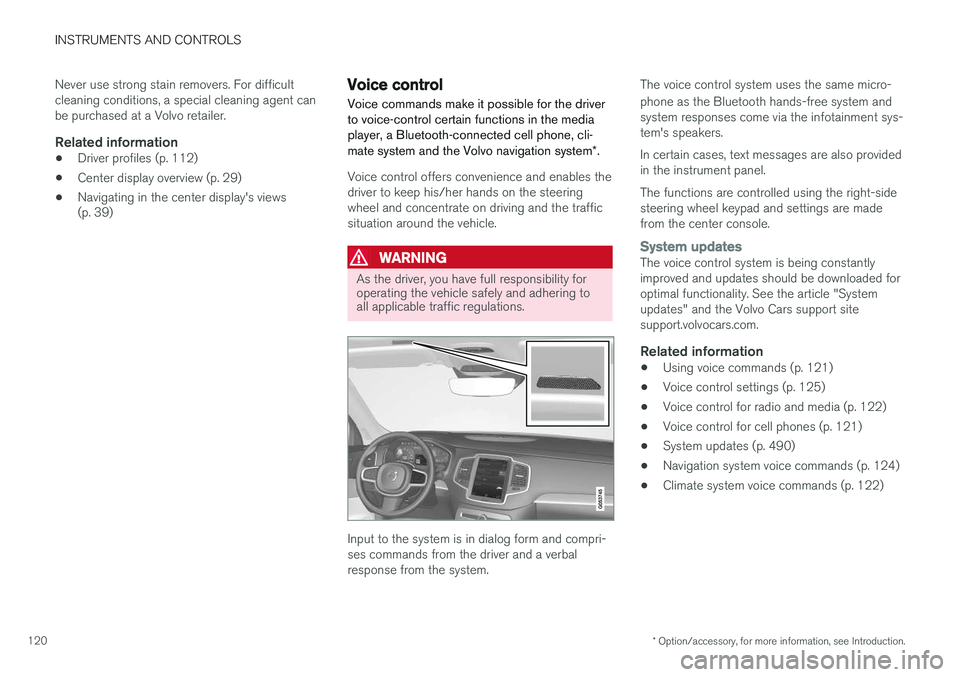
Input to the system is in dialog form and compri- ses commands from the driver and a verbalresponse from the system. The voice control system uses the same micro- phone as the Bluetooth hands-free system and system responses come via the infotainment sys-tem's speakers. In certain cases, text messages are also provided in the instrument panel. The functions are controlled using the right-side steering wheel keypad and settings are madefrom the center console.
System updatesThe voice control system is being constantly improved and updates should be downloaded foroptimal functionality. See the article "Systemupdates" and the Volvo Cars support sitesupport.volvocars.com.
Related information
•
Using voice commands (p. 121)
• Voice control settings (p. 125)
• Voice control for radio and media (p. 122)
• Voice control for cell phones (p. 121)
• System updates (p. 490)
• Navigation system voice commands (p. 124)
• Climate system voice commands (p. 122)
Page 123 of 570
INSTRUMENTS AND CONTROLS
121
Using voice commands
The following is an introduction for using voice commands.
Press the button on the right- side steering wheel keypad toactivate the system and initiatea voice command dialog.
Keep the following points in mind when using voice commands:
• When giving a command, speak at your usual speed and in a normal tone of voice
after
the tone .
• Avoid speaking while the system is respond- ing. Commands cannot be processed duringa response.
• Avoid background noises in the cabin whenusing the system by closing the vehicle's doors, windows and panoramic roof
* when
giving voice commands..
Voice command dialogs can be cancelled by:
• Saying "
Cancel".
• By pressing and holding the
button on
the right-side steering wheel keypad.
To speed up a command dialog or to skip system responses, press the
button on the right-
side steering wheel keypad when the system is responding.
Voice command examples
Press , say " Call"-"[First-name] "-"[Last-
name] "-"[number category] " to call a contact
in your phonebook if the person has more than one phone number listed (i.e., home, mobile, work,etc.). For example, press
and say
" Call "-"Robin "-"Smith "-"mobile ".
Commands/phrasesThe following commands can always be used: •
Repeat: the system will repeat the most
recent voice instruction.
•
Cancel: cancel the dialog.
•
Help: Initiates a help dialog. The system will
provide several alternative commands that can be used in a given situation.
The commands for specific situations are descri- bed in the respective articles such as "Cell phonecommands", etc.
NumbersNumbers can be spoken individually, in groups or the entire phone number can be given at onetime.
Related information
• Voice control (p. 120)
Voice control for cell phones Voice commands can be used to control many of the most common functions in a Bluetooth ®
-
connected cell phone.
Cell phone voice commands:
• "
Phone ": initiates a phone dialog and dis-
plays possible commands.
• "
Call "-"[First-name] "-"[Last-name] ": calls
the selected contact from the phonebook.
• "
Call "-"[First-name] "-"[Last-
name] "-"[number category] ": calls a con-
tact in your phonebook if the person has more than one phone number listed (i.e.,home, mobile, work, etc.).
• "
Call "-"[phone number] ": calls the phone
number.
• "
Call list ": displays a list of calls.
Command for having a text message read aloud:
• "
Read message ": the message will be read
aloud.
Related information
• Using voice commands (p. 121)
Page 141 of 570
INSTRUMENTS AND CONTROLS
139
NOTE
The use of Daytime Running Lights is recom- mended in the United States and is manda-
tory in Canada .
Volvo recommends using the position
whenever possible.
WARNING
• Daytime Running Lights are a driving aid designed to help make the vehicle visibleto other roads users.
• The driver is always responsible foradapting the use of Daytime RunningLights/headlights according to ambientlighting and weather conditions.
Lighting panel
Instrument lighting
Thumb wheel (to the left) for adjusting display bright- ness
Illumination of the display and instrument lights will vary, depending on ignition mode. The display lighting is automatically subdued in darkness and the sensitivity is set with the thumbwheel.
Related information
• Daytime Running Lights (DRL) (p. 140)
• High and low beam headlights (p. 140)
Low beam headlights In dark ambient lighting conditions
, the low
beams will be activated automatically when the engine is started or the ignition is in mode II and
the left-side steering wheel lever's ring is turned to the
position.
If the ring is turned to
, the low beams will
be activated automatically when the engine is started or the ignition is in mode II, regardless of
the ambient lighting conditions.
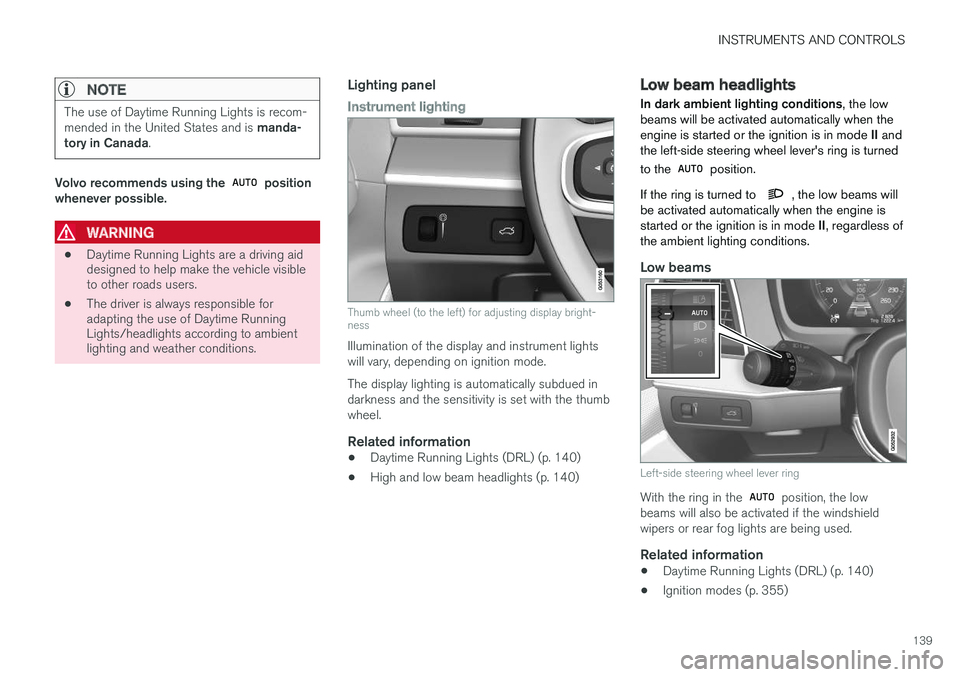
Low beams
Left-side steering wheel lever ring
With the ring in the position, the low
beams will also be activated if the windshield wipers or rear fog lights are being used.
Related information
• Daytime Running Lights (DRL) (p. 140)
• Ignition modes (p. 355)
Page 143 of 570

INSTRUMENTS AND CONTROLS
141
by moving the lever forward. Return to low beams by moving the lever toward the steering wheel. The
symbol will illuminate in the instrument
panel when the high beams are on.
Active high beamsThe active high beam system uses a camera at the upper edge of the windshield to detect theheadlights of oncoming vehicles or the taillightsof a vehicle directly ahead. When this happens,the headlights will automatically switch from highbeams to low beams. When the camera no longer detects the head- lights/taillights of other vehicles, your headlightswill switch back to high beams after several sec-onds.
OperationActivate/deactivate this function by turning the ring on the left-side steering wheel lever to
.
If the ring is not in this position, toggling between high and low beams must be done manually. If the ring is turned to another position while the high beams are on, the headlights will automati-cally switch to low beams. A white symbol (
) in the instrument panel
indicates that the function has been activated. When the high beams are on, the symbol will change to blue.
NOTE
•Keep the windshield in front of the cam- era free of ice, snow, dirt, etc.
• Do not mount or in any way attach any-thing on the windshield that couldobstruct the camera.
If a message is displayed in the instrument panel saying that active high beams are temporarilyunavailable, switching between high and lowbeams will have to be done manually. However, the light switch can remain in the
position.
The same applies if a message saying that the windshield sensors are blocked and the
symbol are displayed. The symbol will go
out if this happens. Automatic high beams may be temporarily unavailable (e.g., in heavy fog or rain). When thesystem becomes active again or if the sensors inthe windshield are no longer obscured, the mes- sages will disappear and the
symbol will
illuminate.
WARNING
• Automatic high beams are a driving aid designed to help provide the best possi-ble headlight illumination in good drivingconditions.
• The driver is always responsible for man-ually toggling between high and lowbeams when this is required by traffic orweather conditions.
CAUTION
In the following situations, it may be neces- sary to switch between high and low beamsmanually:
• In heavy fog or rain
• In blowing snow or slush
• In bright moonlight
• In freezing rain
• In areas with dim street lighting
• When oncoming vehicles have dim front lighting
• If there are pedestrians on or near theroad
• If there are reflective objects, such assigns, near the road
• When oncoming vehicles' lights areobscured by e.g., fences, bushes, etc.
Page 148 of 570
INSTRUMENTS AND CONTROLS
* Option/accessory, for more information, see Introduction.
146
Home safe lighting
The home safe lighting function illuminates the area in front of the vehicle in dark conditions.
This function turns on the headlights, parking lights, outer door handle lights *, license plate
lights, front ceiling lighting and footwell lighting for a set amount of time. The length of time that these lights remain illumi- nated can be set in the center display: 1. Tap
Settings in Top view.
2. Tap
My CarLightsExterior LightsHome Safety Lights.
3. Select
Off, 30 sec, 60 sec or 90 sec.
To activate home safe lighting: 1. Switch off the ignition (mode 0).
2. Push the turn signal lever as far as possible towards the dashboard and release it.
3. Exit the vehicle and lock the doors.
Related information
• Using the center display (p. 46)
• Settings view (p. 106)
Passenger compartment lighting
The passenger compartment lighting is con- trolled using the buttons in the ceiling above thefront and rear seats.
All passenger compartment lighting can be turned on and off manually within 30 minutesafter:
• the vehicle is unlocked but the engine has not been started
• the engine is switched off and the ignition is in mode
0.
Front interior lighting
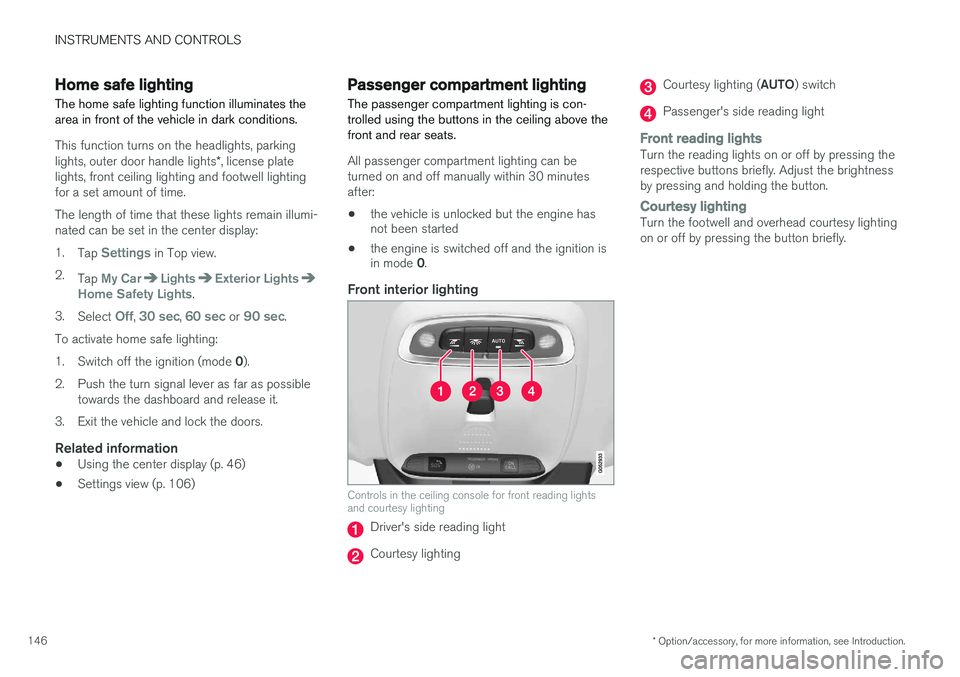
Controls in the ceiling console for front reading lights and courtesy lighting
Driver's side reading light
Courtesy lighting
Courtesy lighting ( AUTO) switch
Passenger's side reading light
Front reading lightsTurn the reading lights on or off by pressing the respective buttons briefly. Adjust the brightnessby pressing and holding the button.
Courtesy lightingTurn the footwell and overhead courtesy lighting on or off by pressing the button briefly.
Page 183 of 570
CLIMATE
* Option/accessory, for more information, see Introduction.181
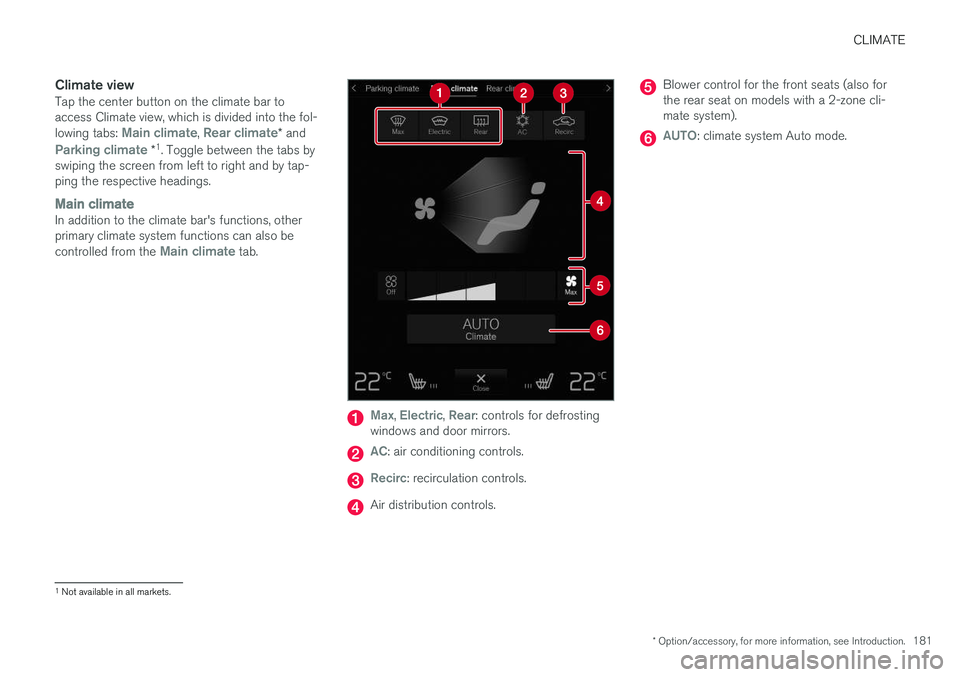
Climate viewTap the center button on the climate bar to access Climate view, which is divided into the fol- lowing tabs:
Main climate, Rear climate* and
Parking climate *1
. Toggle between the tabs by
swiping the screen from left to right and by tap- ping the respective headings.
Main climateIn addition to the climate bar's functions, other primary climate system functions can also be controlled from the
Main climate tab.
Max, Electric, Rear: controls for defrosting
windows and door mirrors.
AC: air conditioning controls.
Recirc: recirculation controls.
Air distribution controls.
Blower control for the front seats (also for the rear seat on models with a 2-zone cli-mate system).
AUTO: climate system Auto mode.
1 Not available in all markets.