ad blue VOLVO XC90 2015 User Guide
[x] Cancel search | Manufacturer: VOLVO, Model Year: 2015, Model line: XC90, Model: VOLVO XC90 2015Pages: 570, PDF Size: 12.44 MB
Page 143 of 570

INSTRUMENTS AND CONTROLS
141
by moving the lever forward. Return to low beams by moving the lever toward the steering wheel. The
symbol will illuminate in the instrument
panel when the high beams are on.
Active high beamsThe active high beam system uses a camera at the upper edge of the windshield to detect theheadlights of oncoming vehicles or the taillightsof a vehicle directly ahead. When this happens,the headlights will automatically switch from highbeams to low beams. When the camera no longer detects the head- lights/taillights of other vehicles, your headlightswill switch back to high beams after several sec-onds.
OperationActivate/deactivate this function by turning the ring on the left-side steering wheel lever to
.
If the ring is not in this position, toggling between high and low beams must be done manually. If the ring is turned to another position while the high beams are on, the headlights will automati-cally switch to low beams. A white symbol (
) in the instrument panel
indicates that the function has been activated. When the high beams are on, the symbol will change to blue.
NOTE
•Keep the windshield in front of the cam- era free of ice, snow, dirt, etc.
• Do not mount or in any way attach any-thing on the windshield that couldobstruct the camera.
If a message is displayed in the instrument panel saying that active high beams are temporarilyunavailable, switching between high and lowbeams will have to be done manually. However, the light switch can remain in the
position.
The same applies if a message saying that the windshield sensors are blocked and the
symbol are displayed. The symbol will go
out if this happens. Automatic high beams may be temporarily unavailable (e.g., in heavy fog or rain). When thesystem becomes active again or if the sensors inthe windshield are no longer obscured, the mes- sages will disappear and the
symbol will
illuminate.
WARNING
• Automatic high beams are a driving aid designed to help provide the best possi-ble headlight illumination in good drivingconditions.
• The driver is always responsible for man-ually toggling between high and lowbeams when this is required by traffic orweather conditions.
CAUTION
In the following situations, it may be neces- sary to switch between high and low beamsmanually:
• In heavy fog or rain
• In blowing snow or slush
• In bright moonlight
• In freezing rain
• In areas with dim street lighting
• When oncoming vehicles have dim front lighting
• If there are pedestrians on or near theroad
• If there are reflective objects, such assigns, near the road
• When oncoming vehicles' lights areobscured by e.g., fences, bushes, etc.
Page 357 of 570
STARTING AND DRIVING
* Option/accessory, for more information, see Introduction.355
Ignition modes
The vehicle's ignition can be put in various modes (levels) to make different functions availa-ble.
The vehicle's ignition has 3 modes: 0, I, and II
that can be used to operate various functions without starting the engine. The following tableshows examples of which functions are availablein the respective modes.
ModeFunctions available
0• The odometer, clock and tem- perature gauge are illuminated
• Power seats
* can be adjusted
• The power windows can be oper-ated
• The 12-volt socket in the cargocompartment can be used
• The center display is activatedand can be used
• The infotainment system can beused for a limited time
In this mode, certain functions can only be used for a limited time to helpminimize battery drain
I• The laminated panoramic roof
*,
power seats */windows,12-volt
sockets in the passenger com- partment, Bluetooth, navigation system *, climate system blower,
windshield wipers can be oper- ated
• The infotainment system will start(if it was started when the ignitionwas switched off)
ModeFunctions available
II• The headlights illuminate
• Warning/indicator lights illumi- nate for 5 seconds
• A number of other functions willalso be activated. However, the heated seats
* and heated rear
window functions can only be activated when the engine is run-ning.
This mode should only be used for very short periods to help avoiddraining the battery.
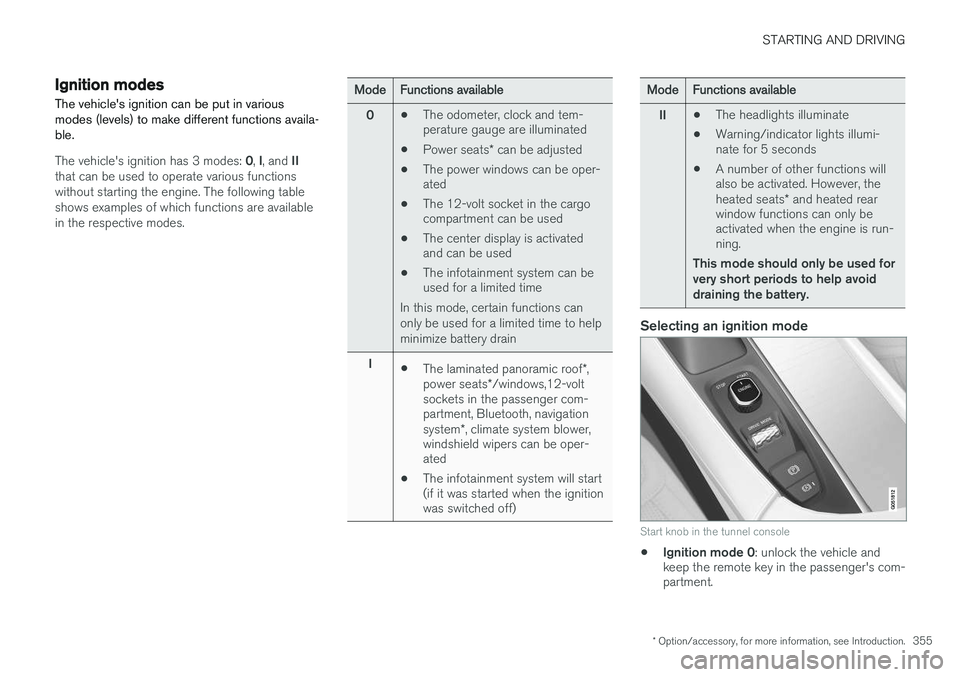
Selecting an ignition mode
Start knob in the tunnel console
• Ignition mode 0
: unlock the vehicle and
keep the remote key in the passenger's com- partment.
Page 378 of 570
INFOTAINMENT
376
The infotainment system
The infotainment system consists of a radio, media player and has the capacity to communi-cate with a Bluetooth-connected cell phone. It isalso possible to connect to the Internet to e.g.,stream audio content via apps. The system's functions can be controlled from the right-side steering wheel keypad, the centerdisplay or by using voice commands.
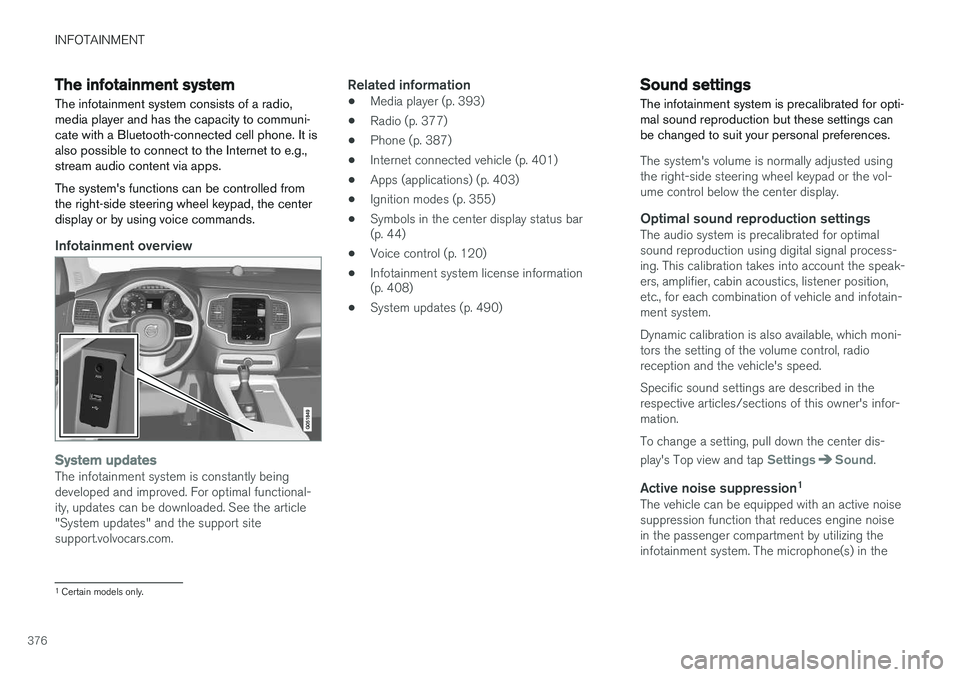
Infotainment overview
System updatesThe infotainment system is constantly being developed and improved. For optimal functional-ity, updates can be downloaded. See the article"System updates" and the support sitesupport.volvocars.com.
Related information
• Media player (p. 393)
• Radio (p. 377)
• Phone (p. 387)
• Internet connected vehicle (p. 401)
• Apps (applications) (p. 403)
• Ignition modes (p. 355)
• Symbols in the center display status bar (p. 44)
• Voice control (p. 120)
• Infotainment system license information(p. 408)
• System updates (p. 490)
Sound settings
The infotainment system is precalibrated for opti- mal sound reproduction but these settings canbe changed to suit your personal preferences.
The system's volume is normally adjusted using the right-side steering wheel keypad or the vol-ume control below the center display.
Optimal sound reproduction settingsThe audio system is precalibrated for optimalsound reproduction using digital signal process-ing. This calibration takes into account the speak-ers, amplifier, cabin acoustics, listener position,etc., for each combination of vehicle and infotain-ment system. Dynamic calibration is also available, which moni- tors the setting of the volume control, radioreception and the vehicle's speed. Specific sound settings are described in the respective articles/sections of this owner's infor-mation. To change a setting, pull down the center dis- play's Top view and tap
SettingsSound.
Active noise suppression 1The vehicle can be equipped with an active noise suppression function that reduces engine noisein the passenger compartment by utilizing theinfotainment system. The microphone(s) in the
1
Certain models only.
Page 389 of 570
INFOTAINMENT
387
Phone
A Bluetooth-enabled cell phone can be paired and connected to the vehicle's integrated hands-free system.
The infotainment system offers hands-free func- tionality for remote-controlling a number of a cellphone's features. The phone's integrated controlscan also be used, even when it is connected tothe vehicle. When the phone has been paired and connected to the infotainment system, it can be used tomake or receive calls, send or receive text mes-sages, to stream music, etc., or as an Internetconnection.
The phone is controlled fromthe center display but the Appmenu (accessed using theright-side steering wheel key-pad) and voice commands canalso be used to control certainfunctions.
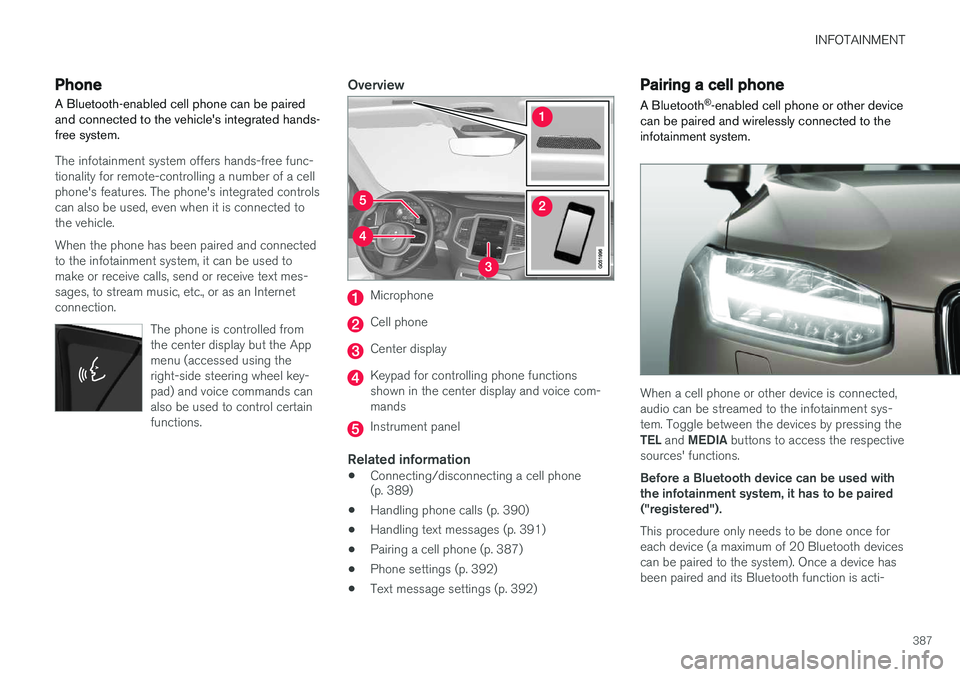
Overview
Microphone
Cell phone
Center display
Keypad for controlling phone functions shown in the center display and voice com-mands
Instrument panel
Related information
•Connecting/disconnecting a cell phone (p. 389)
• Handling phone calls (p. 390)
• Handling text messages (p. 391)
• Pairing a cell phone (p. 387)
• Phone settings (p. 392)
• Text message settings (p. 392)
Pairing a cell phone
A Bluetooth ®
-enabled cell phone or other device
can be paired and wirelessly connected to the infotainment system.
When a cell phone or other device is connected, audio can be streamed to the infotainment sys-tem. Toggle between the devices by pressing the TEL and MEDIA buttons to access the respective
sources' functions. Before a Bluetooth device can be used with the infotainment system, it has to be paired("registered"). This procedure only needs to be done once for each device (a maximum of 20 Bluetooth devicescan be paired to the system). Once a device hasbeen paired and its Bluetooth function is acti-
Page 390 of 570
INFOTAINMENT
388vated, it can then be selected for use (wirelessly connected) to the vehicle's infotainment system. Two Bluetooth devices can be connected at the same time. However, if two cell phones are con-nected, only the most recently connected onecan be used as a phone. The other one can beused to e.g., to stream audio or video. To changewhat the phone will be used for, see the article"Bluetooth settings." A paired and connected cell phone can also be used to connect the vehicle to the Internet. To doso, its tethering/personal hotspot function mustbe activated. There are two ways of pairing a Bluetooth device to the infotainment system:
• Searching for the phone (or other device) from the vehicle
• Searching for the vehicle from the phone (orother device)
The following instructions assume that a cell phone is to be paired to the infotainment systembut the procedure is the same for any Bluetoothdevice.
Alternative 1: searching for the phone
from the vehicle
1. Make the phone discoverable/visible using its Bluetooth function. Refer to the phone'suser guide if necessary. 2. Open the Phone view on the center display.
>•If no phones have been paired to the vehicle, tap
Add phone.
• If a list of phones is displayed, tap
Change and tap Add phone in
the pop-up window.
3. Tap the name of the phone to be connected.
4. Check that the code displayed in the vehicle is the same as the one in the phone. Confirm in both places.
5. For the phone selected, accept or cancel the alternatives for the phone book (list of con-tacts), text messages, etc. Full functionalitymay not be available in all cell phones.
6. To connect the vehicle to the Internet via the phone's Bluetooth function, activate thephone's function for tethering/personal hot-spot, etc.
Alternative 2: searching for the vehicle from the phone
1. Open the center display's Phone view.
•If no phones have been paired to the vehi- cle, tap
Add phoneMake vehicle
discoverable.
• If a phone has previously been paired to the vehicle, tap
Change and tap Add
phone
Make vehicle discoverable in
the pop-up window. 2. Activate the phone's Bluetooth function.
3. Search in the phone for Bluetooth devices.
> A list of Bluetooth devices will be dis-played.
4. Select the vehicle's name in the list.
5. Check that the code displayed in the phone is the same as the one in the vehicle. Con- firm in both places.
6. For the phone selected, accept or cancel the alternatives for the phone book (list of con-tacts), text messages, etc. Full functionalitymay not be available in all cell phones.
7. To connect the vehicle to the Internet via the phone's Bluetooth function, activate thephone's function for tethering/personal hot-spot, etc.
NOTE
If your cell phone's operating system is upda- ted, this may break the connection betweenthe phone and the vehicle. If this happens,delete the phone from the list of pairedphones and repeat the pairing proceduredescribed in this article.
Compatible cell phonesMany of the cell phones available today have Bluetooth functionality but not all of them arefully compatible with the vehicle. Go to
Page 391 of 570
INFOTAINMENT
389
www.volvocars.com for a list of compatible phones or contact your Volvo retailer.
Related information
•
Connecting/disconnecting a cell phone (p. 389)
• Handling phone calls (p. 390)
• Handling text messages (p. 391)
• Phone settings (p. 392)
• Bluetooth settings (p. 404)
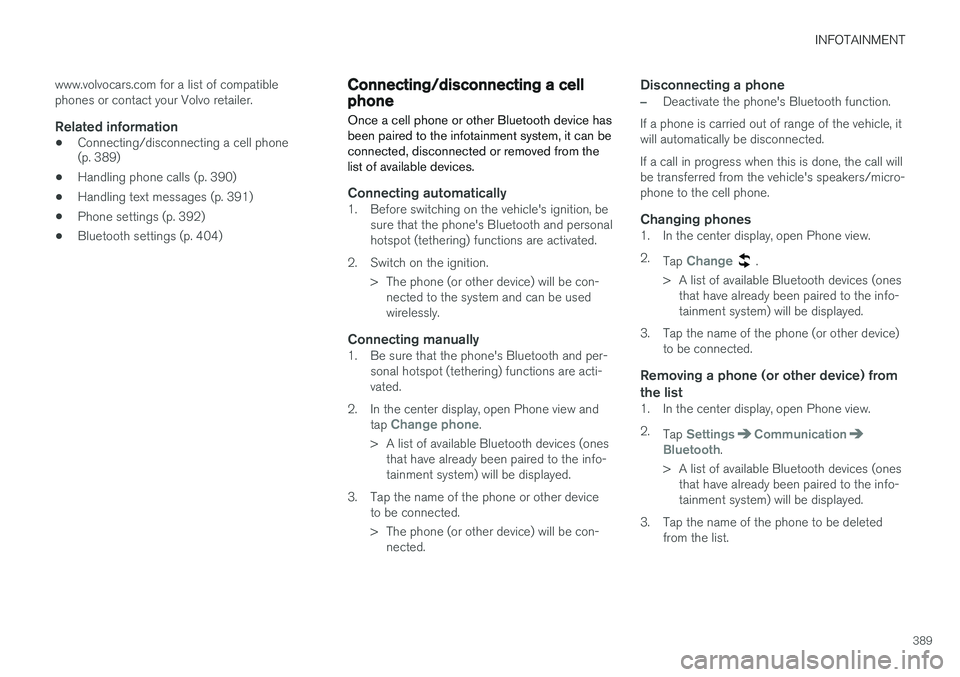
Connecting/disconnecting a cell phone
Once a cell phone or other Bluetooth device has been paired to the infotainment system, it can beconnected, disconnected or removed from thelist of available devices.
Connecting automatically1. Before switching on the vehicle's ignition, be sure that the phone's Bluetooth and personal hotspot (tethering) functions are activated.
2. Switch on the ignition. > The phone (or other device) will be con-nected to the system and can be usedwirelessly.
Connecting manually1. Be sure that the phone's Bluetooth and per- sonal hotspot (tethering) functions are acti-vated.
2. In the center display, open Phone view and tap
Change phone.
> A list of available Bluetooth devices (ones that have already been paired to the info- tainment system) will be displayed.
3. Tap the name of the phone or other device to be connected.
> The phone (or other device) will be con-nected.
Disconnecting a phone
–Deactivate the phone's Bluetooth function.
If a phone is carried out of range of the vehicle, it will automatically be disconnected. If a call in progress when this is done, the call will be transferred from the vehicle's speakers/micro-phone to the cell phone.
Changing phones1. In the center display, open Phone view. 2. Tap
Change.
> A list of available Bluetooth devices (ones that have already been paired to the info- tainment system) will be displayed.
3. Tap the name of the phone (or other device) to be connected.
Removing a phone (or other device) from the list
1. In the center display, open Phone view. 2.Tap
SettingsCommunicationBluetooth.
> A list of available Bluetooth devices (ones that have already been paired to the info- tainment system) will be displayed.
3. Tap the name of the phone to be deleted from the list.
Page 394 of 570
INFOTAINMENT
* Option/accessory, for more information, see Introduction.
392
Sending text messages
1.
From App view, tap Messages to open.
2. •To reply to a message: tap the name of the contact who sent the message and then tap
Answer.
• To create a new message: tap
Create
new
+. Select the contact who will
receive the message or enter a phone number.
3. Write the message. 4. Tap
Send.
Message notificationSee the article "Text message settings" for a list of possible settings.
Related information
• Text message settings (p. 392)
Phone settings
The following settings can be made for a paired and connected cell phone.
Cell phones
–Pull down the center display's Top view and tap
SettingsCommunicationPhoneand choose among the following settings: •
Ringtones: select a ring tone (tones from
the cell phone or the vehicle can be used). Not all cell phones are fully com-patible and it may not be possible to usetheir ring tones in the vehicle. Go towww.volvocars.com for additional informa-tion.
•
Sort order for contacts: select sort cri-
teria for the phone book (list of contacts).
To show call notifications in the head-up dis- play *, see the article "Head-up display."
Related information
• Text message settings (p. 392)
• Bluetooth settings (p. 404)
• Phone (p. 387)
• Handling phone calls (p. 390)
• Head-up display (HUD)
* (p. 117)
Text message settings
The following settings can be made for text mes- sages received through a paired and connectedcell phone.
Text message settings
–Pull down the center display's Top view and tap
SettingsCommunicationText
Messages and choose among the following
settings:
•
Notification in center display: shows
text messages in the center display's sta- tus bar.
•
Notification in driver display: shows
text messages in the instrument panel. With this alternative active, incoming mes-sages can be handled from the right-sidesteering wheel keypad.
•
Text message tone: select an audible
signal for incoming text messages.
Related information
• Connecting/disconnecting a cell phone (p. 389)
• Pairing a cell phone (p. 387)
• Handling text messages (p. 391)
Page 395 of 570
INFOTAINMENT
* Option/accessory, for more information, see Introduction.393
Connecting a Bluetooth®
device
Bluetooth ®
-enabled devices can be paired and
connected to the infotainment system to stream media and in some cases connect to the Inter-net.
Many cell phones and other devices currently on the market offer wireless Bluetooth ®
technology.
Consult your Volvo retailer or go to support.volvocars.com for any questions regar-ding a device's compatibility with the vehicle'sinfotainment system. The procedure for pairing and connecting a Bluetooth ®
-enabled device is the same as for a
cell phone. See the articles "Pairing a cell phone" and "Connecting/disconnecting a cell phone" fordetails.
Related information
• Pairing a cell phone (p. 387)
• Connecting/disconnecting a cell phone (p. 389)
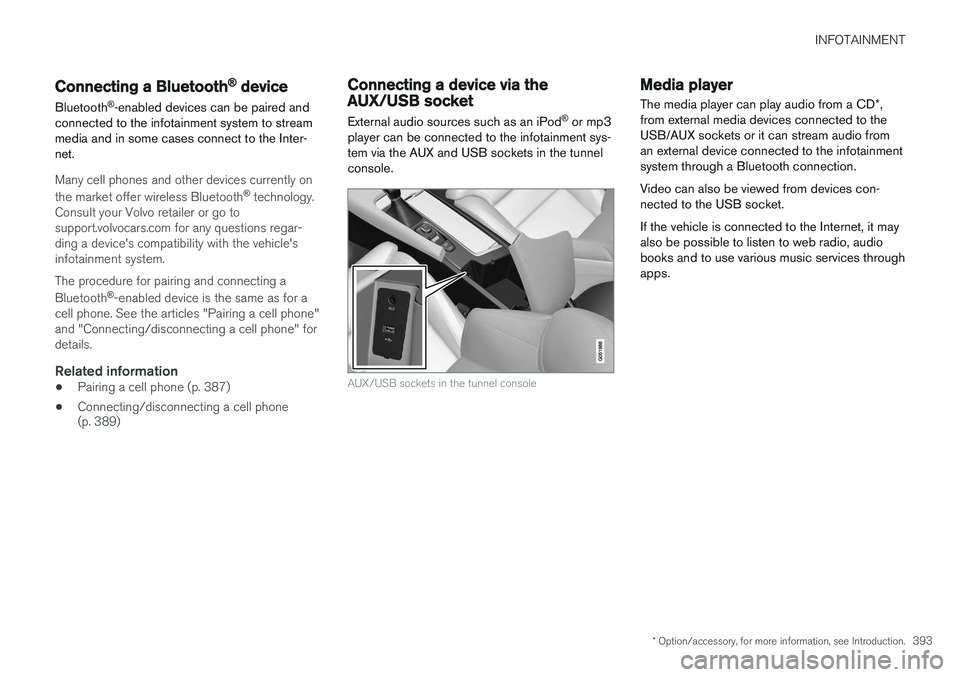
Connecting a device via the AUX/USB socket
External audio sources such as an iPod ®
or mp3
player can be connected to the infotainment sys- tem via the AUX and USB sockets in the tunnelconsole.
AUX/USB sockets in the tunnel console
Media player
The media player can play audio from a CD *,
from external media devices connected to the USB/AUX sockets or it can stream audio froman external device connected to the infotainmentsystem through a Bluetooth connection. Video can also be viewed from devices con- nected to the USB socket. If the vehicle is connected to the Internet, it may also be possible to listen to web radio, audiobooks and to use various music services throughapps.
Page 397 of 570
INFOTAINMENT
395
Playing media The media player can controlled from the right- side steering wheel keypad, the center display orby using voice commands. The radio is also controlled from the media player. See the articles relating to the radio.
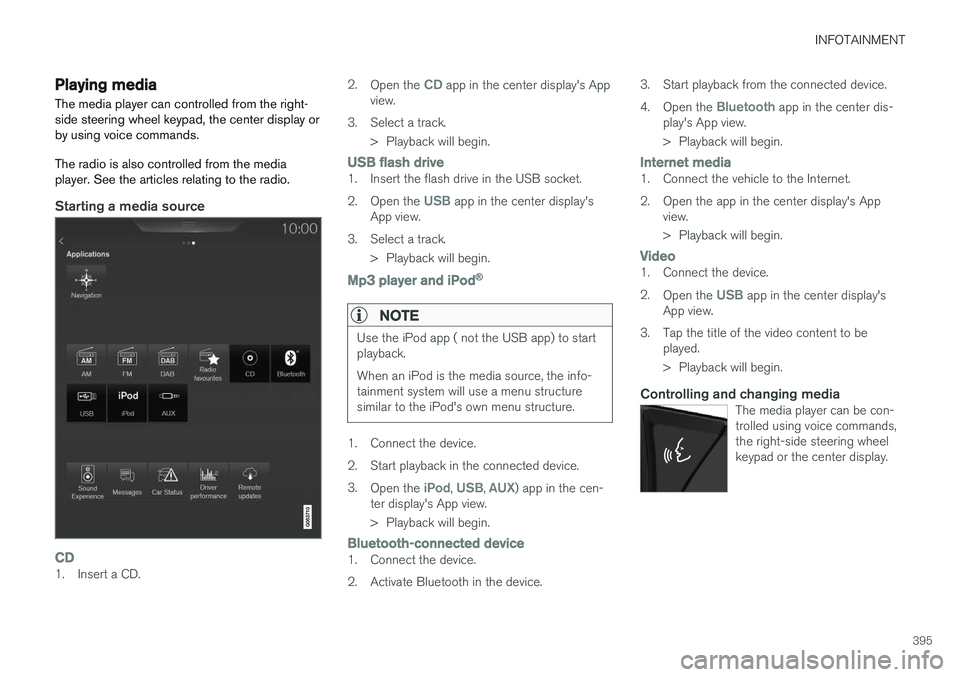
Starting a media source
CD1. Insert a CD.2.
Open the
CD app in the center display's App
view.
3. Select a track. > Playback will begin.
USB flash drive1. Insert the flash drive in the USB socket. 2.Open the
USB app in the center display's
App view.
3. Select a track. > Playback will begin.
Mp3 player and iPod®
NOTE
Use the iPod app ( not the USB app) to start playback. When an iPod is the media source, the info- tainment system will use a menu structuresimilar to the iPod's own menu structure.
1. Connect the device.
2. Start playback in the connected device.3.
Open the
iPod, USB, AUX) app in the cen-
ter display's App view.
> Playback will begin.
Bluetooth-connected device1. Connect the device.
2. Activate Bluetooth in the device. 3. Start playback from the connected device.4.
Open the
Bluetooth app in the center dis-
play's App view.
> Playback will begin.
Internet media1. Connect the vehicle to the Internet.
2. Open the app in the center display's App view.
> Playback will begin.
Video1. Connect the device. 2.Open the
USB app in the center display's
App view.
3. Tap the title of the video content to be played.
> Playback will begin.
Controlling and changing mediaThe media player can be con- trolled using voice commands,the right-side steering wheelkeypad or the center display.
Page 398 of 570

INFOTAINMENT
* Option/accessory, for more information, see Introduction.
396
Volume: use the buttons on the keypad or turn the control under the center display to raise orlower the volume. Play/pause: tap the track's image, press the
symbol on the keypad or press the button under the center display. Change tracks: tap the desired track on the cen- ter display, press the < > buttons under the cen-
ter display or use the keypad. Fast forward/reverse, move within a track: press the time axis on the center display and drag from side to side, press and hold the
< > buttons
under the center display or use the keypad. Change media source: Tap a media source under
Recents, tap the desired app in the center dis-
play's App view or use the keypad.
Library: tap to play a track from the library.
Shuffle: tap to play tracks in random order.
Similar: tap to use Gracenote to search for simi-
lar music on the USB device and create a playlist based on the results. The playlist can contain upto 50 tracks.
Change device: tap to toggle between USB
devices if more than one is connected.
Video settingsThe following can be adjusted with the video player in full screen or by opening the center dis- play's Top view and tapping
SettingsVideo:Primary Audio Default Language, Subtitleand Primary Subtitle Default Language.
Play DivX®This DivX device must be registered in order to play purchased DivX Video-on-Demand (VOD)movies.
1. Open the center display's Top view and tap
SettingsVideoDivX
® VOD to get a
registration code. 2. Go to vod.divx.com for additional information
and to complete the registration process.
Related information
• CD (media) player
* (p. 394)
• Media player technical data (p. 400)
• Media player (p. 393)
• Voice control for radio and media (p. 122)
• Apps (applications) (p. 403)
• Connecting a Bluetooth ®
device (p. 393)
• Connecting a device via the AUX/USB socket (p. 393)
• Gracenote (p. 399)
• Connecting to the Internet (p. 402)
• Media searches (p. 397)
• Video (p. 399)