audio VOLVO XC90 2015 User Guide
[x] Cancel search | Manufacturer: VOLVO, Model Year: 2015, Model line: XC90, Model: VOLVO XC90 2015Pages: 570, PDF Size: 12.44 MB
Page 395 of 570
INFOTAINMENT
* Option/accessory, for more information, see Introduction.393
Connecting a Bluetooth®
device
Bluetooth ®
-enabled devices can be paired and
connected to the infotainment system to stream media and in some cases connect to the Inter-net.
Many cell phones and other devices currently on the market offer wireless Bluetooth ®
technology.
Consult your Volvo retailer or go to support.volvocars.com for any questions regar-ding a device's compatibility with the vehicle'sinfotainment system. The procedure for pairing and connecting a Bluetooth ®
-enabled device is the same as for a
cell phone. See the articles "Pairing a cell phone" and "Connecting/disconnecting a cell phone" fordetails.
Related information
• Pairing a cell phone (p. 387)
• Connecting/disconnecting a cell phone (p. 389)
Connecting a device via the AUX/USB socket
External audio sources such as an iPod ®
or mp3
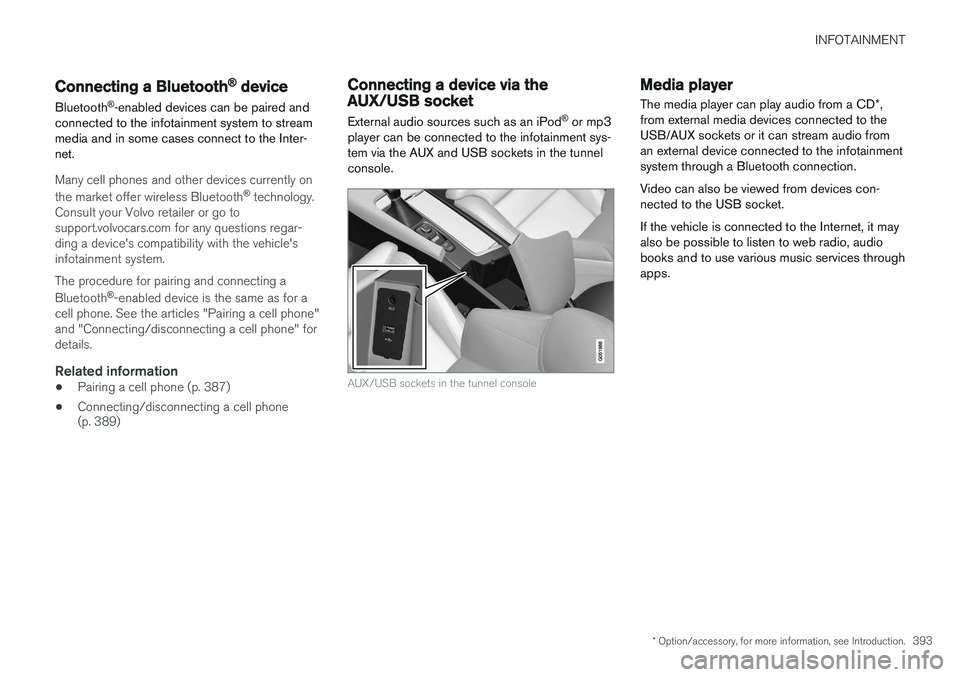
player can be connected to the infotainment sys- tem via the AUX and USB sockets in the tunnelconsole.
AUX/USB sockets in the tunnel console
Media player
The media player can play audio from a CD *,
from external media devices connected to the USB/AUX sockets or it can stream audio froman external device connected to the infotainmentsystem through a Bluetooth connection. Video can also be viewed from devices con- nected to the USB socket. If the vehicle is connected to the Internet, it may also be possible to listen to web radio, audiobooks and to use various music services throughapps.
Page 398 of 570

INFOTAINMENT
* Option/accessory, for more information, see Introduction.
396
Volume: use the buttons on the keypad or turn the control under the center display to raise orlower the volume. Play/pause: tap the track's image, press the
symbol on the keypad or press the button under the center display. Change tracks: tap the desired track on the cen- ter display, press the < > buttons under the cen-
ter display or use the keypad. Fast forward/reverse, move within a track: press the time axis on the center display and drag from side to side, press and hold the
< > buttons
under the center display or use the keypad. Change media source: Tap a media source under
Recents, tap the desired app in the center dis-
play's App view or use the keypad.
Library: tap to play a track from the library.
Shuffle: tap to play tracks in random order.
Similar: tap to use Gracenote to search for simi-
lar music on the USB device and create a playlist based on the results. The playlist can contain upto 50 tracks.
Change device: tap to toggle between USB
devices if more than one is connected.
Video settingsThe following can be adjusted with the video player in full screen or by opening the center dis- play's Top view and tapping
SettingsVideo:Primary Audio Default Language, Subtitleand Primary Subtitle Default Language.
Play DivX®This DivX device must be registered in order to play purchased DivX Video-on-Demand (VOD)movies.
1. Open the center display's Top view and tap
SettingsVideoDivX
® VOD to get a
registration code. 2. Go to vod.divx.com for additional information
and to complete the registration process.
Related information
• CD (media) player
* (p. 394)
• Media player technical data (p. 400)
• Media player (p. 393)
• Voice control for radio and media (p. 122)
• Apps (applications) (p. 403)
• Connecting a Bluetooth ®
device (p. 393)
• Connecting a device via the AUX/USB socket (p. 393)
• Gracenote (p. 399)
• Connecting to the Internet (p. 402)
• Media searches (p. 397)
• Video (p. 399)
Page 399 of 570
INFOTAINMENT
397
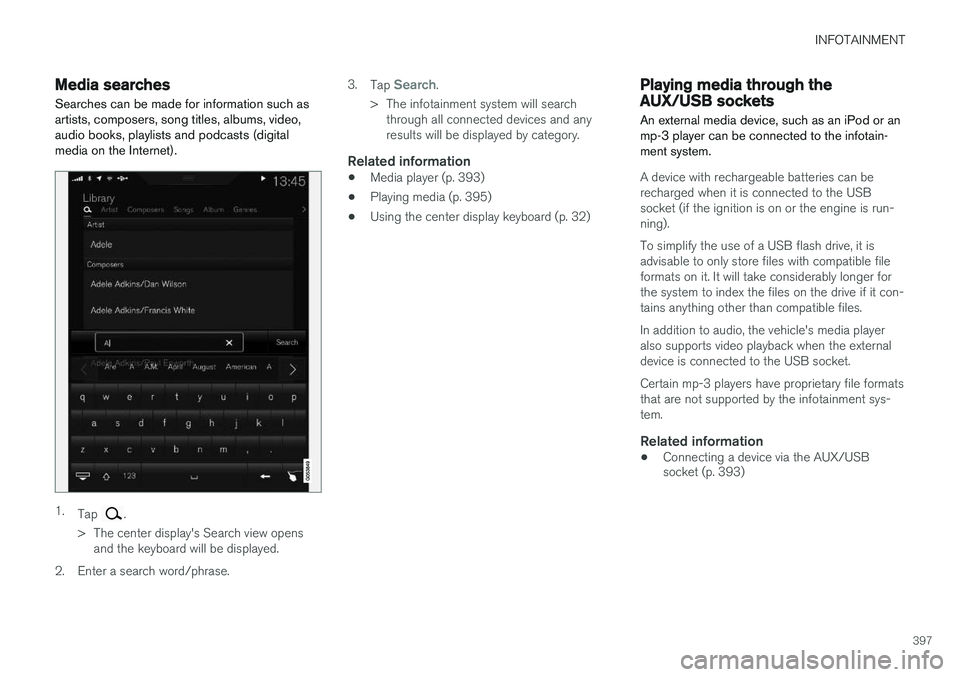
Media searchesSearches can be made for information such as artists, composers, song titles, albums, video,audio books, playlists and podcasts (digitalmedia on the Internet).
1. Tap .
> The center display's Search view opens and the keyboard will be displayed.
2. Enter a search word/phrase. 3.
Tap
Search.
> The infotainment system will search through all connected devices and any results will be displayed by category.
Related information
• Media player (p. 393)
• Playing media (p. 395)
• Using the center display keyboard (p. 32)
Playing media through the AUX/USB sockets
An external media device, such as an iPod or an mp-3 player can be connected to the infotain-ment system.
A device with rechargeable batteries can be recharged when it is connected to the USBsocket (if the ignition is on or the engine is run-ning). To simplify the use of a USB flash drive, it is advisable to only store files with compatible fileformats on it. It will take considerably longer forthe system to index the files on the drive if it con-tains anything other than compatible files. In addition to audio, the vehicle's media player also supports video playback when the externaldevice is connected to the USB socket. Certain mp-3 players have proprietary file formats that are not supported by the infotainment sys-tem.
Related information
• Connecting a device via the AUX/USB socket (p. 393)
Page 400 of 570

INFOTAINMENT
* Option/accessory, for more information, see Introduction.
398
Streaming media through a Bluetooth connection The media player is equipped with Bluetooth ®
for streaming audio files from external Bluetooth ®
-enabled devices.
Related information
• Connecting a Bluetooth ®
device (p. 393)
• Playing media (p. 395)
• Voice control for radio and media (p. 122)
• Media player (p. 393)
• Ignition modes (p. 355)
• Media player technical data (p. 400)
Media sound settings
Sound settings for the media player can be per- sonalized.
1. Tap Settings in the center display's Top
view.
2. Tap
Sound and select among the following:
•
Sound Experience* : this feature offers sev-
eral ways of adapting media sound settings to replicate e.g., a concert hall or a recordingstudio. These settings override any of theones below that may have been adjusted.
•
Tone: personal settings for bass, treble,
equalizer, etc.
•
Balance: adjust the front/rear and left/right
sound settings in the passenger compart- ment.
System volumes for mediaOpen the center display's Top view and tap
SettingsSoundSystem Volumes:
•
AUX: an external device (e.g., an mp3 player,
an iPod, etc.) connected to the AUX socket may have a different volume level than theone set for the infotainment system (e.g., forthe radio). This setting enables you to adjustthe AUX socket's volume. Please note that ifthis volume is set too high, sound quality maybe affected.
•
Speed/Volume Compensation: the info-
tainment system will compensate for disrupt- ing noises in the passenger compartment by increasing media volume in relation to thevehicle's speed. This can be set to one ofseveral different levels.
Related information
•
Playing media (p. 395)
• Sound settings (p. 376)
Page 402 of 570

INFOTAINMENT
400
Media player technical data The following tables list compatible file formats and other technical specifications for the mediaplayer.
Audio files
For- matFile extensionCodec
MP3.mp3MPEG1 Layer III, MPEG2 Layer III,MP3 Pro (mp3compatible),MP3 HD (mp3compatible)
AAC.m4a, .m4b, .aacAAC LC (MPEG-4 part III Audio),HE-AAC (aacPlusv1/v2)
WMA.wmaWMA8/9, WMA9/10 Pro
WAV.wavLPCM
FLAC.flacFLAC
Video files
FormatFile extension
MP4.mp4, .m4v
MPEG-PS.mpg, .mp2, .mpeg, .m1v
FormatFile extension
AVI.avi
AVI (DivX).avi, .divx
ASF.asf, .wmv
MKV.mkv
Subtitles
FormatFile extension
SubViewer.sub
SubRip.srt
SSA.ssa
DivX®DivX Certified devices have been tested for high quality DivX (.divx, .avi) video playback. When yousee the DivX logo, you have the freedom to playyour favorite DivX movies.
ProfileDivX Home Theater
Video codecDivX, MPEG-4
Resolution1280x720
Audio speed (bit rate)4.8Mbps
Frame per sec- ond30 fps
File extension.divx, .avi
Max. file size4 GB
Audio codecMP3, AC3
SubtitlesXSUB
Special func- tionsMultiple subtitles, multiple audio, resume play
ReferenceMeets all requirements of the DivX
®
Home Theater
profile. Visit divx.com for more information and soft-ware tools to convert your files into DivX ®
Home
Theater. video.
Storing information on a USB deviceIn order for the system to read data stored on a USB device, the following specifications must bemet. Any folder structures will not be shown inthe center display during playback.
Max. number
Files15,000
Folders1,000
Folder levels8
Playlists100
Page 407 of 570
INFOTAINMENT
405
3.
Select
Install to start downloading the app. It
will remain in the list and a new download can be initiated if necessary.
> Download status will be indicated while it is in progress. A message will be displayed if a download cannot be started immediately. The appwill remain in the list and a new downloadcan be initiated if necessary.
Cancelling (aborting) a download
–Tap Abort to cancel a download that is cur-
rently underway.
Only a download can be cancelled. If the installa-
tion phase has begun, it cannot be interrupted.
Updating appsIf an app is being used while an update is in pro- gress, it will be restarted to complete the update.
Update (install) all1. Open the Remote update service app.
2. Select
Install all.
> The update will begin.
Updating certain apps1. Open the Remote update service app.
2. Select
Application updates to open a list
of available updates.
3. Find the desired app and select
Install.
> The update will begin.
Uninstalling an appAn app being used must be closed before it can be uninstalled. 1. Open the
Remote update service app.
2. Select
Application updates to open a list
of apps that have been installed.
3. Find the desired app and select
Uninstall to
begin uninstalling the app.
> When the app has been uninstalled, it will be removed from the list.
Related information
• Internet connected vehicle (p. 401)
• Media player (p. 393)
• System updates (p. 490)
Internet connection troubleshooting The following are factors that may affect the vehicle's Internet connection.
The amount of data being transmitted depends on the services or apps that are currently in use.For example, streaming audio requires a greatdeal of data to be transmitted, which requires agood connection and a strong signal.
Cell phone to the vehicleConnection speed may vary depending on thelocation of the cell phone in the vehicle. Move thephone closer to the center display to increasesignal strength. Be sure that there are noobstructing/screening objects between thephone and the screen.
Cell phone to the network operatorThe speed of the mobile network may varydepending on coverage/reception in the vehicle'slocation. Reception is generally poorer in tunnels,in mountainous areas, in deep valleys or indoors.Connection speed may also depend on the typeof subscription that you have with the serviceprovider. Contact your service provider in the event of data transmission problems.
Related information
• Internet connected vehicle (p. 401)
• Connecting to the Internet (p. 402)
Page 558 of 570
556Brake assist system 333
Brake lights 143, 334Brakes
auto-hold 332
Brake system Brake pad inspection 331
fluid 541
general information 330, 332, 333
Bulbs 514 replacing 510
specifications 515
C
Cameradriver support systems 240
limitations 241
Camera, Park Assist 296, 298, 300
Capacity weight 471, 539
Cargo area, steel grid 211
Cargo area cover 213Cargo compartment fuses 508
raising/lowering the level 207
Cargo net 209
Cargo space 200
Car wash 525
Catalytic converter 349CD, USB, iPod, AUX, Bluetooth, Recents, Library, Shuffle, Similar, Change device, Pri-mary Audio Default Language, Subtitle, Pri-mary Subtitle Default Language, Video, DivX ® VOD 395
CD player 394 Cell phone hands-free 387
Pairing 387
Cell phone voice control 121 Center display changing settings 31
cleaning 529
keyboard 32
navigating in 39
overview 29
screen in the center console 46
symbols in the status bar 44
Chains 473
Changing a wheel 475Child restraints recalls and registration 65
Child restraint systems 65 booster cushions 71
convertible seats 69
infant seats 67ISOFIX/LATCH anchors 72
top tether anchors 74
Child safety 63 booster cushions 71
child restraint systems 65, 73
convertible seats 69
infant seats 67
Child safety locks 218 Child seats lower attachment points 73
City safety 273, 278City Safety crossing traffic 277
detecting objects 275
limitations 278
rear collision warning 277
symbols and messages 282
troubleshooting 280
City Safety, On/Off 275 Cleaning exterior 525
interior 527
Clean Zone Interior Package 178
Climate system 180 air distribution 194, 195, 196
air filter 179
air vents 194
auto mode 179
Page 564 of 570
562Recalls, child restraints 65
Recirculation (climate system) 186
Refrigerant (A/C system) 541
Refueling 346, 347
fuel filler door 348
Registering child restraints 65
Remote key 224, 226, 229 immobilizer 221
linking to a driver profile 110
range 224
replacing the battery 222
restricted (red) key 226
Remote updates 491
Replacing bulbs 510
Replacing fuses 500, 501, 505, 508
Reporting safety defects 57
Roadside Assistance 14
Road sign information (RSI) 290, 291
Rollover Protection System (ROPS) 89
Roll Stability Control (RSC) 89Rout Detour 447
S
Safety, occupant 56
Safety defects, reporting 57
Safety locks, child 218
Safety mode 81Seatadjusting the passenger's seat from the
driver's seat 162
Seat belt reminder 61
Seat belts Automatic locking retractor/Emergency
locking retractor 65
buckling 59
pretensioners 58, 59
reminder 61
securing child restraint systems 67, 69, 71
unbuckling 59
use during pregnancy 62
using 58
Seats rear 166
Sensus 17 navigation 428
Service connected service booking 491
Settingsguidance 455
Map 450
Route 452
Sensus Navigation 449
System 456
Traffic information 454
Settings view categories 107
resetting 111
system settings 109
Shiftlock override 369
Side door mirrors 100
Side impact airbags 88 SiriusXM ®
Satellite radio
traffic information 383, 384, 385
Snow chains 473
Snow tires 473Sound settings media 398
ringtones 392
Sound settings, audio system 376, 398 Specifications bulbs 515
Speed limiter 283, 285, 290 automatic 285, 287