change language VOLVO XC90 2015 Owners Manual
[x] Cancel search | Manufacturer: VOLVO, Model Year: 2015, Model line: XC90, Model: VOLVO XC90 2015Pages: 570, PDF Size: 12.44 MB
Page 35 of 570
INTRODUCTION
33
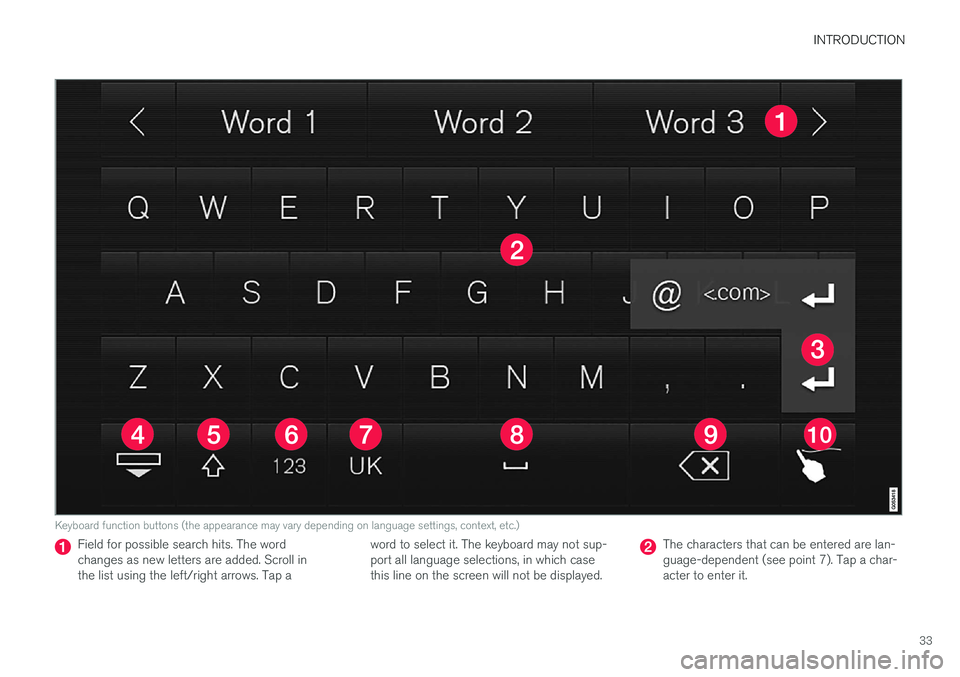
Keyboard function buttons (the appearance may vary depending on language settings, context, etc.)
Field for possible search hits. The word changes as new letters are added. Scroll inthe list using the left/right arrows. Tap aword to select it. The keyboard may not sup-port all language selections, in which casethis line on the screen will not be displayed.The characters that can be entered are lan- guage-dependent (see point 7). Tap a char-acter to enter it.
Page 36 of 570
INTRODUCTION
34
Several buttons (depending on the context for which the keyboard is being used) will bedisplayed here. In certain cases, it can be used to enter @, .com or to start a new line.
Press to hide the keyboard. In cases where this is not possible, the button will not be dis-played.
Tap once to enter one uppercase letter.
Double-tap for Caps lock (tap again to
return to lowercase letters). Letters entered after the !, . and ? characters will automati-cally be uppercase. The first letter in the textfield or in text fields intended for names,addresses or company names will also auto-matically be uppercase. The first letter in textfields intended for passwords, webaddresses or email addresses will automati-cally be lowercase unless upper case ischosen.
Press to display the numbers that can be entered. When numbers are displayed, tap
to resume entering text or to
enter special characters.
Tap to change the keyboard language (in this example, UK English is the selected lan-guage). The characters available will changeaccording to the selected language (2). Thisbutton will only be displayed if several key-board languages have been selected (seethe section "Changing keyboard languages" below). Tap to display a list of possible lan-guages and tap a language to use it.
Tap to enter blank spaces.
Tap to erase one character at a time.
Tap to enable handwriting. See the section "Handwritten text" below.
Entering text and performing searches using thekeyboard are done somewhat differently in thenavigation system. See the section "Filtering des-tination search results" below. Tap the button above the keyboard to confirm the text that has been entered (not shown in theillustration). This button's appearance differsdepending on the context.
Changing keyboard languagesIn order to change keyboard languages, they must first be selected under Settings.
The keyboard language can be changed without changing the language used for the other sys-tems/menus in the vehicle.
1. Pull down the center display's Top view and tap
Settings.
2. Tap
SystemKeyboard Layouts. 3. Select and one or more of the languages in
the list.
> The makes it possible to change the key-board layout and characters available depending on the language(s) selected.
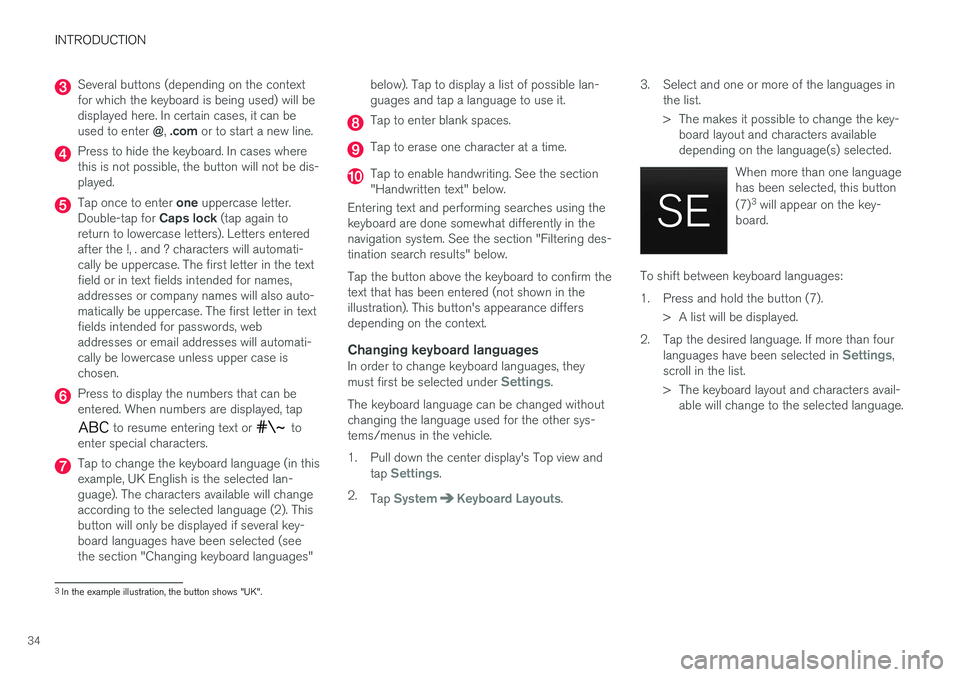
When more than one languagehas been selected, this button (7)3
will appear on the key-
board.
To shift between keyboard languages:
1. Press and hold the button (7).
> A list will be displayed.
2. Tap the desired language. If more than four languages have been selected in
Settings,
scroll in the list.
> The keyboard layout and characters avail- able will change to the selected language.
3In the example illustration, the button shows "UK".
Page 37 of 570
INTRODUCTION
35
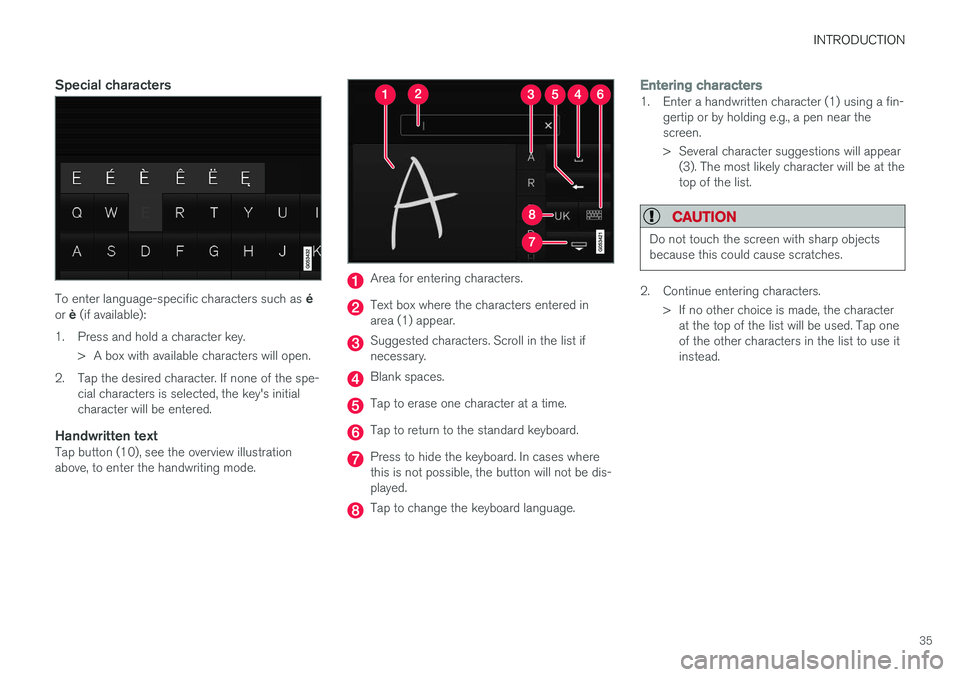
Special characters
To enter language-specific characters such as é
or è (if available):
1. Press and hold a character key. > A box with available characters will open.
2. Tap the desired character. If none of the spe- cial characters is selected, the key's initial character will be entered.
Handwritten textTap button (10), see the overview illustrationabove, to enter the handwriting mode.
Area for entering characters.
Text box where the characters entered in area (1) appear.
Suggested characters. Scroll in the list if necessary.
Blank spaces.
Tap to erase one character at a time.
Tap to return to the standard keyboard.
Press to hide the keyboard. In cases where this is not possible, the button will not be dis-played.
Tap to change the keyboard language.
Entering characters1. Enter a handwritten character (1) using a fin-gertip or by holding e.g., a pen near the screen.
> Several character suggestions will appear(3). The most likely character will be at the top of the list.
CAUTION
Do not touch the screen with sharp objects because this could cause scratches.
2. Continue entering characters.
> If no other choice is made, the characterat the top of the list will be used. Tap one of the other characters in the list to use itinstead.
Page 111 of 570
INSTRUMENTS AND CONTROLS
* Option/accessory, for more information, see Introduction.109
Related information
•Driver profiles (p. 112)
• Settings view (p. 106)
• Changing system settings in Settings view (p. 109)
Changing system settings in Settings view
Settings view's main category
System contains
general settings and information, such as lan- guage, units of measure, etc.
The system settings under Driver Profile, Date
& Time, Keyboard Layouts, Voice Control,Software Updates, Global Reset andServices are described in their respective arti-
cles in the owner's manual.
Changing system languages1. Pull down the center display's Top view and
tap Settings.
2. Tap
SystemLanguage.
3. Select a new system language. Languages that can be used for voice commands are indicated by a voice control symbol.
> This change affects the language used inthe instrument panel, center display and the head-up display *.
Changing units of measure
Changing length and volume units1. Pull down the center display's Top view and
tap Settings.
2. Tap
SystemUnitsUnits. 3. Select one of the following measurement
standards:
•
Metric: kilometers, liters and degrees Cel-
sius.
•
Imperial: miles, gallons and degrees Cel-
sius.
•
US: miles, gallons and degrees Fahren-
heit.
> This change affects the units of measure used in the instrument panel, center dis- play and the head-up display *
Changing tire inflation pressure units1. Pull down the center display's Top view and
tap Settings.
2. Tap
SystemUnitsTire Pressure.
3. Select a unit of measure for tire pressure. > This changes the tire inflation pressureunits used in the
Car status app in the
center display.
Viewing storage information1. Pull down the center display's Top view and
tap Settings.
2. Tap
SystemStorage.
> Storage information for the vehicle's hard drive will be displayed, including total capacity, available capacity and theamount of storage space used by theapps that have been installed.
Page 115 of 570
INSTRUMENTS AND CONTROLS
113
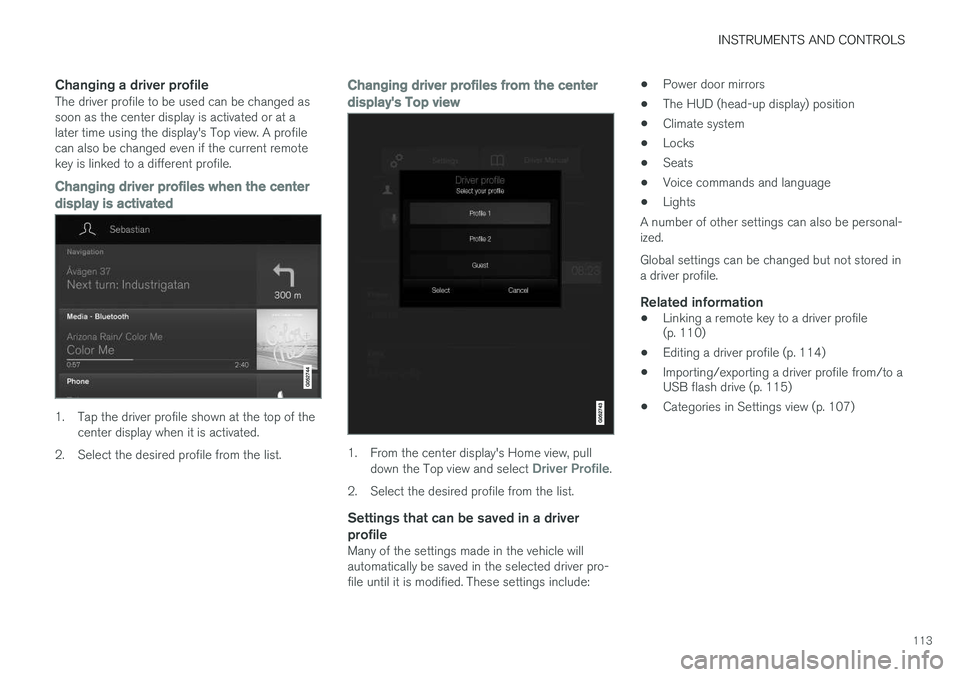
Changing a driver profileThe driver profile to be used can be changed as soon as the center display is activated or at alater time using the display's Top view. A profilecan also be changed even if the current remotekey is linked to a different profile.
Changing driver profiles when the center
display is activated
1. Tap the driver profile shown at the top of the center display when it is activated.
2. Select the desired profile from the list.
Changing driver profiles from the center display's Top view
1. From the center display's Home view, pull down the Top view and select Driver Profile.
2. Select the desired profile from the list.
Settings that can be saved in a driver profile
Many of the settings made in the vehicle will automatically be saved in the selected driver pro-file until it is modified. These settings include: •
Power door mirrors
• The HUD (head-up display) position
• Climate system
• Locks
• Seats
• Voice commands and language
• Lights
A number of other settings can also be personal-ized. Global settings can be changed but not stored in a driver profile.
Related information
• Linking a remote key to a driver profile (p. 110)
• Editing a driver profile (p. 114)
• Importing/exporting a driver profile from/to aUSB flash drive (p. 115)
• Categories in Settings view (p. 107)
Page 127 of 570
![VOLVO XC90 2015 Owners Manual INSTRUMENTS AND CONTROLS
125
•
"
Search [POI category] in [a city]:
Search for a POI 7
category in a city/loca-
tion.
• "
Enter contact: Enter a contact from a
list of phone contacts as a](/img/45/58555/w960_58555-126.png "VOLVO XC90 2015 Owners Manual INSTRUMENTS AND CONTROLS
125
•
\"
Search [POI category] in [a city]:
Search for a POI 7
category in a city/loca-
tion.
• \"
Enter contact: Enter a contact from a
list of phone contacts as a")
INSTRUMENTS AND CONTROLS
125
•
"
Search [POI category] in [a city]:
Search for a POI 7
category in a city/loca-
tion.
• "
Enter contact: Enter a contact from a
list of phone contacts as a destination.
• "
Enter POI: Enter a POI as a destination.
• "
Change country/Change state:
Changes the country/state in which a search is conducted.
• "
Enter address: Enter an address as a
destination.
• "
Enter zip code: Enter a zip code as a
destination.
• "
Add intersection: Enter an intersection
as a destination.
• "
Show favorites: Shows a list ofFavorites in the center display's Top
view.
• "
Clear itinerary: Deletes all intermediate
destinations in an itinerary.
• "
Repeat voice guidance: Repeats the
most recent guidance instruction.
• "
Pause guidance: Pauses guidance on
the map.
• "
Resume guidance: Resumes guidance
on the map.
• "
Turn off voice guidance: Turns voice
navigation guidance off.
• "
Turn on voice guidance: Turns voice
navigation guidance on.
Related information
• Navigation displays and controls (p. 433)
• Voice control (p. 120)
• Using voice commands (p. 121)
• Voice control settings (p. 125)
Voice control settings
There are a number of settings that can be made for the voice control system.
Open the center display's Top view and tap
SettingsSystemVoice Control and
select settings. •
Repeat Mode
•Gender
•Speech Rate
Sound settings
Open Top view and tap SettingsSound
System VolumesVoice Control.
Changing languagesThe voice control system only understands that languages that can be selected. Changing the language for this system also affects menus, messages and help texts. Open Top view and tap
SettingsSystemLanguage.
Related information
• Voice control (p. 120)
7
You can opt to call the POI or set it as a destination.
Page 131 of 570
INSTRUMENTS AND CONTROLS
129
Instrument panel settings
Some of the settings for the instrument panel can be made in the App menu (see also the arti-cle "Instrument panel app menu"). The following settings can be made in the center display's Top view under:
SettingsMy CarDisplays:
•
Driver Display Center Area: Select what is
displayed in the background (center) of the instrument panel. The options are: (
Show no
information in the background, Show
information of current playing media orShow map even if no route is set).
•
Themes. Select a theme (appearance). The
options are: (Default, Minimalistic,Performance or Chrome Rings).
The system language can be changed under
SettingsSystemChoose system
language. This change affects the language
used in all displays.
Related information
• Instrument panel App menu (p. 129)
• Warning symbols in the instrument panel (p. 134)
• Indicator symbols in the instrument panel(p. 126)
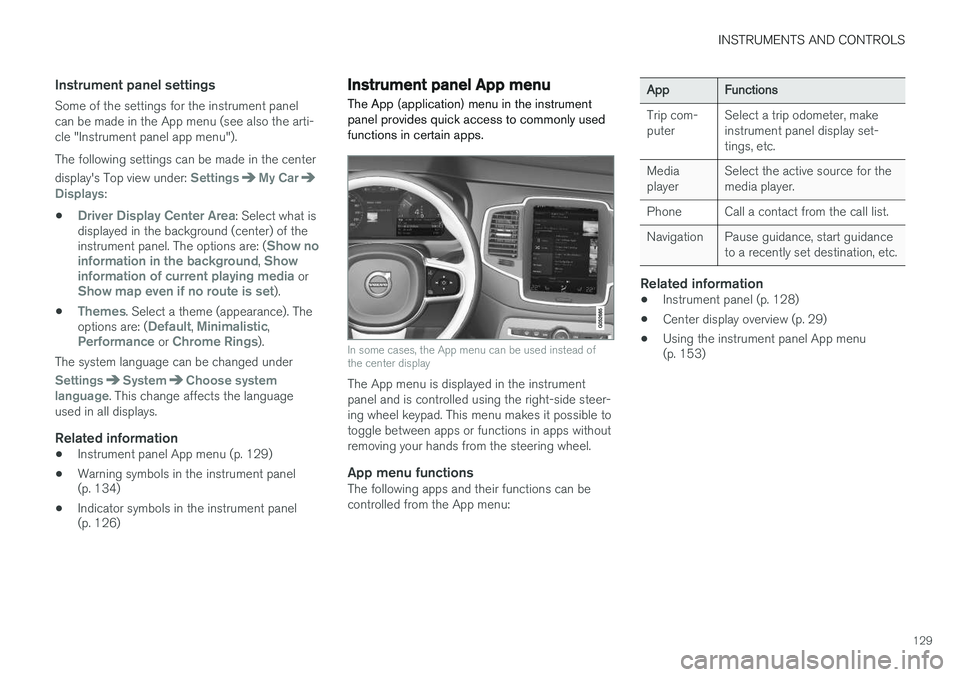
Instrument panel App menu The App (application) menu in the instrument panel provides quick access to commonly usedfunctions in certain apps.
In some cases, the App menu can be used instead of the center display
The App menu is displayed in the instrument panel and is controlled using the right-side steer-ing wheel keypad. This menu makes it possible totoggle between apps or functions in apps withoutremoving your hands from the steering wheel.
App menu functionsThe following apps and their functions can becontrolled from the App menu:
AppFunctions
Trip com- puterSelect a trip odometer, make instrument panel display set-tings, etc.
Media playerSelect the active source for the media player.
PhoneCall a contact from the call list.
NavigationPause guidance, start guidance to a recently set destination, etc.
Related information
•Instrument panel (p. 128)
• Center display overview (p. 29)
• Using the instrument panel App menu (p. 153)
Page 398 of 570

INFOTAINMENT
* Option/accessory, for more information, see Introduction.
396
Volume: use the buttons on the keypad or turn the control under the center display to raise orlower the volume. Play/pause: tap the track's image, press the
symbol on the keypad or press the button under the center display. Change tracks: tap the desired track on the cen- ter display, press the < > buttons under the cen-
ter display or use the keypad. Fast forward/reverse, move within a track: press the time axis on the center display and drag from side to side, press and hold the
< > buttons
under the center display or use the keypad. Change media source: Tap a media source under
Recents, tap the desired app in the center dis-
play's App view or use the keypad.
Library: tap to play a track from the library.
Shuffle: tap to play tracks in random order.
Similar: tap to use Gracenote to search for simi-
lar music on the USB device and create a playlist based on the results. The playlist can contain upto 50 tracks.
Change device: tap to toggle between USB
devices if more than one is connected.
Video settingsThe following can be adjusted with the video player in full screen or by opening the center dis- play's Top view and tapping
SettingsVideo:Primary Audio Default Language, Subtitleand Primary Subtitle Default Language.
Play DivX®This DivX device must be registered in order to play purchased DivX Video-on-Demand (VOD)movies.
1. Open the center display's Top view and tap
SettingsVideoDivX
® VOD to get a
registration code. 2. Go to vod.divx.com for additional information
and to complete the registration process.
Related information
• CD (media) player
* (p. 394)
• Media player technical data (p. 400)
• Media player (p. 393)
• Voice control for radio and media (p. 122)
• Apps (applications) (p. 403)
• Connecting a Bluetooth ®
device (p. 393)
• Connecting a device via the AUX/USB socket (p. 393)
• Gracenote (p. 399)
• Connecting to the Internet (p. 402)
• Media searches (p. 397)
• Video (p. 399)
Page 431 of 570
NAVIGATION*
* Option/accessory, for more information, see Introduction.
429
Button for toggling between 2D/3D map views
Compass and button for north at the top of the map/current direction at the top of themap
Related information
•Sensus Navigation (p. 428)
• Using the center display (p. 46)
• Center display overview (p. 29)
Common navigation system features
The most common features of the navigation system are described here.
• Where am I?
• Direction at the top of the map/North at the top of the map
• 2D for 3D view
• Zoom
• Scroll
• Find the vehicle symbol on the map
• Change the headers displayed
• Go back to the map view
• "Wrong" language in illustrations
Where am I?Where is the vehicle's current location?
• Click the vehicle symbol (blue triangle) forinformation directly on the map.
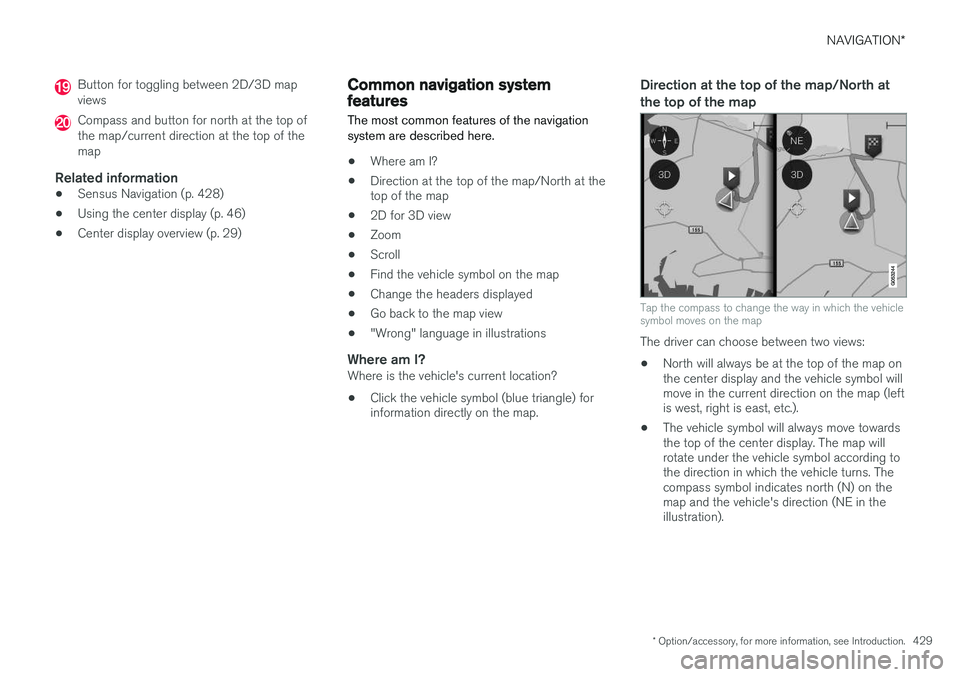
Direction at the top of the map/North at the top of the map
Tap the compass to change the way in which the vehicle symbol moves on the map
The driver can choose between two views: •
North will always be at the top of the map on the center display and the vehicle symbol willmove in the current direction on the map (leftis west, right is east, etc.).
• The vehicle symbol will always move towardsthe top of the center display. The map willrotate under the vehicle symbol according tothe direction in which the vehicle turns. Thecompass symbol indicates north (N) on themap and the vehicle's direction (NE in theillustration).
Page 558 of 570
556Brake assist system 333
Brake lights 143, 334Brakes
auto-hold 332
Brake system Brake pad inspection 331
fluid 541
general information 330, 332, 333
Bulbs 514 replacing 510
specifications 515
C
Cameradriver support systems 240
limitations 241
Camera, Park Assist 296, 298, 300
Capacity weight 471, 539
Cargo area, steel grid 211
Cargo area cover 213Cargo compartment fuses 508
raising/lowering the level 207
Cargo net 209
Cargo space 200
Car wash 525
Catalytic converter 349CD, USB, iPod, AUX, Bluetooth, Recents, Library, Shuffle, Similar, Change device, Pri-mary Audio Default Language, Subtitle, Pri-mary Subtitle Default Language, Video, DivX ® VOD 395
CD player 394 Cell phone hands-free 387
Pairing 387
Cell phone voice control 121 Center display changing settings 31
cleaning 529
keyboard 32
navigating in 39
overview 29
screen in the center console 46
symbols in the status bar 44
Chains 473
Changing a wheel 475Child restraints recalls and registration 65
Child restraint systems 65 booster cushions 71
convertible seats 69
infant seats 67ISOFIX/LATCH anchors 72
top tether anchors 74
Child safety 63 booster cushions 71
child restraint systems 65, 73
convertible seats 69
infant seats 67
Child safety locks 218 Child seats lower attachment points 73
City safety 273, 278City Safety crossing traffic 277
detecting objects 275
limitations 278
rear collision warning 277
symbols and messages 282
troubleshooting 280
City Safety, On/Off 275 Cleaning exterior 525
interior 527
Clean Zone Interior Package 178
Climate system 180 air distribution 194, 195, 196
air filter 179
air vents 194
auto mode 179